
KB: Combine Two Different Columns in BOM Template
 Altium Designer
Solution Details
Users may need to combine values from different component parameters—such as Comment and Voltage—into a single BOM column for readability or formatting. Excel BOM templates do not allow placing multiple parameters in one mapped cell, preventing direct parameter merging.
Why Excel Does Not Allow Combining Two Parameters in One Cell
Excel BOM‑mapped cells support only one mapped parameter or a fixed string. The BOM mapping engine enforces a one‑parameter‑per‑cell rule. Attempting to insert multiple parameters, or mix a parameter with text, triggers a #Column Name error because the engine cannot interpret combined or formula‑based parameter assignments in a mapped cell.
How to Handle Parameter Combination in a BOM Template
To generate a single combined output column without violating Excel’s mapping rules:
-
- Export each parameter into its own dedicated column.
- Insert a new unmapped output column within the printable area.
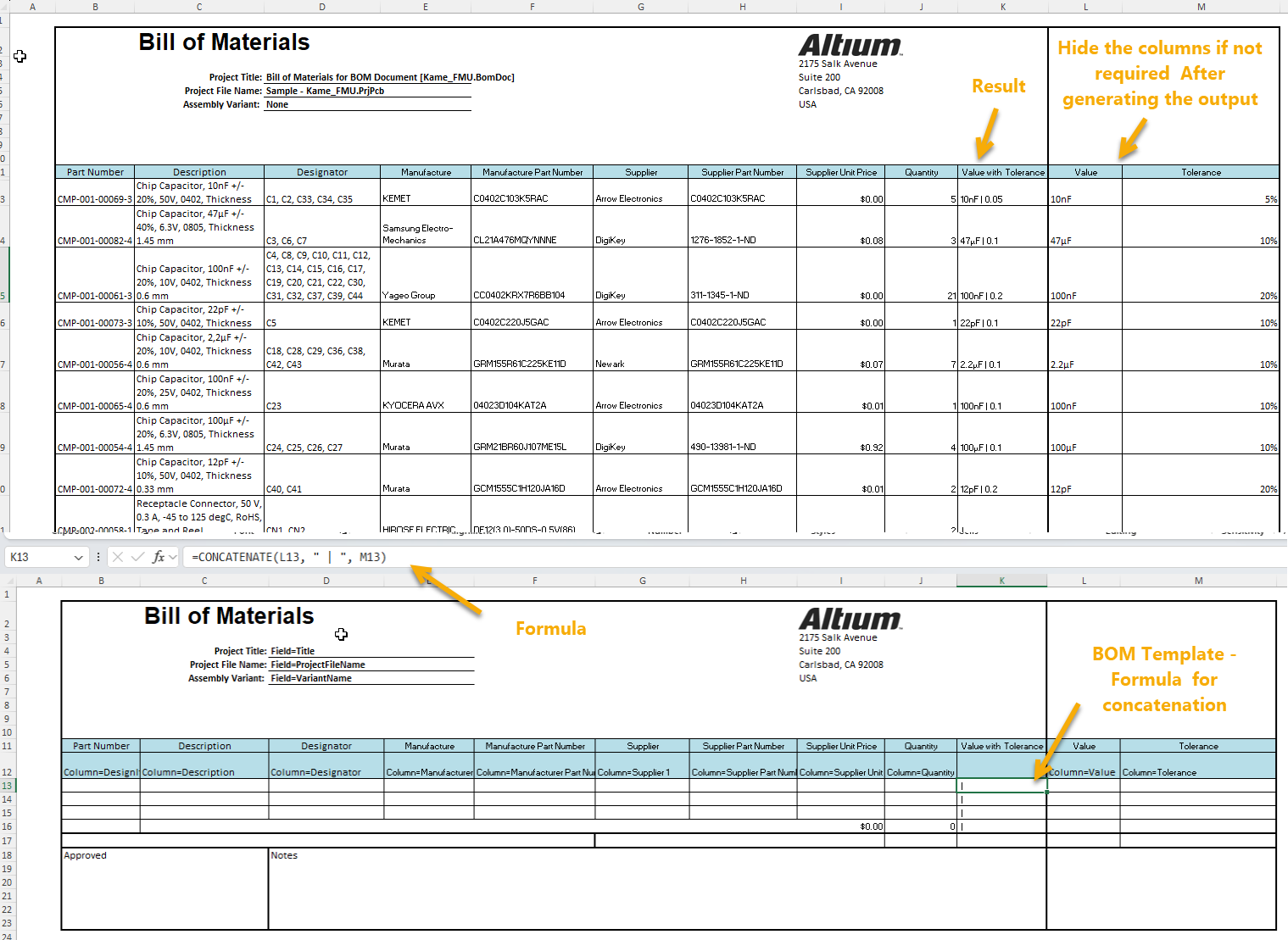
- Use Excel concatenation formulas to merge the values into the new display column.
- Optionally hide the original parameter columns in the final BOM view.
Steps to Create a Combined Parameter Output Column
1. Export each required parameter into a dedicated column.
-
- Map each parameter (e.g., Comment, Voltage) into separate columns such as Column H and Column I.
- Ensure mapped cells contain only the parameter name and no formulas or additional text
2. Insert a new output column in the printable area.
-
- Add a new column (e.g., Column B) for the combined output.
- Name the header appropriately (e.g., Combined Comment and Voltage).
- Verify that the new column is within the printable area.
3. Apply the concatenation formula.
-
- In the first output row, enter:
=CONCATENATE(H2, " | ", I2) Copy the formula down for all BOM rows.- Check that cell references align with parameter column positions.
- In the first output row, enter:
4. Verify combined output.
-
- Confirm the column displays the expected merged values.
- Example: 50uF | 25V
- Ensure no #VALUE! or missing data errors occur.
5. Export the BOM.
-
- Perform the BOM export and confirm that the combined column displays properly.
- Ensure original parameter columns remain mapped and unaffected.
6. Optionally hide original parameter columns.
-
- Hide Columns H and I to simplify output presentation without affecting formulas.
- Ensure layout alignment remains correct.
- Hidden columns in the template are not populated during value generation
Additional Notes
- Only unmapped columns may contain formulas; mapped parameter cells cannot include concatenation expressions.
- The combined column must remain within the printable area to appear in exported BOM output.
- Hiding columns does not affect mapping, but deleting or altering parameter columns will break formula references.
- When rearranging or updating parameter positions, update formulas accordingly.