
KB: Multi-board Assembly Import Fails Due to Corrupted STEP Files
 Altium Designer
Solution Details
Assembly Import Errors and Unexpected Exits
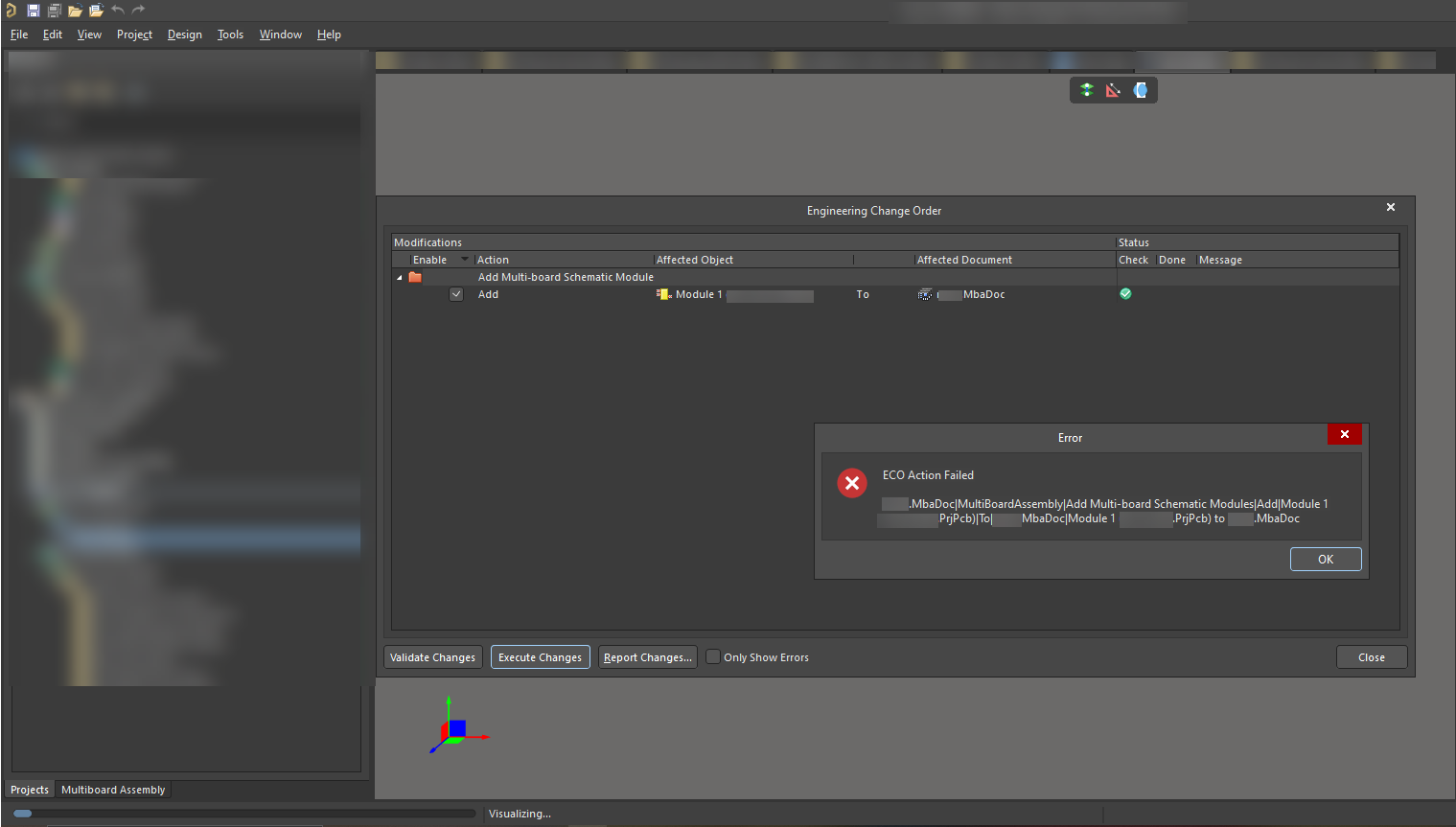
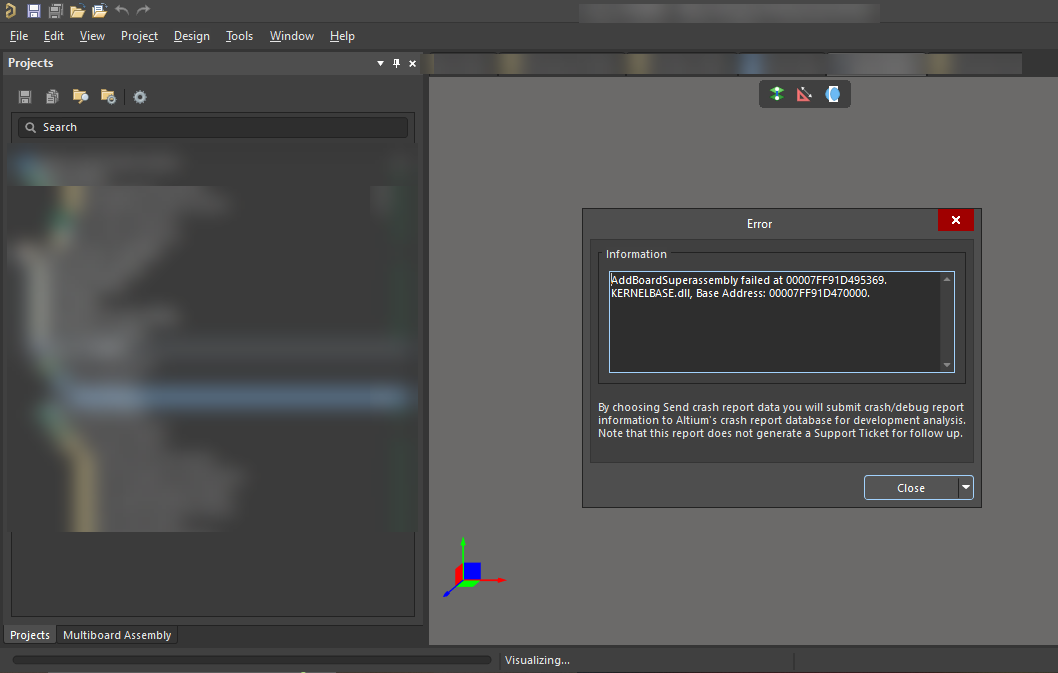
This issue affects the physical Multi-board Assembly creation process rather than the logical Multi-board Schematic design stage. Users may encounter one or more of the following symptoms when importing a PCB into a Multi-board Assembly:
- An ECO Action Failed error is displayed during the import process.
- An AddBoardSuperassembly failed error appears when importing the board.
- Altium Designer closes unexpectedly without displaying an error message.
- The Multi-board Assembly cannot be created successfully.
Corrupted STEP Geometry Interrupts Import Processing
The issue is caused by one or more corrupted STEP files referenced by the PCB. During Multi-board Assembly creation, Altium Designer loads the physical representation of referenced PCBs and their associated 3D model data into the assembly environment. If a STEP file contains invalid or corrupted geometry, the import operation may fail while processing the model data. As a result, Altium Designer may display an error, terminate unexpectedly, or fail to create the Multi-board Assembly. Because the issue originates from the STEP model itself, the behavior can occur regardless of the Altium Designer version being used.
Validate and Replace External 3D Models
- Identify and replace any corrupted STEP files associated with the PCB.
- Validate all externally referenced 3D model files used by the PCB, not only the primary board STEP model.
- Re-export affected models from the original MCAD source before retrying the import.
- Review Multi-board Assembly import settings if additional troubleshooting is required.
Re-export STEP Models and Retry Import
- Identify the STEP file associated with the PCB being imported into the Multi-board Assembly.
- Open the original mechanical design in the MCAD application used to create the model (for example, SolidWorks).
- Re-export the 3D model as a new STEP file.
- Replace the existing STEP file in the Altium project with the newly exported file.
- Reopen the project in Altium Designer.
- Import the PCB into the Multi-board Assembly again.
Additional Notes
- The issue is independent of the Altium Designer version.
- If similar symptoms occur, validate external 3D model files early in the troubleshooting process.
- A successful STEP file re-export can often resolve geometry-related import failures without requiring project modifications.
- Multi-board Assembly import preferences may be useful when isolating import-related issues by controlling which PCB objects are imported into the assembly.