
Multi-board Assembly Preferences
At a Glance
- Control whether free 3D bodies and components below a specified height are imported.
- Set default system colors and understand where to adjust display settings for an open assembly.
- Understand the orthographic and perspective projection options.
The Multi-board Assembly category of the Preferences dialog provide access to preferences relating to features and functionality of multi-board assembly.
General
The Multi-board Assembly - General page of the Preferences dialog is used to configure which objects to import from the PCB when building a multi-board.
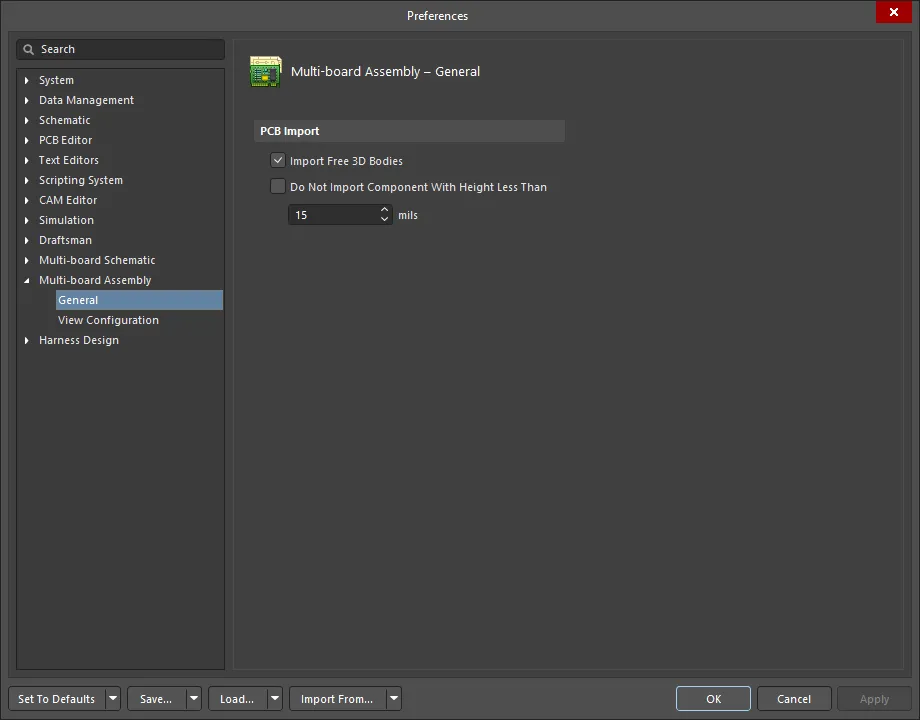
The Multi-board Assembly – General page of the Preferences dialog
PCB Import
-
Import Free 3D Bodies - check the box to import free 3D Bodies. 3D Bodies that are part of a component footprint are not affected by this option.
-
Do Not Import Component With Height Less Than - enable to not import components with height less than the mils entered in the textbox.
View Configuration
The Multi-board Assembly - View Configuration page of the Preferences dialog is used to configure the default system colors and display options of a multi-board assembly. The same set of options is available in the multi-board assembly View Configuration panel; use the panel to configure the settings in an open multi-board assembly.
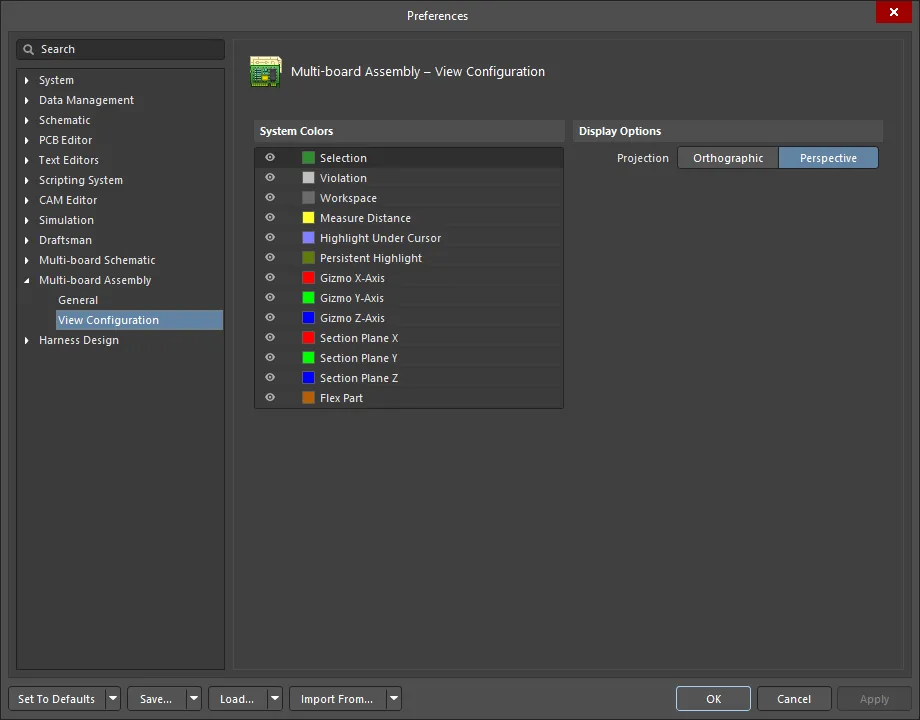
The Multi-board Assembly – View Configuration page of the Preferences dialog
System Colors
Click the colored box to open a custom color drop-down to select a color for the associated object.
Display Options
Projection – determine the projection of the view.
-
Orthographic - choose this option to see the exact position of objects and text on the multi-board assembly without being obscured by surrounding objects.
-
Perspective - choose this option for a more realistic view of the multi-board assembly.