
KB: Native MCAD Models Cannot Be Retrieved from SolidWorks PDM During Pull
 Altium Designer
Solution Details
Native Model Retrieval Fails During Pull
Users are running Altium Designer with MCAD CoDesigner and SolidWorks PDM.
Components in the managed workspace or server library are configured to reference native MCAD models using a PDM path similar to:
<VaultName>:<Engineering Library Top Dir>\ECAD Models\3D Models\<filename>.SLDPRT
During a pull operation in SolidWorks, the following warning may appear:
Model for components of type <FootprintName>_<ComponentID> cannot be obtained from SW PDM
Vault Registration Or Path Resolution Problems
This issue may occur for one or more of the following reasons:
- The user is running SolidWorks PDM Standard, which is not supported.
- The referenced vault is not registered on the system.
- The vault exists only for the current user and is not registered for the local machine.
- A syntax error exists in the PDM path parameter, preventing the vault from being found.
Verify PDM Environment And Vault Availability
- Confirm that SolidWorks PDM Pro is being used.
- Review MCAD CoDesigner log files for vault registration errors.
- Verify that the referenced vault appears in SolidWorks PDM Administration or View Setup.
- Check the MCAD model path parameter for syntax errors.
- Verify that the vault is registered for both the current user and the local machine.
- If the vault is not registered for the local machine, recreate the vault view for all users on the computer.
Validate Logs And Registry Configuration
- Open the MCAD CoDesigner log directory:
C:\Users\[User]\AppData\Local\Altium\Altium CoDesigner -
Review the log files for vault registration errors.
2026-07-28 15:48:54.0576|1|Debug|MCAD: @ SwPDMUtils.GetEdmVaultFile : Vault '<VaultName>' is not registered Secs:0 - Verify whether
<VaultName>appears in SolidWorks PDM Administration or View Setup.
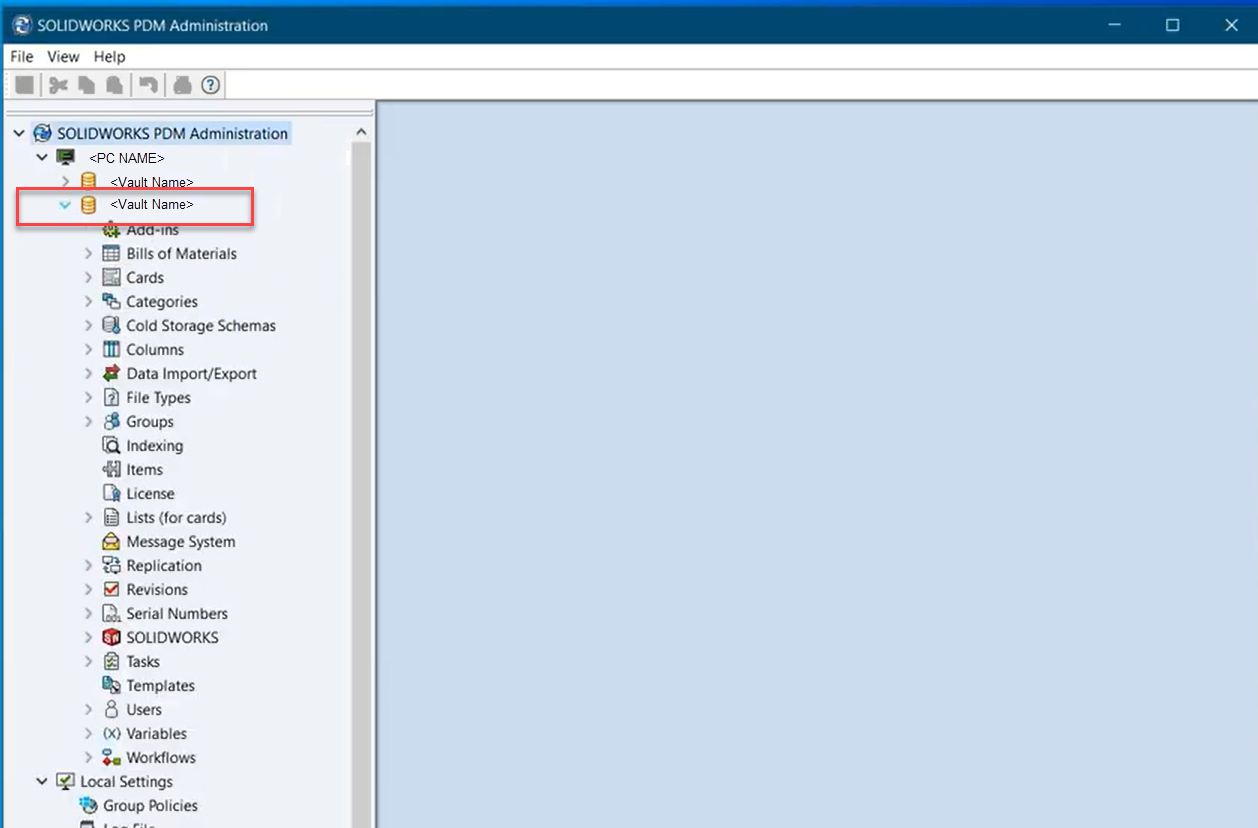
- Run the following command to check whether the vault is registered for the local machine:
reg query "HKLM\SOFTWARE\SOLIDWORKS\Applications\PDMWorks Enterprise\Vaults" /s - If the command returns the following message, the vault is not registered in that registry location:
ERROR: The system was unable to find the specified registry key or value.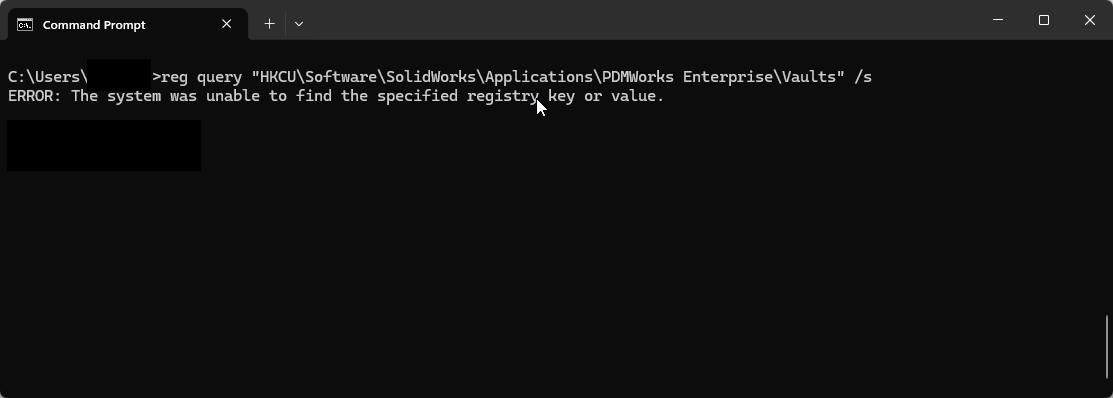
- If the local machine query returns an error, open SolidWorks PDM View Setup and recreate the vault view using the option For all users on this computer.
Additional Notes
Some users may have different configurations. Validate the environment before troubleshooting vault registration issues.