
KB: アンインストーラーが失敗した場合に、手動で完全アンインストールを実行する
 Altium Designer
Solution Details
Here are detailed instructions on how to perform a thorough uninstall.
If you want to back up the Altium Designer preferences before the uninstall:
-Open the Preferences panel.
-Press the Save... button, at the bottom left of the dialog box.
-Choose a location & file name for the backup file, and save it.
(If required, your preferences can be restored from this file later by using the Load button..., found in the same dialog. )
*** If you connect to a private license server, please record that information (Server name and port) before continuing. (This information can be found by clicking on the Setup private license server control near the bottom of the License Management page) ***
*** If you are using the NEXUS client, record your server information so you can log in again when you re-start. ***
If you have more than one version of Altium installed, you will need to determine the GUID for the version you want to uninstall. See the note below. If you only have one version or want to uninstall them all, don't worry about the GUID.
Before performing an uninstall, make sure you don't have any of the files you created stored in any of these paths:
C:\Program Files (x86 - for AD17 & older)\Altium\AD(version)
C:\ProgramData\Altium\Altium Designer{specific version GUID} (two folders) (may have to view hidden files to see the ProgramData folder)
C:\Users\<user name>\AppData\Local\Altium\Altium Designer{specific version GUID}
C:\Users\<user name>\AppData\Roaming\Altium\Altium Designer{specific version GUID}
C:\Users\Public\Public Documents\Altium\AD??
From the Windows Start button, choose Control Panel » Add or Remove Programs, and choose to remove Altium Designer with the "Remove Completely" option checked.
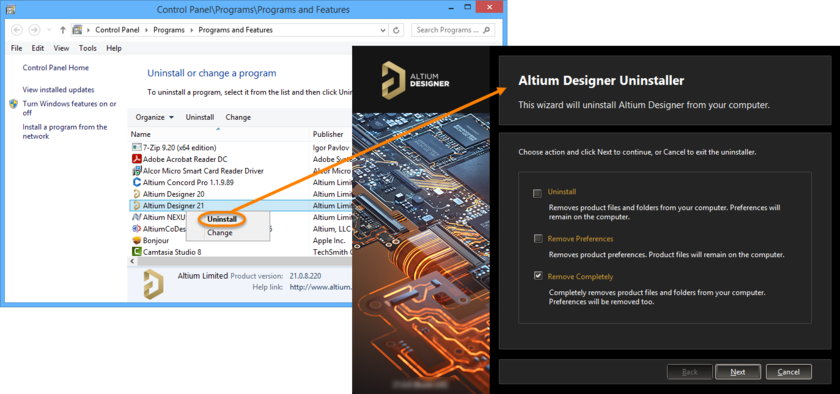
If Windows has trouble uninstalling Altium,
- Try a clean boot of the PC before attempting uninstallation.
- Use a Windows user account that has (full) administrator privileges.
- Go to Windows Control Panel » Administrative Tools » Event Viewer - check the Summary of Administrative Events section for items in the last hour, i.e. recent events, there might be an indicator there of what may be causing an issue.
- See Microsoft - Fix problems that block programs from being installed or removed.
Fix problems that block programs from being installed or removed
- Try a manual removal by deleting folders and registry entries. (This is also how you can check to be sure the uninstall did everything it should.)
Remove these folders:
C:\Program Files (x86 - for AD17 & older)\Altium\AD(version)
C:\ProgramData\Altium\Altium Designer{specific version GUID} (two folders) (may have to view hidden files to see the ProgramData folder)
C:\Users\<user name>\AppData\Local\Altium\Altium Designer{specific version GUID}
C:\Users\<user name>\AppData\Roaming\Altium\Altium Designer{specific version GUID}
C:\Users\Public\Public Documents\Altium\AD?? (save any user created files first)
(Don't forget to delete any desktop and taskbar icons)
Then finally in registry editor (Start » regedit):
Warning: Serious problems might occur if you modify the registry incorrectly. Therefore, make sure that you follow these steps carefully. For added protection, back up the registry before you modify it. Then, you can restore the registry if a problem occurs. For more information about how to back up and restore the registry, click the following article number to view the article in the Microsoft Knowledge Base:
How to back up and restore the registry in Windows
Delete:
HKEY_CURRENT_USER >> Software >> Altium>>Altium Designer{specific version GUID}.
Other Registry keys you should delete if they exist:
HKEY_CURRENT_USER\Software\Microsoft\Windows\CurrentVersion\Explorer\MenuOrder\Start Menu\Programs\Altium
HKEY_USERS\S-1-5-21-149779583-799757147-1568867282-45119\Software\Altium (The ID here is only an example-ID.)
HKEY_LOCAL_MACHINE\SOFTWARE\Altium (for 32bit operation system)
HKEY_LOCAL_MACHINE\SOFTWARE\Wow6432Node\Altium (for 64bit operation system)
***Note: If you have more than one version of Altium installed, you will need to determine the GUID (Global Unique IDentifier) for the version you want to uninstall. Here are three ways:
1 Edit C:\Program Files\Altium\[Version]\System\PrefFolder.ini (look for UniqueID - near the bottom.)
2 Look at Preferences » Data Management » Backup » path (it's the long number in the {} brackets. (This assumes you can still run Altium.) If you've changed the default path, you can also check Preferences » Draftsman » Templates, or use the "Set to Defaults" button.
3 Delete all your security folders and after re-launching the program, see which one comes back:
a In Altium Designer release any licenses
b Close Altium Designer
c browse to C:\ProgramData\Altium\ (may have to view hidden files to see the ProgramData folder)
d Delete *_Security folder(s)
e Restart Altium Designer
f See which one comes back
For a silent un-install from a command prompt, you can find the uninstall string at this registry location: Computer\HKEY_LOCAL_MACHINE\SOFTWARE\Microsoft\Windows\CurrentVersion\Uninstall\Altium Designer {GUID}
It should look something like this:
C:\Program Files\Altium\AD24\System\Installation\AltiumInstaller.exe" -Uninstall -UniqueID:"{372A16E5-B73A-405C-B854-8F3EE2F3808E}"
Just add -UI:None to make it silent
Here's documentation with images:
Installation, Licensing & Management
The uninstaller for AD10, 12, & 13 can be found here:
Other Installers
 AI で翻訳