
KB: Preventing Unapproved Manufacturers from Appearing in BOM Output
 Altium Designer
Solution Details
Unwanted Manufacturers Appear in BOM Exports
Components may contain multiple manufacturer part choices. For some projects, specific manufacturers must be excluded due to procurement strategy, approved supplier requirements, supplier pricing considerations, or sourcing preferences. Manually removing unwanted manufacturers from exported BOM files can introduce errors and inconsistencies.
All Defined Part Choices Remain Available
Altium Designer does not provide a direct built-in setting to block specific manufacturer solutions during BOM export. All configured part choices remain available unless they are managed through ActiveBOM. Manufacturer visibility must therefore be controlled using exclusion status, solution ranking, and BOM column visibility settings.
Use the recommended workflow to control Manufacturers Using ActiveBOM Features:
- Exclude unwanted suppliers using Not Used.
- Prioritize approved suppliers using Solution Ranking.
- Export only the required supplier information using column visibility settings.
This workflow helps avoid manual editing and supports procurement-safe BOM exports.
Configure ActiveBOM Before Exporting the BOM
1. Exclude specific part choices using ActiveBOM.
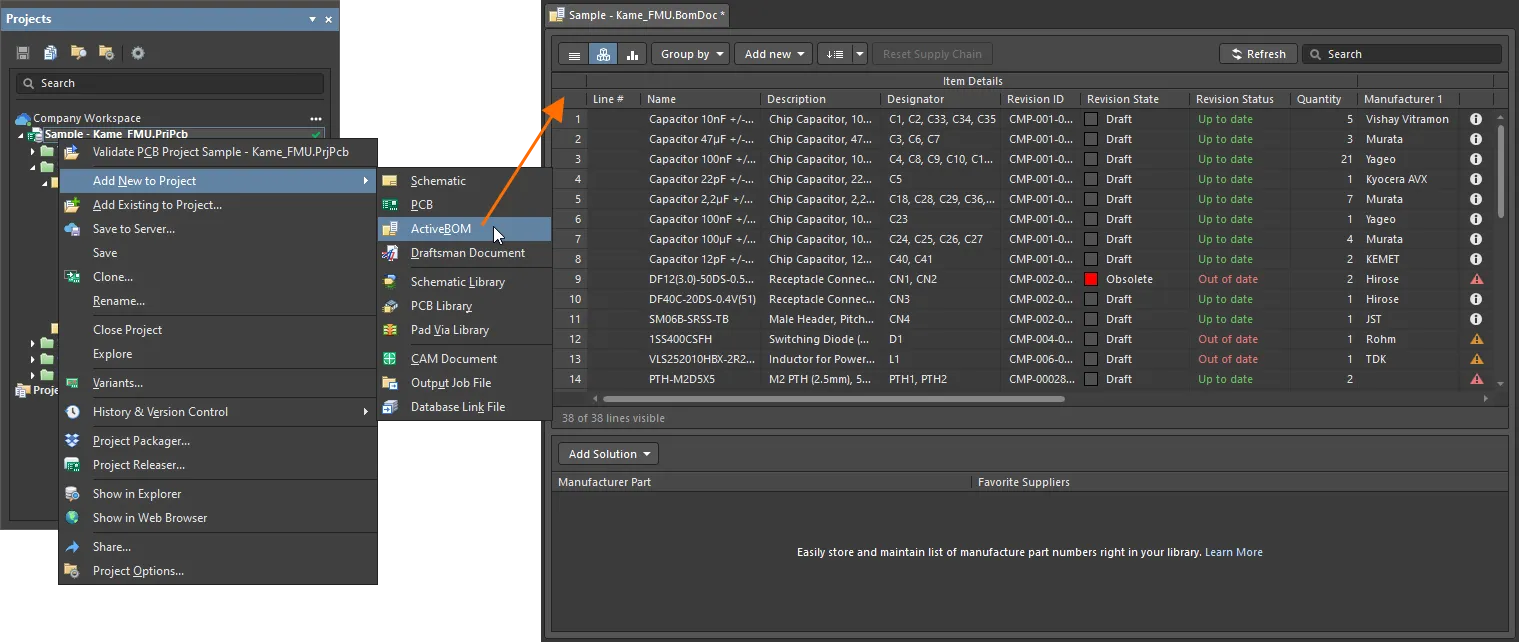
- Open ActiveBOM.
- Select the component containing multiple part choices.
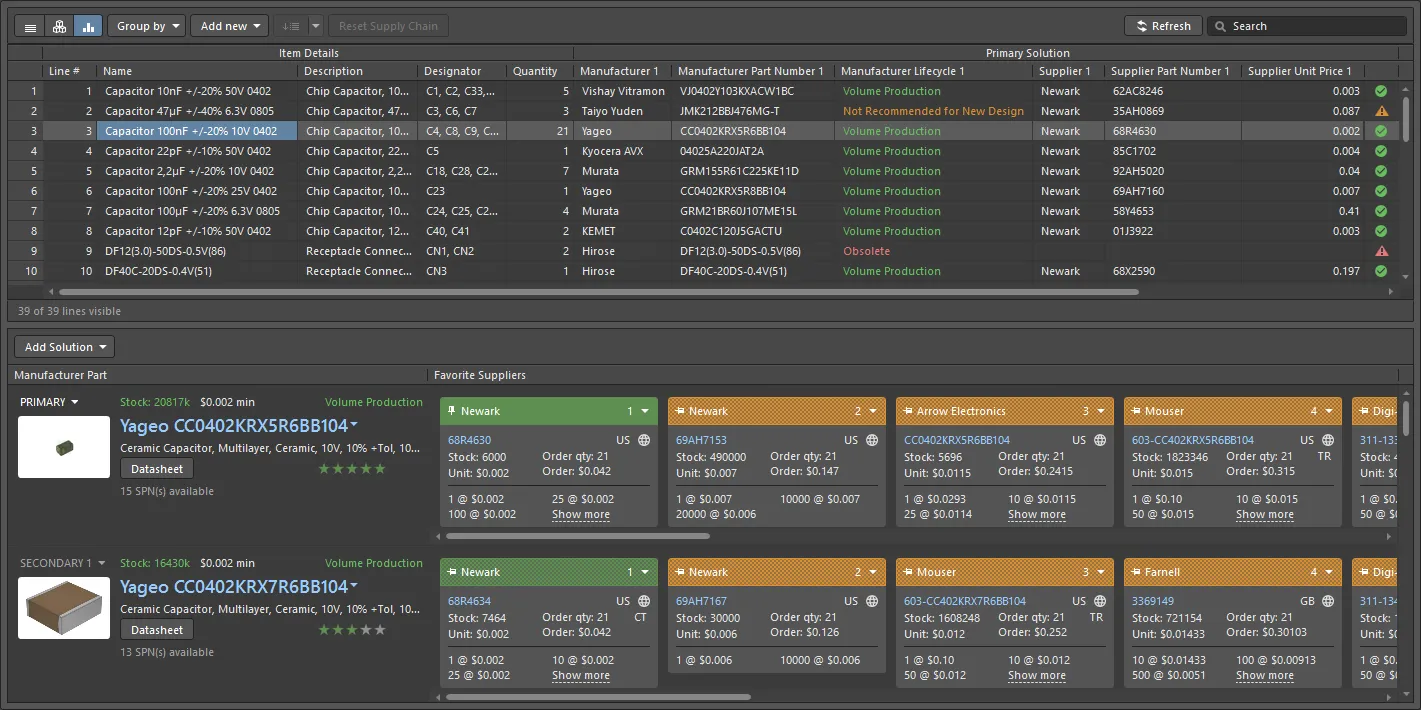
- In the Solutions panel, under Manufacturer Part, locate the manufacturer to exclude.
- Click the drop down and select Not Used.

- Verify that the entry becomes greyed out and is excluded from the BOM document and BOM report export.
- To restore the manufacturer later, right-click the entry and select Use.
2. Prioritize approved manufacturers using solution ranking.
- Open ActiveBOM.
- Select a component with multiple manufacturer solutions.
- Open the Solutions panel.
- Adjust the ranking of each solution as required.
- Assign the highest ranks only to approved manufacturers.
- Rank 1 = highest priority.
- Rank 2 = secondary approved source.

3. Limit visible manufacturer information in the export.
- Open the Columns panel in ActiveBOM.
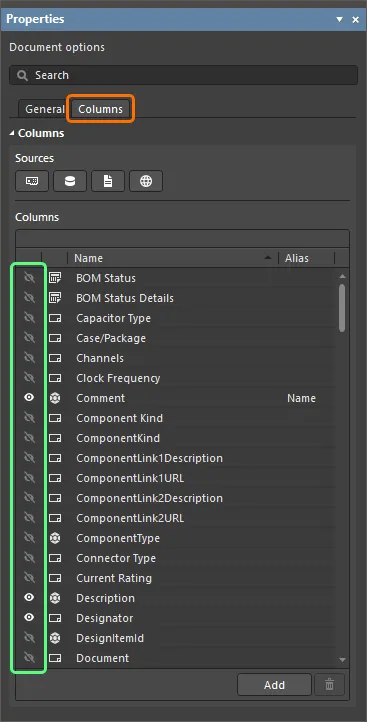
- Disable manufacturer columns that should not be included in the export.
- Verify that visible columns match the approved manufacturer order and ranking.
- Export the BOM.