
KB: Why ECAD Workspace Commits Cannot Be Pulled into MCAD
 Altium Designer
Solution Details
ECAD Revision Visible but Unavailable in MCAD
After ECAD changes are committed to the Workspace, the resulting revision may be visible in the MCAD synchronization dialog but unavailable for a Pull operation.
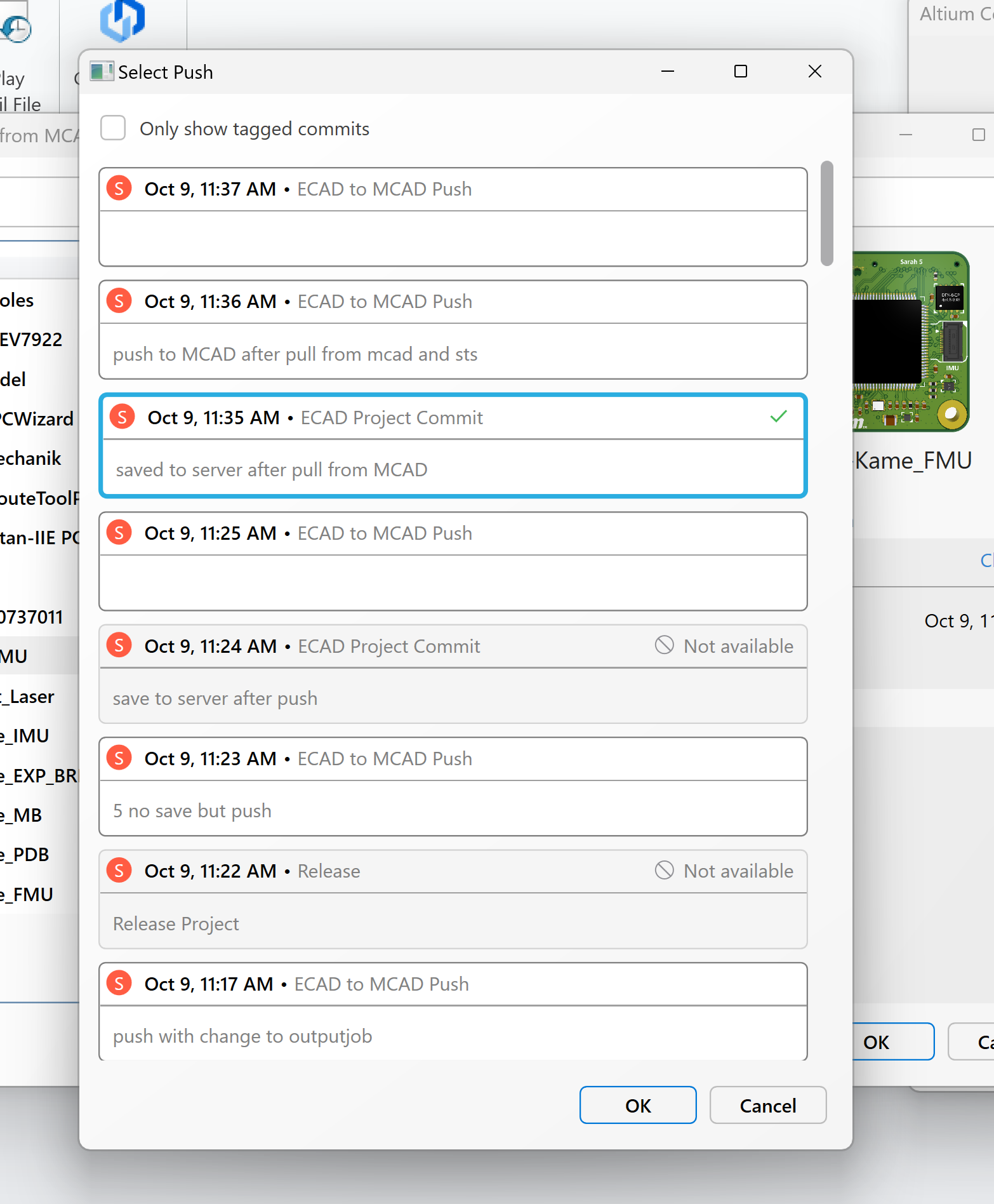
Workspace Commits Lack MCAD Synchronization Data
Committing a project to the Workspace records the design revision within the Workspace history. For MCAD users to access those changes, the project must also be pushed through the CoDesigner Panel. Only revisions pushed through CoDesigner contain the required synchronization data and assembly information needed by MCAD. As a result, Workspace commits may appear in the synchronization dialog but remain unavailable for pull operations.
Push the Revision Through CoDesigner
After committing the ECAD changes, push the project from the CoDesigner Panel. Once the push operation is complete, the revision becomes available for retrieval from the MCAD side using a Pull operation.
Publish ECAD Changes for MCAD Retrieval
- Open the project in Altium Designer.
- Make the required ECAD changes.
- Save the project to the Workspace.
- Commit the changes.
- Open the CoDesigner Panel.
- Select Push to publish the changes to MCAD.
- Open the project in the supported MCAD application.
- Perform a Pull operation to retrieve the latest ECAD changes.
The revision that was previously visible but unavailable will now be available in MCAD and can be pulled successfully.
Additional Notes
The synchronization dialog displays both Workspace commits and CoDesigner push history. A commit appearing in the list does not necessarily indicate that it is available for MCAD consumption. Availability depends on whether a corresponding CoDesigner push has been performed.