
에이전트형 엔지니어링
AI 에이전트는 요구사항 캡처와 같은 엔지니어링 작업에서 효율성을 크게 높이고 복잡하고 반복적인 워크플로를 자동화함으로써 상당한 이점을 제공합니다. Requirements Portal의 Engineering Assistant 은(는) AI 기술을 활용하여 요구사항을 빠르게 자동 검토할 수 있는 도구를 제공합니다. 이를 통해 현재 프로젝트의 요구사항에 대해 자유로운 자연어로 질문하고, 요구사항을 수동으로 필터링하거나 검색하지 않고도 빠르게 답변을 얻을 수 있습니다. 예를 들면 다음과 같습니다.
-
How many requirements are not verified?
-
Are there any engineering gaps in these requirements?
-
Show me all requirements about the power supply.
-
Which requirements need to be taken into account for PCB design?
-
Do any requirements conflict with each other?
-
Give me an overview of all battery-related requirements.
Engineering Assistant는 요구사항을 수정, 생성 또는 삭제할 수도 있습니다. 새 요구사항을 생성하거나 기존 요구사항을 변경 또는 삭제해 달라는 요청을 제출하면, Engineering Assistant가 적용될 변경 사항의 요약을 제공하며, 이를 검토한 후 변경 사항을 적용하거나 취소할 수 있습니다. 이러한 요청의 예는 다음과 같습니다.
-
Generate requirements for a lightweight drone power supply that takes a 6S LiPo input, provides regulated 5 V / 5 A and 12 V / 3 A outputs, and weighs under 150 g. It should handle vibration and -10°C to +50°C operation, with protection for short circuit, reverse polarity, overtemperature, and low battery.
-
Change the required maximum operating temperature for all parts to 60°C.
-
Can you identify all requirements that affect the sizing of the power system and ensure they are verifiable?
-
In the new design, I've replaced the camera with an IR sensor. Remove all requirements that were related to the camera.
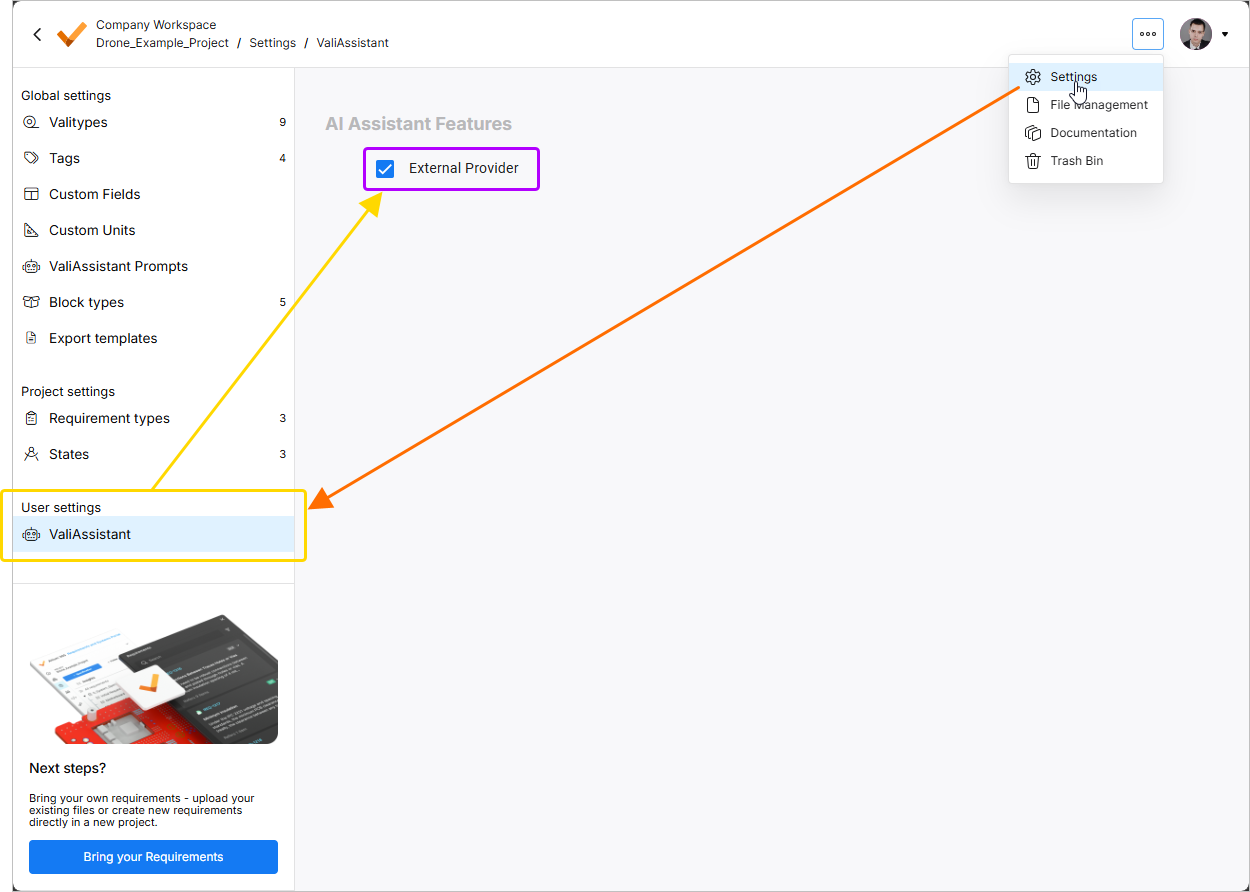
 아이콘을 클릭하고, 표시되는 메뉴에서 Settings을(를) 선택한 다음, 왼쪽 창의 목록에서 ValiAssistant을(를) 선택하여 접근) –
  .
.
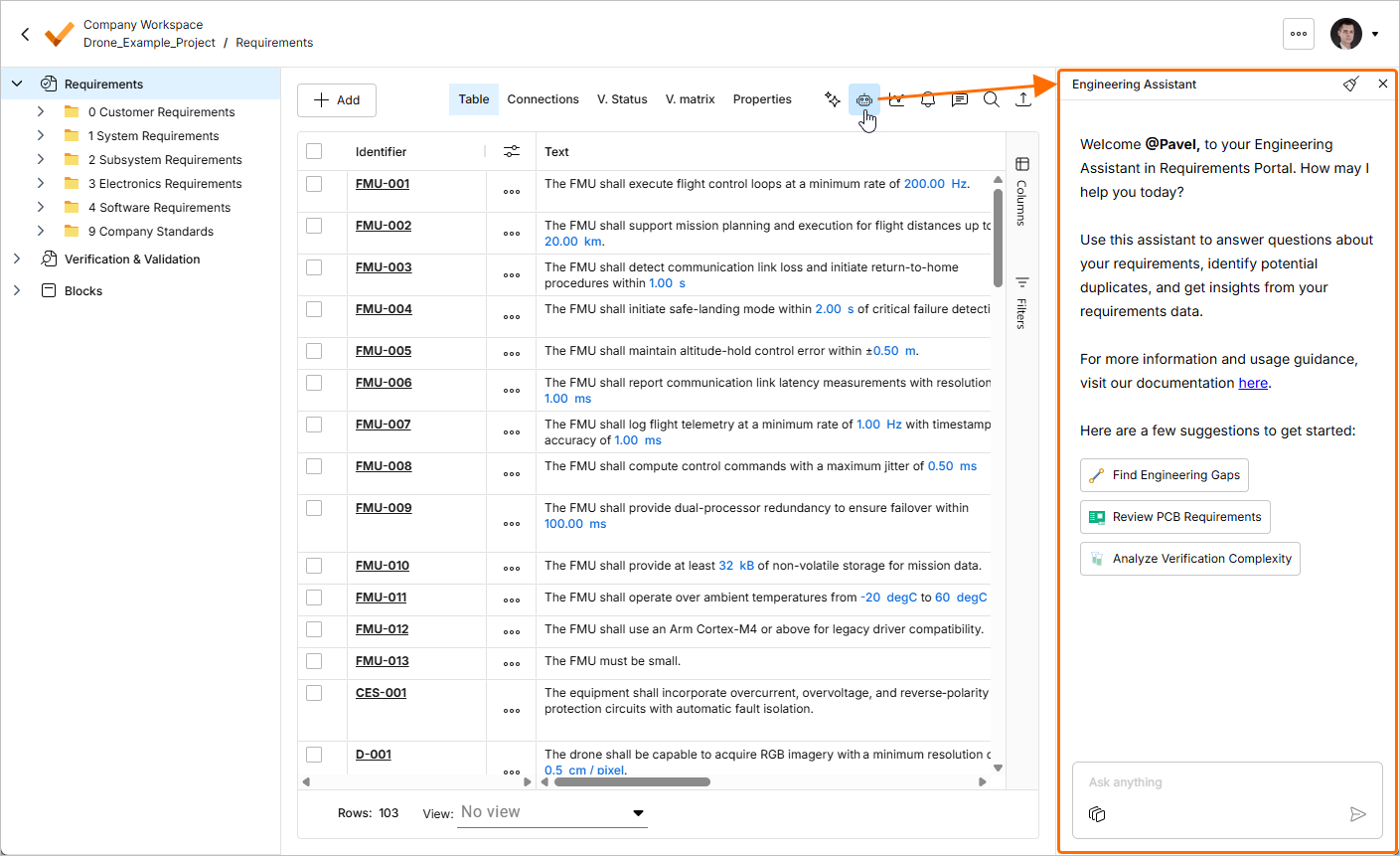
Engineering Assistant는 Requirement Module에서 오른쪽 상단의  아이콘을 클릭하면 사용할 수 있는 Engineering Assistant 창을 통해 액세스합니다.
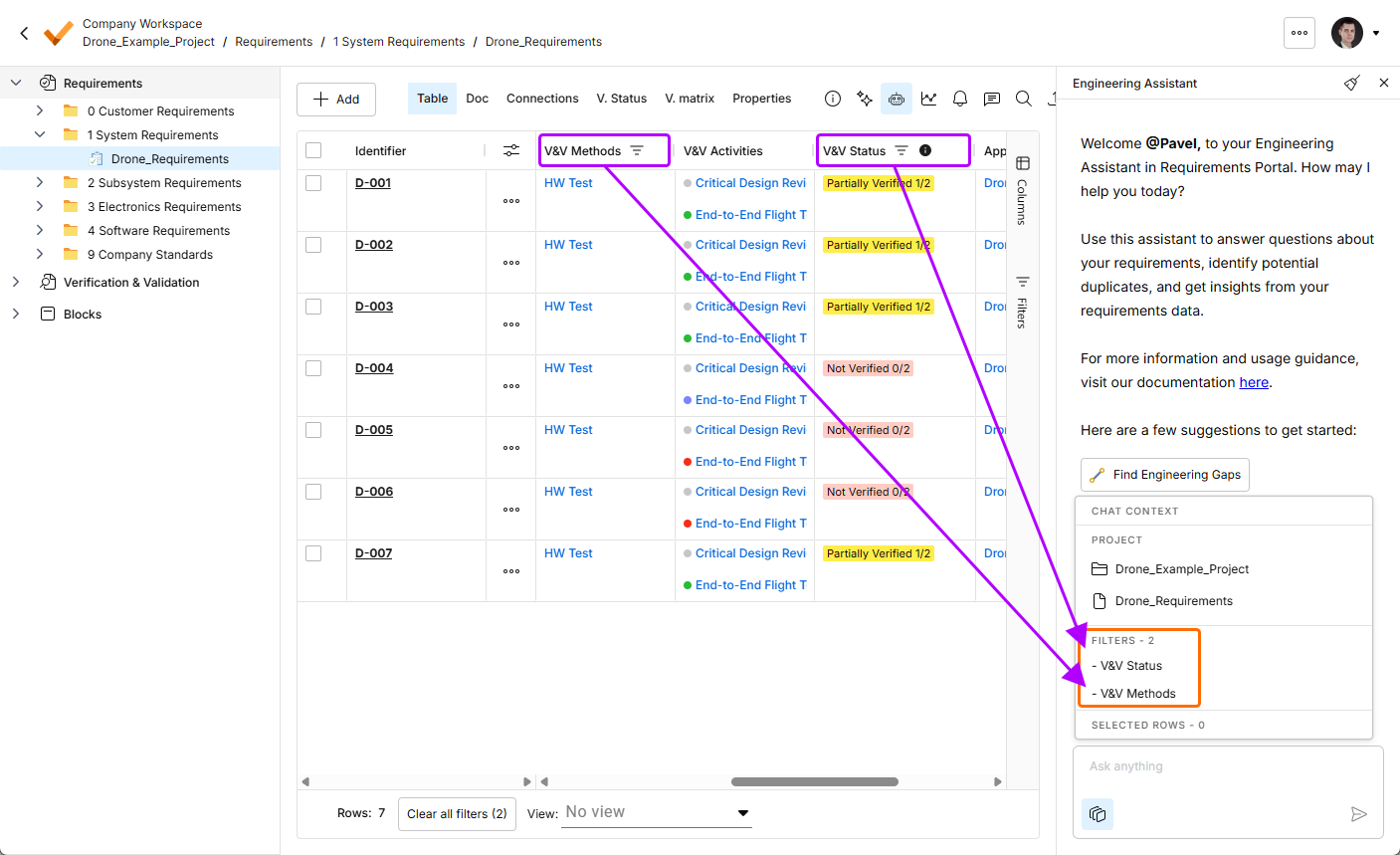
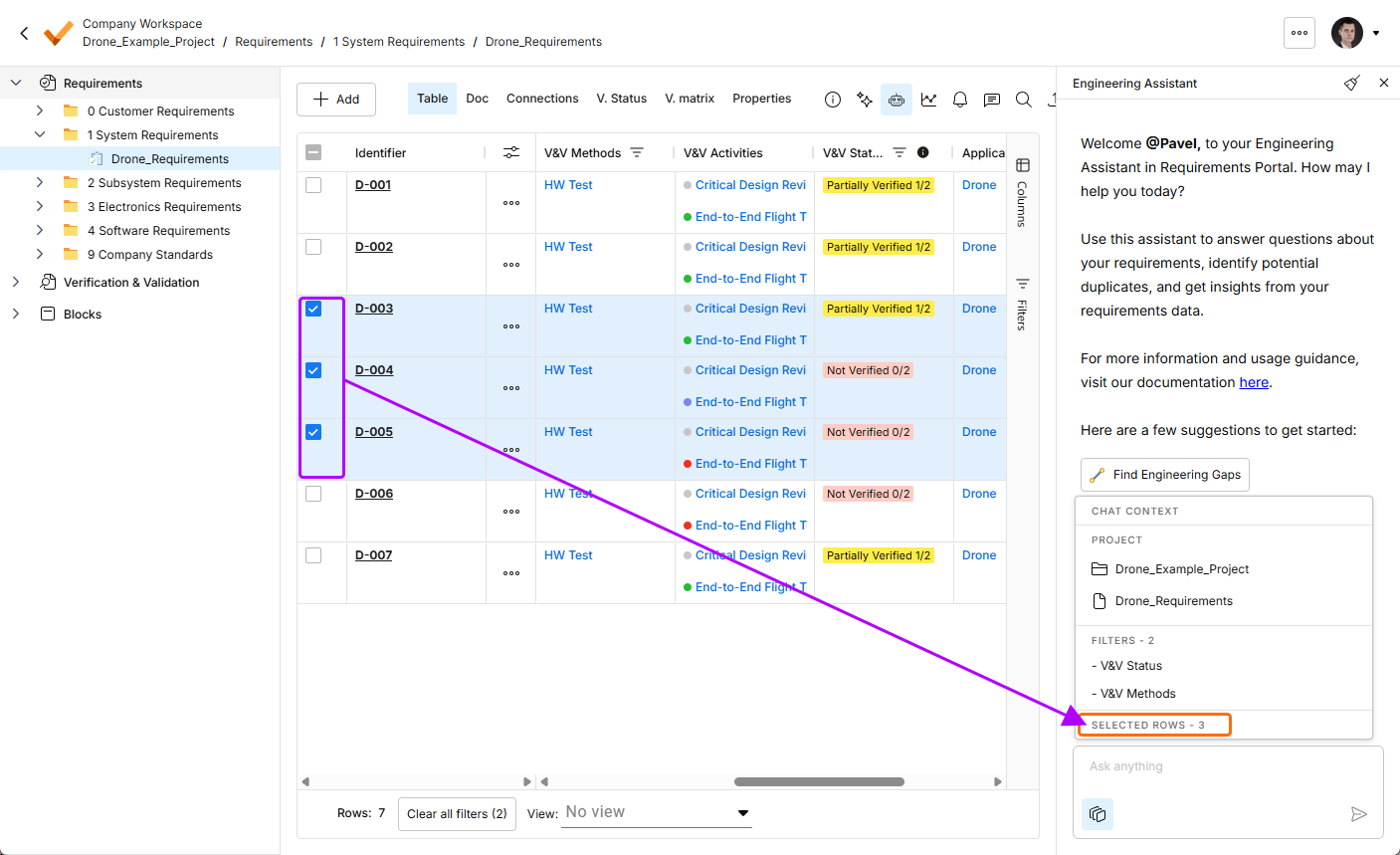
Engineering Assistant 기능이 현재 채팅 컨텍스트를 표시할 수 있도록 업데이트되었습니다. Engineering Assistant 창 하단의  버튼을 클릭하면 다음 정보를 표시하는 Chat Context 팝업이 나타납니다.
-
Project – 현재 프로젝트 이름과 현재 선택된 폴더, 명세서 또는 섹션의 이름을 표시합니다.
-
Filters – 현재 테이블에 적용된 필터 수와 필터가 적용된 열 목록을 표시합니다.
-
Rows selected – 현재 선택된 요구사항 행 수를 표시합니다.
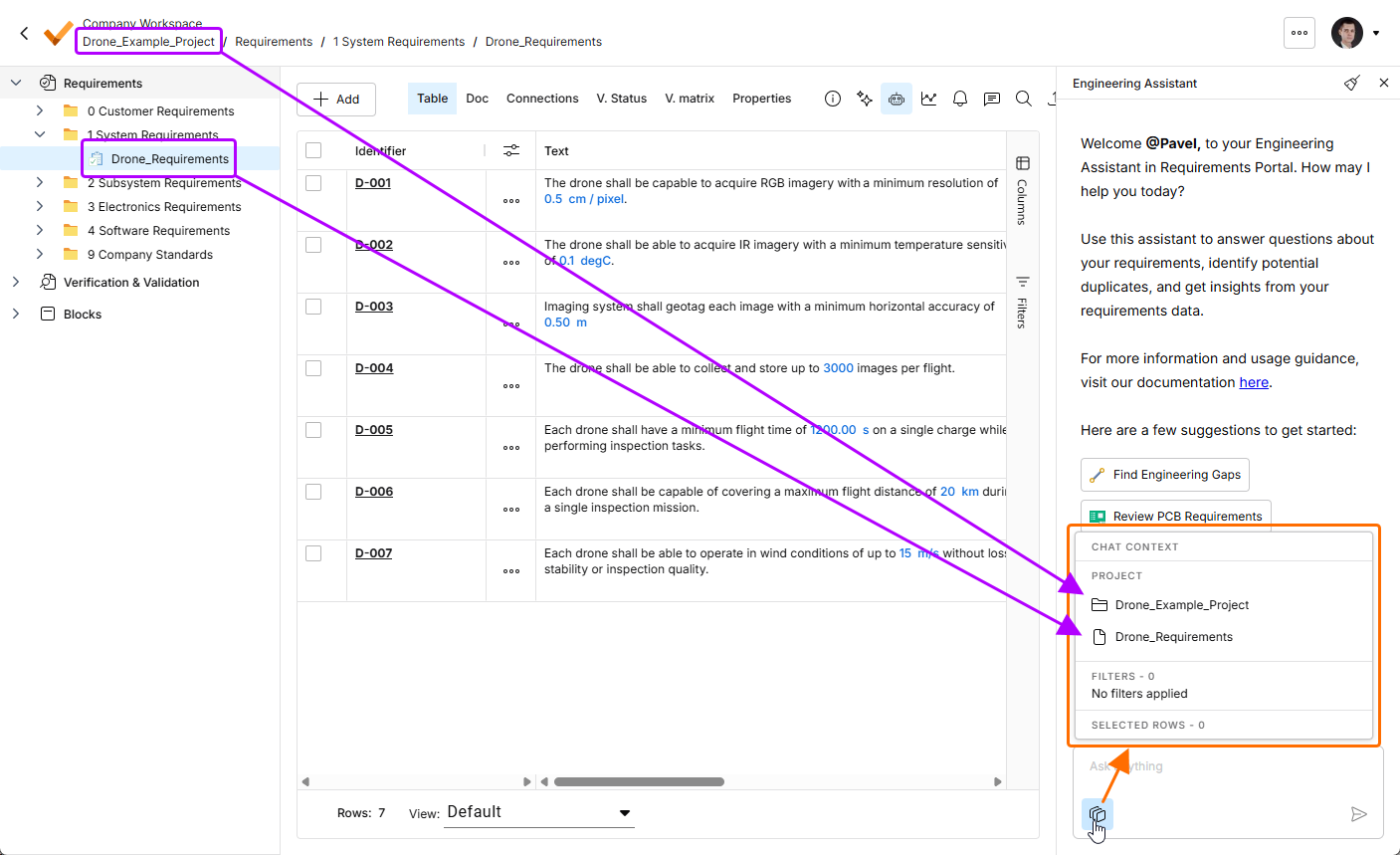
버튼을 클릭하여 Chat Context 팝업을 엽니다. 이 예에서 Project 영역은 현재 프로젝트 이름(Drone_Example_Project)과 현재 선택된 명세서 이름(Drone_Requirements)을 표시합니다.
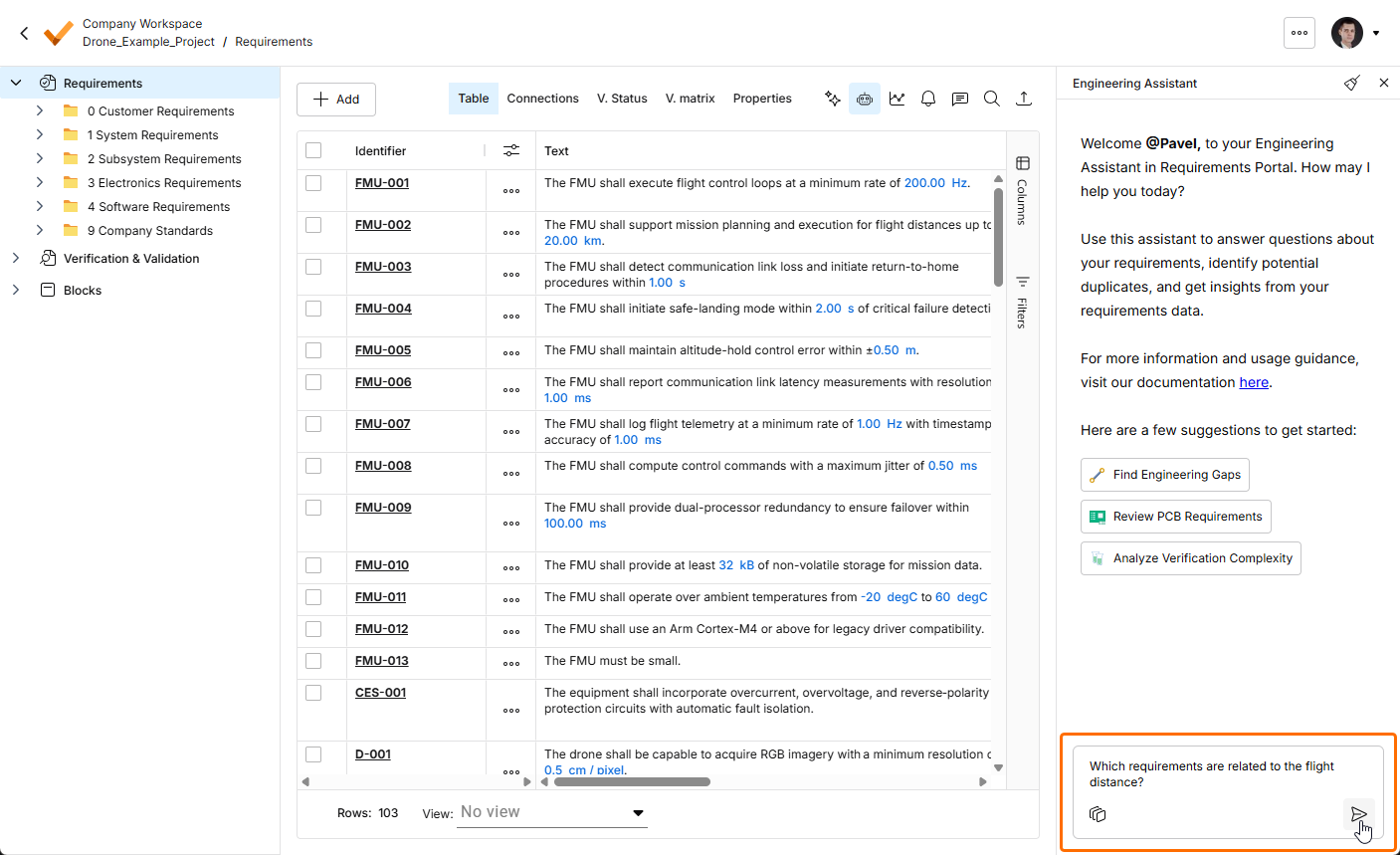
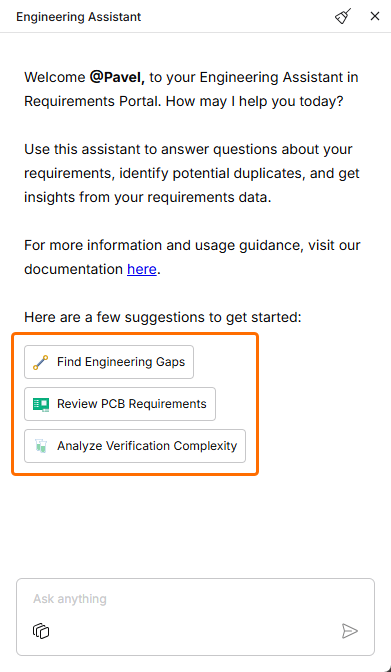
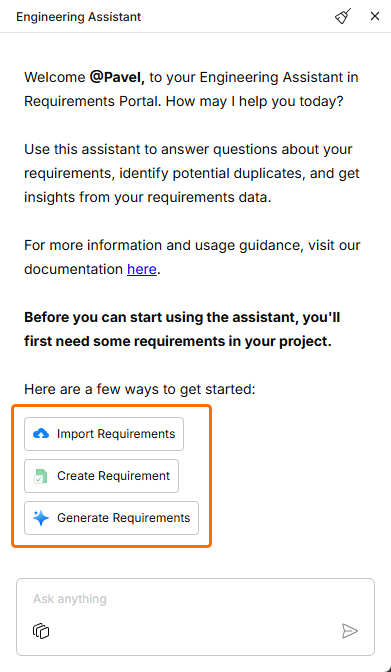
Engineering Assistant를 사용하려면 Engineering Assistant 창 하단의 Ask anything 필드에 질문을 입력한 다음,  아이콘을 클릭하거나
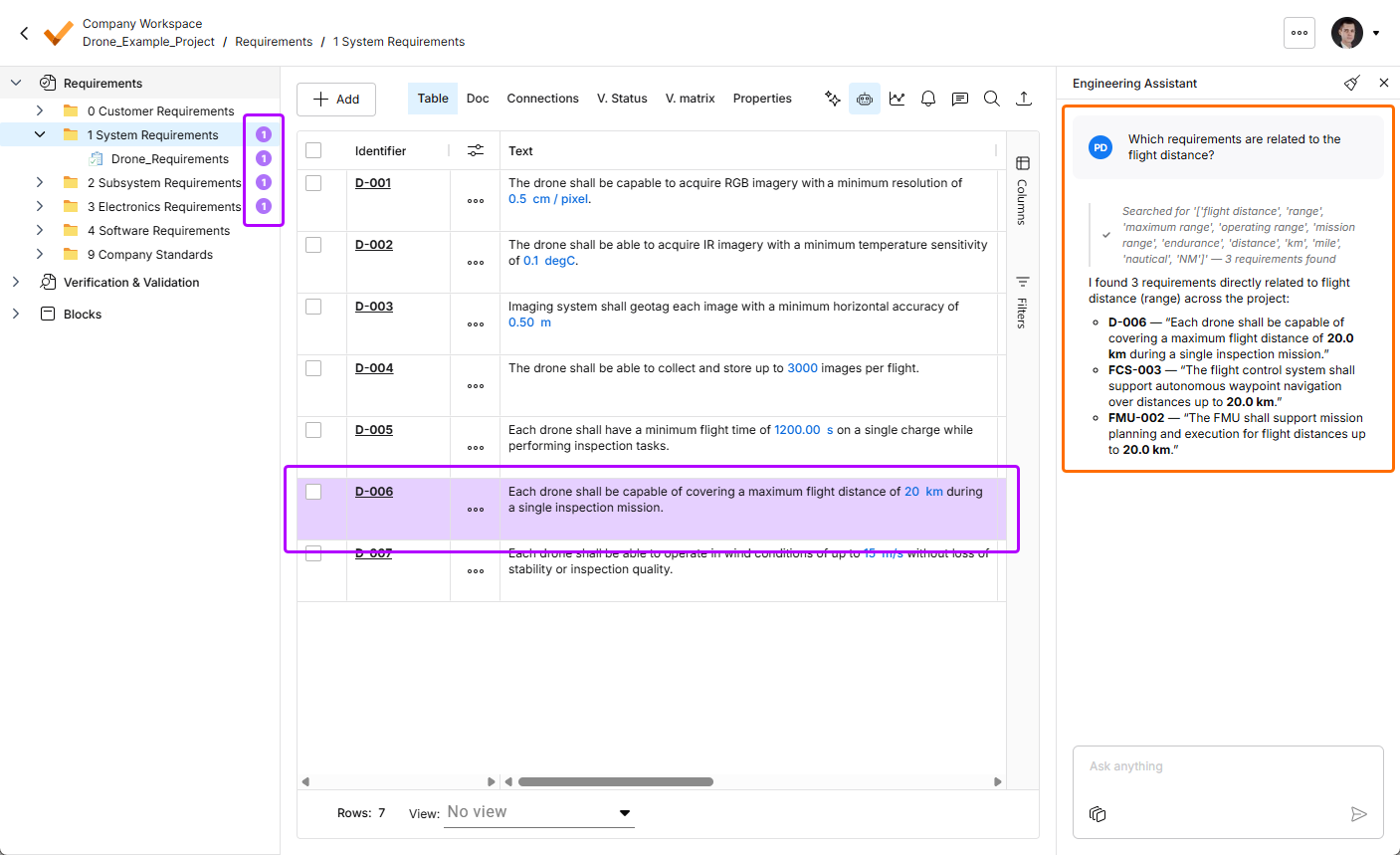
 Enter를 누르십시오. Engineering Assistant가 요구사항을 분석하고 창에 관련 답변을 표시합니다. 질문에 따라 Engineering Assistant는 숫자 형태의 답변, 요구사항 ID 목록 또는 간단한 요약을 반환합니다. 질문과 관련된 요구사항은 요구사항 테이블에서 강조 표시되며, 관련 요구사항 수는 프로젝트 트리에서 해당 명세서, 섹션 및 폴더 옆에 표시됩니다.
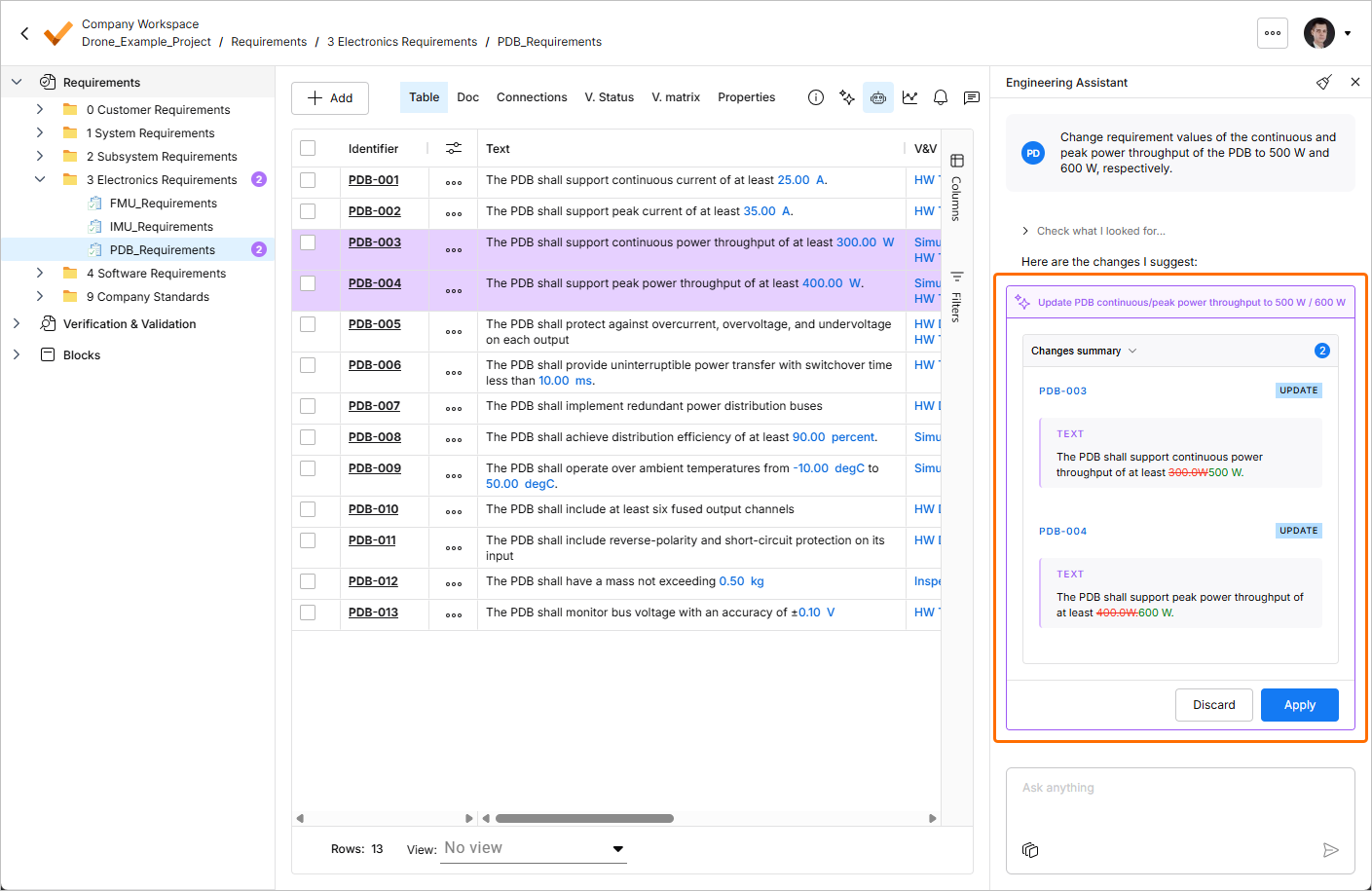
새 요구사항을 생성하거나 기존 요구사항을 변경 또는 삭제해 달라는 요청을 Engineering Assistant에 제출하면, 제안된 변경 사항이 Engineering Assistant 창 내의 전용 타일에 표시되며, 여기서 이를 검토하고(Changes summary 접이식 영역을 확장하여) 변경 사항을 적용하거나 취소할 수 있습니다.
 ).
). ).
).Engineering Assistant는 세션 내 다중 턴 대화를 지원합니다. 즉, 관련 후속 질문을 위해 현재 대화의 컨텍스트를 기억합니다. 예를 들어, 어떤 질문에 대한 응답으로 Engineering Assistant가 여러 요구사항을 나열한 후 How many of those are high priority?라고 질문하면, 어시스턴트는 those이(가) 이전에 나열된 요구사항을 가리킨다는 것을 이해하고 그에 따라 답변합니다. 이렇게 하면 컨텍스트를 다시 설명하지 않고도 정보를 더 정교하게 다듬거나 더 깊이 탐색하면서 '대화'를 이어갈 수 있습니다.
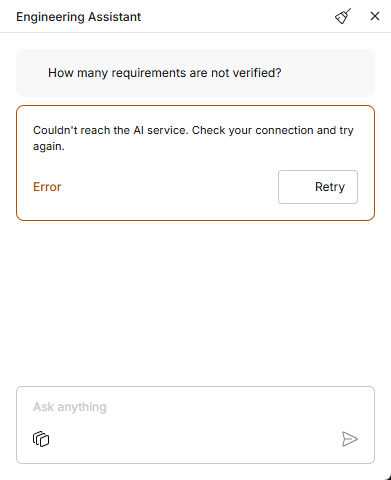 ).
). 아이콘을 클릭하십시오. 한 번에 하나의 대화만 사용할 수 있습니다(즉, 대화 기록은 없습니다).
 AI로 번역됨