
KB: Control Gerber Generation in Altium 365 Design View Downloads
 A365
A365
Solution Details
Downloaded Gerber Layers Differ From Expectations
Users downloading Gerber files from Design View » Downloads » Gerber may observe that certain fabrication-related layers are not included in the generated package. Common examples include missing Solder Mask or Paste Mask layers, even when SMT components are present in the design.
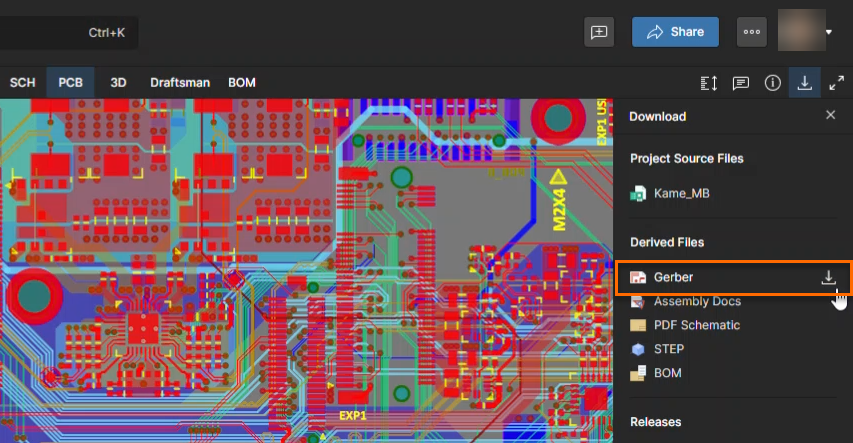
The issue is most commonly noticed when the downloaded Gerber package contains only copper layers, board profile layers, or overlay layers, while other manufacturing layers expected by the user are not present.
Output Definitions Determine Generated Content
Altium 365 Design View supports two Gerber generation behaviors:
- Default Gerber Generation - If no configured Gerber Output exists in the project, Altium 365 generates Gerber data using its default generation behavior. Depending on the project content, the generated Gerber package may contain only a subset of layers. For example, users may observe Gerber files generated for copper layers, board profile layers, and overlay layers containing explicit objects, while other fabrication-related layers may not be included.
- Configured Gerber Output - If the project contains a configured Gerber Files or Gerber X2 Files output, Altium 365 uses that configuration when generating the downloadable Gerber package. The generated output follows the layers defined in the configured Gerber Output, providing predictable and controlled manufacturing data.
Projects containing multiple Output Jobs or multiple Gerber outputs require additional consideration because Altium 365 selects a single Gerber configuration for generation:
- If an Output Job contains multiple Gerber outputs, the first Gerber output listed under Fabrication Outputs is used.
- If a project contains multiple Output Jobs with Gerber outputs, the first Output Job in the project (lowest document position) is used.
- This behavior is independent of whether the selected Gerber output is enabled or disabled within the Output Job.
As a result, the Gerber package may be generated from a different configuration than expected when multiple candidate outputs exist.
Review and Control Output Selection
- Use a configured Gerber Files or Gerber X2 Files output when specific fabrication layers are required.
- Verify that the intended Gerber Output contains all required layer selections.
- Review projects containing multiple Output Jobs or multiple Gerber outputs to ensure the expected configuration is selected by the Gerber download process.
- Regenerate and review the downloaded Gerber package before sharing fabrication data externally.
- For manufacturing handoff, consider using Project Release » Manufacturing Package rather than Design View » Downloads » Gerber.
Configure Required Gerber Layers Explicitly
- Open the project in Altium Designer.
- Open an existing
*.OutJobfile or create a new Output Job. - Add either a Gerber Files output or a Gerber X2 Files output.
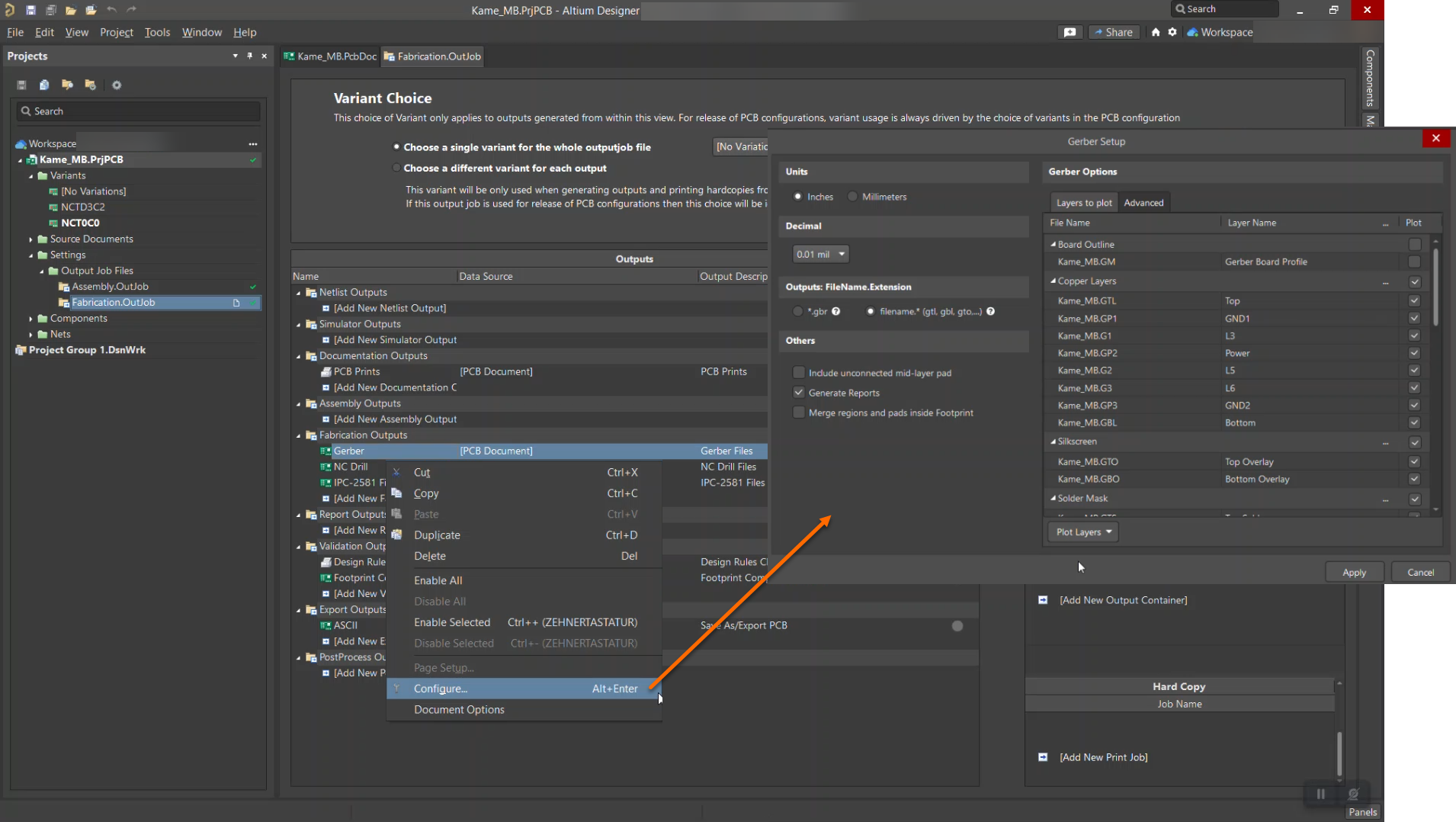
- Right-click the output and select Configure.
- In the Gerber Setup dialog, enable the required layers, such as:
- Top Layer
- Bottom Layer
- Top Overlay
- Bottom Overlay
- Top Solder Mask
- Bottom Solder Mask
- Top Paste Mask
- Bottom Paste Mask
- Select Apply.
- Save the Output Job and commit the changes to the Workspace.
- Allow the Workspace visualization to update.
- Download the Gerber package again and verify that the generated output follows the configured layer definition.
Additional Notes
- Output Job files provide a controlled and reusable method for defining manufacturing outputs. Output-specific settings, layer selections, naming conventions, and generation parameters are stored within the Output Job, making output generation more predictable and repeatable across projects.
- A Manufacturing Package generated through Project Release provides revision-controlled data, fixed manufacturing outputs, reviewable fabrication data, and repeatable downloads for future production runs. The release process also stores a snapshot of the design source together with the generated manufacturing deliverables, reducing the risk of ambiguity associated with generating outputs directly from Work-In-Progress (WIP) project data.