KB: Project Item Revision and Lifecycle State Cannot Be Changed
Updated: July 15, 2026
 A365
A365
This article explains why the revision and lifecycle state of a Project Item (PRJ) in an Altium 365 Workspace cannot be changed. A Project Item is a structural metadata object used to anchor and present the Project View in the Explorer panel, rather than a release-managed item that stores project output data. Unlike released items such as source, fabrication, and assembly outputs, the Project Item does not participate in normal revision progression and remains in the initial Planned lifecycle state. To represent project maturity or milestones, use version control tags in Project History, where commit and release events can be labeled with meaningful identifiers such as Design, Prototype, Validation, Production, or Maintenance.
Solution Details
Project item state cannot be modified
Although a Project Item (PRJ) includes a revision identifier and is listed in lifecycle definitions, its revision and lifecycle state cannot be changed. This is expected, since the Project Item does not participate in lifecycle transitions or revision updates like other managed items.
Project item acts as structural metadata
The Project Item is not intended to store or receive release data. It functions as a structural entity that anchors the Project View in the Explorer panel and organizes project-related data.
Without a Project Item:
- The Project View cannot be generated.
- The project cannot be recognized or managed as a Workspace Managed Project within the Explorer panel.
A Managed Project consists of two tightly integrated components:
- Project metadata stored in the Altium 365 Workspace.
- Integration with the Workspace-managed Version Control System (VCS) repository.
Although the Project Item uses a Revision Naming Scheme, this should not be interpreted as a true revision of the project itself.
- A Project Item is created with a single revision when the managed project is first established.
- It does not participate in revisioning in the same way as release-generated items such as source, fabrication, assembly outputs.
- It does not have an independent lifecycle definition. Since its purpose is solely to provide the structural framework for project representation, it remains permanently in the Planned lifecycle state.

Use tags and release items for tracking
- Release Items: Lifecycle control and revision tracking is used for release-generated items (e.g., source, fabrication, assembly outputs).
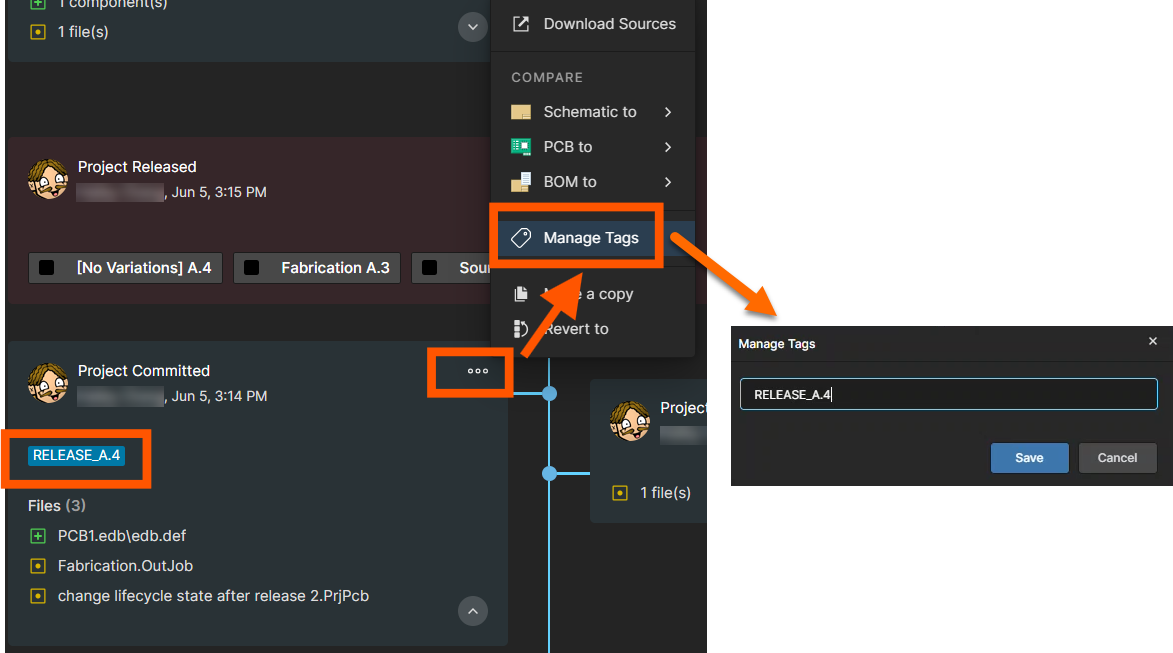
- VCS Tags: Use tags in Project History to represent project milestones and lifecycle stages.
- Commit History: Use commit and release events as reference points for project evolution.
- VCS commits and tags: Practical method for tracking project-level changes and milestones.
Lifecycle tag examples include:
- Design
- Prototype
- Validation
- Production
- Maintenance
Steps to manage lifecycle using tags
- Open the managed project in Altium Designer.
- Access the Project History view.
- Review the timeline of commits and releases.
- Click the ellipsis menu (...).
- Select Manage Tags.
- Create or modify tags to reflect project milestones.
- Apply tags to relevant commits or release points.
- Use these tags as the lifecycle indicator for the project.