
KB: Troubleshooting "Our system hit a snag" Error During File Upload in Browser Interface
 A365
A365
Solution Details
File Upload Fails in Browser with "Our system hit a snag" Error
The user experienced an error while attaching a file in the browser interface during a Part Request workflow. The error message displayed was: “Our system hit a snag, please try again in a moment.” The issue persisted across different browsers and after clearing cookies and cache. Uploads without attachments worked fine, and using the Explorer panel allowed successful attachment of .xls files.
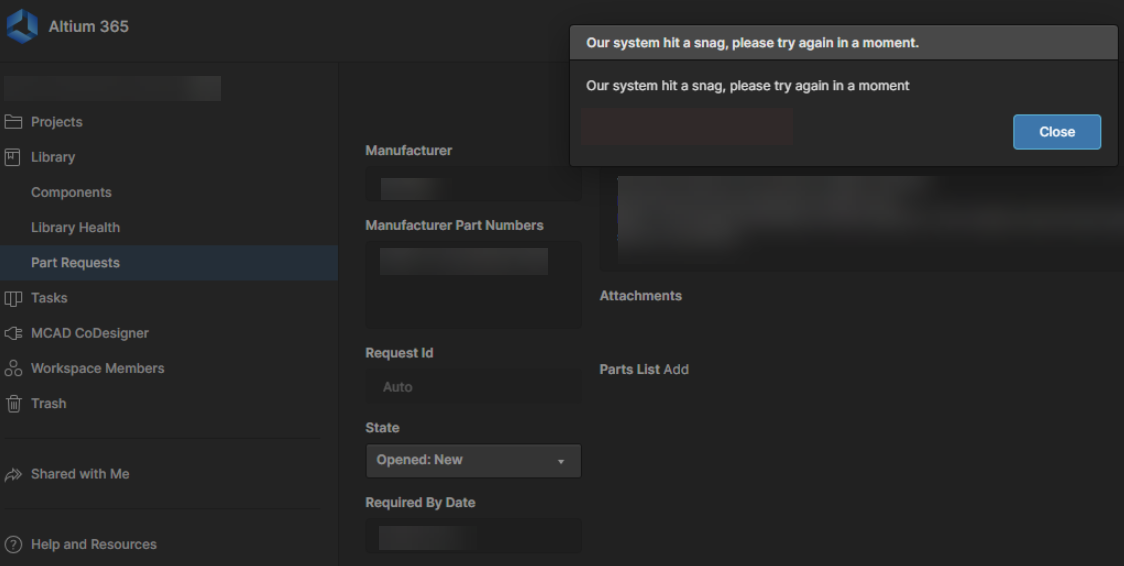
DLP Rules Blocking .xls File Uploads
The error occurs because the Endpoint Protector security application blocks certain uploads based on DLP rules. These rules may restrict file types, detect sensitive data, block encrypted files, enforce domain restrictions, or apply file size limits. In this case, the .xls file upload was blocked by a DLP rule, not by the web server.
Quick Checks for Users
- Try uploading a different file type (e.g., .docx) to confirm if the issue is specific to .xls.
- Clear browser cache and cookies, then retry.
- Test in an alternate browser (e.g., Chrome, Edge, Firefox).
- Attempt upload via the Explorer panel to verify if the issue is limited to the browser interface.
- Keep the browser console open during upload and check for any “Upload” errors in the Network tab.
- Capture screenshots and console logs for IT review.
If the issue persists after these checkpoints, escalate to your IT team to confirm if Endpoint Protector DLP rules are blocking the upload.
Step-by-Step Resolution for Users and IT
1. Confirm Root Cause:
-
- Keep the browser console window open while reproducing the issue.
- Look for any network errors related to “Upload” in the console log.
- Check the Preview/Response details to confirm if the upload was blocked by Endpoint Protector.
- Alternatively, ask your IT team to review the network console logs for blocked upload requests.
2. Check Endpoint Protector Logs:
-
- Navigate to: Reports » Content-Aware Protection » Blocked Events.
- Review Rule Name, Channel (HTTP/HTTPS), and Matched Sensitive Data Type.
3. Identify the Triggering Rule:
-
- Possible causes include sensitive data detection, file type restriction, domain/URL restriction, encrypted file block, or file size threshold.
4. Adjust DLP Settings:
-
- Whitelist the workflow domain or modify the specific rule to allow .xls file uploads.
- Ensure changes comply with organizational security policies.
5. Verify Resolution:
-
- Retry uploading the file in the browser interface after adjustments.