
KB: Dimmed Background When Moving Components in PCB Layout
Updated: January 14, 2026
 Altium Designer
In Altium Designer PCB layout, when moving a component or designator, other objects may appear dimmed or blacked out. This visual effect is controlled by the Mask and Dim Settings in the View Configuration panel and can also be adjusted using shortcut keys during movement. If this occurs unexpectedly, it is likely due to accidental use of these shortcuts. Restoring the original behavior involves adjusting the dimming level in the settings, using the appropriate shortcut keys, or resetting to default visibility settings.
Solution Details
Visibility Issue When Moving Components
When moving a component or designator in PCB layout, the rest of the objects on the board appear dimmed or blacked out, reducing visibility of the overall design.
Understanding Why Objects Appear Dimmed
The dimming effect is controlled by the Dimmed Objects slider in the Mask and Dim Settings section of the View Configuration panel. Shortcut keys may have been accidentally pressed during object movement, temporarily altering this setting.
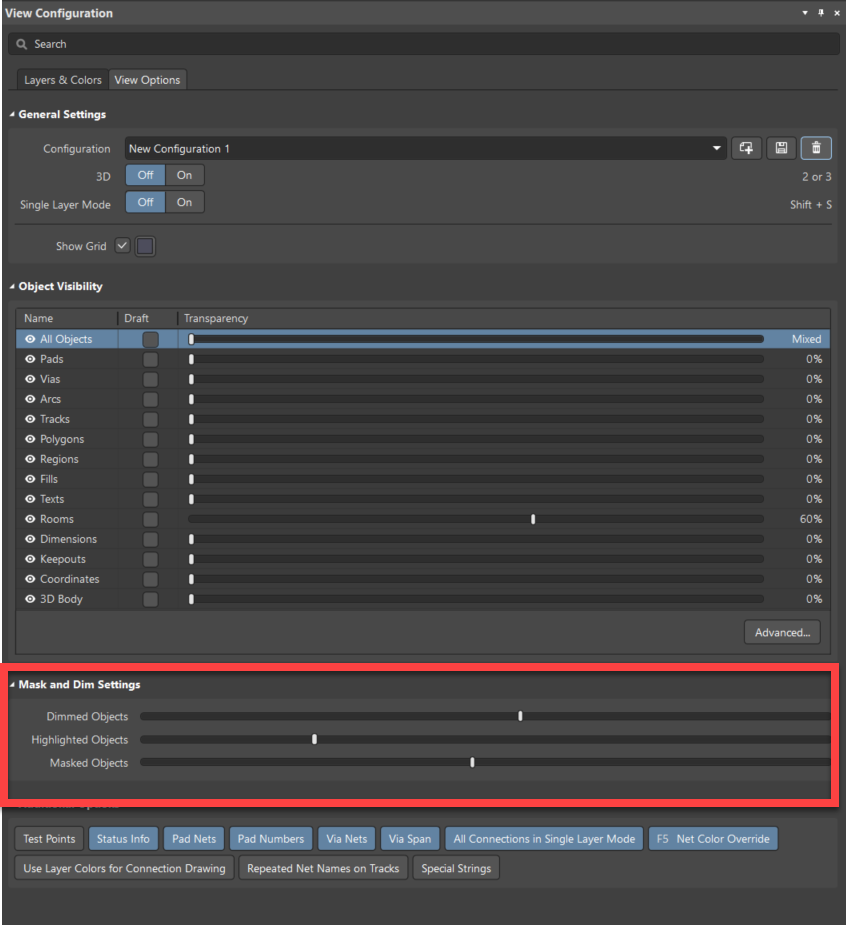
Options to Restore Normal Visibility
- Adjust the Dimmed Objects slider in the View Configuration panel.
- Use shortcut keys to increase or decrease dimming while moving an object.
- Reset the View Configuration panel to default settings if needed.
Step-by-Step: Adjusting Dimming Settings
- Open the View Configuration panel - View>>Panels>>View Configuration
- Go to the View Options tab.
- Locate the Mask and Dim Settings section.
- Under Dimmed Objects, adjust the slider:
- Left-most position: Maximum dimming of other objects.
- Right-most position: Minimum dimming of other objects.
- Alternatively, while moving an object:
- Press [ (open bracket) to increase dimming (move slider left).
- Press ] (close bracket) to decrease dimming (move slider right).
- Note: These shortcuts only apply during the current move operation and do not permanently change the slider position.
Additional Notes
- Masking and dimming are separate visual controls:
- Masking hides objects outside the selection.
- Dimming reduces brightness of non-selected objects.
- These settings are user-specific and saved in the environment configuration.
- The dimming effect is purely visual and does not affect the actual PCB design.