
KB: Draftsman Title Block Locked Due to Missing .DwsDot Sheet Template
 Altium Designer
Solution Details
Title block appears but cannot be edited
Title blocks, logos, borders, and other sheet graphics are visible on the Draftsman sheet but cannot be selected or modified. Editing commands have no effect, even though the objects display correctly.
Sheet template ownership enforces locking
Draftsman distinguishes between Draftsman Document Templates (*.DwfDot), which define drawing content, and Draftsman Sheet Templates (*.DwsDot), which define page-level properties such as sheet size, borders, and title blocks. Objects originating from a sheet template are owned by that template and are locked by design when used in a Draftsman document. This behavior is intentional and consistent with other Altium template systems, such as schematic sheet templates, to prevent accidental modification and ensure uniform documentation.
Available recovery paths
- Locate and edit the original Draftsman Sheet Template (*.DwsDot)
- Rebuild the template using DXF export and import
- Create a new Draftsman Sheet Template from scratch
Recover or recreate an editable sheet template
- Locate the referenced sheet template (recommended)
- Open the Draftsman document (
*.PCBDwf) or Draftsman document template (*.DwfDot). - Ensure nothing is selected on the sheet.
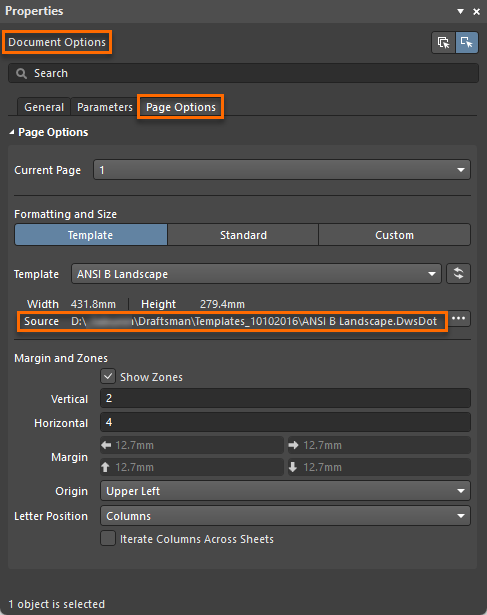
- Open the Properties panel with the Document Options.
- Select the Page Options tab.
- In the Source field, note the full file path to the referenced
*.DwsDotfile. - If the file is accessible (local path, mapped drive, file server, backup, or managed Workspace), open it directly and edit it in Draftsman Sheet Template Editor mode.
- Open the Draftsman document (
- Rebuild the template using DXF (when the original is missing)
- Open the existing Draftsman document (
*.PCBDwf) or Draftsman document template (*.DwfDot). - Select File » Export to DXF....
- Create a new Draftsman document using File » New » Draftsman Document and select Templates: [Default].
- Save the new document using File » Save As and choose Altium Draftsman Sheet Templates (
*.DwsDot). - In the new sheet template, select File » Import from DXF....
- Rework text objects, parameters, and formatting as required.
- Open the existing Draftsman document (
- Create a new sheet template
- Within a
*.PrjPcbproject that contains a PCB document, select File » New » Draftsman Document. - In the New Document dialog, select Templates: [Default] and click OK.
- Select File » Save As and choose Altium Draftsman Sheet Templates (
*.DwsDot). - Recreate the title block using Draftsman primitives and parameters.
- Within a
Additional Notes
Using Save As to convert an existing Draftsman document directly into a *.DwsDot file does not recreate an editable source template. If the original sheet template was stored in a managed Workspace or network location, loss of access to that location can result in locked template-owned objects. In many cases, creating a new sheet template is faster and cleaner than attempting to recover or adapt a derived one.