
KB: Lifecycle State Displayed in Schematic Symbol Properties Cause and Resolution
Updated: December 11, 2025
 Altium Designer
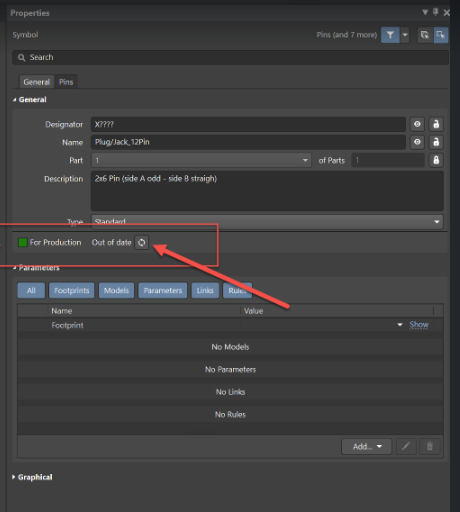
When editing schematic symbols in Altium Designer—either in the Schematic Library or Single Component Editor—you may notice the lifecycle state displayed in the properties panel. This behavior is not expected during symbol editing. It typically occurs when symbols have been migrated from an old server or workspace, often after downloading components as integrated libraries and then migrating them. The lifecycle state shown is linked to old server data. To resolve this issue, you need to clear old server links from the symbol and, if necessary, remove old server details from Altium Designer preferences. These steps ensure that migrated symbols no longer display lifecycle state information in the properties panel.
Solution Details
Unexpected Lifecycle State in Symbol Properties
Some schematic symbols display the lifecycle state in the Properties panel while editing under the Schematic Library or Single Component Editor. Normally, this should not happen.
Root Cause: Migrated Server Links
The lifecycle state appears because the symbol was migrated from an old server or workspace. Components downloaded from another server as integrated libraries retain old server links, causing the lifecycle state to show in the Properties panel.
Resolution Overview
To resolve this issue:
- Clear old server links from the symbol.
- Remove old server details from Altium Designer preferences.
Step-by-Step Instructions
Clear Old Server Links
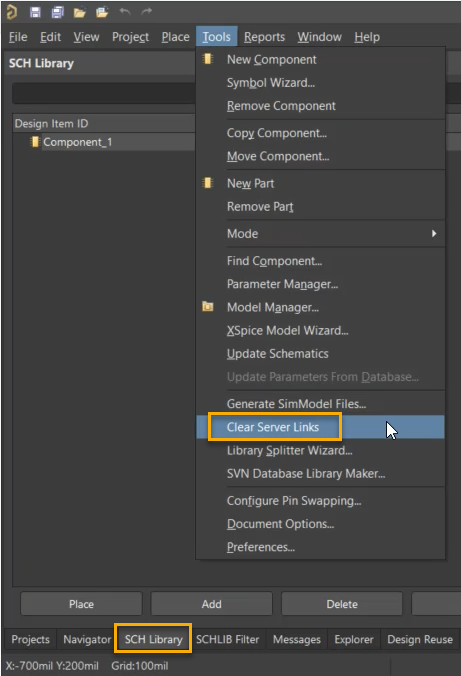
- Open the Schematic Library Editor.
- Go to Tools » Clear Server Links.
- Apply changes and verify that the lifecycle state no longer appears.
Remove Old Server Details from Preferences
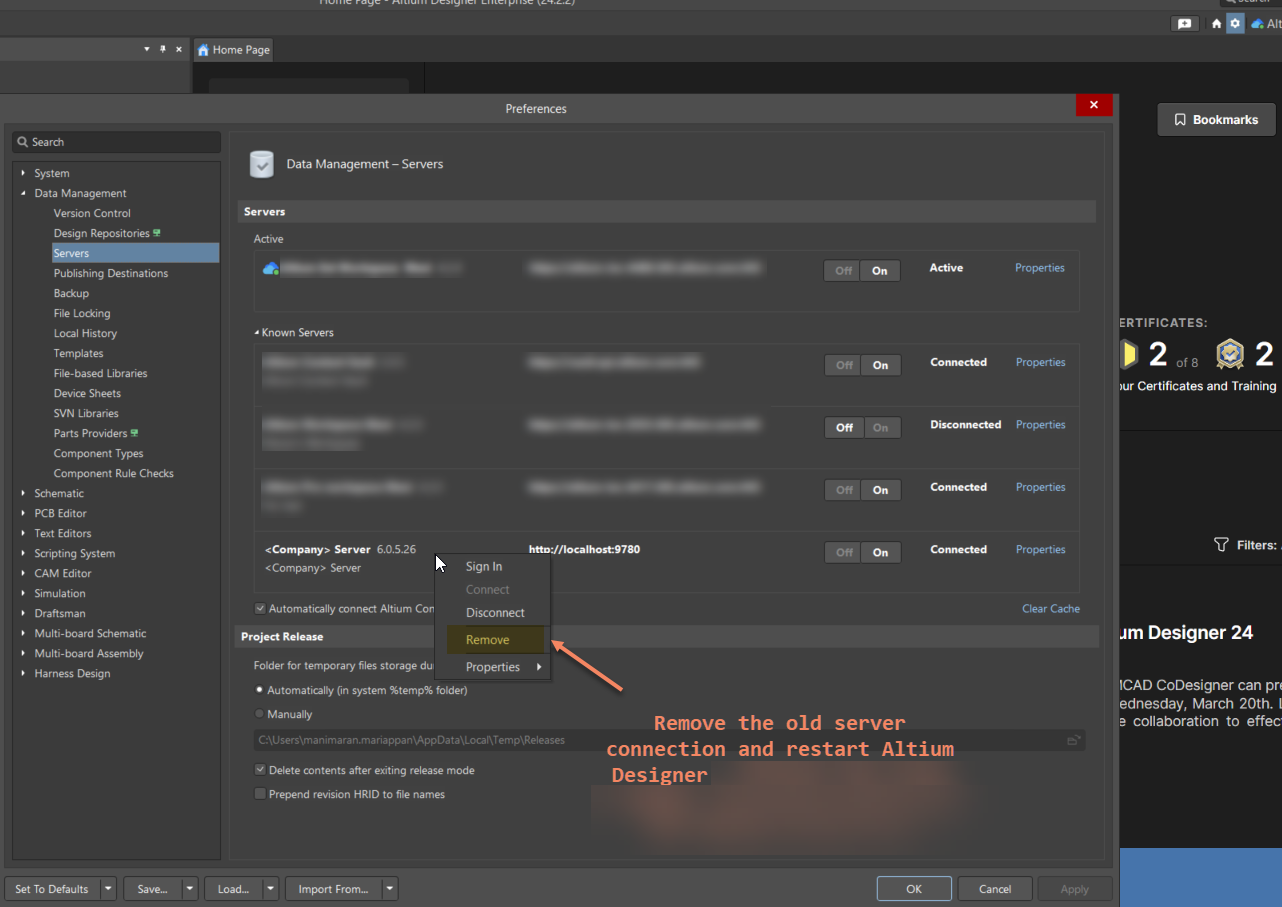
- Navigate to Tools » Data Management » Servers.
- Expand Known Servers.
- Select the old server, right-click, and choose Remove.
- Apply the preference changes and restart Altium Designer.
Additional Notes
- These steps only affect symbols migrated from older servers or workspaces.
- Restarting Altium Designer after removing server details ensures changes take effect.