
KB: Search text in PDF from PCB not found
 Altium Designer
Solution Details
Stroke text in the PDF will not be searchable. If you check the font used for the strings that cannot be found in the PDF, you will probably see that they are set to stroke. Here's how you can resolve this issue:
In the Outjob configuration page, double-click on the output description to pull up the preview PCB dialog, click on the Advanced tab, and make sure the "Enable Fonts Replacement" box is checked (this is the default)
In Versions prior to AD21.7.1...
1 Replace the font for the text strings with a TrueType font in the PCB
2 Update print / Outjob and check the box so that it will use the TrueType font in output settings.
Ensure both Assembly Drawing and PCB print is configured to have TrueType fonts turned on. Please note that Adobe Reader's Cache must be cleared before re-attempting the search (Edit » Preferences » Search » Purge Cache Contents.)
Versions prior to AD21.7.1 when you double-click on the output description, you will see the PCB Printout Properties, where you can check the box for TT Fonts
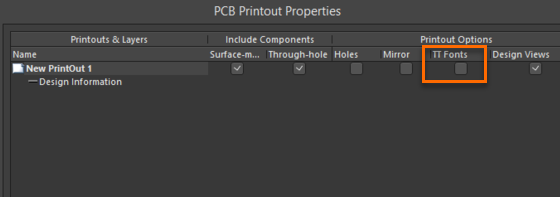
This documentation will explain how to see the PCB Printout Properties and Print Preview dialogs in versions prior to AD21.7:
PCB Printout Properties