
Проектирование электронных систем
На ранних этапах разработки электронных устройств важно определить проект на концептуальном/функциональном уровне. Этот начальный шаг служит важнейшей основой для всего процесса разработки, предоставляя общее представление об архитектуре системы и ее основных элементах. Грамотно составленная блок-схема проясняет основные функциональные узлы электронной системы и иллюстрирует их взаимосвязи. Она помогает визуализировать, как различные части проекта будут взаимодействовать друг с другом, не погружаясь в сложные детали реализации отдельных компонентов. Такой уровень абстракции позволяет сосредоточиться на общем поведении системы и взаимосвязях между модулями, обеспечивая учет всех необходимых функций и соответствие архитектуры системы требованиям проекта.
Документ Electronic System Design (ESD) позволяет создавать блок-схемы системного уровня и совместно работать с заинтересованными сторонами.
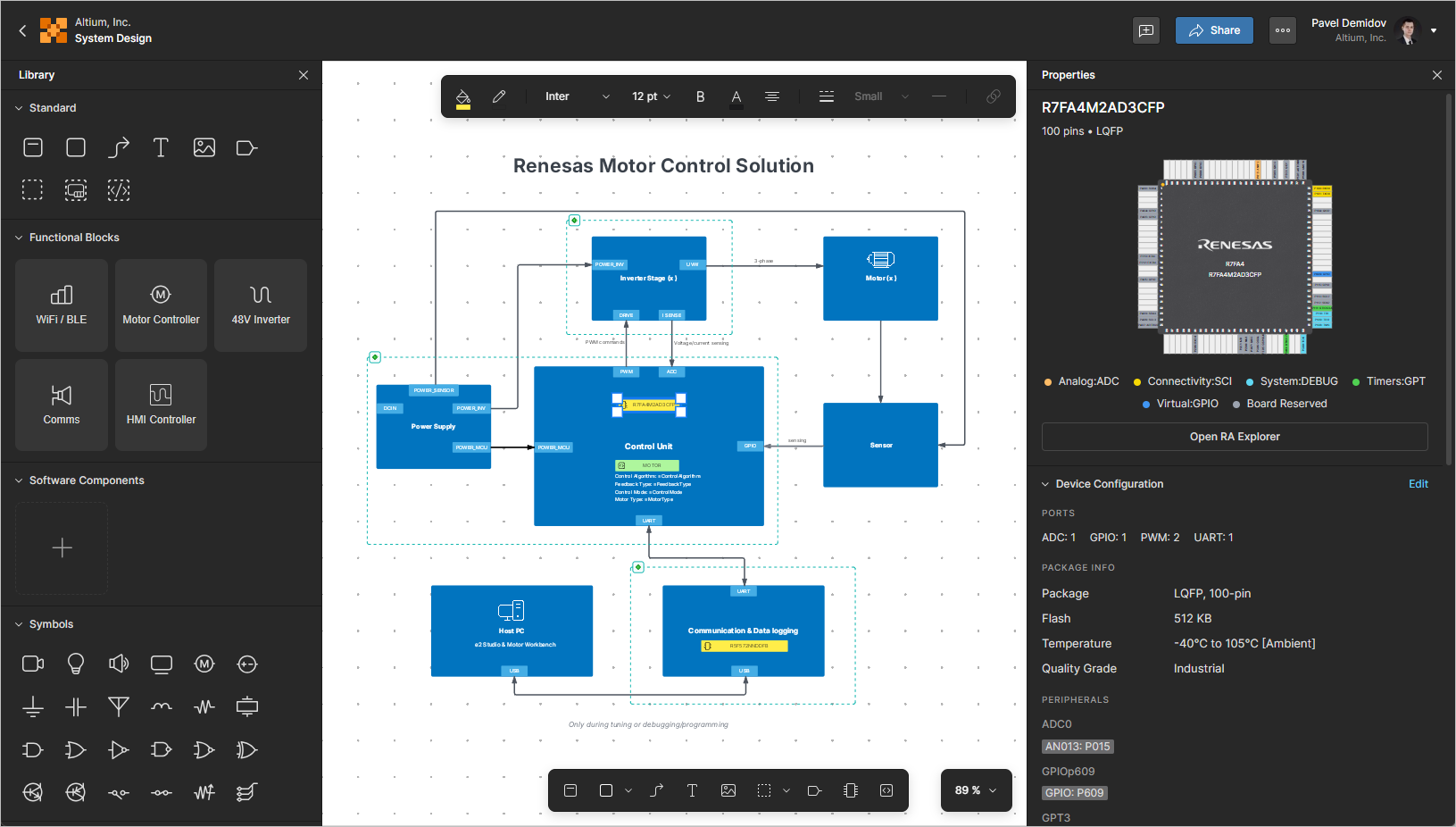
Создание нового документа ESD
Новый документ ESD можно создать как часть решения, размещенного в вашем рабочем пространстве Renesas 365 Workspace. На странице сведений о решении нажмите кнопку  в правом верхнем углу и выберите System Design в появившемся меню , чтобы открыть окно Create ESD.
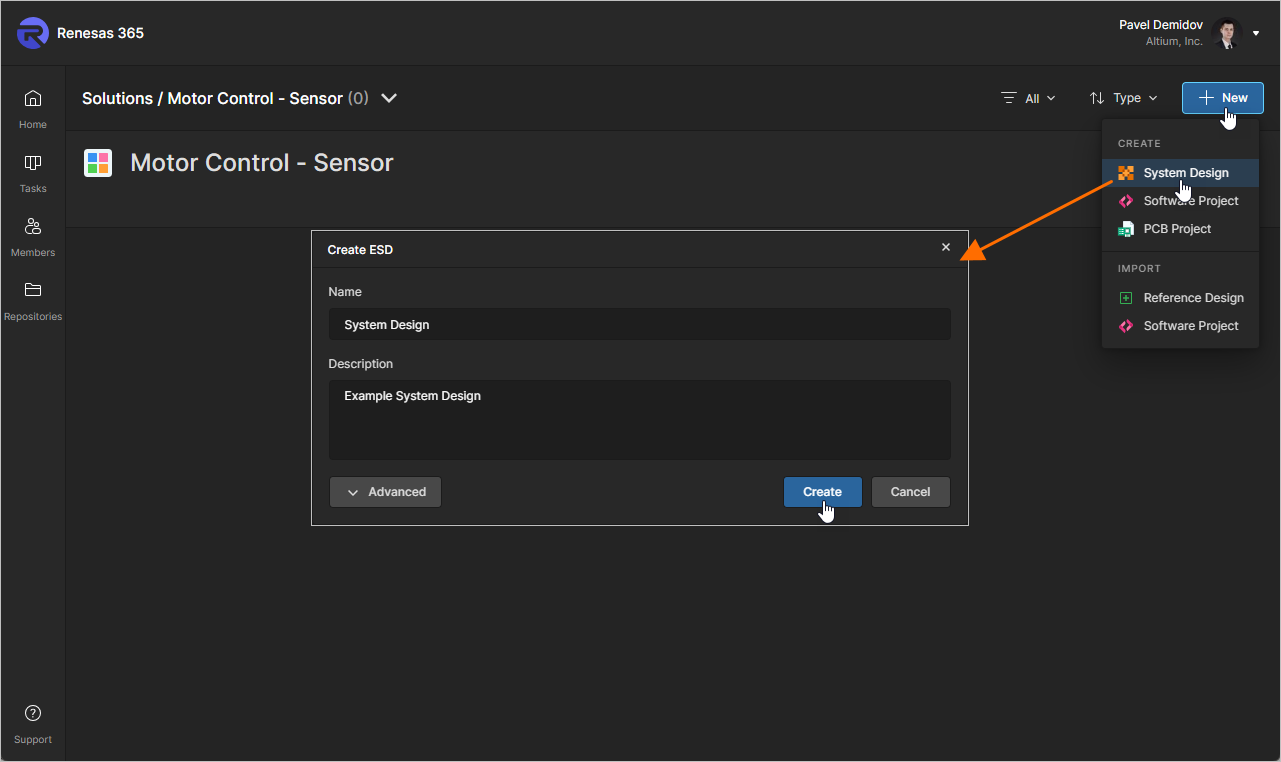
Изначально окно будет представлено в упрощенном виде со следующими полями:
-
Name – введите требуемое имя для документа ESD.
-
Description – введите необязательное описание документа ESD.
Чтобы получить доступ к дополнительным элементам управления, нажмите кнопку  . Появится поле Parent Folder. Используйте это поле, чтобы указать, где в структуре папок Workspace должен быть создан документ ESD. По умолчанию это папка Projects. Нажмите ссылку Change справа от поля, чтобы открыть структуру папок Workspace и выбрать другую папку для хранения документа (
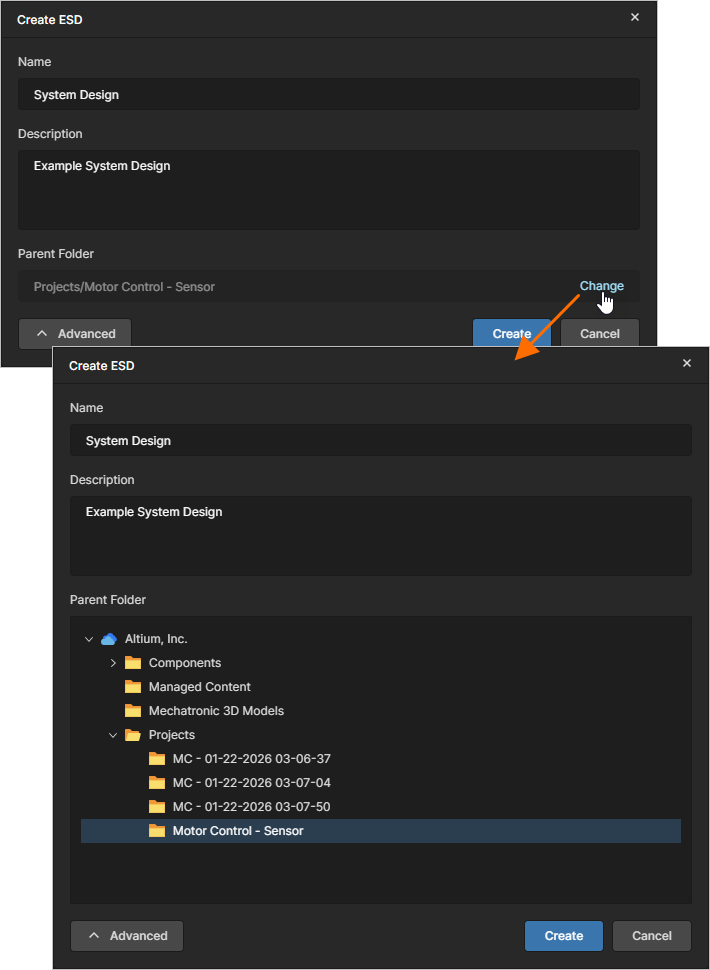 ).
).
После задания параметров нового документа ESD нажмите  . Вы вернетесь на страницу сведений о решении, где теперь увидите плитку для вновь созданного документа ESD.
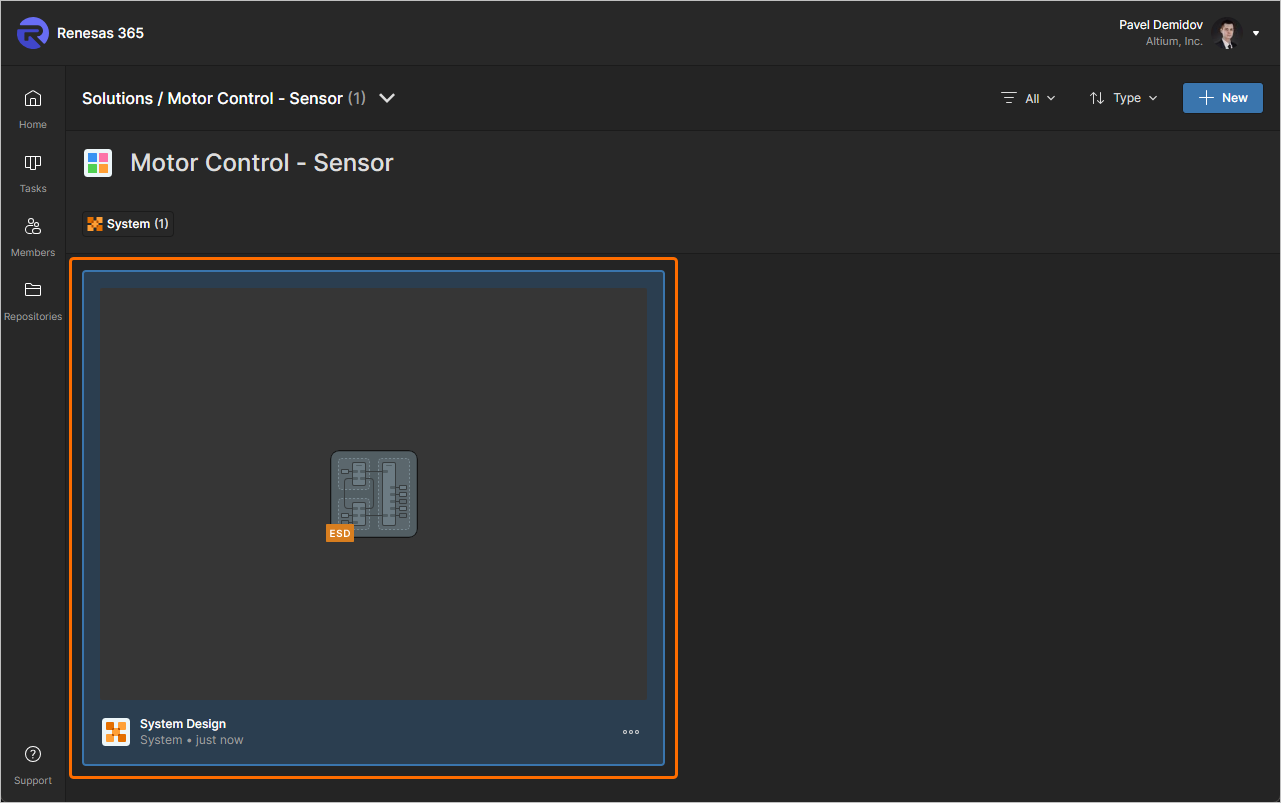
Чтобы открыть документ ESD, щелкните его имя на плитке или нажмите кнопку  и выберите Open в появившемся меню. Либо дважды щелкните непосредственно по плитке нужного документа ESD.
Определение документа ESD
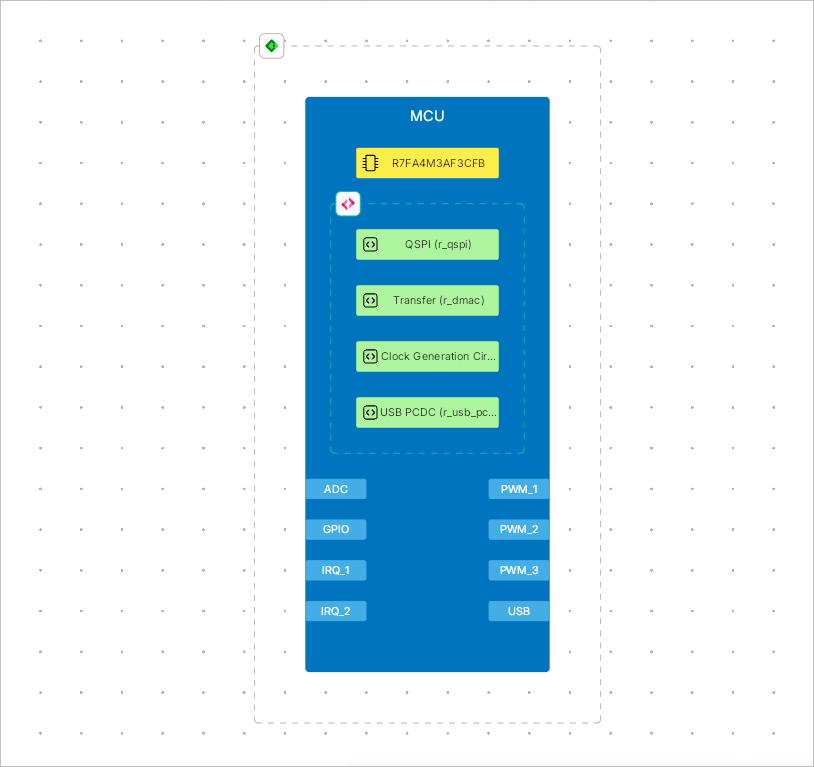
В документе ESD определенные функции, операции или устройства (например, обработка сигналов или MPU) представлены functional blocks. С точки зрения структуры и визуального представления функциональный блок является контейнером, который может включать графическую фигуру/изображение (с меткой), ключевой компонент(ы) функции, представленный(е) аппаратными/программными объектами, порты и другие блоки. Ports можно использовать для представления интерфейсов функционального блока (например, интерфейса I2C у MPU), а connection lines между функциональными блоками (размещаемые непосредственно между блоками или их портами) представляют соединения (например, сигналы, проходящие между интерфейсами разных устройств).
Размещение и редактирование общих элементов
Используйте следующие сворачиваемые разделы, чтобы узнать больше о работе в редакторе документов ESD.
Controlling the View of the Document
Элементы управления навигацией для основной области просмотра:
-
Right-Click, Hold&Dragдля панорамирования документа. -
Mouse Wheelдля вертикальной прокрутки. -
Shift+Mouse Wheelдля вертикальной прокрутки. -
Ctrl+Mouse Wheelдля увеличения/уменьшения масштаба.
Selecting Objects
Объект, размещенный в документе ESD, необходимо выбрать, прежде чем выполнять над ним какие-либо действия, например изменять его положение или размер, выполнять операции с буфером обмена (вырезать/копировать) или удалять его и т. д.
В самом простом случае можно выбрать отдельный объект проекта, наведя на него курсор и щелкнув мышью. После выбора некоторые объекты проекта можно графически изменять по размеру и/или форме. Объект станет выделенным, а в различных точках редактирования вокруг него будут показаны маркеры. Чтобы изменить форму и/или размер объекта, щелкните маркер редактирования и перетащите его. Точный характер изменения зависит от редактируемого объекта.
Щелкните вне выбранного объекта или нажмите Esc, чтобы снять выделение.
Обратите внимание, что выделение щелчком не является накопительным. При щелчке по другому объекту выделение с выбранного объекта снимается. Чтобы выбрать несколько объектов, удерживайте клавишу Shift и последовательно щелкайте объекты, которые нужно выбрать или снять с них выделение. Другими словами, сочетание клавиш Shift+Click изменяет состояние выделения объекта, находящегося в данный момент под курсором, не влияя на состояние других объектов.
Чтобы выбрать несколько объектов, расположенных в определенной области документа проекта, можно использовать рамку выделения. Click and Hold в стороне от объектов в углу воображаемого прямоугольника, охватывающего выбираемые объекты, затем перетащите курсор к противоположному углу этого прямоугольника. Будут выбраны все видимые объекты, находящиеся внутри рамки выделения, а также объекты, касающиеся этой рамки.
Чтобы выбрать все объекты в документе ESD, можно также использовать сочетание клавиш Ctrl+A.
Using Cut/Copy and Paste
Можно вырезать/копировать и вставлять объекты внутри одного документа ESD или между документами ESD. Выберите объект(ы), которые требуется вырезать/скопировать, щелкните правой кнопкой мыши в рабочей области и выберите команду Cut (сочетание клавиш: Ctrl+X) / Copy (сочетание клавиш: Ctrl+C) в контекстном меню. Чтобы поместить в документ последнее вырезанное/скопированное содержимое, щелкните правой кнопкой мыши в рабочей области и выберите команду Paste в контекстном меню (сочетание клавиш: Ctrl+V).
Arranging Objects
Объекты, размещенные в документе ESD, автоматически располагаются слоями. Каждый объект находится на отдельном слое в зависимости от порядка создания, поэтому объекты могут перекрывать друг друга. Недавно созданные или добавленные объекты всегда находятся на верхнем слое.
С помощью следующих команд подменю Arrange в меню правой кнопки мыши можно перемещать объект в стеке перекрывающихся объектов, частью которого он является:
-
Bring to Front (
Ctrl+Alt+]) / Send to Back (Ctrl+Alt+[) – переместить объект, являющийся частью стека перекрывающихся объектов, на передний/задний план относительно всех остальных объектов в этом стеке. После запуска команды щелкните объект, который нужно переместить. Объект будет перемещен в верхнюю/нижнюю часть стека перед/за всеми перекрывающимися объектами без изменения его координат x или y. -
Bring Forward (
Ctrl+]) / Send Backward (Ctrl+[) – переместить один объект перед / за другим объектом в стеке перекрывающихся объектов. После запуска команды щелкните объект, который нужно переместить, затем щелкните «целевой» объект, перед / за которым нужно разместить первый объект. Первый объект будет перемещен перед / за этим целевым объектом без изменения его координат x или y.
Aligning Objects
Для точного размещения объектов в рабочей области и их вертикального и/или горизонтального выравнивания относительно других объектов при размещении или перетаскивании объекта (или группы объектов) появляются направляющие линии, когда он выравнивается с другими объектами документа. Кроме того, появляются стрелки, когда объект(ы) размещаются/перетаскиваются так, чтобы соответствовать распределению соседних размещенных объектов.
Объекты также можно выравнивать с помощью команды выравнивания. Для этого выберите все объекты, которые должны участвовать в выравнивании, щелкните правой кнопкой мыши по одному из выбранных объектов, затем выберите нужную команду в меню Align.
-
Команда Align Left / Align Right / Align Top / Align Bottom позволяет выравнивать выбранные объекты проекта соответственно по их левым/правым/верхним/нижним границам. После запуска команды в качестве опорной используется левая/правая/верхняя/нижняя граница самого левого/правого/верхнего/нижнего объекта, и все остальные объекты в выделении будут перемещены влево/вправо/вверх/вниз так, чтобы их левые/правые/верхние/нижние границы совпали с этой опорной линией.
-
Команда Align Horizontal Centers / Align Vertical Centers позволяет разместить выбранные объекты в один столбец/одну строку с выравниванием по их горизонтальным/вертикальным центрам. После запуска команды объекты в выделении будут перемещены по горизонтали/вертикали так, чтобы образовать один столбец/одну строку, выровненную по их горизонтальным/вертикальным центрам. Вертикальная осевая линия столбца — это средняя точка между самым левым и самым правым объектами в выделении; горизонтальная осевая линия строки — это средняя точка между самым верхним и самым нижним объектами в выделении.
-
Команда Distribute Horizontally / Distribute Vertically позволяет сделать одинаковыми горизонтальные/вертикальные интервалы между выбранными объектами. После запуска команды самый левый и самый правый / самый верхний и самый нижний объекты в выделении останутся на своих местах, а все остальные объекты будут равномерно распределены между ними. Вертикальное/горизонтальное положение объектов при этом не изменяется.
Matching Object Size
Хотя размер размещенного объекта можно настраивать вручную, когда объект выбран, вы можете применить ширину и/или высоту одного объекта к другим размещенным объектам, чтобы их размеры совпадали. Для этого выберите объекты, размер которых нужно сделать одинаковым (функциональные блоки, порты, аппаратные компоненты, программные компоненты, прямоугольники, эллипсы, тексты и/или изображения), щелкните правой кнопкой мыши по опорному объекту и выберите нужную команду в контекстном меню Match size, чтобы применить ширину (Width), высоту (Height) или оба параметра (Both width and height) опорного объекта к другим объектам в выделении.
Grouping Objects
Объекты, размещенные в документе ESD, можно группировать. После группировки можно быстро выбирать/снимать выделение со всех элементов группы и перемещать их все при перемещении одного элемента группы.
Чтобы сгруппировать текущие выбранные объекты, щелкните правой кнопкой мыши в рабочей области и выберите команду Group в контекстном меню. Будет создана группа, в которую войдут выбранные объекты.
Чтобы разорвать (расформировать) группу, щелкните правой кнопкой мыши по объекту, являющемуся членом группы, и выберите команду Ungroup в контекстном меню.
Changing Object Style
Когда в документе ESD выбран один или несколько объектов, вы можете изменить их стиль (визуальное представление в рабочей области) с помощью элементов управления на верхней панели инструментов:
-
Font settings – используйте эти элементы управления для настройки шрифта (гарнитура, размер, атрибуты полужирного/курсива/подчеркивания, цвет текста и выравнивание) выбранных объектов, содержащих текст, — функциональных блоков, портов, компонентов и текстов.
-
Color – используйте эти элементы управления для настройки цвета заливки (где применимо) и цвета контура выбранных объектов.
-
Line – используйте эти элементы управления для настройки стиля линии и толщины линии выбранных объектов. Это относится к объектам линейного типа (линия соединения и полилиния) и к контуру других объектов.

Чтобы быстро применить стиль одного объекта к другому, можно выбрать объект, стиль которого нужно скопировать, щелкнуть правой кнопкой мыши в рабочей области и выбрать команду Copy Style в контекстном меню (сочетание клавиш: Ctrl+Alt+C). Чтобы применить скопированный стиль к одному или нескольким объектам, выберите эти объекты, щелкните правой кнопкой мыши по выделению и выберите команду Paste Style в контекстном меню (сочетание клавиш: Ctrl+Alt+V).
Также можно щелкнуть правой кнопкой мыши по объекту и выбрать команду Set Default Style в контекстном меню. Стиль этого объекта будет применяться при размещении последующих объектов того же типа.
Размещенные объекты можно перемещать, выбирая и перетаскивая их. Для изменения формы и/или размера объекта также можно выбирать и перемещать отдельные узлы.
Undoing and Redoing Operations
Используйте сочетания клавиш Ctrl+Z и Ctrl+Y для возврата документа ESD к состоянию до последней операции и для восстановления изменений, отмененных функцией отмены, соответственно.
Object Locking
Используйте команды подменю Lock/Unlock в меню объекта, вызываемом правой кнопкой мыши, чтобы заблокировать/разблокировать его размер и положение и/или содержимое.
-
Lock / Unlock – используйте эту команду, чтобы заблокировать/разблокировать размер и положение объекта (чтобы их нельзя было изменить графически; объект с заблокированными размером и положением также нельзя удалить), его стиль (то есть графический вид) и его содержимое (например, текст функционального блока).
-
Lock size and position / Unlock size and position – используйте эту команду, чтобы заблокировать/разблокировать только размер и положение объекта.
-
Lock style / Unlock style – используйте эту команду, чтобы заблокировать/разблокировать только стиль объекта.
-
Lock content / Unlock content – используйте эту команду, чтобы заблокировать/разблокировать только содержимое объекта.
Если объект полностью заблокирован (то есть заблокированы его размер и положение, стиль и содержимое), при его выборе вокруг объекта будет показана красная пунктирная линия. Если заблокированы только некоторые, но не все аспекты объекта (например, только стиль), при его выборе вокруг объекта будет показана желтая пунктирная линия.
Accessing Object Properties
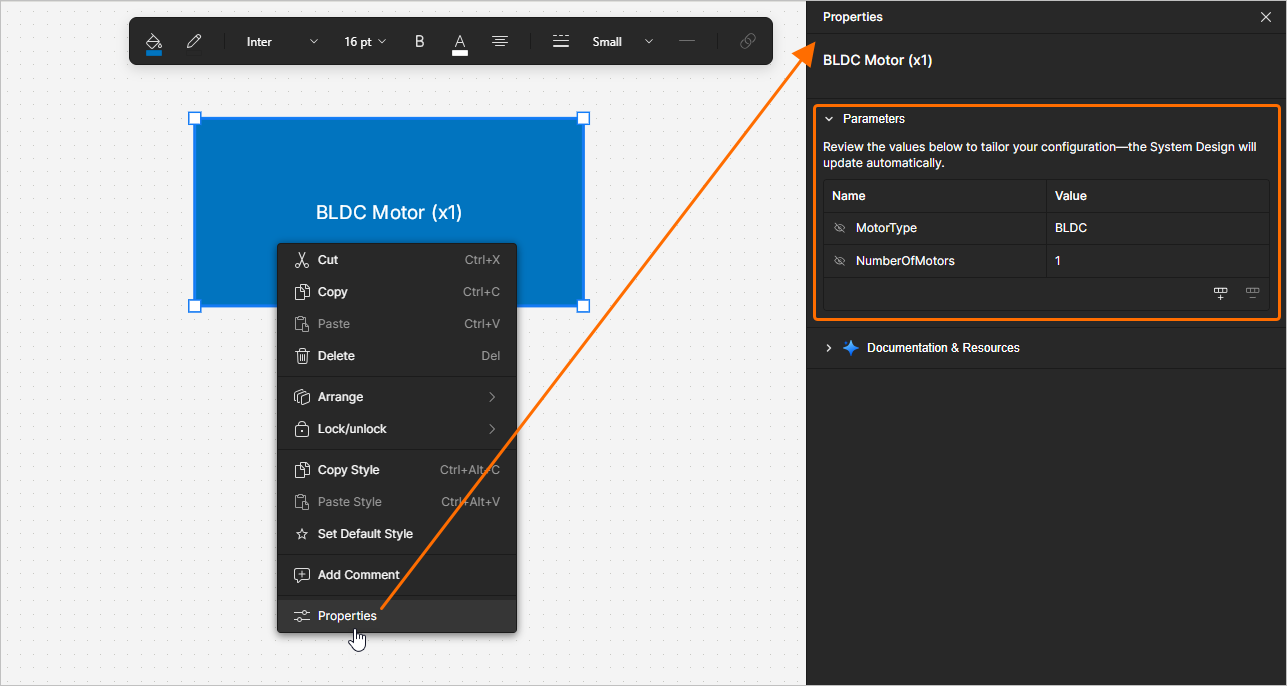
Доступ к свойствам размещенного объекта можно получить, выбрав его в рабочей области и нажав кнопку  в правом верхнем углу, чтобы открыть панель Properties. Либо щелкните правой кнопкой мыши по размещенному объекту и выберите команду Properties в появившемся меню.
Если в рабочей области не выбран ни один объект, на панели Properties отображаются свойства самого документа ESD.
Область Parameters панели Properties позволяет управлять параметрами выбранного объекта (функционального блока, аппаратного компонента, программного компонента, порта или соединения) или, если ни один объект не выбран, самого документа ESD. В открывшейся панели Properties используйте кнопки  и
и  для добавления и удаления параметров соответственно. Щелкните имя или значение параметра, чтобы изменить его.
Область Documentation & Resources панели Properties предоставляет автоматически формируемый список ссылок на ресурсы (документация Renesas, PDF-файлы), относящиеся к решению и его элементам.
Special Strings
Хотя тексты (текстовые объекты, имена функциональных блоков и т. д.) могут использоваться для отображения статического пользовательского текста в документе ESD, они также могут использоваться как заполнители для параметров документа и объектов. Чтобы использовать специальную строку в документе ESD, включите имя параметра в текст объекта. Специальные строки характеризуются префиксом = (например, =ControlAlgorithm, =MotorType и т. д.).
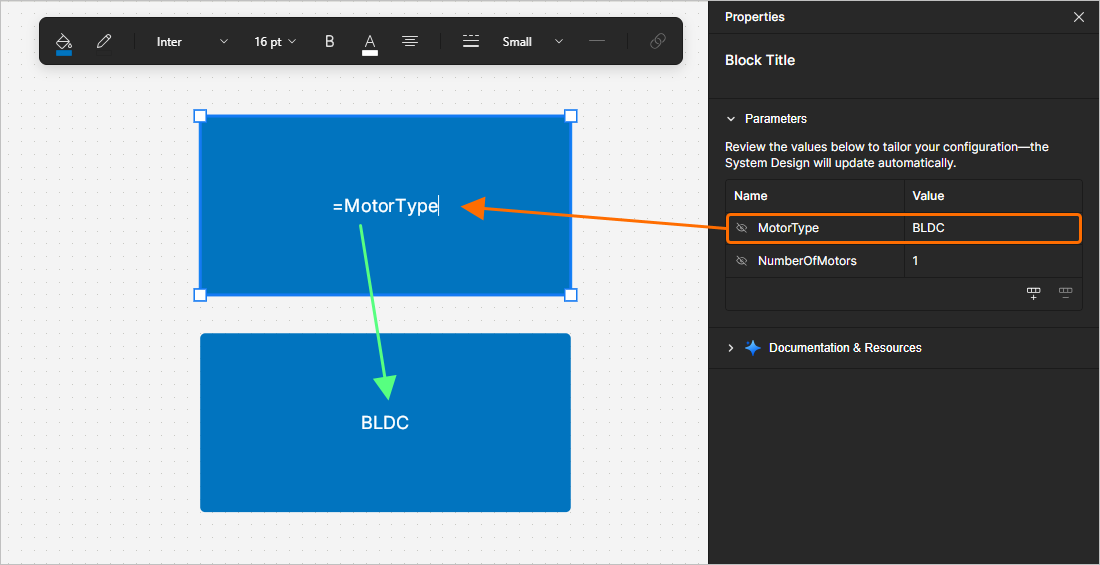
Несколько специальных строк вместе с обычным текстом (фиксированными строками) можно объединять в одну текстовую строку в соответствии со следующими правилами:
| Элемент | Функция | Пример |
|---|---|---|
= (знак равенства) |
Указывает, что следующая строка является выражением, которое должно быть интерпретировано. | =MotorType (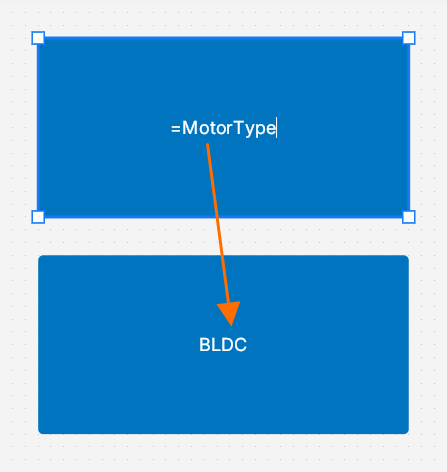 ) ) |
+ (плюс) |
Используется для объединения элементов специальной строки и фиксированной строки, необходимых в строке. | =MotorType + NumberOfMotors (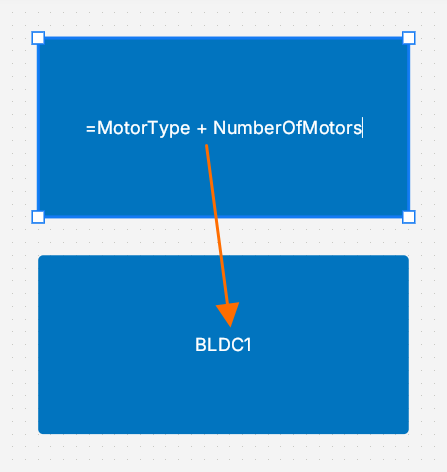 ) ) |
' ' (одинарные кавычки) |
Используется для включения фиксированной строки в любом месте требуемой строки. | =MotorType + ' Motor (x' + NumberOfMotors + ')' (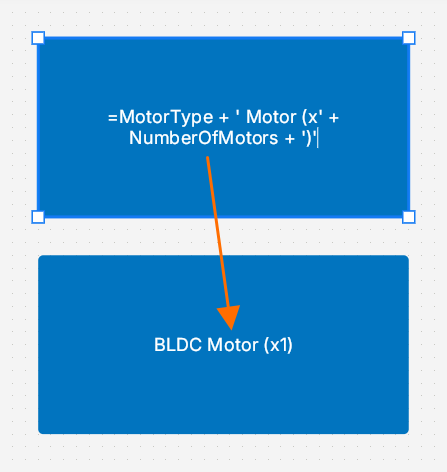 ) ) |
Размещение и настройка функциональных блоков
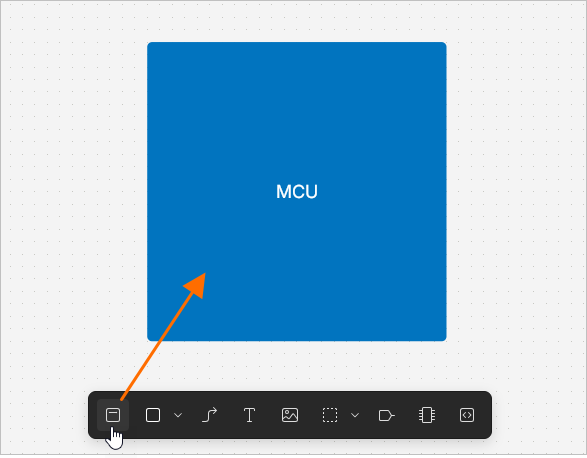
Чтобы разместить новый функциональный блок в документе ESD, нажмите кнопку  на нижней панели инструментов (или используйте кнопку в области Standard панели Library pane). Нажмите и удерживайте кнопку мыши в рабочей области, чтобы зафиксировать первый угол прямоугольника функционального блока, затем переместите курсор, чтобы настроить размер прямоугольника, и отпустите левую кнопку мыши, чтобы завершить размещение. Либо щелкните в рабочей области, чтобы разместить функциональный блок размера по умолчанию. Чтобы изменить имя функционального блока, дважды щелкните по нему, введите требуемое имя и нажмите
 Enter или щелкните вне функционального блока.
Чтобы добавить аппаратный компонент в функциональный блок, нажмите кнопку  на нижней панели инструментов. Курсор изменится на перекрестие, к которому будет прикреплено предварительное изображение компонента. Щелкните в пределах границ функционального блока, чтобы разместить компонент. Дважды щелкните по размещенному компоненту и используйте строку поиска во всплывающем окне, чтобы найти компонент. Выберите компонент в списке результатов поиска, и имя этого компонента появится внутри графического представления функционального блока.
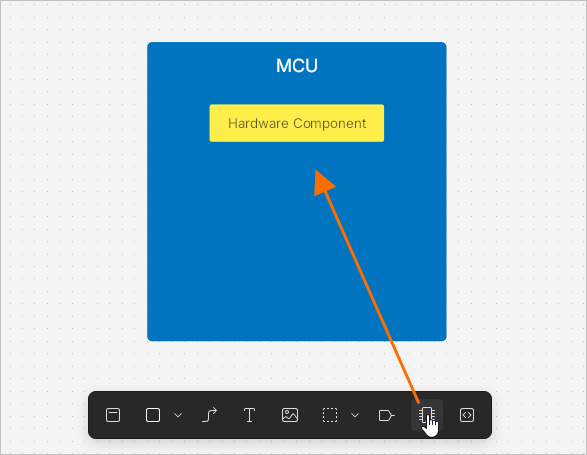
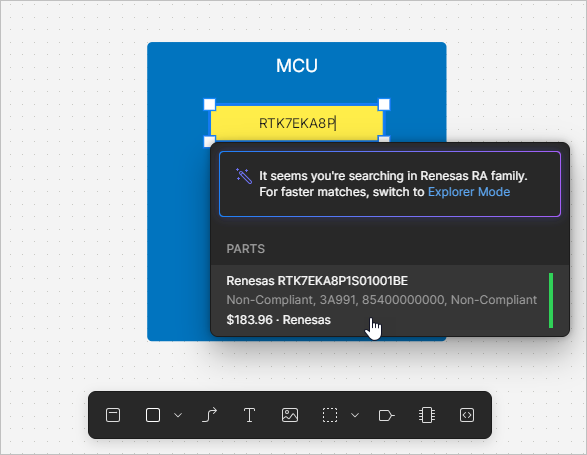
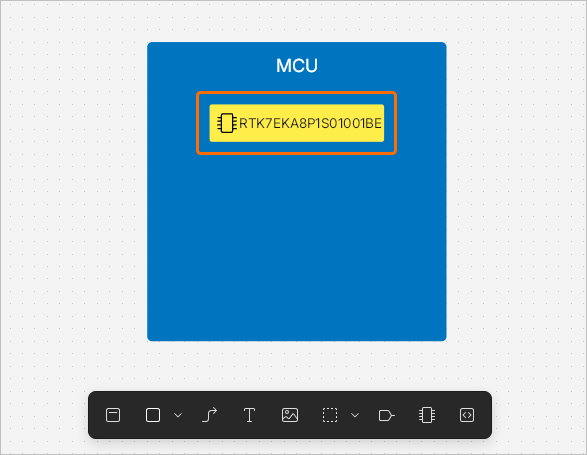
 на нижней панели инструментов.
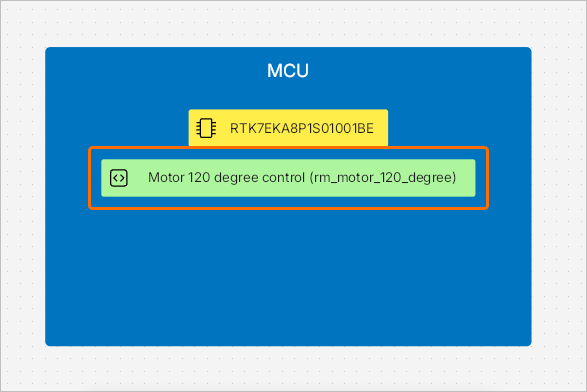
Чтобы разместить порт внутри функционального блока, нажмите кнопку  на нижней панели инструментов (или используйте кнопку в области Standard панели Library pane). Курсор изменится на перекрестие, к которому будет прикреплен порт по умолчанию. Щелкните в пределах границ функционального блока, чтобы разместить порт. Также можно щелкнуть вне функционального блока — в этом случае новый функциональный блок по умолчанию будет создан автоматически. Чтобы изменить имя порта, дважды щелкните порт, введите требуемое имя и нажмите
 Enter или щелкните вне порта.
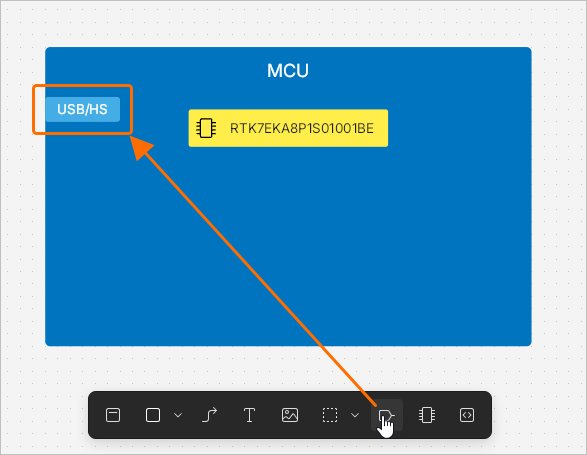
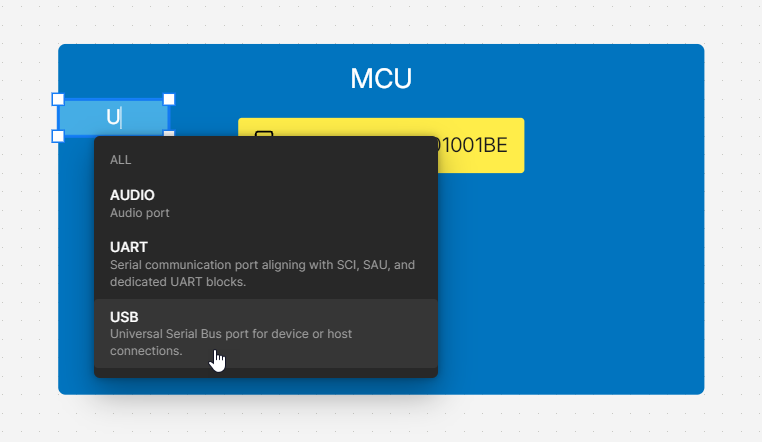 ).
).Использование RA Explorer
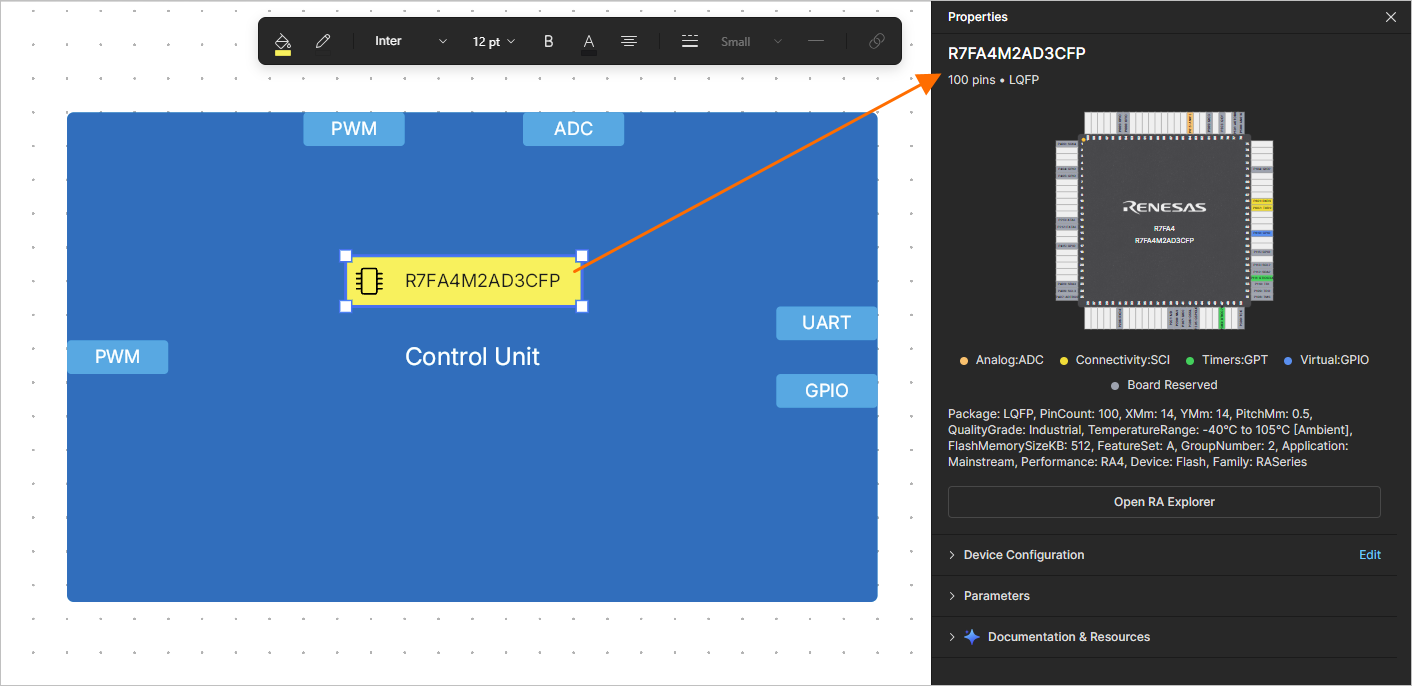
При поиске MCU семейства Renesas RA family можно использовать окно RA Explorer, чтобы найти нужный компонент. После размещения аппаратного компонента введите RA или Renesas в строке поиска и используйте ссылку Explorer Mode в верхней части всплывающего окна, чтобы открыть окно, в котором будет представлен список подходящих компонентов. По умолчанию список будет ограничен на основе портов, размещенных в функциональном блоке. Текущий список портов показан в верхней части окна. Вы можете добавлять порты других типов с помощью элемента управления Add Port и изменять требуемое количество портов каждого типа с помощью раскрывающихся списков. Щелкните нужный компонент в списке, чтобы выбрать его и отобразить его карту выводов в правой части окна. Нажмите кнопку  , когда нужный компонент выбран, чтобы применить его к объекту аппаратного компонента.
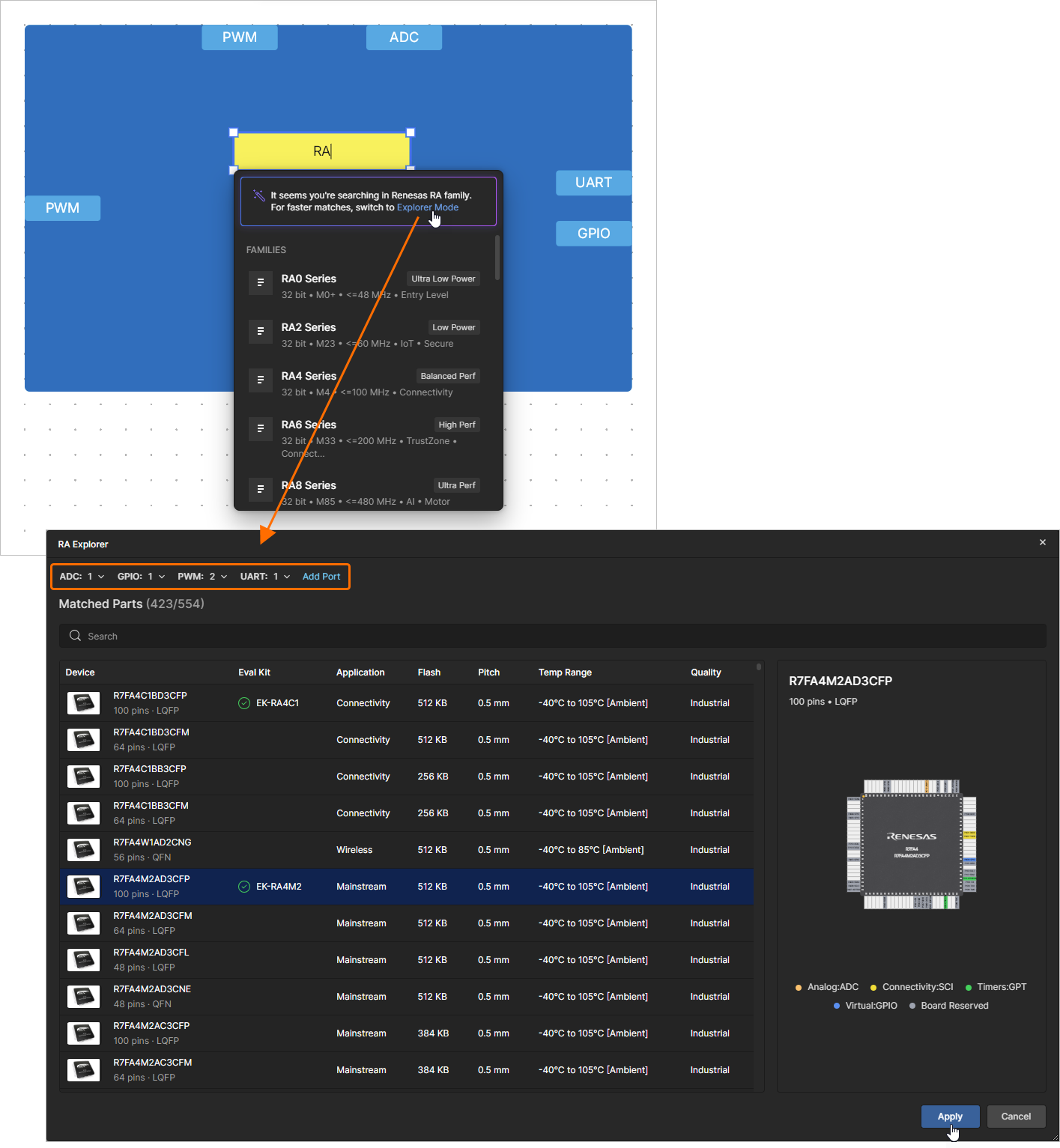
 )
)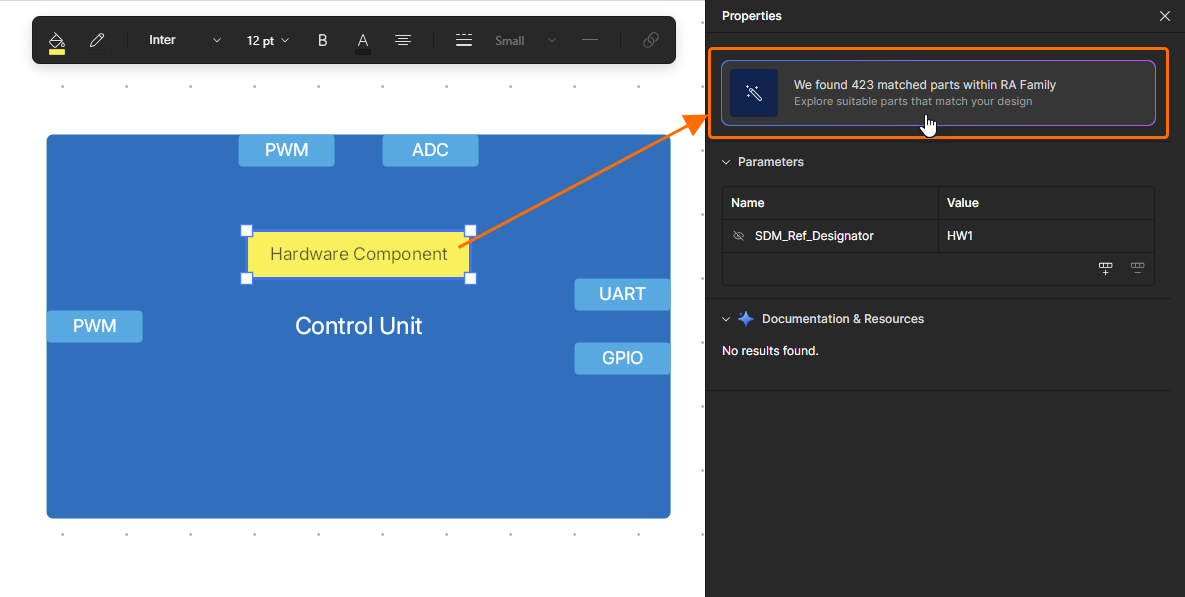 ).
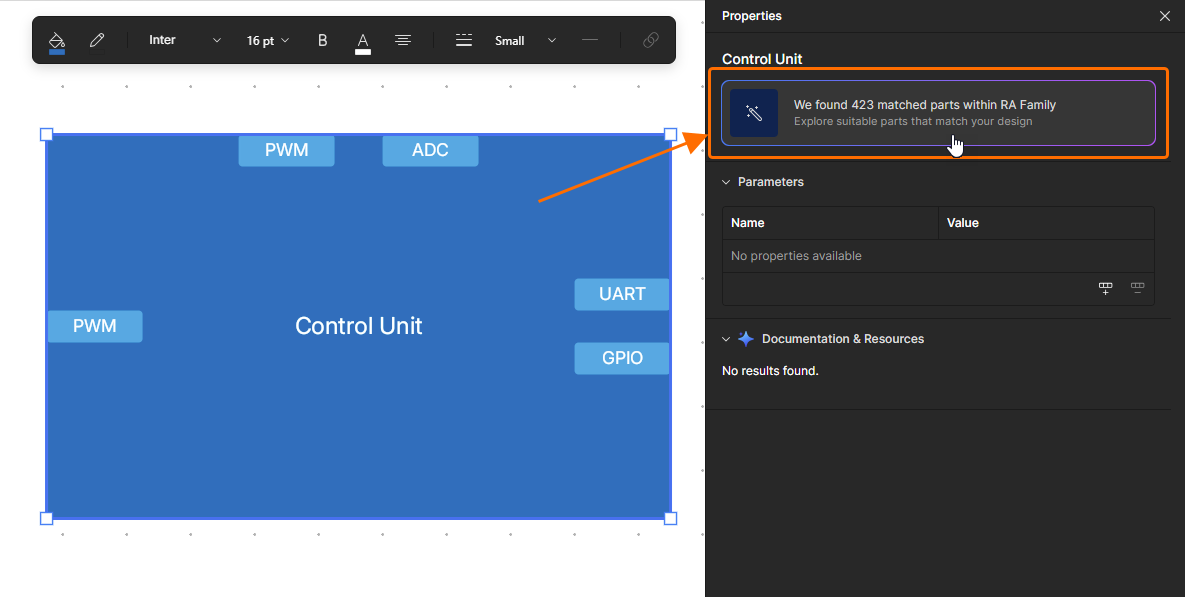
).После применения RA MCU к объекту аппаратного компонента выберите его и откройте панель Properties, чтобы изучить его свойства. При необходимости можно нажать кнопку  , чтобы открыть окно RA Explorer и выбрать другой MCU.
Использование Device Configuration
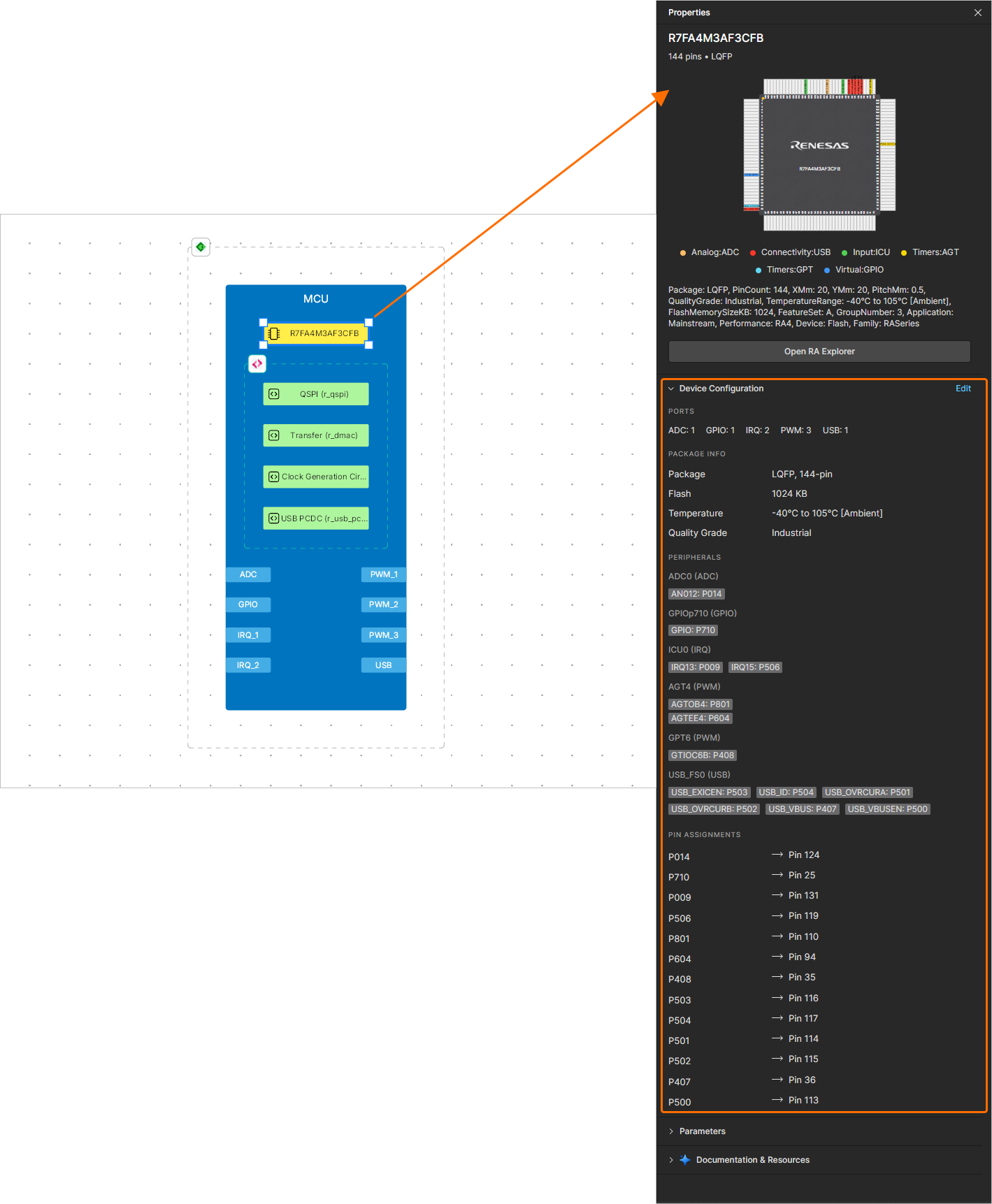
Функциональность Device Configuration позволяет просматривать и управлять портами, информацией о корпусе, периферией и назначениями выводов аппаратного компонента. Когда аппаратный компонент выбран, разверните область Device Configuration панели Properties, чтобы увидеть сведения о текущей конфигурации устройства.
Нажмите элемент управления Edit справа от заголовка области Device Configuration, чтобы открыть окно Device Configuration.
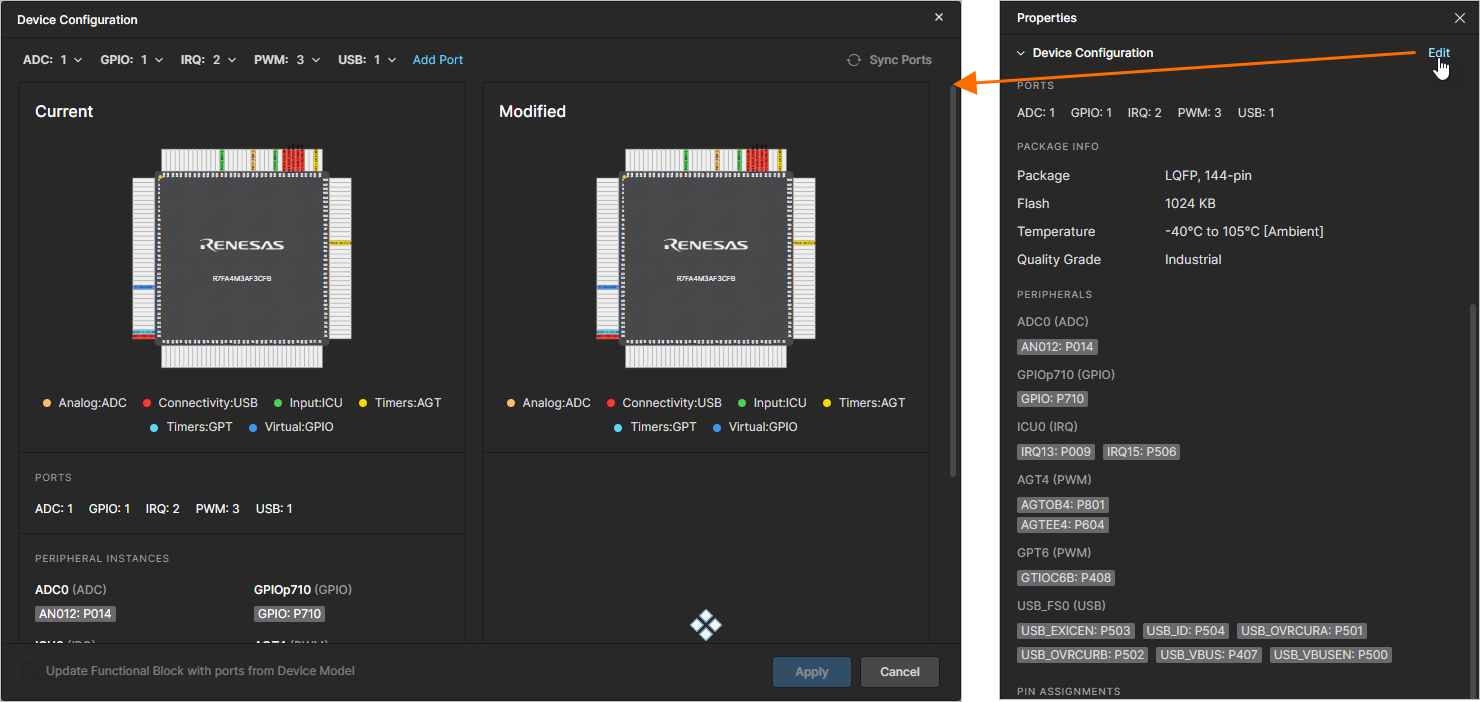
Текущий список портов, назначенных аппаратному компоненту, показан в верхней части окна, а текущая конфигурация устройства — в его левой части. Вы можете добавлять порты других типов с помощью элемента управления Add Port и изменять требуемое количество портов каждого типа с помощью раскрывающихся списков, а изменения конфигурации устройства будут показаны в правой части окна.
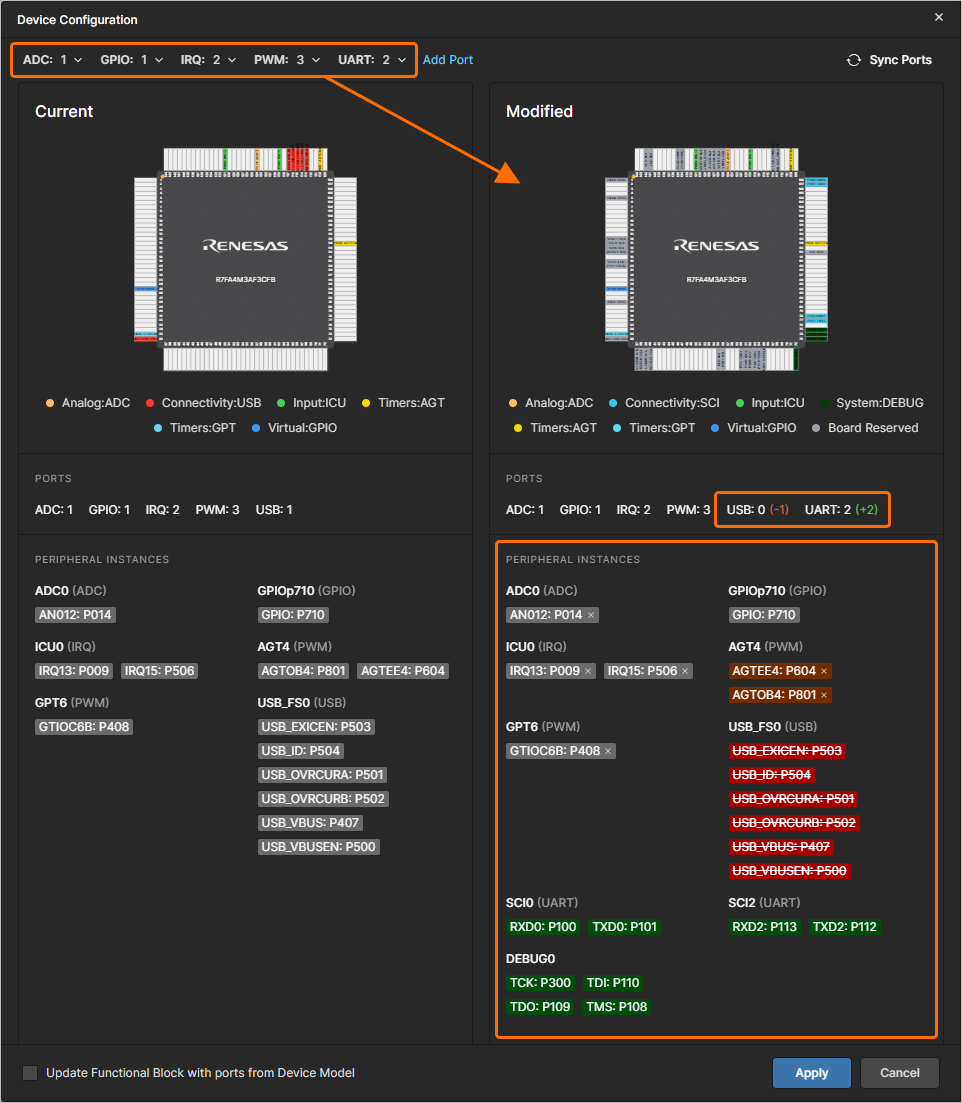
Вы также можете удалить порт, нажав x справа от соответствующей записи в области Modified окна.
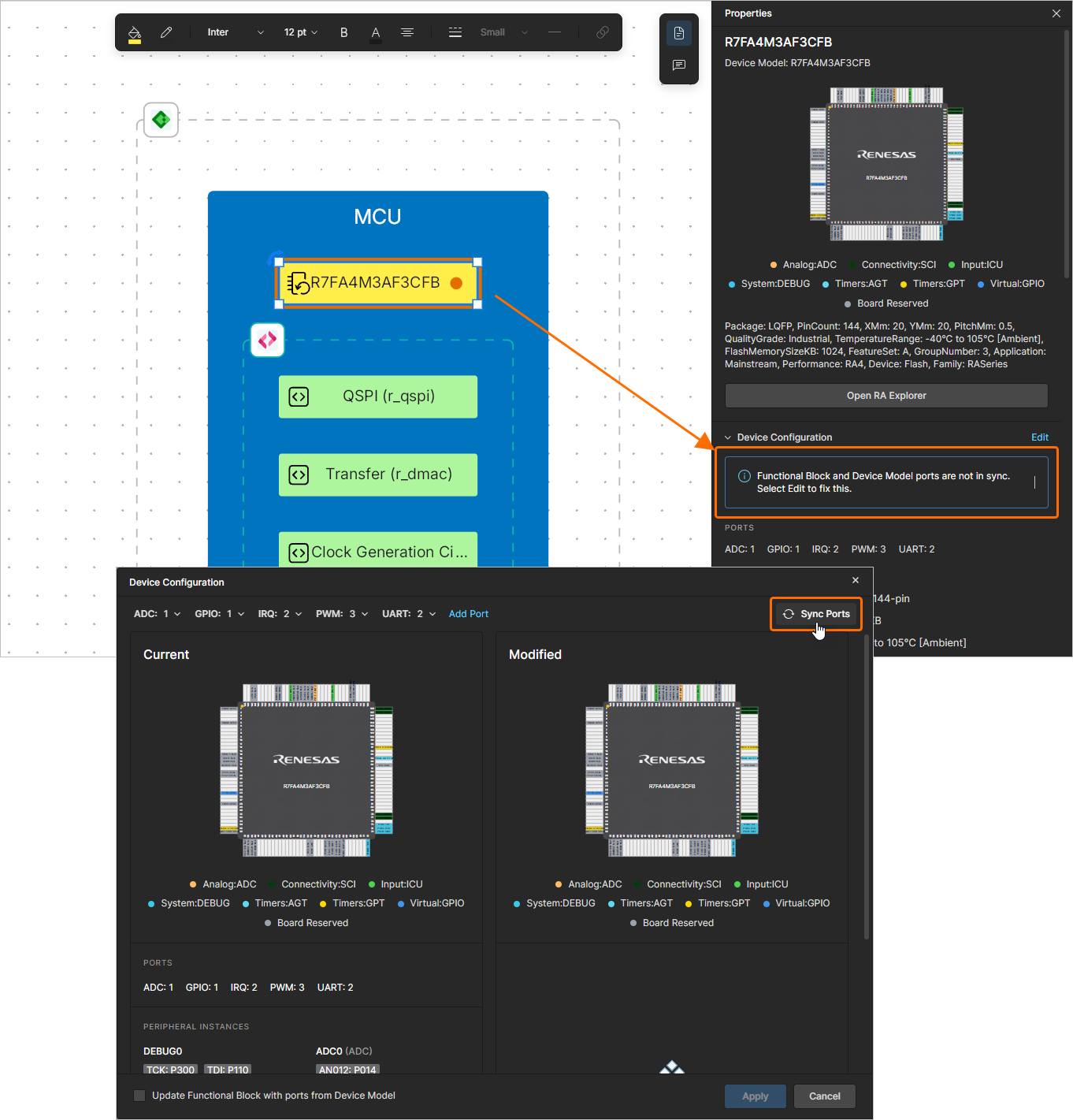
Если порты, назначенные аппаратному компоненту, не соответствуют портам в функциональном блоке (по типу и/или количеству), в области Device Configuration панели компонента Properties отображается уведомление. Компонент также выделяется оранжевой точкой и оранжевой рамкой в рабочей области. Чтобы устранить различие, можно использовать элемент управления  в окне Device Configuration, и программа назначит порты аппаратному компоненту в соответствии с портами функционального блока.
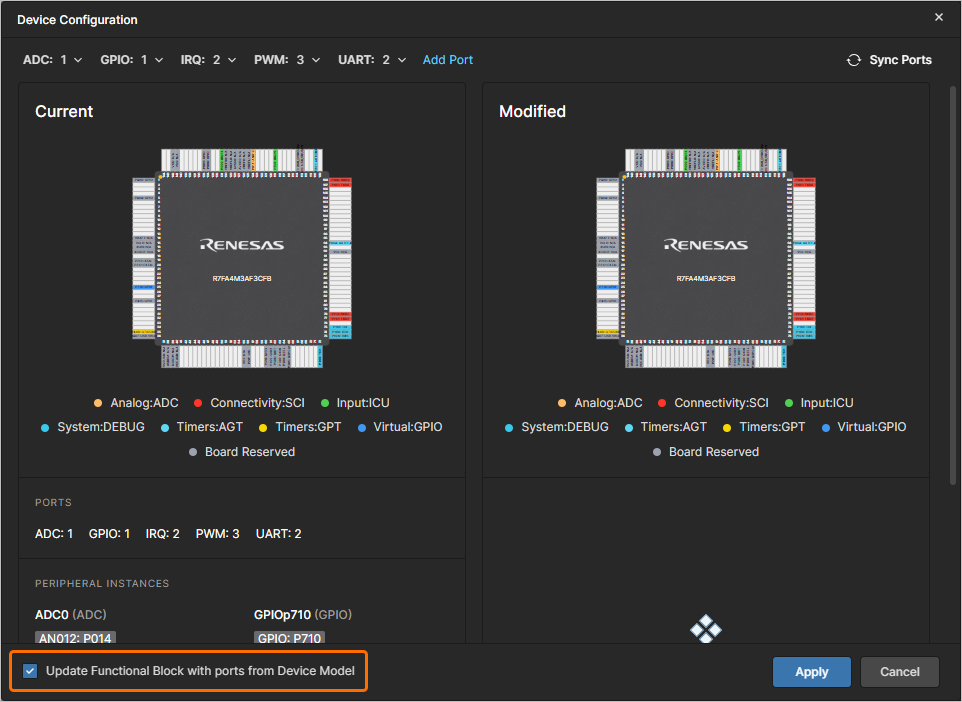
Либо, если вы хотите обновить порты функционального блока в соответствии с портами, назначенными аппаратному компоненту, включите параметр Update Functional Block with ports from Device Model в левом нижнем углу окна.
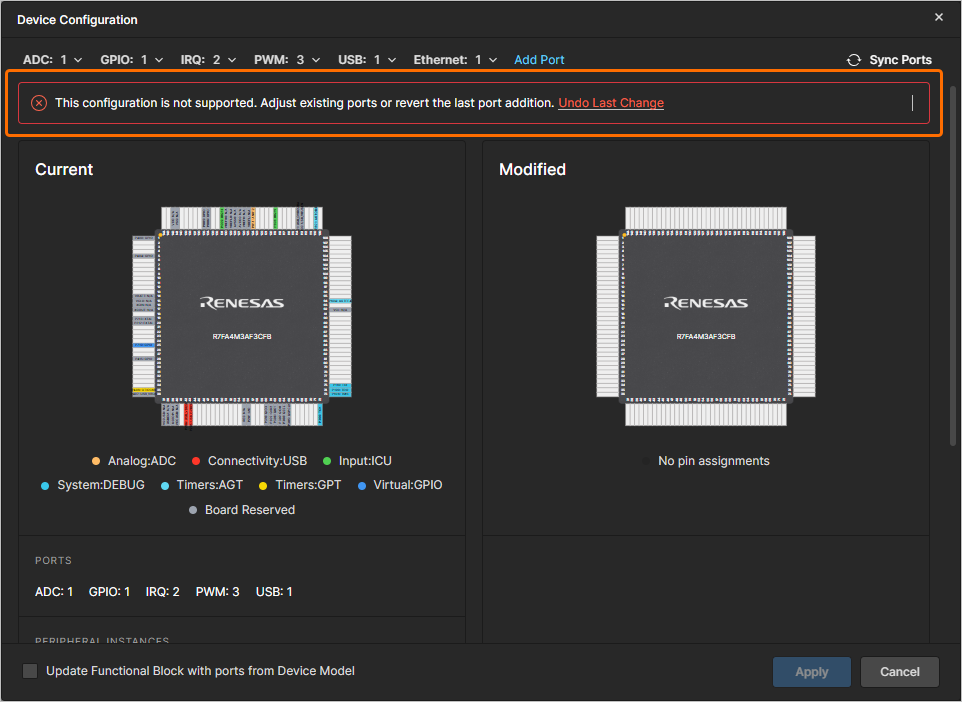
Если измененная конфигурация устройства не поддерживается, сообщение об этом будет показано в верхней части окна Device Configuration (и вы не сможете применить изменения). Измените набор портов вручную или используйте элемент управления Undo Last Change в баннере сообщения, чтобы отменить последние изменения, внесенные в окне.
Когда необходимые изменения в конфигурации устройства будут внесены, нажмите кнопку  , чтобы применить их к аппаратному компоненту.
Соединение функциональных блоков
Линия соединения может начинаться и заканчиваться на границе функционального блока, границе порта, границе прямоугольника, границе изображения, другой линии соединения или в свободном месте документа ESD. Чтобы разместить линию соединения, нажмите кнопку  на нижней панели инструментов (или используйте кнопку в области Standard панели Library pane). Щелкните точку, в которой нужно начать линию соединения. Перемещайте курсор, затем щелкайте, чтобы зафиксировать ряд вершин, определяющих форму линии соединения. Обратите внимание, что линия соединения будет автоматически избегать пересечения функциональных блоков. Щелкните правой кнопкой мыши, чтобы завершить размещение линии соединения в свободном пространстве документа. После размещения вершины на функциональном блоке, порте или уже размещенном соединении размещение текущего соединения автоматически завершается.
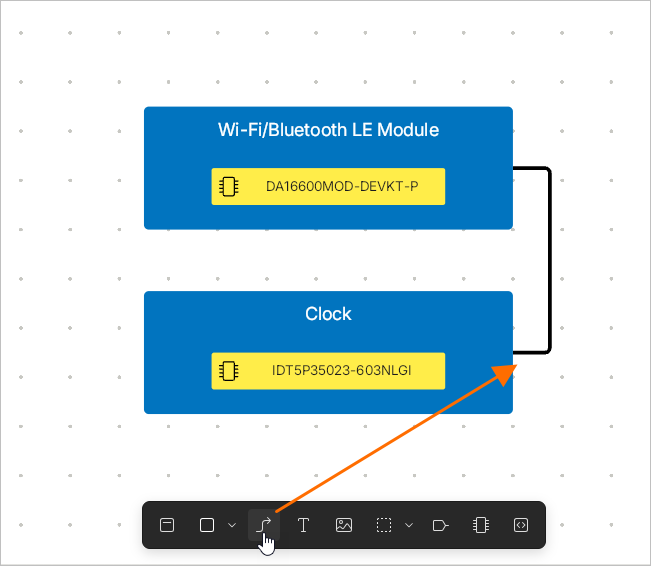
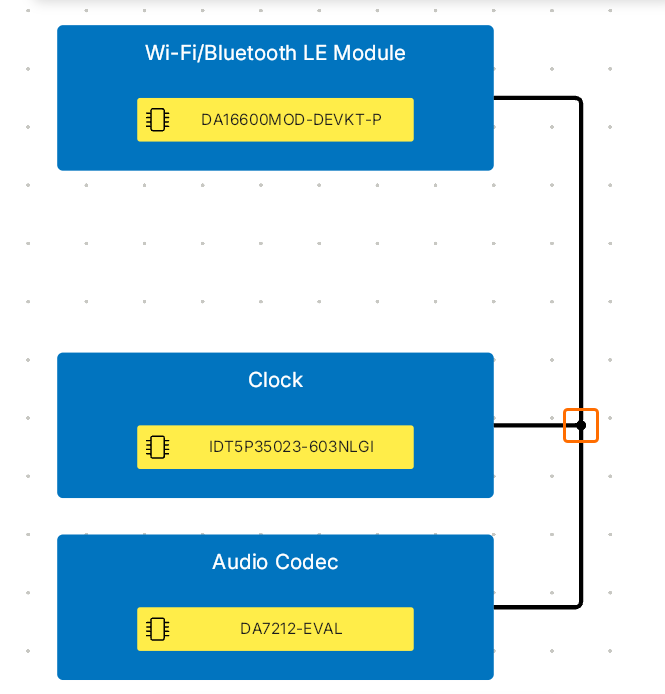 ).
).Когда размещенная линия соединения выбрана, доступны следующие маркеры редактирования.
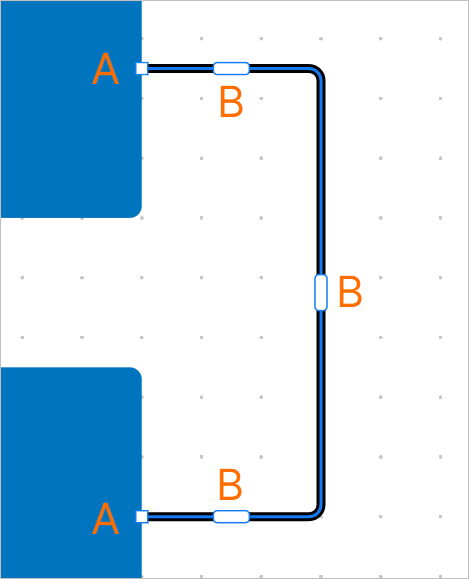
-
Щелкните и перетащите A , чтобы изменить положение конечных точек линии соединения.
-
Щелкните и перетащите B , чтобы изменить положение сегмента линии соединения. Конечные точки останутся закрепленными.
Один или оба конца (источник и приемник) линии соединения могут отображаться со стрелкой или без нее. Когда линия соединения выбрана, нажмите кнопку  на верхней панели инструментов и выберите требуемый стиль в появившемся всплывающем меню.
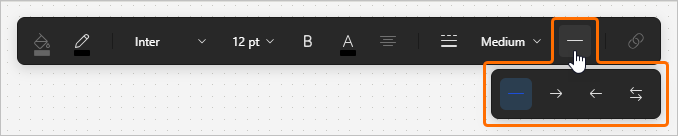
Задайте позиционное обозначение размещенной линии соединения, дважды щелкнув по ней и введя требуемое обозначение. Когда обозначение выбрано, используйте маркер в правом верхнем углу, чтобы повернуть его (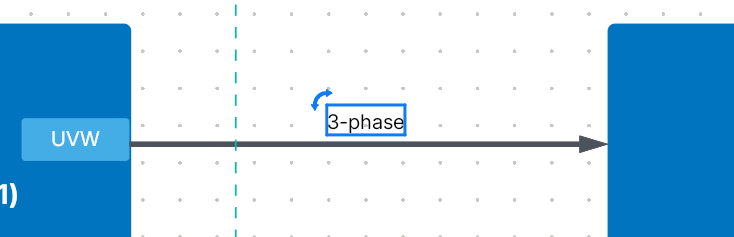 ).
).
Вы можете закрепить сегмент линии соединения, перетащив маркер редактирования сегмента или щелкнув правой кнопкой мыши сегмент и выбрав Pin Segment в появившемся меню. Маркер редактирования закрепленного сегмента отображается с синим заполнением (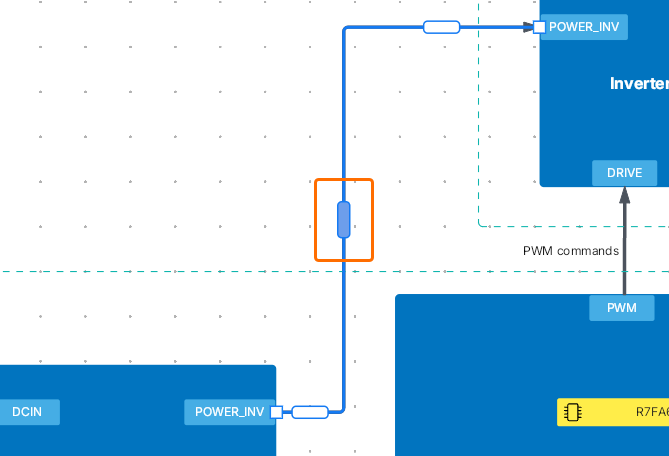 ). Текущее горизонтальное или вертикальное положение закрепленного сегмента остается неизменным при перемещении других сегментов линии соединения. Чтобы снять закрепление с сегмента, выберите Unpin Segment в контекстном меню сегмента.
Размещение Blanket-объектов
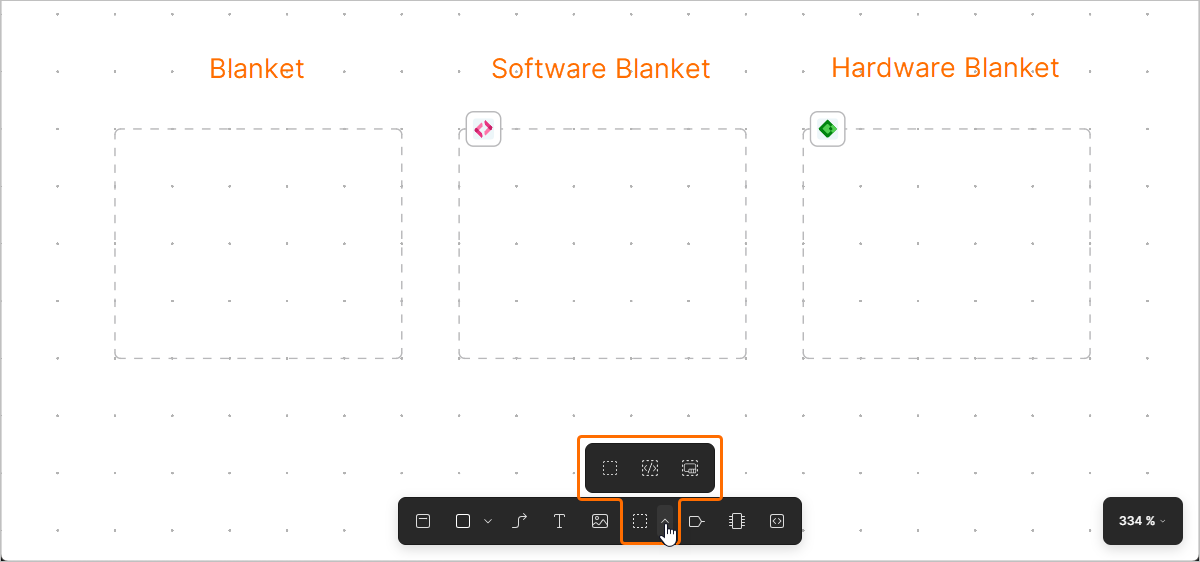
Редактор документов ESD позволяет размещать в документе ESD объекты blanket для дополнительного документирования конструкции системы. Аппаратные и программные blankets также можно связать соответственно с проектом PCB или программным проектом, чтобы предоставить контекст определенной части конструкции вашей системы непосредственно в документе ESD.
Используйте меню blanket-объектов на нижней панели инструментов, чтобы разместить blanket ( ), аппаратный blanket (
 ) или программный blanket (
 ) (или используйте кнопки в области Standard панели Library pane).
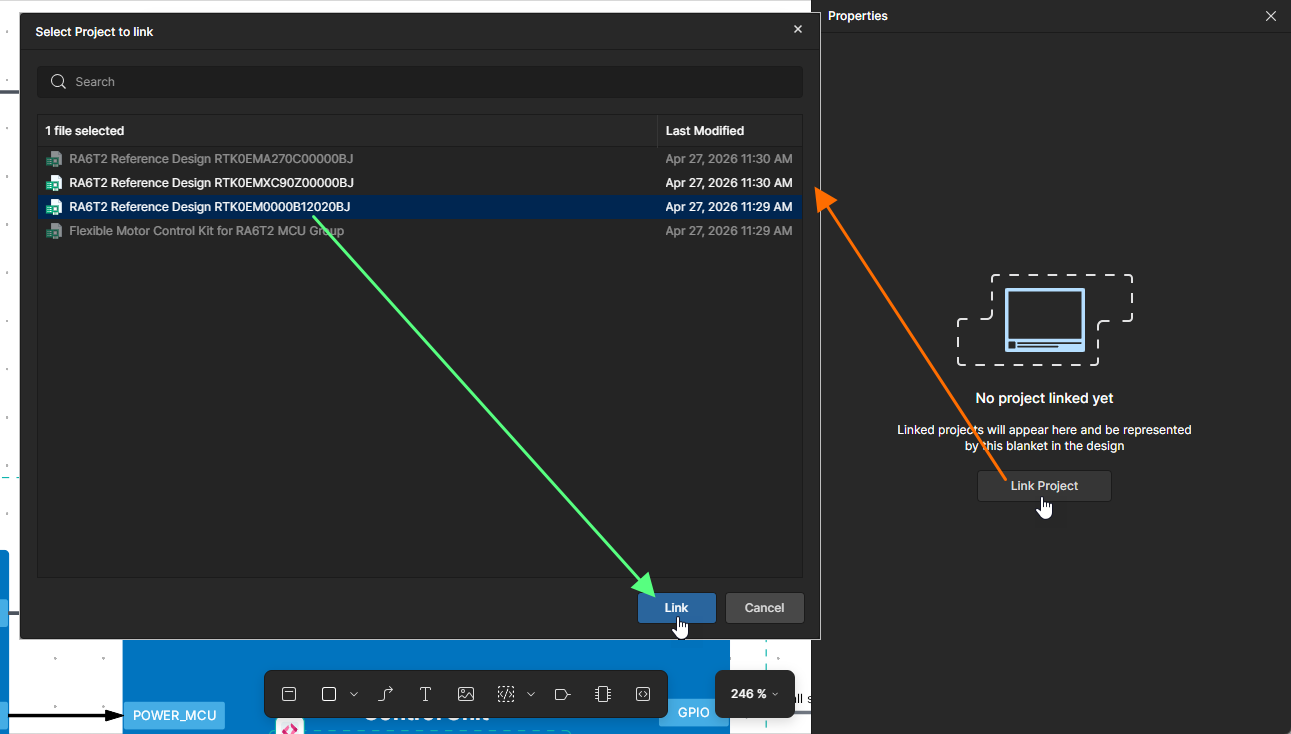
Чтобы связать аппаратный blanket с проектом PCB или программный blanket с программным проектом, выберите blanket в рабочей области и нажмите кнопку  на панели Properties. Откроется окно Select Project to link со списком аппаратных/программных проектов, связанных с решением. Выберите проект, который нужно связать с blanket, и нажмите кнопку
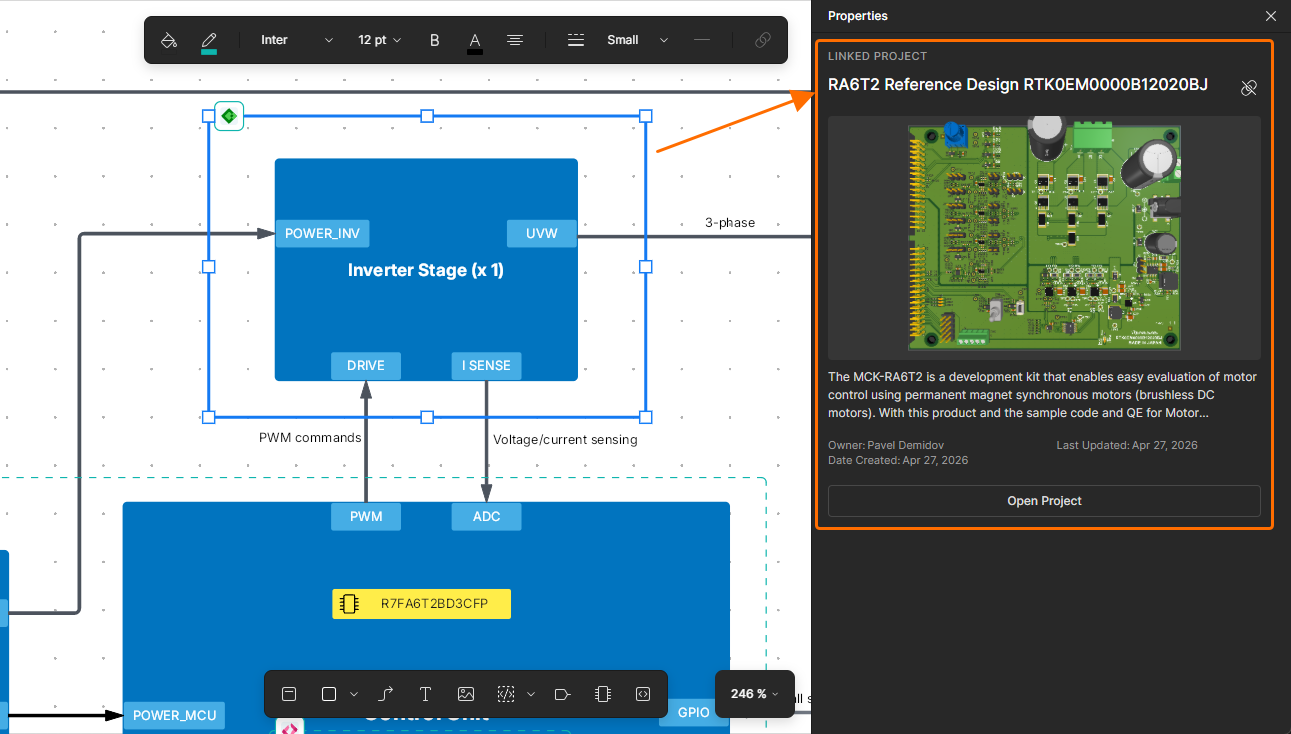
  . Информация о связанном проекте появится на панели Properties. Нажмите кнопку
  , чтобы открыть связанный проект в новой вкладке браузера.
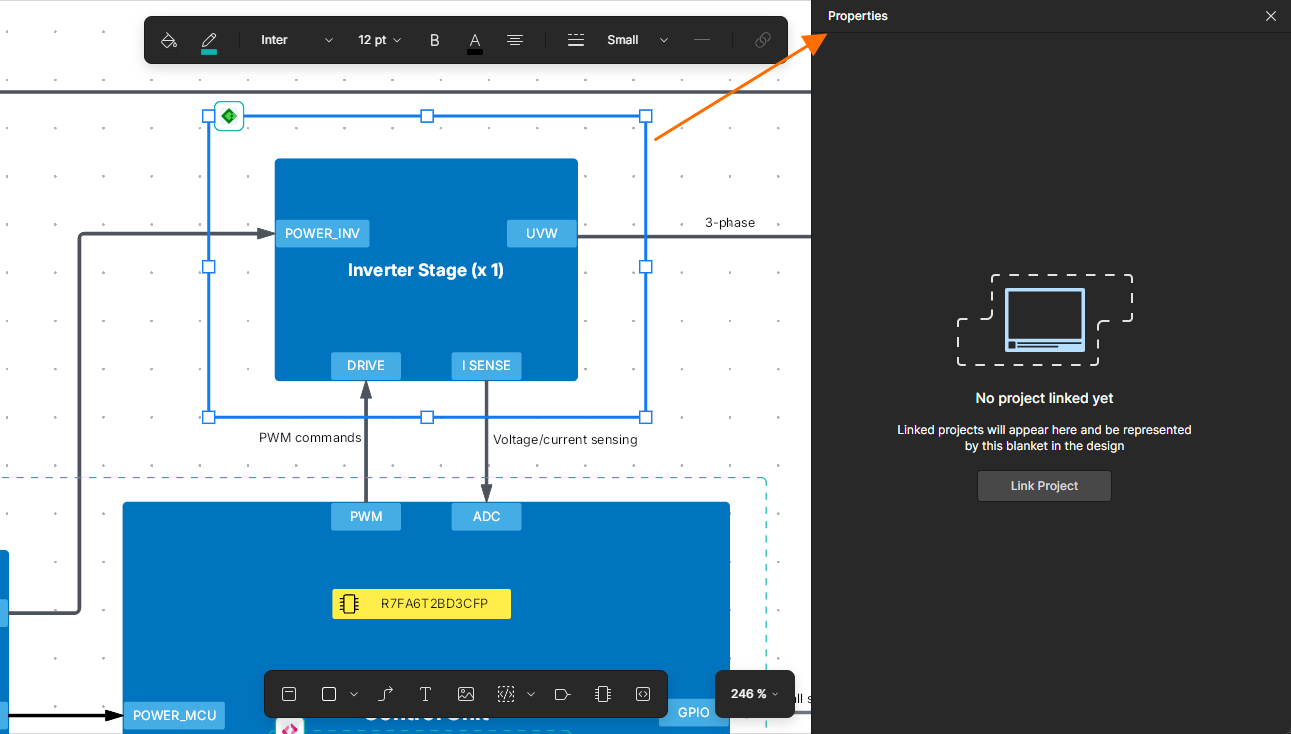
 в правом верхнем углу панели blanket Properties.
Создание Board Support Package
Для программного blanket можно сгенерировать BSP (board support package). Нажмите кнопку  в свойствах программного blanket.
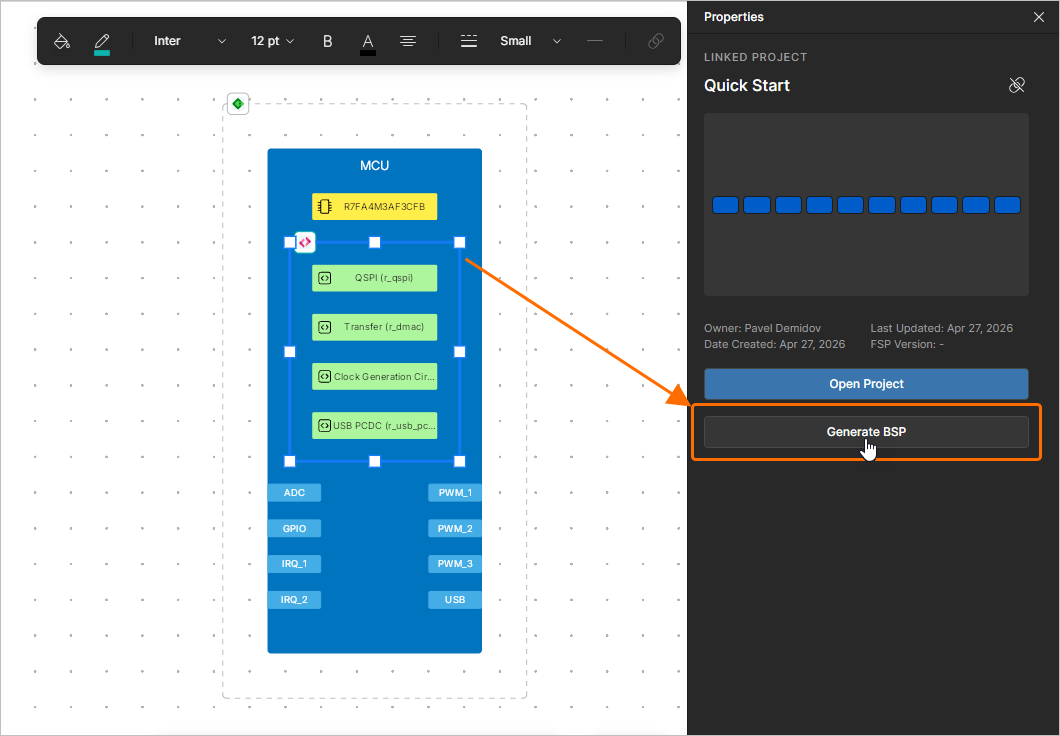
SDM решения будет автоматически отправлена (подробнее), и изменения будут применены к связанному программному проекту или, если его еще не существует, сначала будет создан новый программный проект.
Если в решение был импортирован reference design (подробнее) и аппаратный blanket, связанный с этим reference design, размещен вокруг функционального блока, в котором находится программный blanket, при создании BSP будет захвачен контекст eval kit. boardName будет добавлен в модель устройства и будет использоваться для генерации программного обеспечения, чтобы получить конфигурацию, совместимую с платой данного eval kit.
Размещение текста
Редактор документов ESD предоставляет возможность размещать текстовые строки. При необходимости к текстовым строкам можно добавлять ссылки.
Чтобы разместить текстовую строку, нажмите значок  на нижней панели инструментов (или используйте кнопку в области Standard панели Library pane).
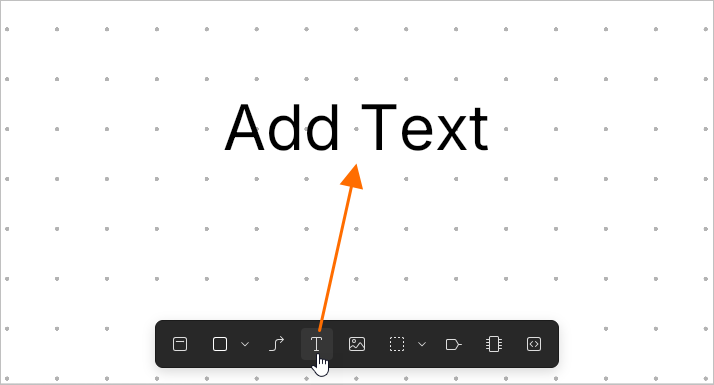
Чтобы отредактировать размещенную текстовую строку, дважды щелкните ее, введите нужный текст и нажмите Enter или щелкните вне текстового объекта.
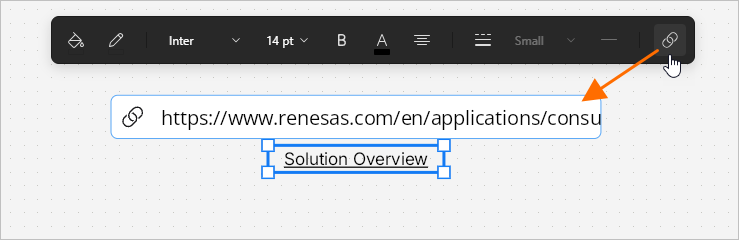
Чтобы добавить ссылку к размещенному тексту, сначала выберите нужный текстовый объект, а затем нажмите кнопку  на верхней панели инструментов. В появившемся всплывающем поле введите требуемый URL и нажмите
 Enter.
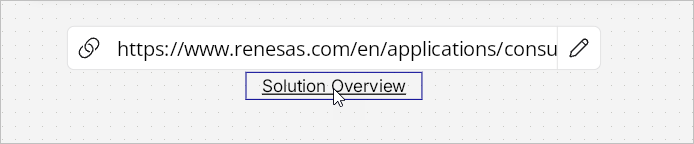
Доступ к добавленной ссылке можно получить, наведя курсор на текстовый объект, а затем щелкнув ссылку во всплывающем окне.
Чтобы отредактировать ссылку, нажмите кнопку  во всплывающем окне, измените URL нужным образом и нажмите
 Enter или нажмите кнопку  , чтобы удалить ссылку из текстового объекта.
Размещение графических объектов
Редактор документов ESD предоставляет набор инструментов графических элементов, которые можно использовать для размещения в документе ESD базовых графических элементов произвольной формы:
-
Прямоугольник (
 )
)
-
Эллипс (
 )
)
-
Линия (
 )
)
-
Изображение (
 )
)
Используйте меню графических объектов на нижней панели инструментов, чтобы разместить нужный объект (или используйте кнопки в области Standard панели Library pane).
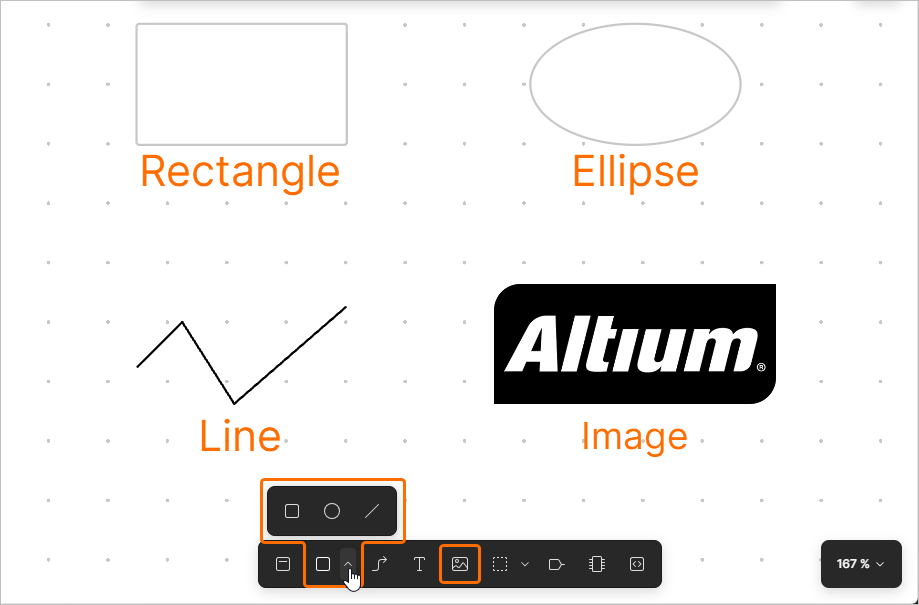
После выбора нужной команды из меню разместите графический элемент, щелкнув и перетащив его в рабочей области, чтобы задать положение и размер, например расстояние между противоположными вершинами для прямоугольника. Для полилинии щелкните, чтобы задать ее первую вершину, а затем щелкайте снова, чтобы разместить последующие вершины, тем самым определяя ее форму.
Размещенные графические объекты можно перемещать, выбирая их и перетаскивая. Также можно выбирать и перемещать отдельные узлы.
Размещение объектов из библиотеки
Редактор документов ESD также предоставляет возможность размещать часто используемые элементы из библиотеки, доступной на панели Library. Чтобы получить к ней доступ, нажмите кнопку  в левом верхнем углу рабочей области.
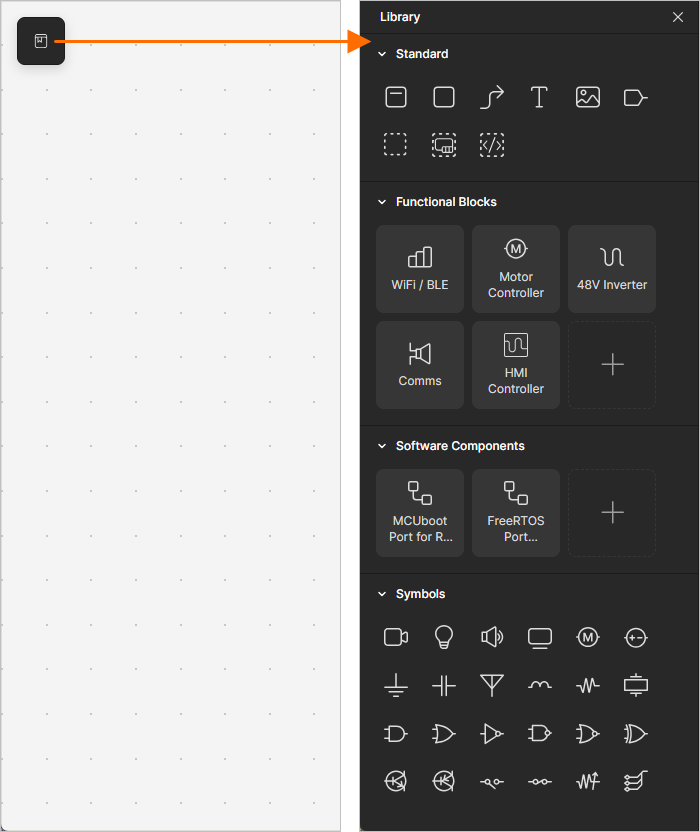
Панель включает следующие области:
-
Standard – используйте кнопки, доступные в этой области, для размещения базовых объектов (например, функционального блока, линии соединения и т. д.).
-
Hardware Blocks – используйте кнопки, доступные в этой области, для размещения функционального блока с предопределенным именем.
-
Software Components – используйте кнопки, доступные в этой области, для размещения программного компонента с предопределенным именем.
Чтобы добавить программный компонент в эту область, нажмите кнопку +. В открывшемся окне Software Components будет показан текущий список программных компонентов. Нажмите кнопку
 , чтобы открыть окно Create Component, и введите имя компонента (как оно будет отображаться на панели Library) в поле Component name, а затем выберите требуемый компонент с помощью поля FSP specification. Нажмите кнопку
  , чтобы добавить настроенный компонент в список в окне Software Components, и включите его значок видимости (
 ), чтобы сделать его доступным на панели Library.
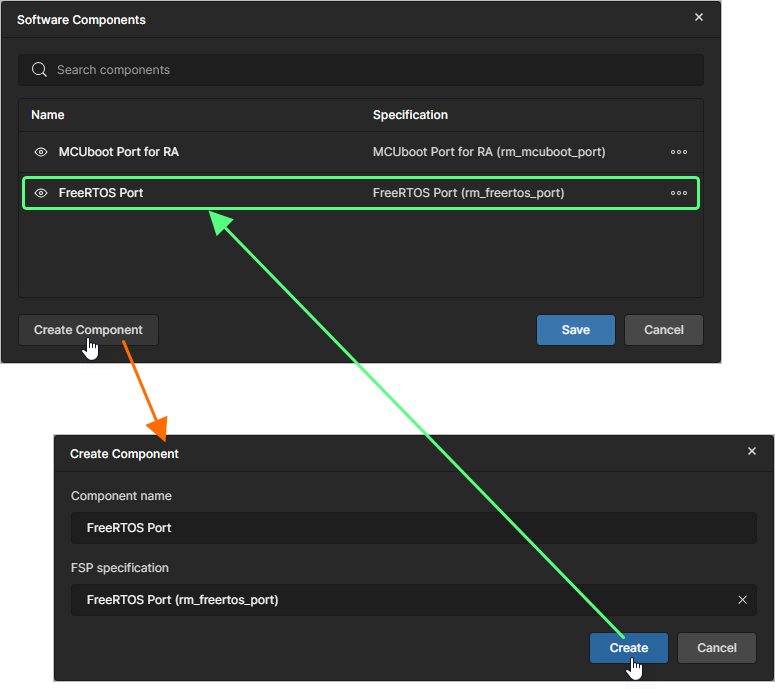
Используйте команды кнопки
 , чтобы управлять соответствующим программным компонентом:
-
Edit – выберите, чтобы открыть окно Edit Component, в котором можно редактировать Component name и/или FSP specification компонента.
-
Remove – выберите, чтобы удалить компонент из списка (и, следовательно, с панели Library, если компонент был там сделан видимым).
Чтобы скрыть программный компонент с панели Library, либо отключите его видимость в окне Software Components (
 ), либо щелкните правой кнопкой мыши кнопку компонента на панели Library и выберите Remove.
-
-
Symbols – используйте кнопки, доступные в этой области, для размещения предопределенного объекта-изображения.
Щелкните значок нужного объекта на панели Library, чтобы разместить его в документе.
Отправка и получение SDM
Чтобы поддерживать синхронизацию всех аспектов решения между собой, редактор ESD предоставляет возможность отправлять и получать System Data Model (SDM) решения. Для этого используйте соответствующие команды меню кнопки в правом верхнем углу документа ESD.
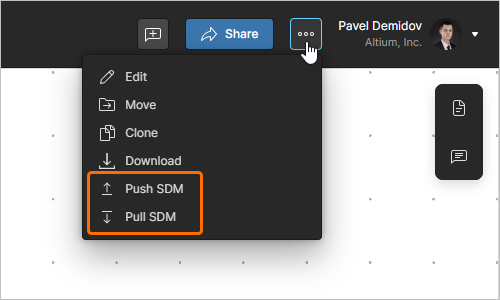
-
Push SDM – используйте эту команду, чтобы отправить SDM из документа ESD. SDM решения будет синхронизирована с изменениями, внесенными в документ ESD, и затем эти изменения можно будет получить в других доменах, например в аппаратных проектах в Altium Designer (подробнее) и программных проектах в e2 studio.
-
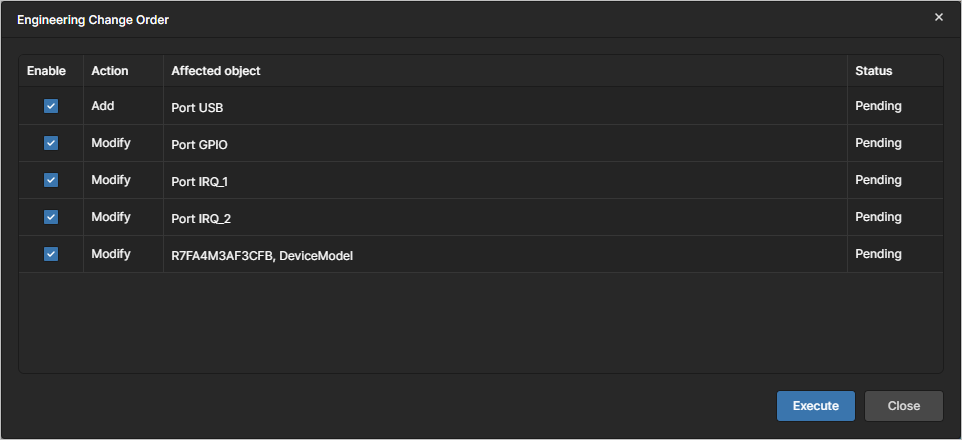
Pull SDM – используйте эту команду, чтобы получить SDM в документ ESD. Если есть изменения, которые нужно применить к документу ESD для синхронизации с SDM решения, откроется окно Engineering Change Order. Выберите изменения, которые нужно применить к документу ESD, с помощью флажков в столбце Enabled, а затем нажмите кнопку
 .
.
Управление документом ESD
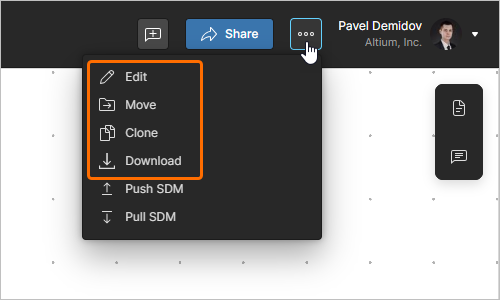
Другие команды меню кнопки  позволяют управлять документом.
-
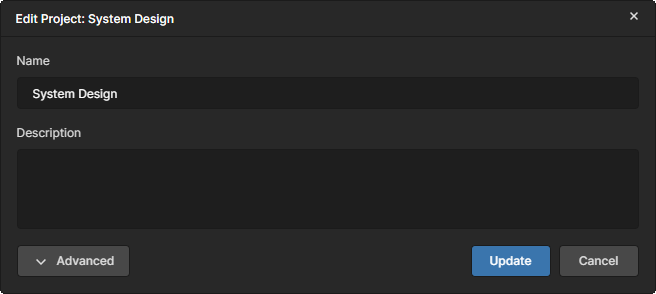
Settings – используйте эту команду, чтобы открыть окно Edit Project , предоставляющее элементы управления для изменения Name и Description документа ESD (
 ). Нажмите кнопку
  , чтобы получить доступ к полю Parent Folder и Workspace Parameters. Поле Parent Folder недоступно для редактирования и служит только для отображения информации. Чтобы изменить родительскую папку, необходимо использовать команду Move. Нажмите
  кнопку, чтобы подтвердить все внесенные вами изменения.
-
Move — используйте эту команду, чтобы открыть окно Move to, содержащее элементы управления для перемещения (переноса) документа ESD в другую родительскую папку в структуре папок Workspace (
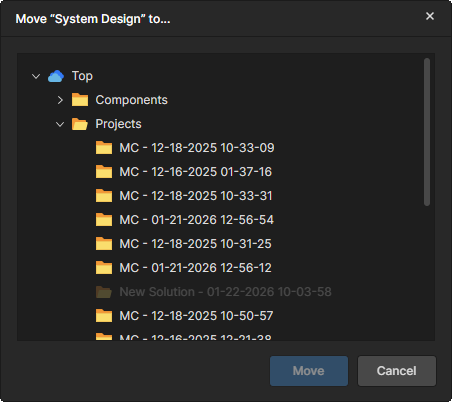 ). Используйте это окно, чтобы выбрать новую родительскую папку. Нажмите кнопку
  , чтобы выполнить перемещение.
-
Clone — используйте эту команду, чтобы открыть окно Clone - ESD, содержащее элементы управления для создания идентичной копии документа ESD (
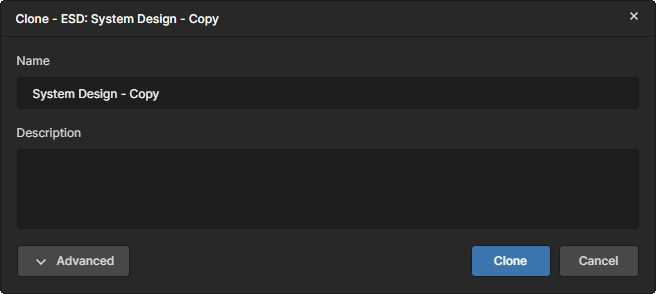 ). Используйте это окно, чтобы указать имя документа ESD и при необходимости описание. По умолчанию будет использовано имя исходного документа с суффиксом
 – Copy.Нажмите кнопку
, чтобы перейти к полю Parent Folder. По умолчанию здесь будет указана папка, в которой находится исходный документ. Нажмите ссылку Change справа от поля, чтобы открыть структуру папок Workspace и выбрать другую папку для сохранения клонированного документа.
После настройки полей нажмите кнопку
 , и исходный документ будет клонирован (дублирован). Затем созданную копию документа ESD можно связать с нужным решением со страницы подробной информации об этом решении в Workspace Renesas 365 — подробнее.
-
Download — используйте эту команду, чтобы загрузить документ ESD как файл
*.json.
Комментирование
Редактор документов ESD поддерживает комментирование документов ESD. Комментарий — это добавленная пользователем заметка, привязанная к определенной точке, объекту или области, на которую другие пользователи могут отвечать. Комментарии способствуют совместной работе пользователей, не изменяя сами общие данные, поскольку комментарии хранятся в Workspace независимо от этих данных. В комментарии можно упомянуть одного или нескольких людей либо группы. Комментарий также можно назначить участнику Workspace.
Комментарии публикуются, получают ответы и управляются непосредственно в пространстве проектирования документа с помощью контекстного окна комментариев. Комментарии также отображаются на панели Comments and Tasks , расположенной справа и служащей скорее для обзора и навигации, чем в качестве рабочего интерфейса.
 в правом верхнем углу документа ESD, чтобы переключать отображение панели Comments and Tasks.
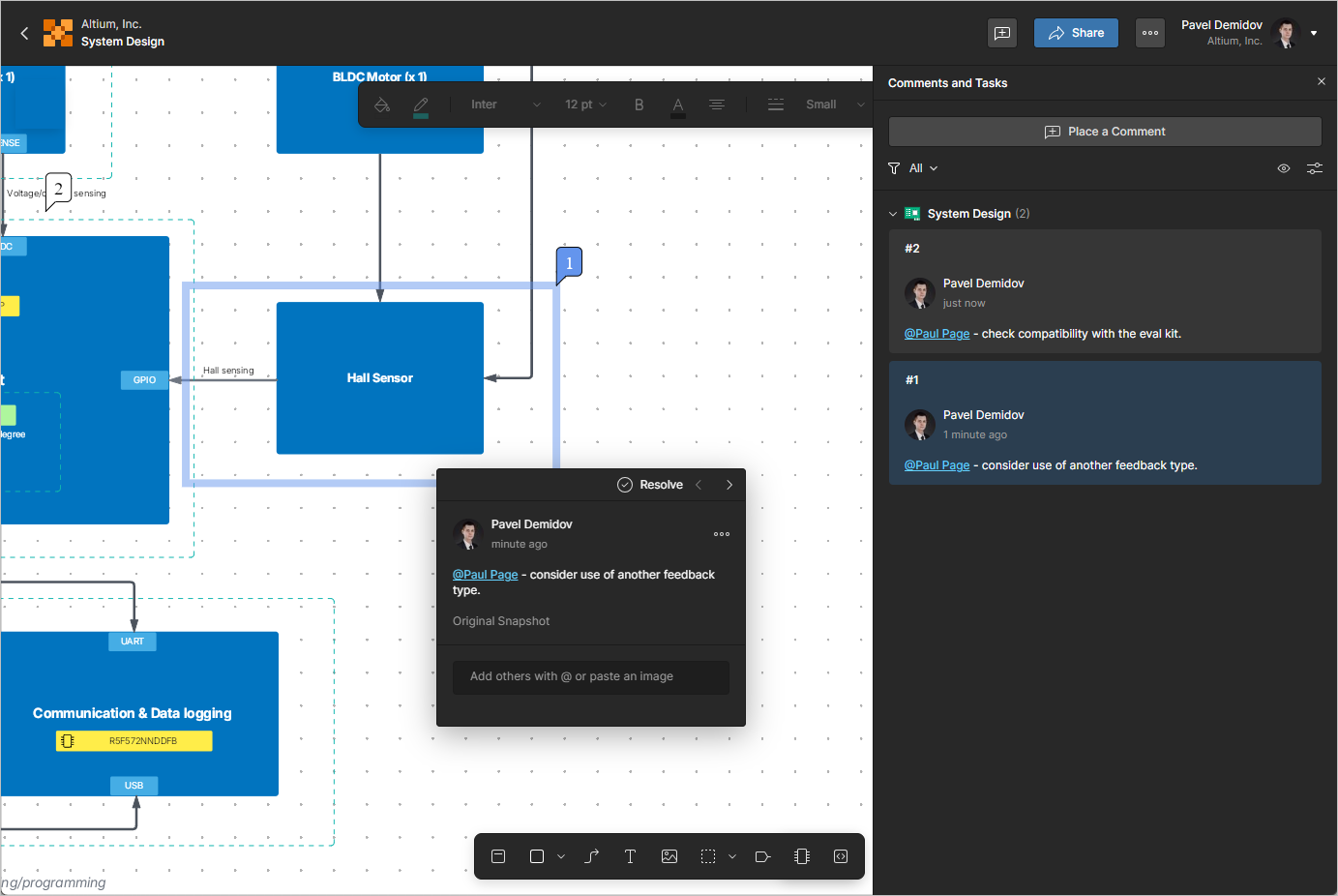
Чтобы разместить комментарий, используйте кнопку  на панели инструментов в правом верхнем углу документа ESD, команду Add Comment из контекстного меню, открываемого правой кнопкой мыши в пространстве проектирования документа, либо кнопку
  на панели Comments and Tasks.
Предоставление общего доступа к документу ESD
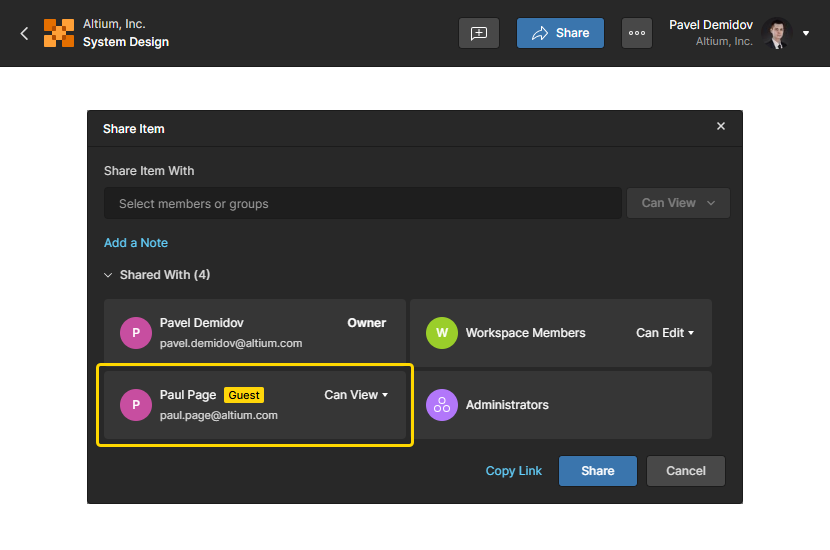
Документ ESD можно предоставить для просмотра пользователям вне вашего Workspace. Нажмите кнопку  в правом верхнем углу документа ESD, чтобы открыть окно Share Item. Выберите поле Share Item With, чтобы ввести полный адрес электронной почты пользователя. Пользователь получит доступ уровня Guest-level к общему документу ESD через свой собственный Workspace или Personal Space.
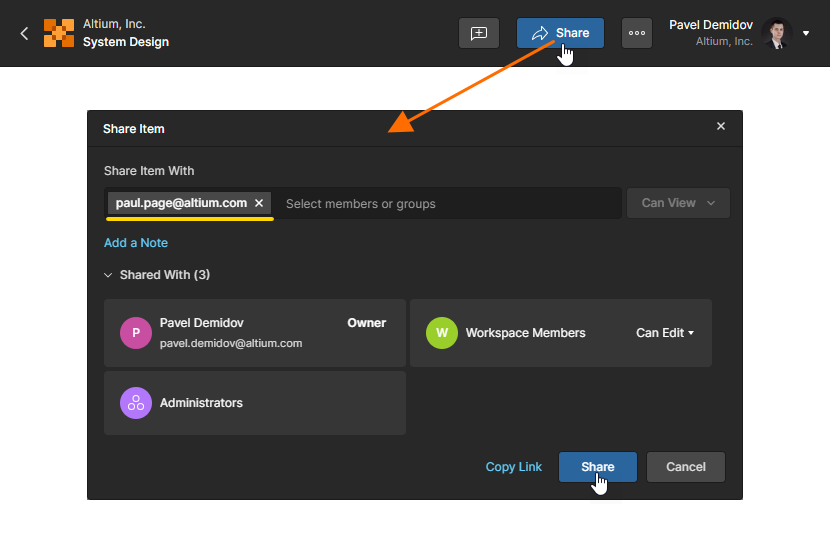
 Локализовано с помощью ИИ