
KB: Altium Designer Launch Error - Error reading DXP.RCS
Updated: октября 15, 2026
 Altium Designer
Users may encounter the error message “Error reading DXP.RCS at line x” when launching Altium Designer. This issue is typically caused by corruption or syntax errors in the DXP.RCS file, which stores user interface customizations such as toolbars, menus, and shortcut keys.
When the file cannot be parsed correctly, Altium Designer may fail to launch. Recovery options include deleting the corrupted configuration file, replacing configuration files with working copies from another installation, resetting user preferences, or performing a clean uninstall and reinstall of Altium Designer.
Solution Details
Launch Failure Triggered by Configuration Corruption
Users may see the error message “Error reading DXP.RCS at line x” during startup of Altium Designer. The error prevents the application from loading and launching normally.
Damaged Interface Settings File Causes Error
The DXP.RCS file stores user interface customizations including toolbars, menus, and shortcut keys. The file may become corrupted because of improper shutdowns, manual file edits, or system-level issues. When syntax errors are present in the file, Altium Designer cannot load the configuration and startup fails.
Available Recovery Options for Startup Issues
- Delete the corrupted
DXP.RCSfile. - Replace configuration files with working copies from another installation.
- Reset preferences using Altium Designer tools.
- Perform a clean uninstall and reinstall of Altium Designer.
Step-by-Step Recovery Methods
1. Delete the Corrupted File
- Close Altium Designer completely.
- Navigate to
C:\Users\<username>\AppData(Hidden folder)\Roaming\Altium\Altium Designer {GUID} - Delete the
DXP.RCSfile.
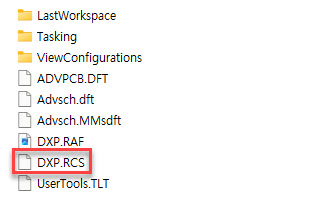
- Restart Altium Designer.
2. Copy Working Configuration Files
- Close Altium Designer completely.
- Navigate to
C:\Users\<username>\AppData(Hidden Folder)\Roaming\Altium\Altium Designer {GUID} - Obtain the following files from a working Altium Designer installation:
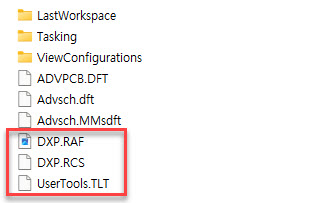 :
:
DXP.RAFDXP.RCSusertools.tlt
- Replace the corresponding files in the target installation.
3. Reset Preferences
- Follow the official Altium procedure for resetting user preferences: KB: Reset the Altium Designer configuration to the installation defaults
4. Clean Uninstall and Reinstall
- Uninstall Altium Designer completely.
- Delete any remaining configuration folders from:
C:\Program Files\AltiumC:\Users\<username>\AppData\Roaming\Altium
- Reinstall the latest version of Altium Designer using the offline installer available from the Altium website: Download Altium Designer
For instructions on obtaining an offline installer, see: KB: Install Altium on machines without internet or behind firewall and update notification turned off
Additional Notes
- Always back up configuration files before making changes.
- If multiple users experience the issue simultaneously, investigate possible system-wide causes such as antivirus interference or recent operating system updates.