
KB: Reset/Change Password
 Altium Designer
Solution Details
If the current password is known, go to this web page:
https://accounts.live.altium.com/
Then select Change Password in the Authentication page in your Profile:
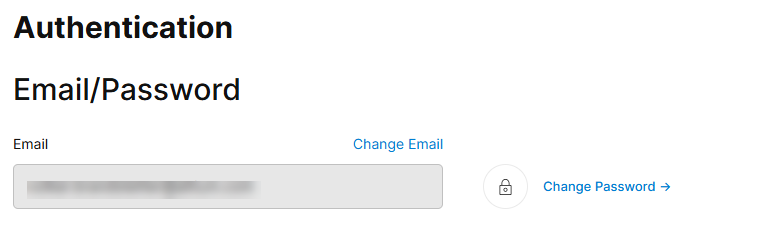
Then you should get the option to change password:
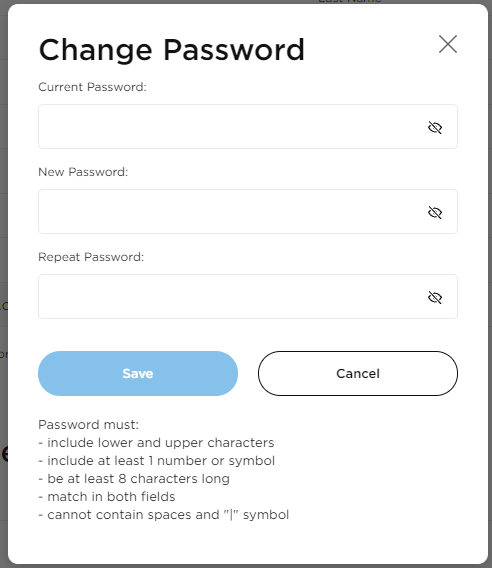
If you can't remember the current password you can go to this web page:
https://live.altium.com/signin
From here, enter in the email address and select the Forgot Password option.
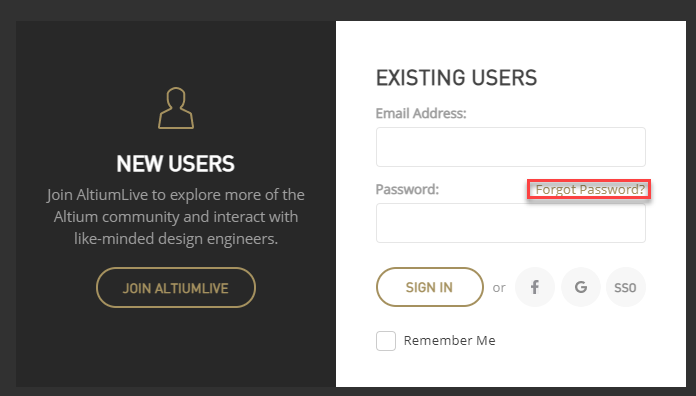
You should get an e-mail sent to you with a link to change your password.
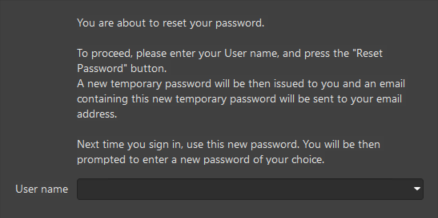
You can also have your password reset from the License Management page from within Altium.
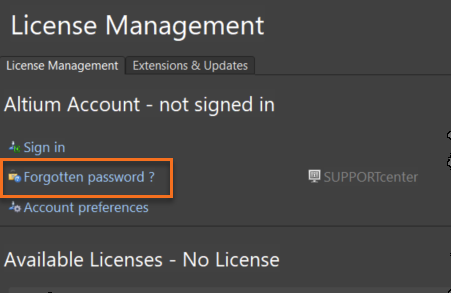
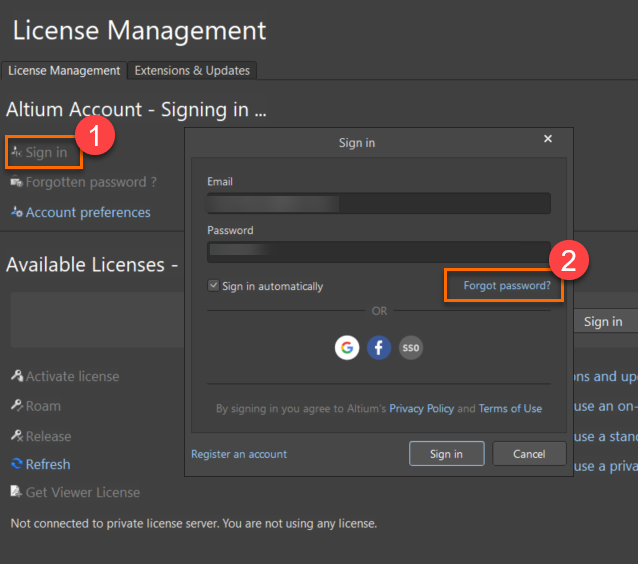
You can even get to the Forgot password option from the sign in box:
Alternatively, your group admin can reset an AltiumLive user's password in the company Dashboard through the Reset Password button, upon which the email is sent to the user.