
KB: Enterprise Server connection error caused by self-signed SSL certificate
Updated: мая 04, 2026
 Altium On-Prem Enterprise Server
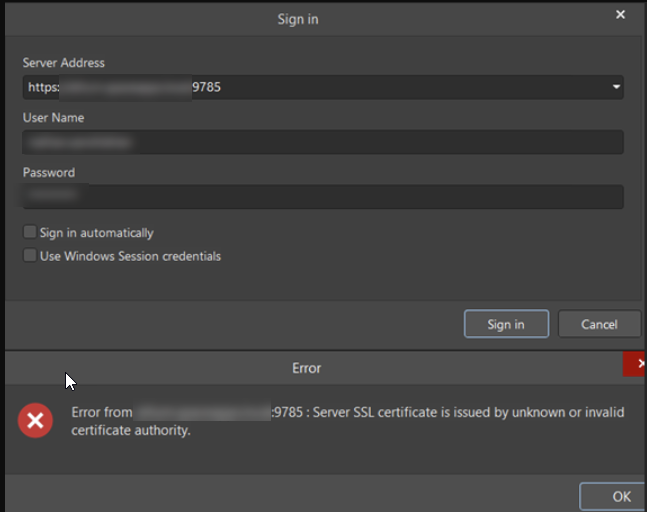
When connecting from Altium Designer to an Altium On-Prem Enterprise Server (AES), the client may display the error “Server SSL certificate is issued by unknown or invalid certificate authority.” This typically occurs when the AES is configured with a self-signed SSL certificate, which is not trusted by default on client systems. The issue can be resolved either by properly configuring the self-signed certificate on the IIS server or by allowing the Altium Designer client to accept self-signed certificates through an advanced system setting.
Solution Details
SSL validation error during server connection
While attempting to connect Altium Designer to the Altium On-Prem Enterprise Server (AES) on port 9785, the connection fails with an SSL-related error indicating that the server certificate is issued by an unknown or invalid certificate authority. This prevents the client from establishing a trusted connection to the server.
Self-signed certificates are not trusted by default
This behavior occurs because the Enterprise Server is using a self-signed SSL certificate. Since self-signed certificates are not issued by a trusted certificate authority, client systems do not automatically trust them, resulting in an SSL validation failure.
Choose how the self-signed certificate is handled
- Configure the IIS server to properly use the self-signed certificate.
- Allow Altium Designer to connect using a self-signed certificate via an advanced system setting (starting with Altium Designer version 25.2.1.)
Configure IIS or allow self-signed certificates in Altium Designer
- If using a self-signed certificate on the AES, configure the IIS server to use this certificate as described in the AES documentation: Configuring a Certificate
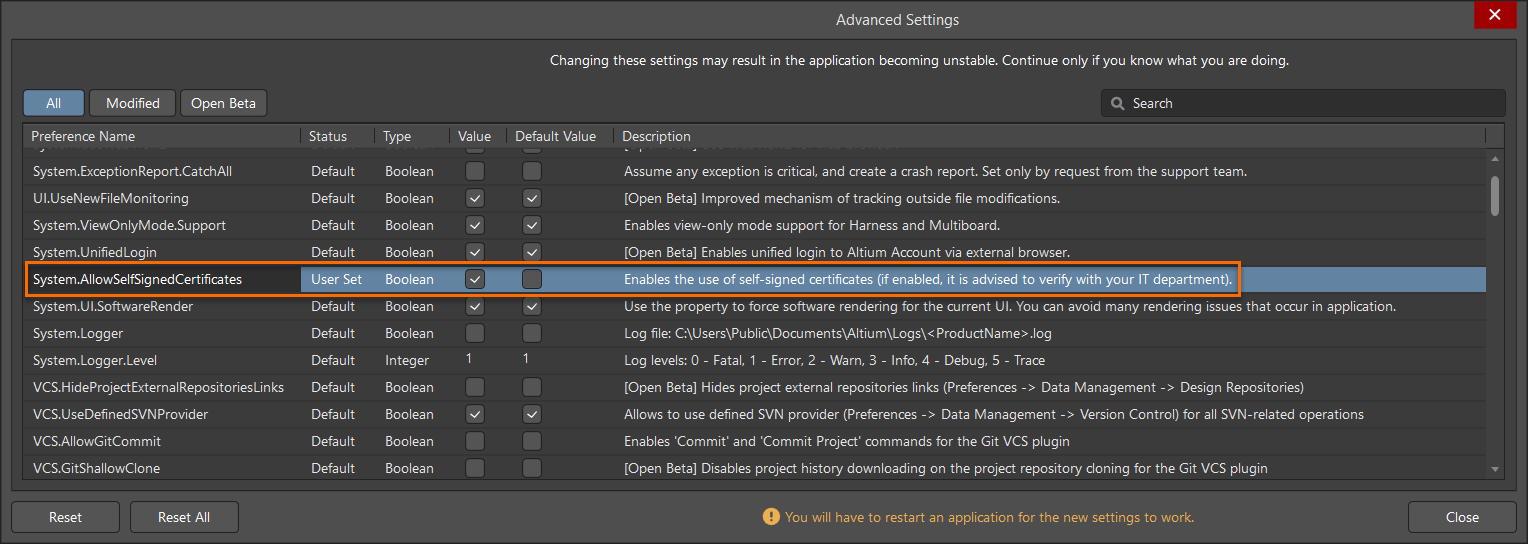
- Alternatively, enable support for self-signed certificates in Altium Designer:
- Open the Altium Designer Preferences dialog.
- Select System » General and open Advanced Settings.
- Search for SelfSigned.
- Enable System.AllowSelfSignedCertificates.
- Close the dialogs and restart Altium Designer.
Additional Notes
- It is advised to verify this configuration change with your IT department before enabling support for self-signed certificates.
- The System.AllowSelfSignedCertificates advanced setting is available starting with Altium Designer version 25.2.1. This option will not be visible in earlier versions.