
Mô-đun Dự án
Mô-đun Project trong Requirements & Systems Portal trình bày chi tiết dự án và cung cấp các khả năng quản lý dự án. Giao diện người dùng của Mô-đun Project là trang Home, trang này sẽ mở ra khi truy cập Requirements & Systems Portal từ menu chín chấm ở góc trên bên phải của giao diện Workspace trên trình duyệt ( ). Trang này cho phép truy cập các dự án requirements hiện có, vốn phục vụ cho việc quản lý requirements, đồng thời cũng cho phép tạo một dự án requirements mới.
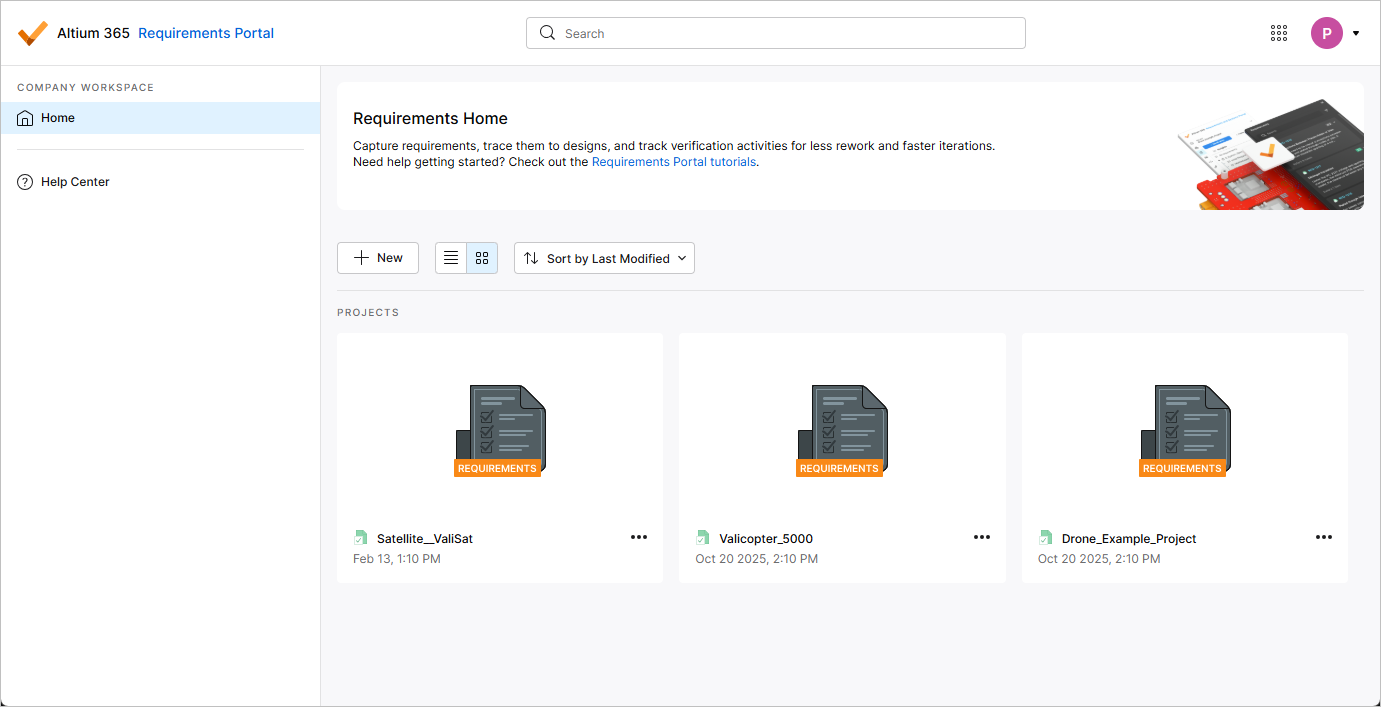
Tạo Dự án Requirements Mới
Để tạo một dự án requirements mới, hãy nhấp vào nút  phía trên danh sách dự án. Cửa sổ Create Requirements Project sẽ mở ra.
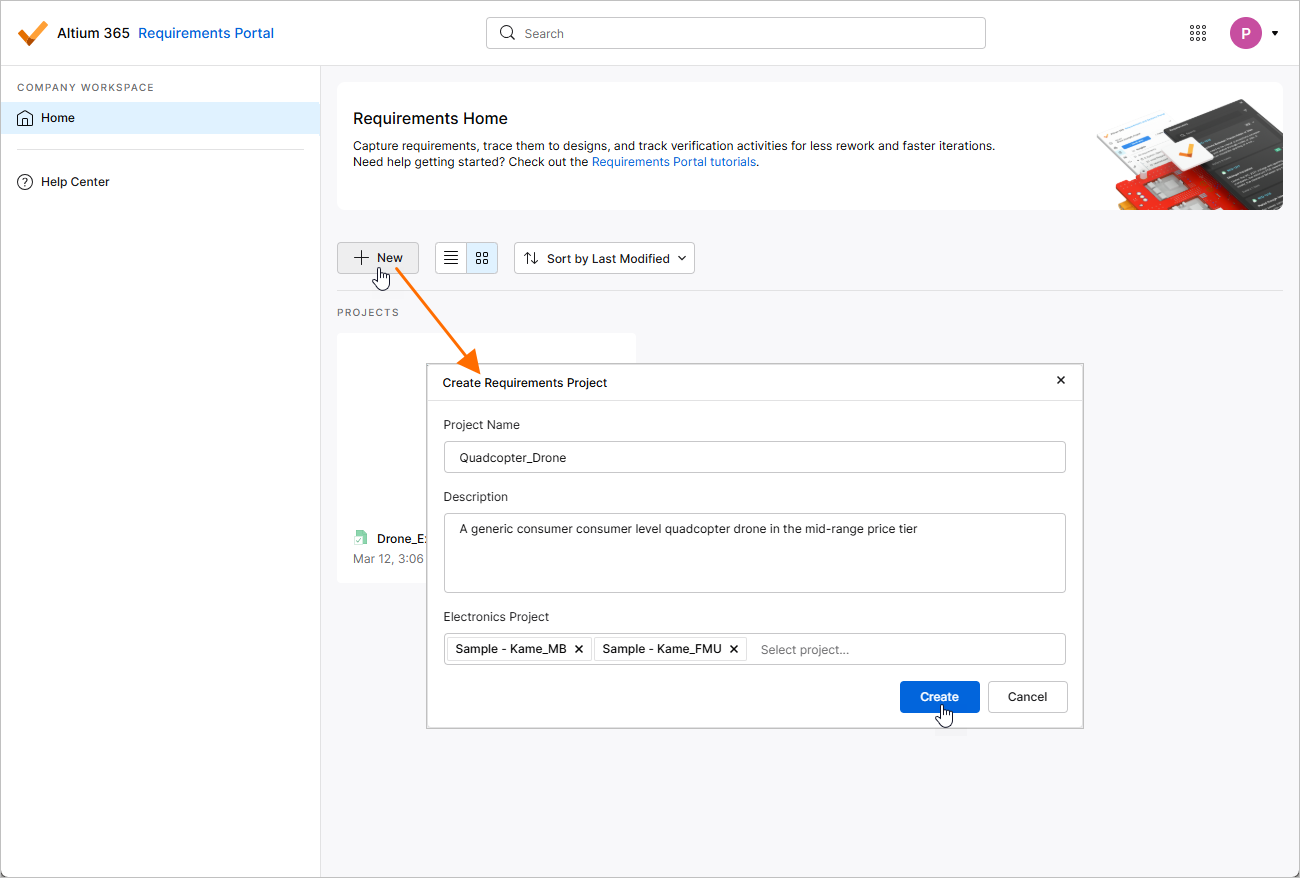
Cửa sổ Create Requirements Project sẽ hiển thị các trường sau:
-
Project Name – nhập tên bắt buộc cho dự án.
-
Description – nhập mô tả tùy chọn cho dự án.
-
Electronics Project – tùy chọn, chỉ định (các) dự án PCB đang tồn tại trong Workspace của bạn (tìm hiểu thêm về Workspace Projects). Với mỗi dự án PCB được thêm vào trường này, một block thuộc loại Electronics sẽ được tạo trong dự án requirements với cùng tên như dự án đó, và block này sẽ được liên kết với dự án PCB tương ứng. Ngoài ra, một specification có cùng tên với dự án PCB cũng sẽ được tạo trong dự án requirements, và block tương ứng sẽ được thêm vào danh sách Default blocks của specification đó.
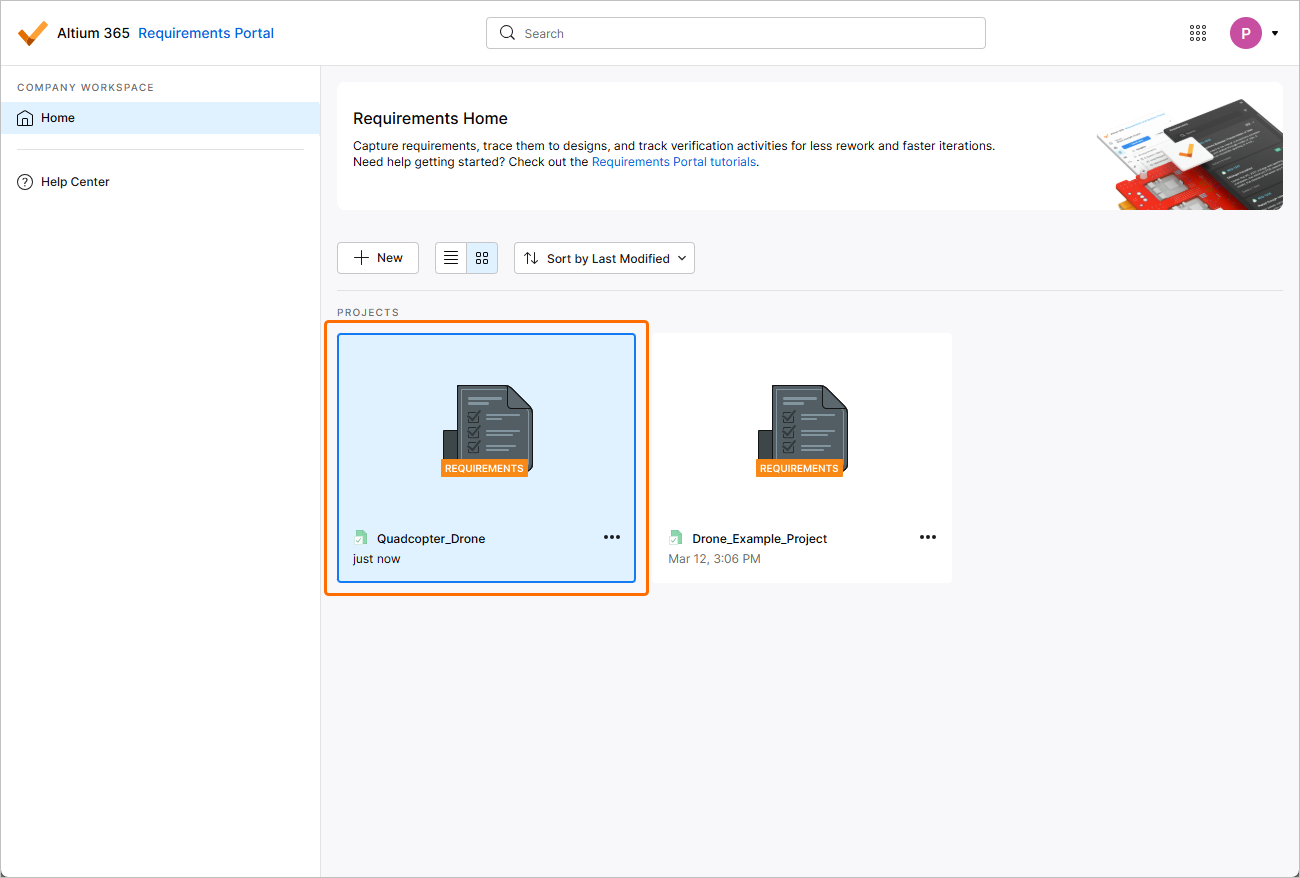
Sau khi xác định dự án requirements mới theo nhu cầu, hãy nhấp  . Bạn sẽ quay lại danh sách dự án ở mức tổng quan, tại đây bạn sẽ thấy mục nhập cho dự án requirements mới tạo.
Duyệt các Dự án Requirements
Danh sách dự án trên trang Home của Requirements & Systems Portal bao gồm tất cả các dự án requirements hiện có trong Portal. Sử dụng nút  để chuyển trang sang chế độ xem danh sách và nút
  để chuyển trang sang chế độ xem đồ họa.
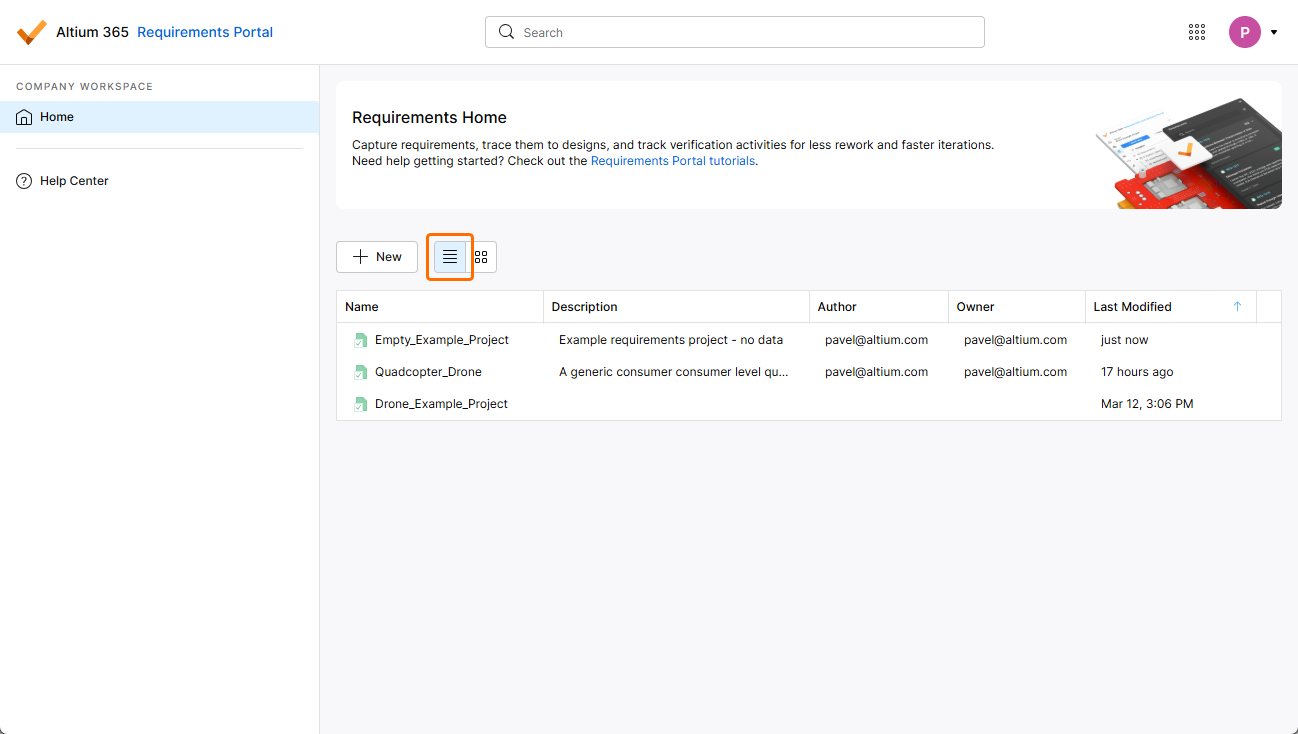
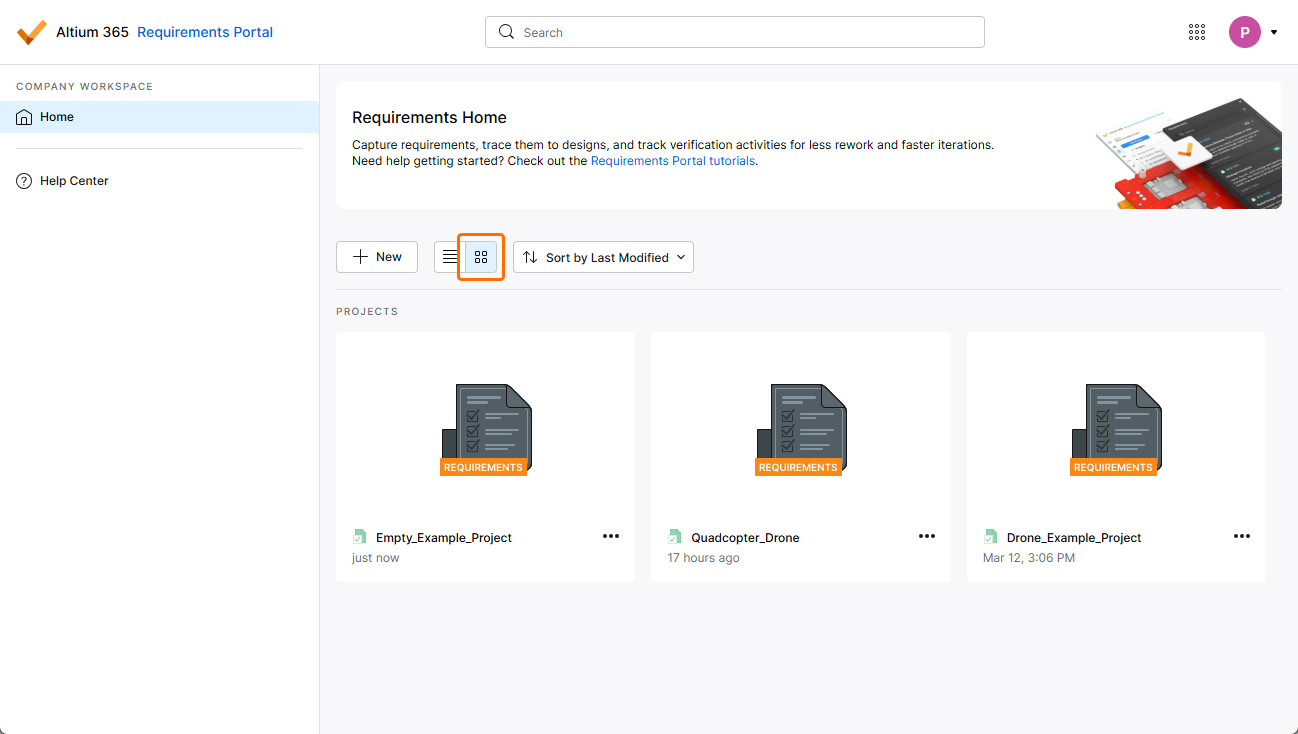
Danh sách các dự án requirements được tự động sắp xếp theo ngày sửa đổi gần nhất, trong đó dự án được sửa đổi gần đây nhất xuất hiện ở trên cùng bên trái của danh sách (trong chế độ xem đồ họa) hoặc ở đầu danh sách (trong chế độ xem danh sách). Trong chế độ xem đồ họa, có thể dùng nút  để nhanh chóng sắp xếp các tài liệu dự án theo tên, mô tả, tác giả, chủ sở hữu hoặc ngày sửa đổi gần nhất (
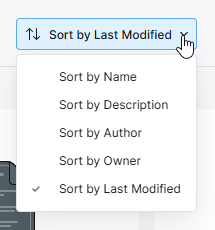 ).
).
Trong chế độ xem danh sách, danh sách dự án có thể được sắp xếp theo Name, Description, Author, Owner hoặc Last Modified, bằng cách sử dụng tiêu đề cột tương ứng. Nhấp một lần để sắp xếp theo thứ tự tăng dần và nhấp lần nữa để sắp xếp theo thứ tự giảm dần. Các mũi tên ở bên phải tên cột sẽ cho biết hướng sắp xếp hiện đang được áp dụng. Phương thức sắp xếp được chọn trong một chế độ xem sẽ được áp dụng cho cả hai chế độ xem.
Ngoài ra còn có tính năng Search của dự án, cho phép bạn tìm kiếm các dự án requirements theo tên. Nhập chuỗi tìm kiếm vào trường ở đầu giao diện trình duyệt. Danh sách sẽ được cập nhật để chỉ bao gồm những mục dự án có tên chứa chuỗi tìm kiếm đó. Để xóa bộ lọc tìm kiếm, hãy nhấp vào mục trang Home chính trong khung điều hướng bên trái hoặc xóa trường tìm kiếm (x).
Truy cập một Dự án Requirements
Một dự án requirements có thể được truy cập từ cả chế độ xem danh sách hoặc chế độ xem đồ họa của trang Home trong Requirements & Systems Portal.
-
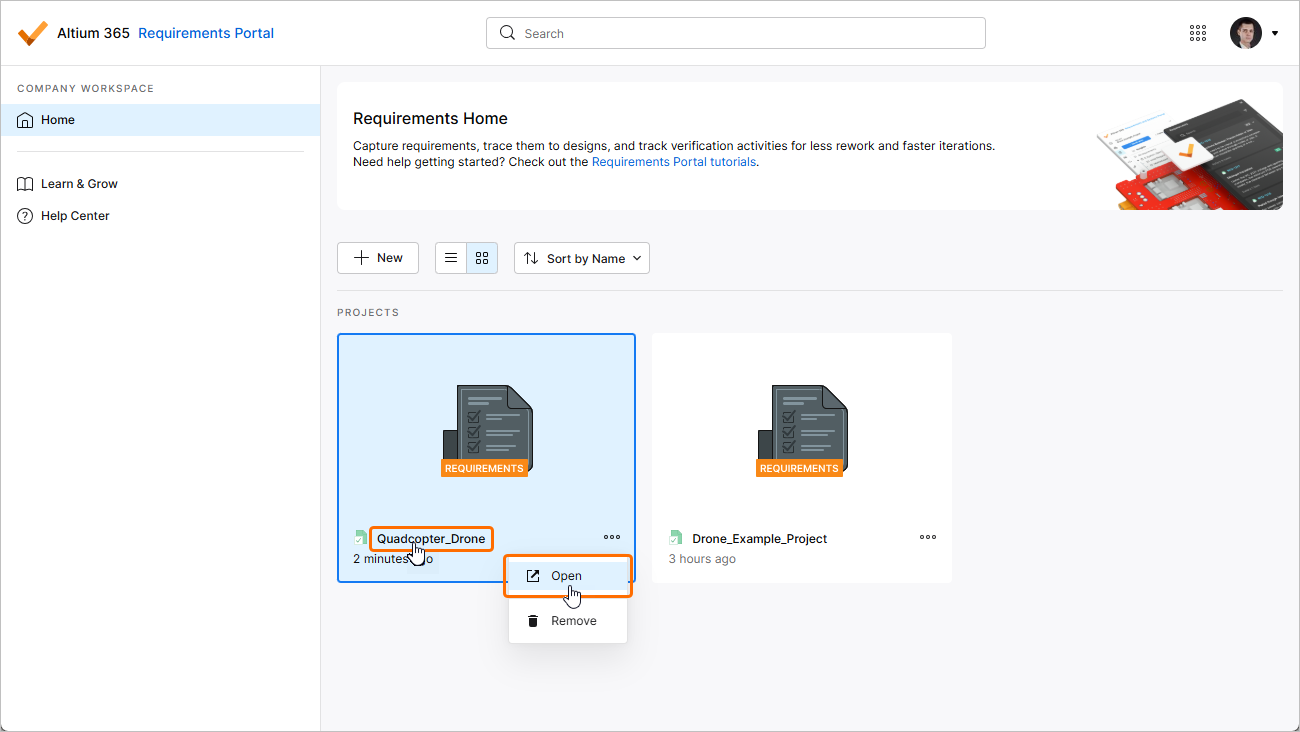
Trong chế độ xem đồ họa của trang Home, hãy nhấp vào điều khiển
 trong ô của dự án requirements cần mở và chọn lệnh Open từ menu liên quan. Ngoài ra, hãy nhấp vào tên dự án trong ô đó hoặc nhấp đúp vào ô.
-
Trong chế độ xem danh sách của trang Home, đưa con trỏ lên mục nhập của dự án requirements cần mở, nhấp vào điều khiển
ở ngoài cùng bên phải của mục nhập và chọn lệnh Open từ menu liên quan. Ngoài ra, hãy nhấp vào tên dự án trong mục nhập hoặc nhấp đúp vào mục nhập.
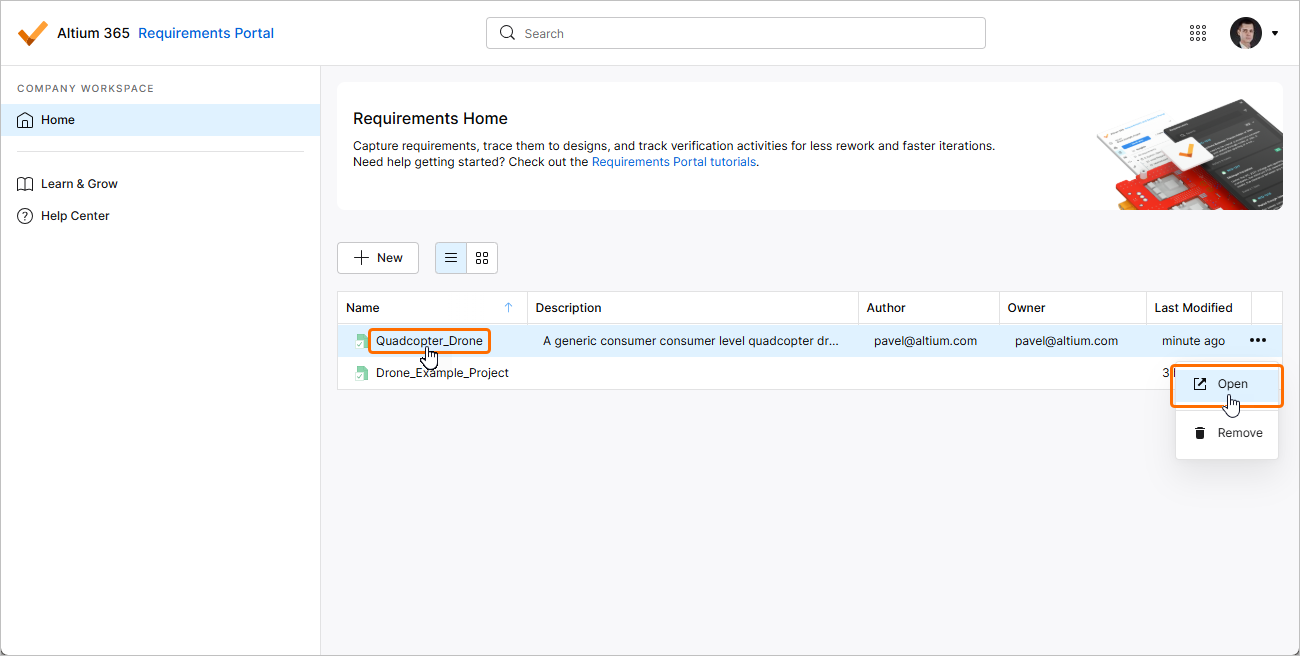
Dự án requirements sẽ mở trong một tab trình duyệt mới.
Xóa một Dự án Requirements
Một dự án requirements hiện có có thể được gỡ bỏ (xóa) khỏi Workspace từ cả chế độ xem danh sách hoặc chế độ xem đồ họa của trang Home trong Requirements & Systems Portal.
-
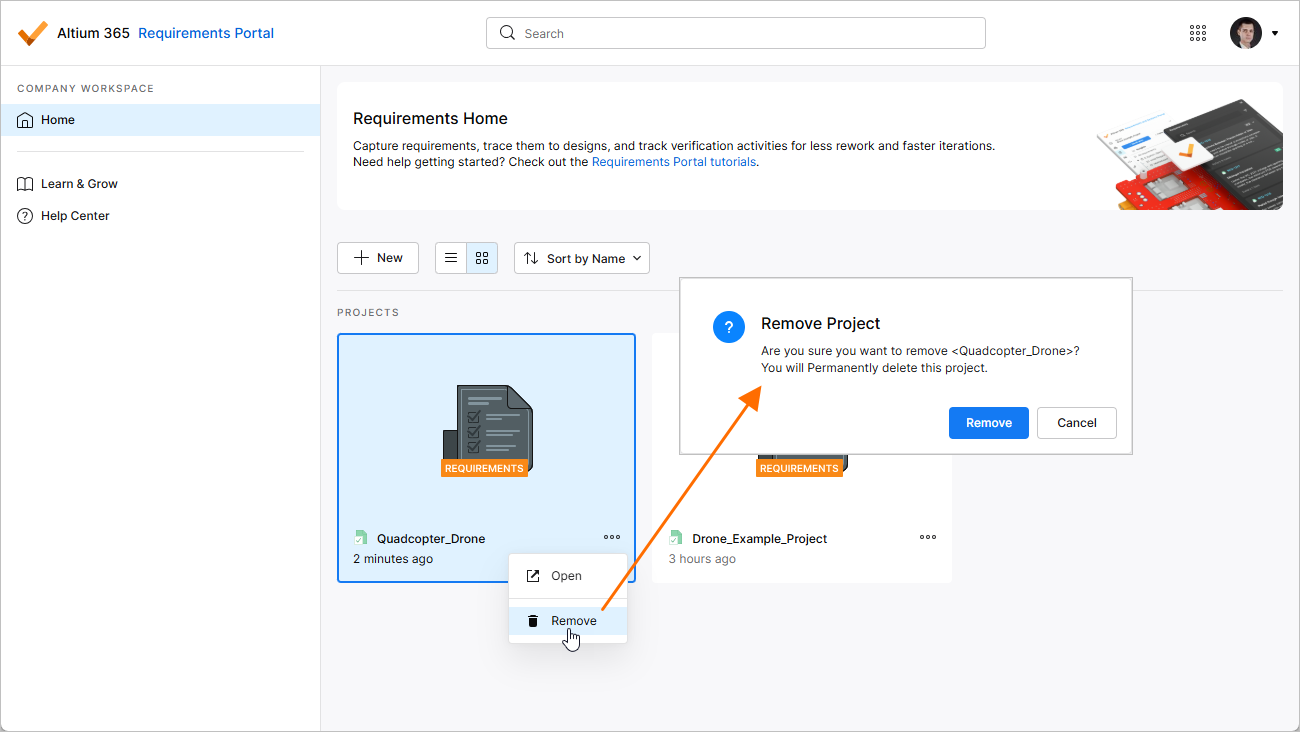
Trong chế độ xem đồ họa của trang Home, hãy nhấp vào điều khiển
trong ô của dự án requirements cần xóa và chọn lệnh Remove từ menu liên quan.
-
Trong chế độ xem danh sách của trang Home, đưa con trỏ lên mục nhập của dự án requirements cần xóa, nhấp vào điều khiển
ở ngoài cùng bên phải của mục nhập và chọn lệnh Remove từ menu liên quan.
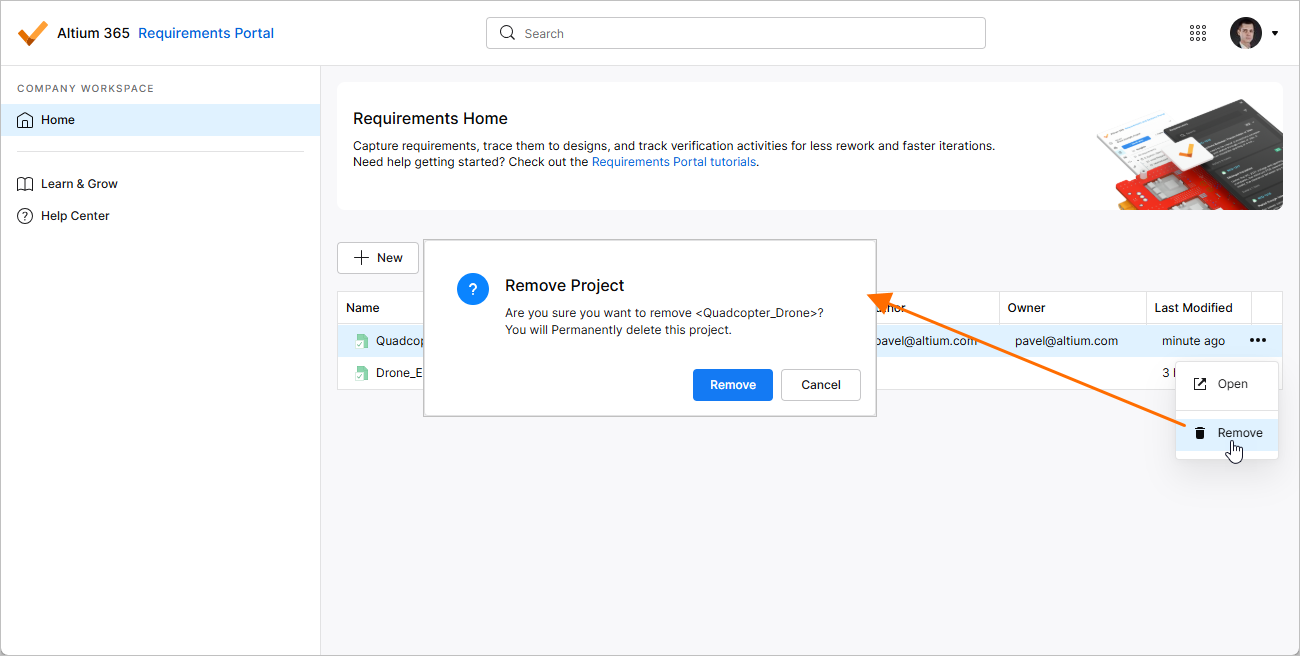
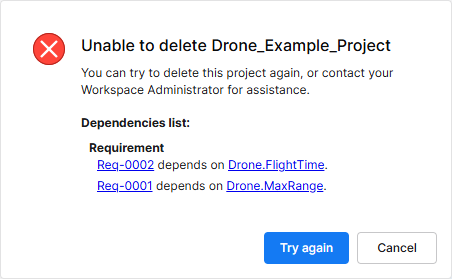
Trước khi việc xóa hoàn tất, bạn sẽ được yêu cầu xác nhận.
 ).
).Thay đổi các Thuộc tính Chính của một Dự án Requirements
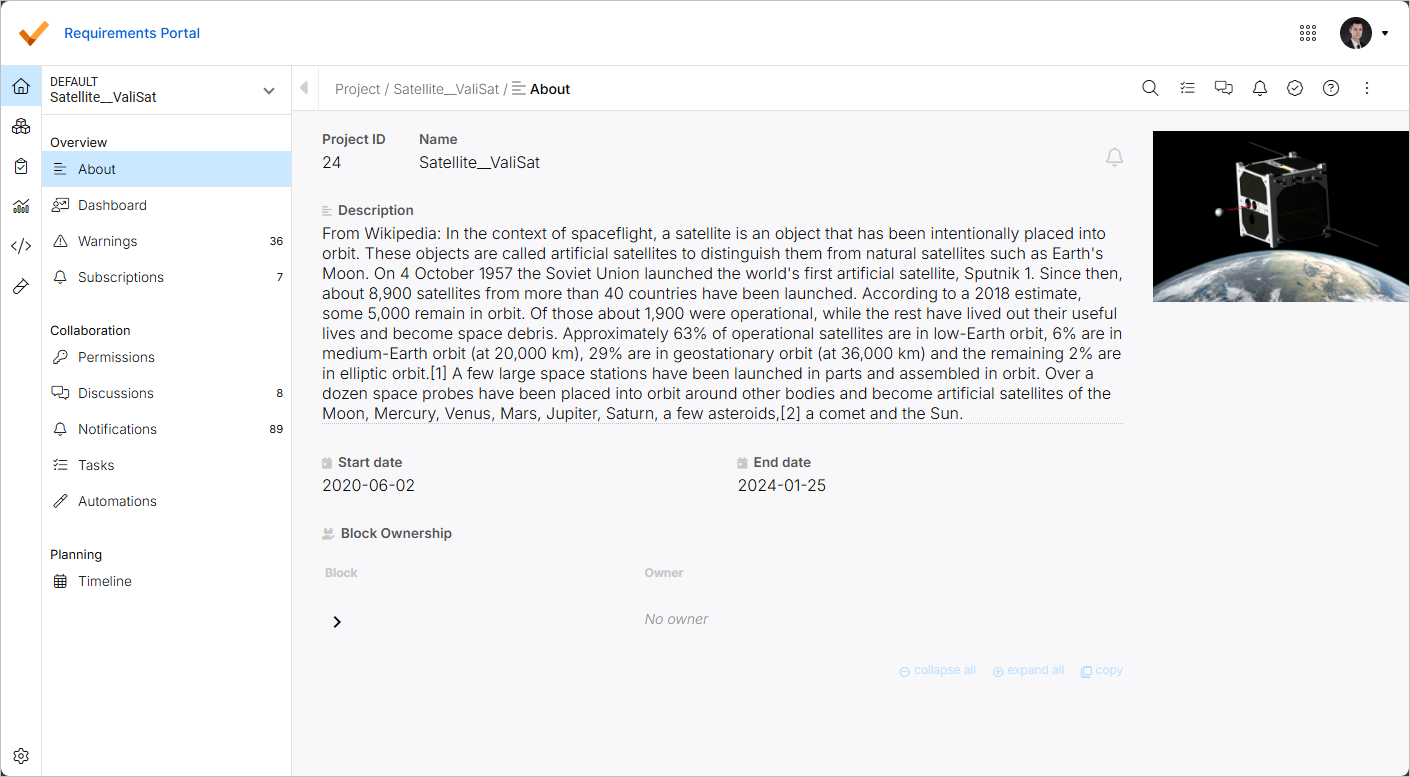
Từ trang About của Mô-đun Project, bạn có thể thay đổi các thuộc tính chính của một dự án requirements. Khi đang ở trong Mô-đun Project ( ), hãy chọn mục About trong menu bên trái (dưới tiêu đề Overview) để truy cập trang chứa các thông tin và điều khiển sau:
-
Project ID – ID do hệ thống gán cho dự án.
-
Name – tên của dự án. Nếu cần, bạn có thể thay đổi bằng cách nhấp vào trường, chỉnh sửa tên theo ý muốn và nhấn
Enter(hoặc nhấp ra ngoài trường). -
Description – mô tả có ý nghĩa mà bạn có thể thêm vào dự án của mình.
-
Start date / End date – ngày bắt đầu và ngày kết thúc dự kiến của dự án.
-
Block Ownership – hiển thị danh sách các block của dự án cùng với chủ sở hữu của chúng. Mở rộng hoặc thu gọn các mục block để khám phá cấu trúc dự án (theo cách được xác định trong Blocks Module) bằng các nút mũi tên hoặc các điều khiển collapse all và expand all ở cuối danh sách. Sử dụng điều khiển copy để sao chép nội dung danh sách vào Clipboard (chỉ những mục hiện đang hiển thị mới được sao chép).
Để biết thêm thông tin về quyền sở hữu, hãy tham khảo trang Ownerships.
Nhấp vào nút  ở góc trên bên phải của trang để đăng ký nhận thông báo cho dự án.
Để biết thêm thông tin về thông báo, hãy tham khảo trang Notifications.
Bạn cũng có thể thêm hình ảnh cho dự án bằng cách nhấp vào điều khiển + Add Image ở góc trên bên phải của trang. Sử dụng hộp thoại xuất hiện để thêm hình ảnh từ tệp hoặc URL. Khi hình ảnh đã được thêm, hãy đưa con trỏ lên phần xem trước của hình ảnh đó và sử dụng các nút xuất hiện để thay đổi hoặc xóa hình ảnh.
 Bản địa hóa bằng AI