
Agentic Engineering
AI agents provide substantial advantages for engineering tasks like requirements capturing by significantly enhancing efficiency and automating complex, repetitive workflows. Requirements Portal's Engineering Assistant leverages AI technologies to provide you with fast, automated review tool for your requirements that allows you to ask questions about requirements in your current project in free-form, natural language and get quick answers without manually filtering or searching through the requirements, for example:
-
How many requirements are not verified?
-
Are there any engineering gaps in these requirements?
-
Show me all requirements about the power supply.
-
Which requirements need to be taken into account for PCB design?
-
Do any requirements conflict with each other?
-
Give me an overview of all battery-related requirements.
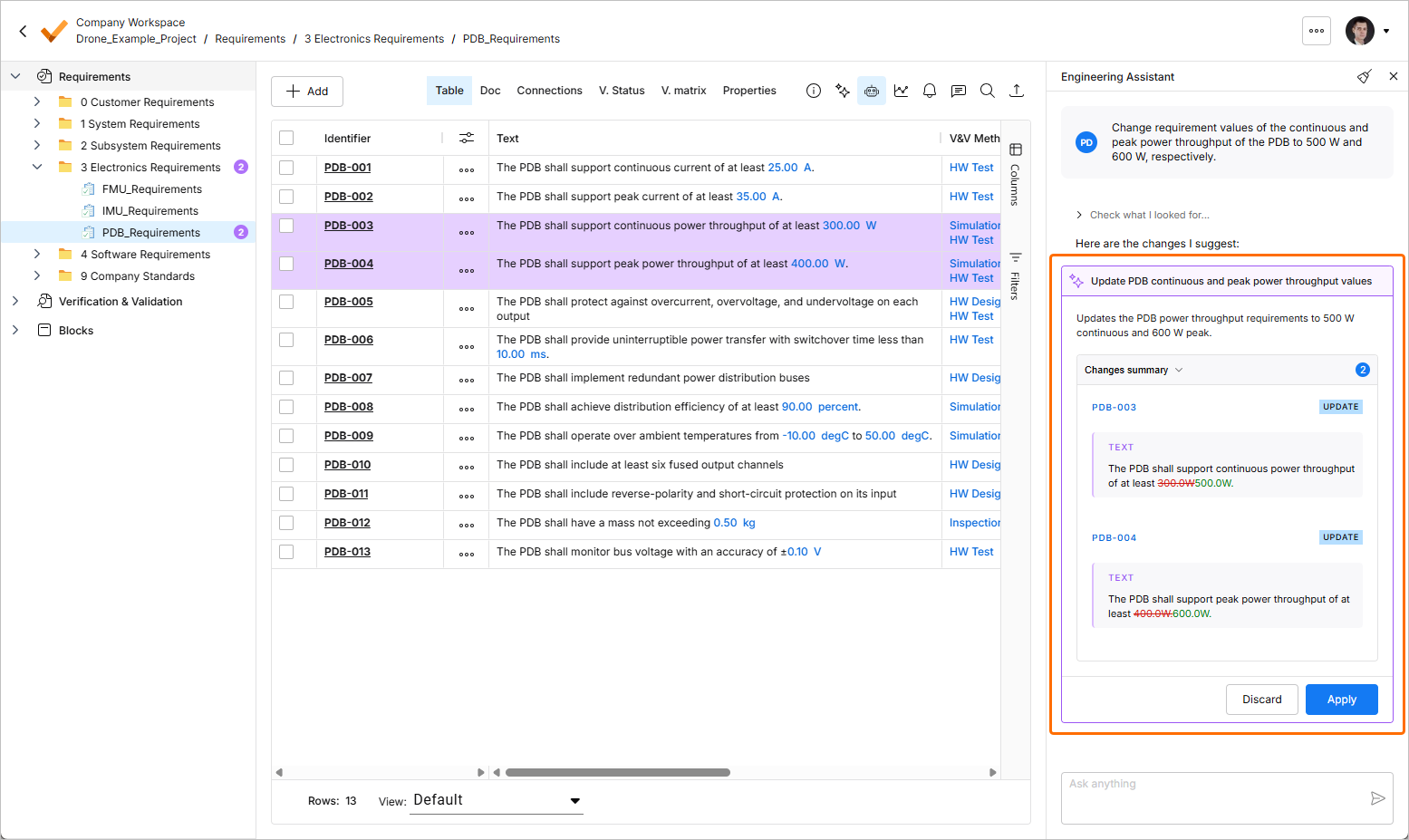
The Engineering Assistant is also able to modify, create, or delete requirements. When you submit a request to create a new or change or delete an existing requirement, the Engineering Assistant will provide you a summary of changes to be applied, and you can review them and then either apply or discard the changes. Examples of such requests:
-
Generate requirements for a lightweight drone power supply that takes a 6S LiPo input, provides regulated 5 V / 5 A and 12 V / 3 A outputs, and weighs under 150 g. It should handle vibration and -10°C to +50°C operation, with protection for short circuit, reverse polarity, overtemperature, and low battery.
-
Change the required maximum operating temperature for all parts to 60°C.
-
Can you identify all requirements that affect the sizing of the power system and ensure they are verifiable?
-
In the new design, I've replaced the camera with an IR sensor. Remove all requirements that were related to the camera.
 icon at the top right, selecting Settings from the menu that appears, and then selecting ValiAssistant from list in the left-hand pane) –
 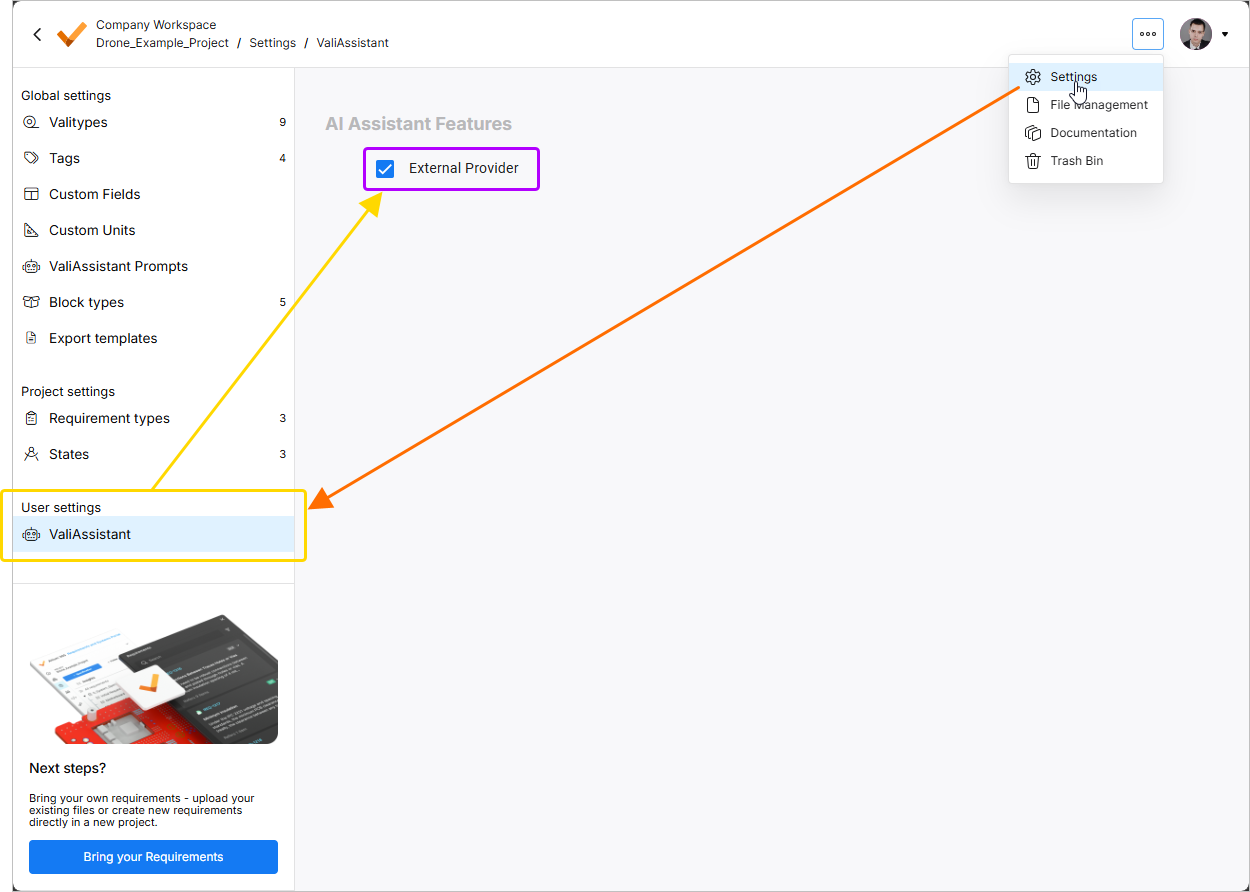 .
.
The Engineering Assistant is accessed via the Engineering Assistant pane available in the Requirement Module by clicking the  icon at the top right.
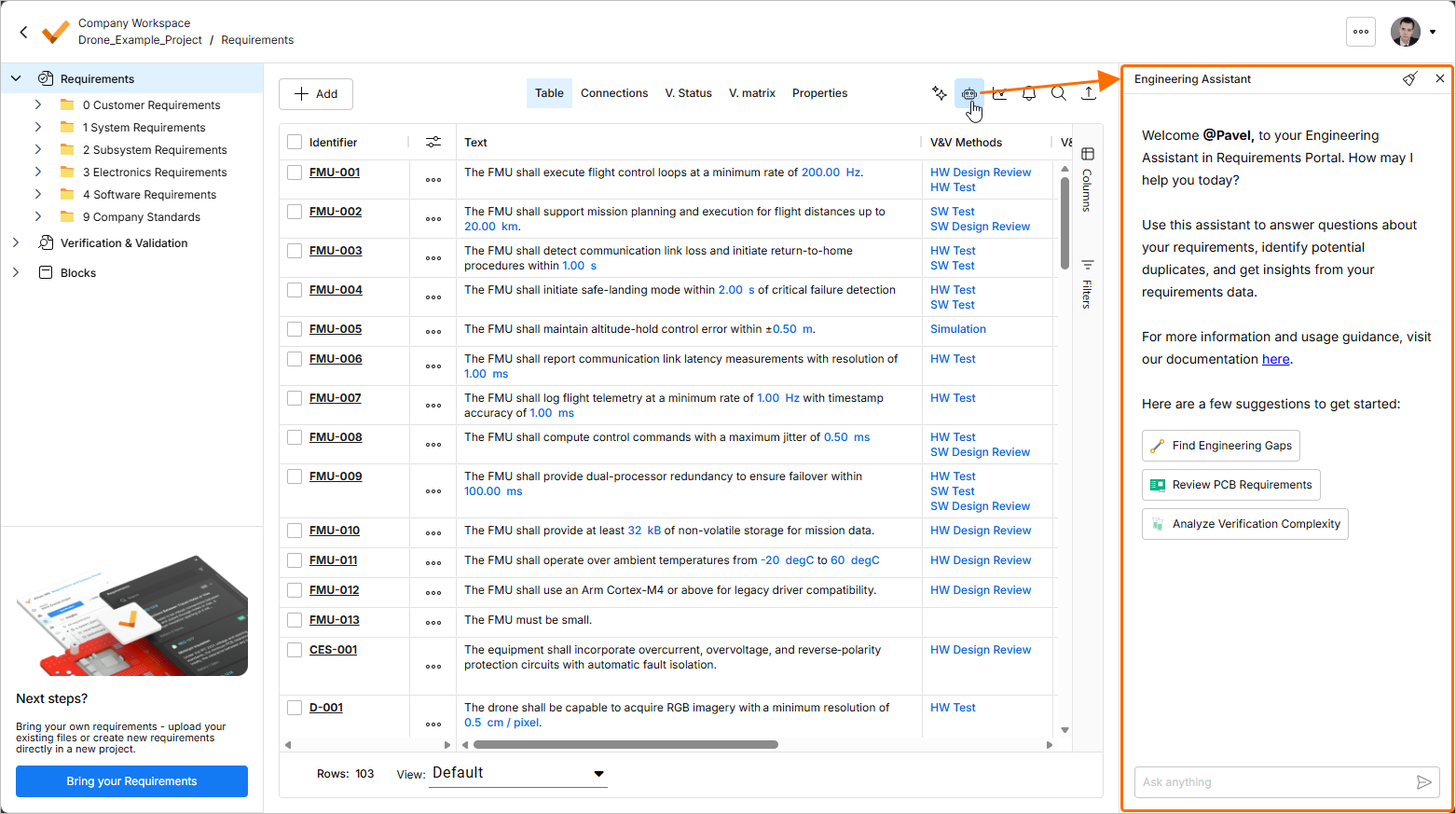
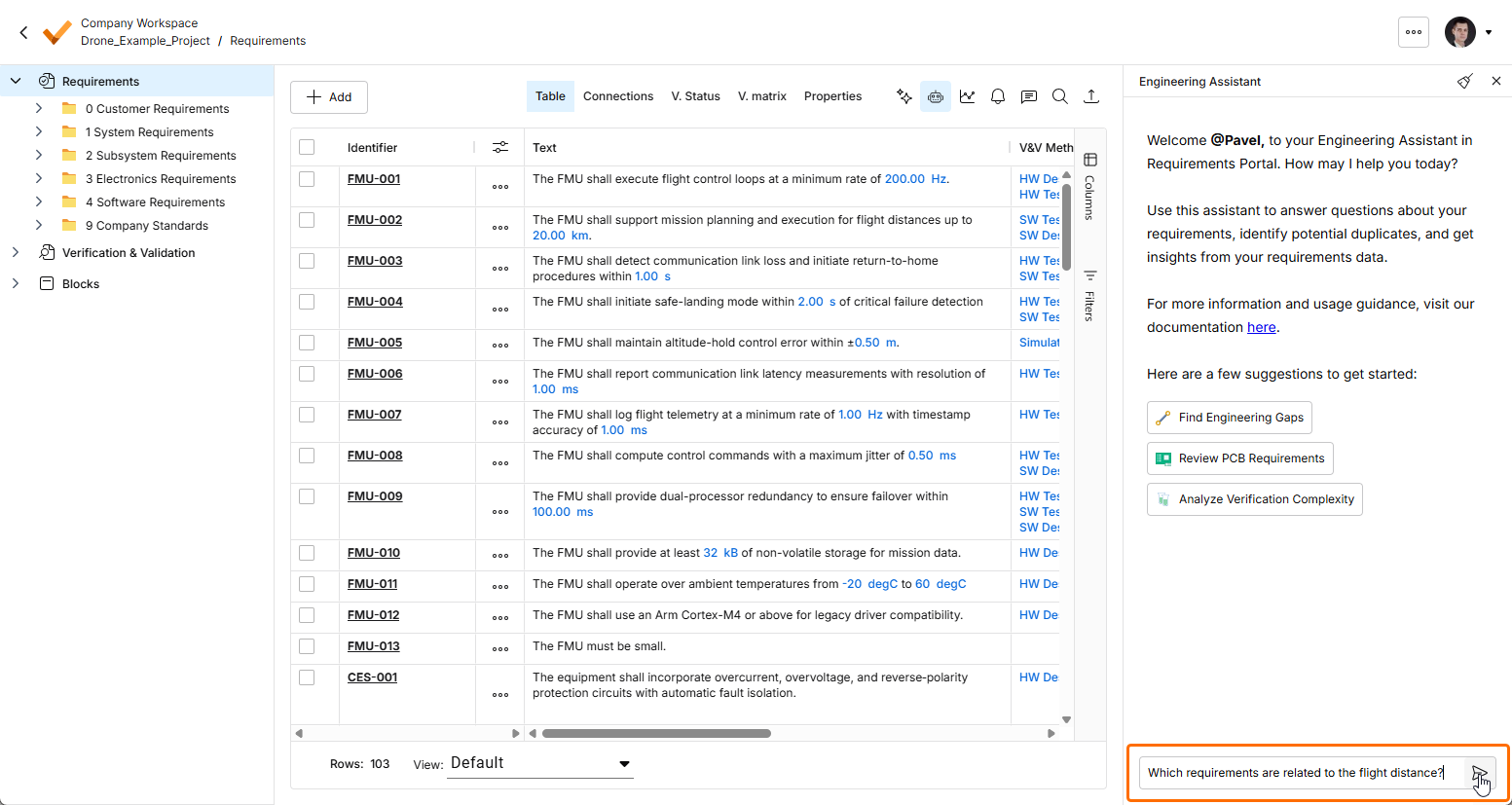
To use the Engineering Assistant, type your query into the Ask anything field at the bottom of the Engineering Assistant pane and click the  icon or press
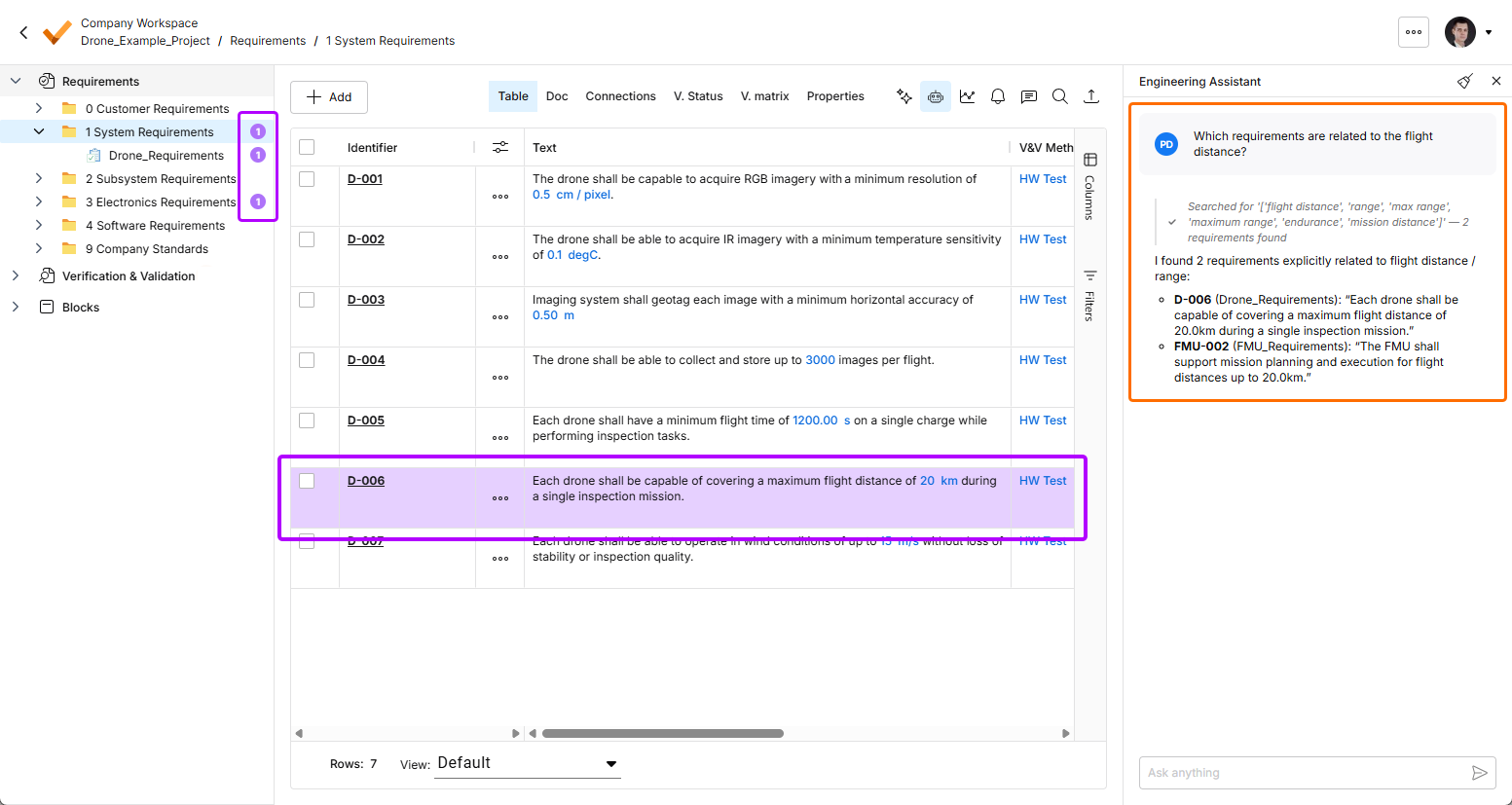
 Enter. The Engineering Assistant will analyze the requirements and present a relevant answer in the pane. Depending on the query, the Engineering Assistant will return a numeric answer, a list of requirement IDs, or a brief summary. The requirement(s) related to the query will be highlighted in the requirements table, and the number of related requirements is shown in the project tree next to the corresponding specifications, sections, and folders.
When you submit a request to the Engineering Assistant to create a new or change or delete an existing requirement, suggested changes will be shown in a dedicated tile within the Engineering Assistant pane where you can review them (by expanding the Changes summary collapsible region) and then either apply or discard the changes.
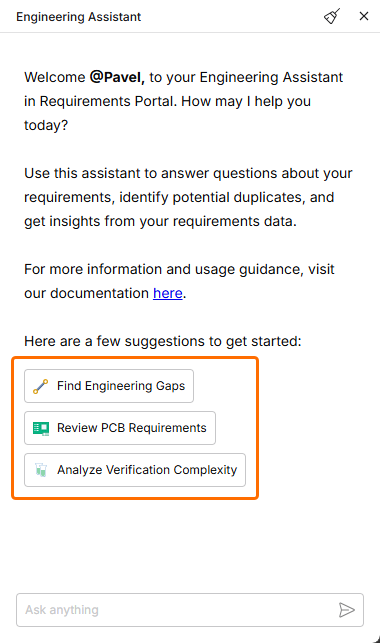 ).
).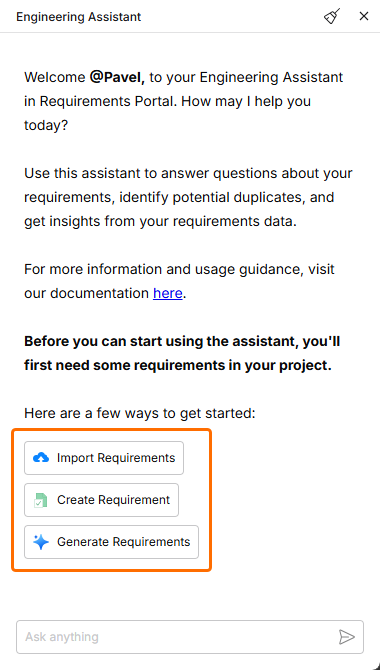 ).
).The Engineering Assistant supports multi-turn dialog within a session, i.e., it remembers the context of the current conversation for relevant follow-up queries. For example, if the Engineering Assistant has listed several requirements in response to a query and you then ask How many of those are high priority?, the assistant understands that those refers to the previously listed requirements and answers accordingly. That way, you can keep a 'conversation' by further refining or drilling down into the information without restating context.
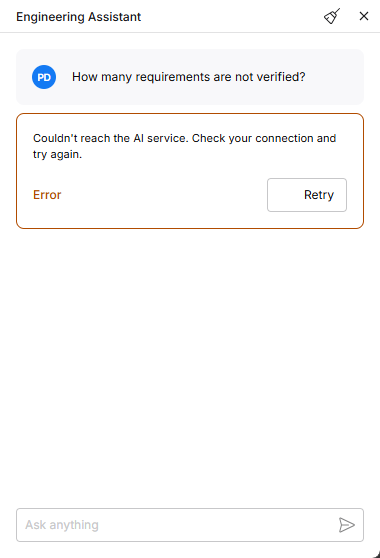 ).
). icon at the top right of the Engineering Assistant pane. Note that only one conversation at the time is available (i.e., there is no history of conversations).