
KB: Why Users See MFA Setup Prompts When MFA Is Not Enforced
Updated: 八月 11, 2026
 A365
A365
Users may see prompts to set up Multi-Factor Authentication (MFA) or 2-Step Verification even when their organization has not enabled MFA enforcement. This often causes confusion because the MFA setup prompt and the organization’s MFA enforcement setting are separate features. The prompt is part of Altium's MFA adoption initiative for users who sign in with an email address and password, while enforcement is controlled by a Group Administrator in the Company Dashboard. This article explains why the prompt appears, how it differs from MFA enforcement, which users are affected, and what options administrators and users have for managing MFA settings.
Solution Details
Unexpected MFA Prompts During Sign-In
You may see a prompt to configure 2-Step Verification when signing in, even if your organization's administrator has not enabled MFA enforcement.
- The prompt applies only to users who authenticate with an email address and password.
- The prompt is not shown to users who sign in using SSO, Google, Facebook, device authentication, or users who have already configured 2-Step Verification.
- Some users assume the prompt means their organization has enforced MFA. This is not necessarily the case.
Adoption Prompts And Enforcement Are Separate
The MFA setup prompt and the Enforce 2-Step Verification setting in the Company Dashboard are independent of each other.
- The MFA prompt is generated by Altium as part of an MFA adoption initiative for password-based authentication.
- The prompt can appear even when MFA enforcement is disabled for the organization.
- Group Administrators can choose to enforce MFA for users through the Company Dashboard.
- If enforcement is not enabled, users who have configured MFA can disable it themselves from their profile settings.
- If MFA is disabled by the user, the prompt may reappear during future sign-ins.
For administrative accounts, additional security requirements apply:
- Group Administrators and Workspace Administrators must configure MFA within one month of first dismissing the prompt.
- After one month, the Remind me in a week option is no longer available and MFA setup must be completed to continue.
- Non-administrator users can continue to dismiss the prompt.
Options Available To Users And Administrators
- Users can configure MFA when prompted during sign-in.
- Users can manage their authentication settings through their profile.
- Group Administrators can enforce MFA for organization members.
- Group Administrators can reset a user's 2-Step Verification configuration if access or setup issues occur.
Manage MFA Settings And User Access
To enforce MFA for users in your organization:
- Open the Company Dashboard.
- Navigate to Authentication.
- Enable Enforce 2-Step Verification.
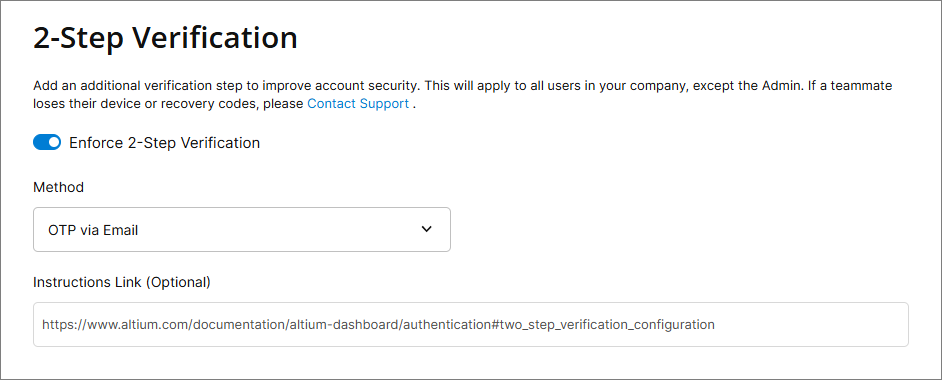
To reset a user's 2-Step Verification configuration:
- Open https://account.altium.com/users-and-groups.
- Select the user to open their member profile.
- Locate the Authentication methods section.
- Select Reset in the 2-Step Verification panel.
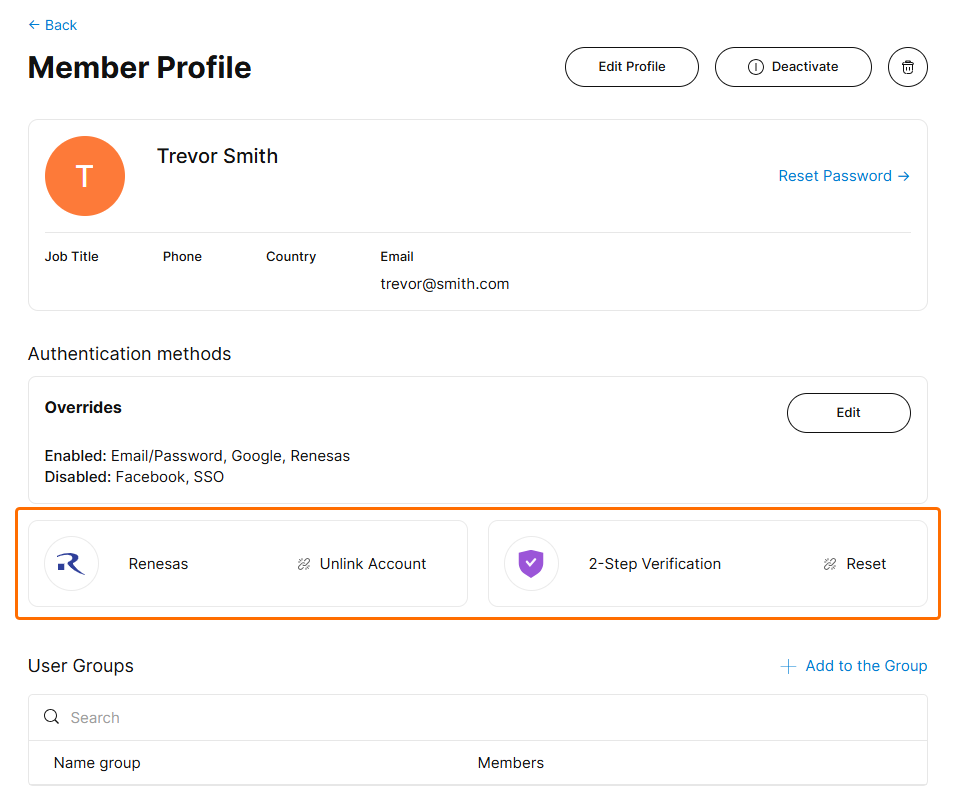
Additional Notes
- Users can manage their authentication settings at https://profile.altium.com/authentication/.
- Resetting 2-Step Verification removes the current authenticator configuration and requires the user to configure it again during the next sign-in.
- The MFA adoption prompt applies only to password-based authentication methods.
- The reset option is available only to Group Administrators.