
KB: Gerber File Comparison in Altium Using Offline Online and Altium 365 Methods
 Altium Designer
Solution Details
Users need to compare Gerber files exported from different PCB design tools or between release revisions to ensure that the manufacturing output matches the intended PCB design. Guidance is required on how to perform Gerber comparisons using the available Altium tools.
Why Gerber Comparison Is Important
Gerber files represent the final PCB fabrication data. Any mismatches introduced during export, conversion, or revision changes can lead to errors during board manufacturing. Comparing Gerber files helps detect discrepancies early, ensures the integrity of manufacturing outputs, and prevents costly fabrication issues.
Available Comparison Methods in Altium
Altium provides three ways to compare Gerber files:
- Online Gerber Comparison (preferred method)
- Altium 365 Managed Project Comparison (recommended for release-to-release verification)
- Offline Comparison using CAMtastic
How to Perform Gerber Comparison
A. Online Gerber Compare (Preferred Method)
Use this when you need fast, browser‑based comparison without opening Altium Designer.
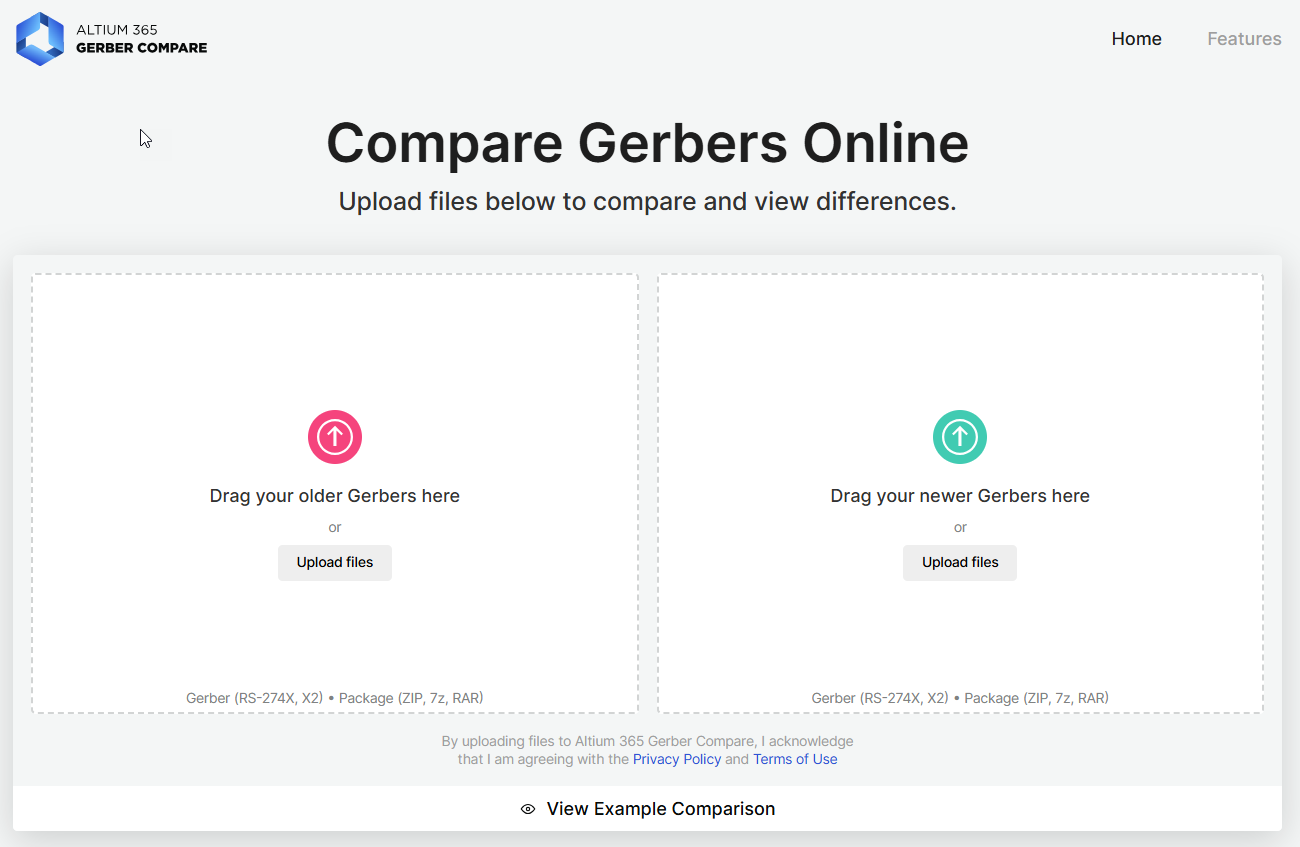
1. Open https://www.altium.com/gerber-compare/.
2. Upload the older Gerber file in the left panel.
3. Upload the newer Gerber file in the right panel.
4. Wait for the automatic comparison results.
5. Review layer‑by‑layer differences.
Supported formats: RS‑274X, Gerber X2, ZIP, 7z, RAR.
B. Altium 365 Managed Project Comparison (Recommended)
Use this when comparing fabrication outputs between project release revisions.
B.1 - Using Altium Designer
1. Open the managed project.
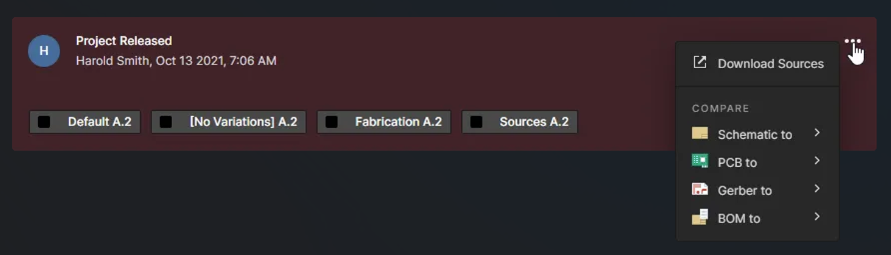
2. Right‑click the project » History and Version Control.
3. Select the release you want to compare.
4. Click the three dots (… ) » Gerber To, then choose the previous release revision.
B.2 - Using the Altium 365 Web Viewer
1. Open the project in the Altium 365 web interface.
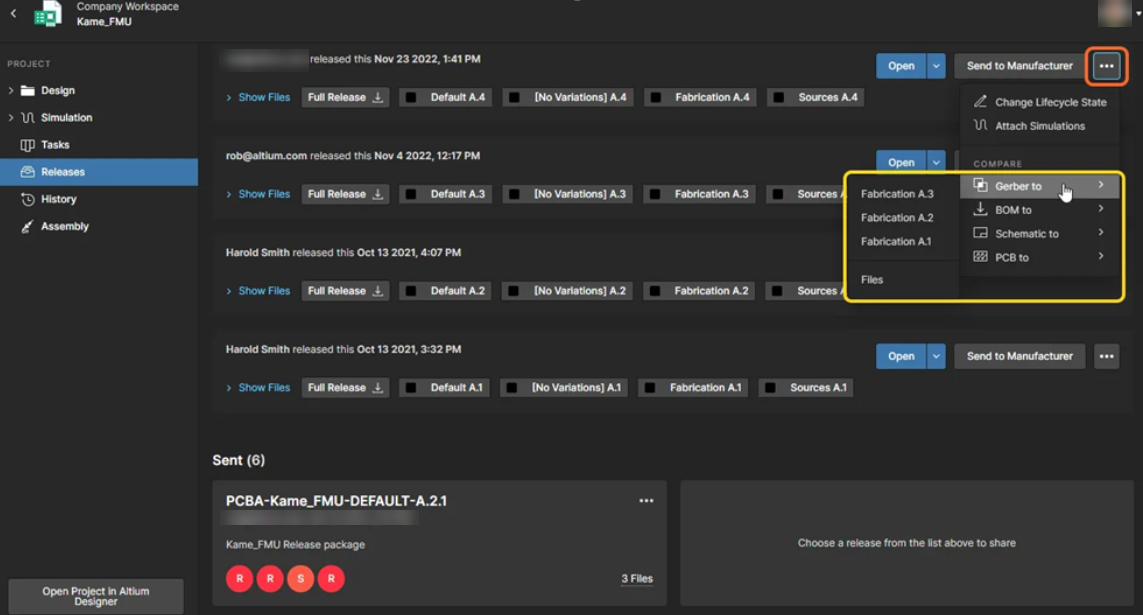
2. Navigate to Releases.
3. Confirm that fabrication outputs (Gerber or ODB++) exist.
4. Select the release and click the three dots (… ) » Gerber » Fabrication Revision.
C. Offline Gerber Comparison Using CAMtastic
Use this when detailed manual comparison inside Altium Designer is required.
1. Go to File » New » CAM Document.
2. Import the first Gerber file via File » Import » Gerber » select file » OK.
3. Repeat the process to import the second Gerber.
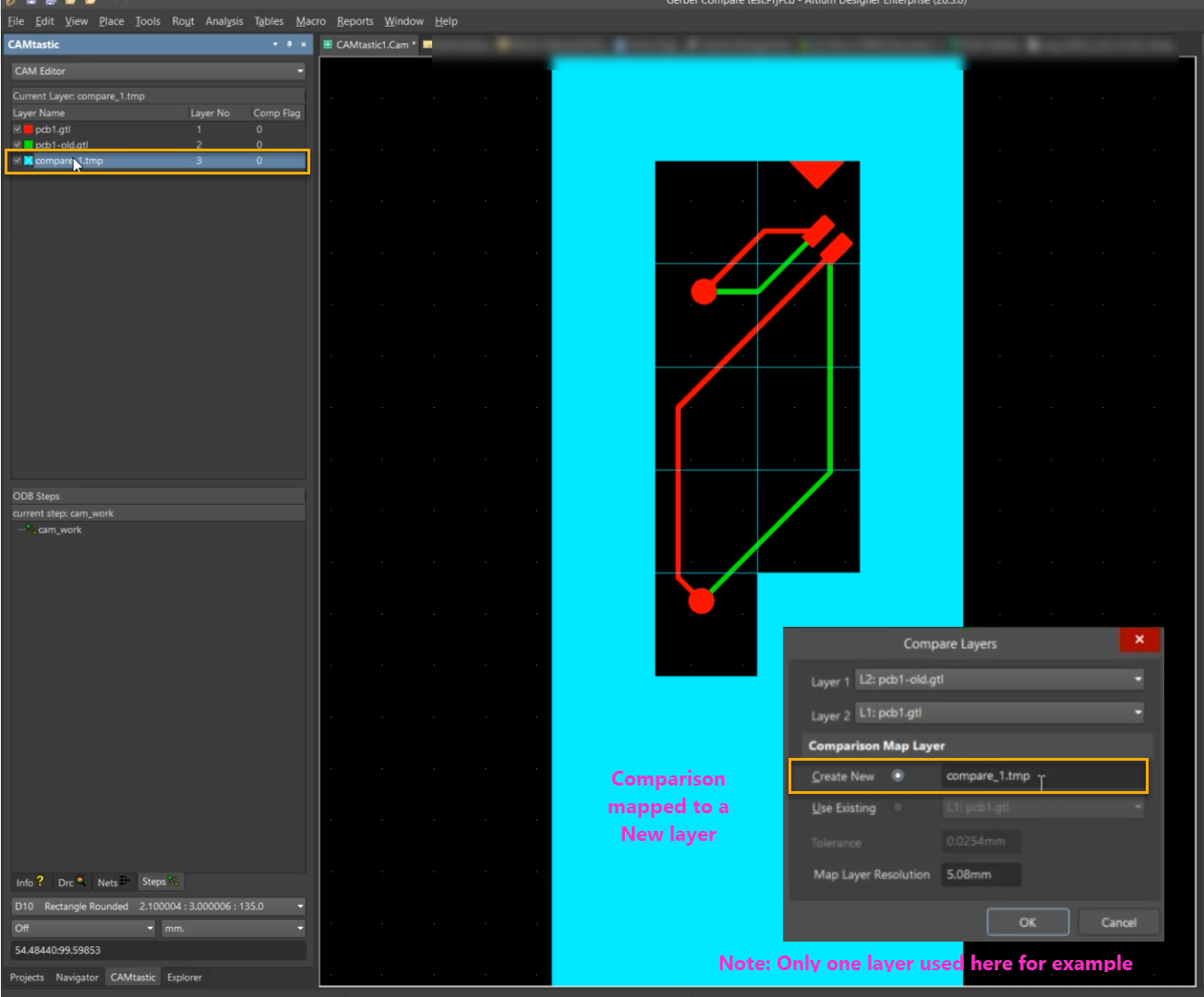
4. To compare layers:
-
- Select both layers while holding Ctrl.
- Right‑click » Compare.
- Select Create New » OK.
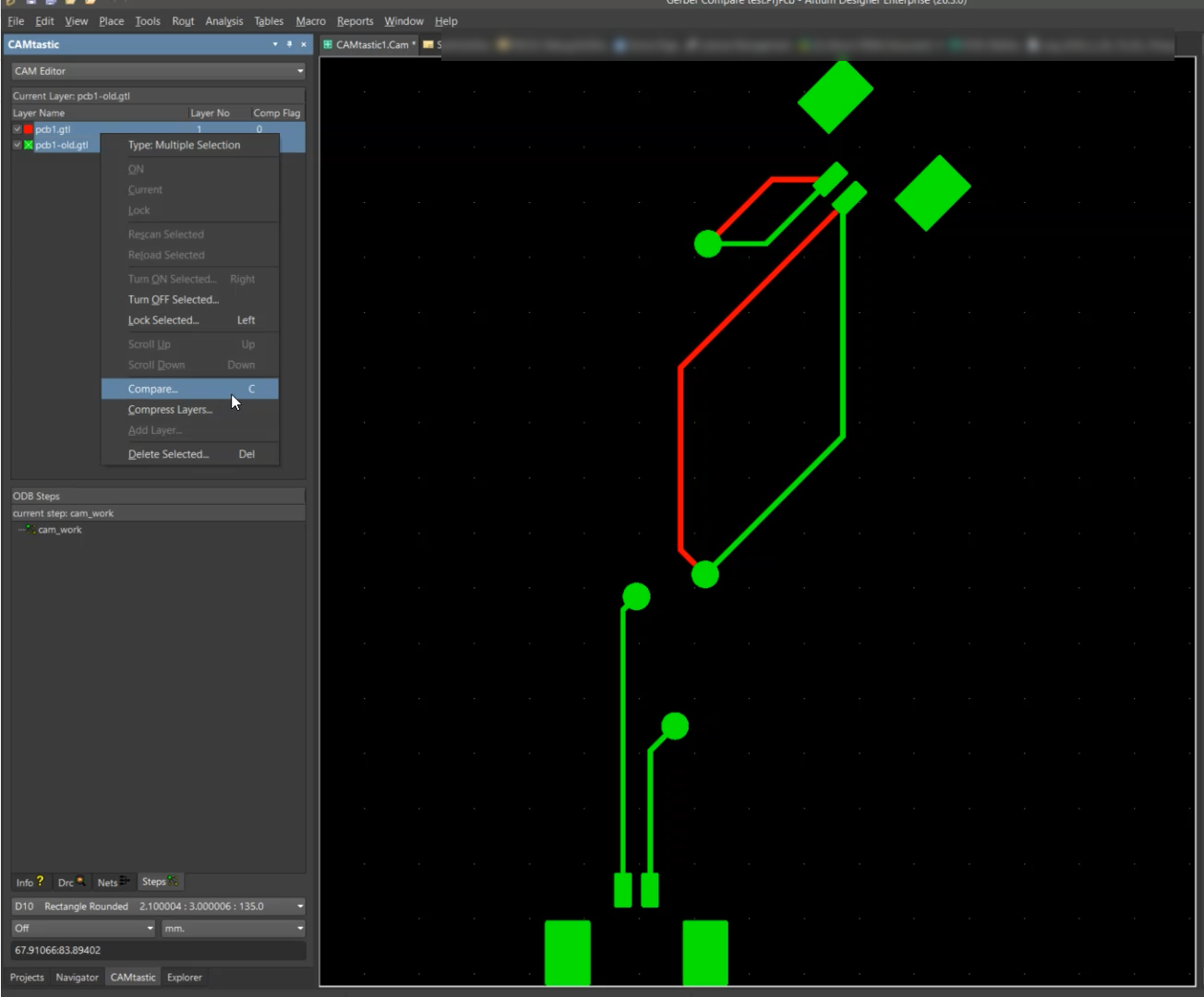
5. A comparison layer is generated showing differences.
6. Repeat for additional layers as needed.
Note: If required, enable file extensions (.g, .art) under CAM Editor » Miscellaneous » File Extension.
Additional Notes
- Online Gerber Compare offers the fastest, most accessible comparison method.
- Altium 365 comparisons require release packages containing fabrication outputs.
- CAMtastic supports tolerance adjustments and creates a new comparison layer for each comparison.
- Ensure extension support for less common Gerber file formats when using CAMtastic.