
KB: Prevent Enterprise Server Backup Failures Caused by Low Disk Space
 Altium On-Prem Enterprise Server
Solution Details
Backup failures caused by low disk capacity
During Altium On-Prem Enterprise Server (AES) backup operations, the process may fail if the server runs out of available disk space. This is common on servers that store large amounts of design data and receive frequent daily commits from multiple users. Backup failures triggered by low disk space can result in incomplete backups, service disruptions, and potential data loss.
Temporary space consumption during backup operations
The AES backup process consumes additional temporary disk space beyond the size of the final backup ZIP archive. This includes temporary storage used during data staging and processing. As a result, having free disk space equal to the previous backup size may still be insufficient, especially in environments with rapid data growth.
How to prevent disk space related failures
- Check the AES Health Monitor regularly and review the System Resources section. Ensure all indicators are green. If warning or error statuses appear, investigate disk capacity.
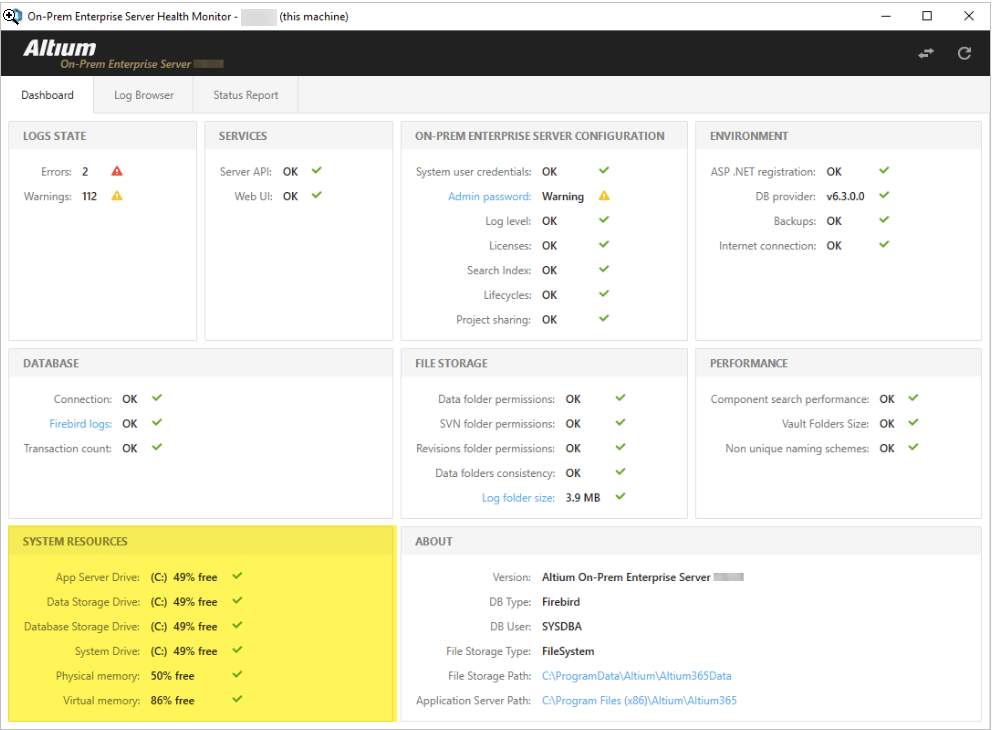
- Before running a manual AES backup, confirm available disk space and ensure it is at least double or triple the size of the most recent backup archive to account for temporary storage usage.
- If there is not enough disk space on the
C:drive for creating the backup, change the %TMP% environment variable to another drive or a network drive before running the avbackup command.
Change the TMP environment variable in PowerShell:
$env:TMP='some/path'- For automatic server backups, use a script to validate disk usage and clean up old backup files before running the backup command.
The following is an example script to check disk space before running a backup. This script is provided as an example only and may not work in all environments. Paths and commands must be adjusted accordingly. Use and customize it at your own discretion.
@echo off setlocal
  REM === Configuration === set "ARCHIVE_DIR=D:\Archive" set "BACKUP_TOOL_DIR=C:\Program Files (x86)\Altium\Altium365\Tools\BackupTool" set "MIN_FILE_COUNT=10" set "DAYS_TO_KEEP=30"
  REM === Count total files in archive directory === for /f %%A in ('dir "%ARCHIVE_DIR%" /b /a:-d ^| find /c /v ""') do set FILE_COUNT=%%A
  echo File count in Archive: %FILE_COUNT%
  REM === If more than MIN_FILE_COUNT, delete files older than DAYS_TO_KEEP === if %FILE_COUNT% GTR %MIN_FILE_COUNT% ( echo Cleaning up files older than %DAYS_TO_KEEP% days... forfiles /p "%ARCHIVE_DIR%" /s /m *.* /d -%DAYS_TO_KEEP% /c "cmd /c del @path" ) else ( echo Not enough files to clean. Skipping cleanup. )
  REM === Run backup === cd /d "%BACKUP_TOOL_DIR%" avbackup backup -z -t -h -i -m -d -c --split --skip-shadow-copy
endlocal
Additional Notes
- In environments with frequent commits, large repositories, or long retention periods, allocate disk capacity significantly above the documented minimum and recommended system requirements.
- Insufficient disk space can impact other AES services in addition to backups, including search indexing and general server stability. Proactive disk monitoring and cleanup can help prevent multiple related issues.
- Before performing bulk project or library migrations, verify disk space and Health Monitor status to avoid server slowdown or downtime.
- Ensure the standalone Health Monitor tool (avhealth.exe) is closed before running the AES backup tool, as both utilities require exclusive access to the server database.