
Self-Service-Upgrade auf die Altium Develop Platform Solution
Sofern Sie eine Reihe von Eignungskriterien erfüllen, kann ein Gruppenadministrator für das Altium-Konto Ihrer Organisation dieses selbst auf das Plattformlösungs-Abonnementmodell Altium Develop aktualisieren.
Einen Überblick über den Wechsel zu Altium Develop finden Sie auf der Seite Wechsel zu Altium Develop.
Sie sind für ein Self-Service-Upgrade berechtigt, wenn alle folgenden Kriterien zutreffen:
-
Sie nutzen derzeit Altium Designer Standard Subscription.
-
Ihr Workspace hat bis zu 50 Mitglieder.
-
Sie haben insgesamt bis zu 5 Seats in Ihren Altium Designer-Lizenzen (mit aktiver Subscription).
-
Sie besitzen keine Altium Designer-Erweiterungslizenzen.
Während des Upgrade-Prozesses:
-
Ihr bestehender Workspace wird zu einem Altium Develop Workspace. Alle vorhandenen Workspace-Daten (Projekte, Komponenten usw.) und Benutzer bleiben im Workspace erhalten.
-
Ihre bestehenden Altium Designer-Lizenzen werden deaktiviert, und Lizenzzuweisungen werden aufgehoben.
-
Dem Altium Develop Workspace wird eine entsprechende Anzahl von Author Seats hinzugefügt.
Der Upgrade-Prozess kann direkt über die Browseroberfläche Ihres bestehenden Workspace oder über diesen direkten Link gestartet werden.
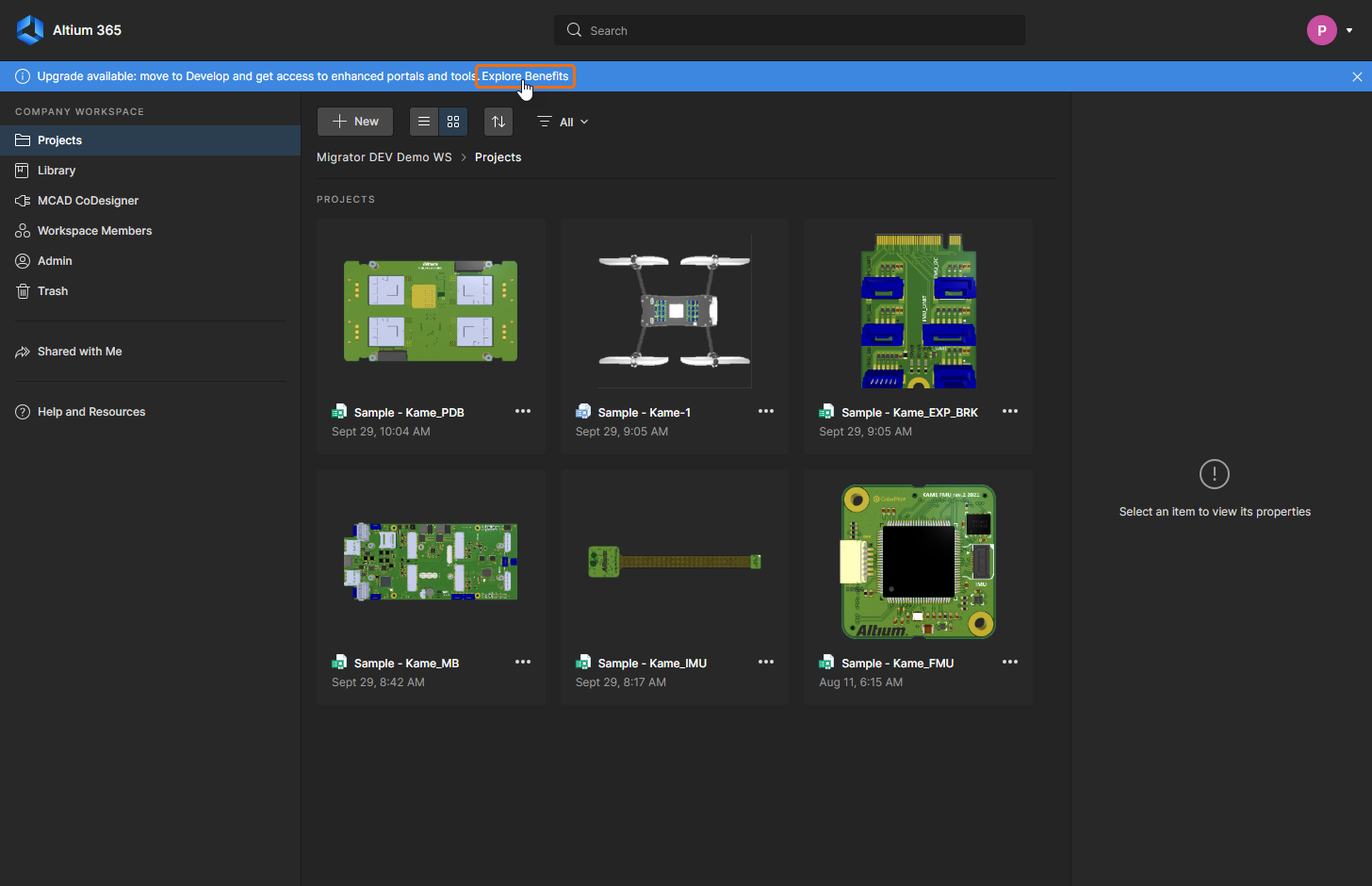
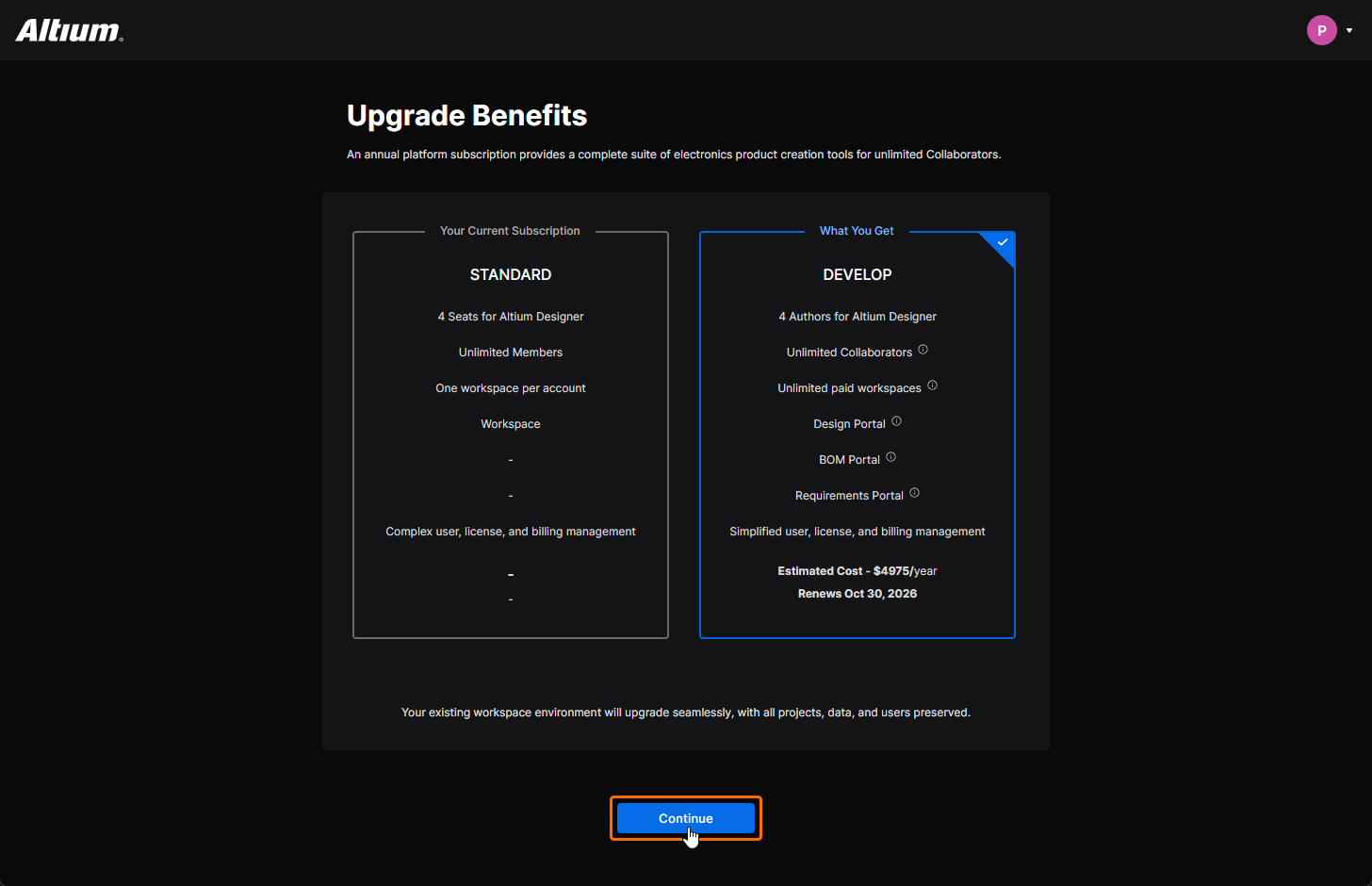
Die Upgrade Benefits Seite, die den Wechsel zu Altium Develop zusammenfasst, wird geöffnet. Klicken Sie auf die Schaltfläche  , um fortzufahren.
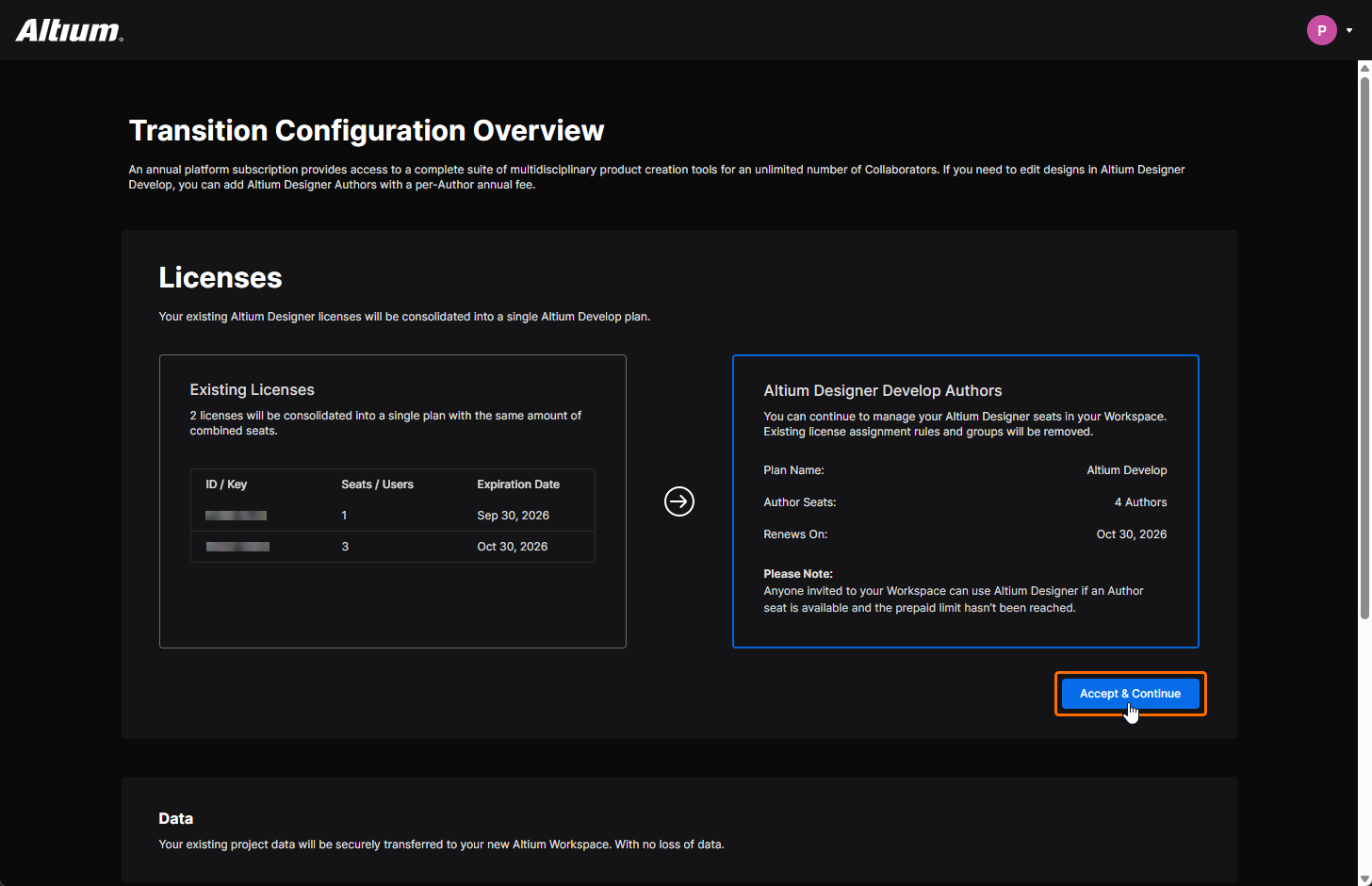
Auf der sich öffnenden Transition Configuration Overview Seite werden im Bereich Licenses Ihre Existing Licenses (links) aufgeführt und zusammengefasst, wie diese in Altium Designer Authors under Develop Workspace umgewandelt werden (rechts). Klicken Sie auf die Schaltfläche  , um fortzufahren.
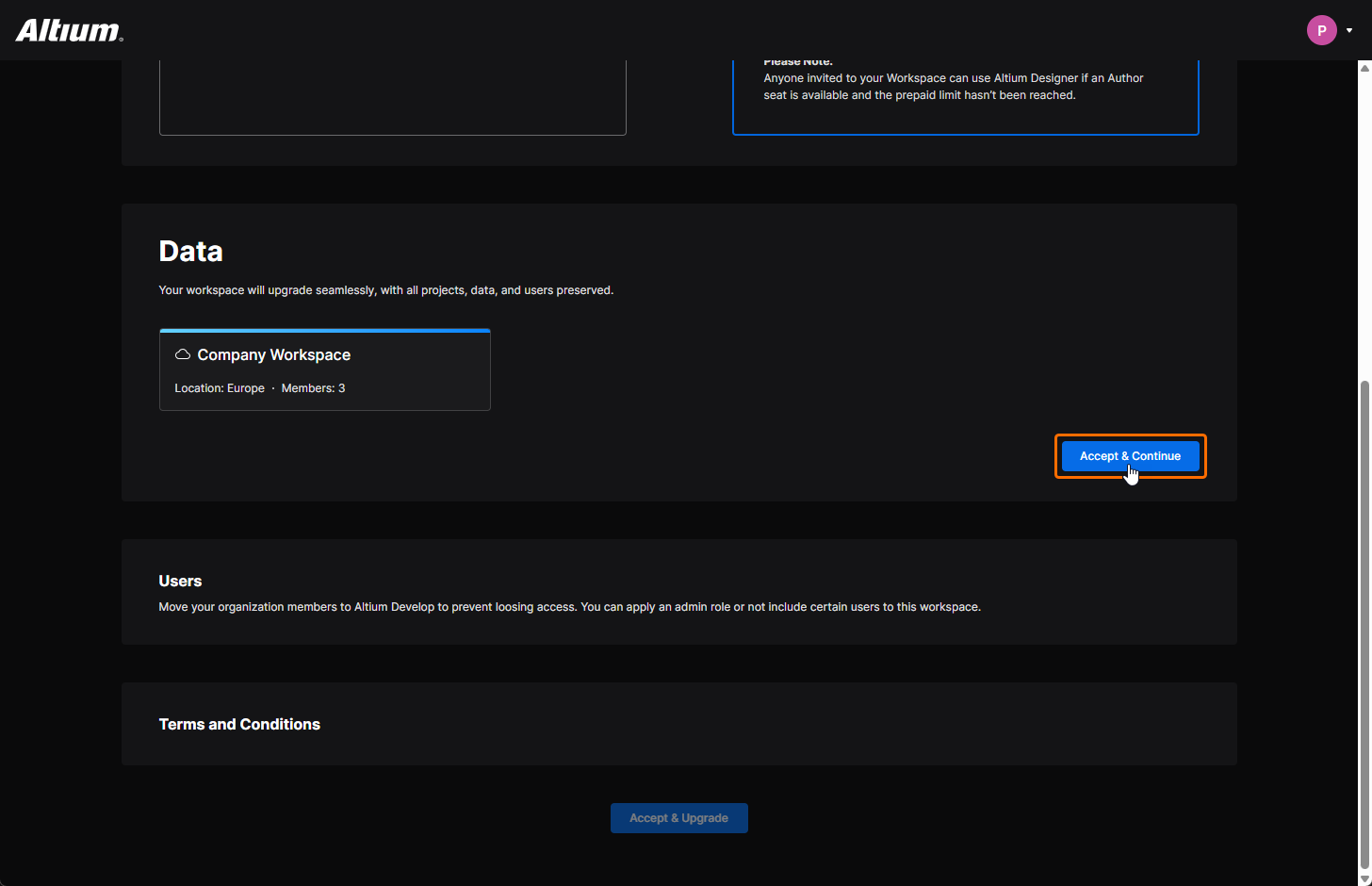
Der Bereich Data der Seite wird mit einer Kachel des zu migrierenden Workspace aktualisiert. Klicken Sie auf die Schaltfläche , um fortzufahren.
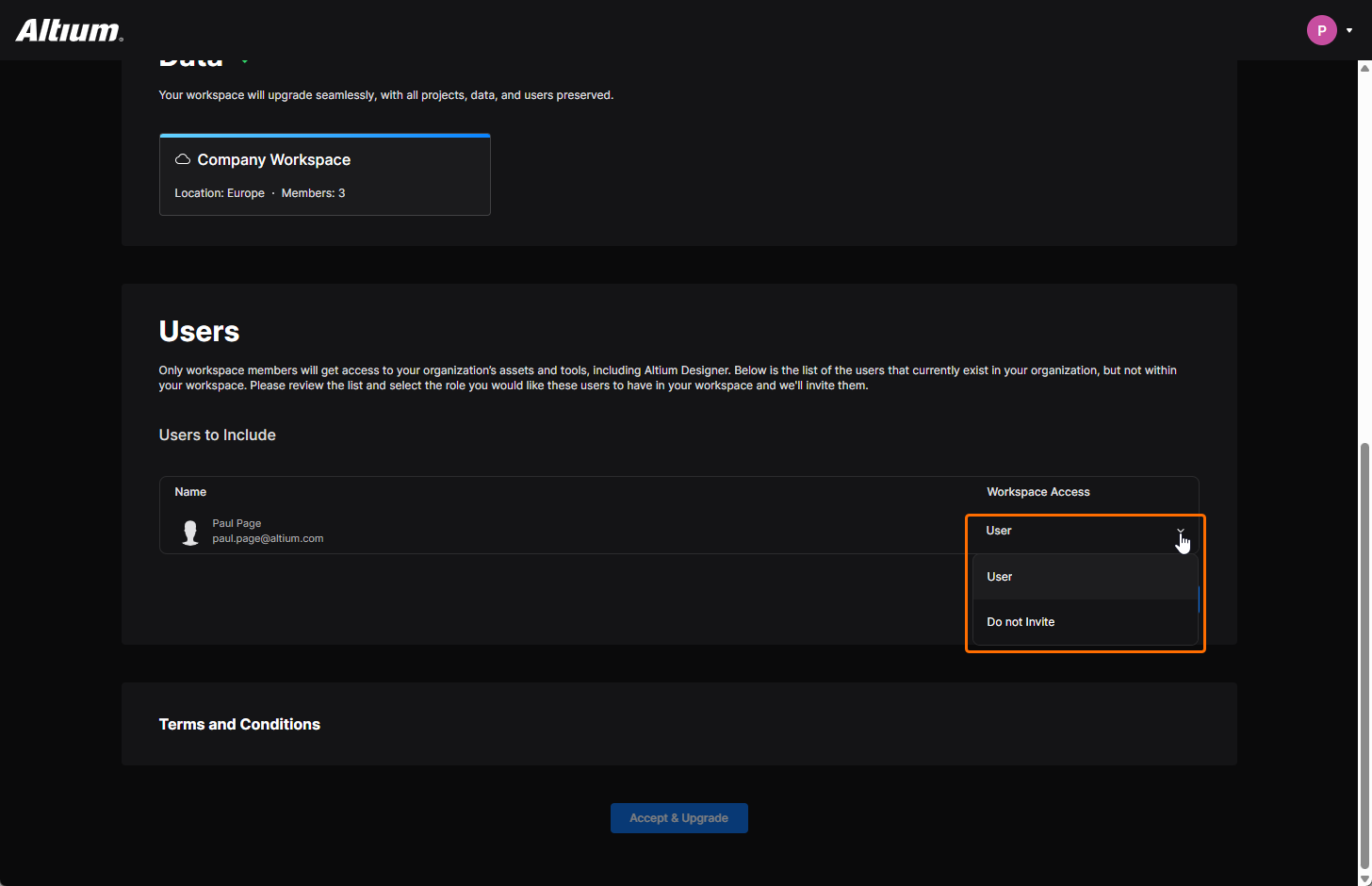
Der Bereich Users der Seite wird mit einer Liste der Benutzer aktualisiert, die derzeit zu Ihrer Organisation gehören, jedoch keine Mitglieder ihres Workspace sind. Für jeden solchen Benutzer können Sie auswählen, ob Sie ihn in den Workspace einladen möchten (User) oder nicht (Do not invite). Falls es Benutzer gibt, die Gruppenadministratoren des Altium-Kontos Ihrer Organisation, aber keine Administratoren des Workspace sind, werden auch diese aufgelistet, mit der Möglichkeit, sie als Workspace-Administratoren einzuladen. Klicken Sie auf die Schaltfläche , um fortzufahren.
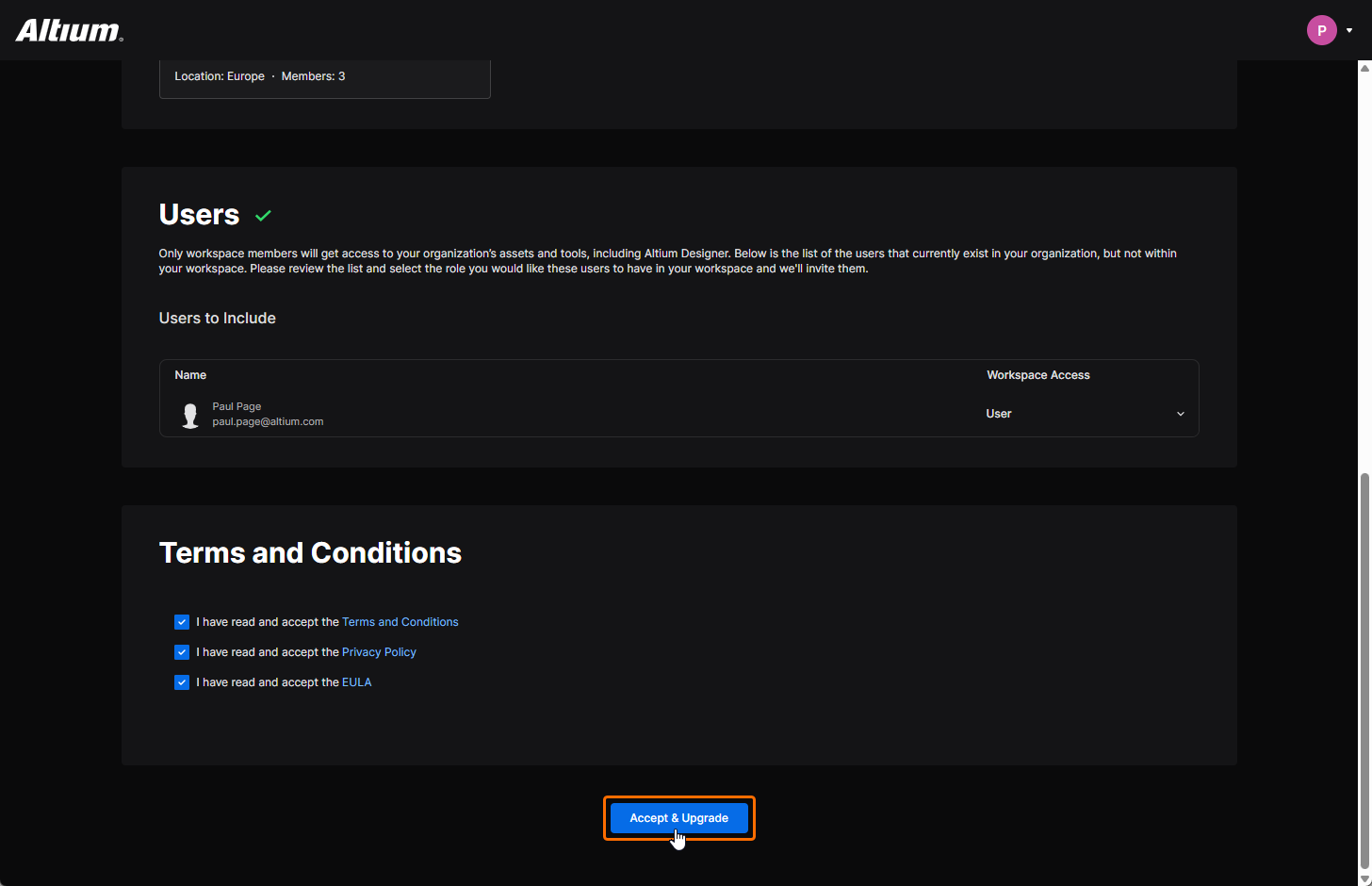
Lesen Sie Terms and Conditions, Privacy Policy und EULA (Endbenutzer-Lizenzvereinbarung) über die Links im Bereich Terms and Conditions der Seite. Aktivieren Sie die Kontrollkästchen und klicken Sie auf die Schaltfläche  , um mit dem Upgrade fortzufahren.
Wenn der Upgrade-Prozess abgeschlossen ist, wird ein Übersichtsbericht angezeigt, und Sie können nun Ihren Altium Develop Workspace verwenden!
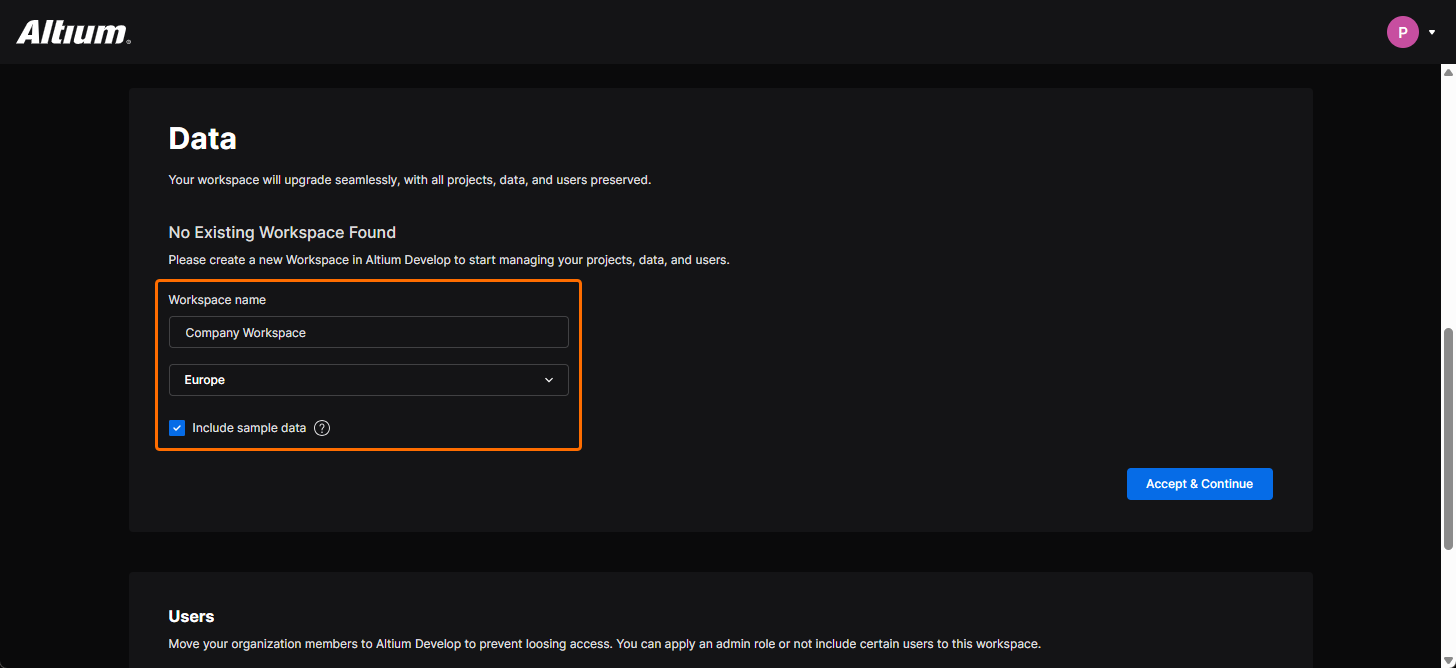 ).
). KI-lokalisiert