
Design Reviews
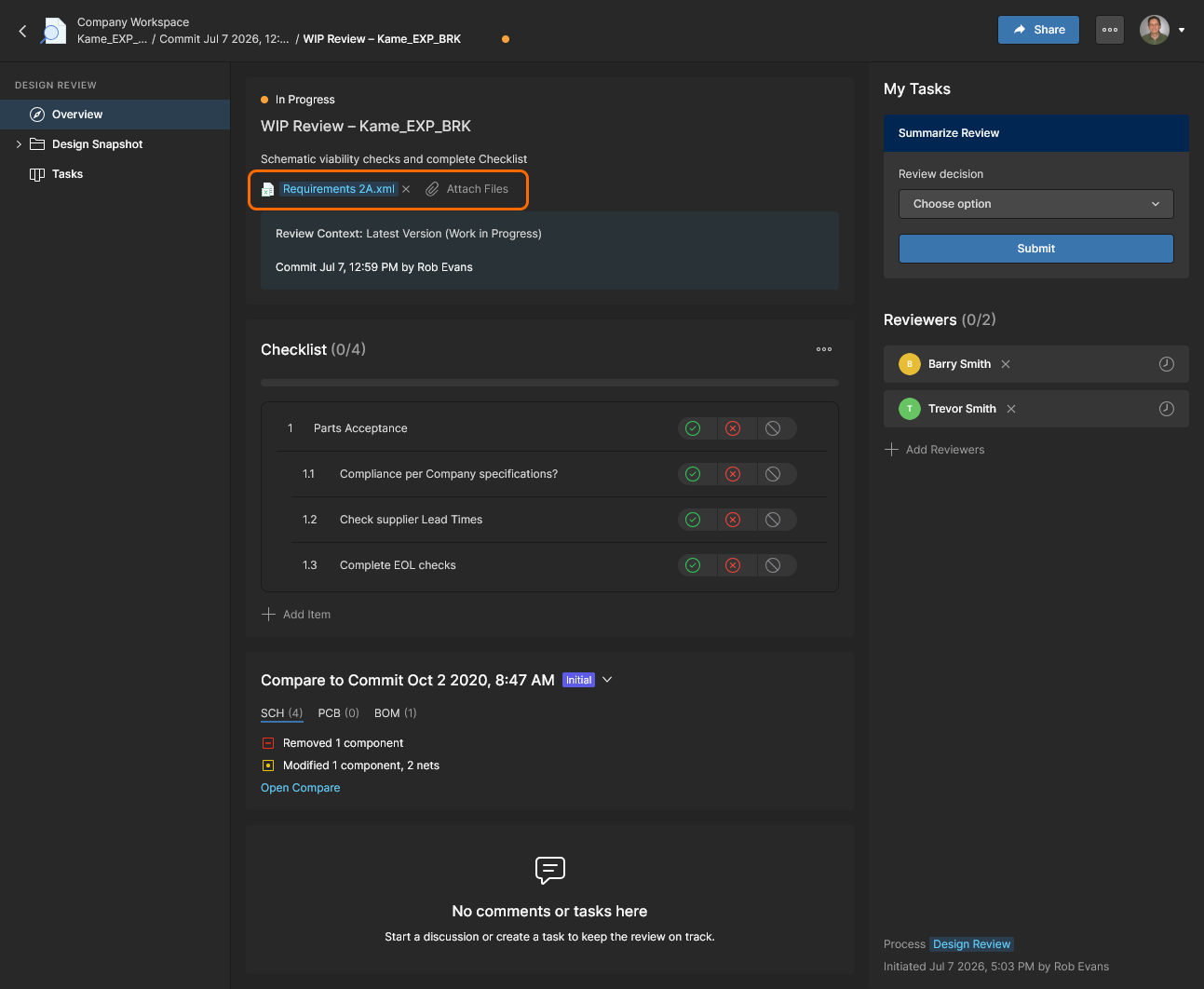
The project Design Reviews page is the central location for all project stakeholders to perform and manage structured reviews of a Workspace design project. The interface allows the creation, access and management of Design Review instances by any Workspace member, which in turn can be assigned to other Workspace members as Reviewers. The Design Review creator (the Initiator) can add attachments and formalized Checklist items, and has full control over the Design Review completion/approval process.
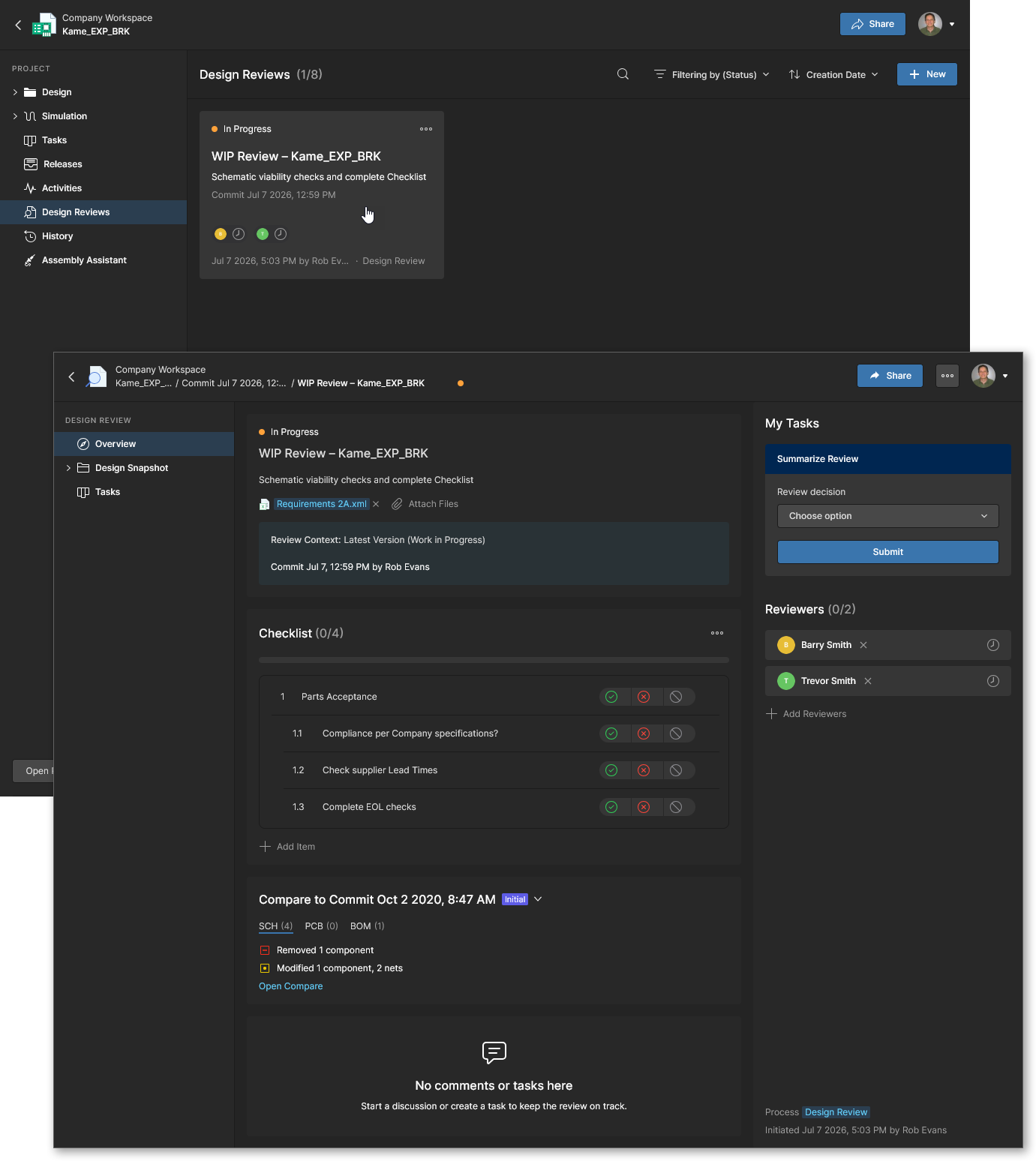 Create, configure, manage and conclude Project Design Reviews assessed by specified Workspace Members.
Completed project Design Reviews help to identify design issues, provide a traceable compliance record, and ensure that the design meets company requirements and standards. Design projects support multiple Design Reviews, which can be created at any time through the project’s development such as prior to its Release, or when passing the design to another team or contractor/manufacturer.
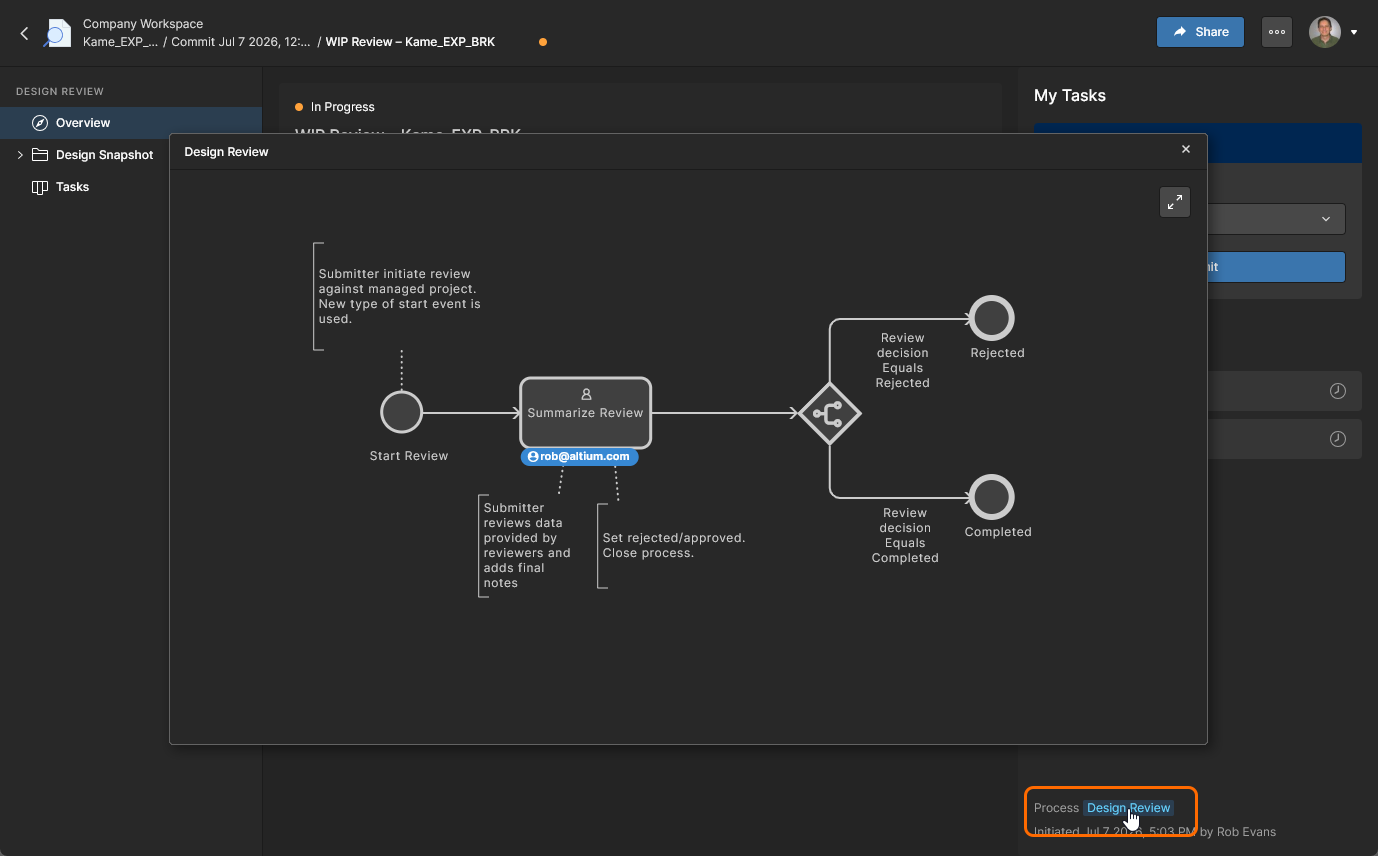 Hover over the link to see a preview.
Creating Reviews
In the Workspace Web Viewer, project Design Review instances are created and accessed from the project's Design Reviews page. The review will apply to the currently open project and be available to all Workspace members who have access to the project itself. Note that only Workspace members (and not External Share users) can participate in Design Reviews.
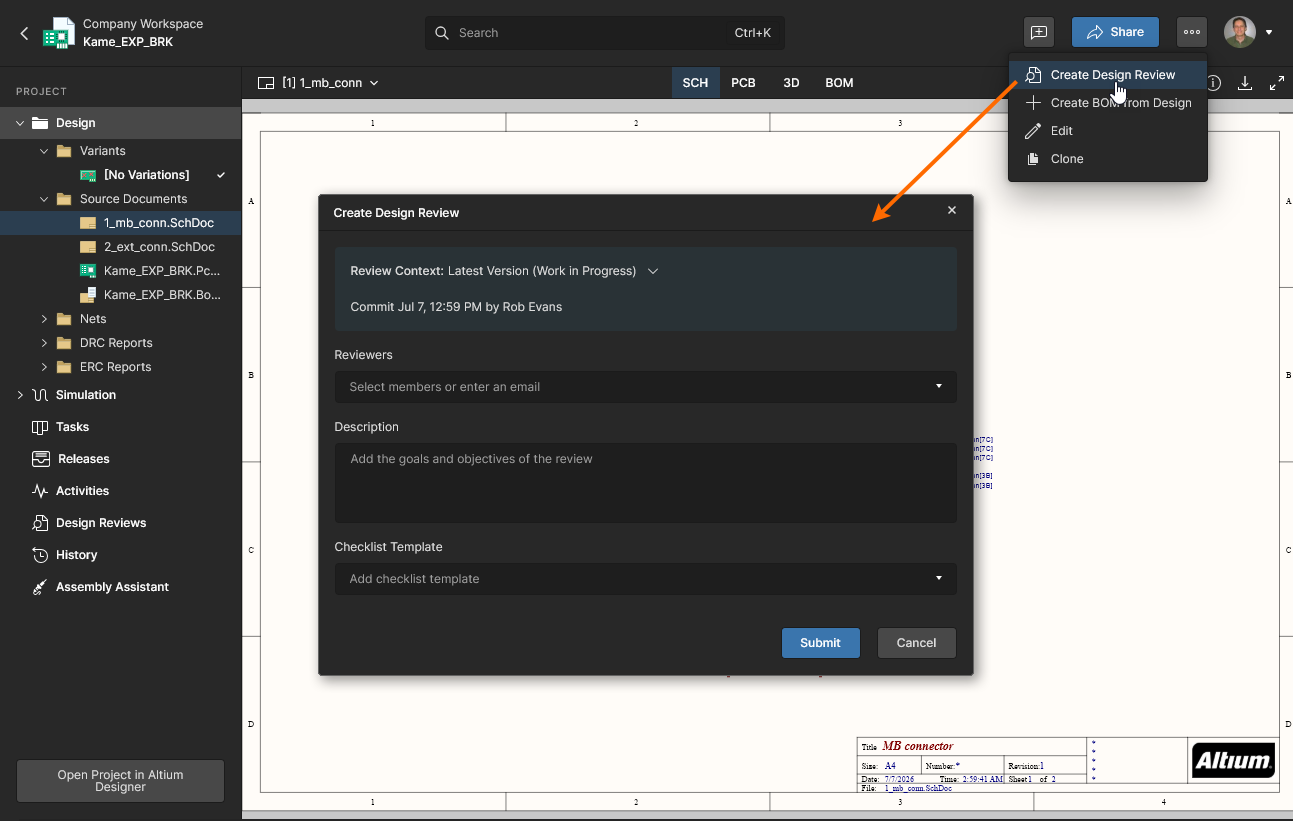
Select the  button to open the Create Design Review window for configuring the review's main settings. When finalized and confirmed (
 ), the created review instance will open in its dedicated viewer for further configuration.
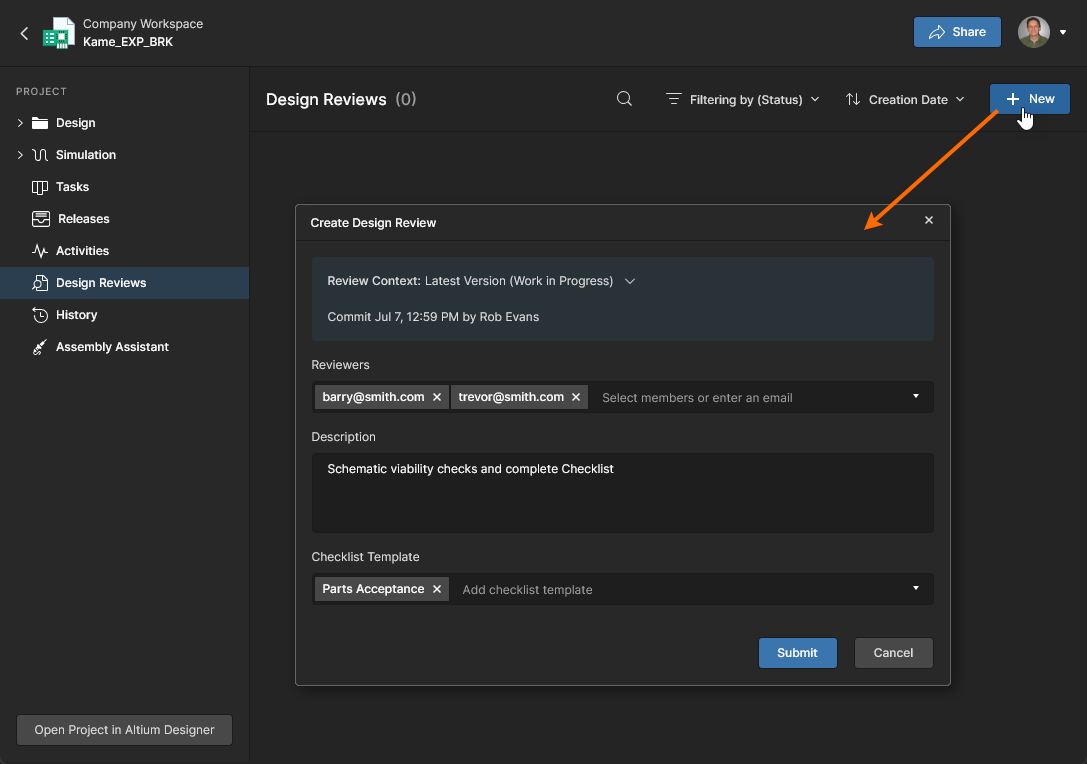
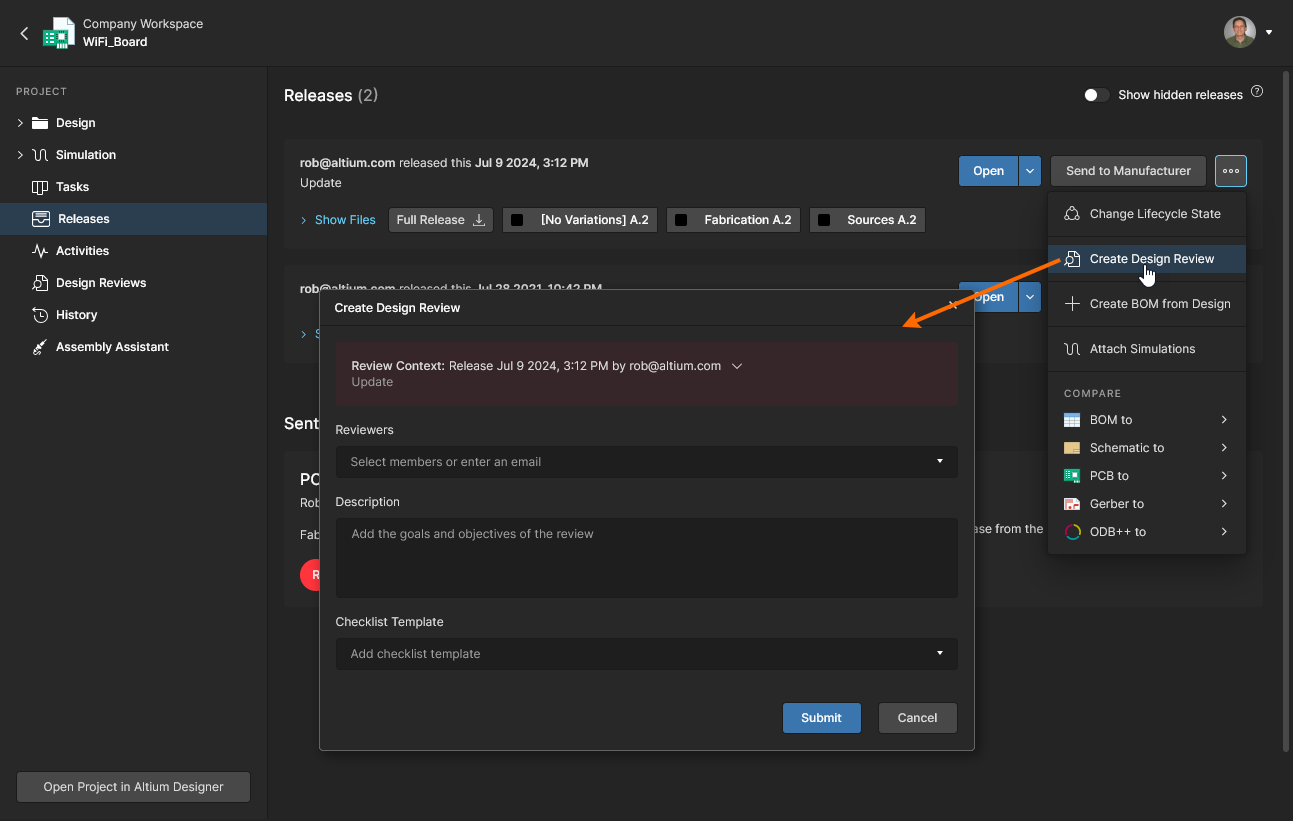
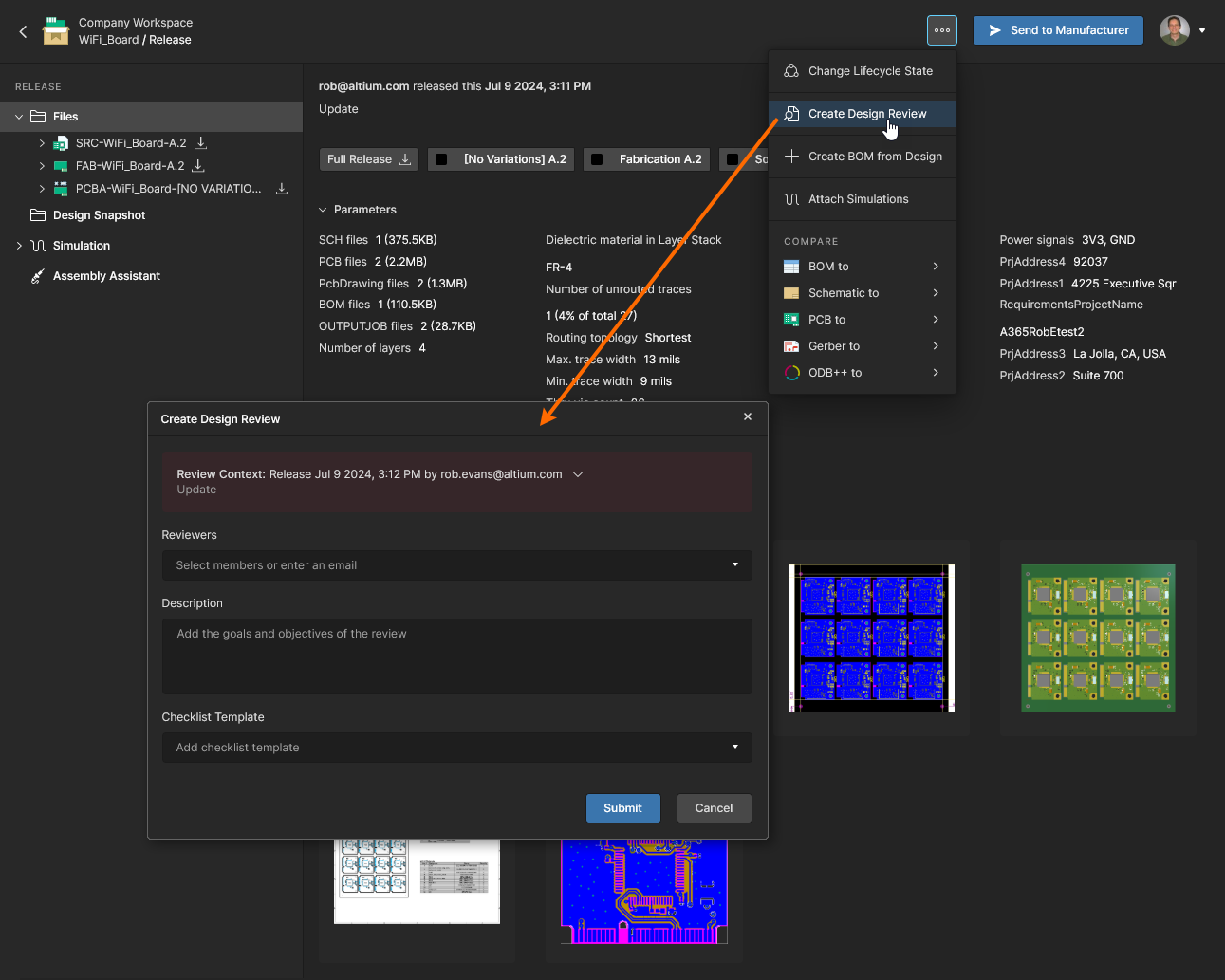
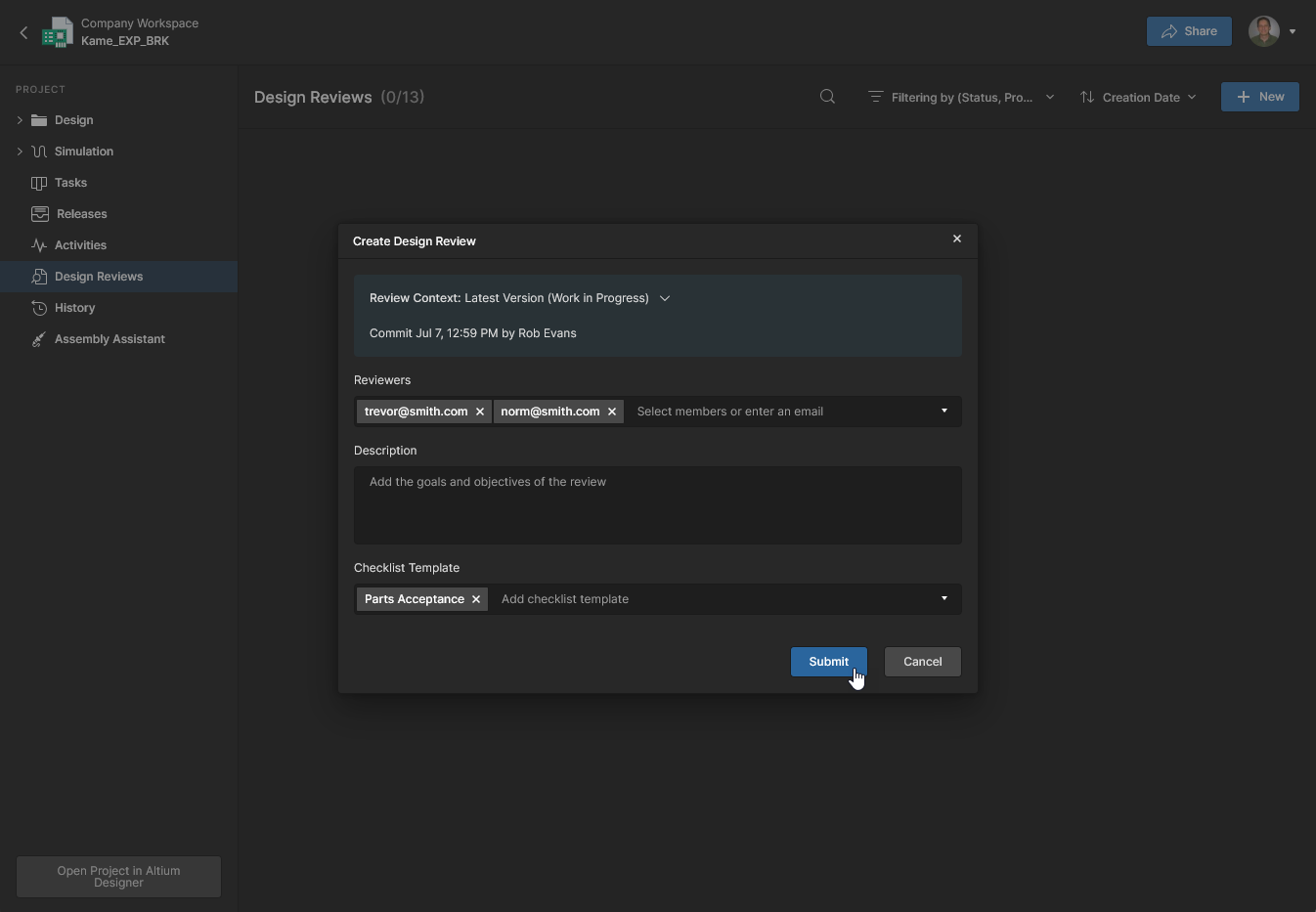
The Create Design Review window supports the following options and fields that establish the primary settings for the new Design Review instance:
-
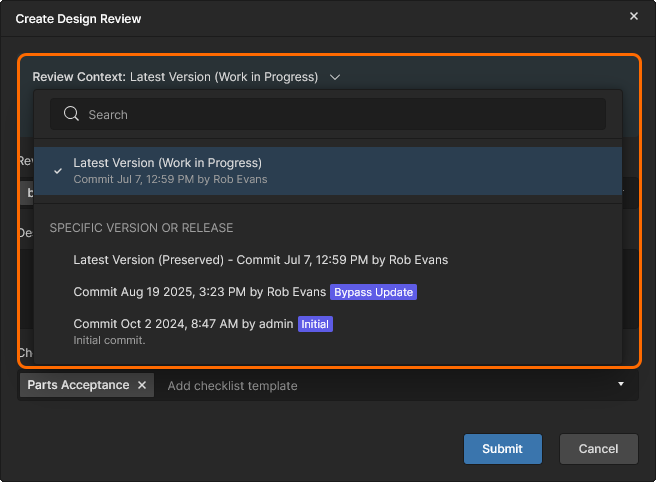
Review Context tile – Sets the version of the design this review will apply to. The setting defaults to the design project’s most recent design data (the current WIP project), but can be set to a particular project Release or (earlier) Commit from the drop-down menu.
-
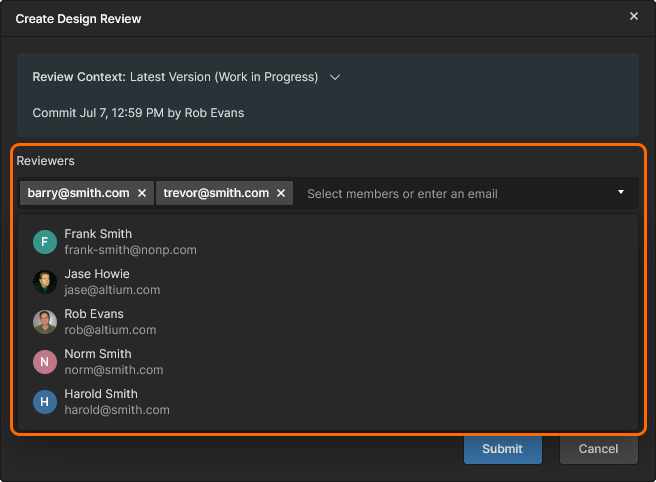
Reviewers – The nominated Workspace members that will be requested to review the design project. Choose a reviewer from the control’s drop-down list or by typing in their email address. Design Review tasks will automatically be created for these users.
-
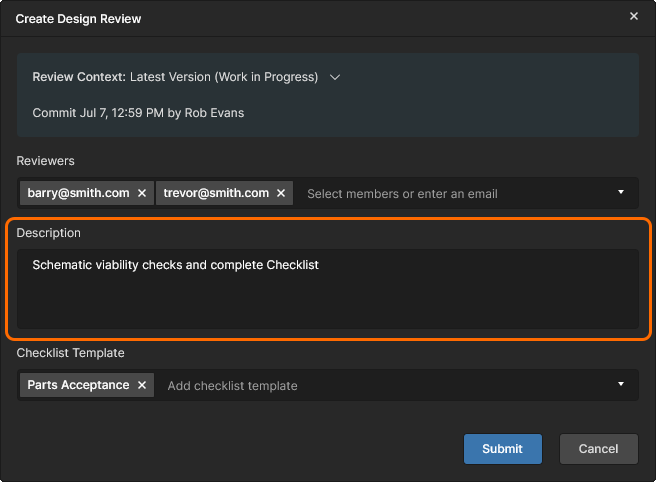
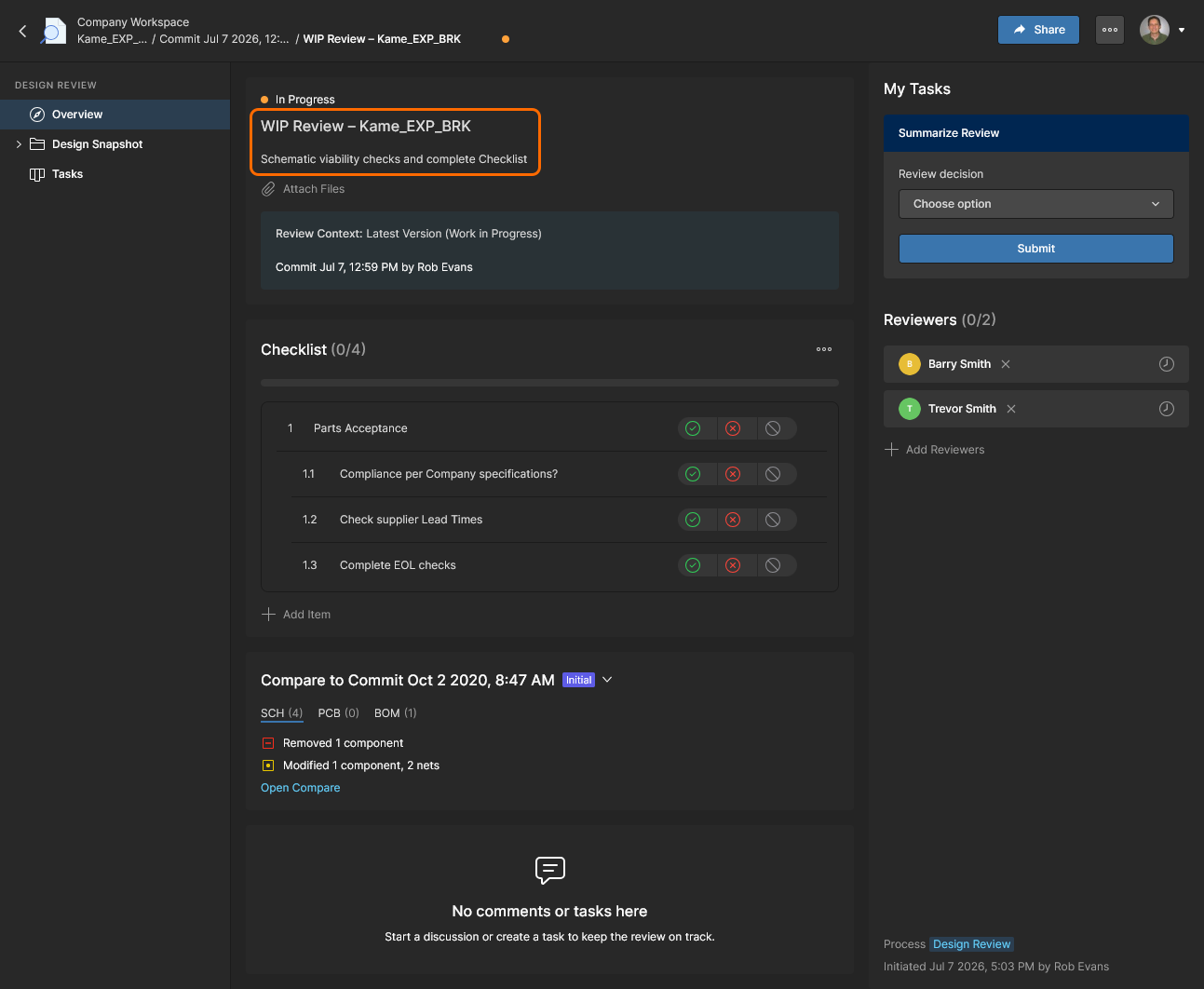
Description – Enter meaningful information about the review such as its purpose or requirements.
-
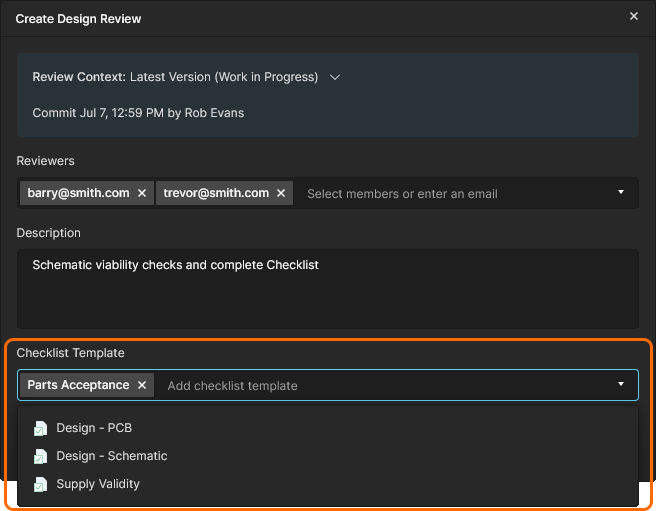
Checklist Template – Use the drop-down menu to choose a preconfigured list of textual check items that reviewers can complete and comment on. Review Checklists are managed by a Workspace administrator through the Admin–Settings–Checklists page.
Users added as Reviewers must be registered Workspace Members and have Share access to the design being reviewed.
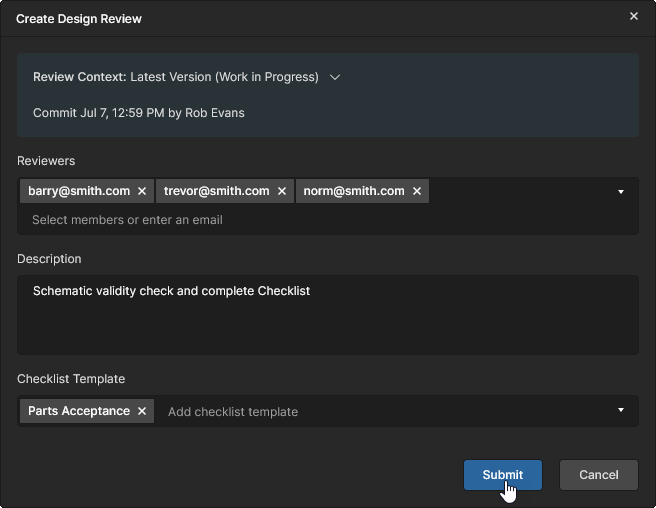
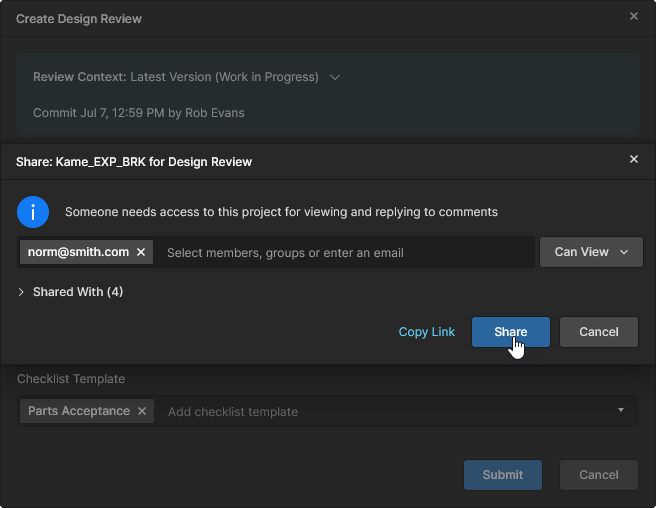
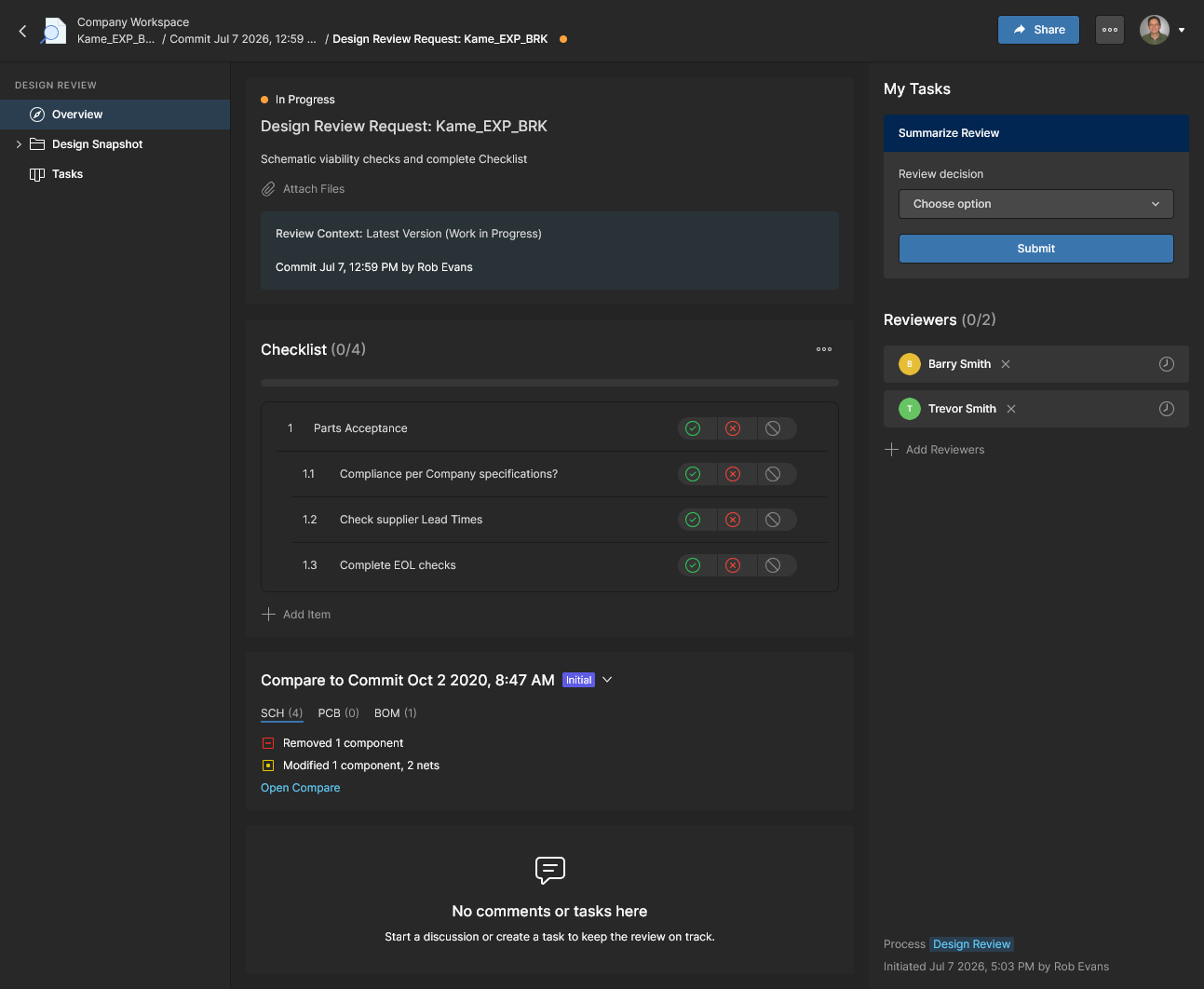
The submitted Design Review configuration is opened as a new review instance assigned to the specified Reviewers. Design Reviews are otherwise opened from their tile entries in the project’s Design Reviews page.
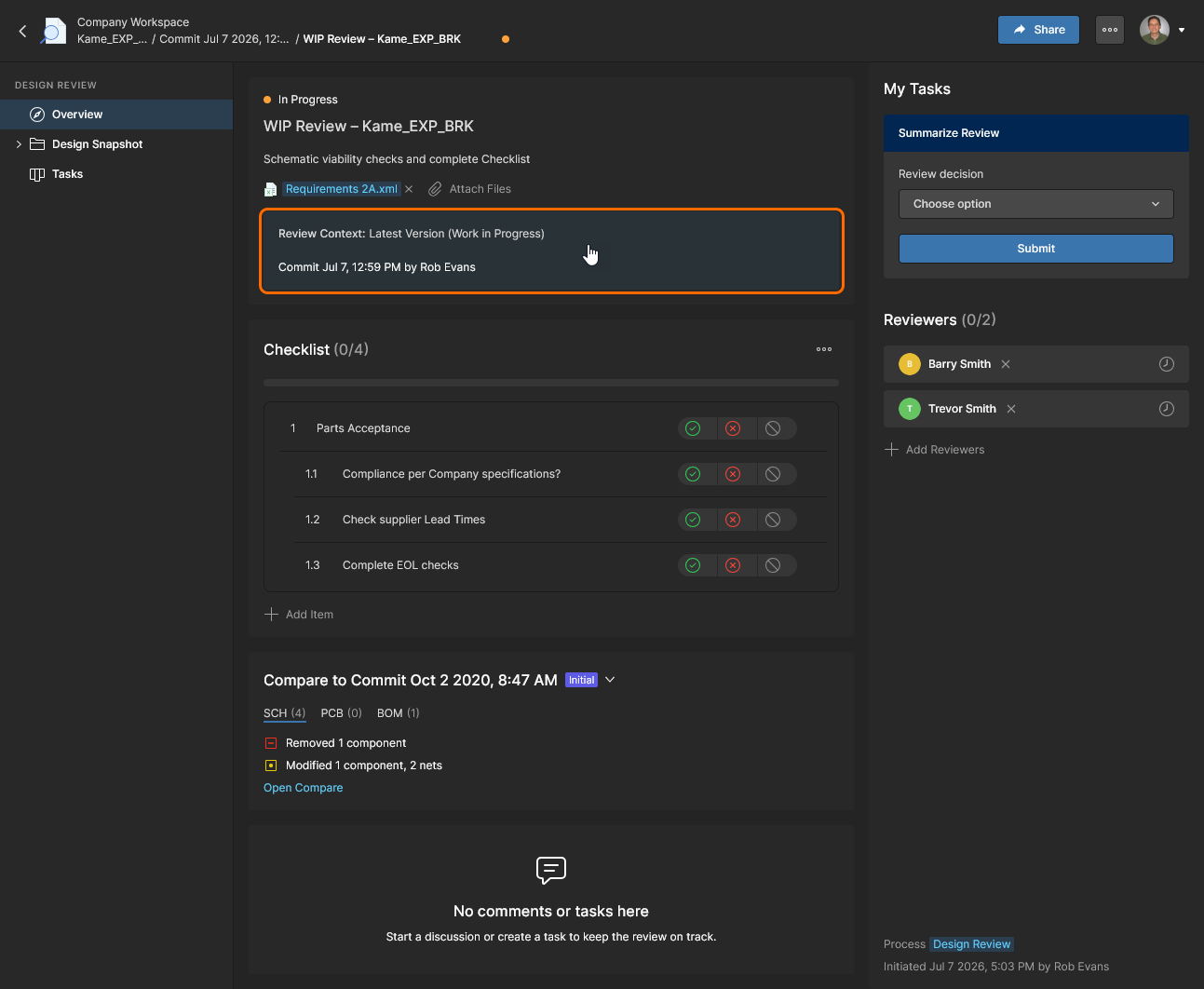
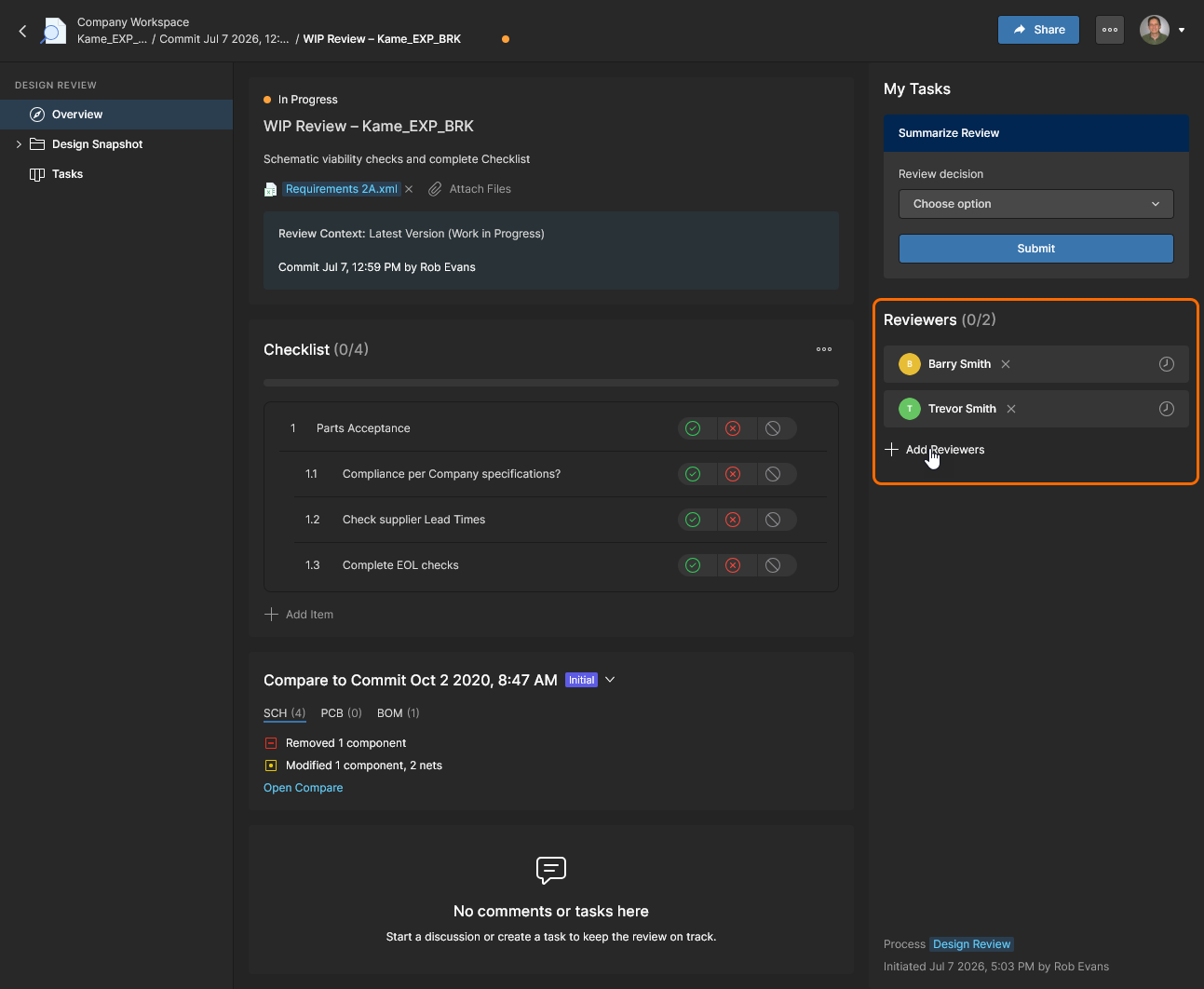
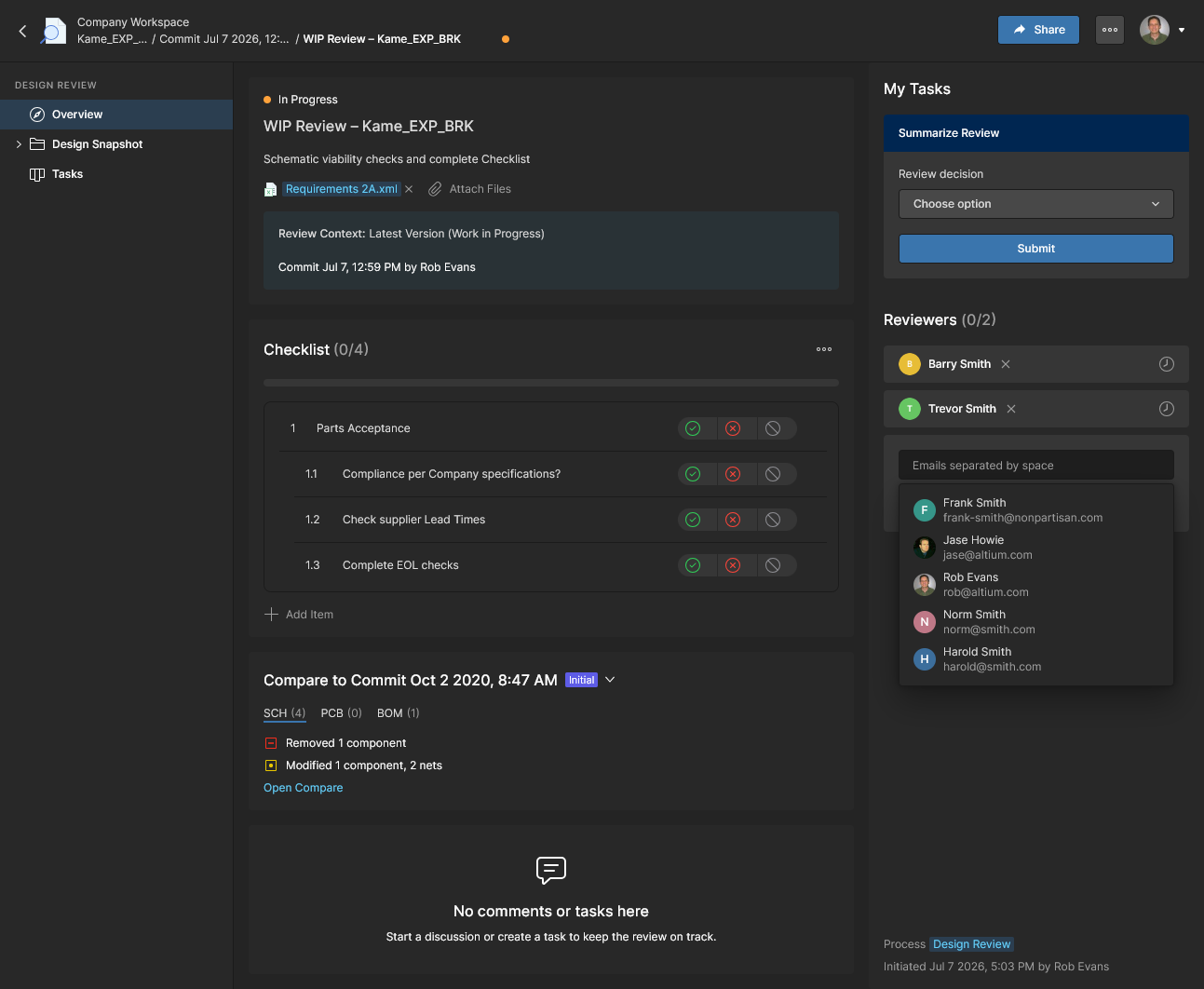
Enter a member’s email/name or choose from the drop-down list. An entered email will be rejected if the user is not a Workspace member. Reviewers also must have access to the design being reviewed – if not, this can be corrected in the Share window that follows. 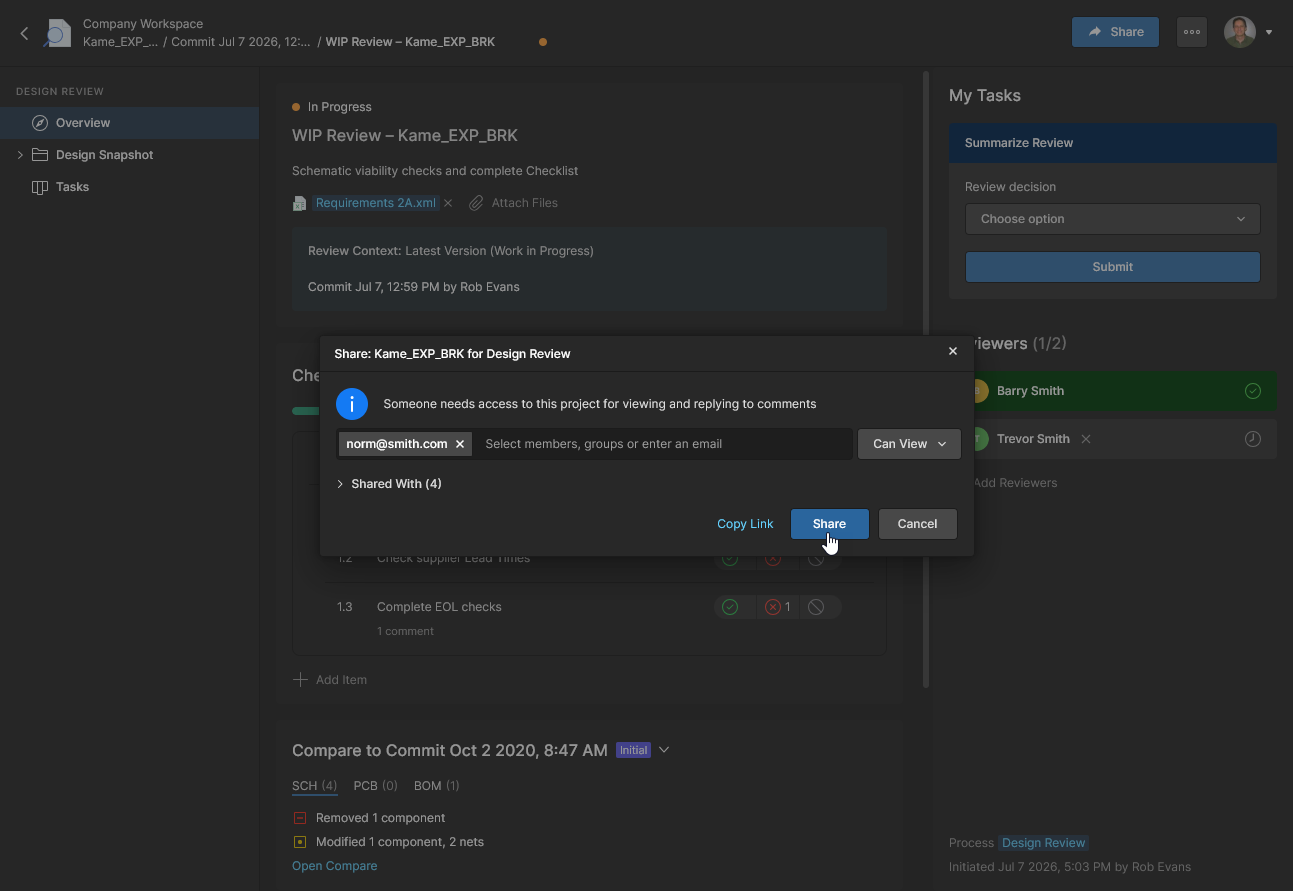
Working with Checklists
Although optional, Design Review Checklists provide a valuable addition for creating structured, audited reviews of project designs. Checklists are essentially a numbered list of textural check items that Reviewers can acknowledge or not accept when completing their review tasks. Each check item can be accepted/rejected by all specified Reviewers, who also can add Comments (and associated Tasks) to each entry through the Design Snapshot view.
Sample Schematic and PCB Checklists are available by default, and new or modified Checklists can be created. Checklists are managed by Workspace administrators in the Admin–Settings–Checklists view, however users can add, remove, and modify Checklists when creating a Design Review instance.
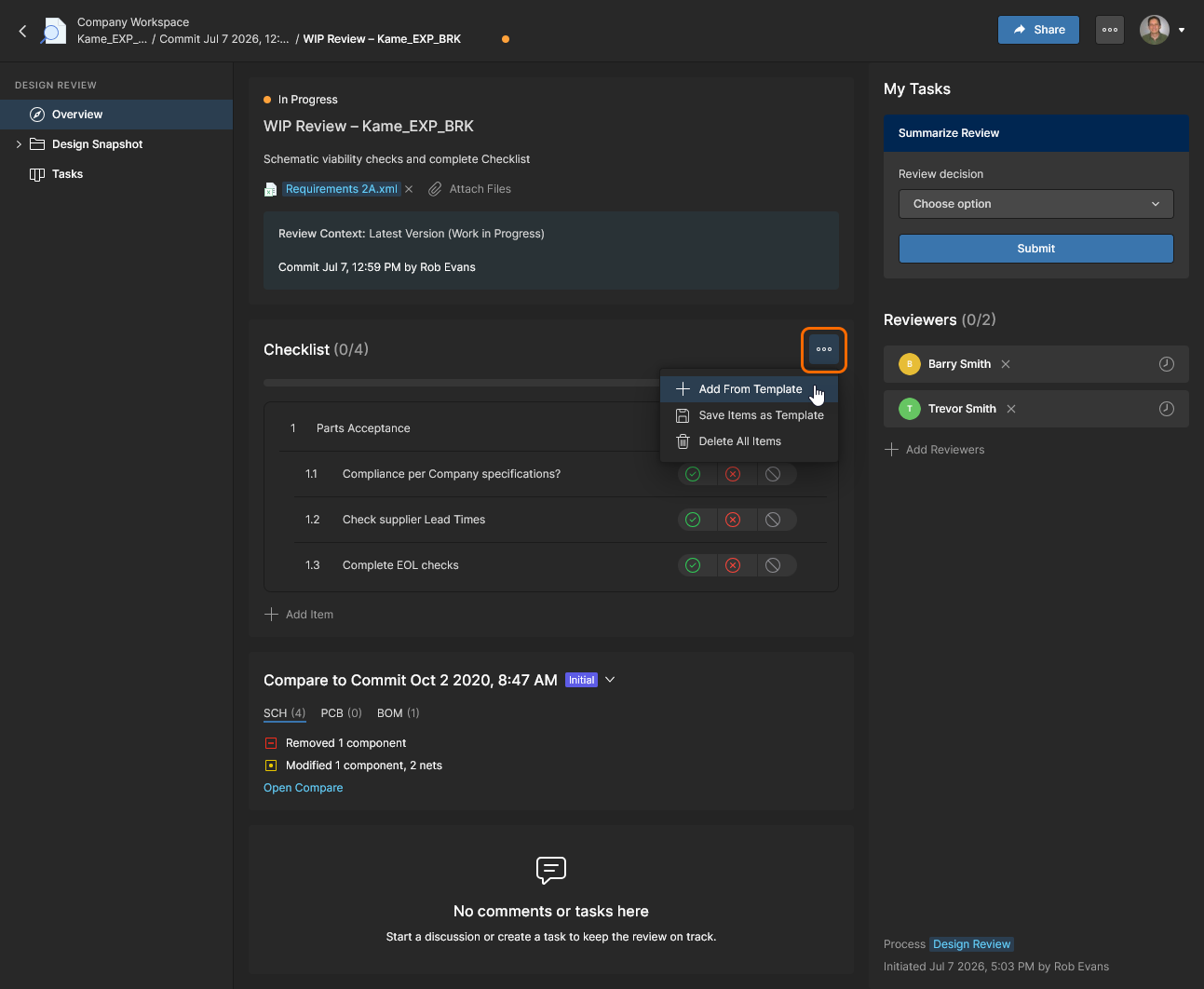
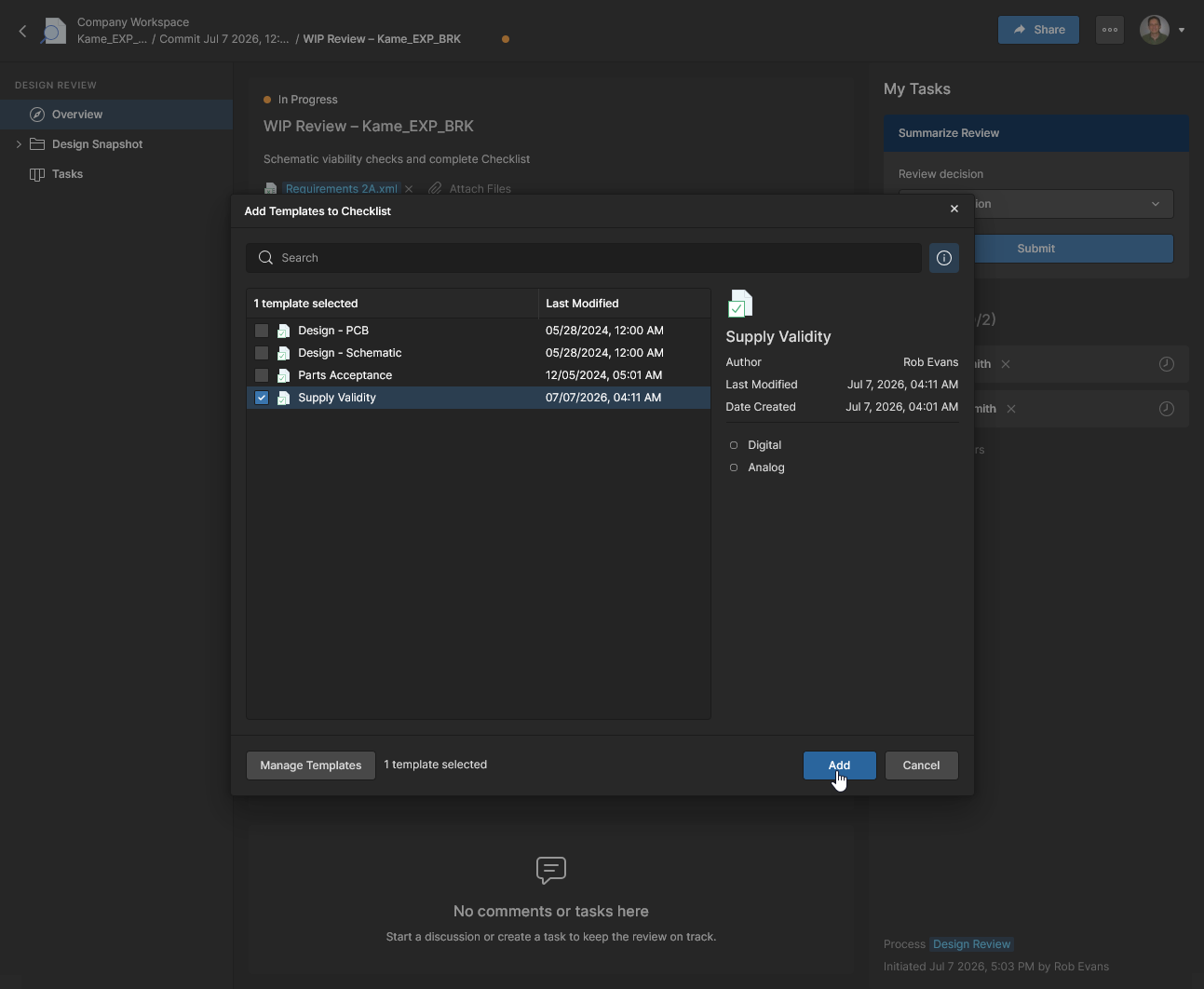
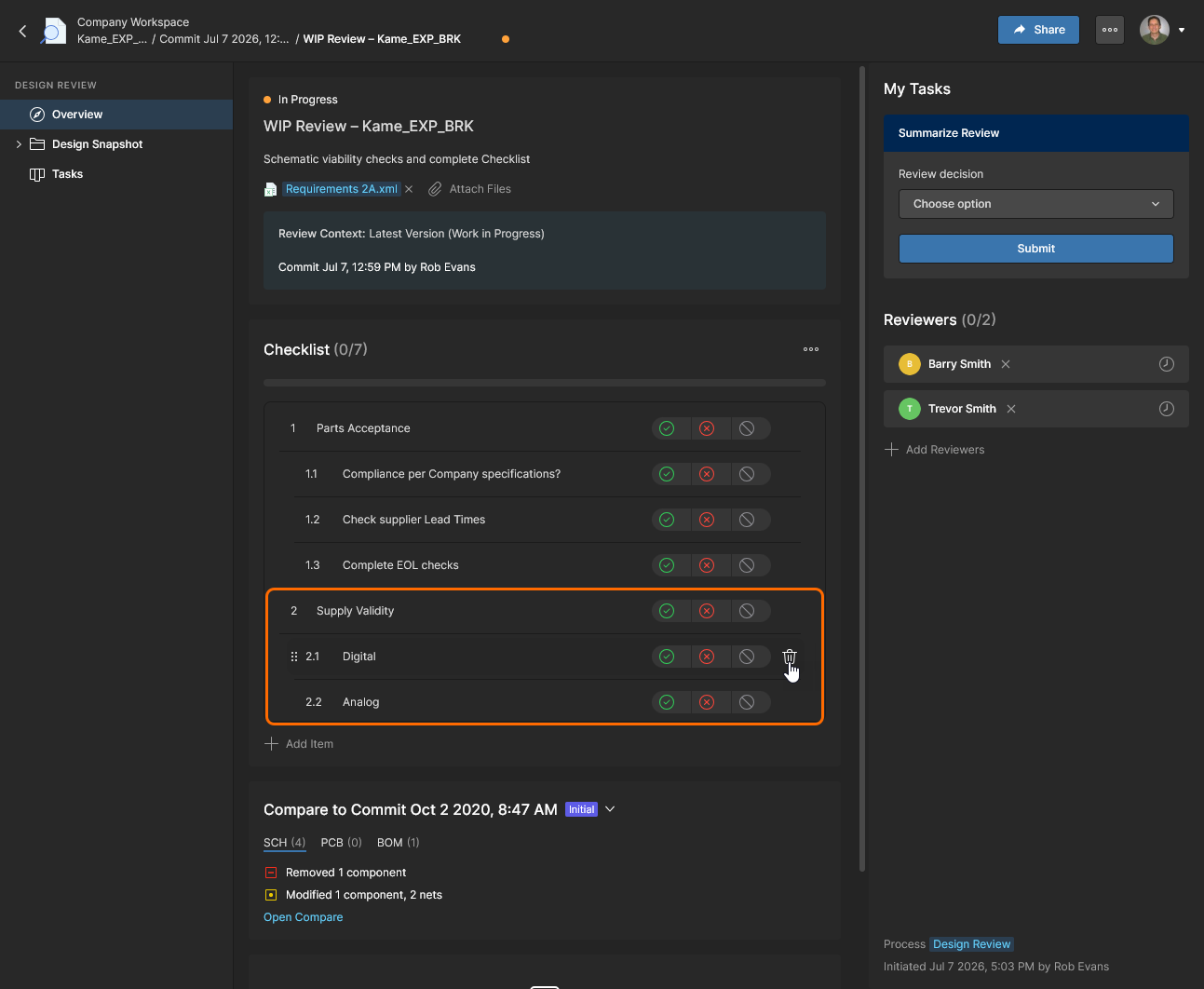
The selected template items are automatically numbered when added to the overall Checklist. Item entries can be deleted ( ), dragged up and down to reorder the list, and dragged left and right to set the line indent (also
 Tab/Shift+Tab).
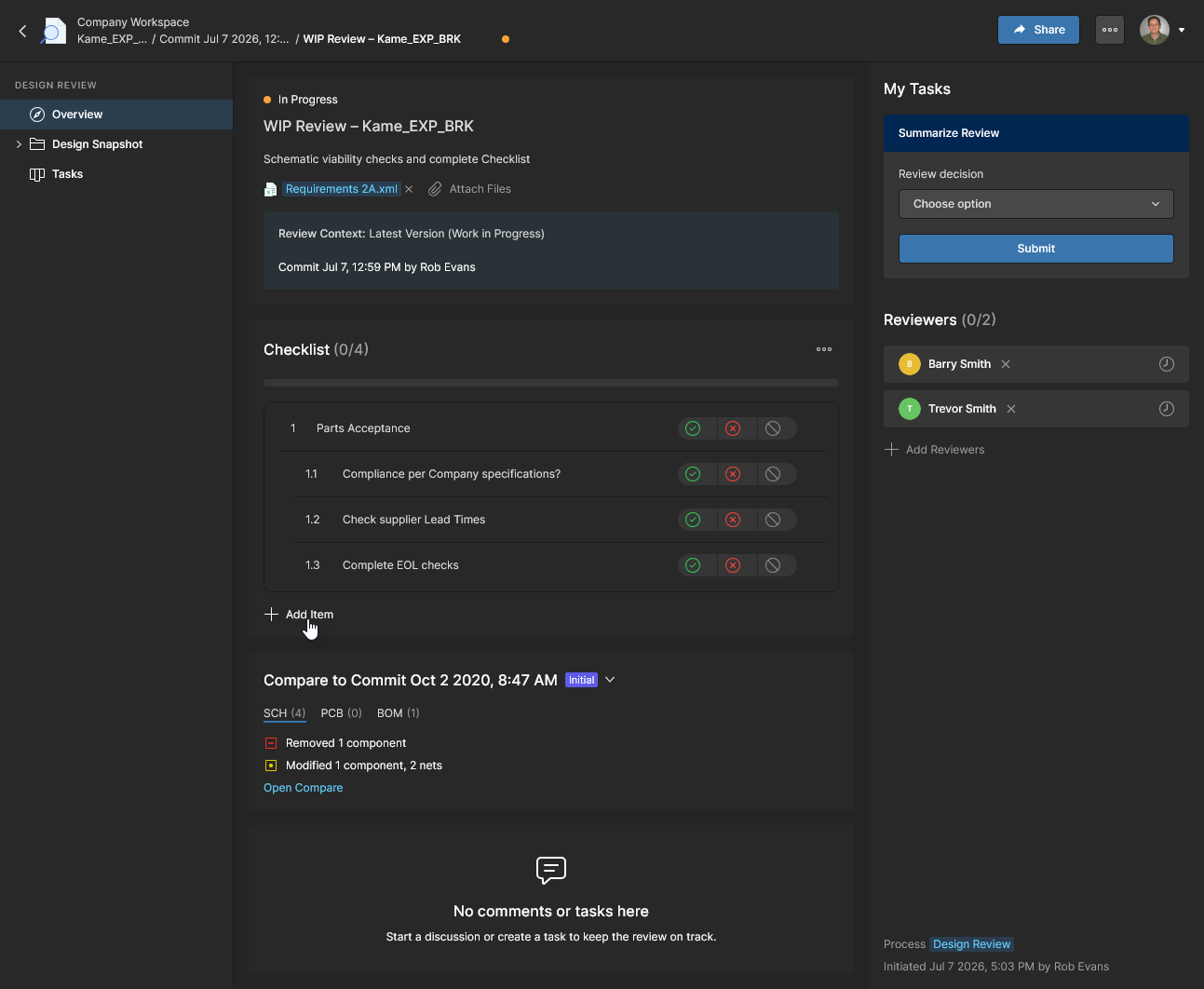
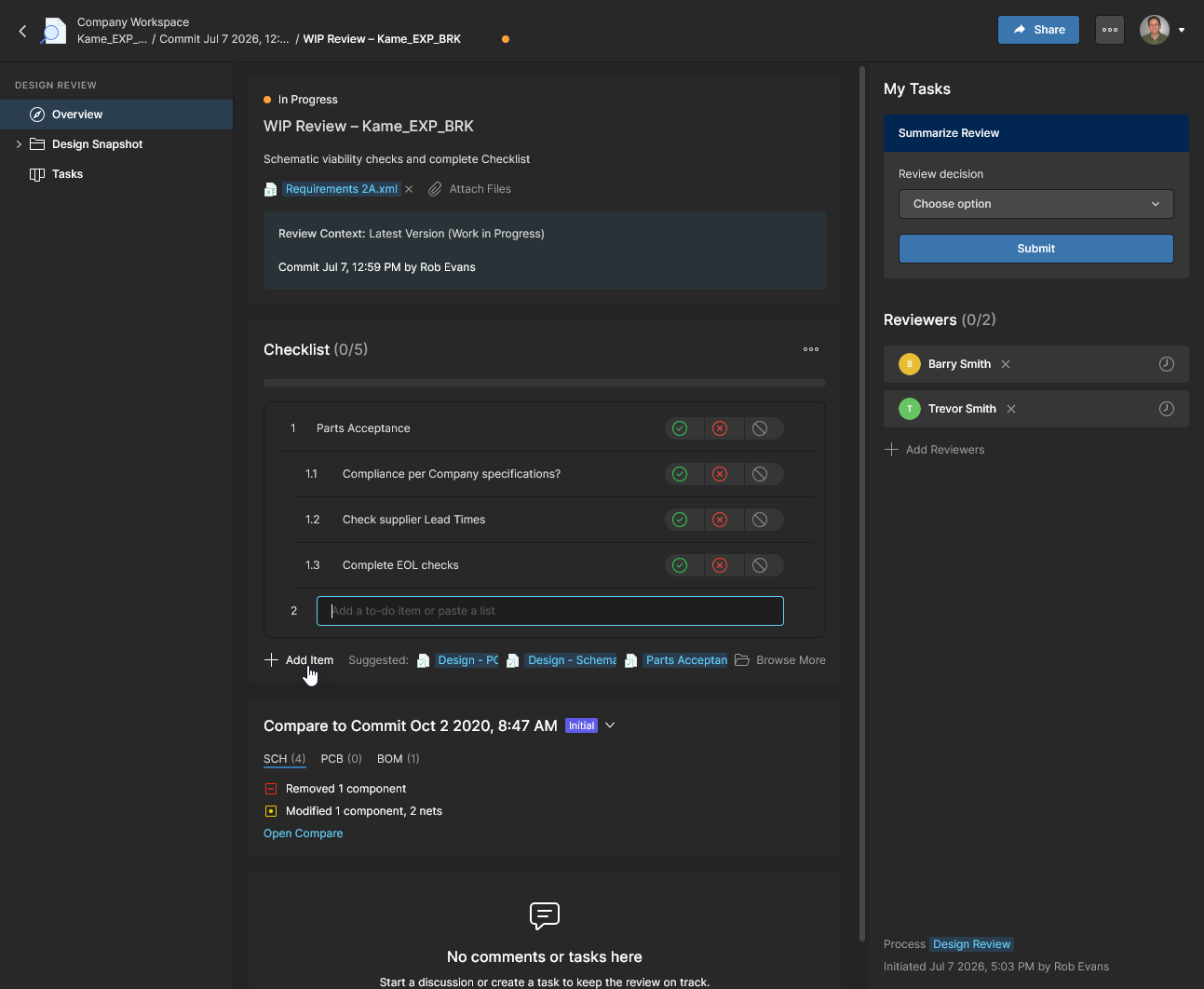
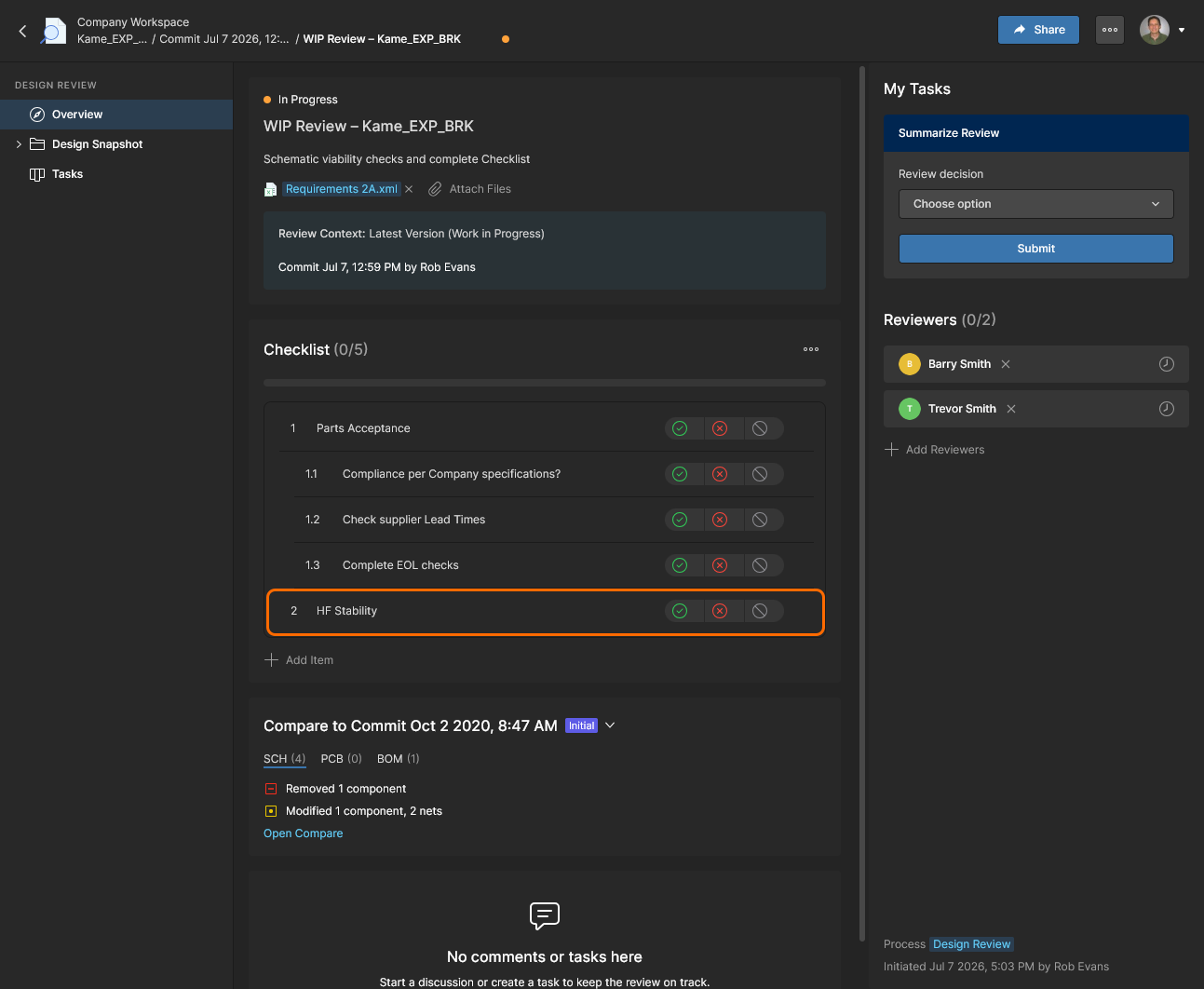
The manually added Checklist item entry is now available for reviewers. You can create your own Template from the current entries, such as those you’ve manually added, using the Checklist Save Items as Template option. Like all added checklist items, the entry can be checked as Yes ( ), No (
 ), and Not Applicable (
 ).
).
See the Admin Checklists page for information on creating and managing Design Review Checklists.
Compare to Previous Data
Design Reviews also include the direct ability to open a comparison of the snapshot’s Schematic, PCB and BOM documents with those of a previous project Commit or Release event. This allows both the review creator and Reviewers to directly view the differences between the design data being reviewed and the selected data of a previous event.
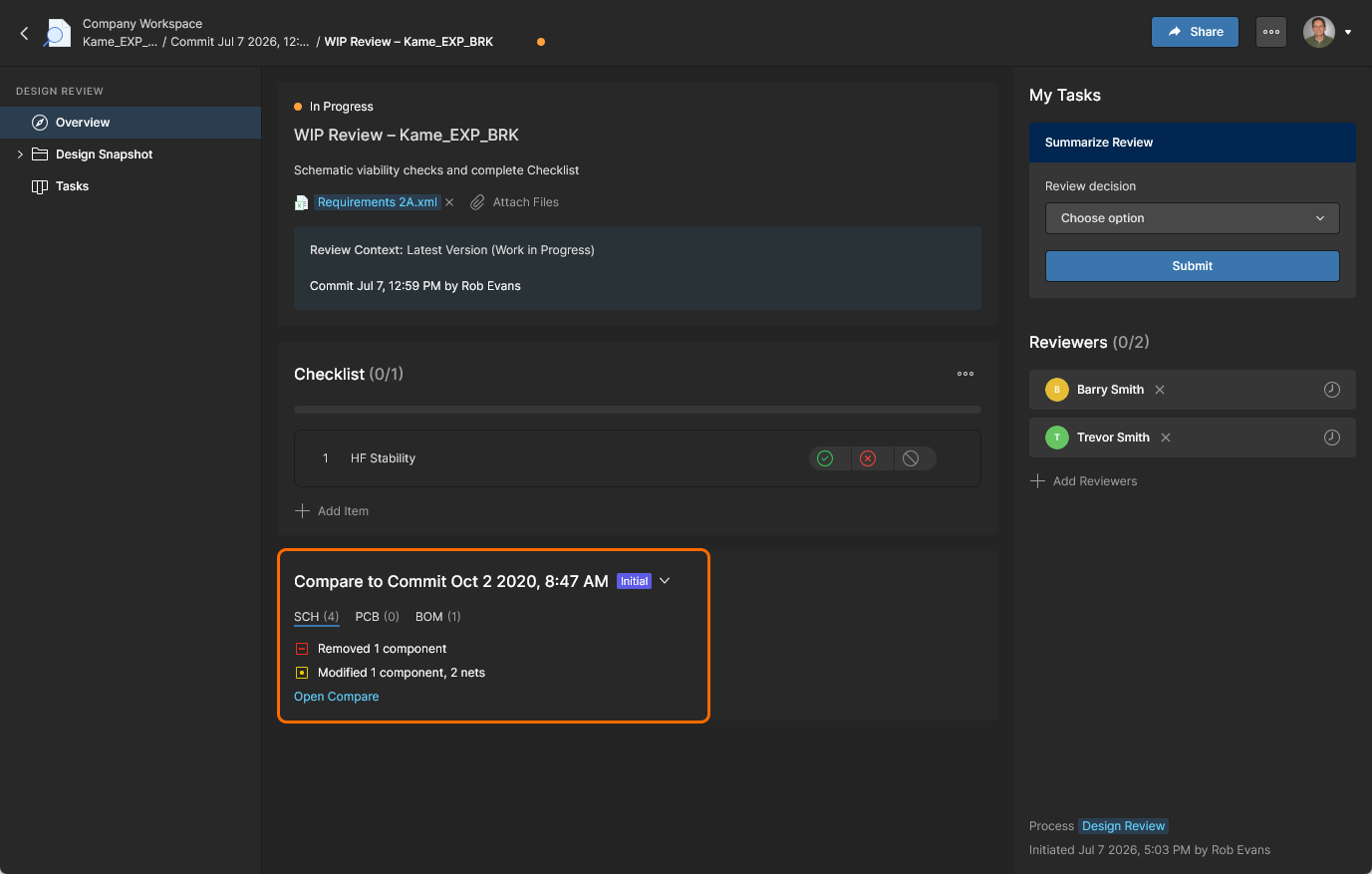
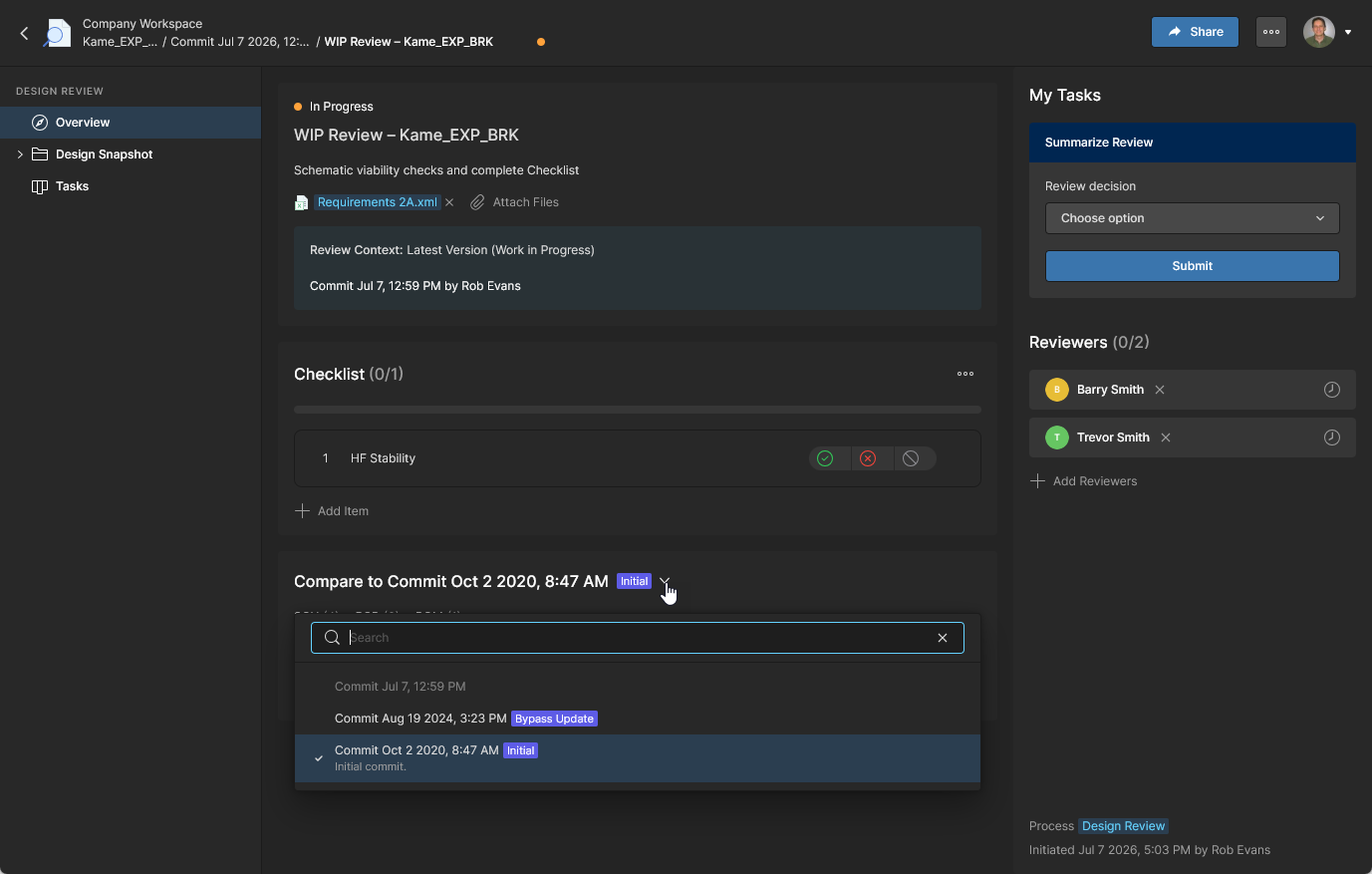
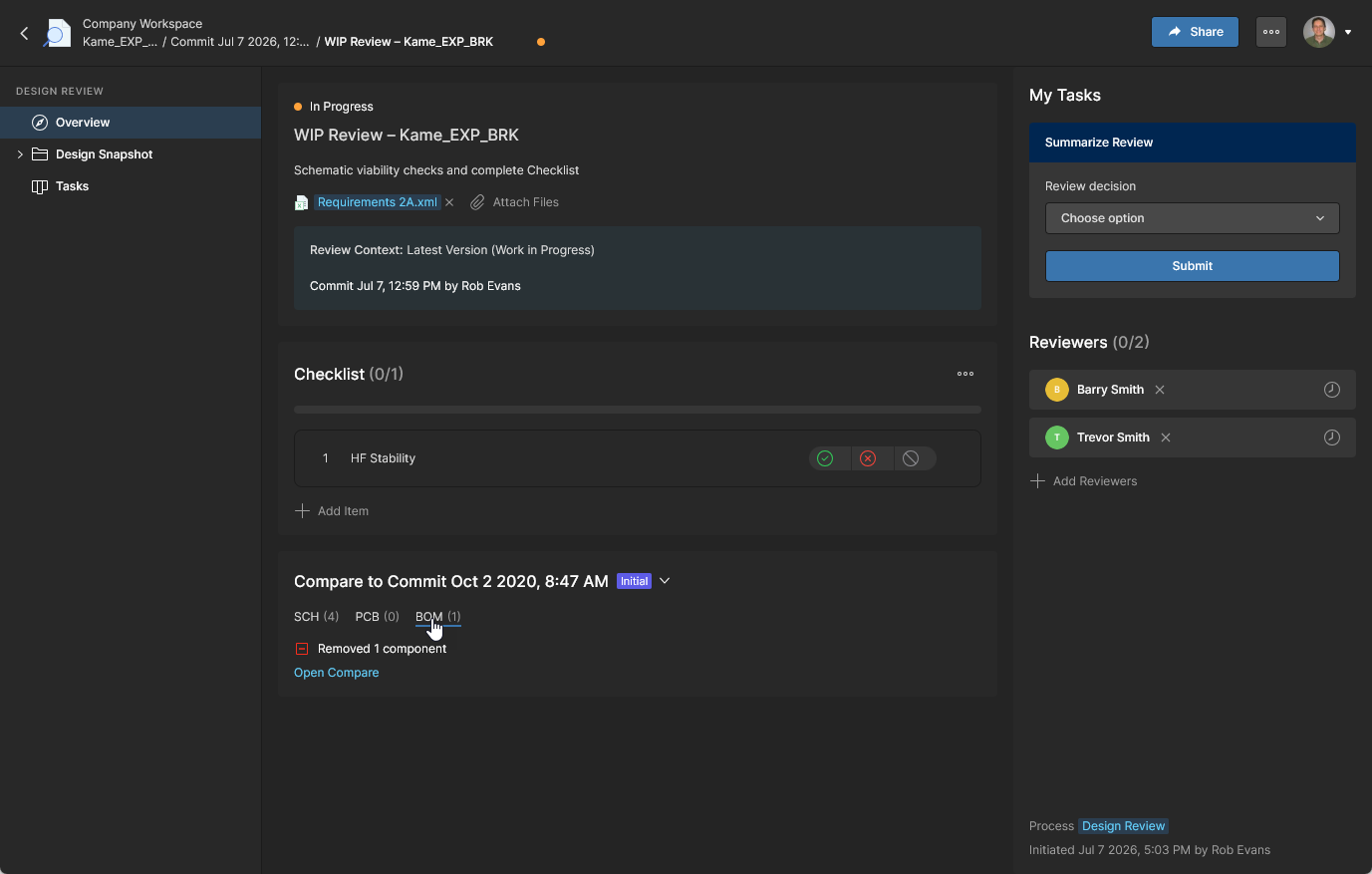
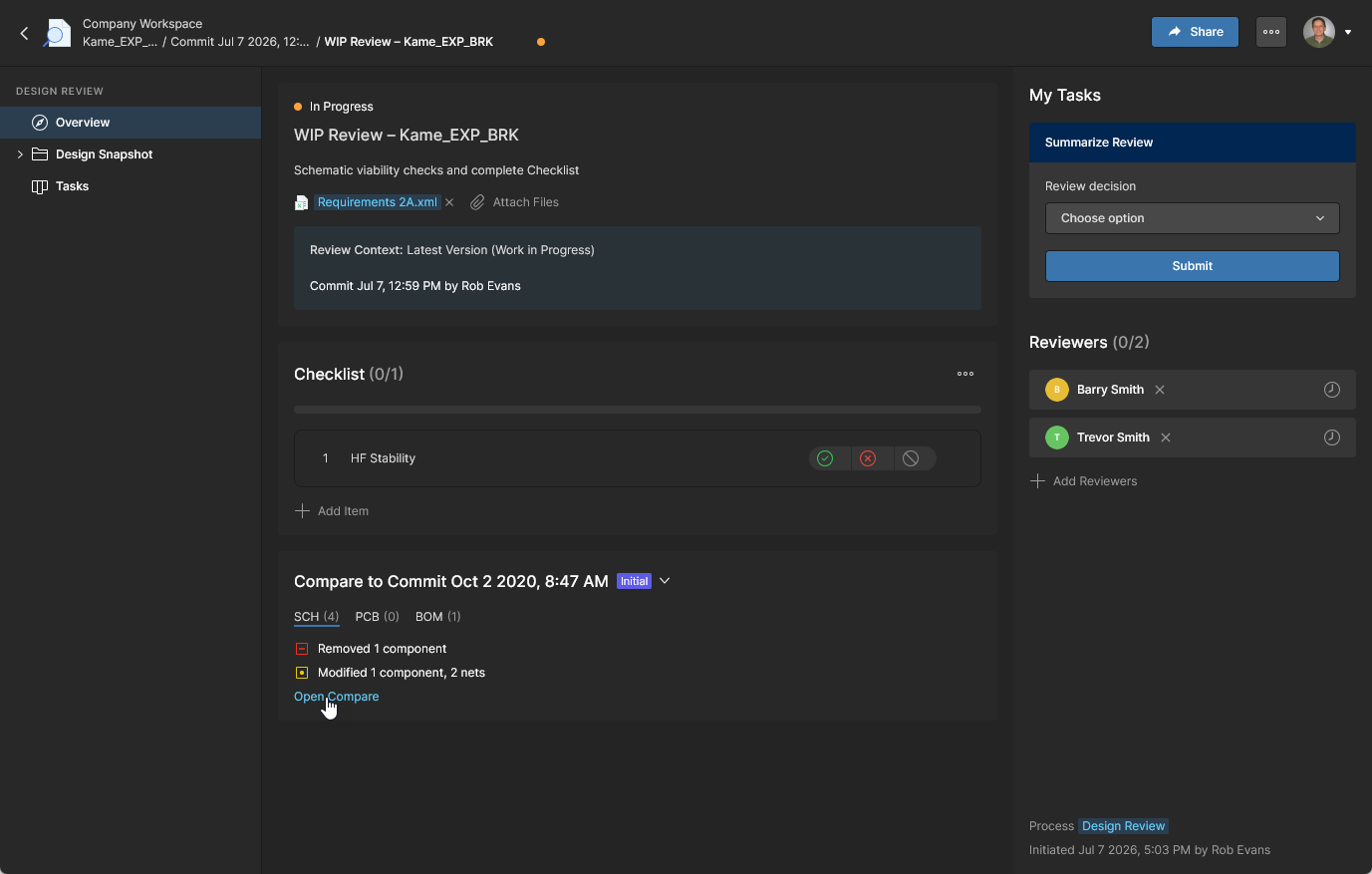
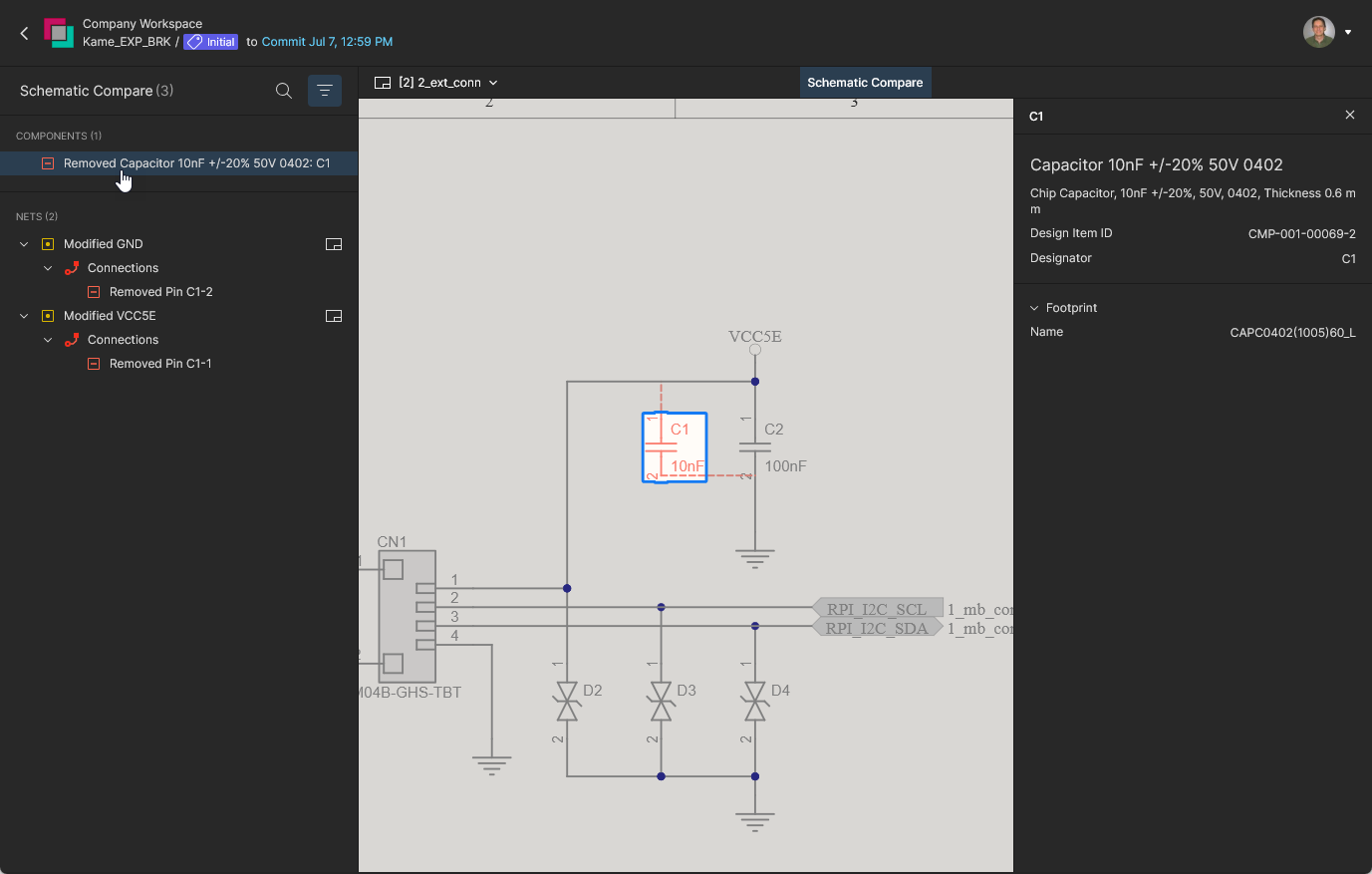
See the Design Data Comparisons page for information on performing design document comparisons.
Review Design Snapshot
The Design Snapshot view corresponds to the state of the project design when the Design Review instance was created and offers the features available in the normal WIP design view, including full document navigation, net highlighting, cross-probing, and commenting.
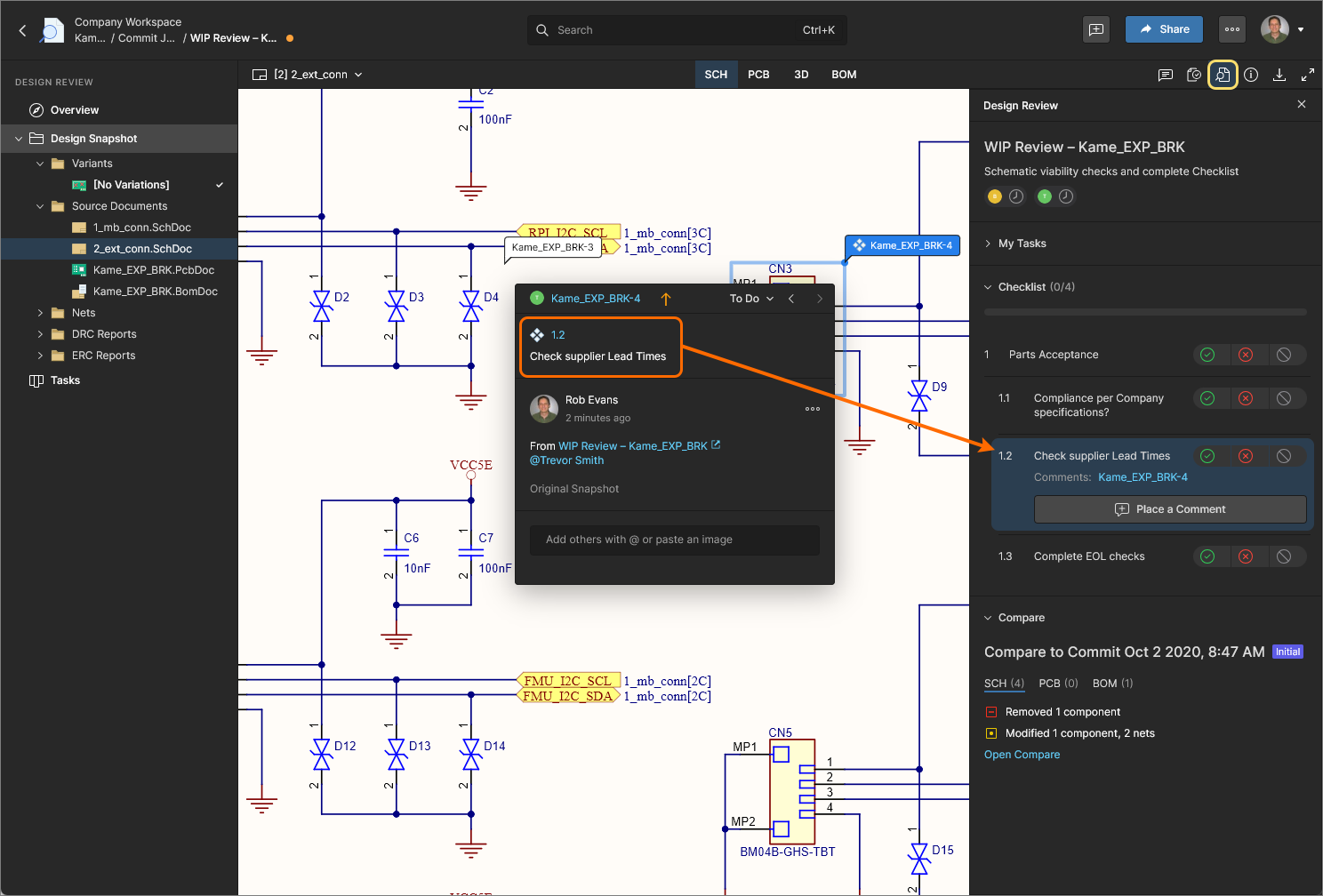
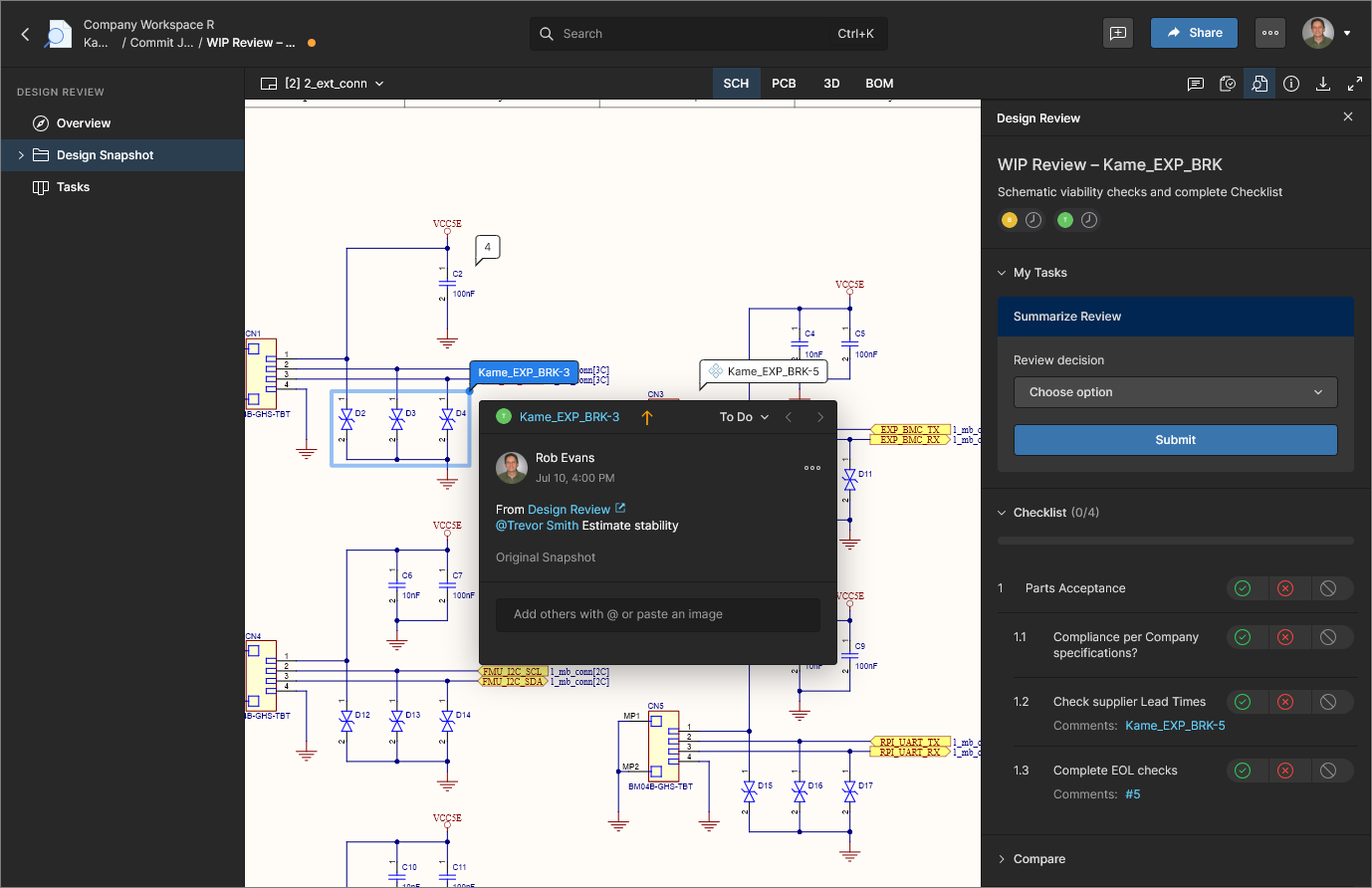
Along with the ability to inspect the design in its review state, the snapshot view also provides a dedicated Design Review pane ( ) that summarizes the current review status, provides access to the comparisons (see above), and allows the actioning of the review’s Checklist items.
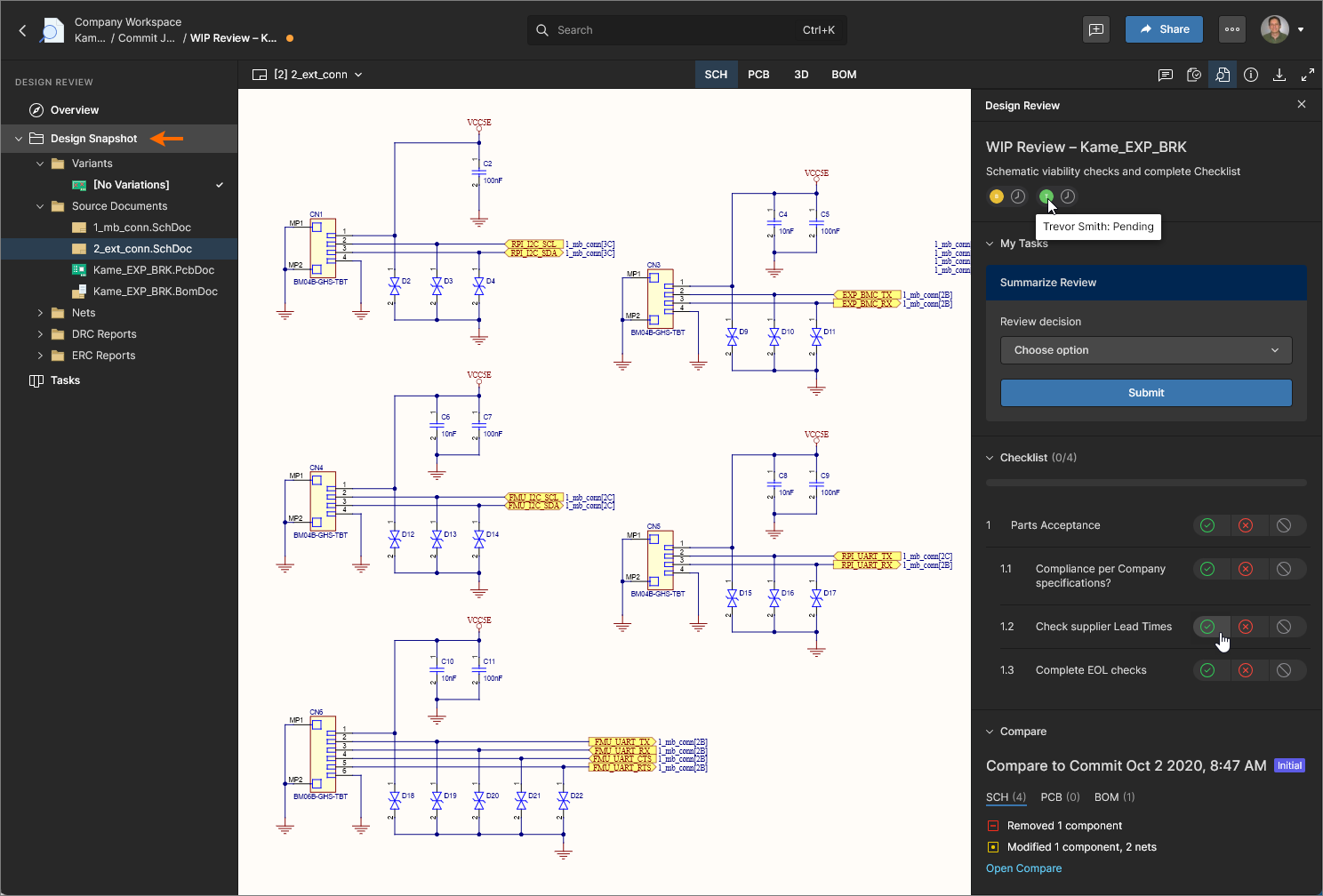 The Design Snapshot's Design Review pane includes review status information and provides access to the Checklist items.
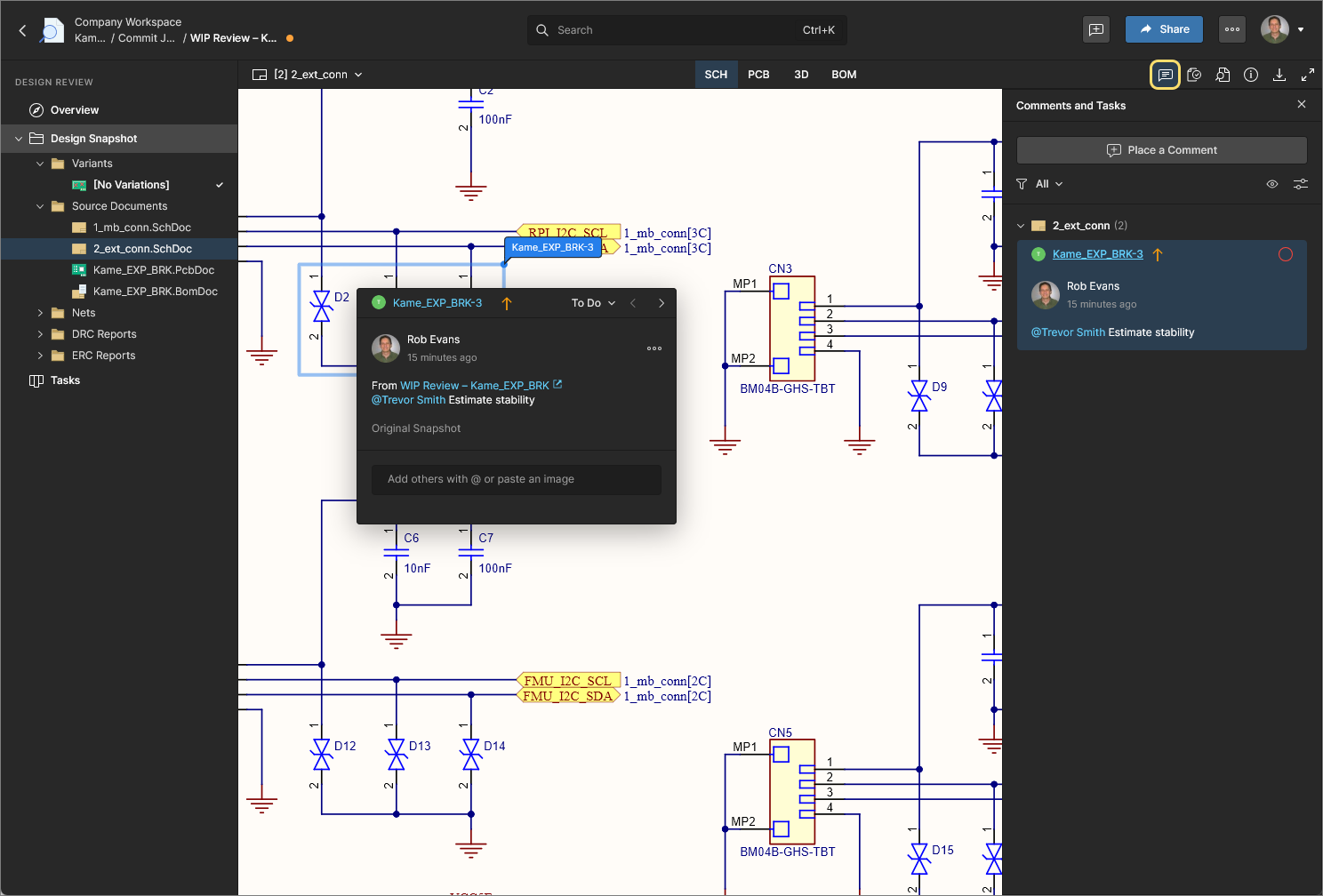
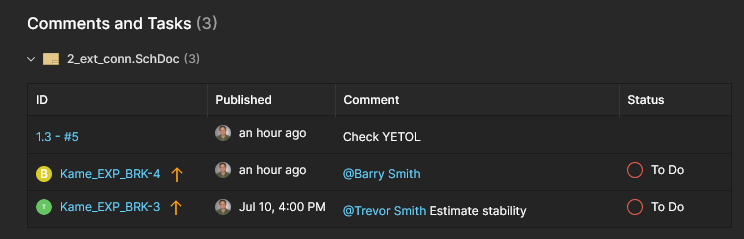
In the Design Snapshot view, placed Comments and their assignment to user Tasks are directly associated with the Design Review. The review will include only those Comments and Tasks, and not show any existing Comments/Tasks from the source WIP design. Conversely, the current WIP design view will include Comments and Tasks that have been created in a Design Review.
A placed Design Review Comment/task will include a From: <design review> entry that links to the associated review. Design Review also allows Comments to be added from, and associated with, a selected Checklist item in the Design Review pane.
Design Review Tasks
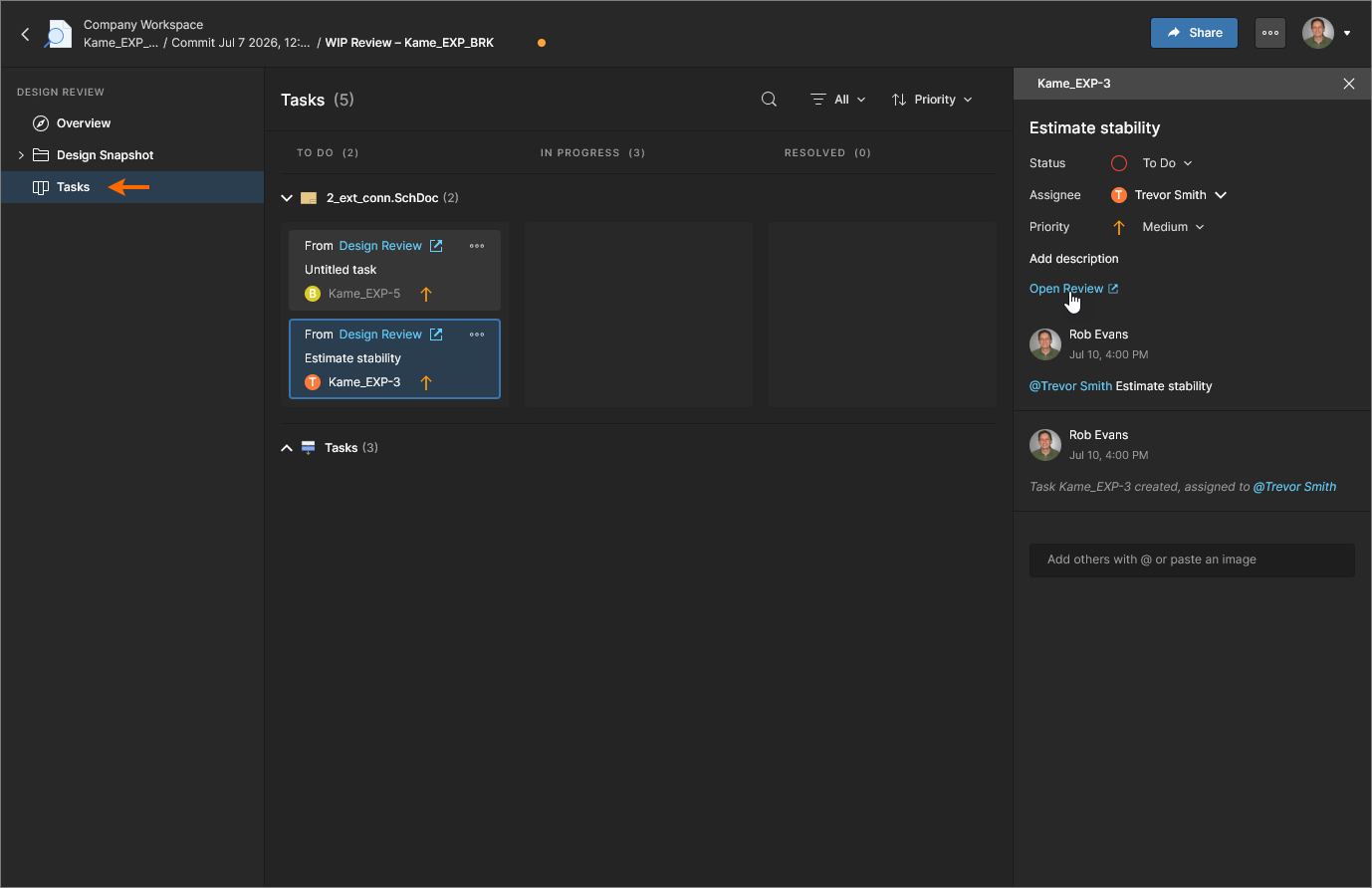
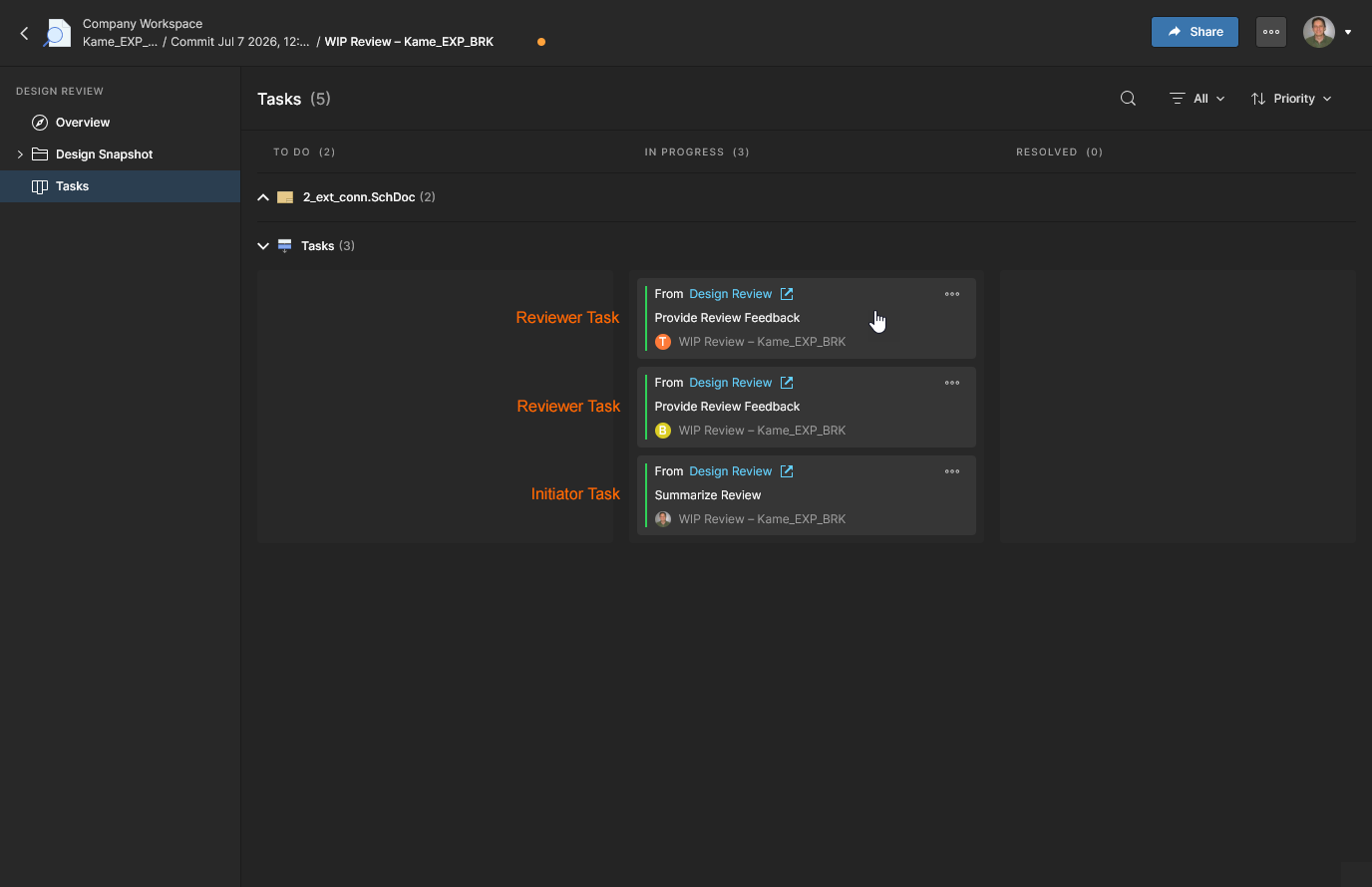
The Design Review Tasks view includes general task requests created from Comments placed in the Design Snapshot view and Initiator/Reviewer tasks generated by the Design Review process. Design Review Tasks are also available through both the Projects Tasks and Workspace Tasks views.
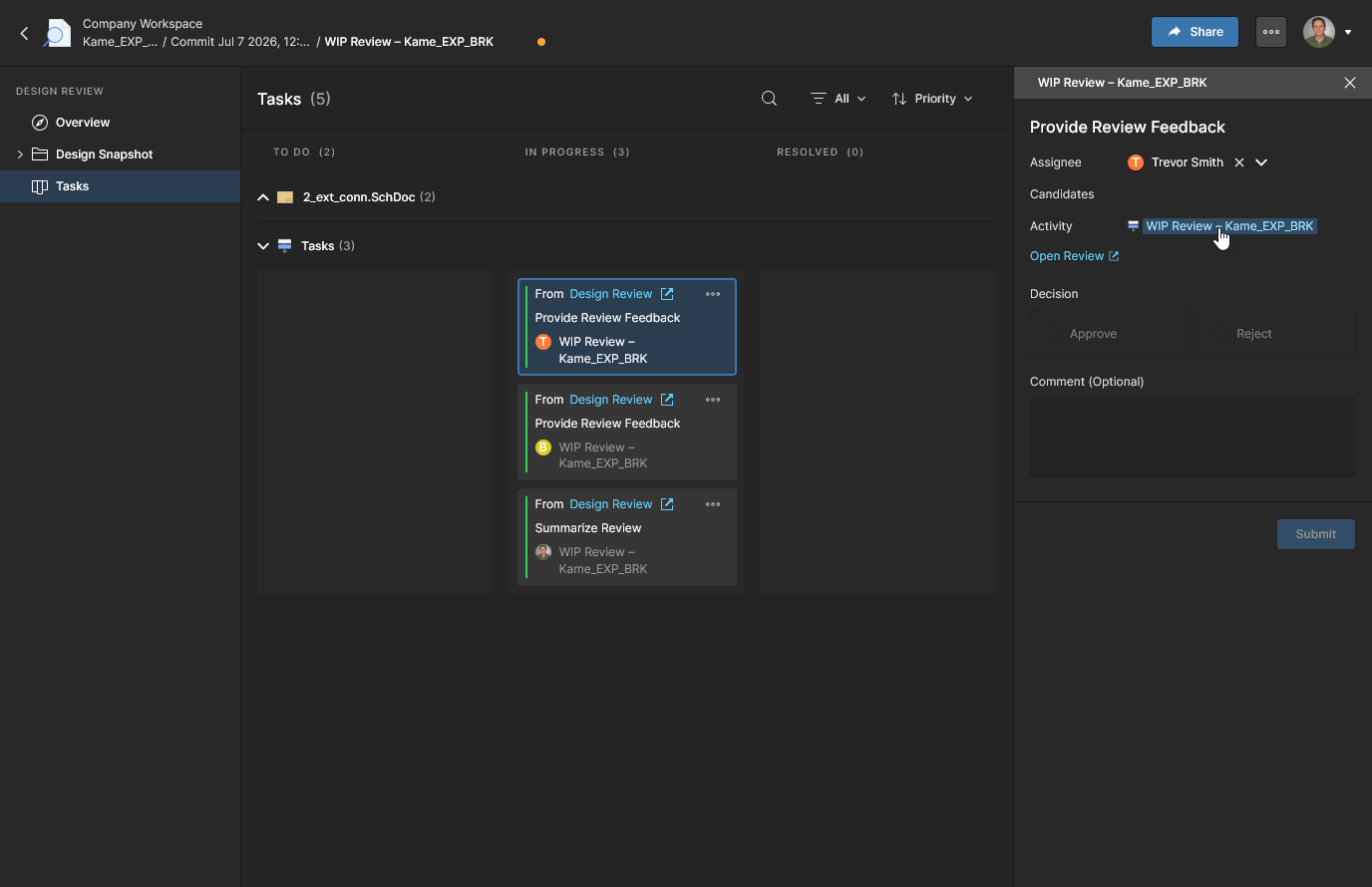
Comment Tasks, which are associated with a specific project (snapshot) document, can be managed and progressed by all Workspace members who have access to the project. Select a Task tile to open the Info pane and access its details (Status, Assignee, Priority, etc), add a further comment, or cross-probe to the comment in the Design Snapshot view (Open Review).
See Working with Tasks for more information.
A Design Review instance automatically creates associated process Tasks for Reviewers and the Initiator. These update and progress to completion with the Design Review process but also can be directly managed and progressed through the Tasks view by their Assignee (the task’s assigned Initiator or Reviewer). Select a Task tile to open the Info pane and access its details along with the Activity view mode.
See Completing Reviews from the Tasks Page below for related information.
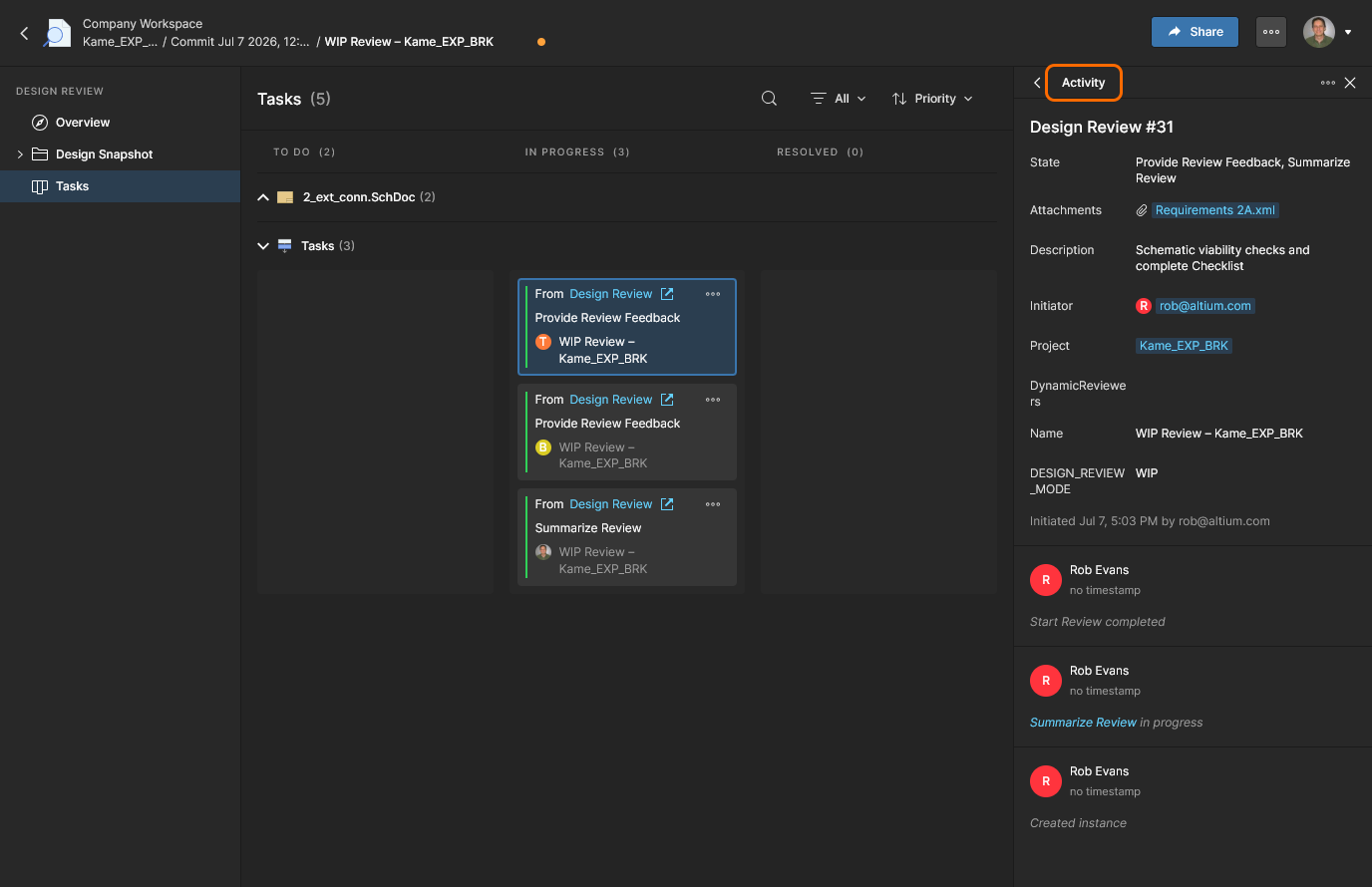
The pane’s Activity view provides details of the Design Review related to the current Task, including its progress, associated users, associated project and change history. You can use the view’s Terminate option to close the current Design Review – note that all tasks will then move to a completed (Resolved) state. 
Completing Reviews
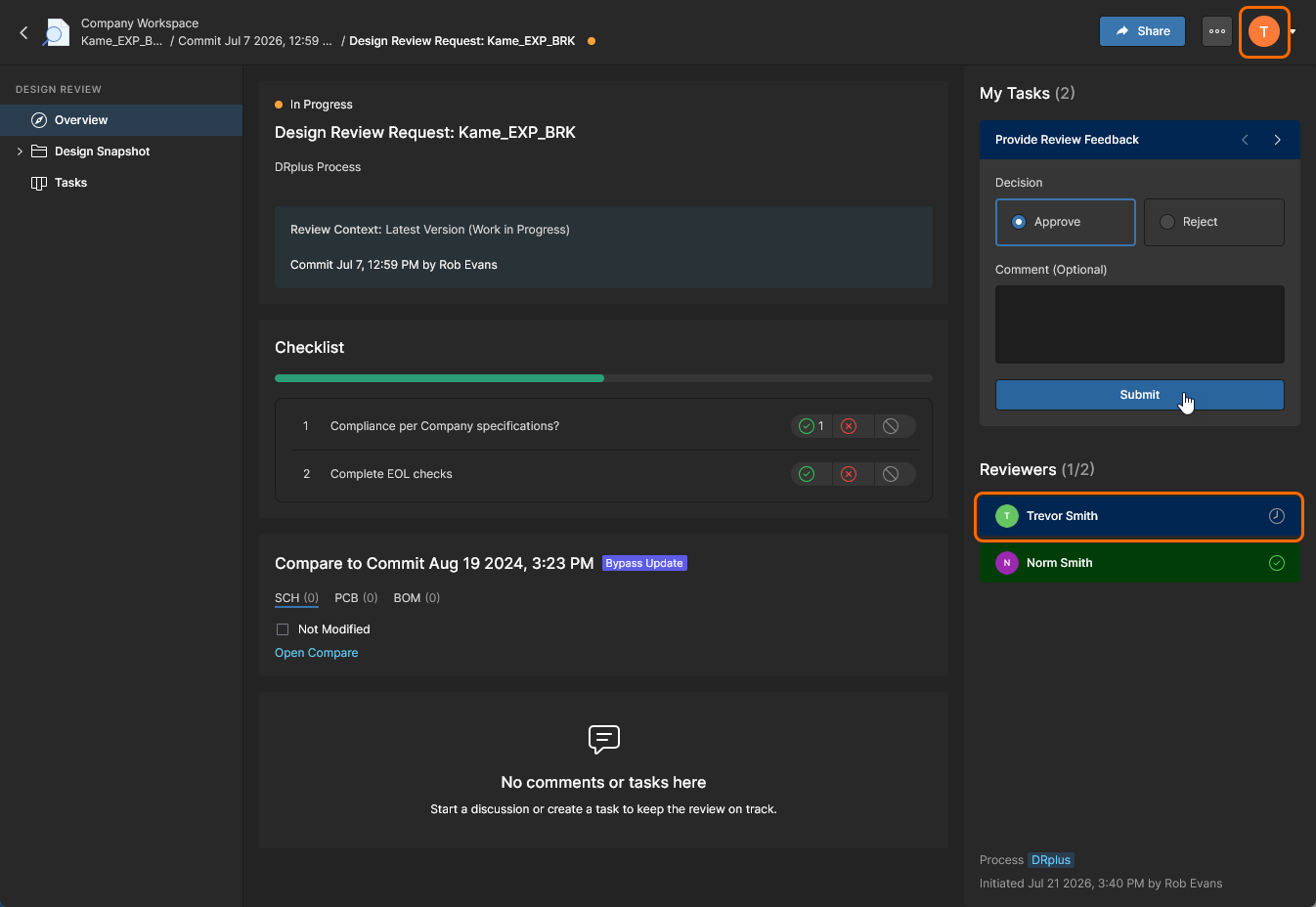
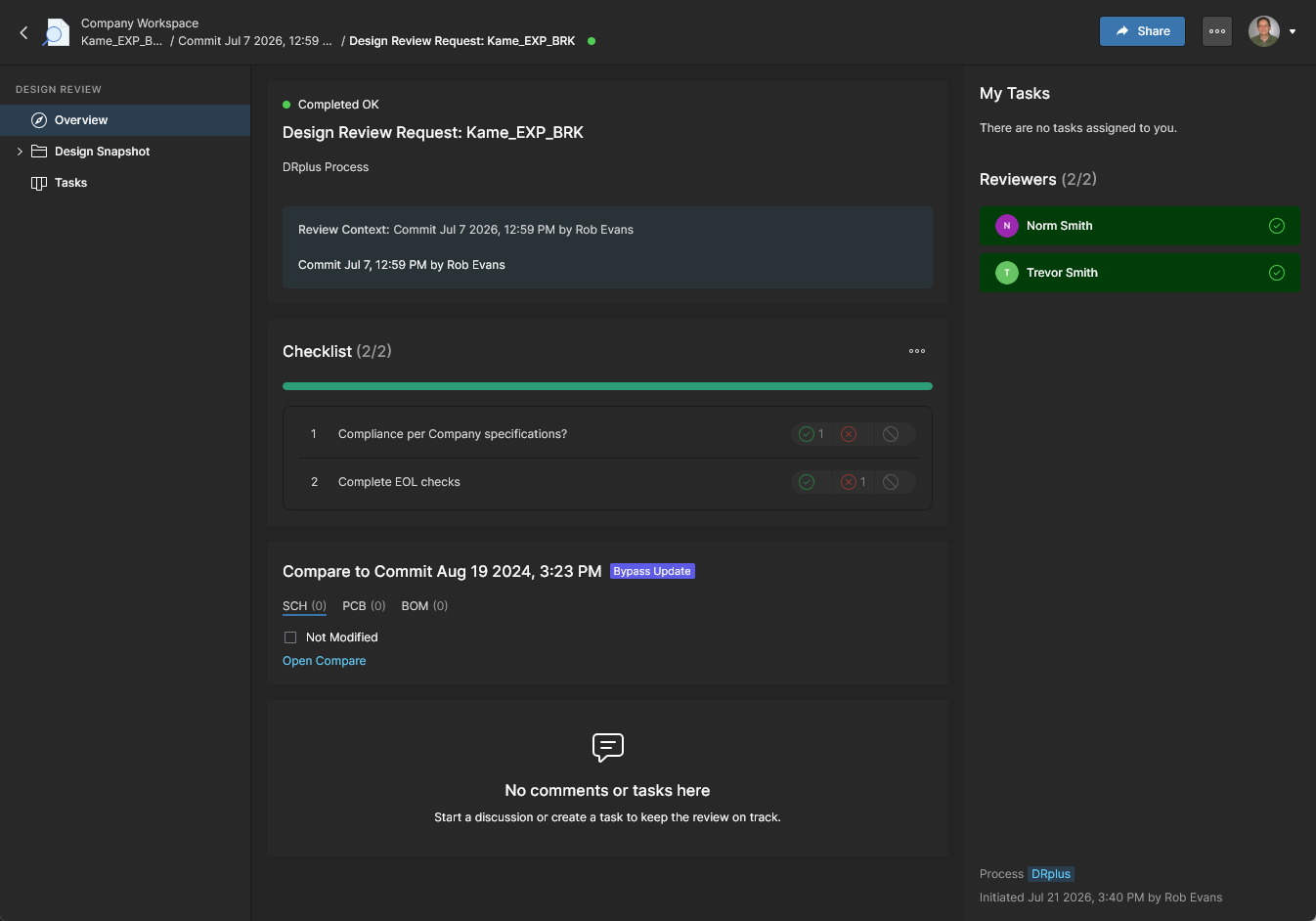
Workspace members who have been assigned as Reviewers are requested to evaluate the design within the stated review scope, complete Checklist items, and finally accept or reject the results via the  button. The reviewer’s Task completion (feedback) decision can be concluded in the Design Review’s Overview, Design Snapshot or Tasks views. Note that the Overview and Snapshot views provide full access to the Design Review features such as Checklists, Comparisons and collated Comments.
A Reviewer's contribution to the Design Review is completed when their assessment is registered as Approve or Reject and their review Task is closed (Resolved). The Reviewer's name entry is then associated with a green tick icon ( ), highlighted in green, or both.
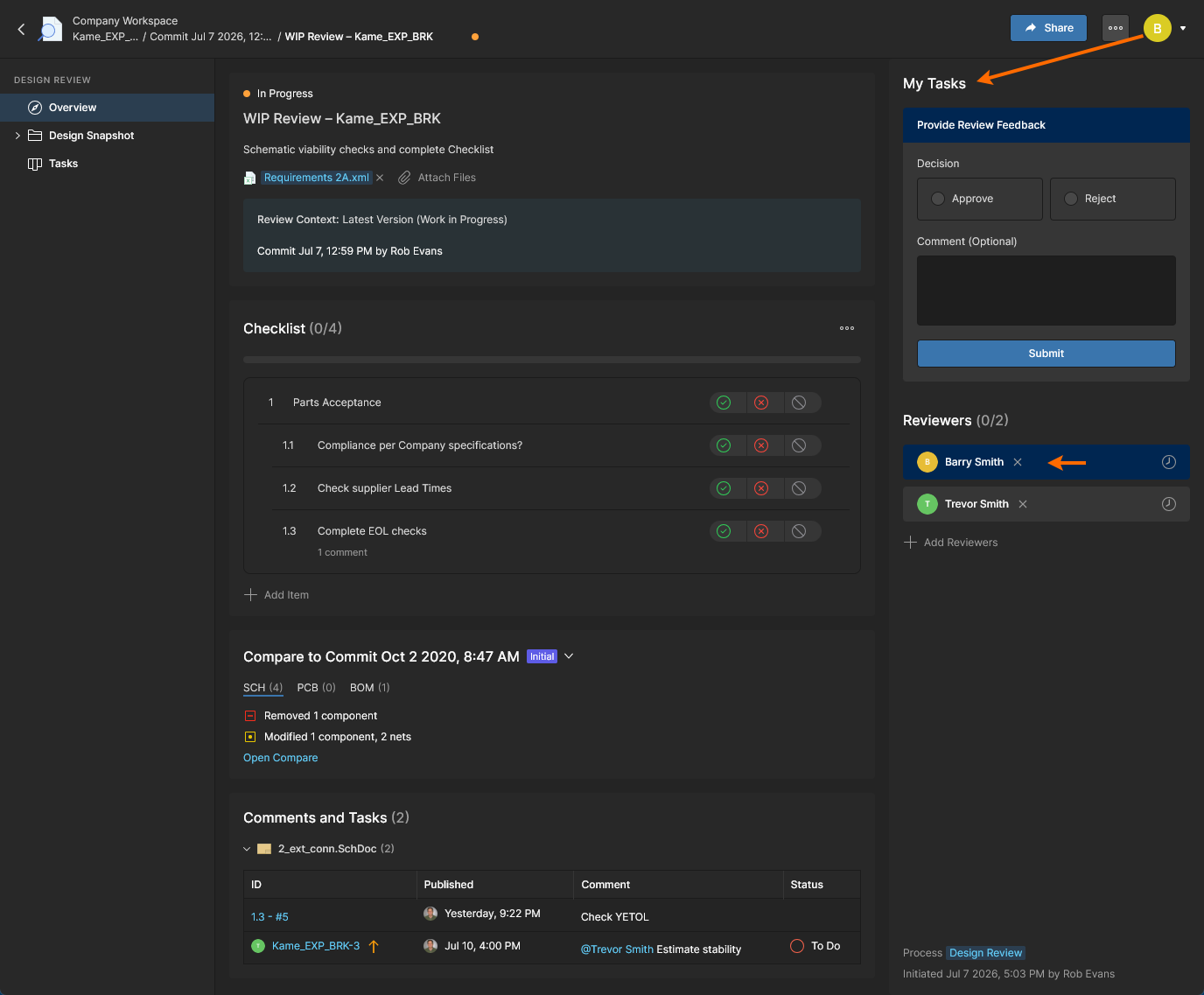
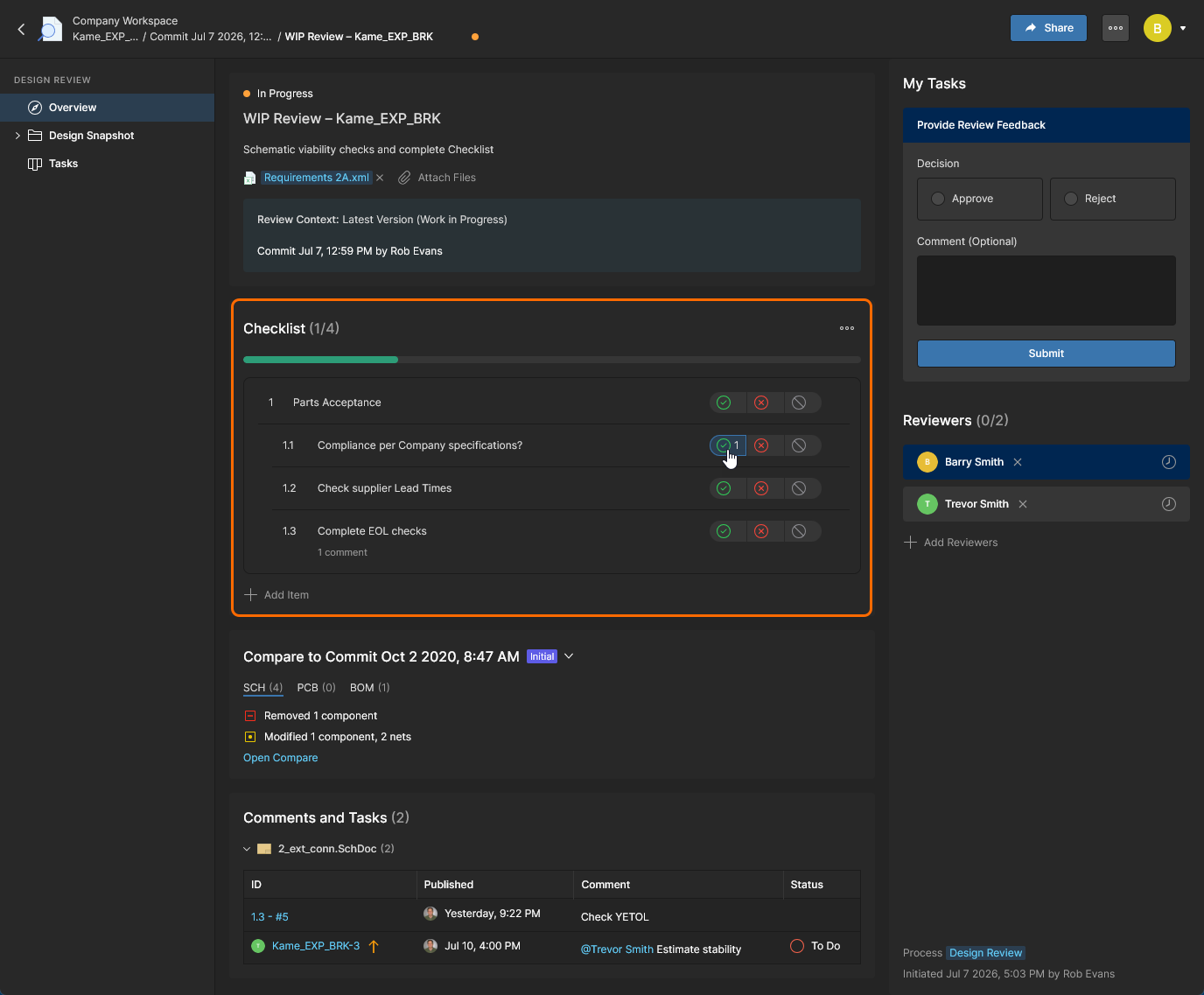
Completing Checklists is not mandatory to successfully submit the review. Click on a Checklist entry's Yes/No/NA option ( ) to complete that item – click again to remove a registered selection.
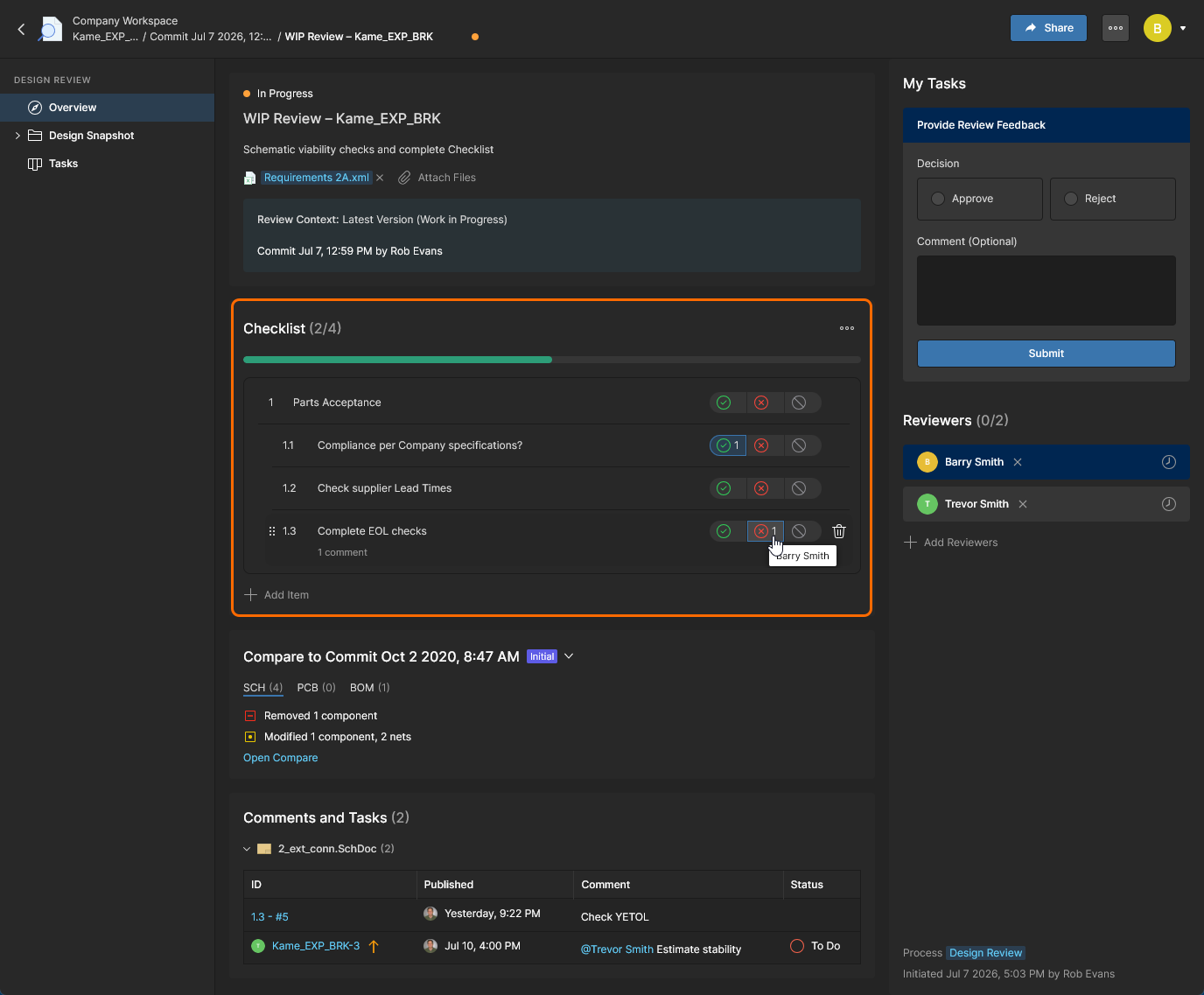
Checklist entry selections remain active for all users (Reviewers and the Initiator) and are cumulative. A Reviewer, for example, will see Checklist item selections from other reviewers – hover over a checked selection to see the user's name. 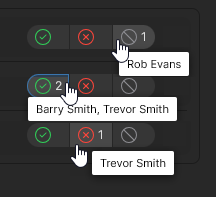
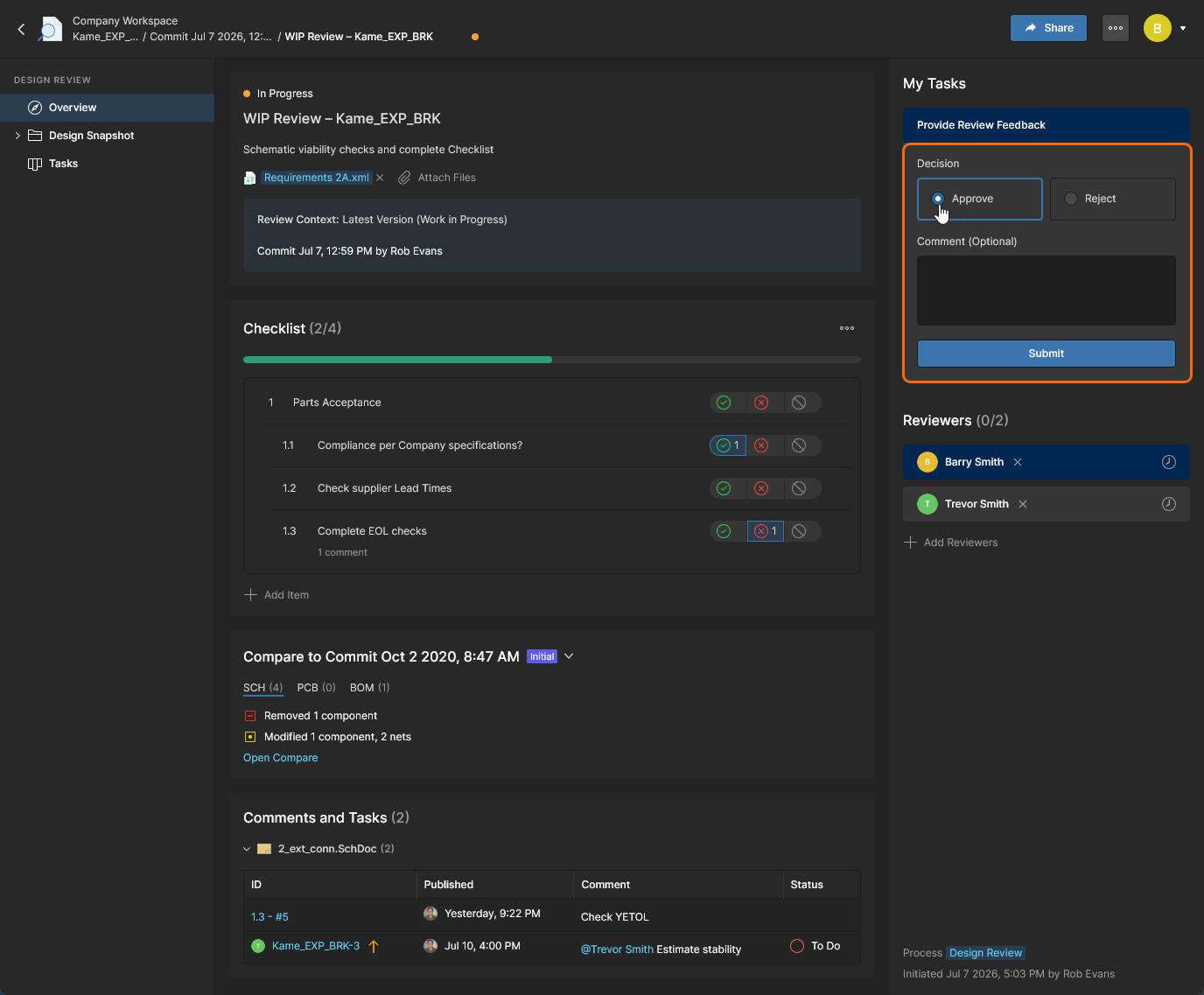
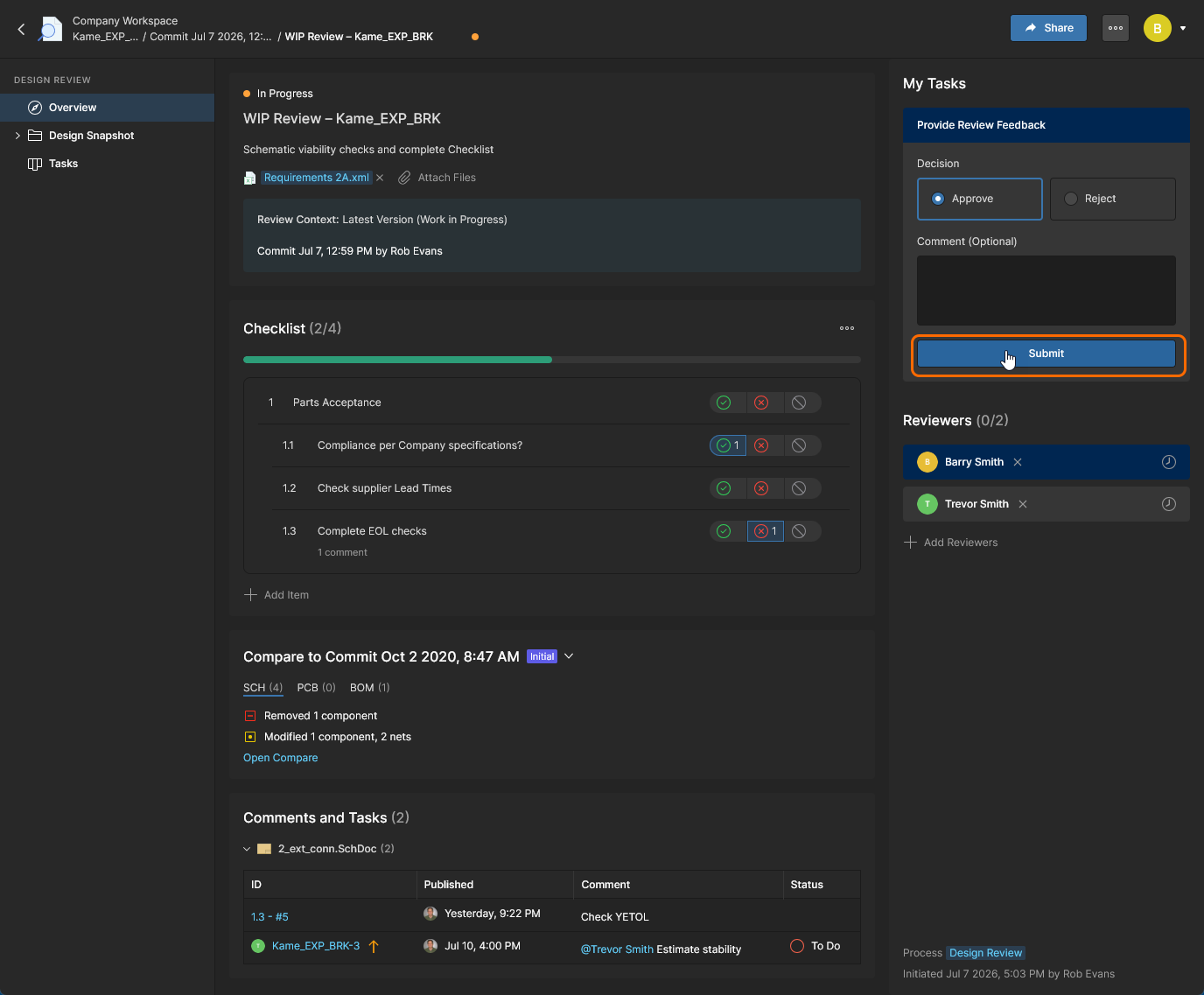
The Reviewer then uses the  button to finalize their review process and feedback by submitting the results.
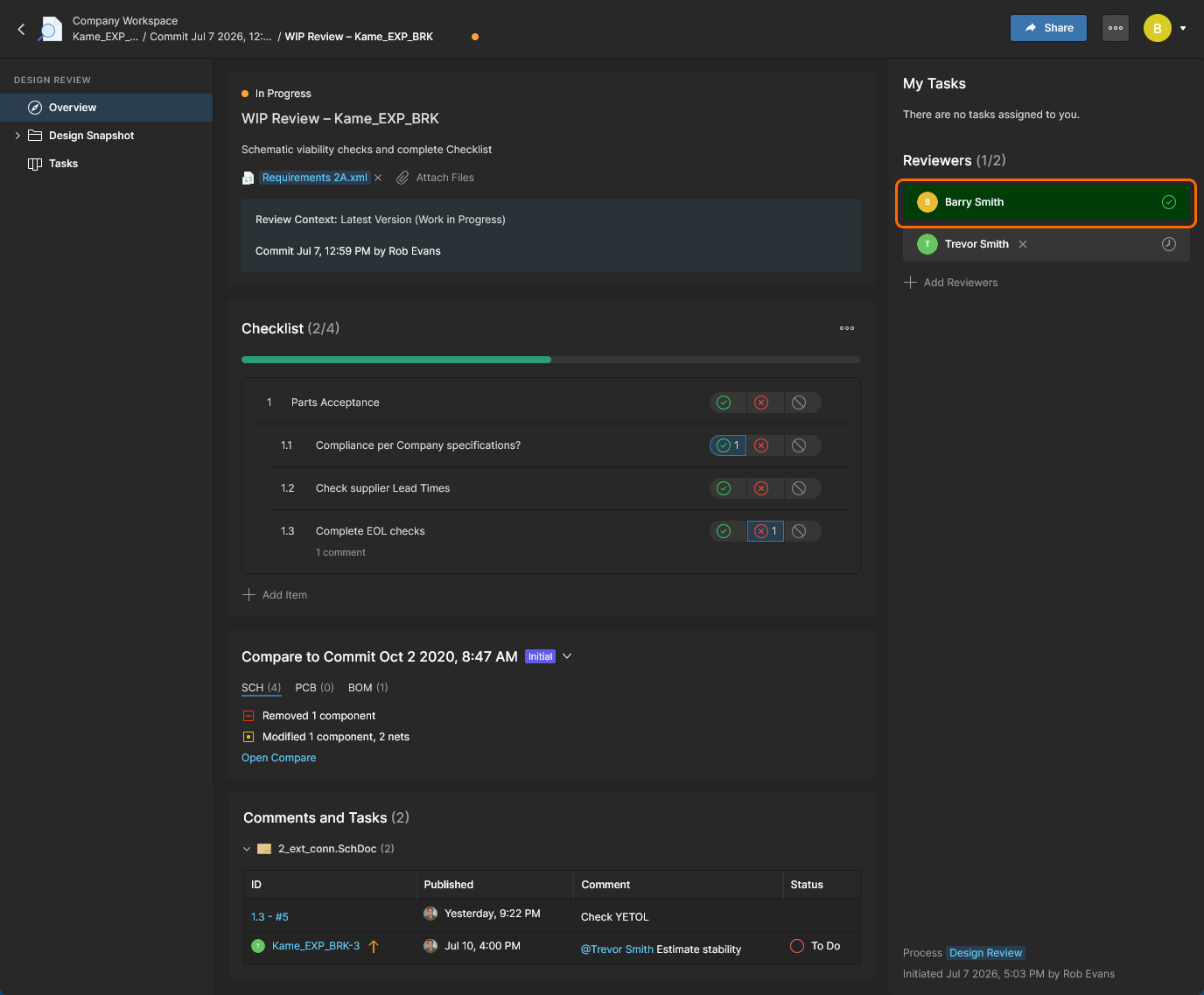
On completion of the process, the review state associated with the Reviewer's name entry will change from Pending  to
to Approved or Rejected  (depending on the Reviewer's assessment). This is visible to all Design Review stakeholders including other Reviewers and the review Initiator (creator).
Alternatively, the same review process can be completed through the Design Snapshot view, which offers the advantage of direct access to the related Schematic, PCB and BOM documents, and also provision for adding Comments to Checklist entries.. The review elements and controls are accessed through the Design Review pane in this case.
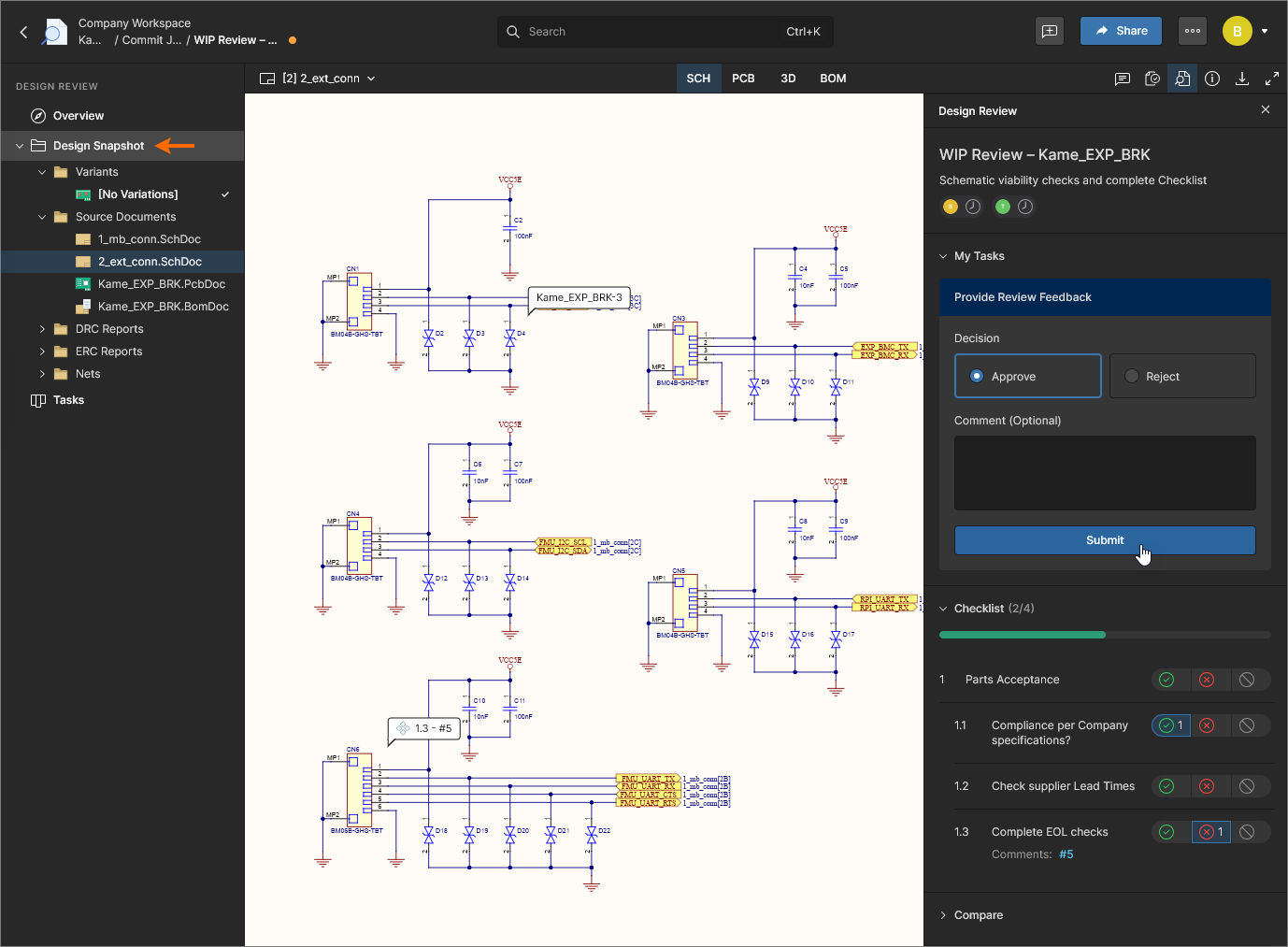
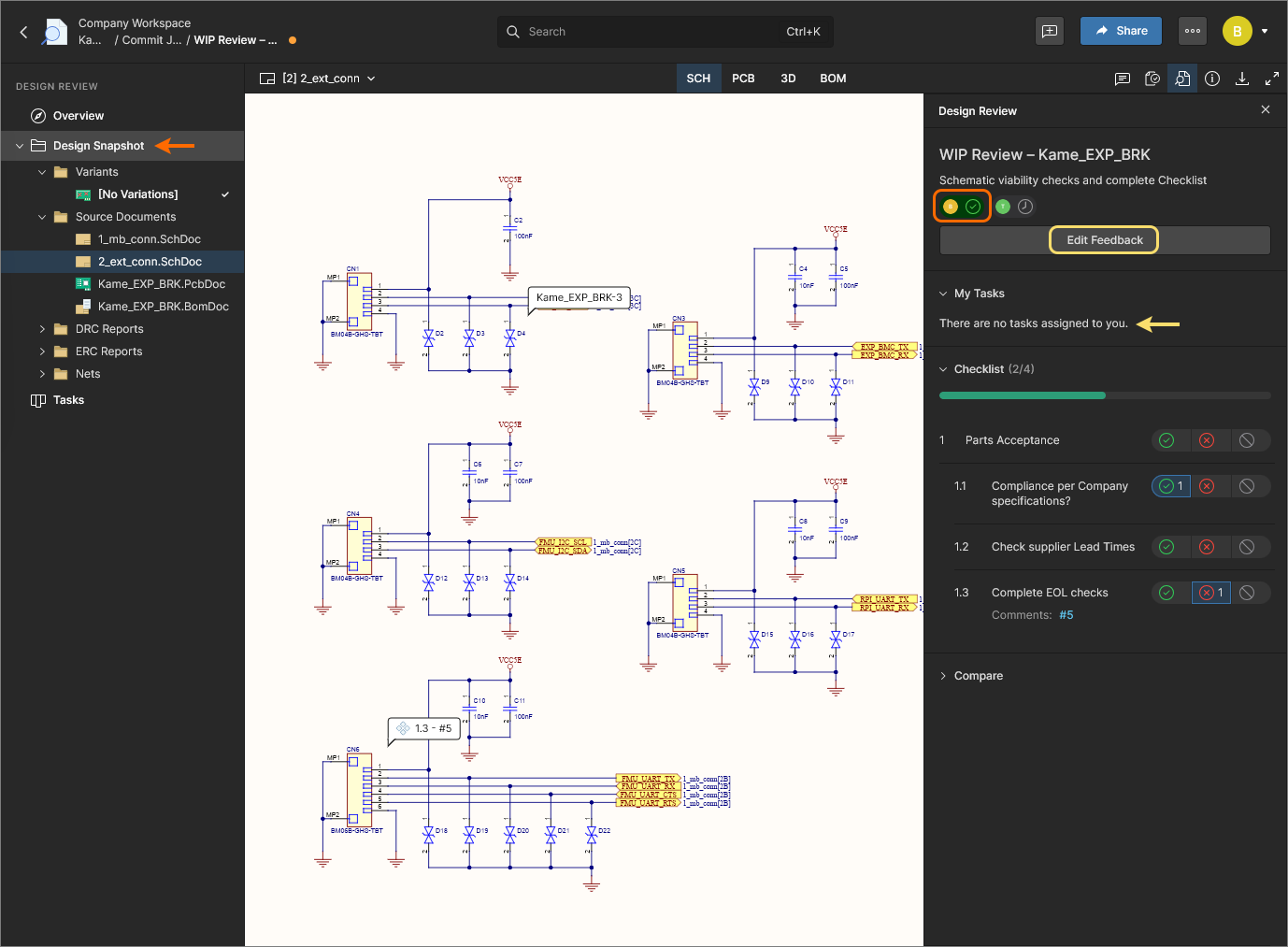
Submitting the review completes the assigned task and marks the reviewer’s name entry accordingly. Note that pane now includes a  button which can be used to revert the submission and return the review task to an active (
Pending) state.
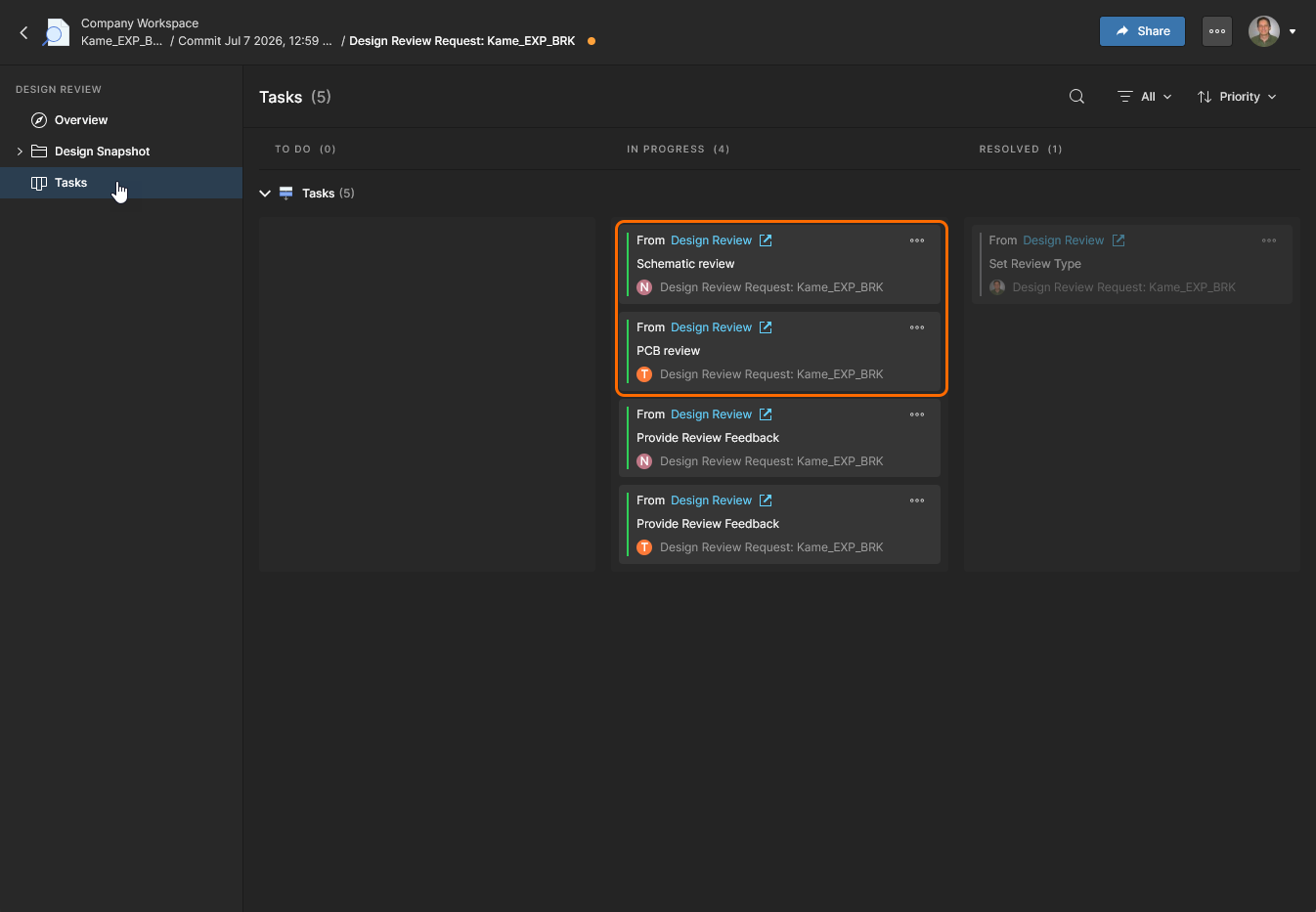
Note that Individual Design Review tasks also can be processed to completion in the Tasks view. This approach is performed through the Tasks pane, but does not offer the additional features of the Overview and Design Snapshot views such as Checklists, Comparisons and Comments access.
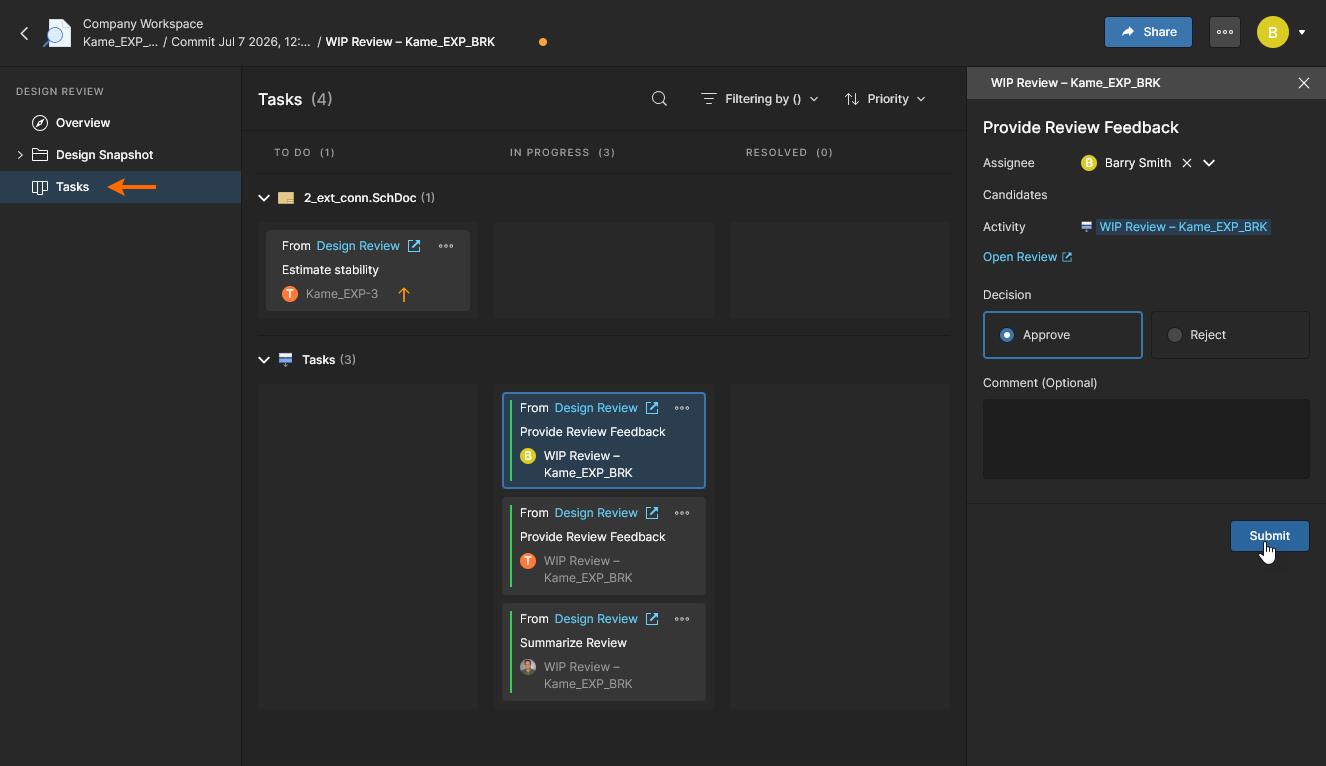
Finalizing Reviews
A Design Review is finalized and moved to a closed read-only state by the review Initiator, who chooses a Completed or Rejected state from the Review decision drop-down options and confirms this with the  button. Only the review’s Initiator or a Workspace Administrator can finalize a Design Review. This is not dependent on the assigned Reviewers having completed their review process, and therefore can occur at any time.
The expected course of events would be for design Reviewers to have completed the review Checklist, dealt with any review Comments/Tasks, and submitted their review assessment as Approve or Reject (see above). The Design Review Initiator then moves the review to a finalized closed state.
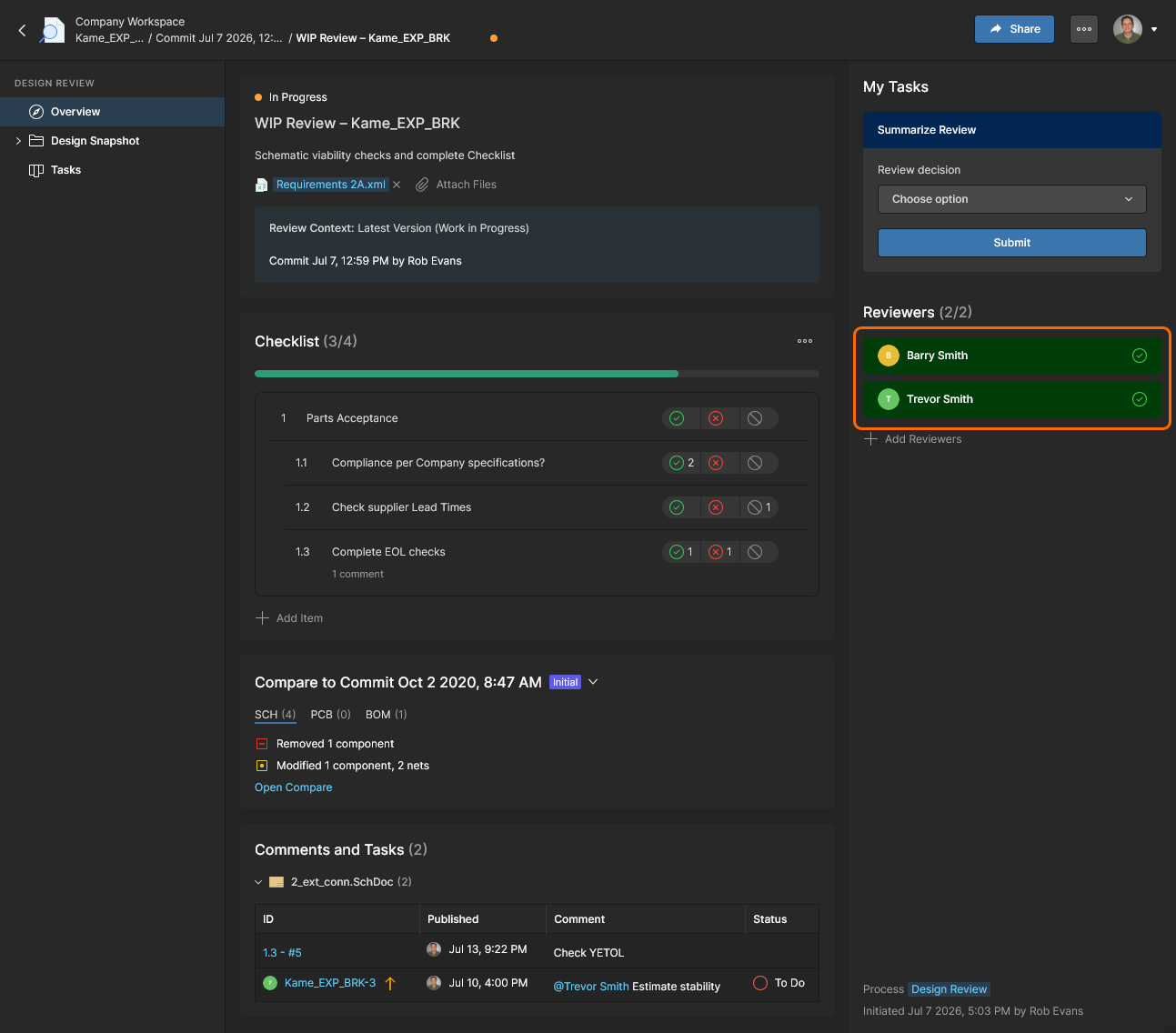
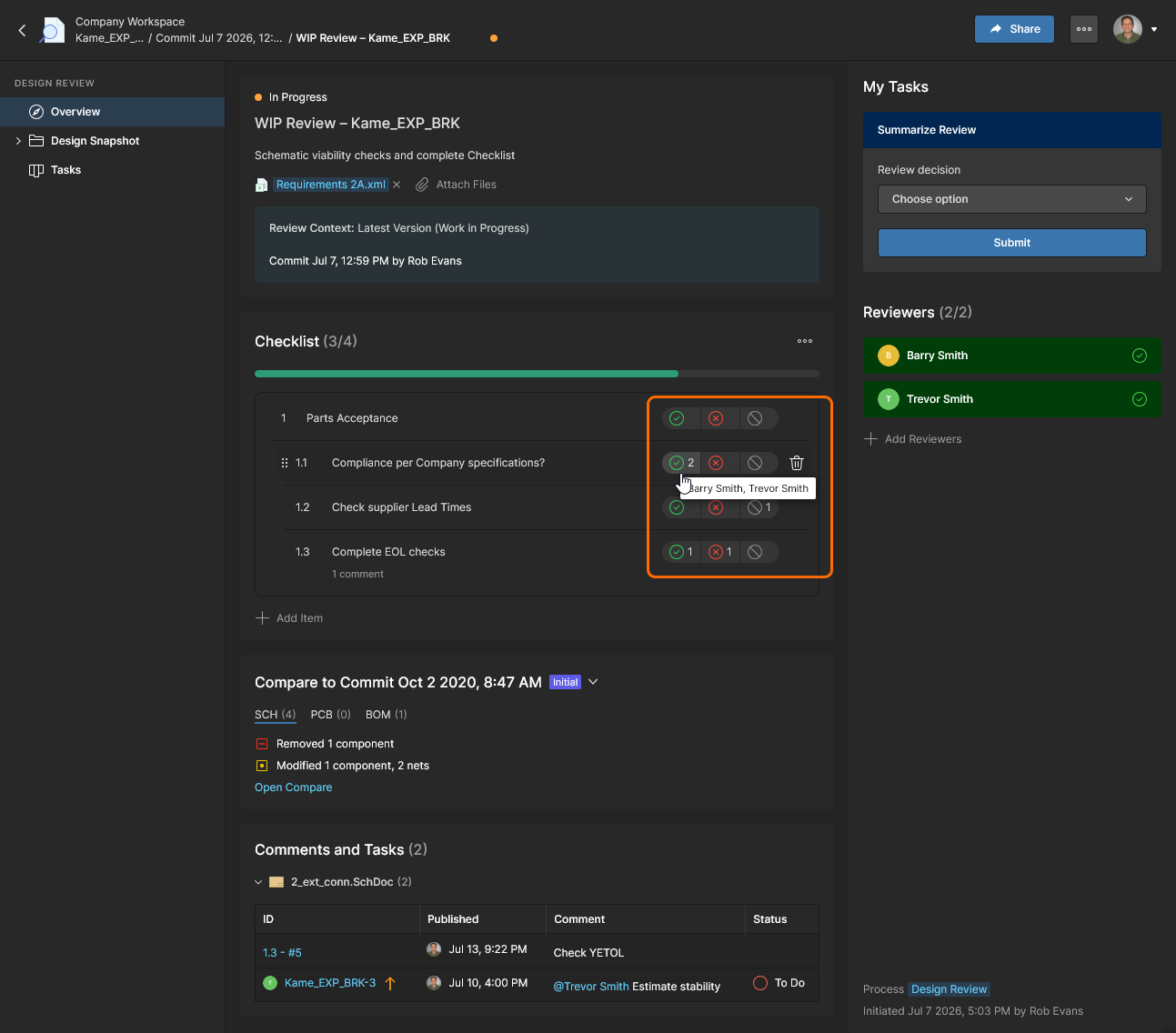
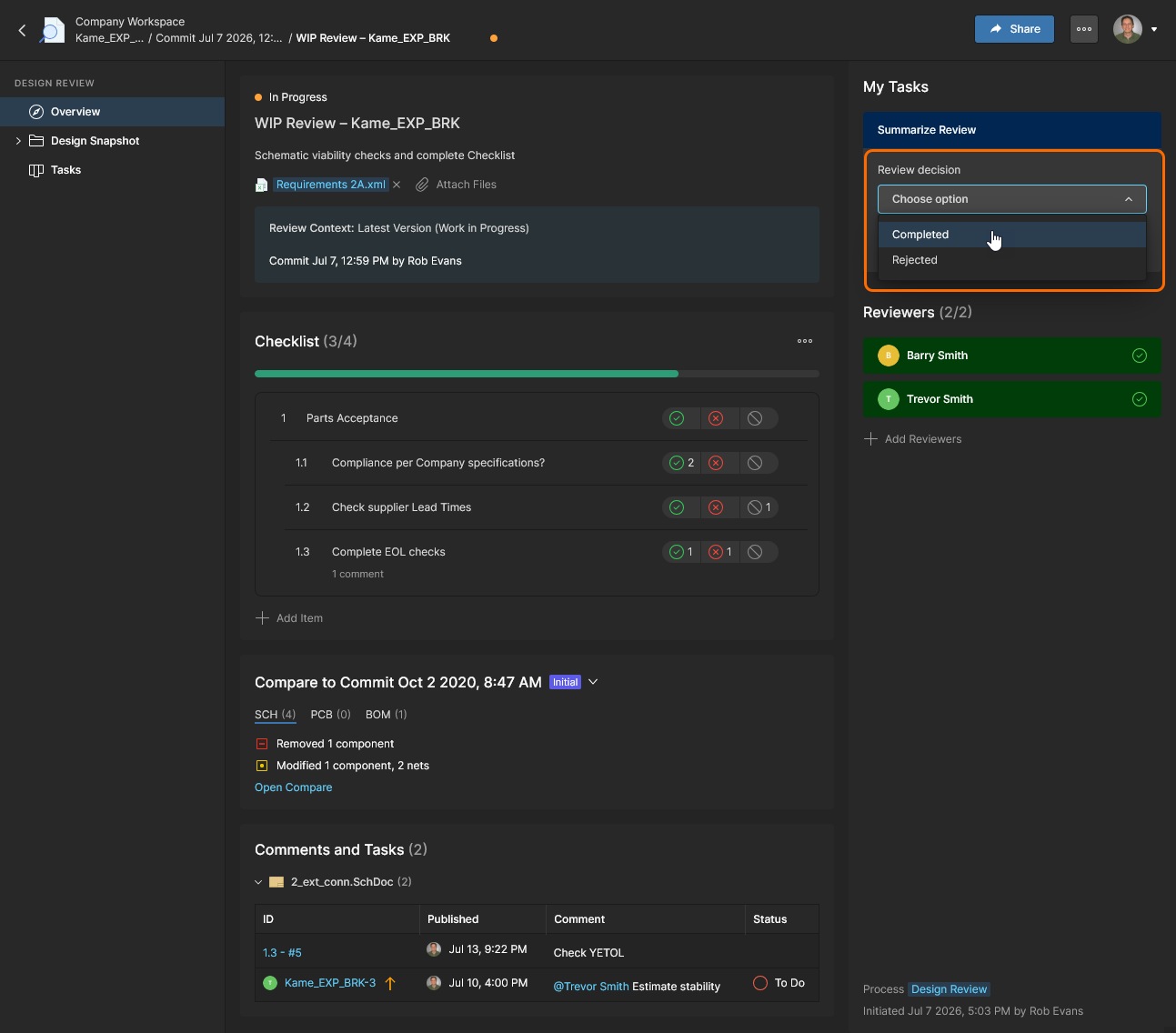
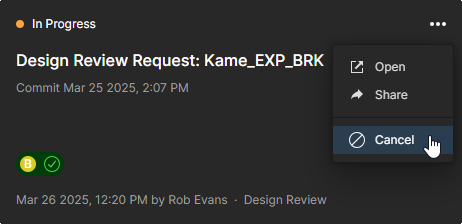
The Design Review Initiator concludes the review process by specifying the closed state of the review as Completed or Rejected from the drop-down options, or cancelled from the upper  menu.
menu. 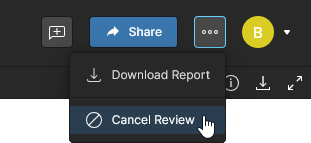
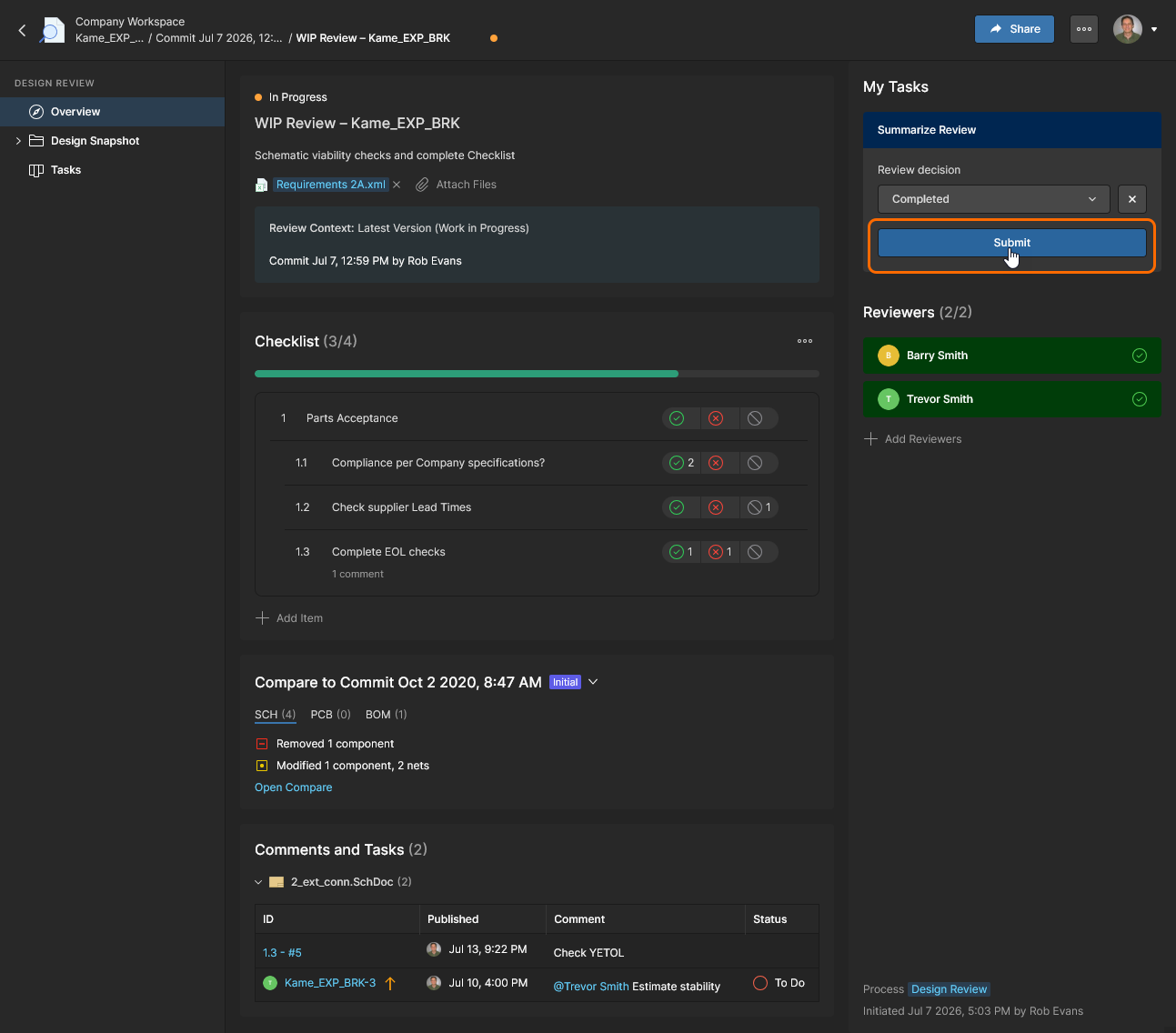
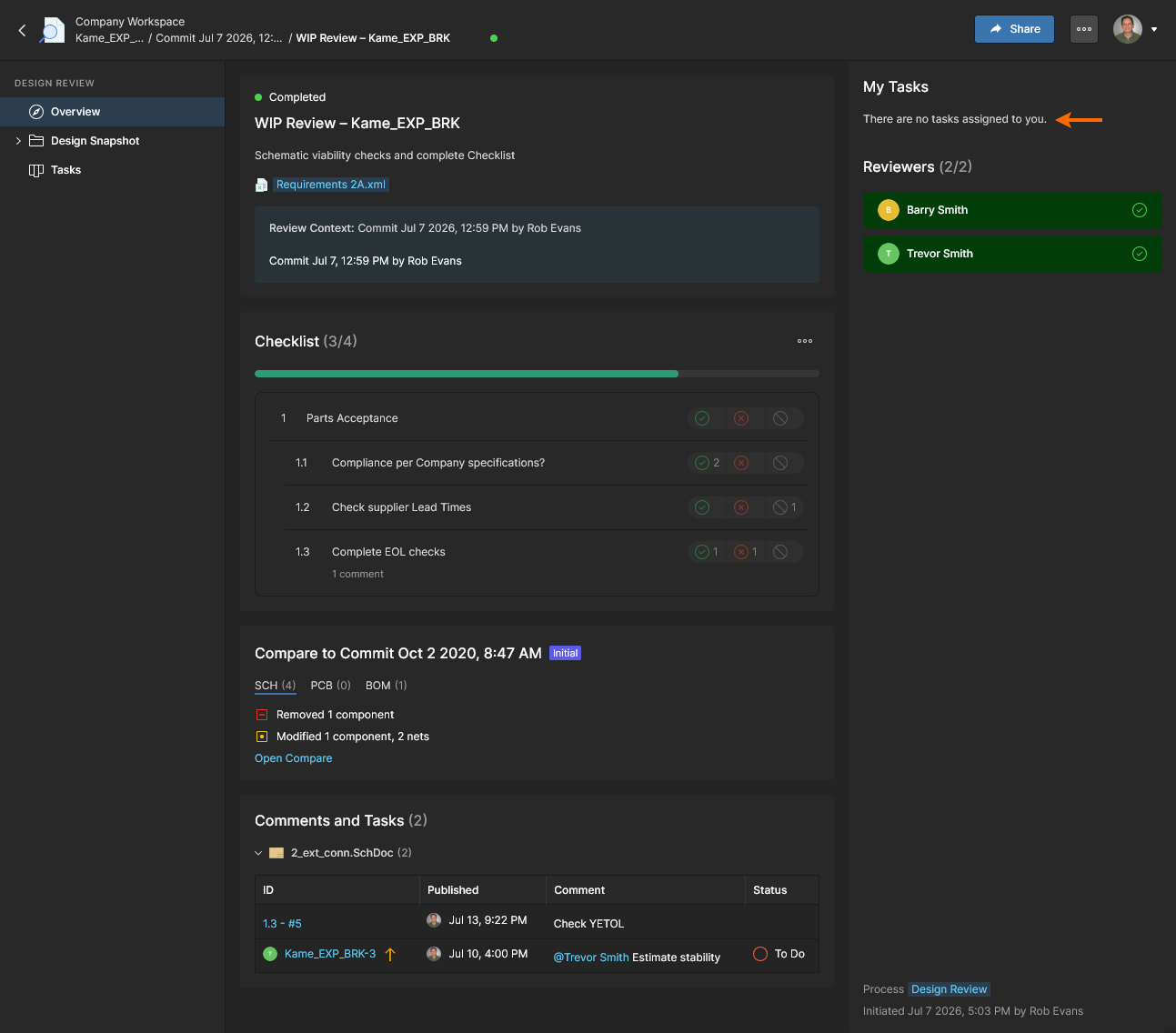
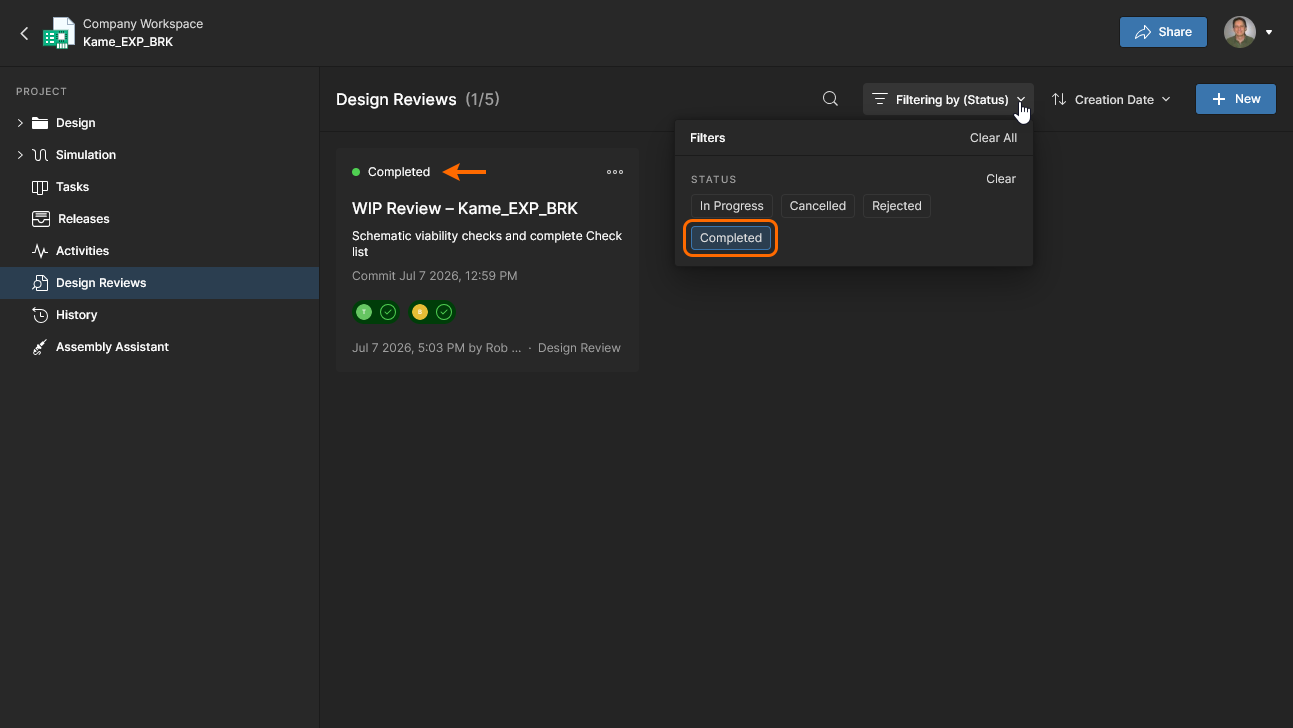
The finalized Design Review is marked as the selected state (such as Completed) and then closed as a read-only review instance when confirmed ().
 The report contains all information relating to the Design Review’s current state and includes active links to the review’s documents and comments. Example: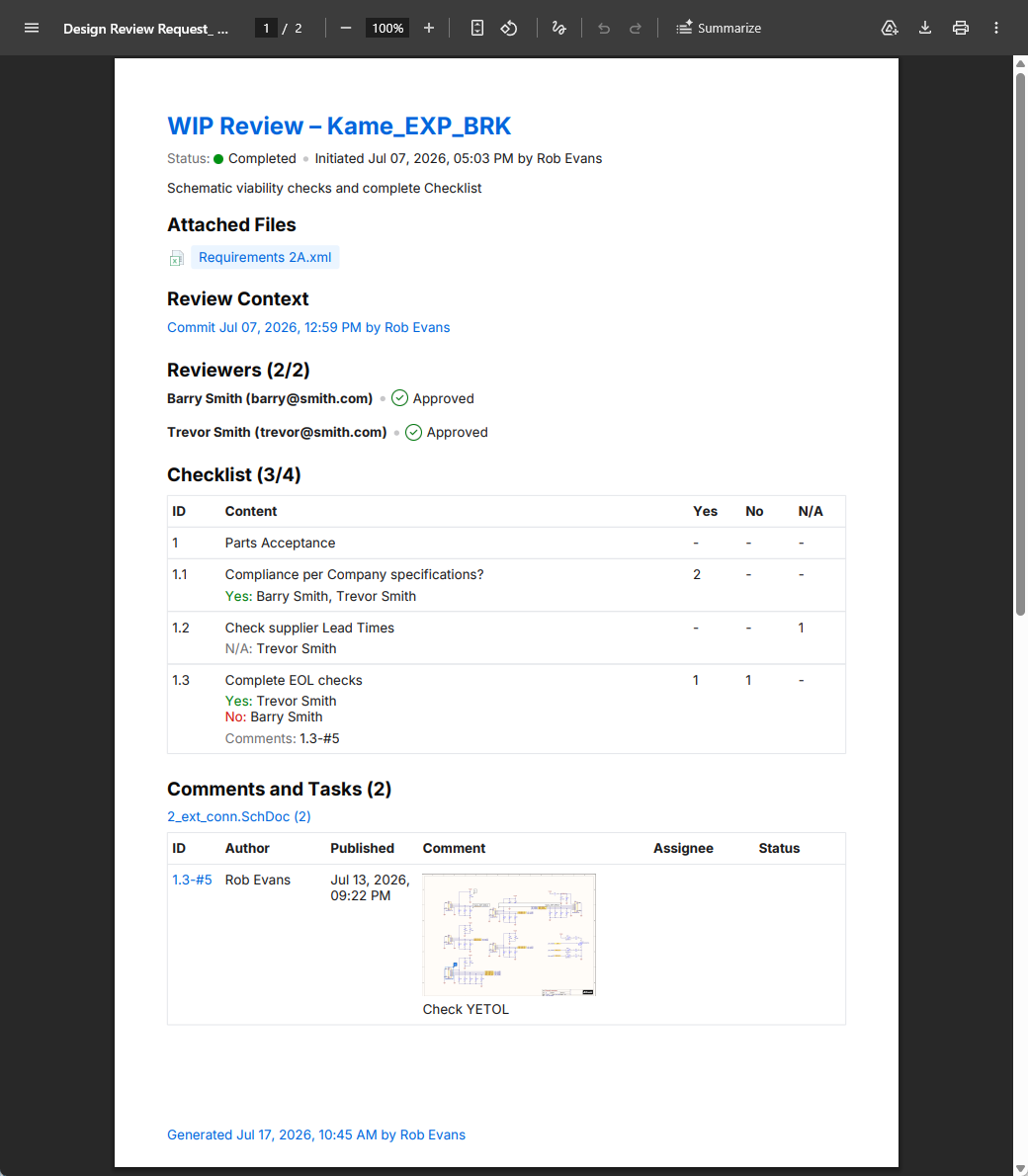
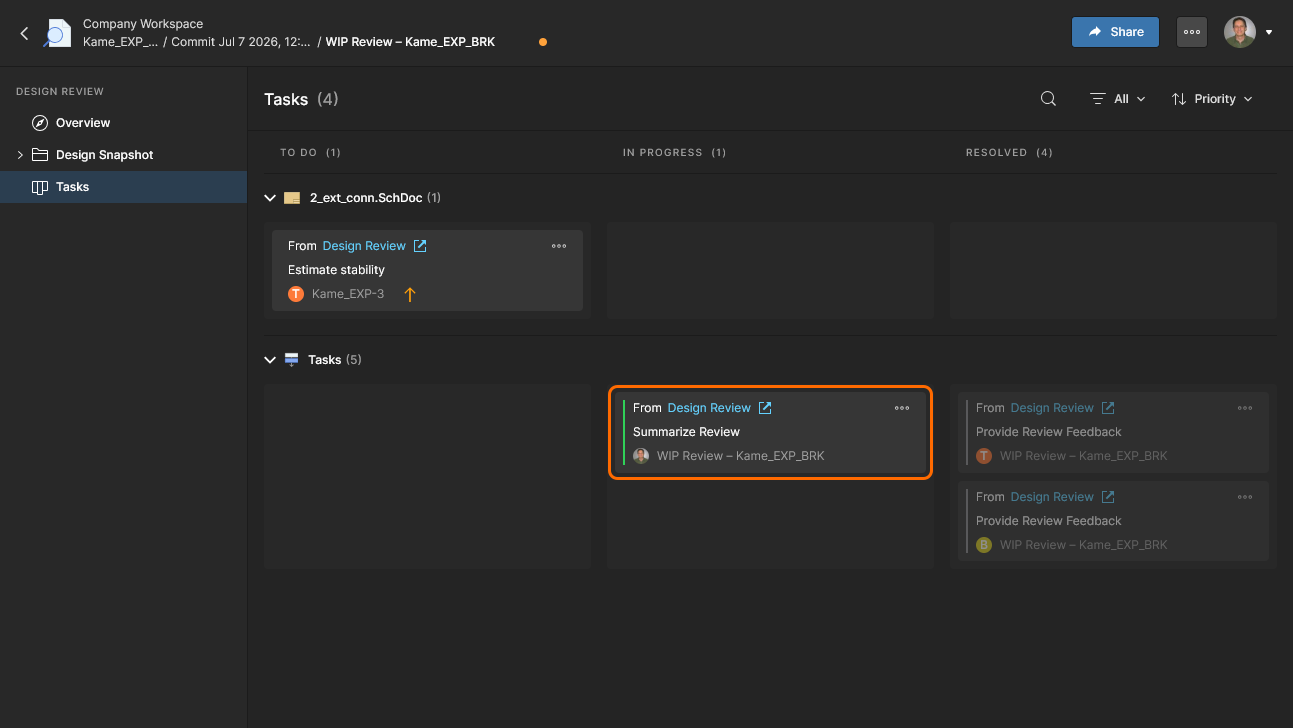
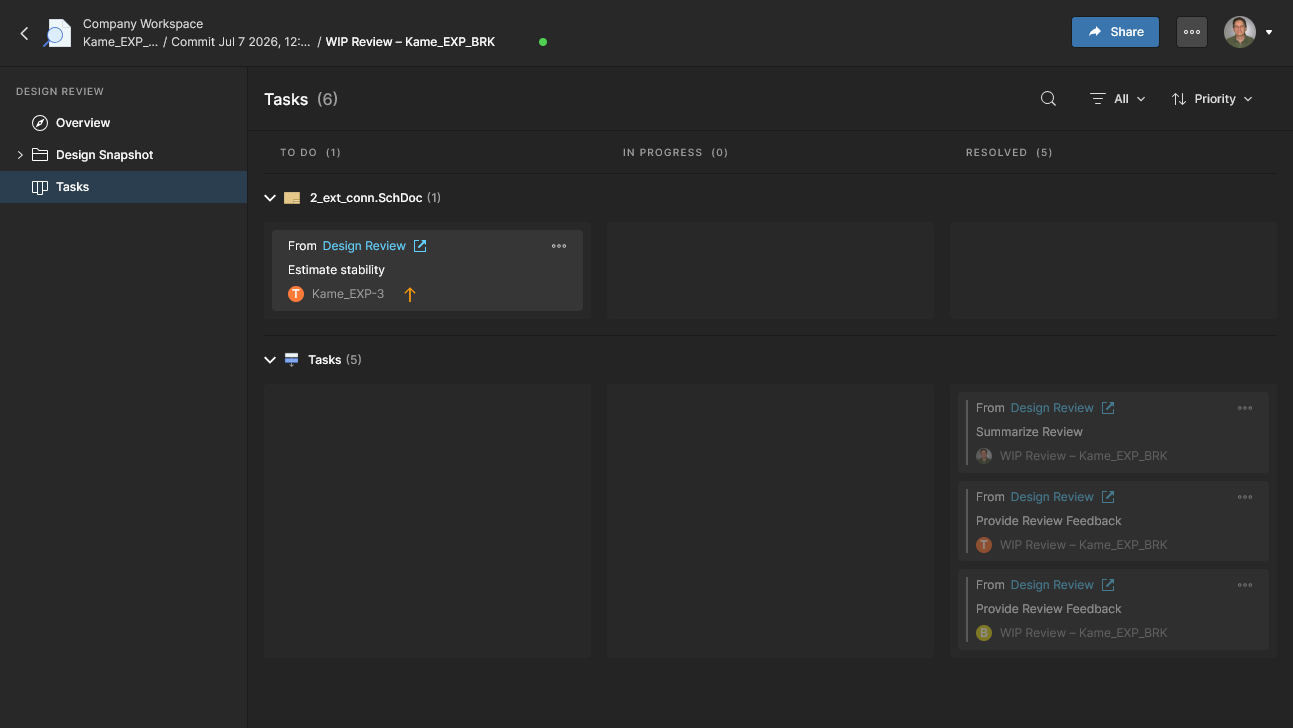
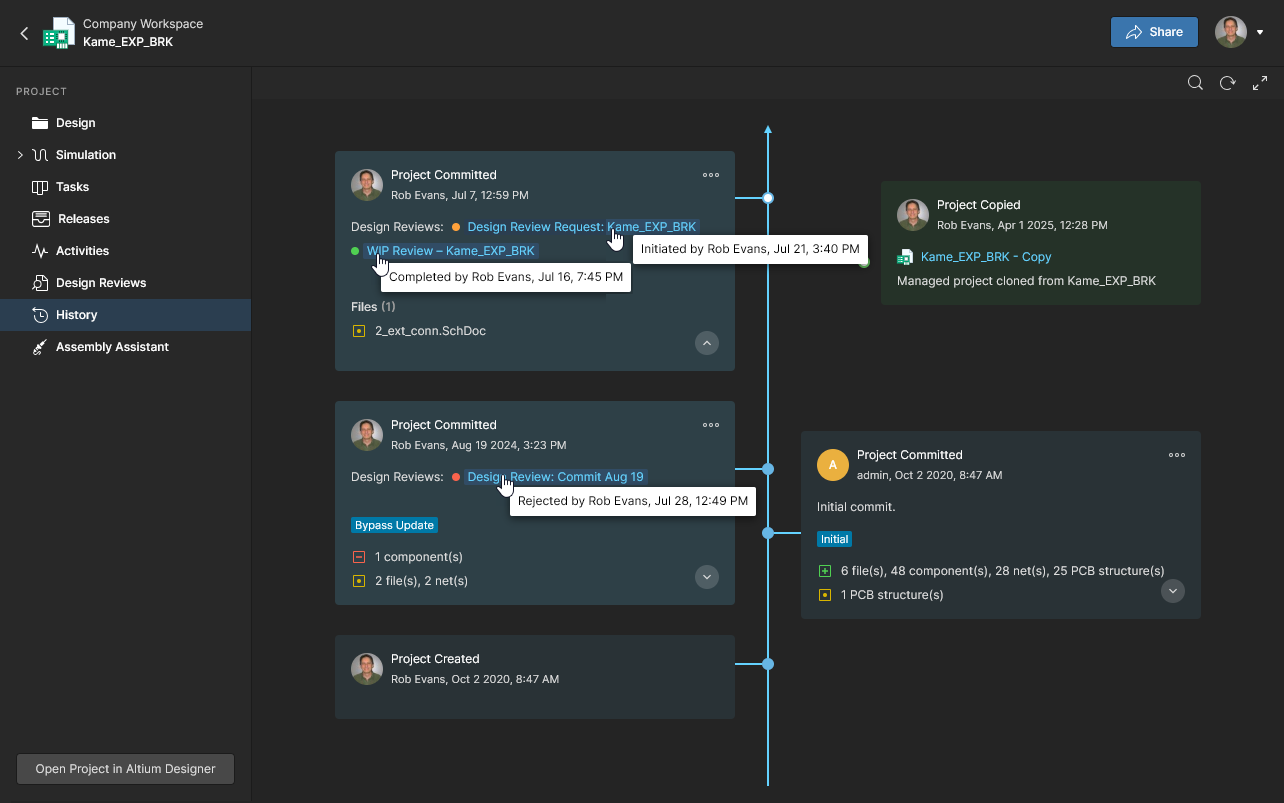
Once the review Initiator has concluded the Design Review by submitting their summary, the review instance moves from an InProgress state to a closed state determined by the Initiator’s review decision. The Initiator’s review Task will move from an In Progress state to a Resolved state regardless of the review decision choice.
Creating a Custom Design Review
Related page: Defining a Process Workflow
While the Design Review feature is coded to provide a specific set of capabilities and options, its procedural flow and additional options are determined by its Process Workflow. The related process – Design Review – is available to Workspace administrators through the Admin – Processes page, where it can be modified and saved as an alternative design review process. 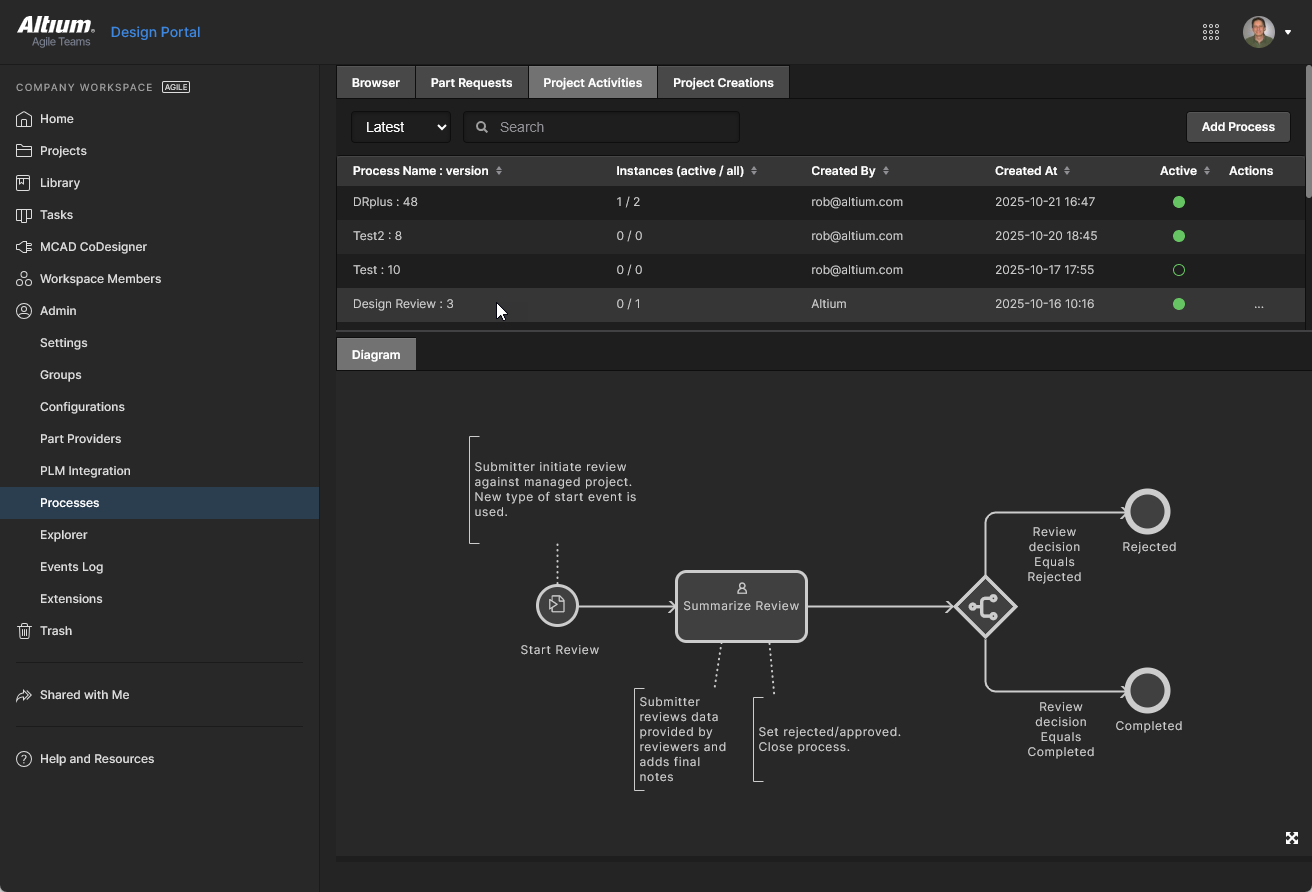 You also can create a new custom process from scratch by applying the dedicated design review elements used by this workflow (as available under the Project Activities theme).
Custom Review Example
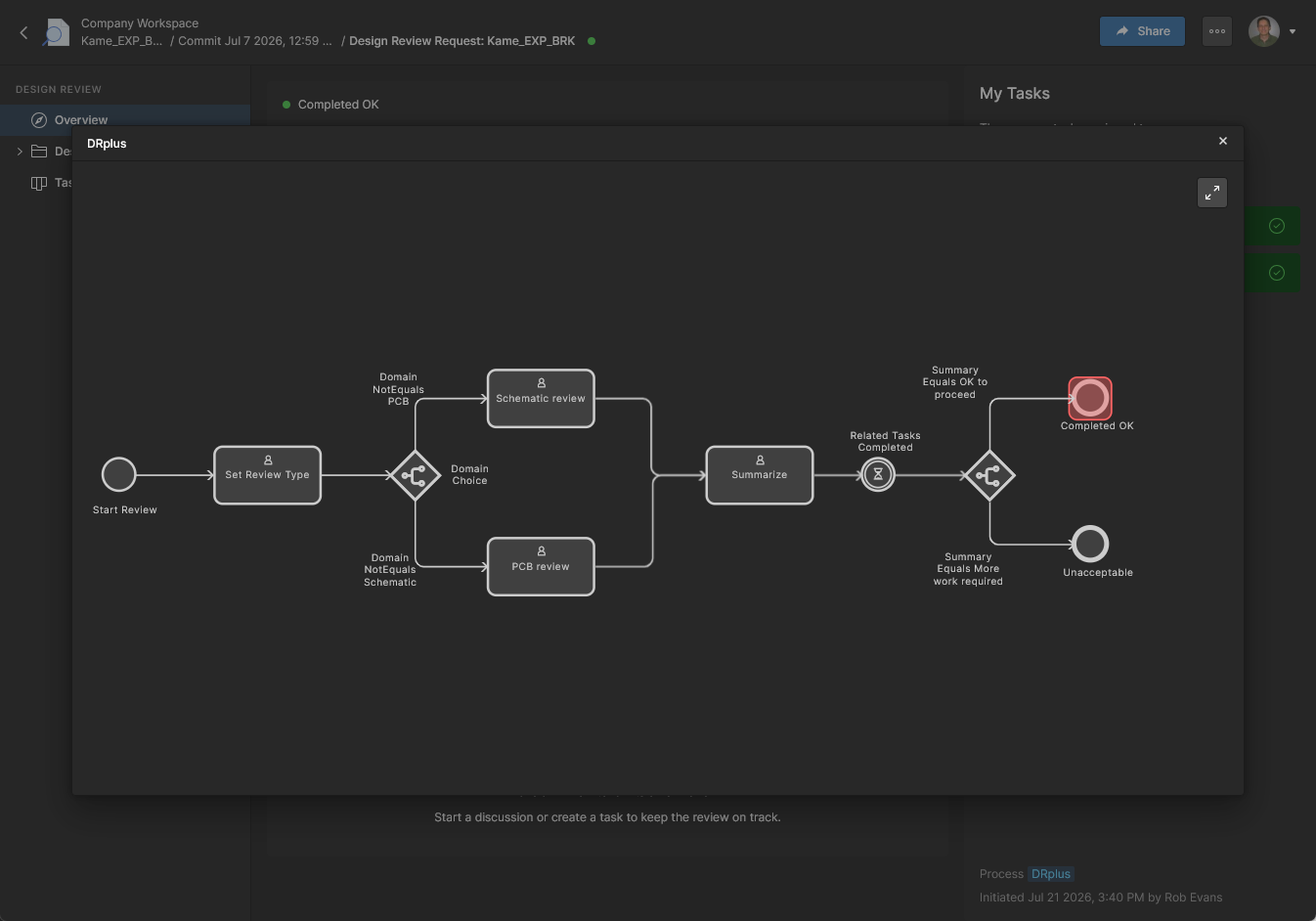
The custom design review example shown here provides the review Initiator with a choice of two review type paths – Schematic and PCB – which are each assigned to users in their related Workspace Groups. The results from each review type are received and summarized by the review Initiator, which closes the design review with a Completed or Unacceptable status.
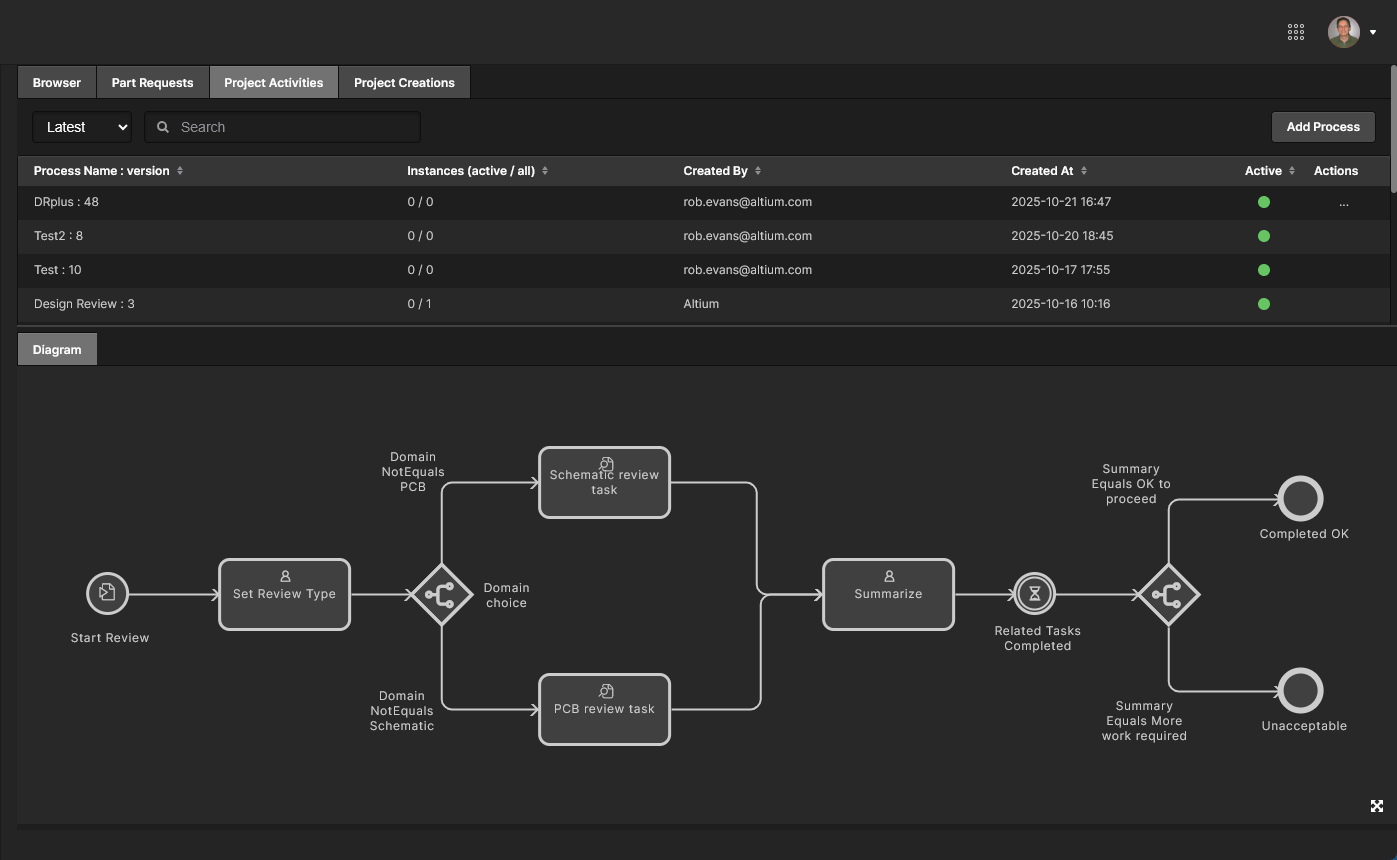 An example of a custom workflow definition that becomes available as an alternative process for the Design Review feature.
To create a new custom process workflow for the Design Review feature, choose the Project Activities theme tab on the Workspace Admin - Processes page and select the  button to open the Process Workflow Editor – alternatively, you could create a new process by editing the existing one. A process is created by diagrammatically arranging the required Start, Task and Branching elements, and also adding branching decision logic and variable-based controls to user-access Forms. A Design Review process activity is defined by using Start element of the Start Review type.
See the below images for an overview of the main Forms used in the above design review process example – the images reflect the view when editing or creating a workflow (Admin - Processes page).
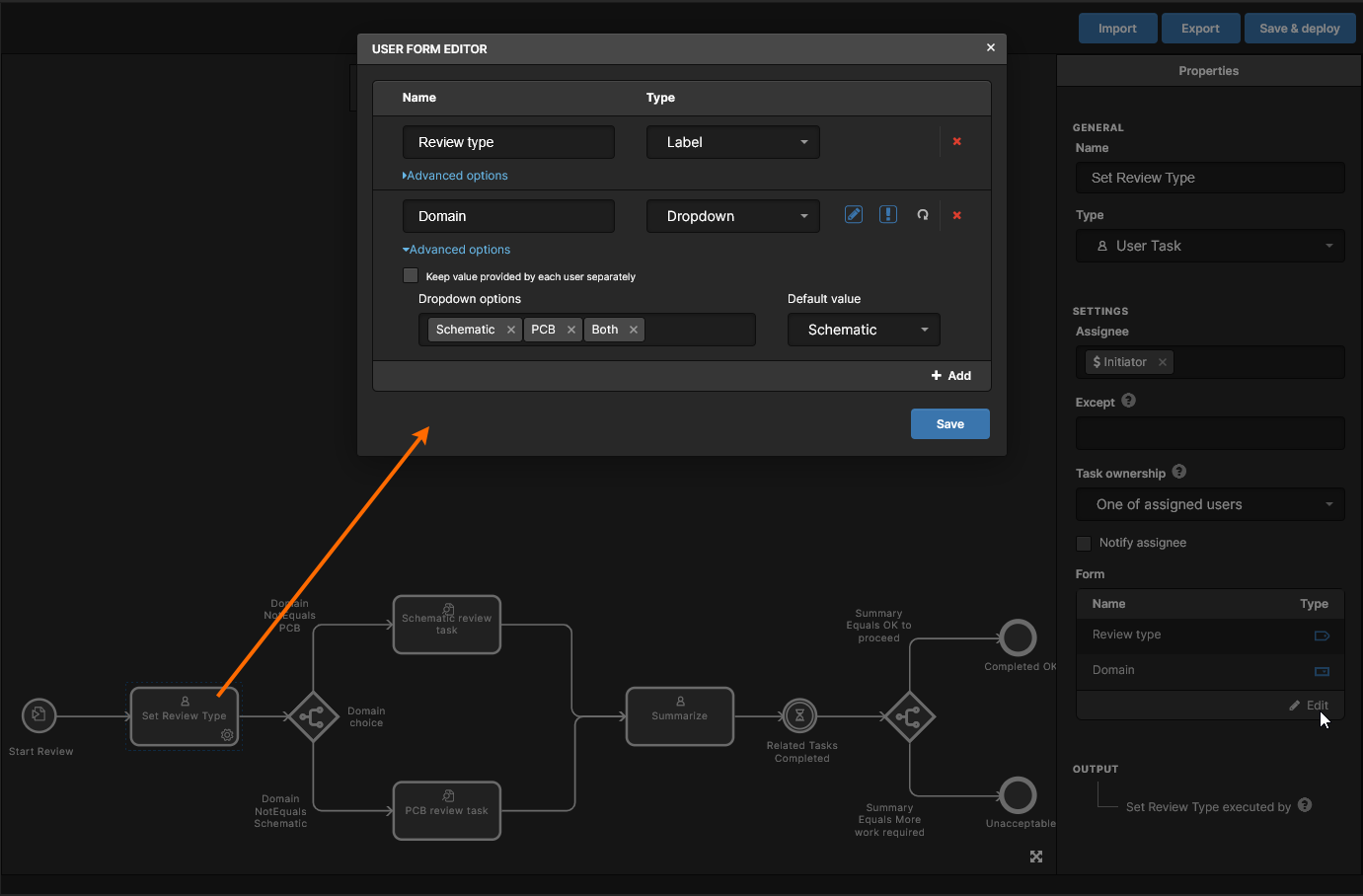
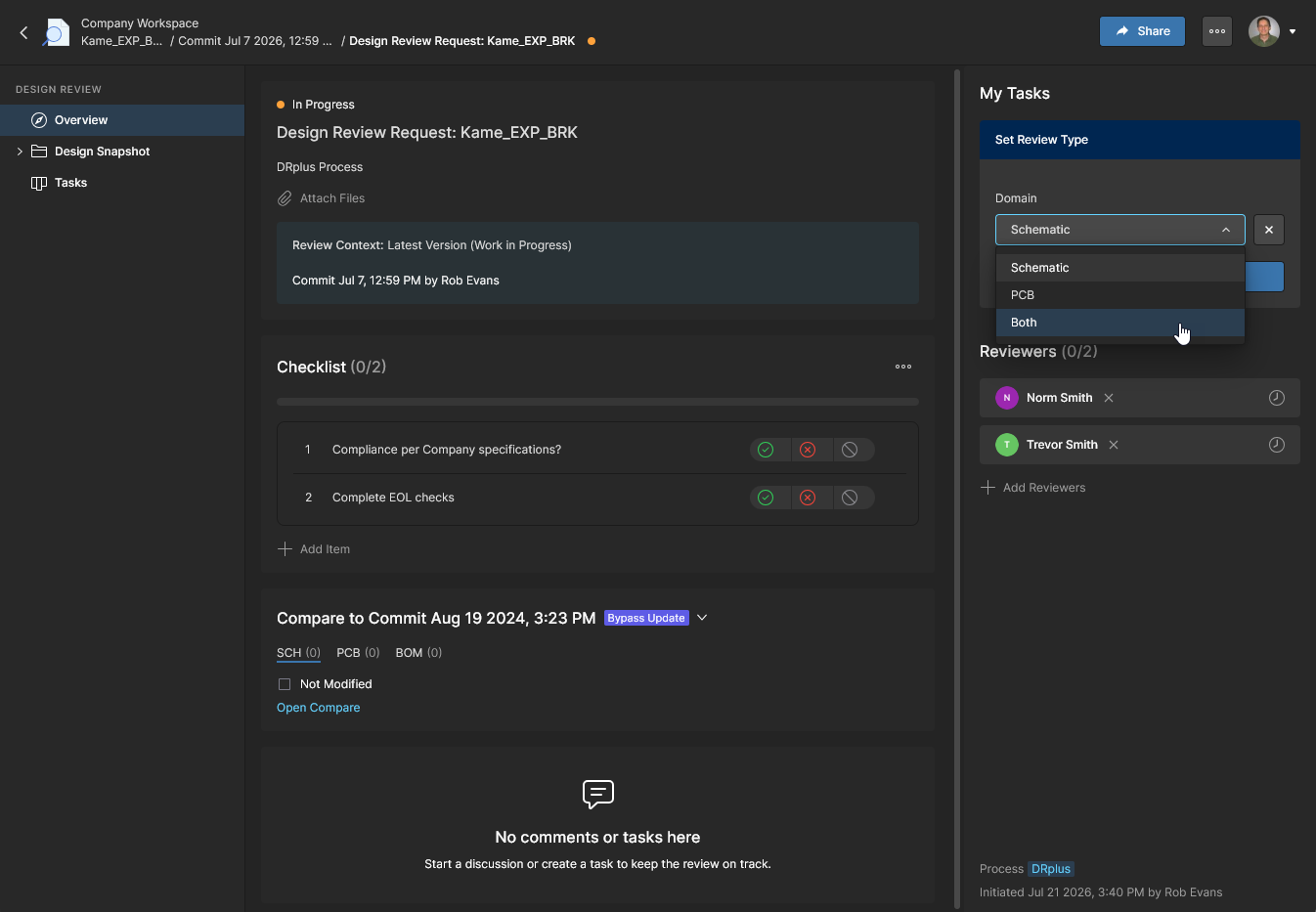
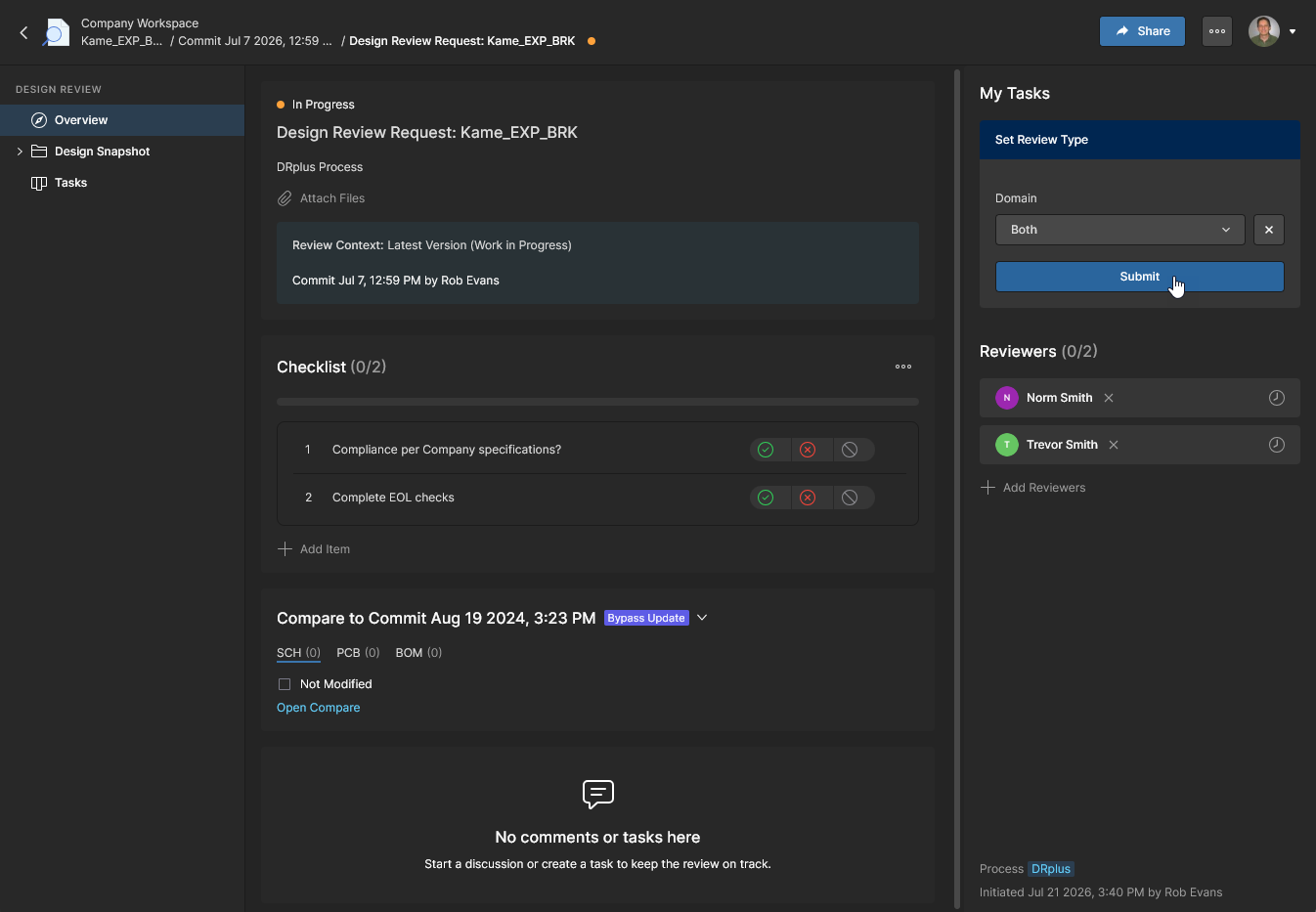
The first interactive Set Review Type Task in the process – handled by the user that invoked the design review (the Initiator) – includes a Form that requires the selection of the review type. This is designated the Domain variable, with options to select Schematic, PCB or Both (review flows). The following Branch logic directs the flow to either review Task, or both. 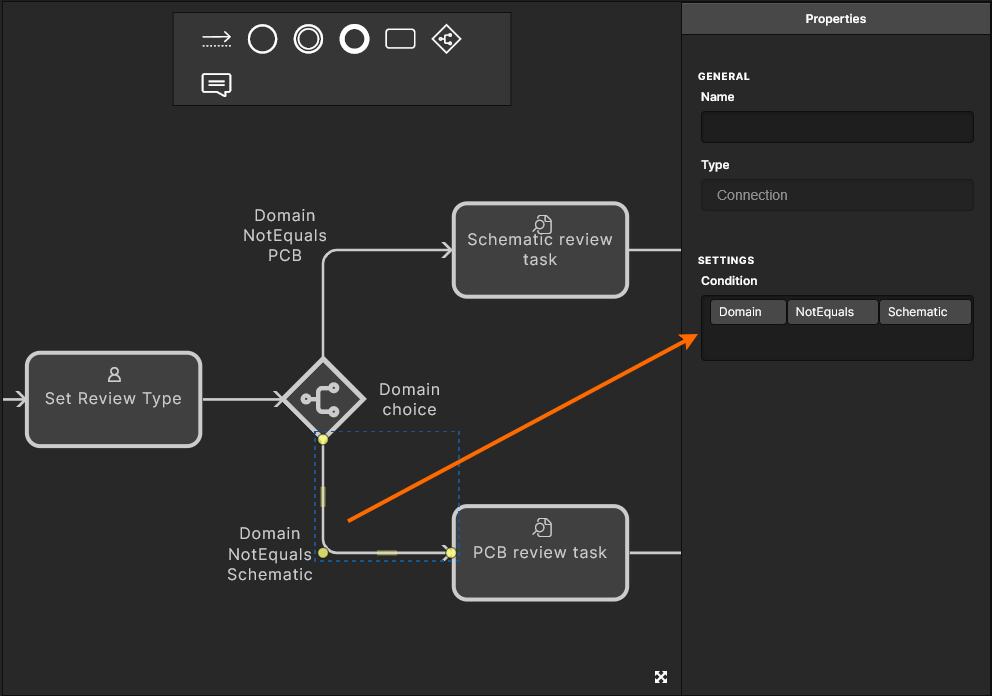
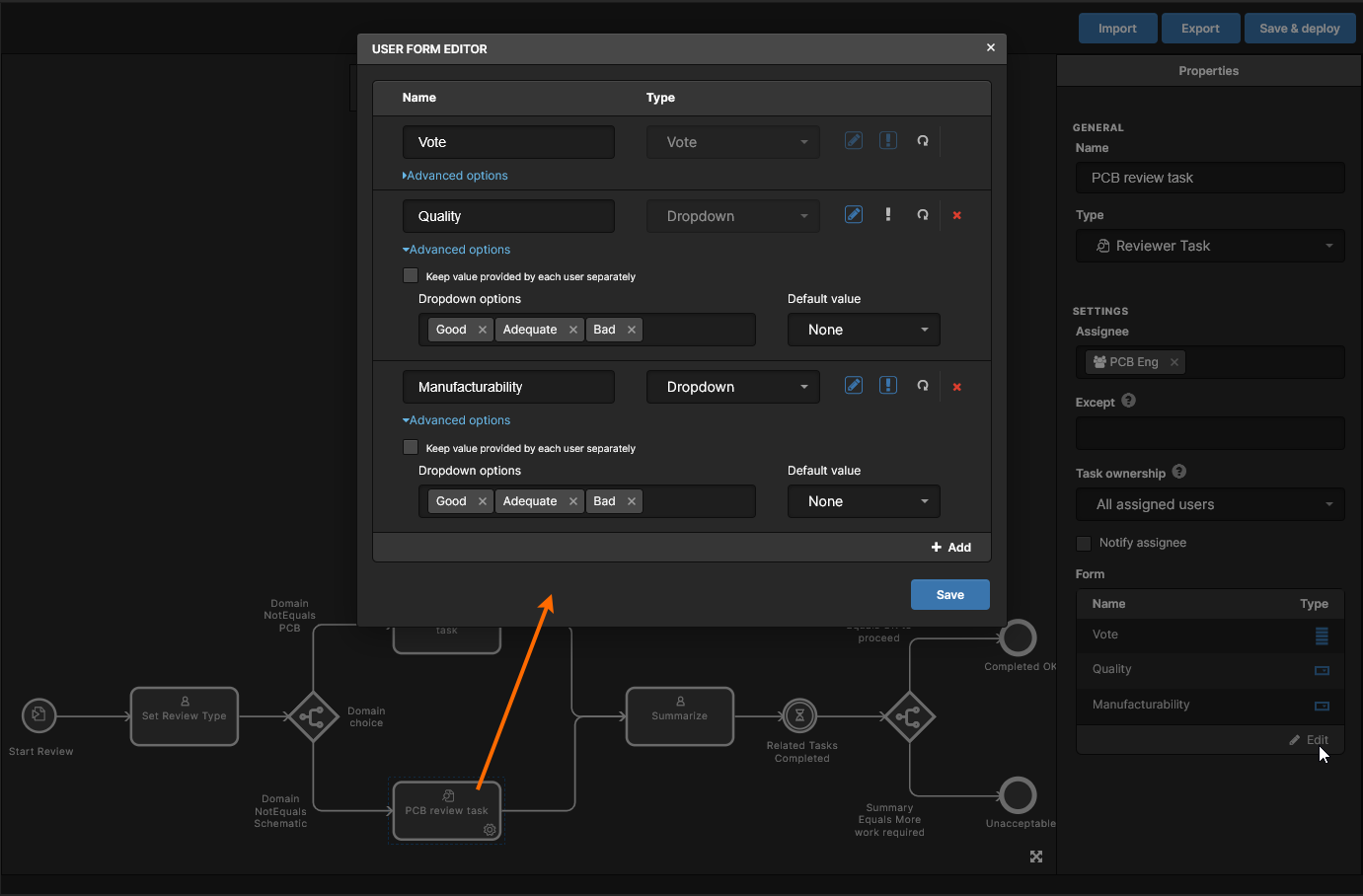
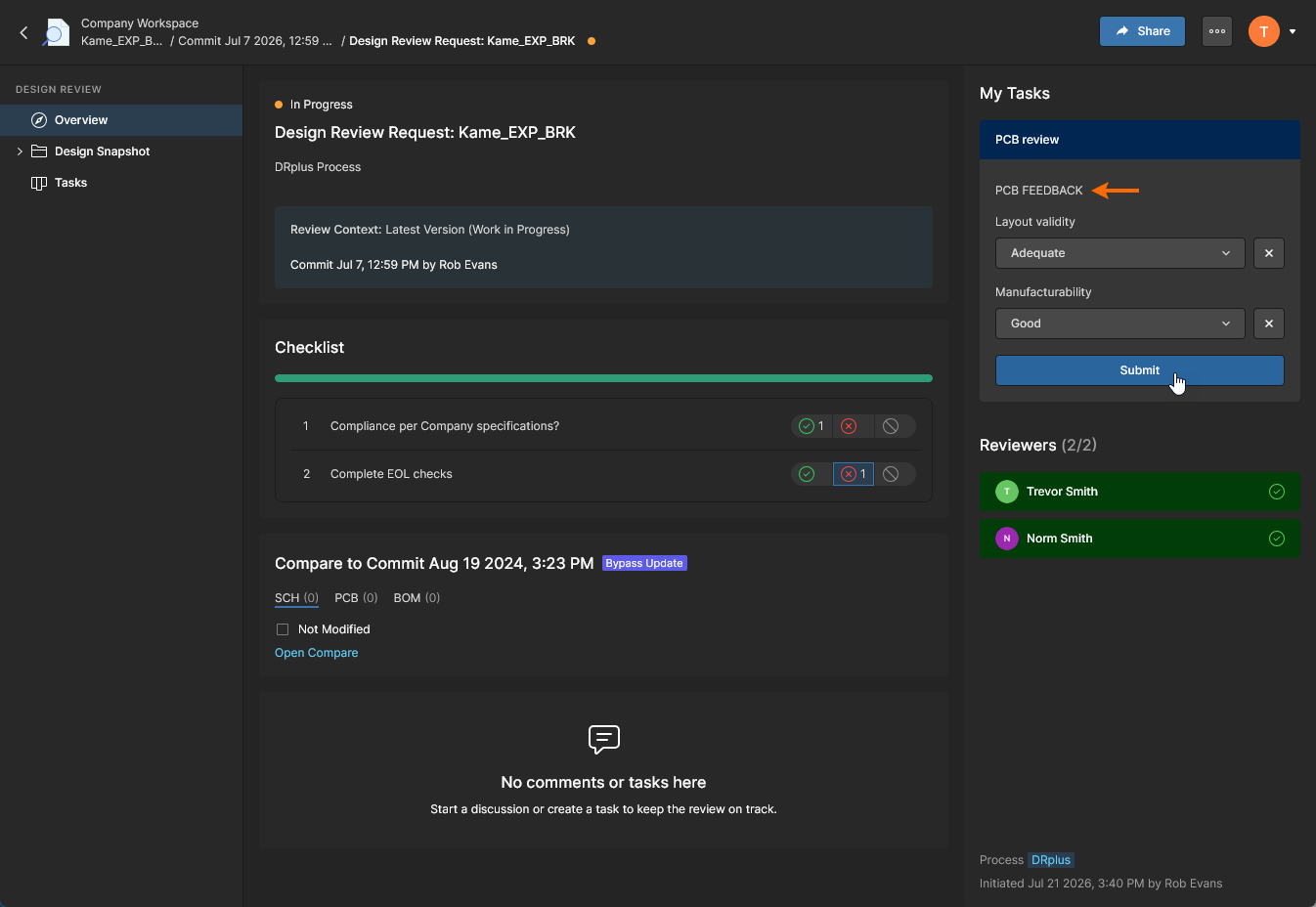
Each of the review flows (Schematic and PCB) use the specific Design Review Task, which includes Form variables for the reviewer(s) to provide feedback that relates to the review domain – in the above case, Layout validity and Manufacturability conclusions for the PCB domain. The Schematic review task is assigned to the SCH Eng user Group and the PCB task to the PCB Eng Group. 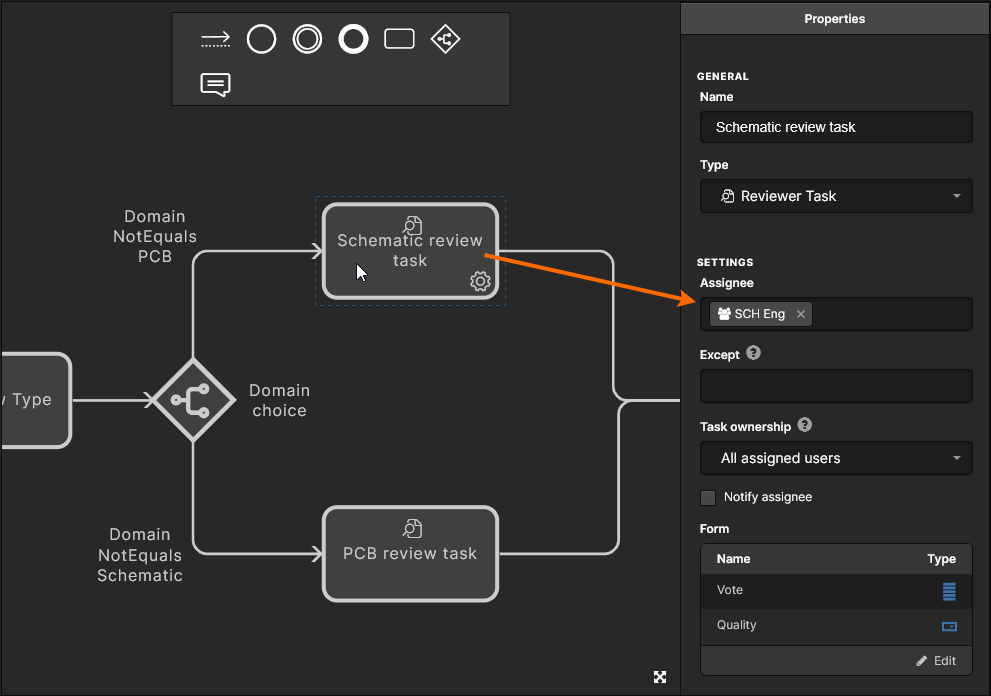
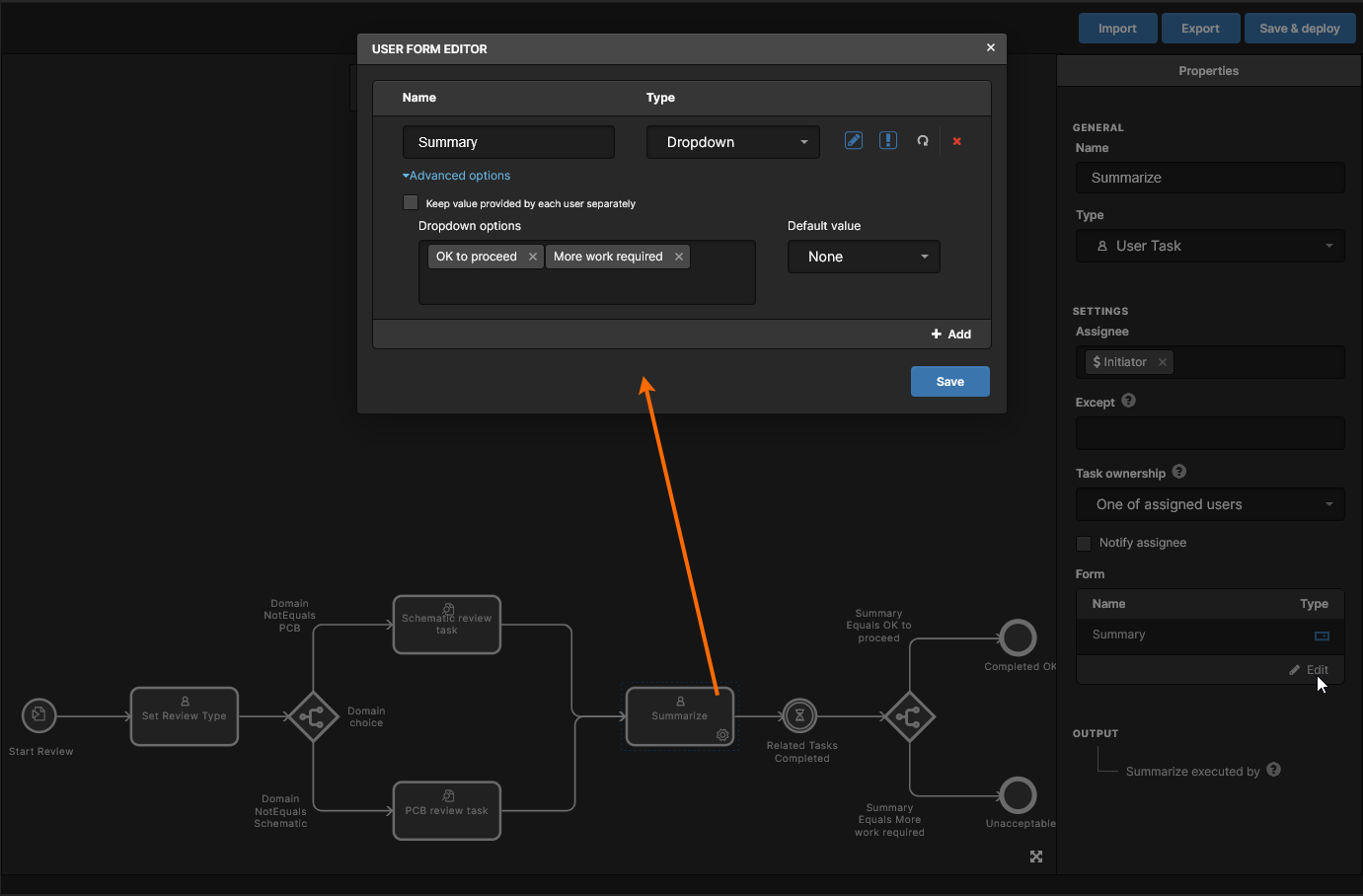
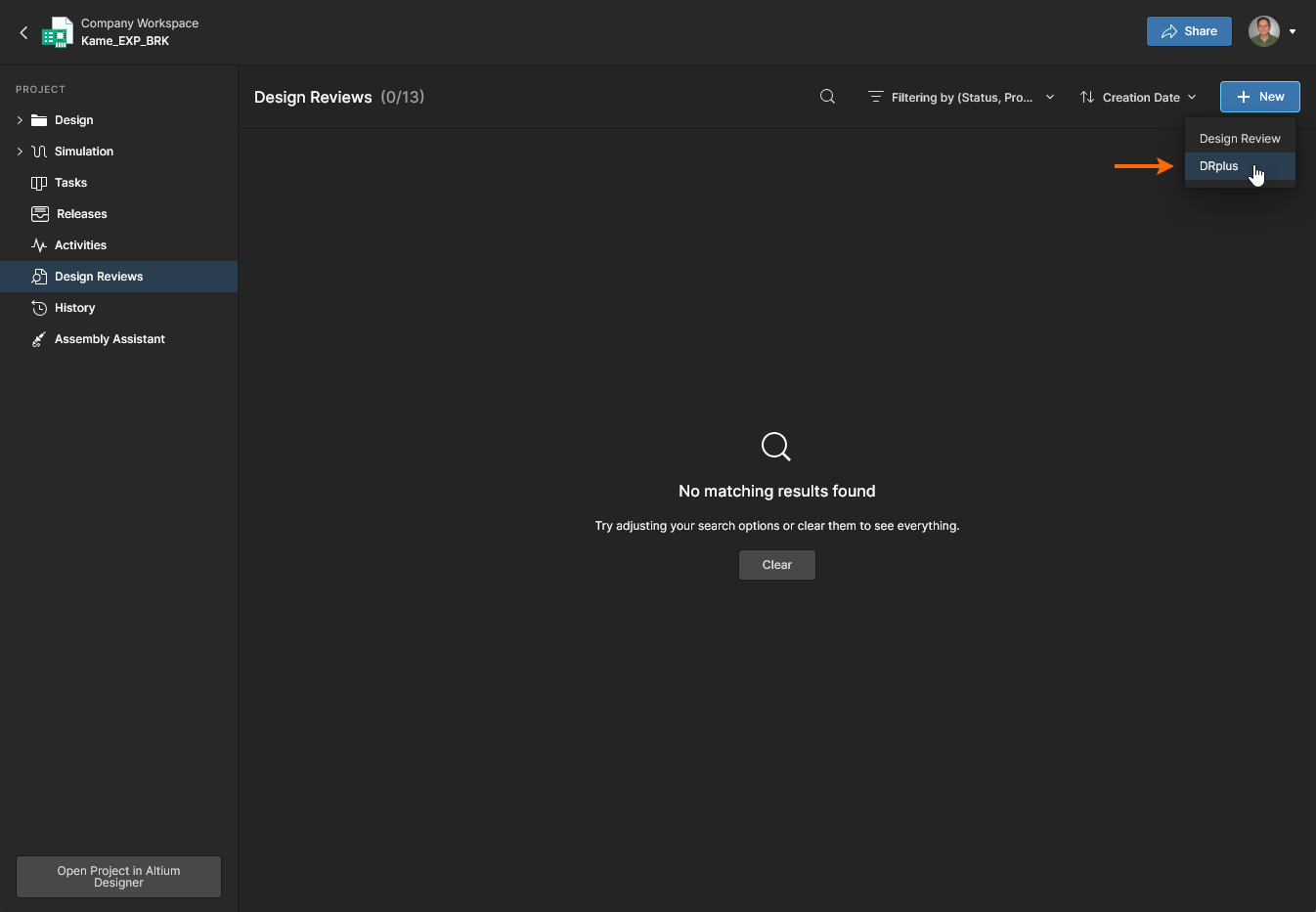
When complete and enabled on the Admin - Processes page, the custom process will be available for selection when invoking a new Design Review instance. For both Reviewers and the Initiator, the review UI will adopt the command options and flow structure defined by the custom process., as shown below for the example process:
-
Creating/configuring the review (Initiator).
-
Completing review tasks (Reviewers).
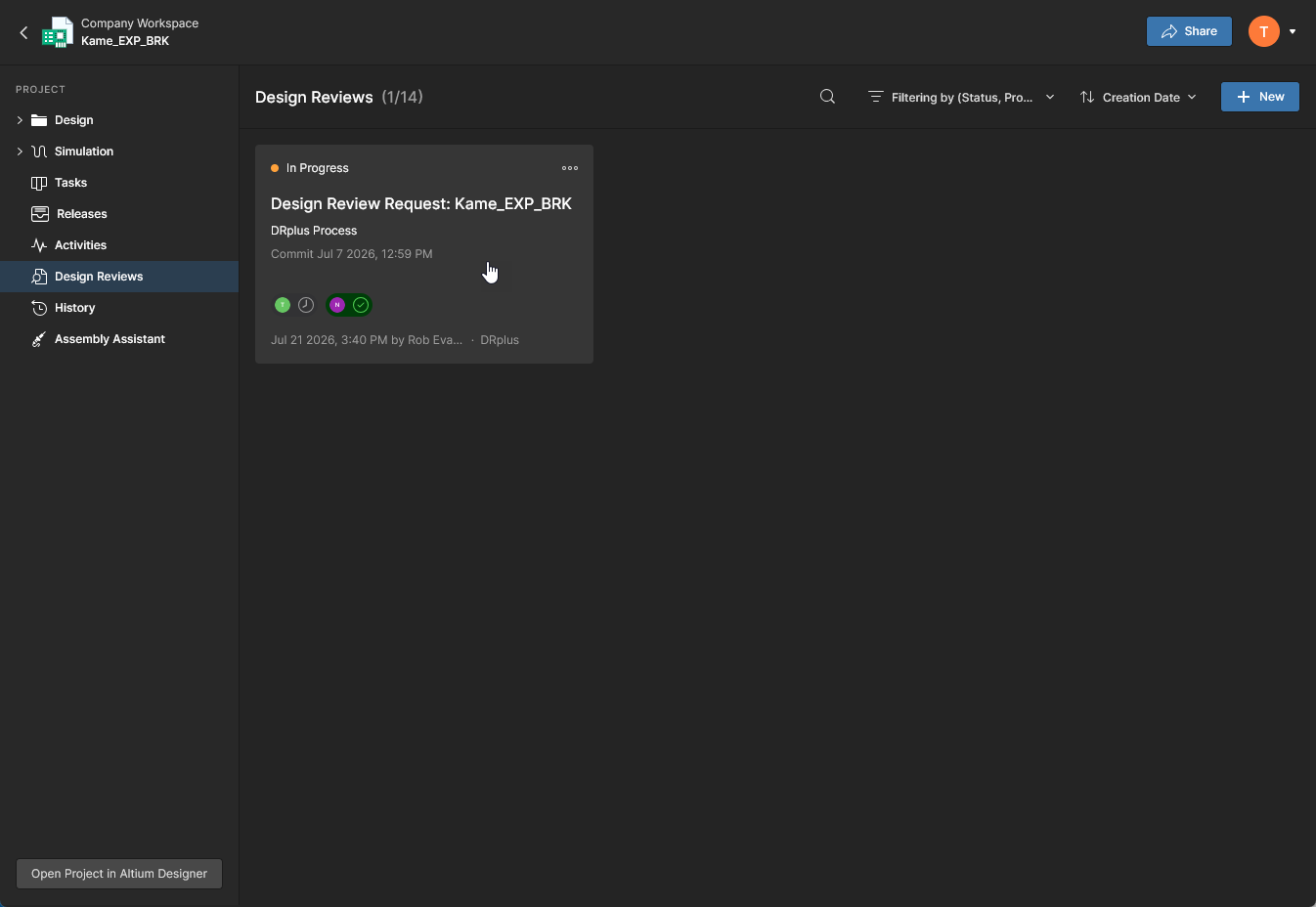
The active (
In Progress) DRplus review is now available to reviewers, with the Workflow held at the branched tasks stage.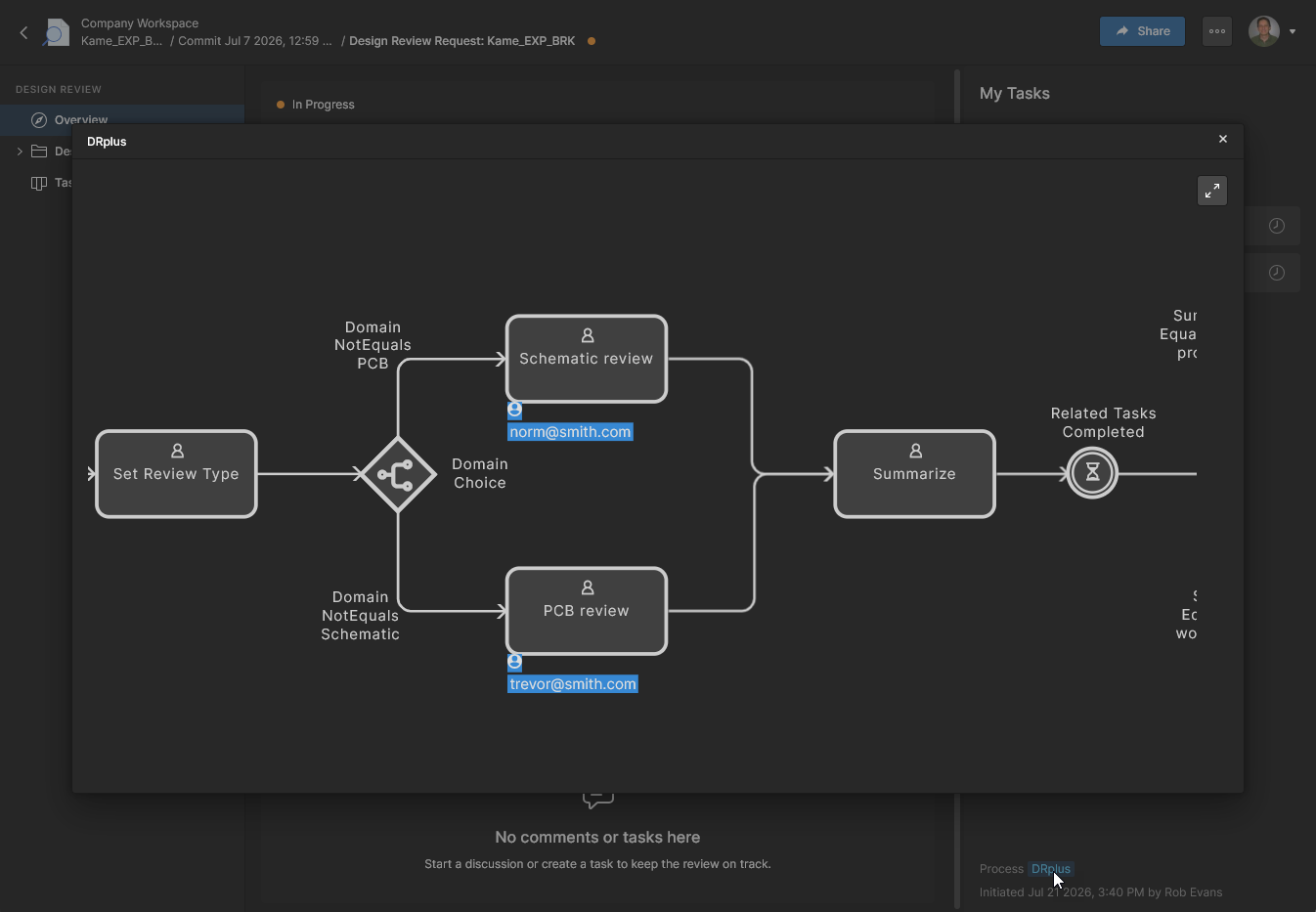 This example view shows the user assigned to the PCB instance.
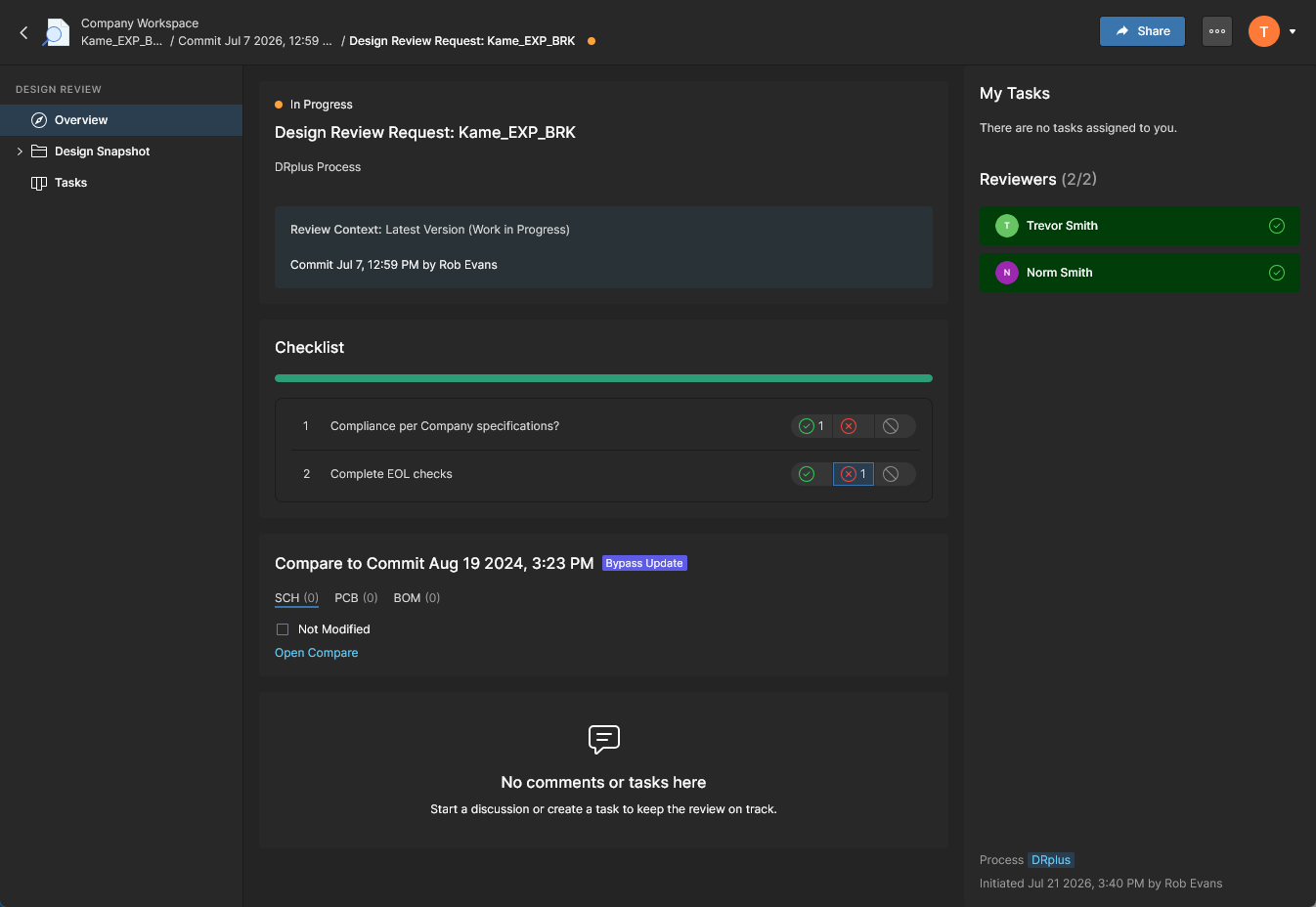
Once all reviewer tasks are complete they move to a
Resolvedstate, and the Workflow moves to the Summarize event that becomes available to the Initiator for finalization.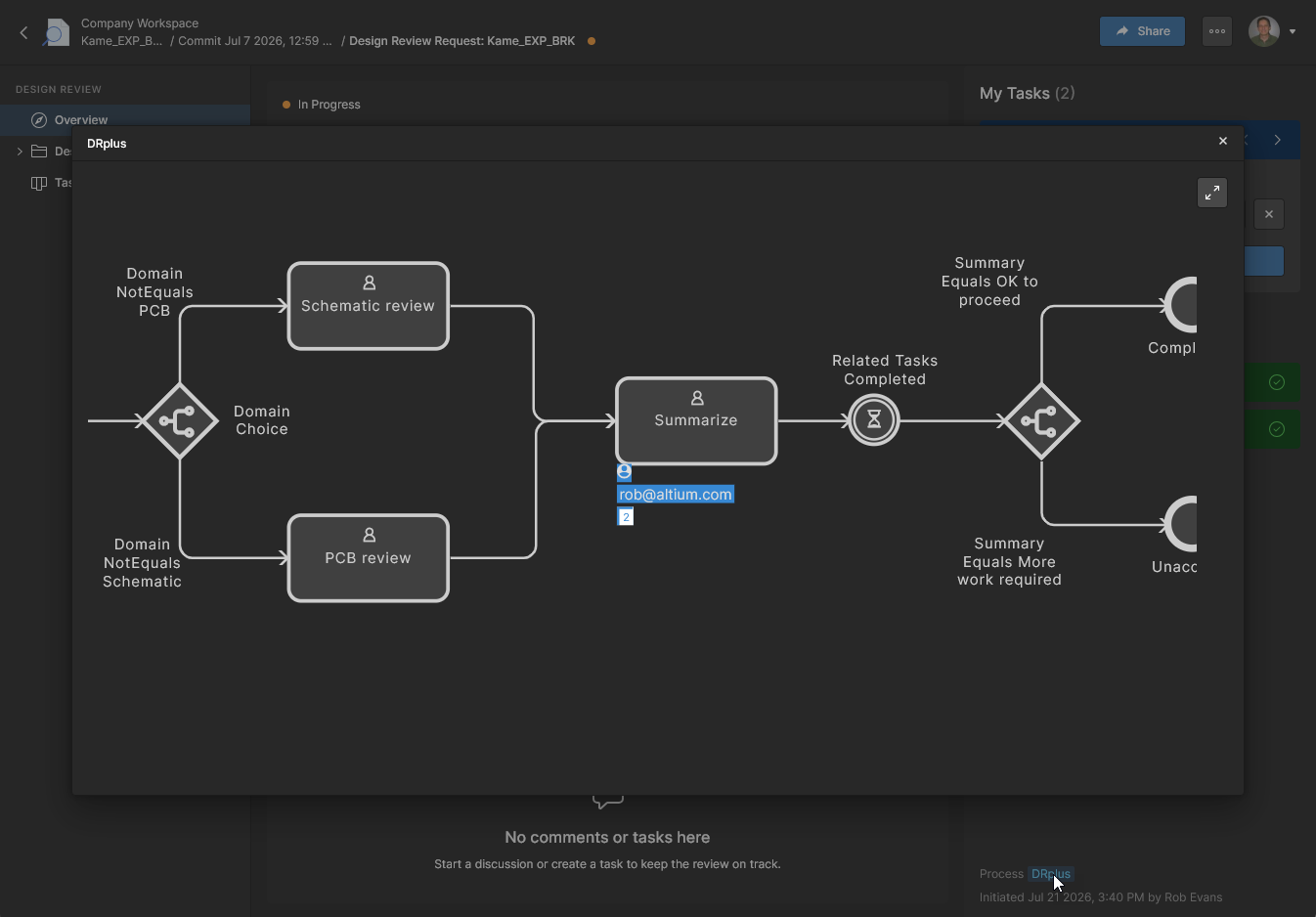
-
Finalizing the review (Initiator).
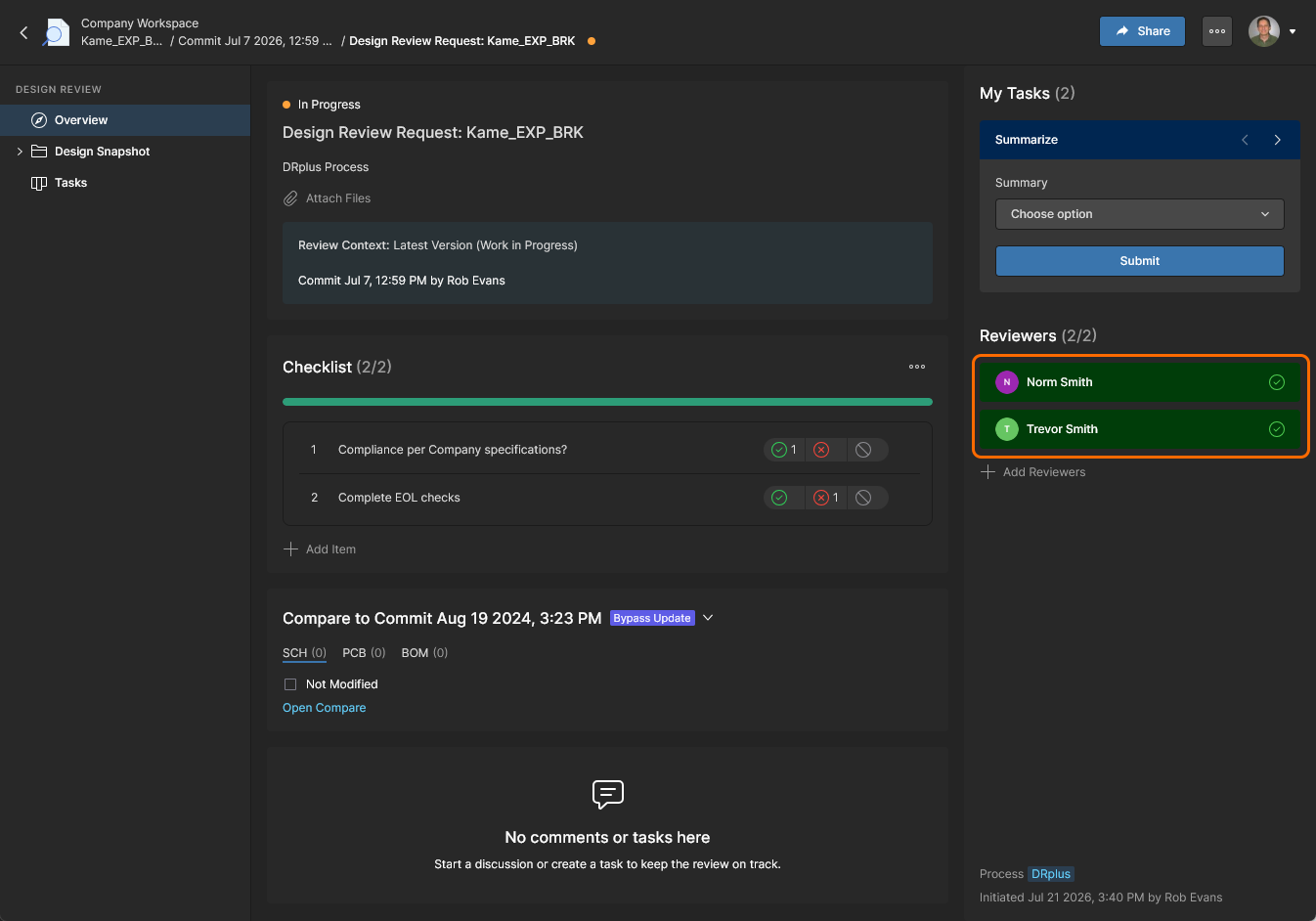
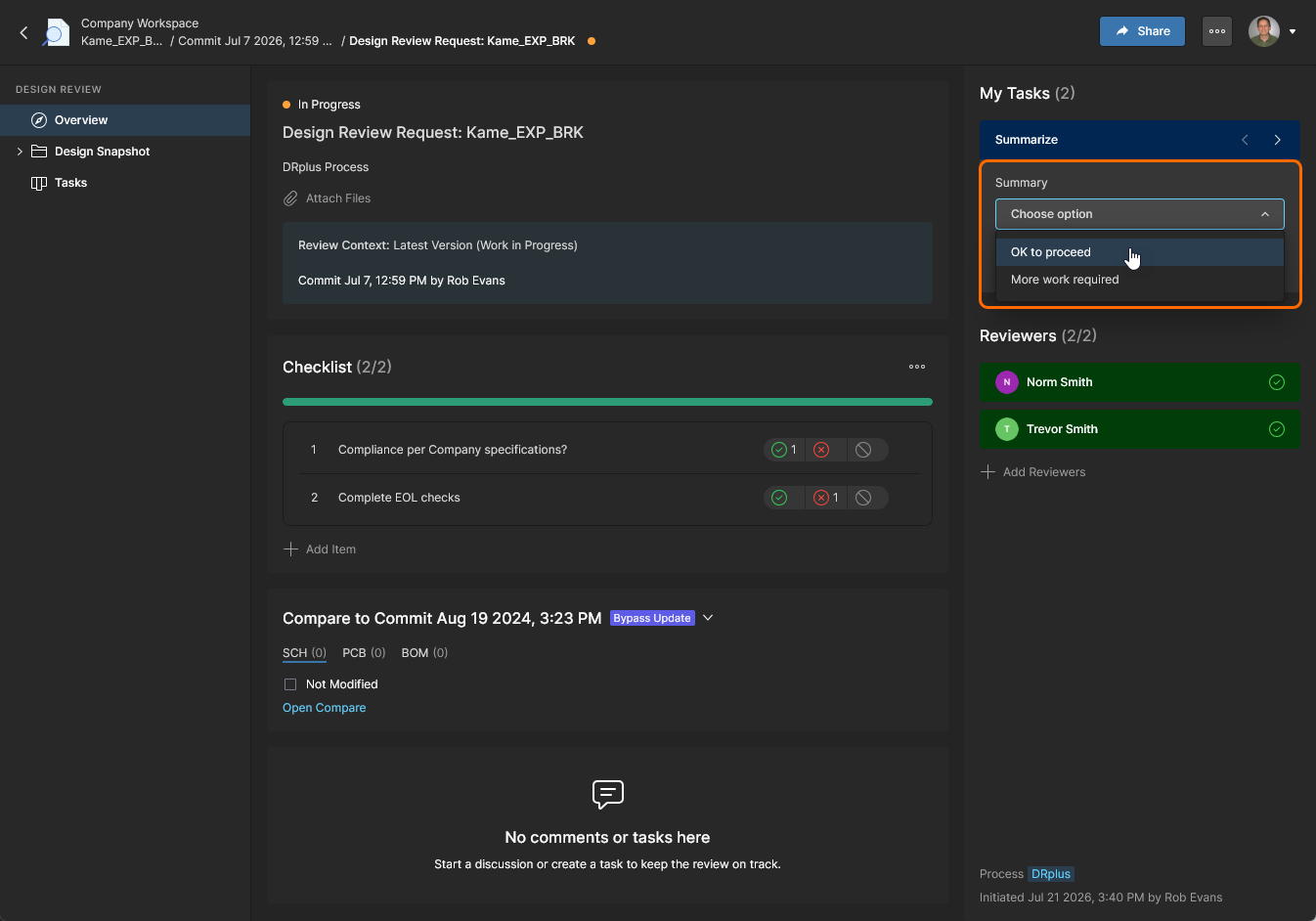
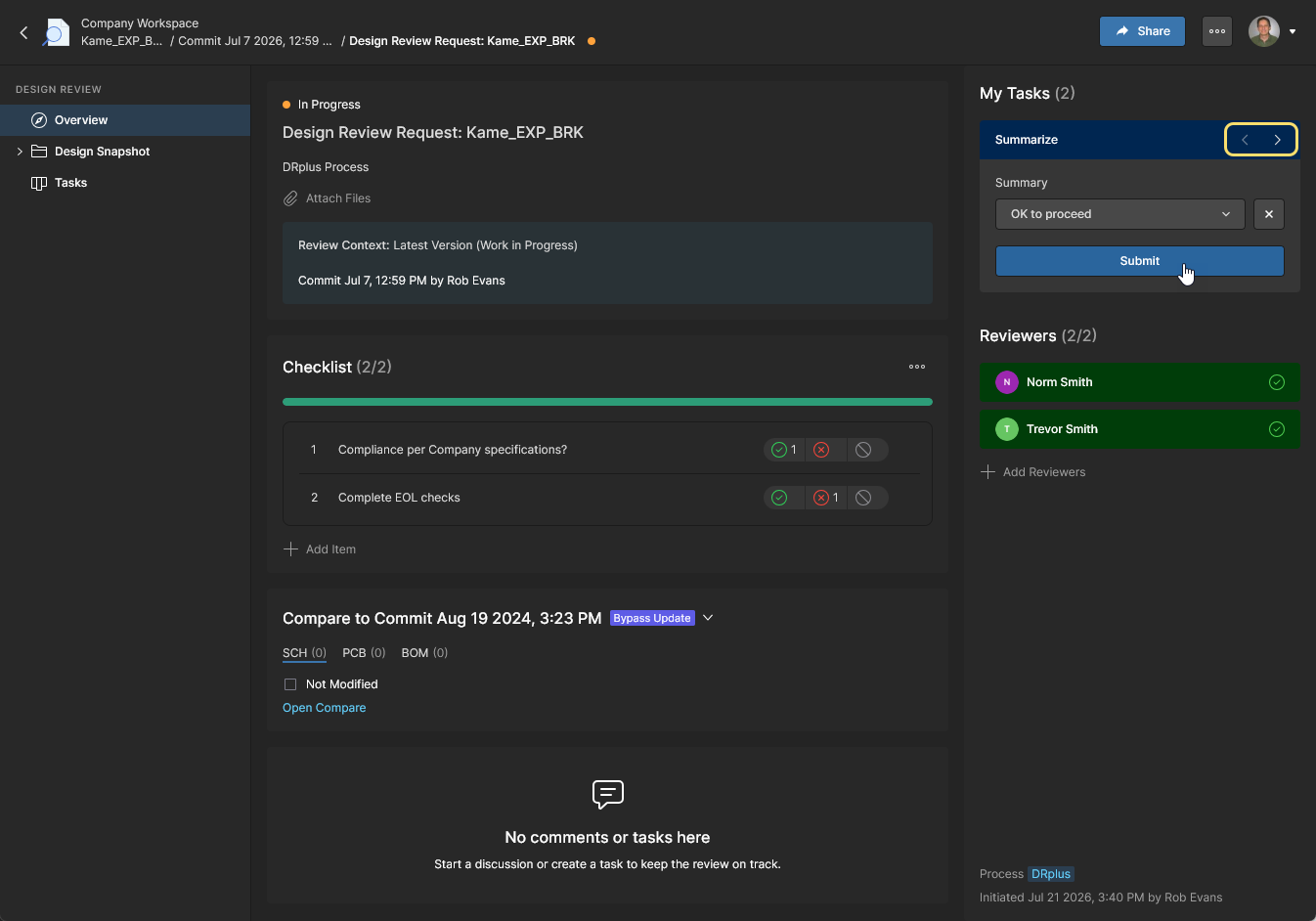
Note that with this Workflow there is a review Summary step associated with each review branch, as indicated by the Summarize next/previous icons. Click
to proceed.
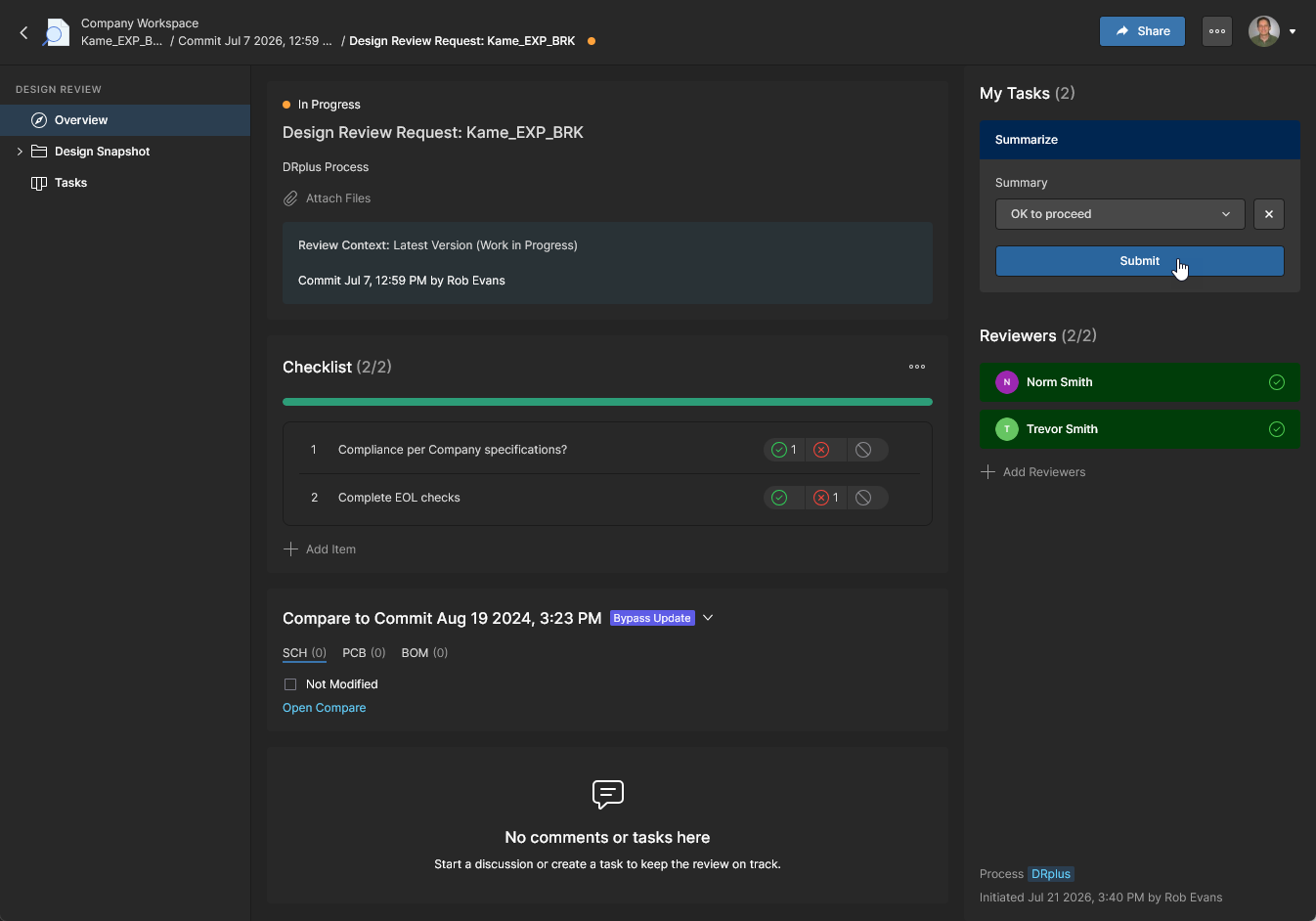
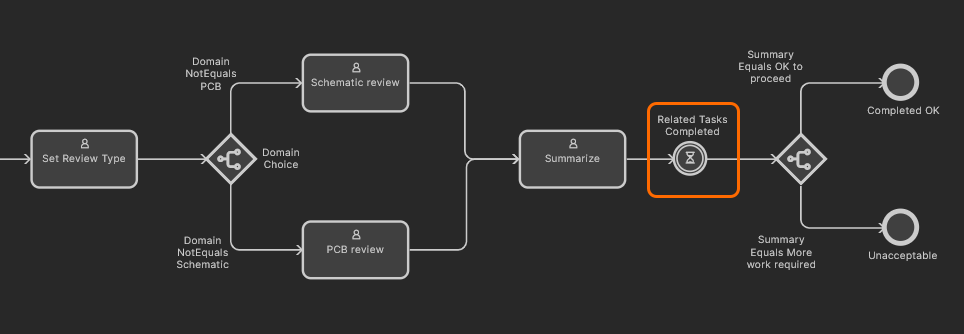 If only one domain branch is initially selected by the Instigator then the review workflow will halt at the concluding Summary report step.