Altium 365 Platform Interface
Depending on your relationship with Altium, the services offered on the Altium Platform will be experienced from within Altium Designer and through the platform's browser-based interface. This page takes a look at the latter and provides an overview of what you'll see when you register an Altium Account and sign in to the Altium Platform Interface.
Registering an Account with Altium
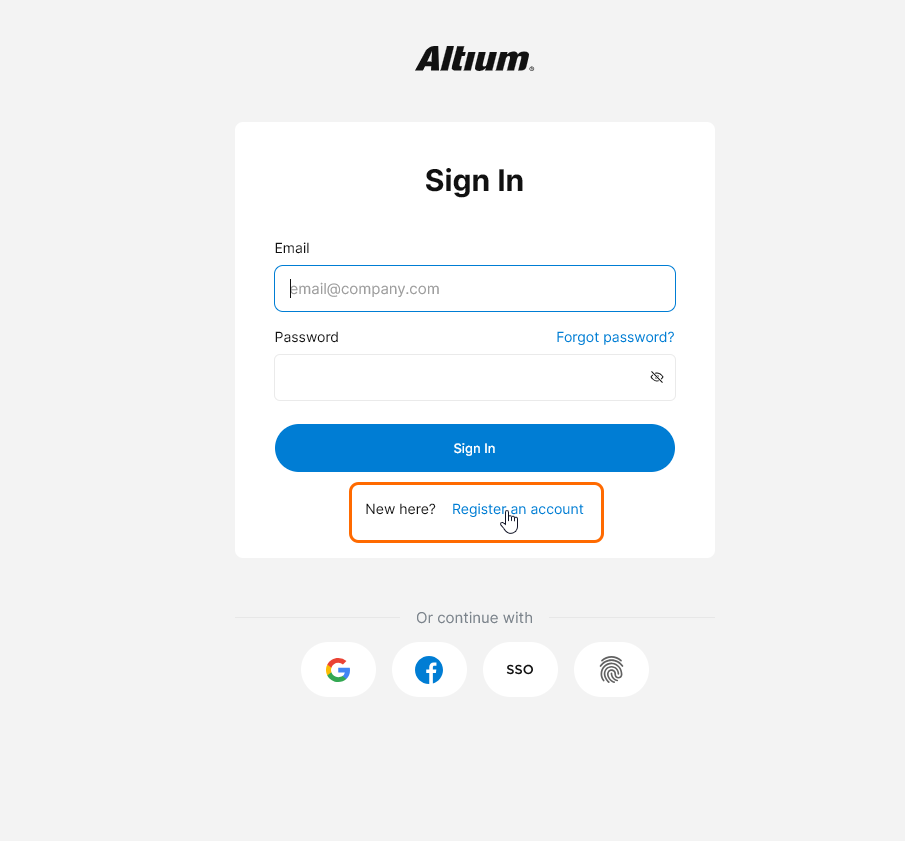
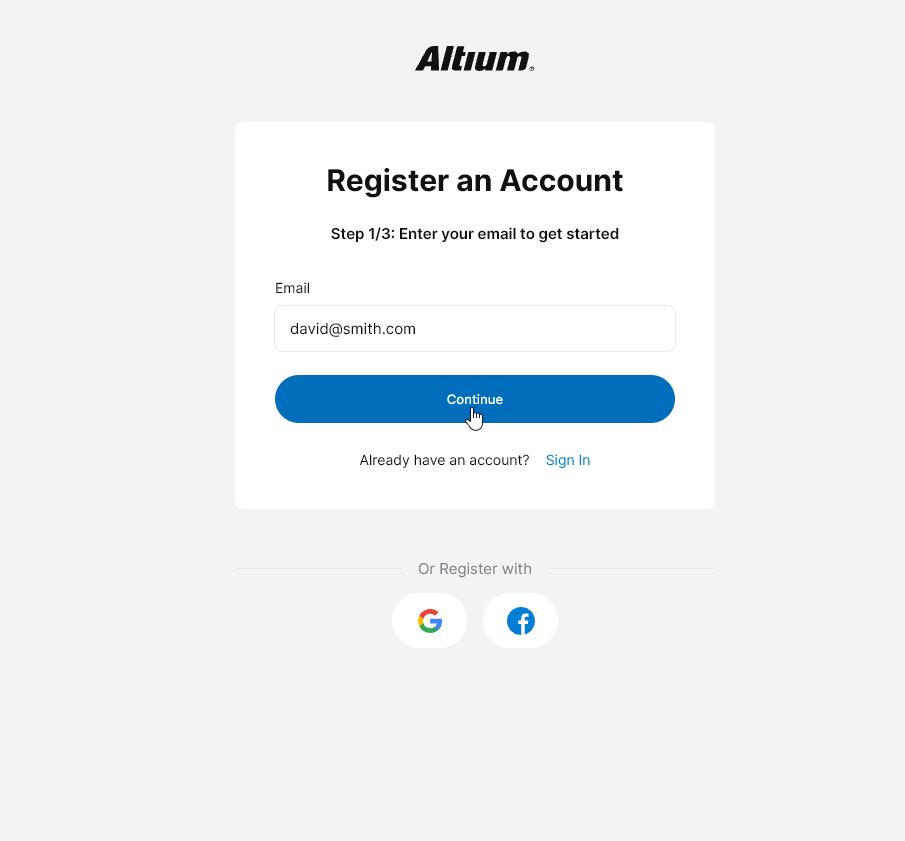
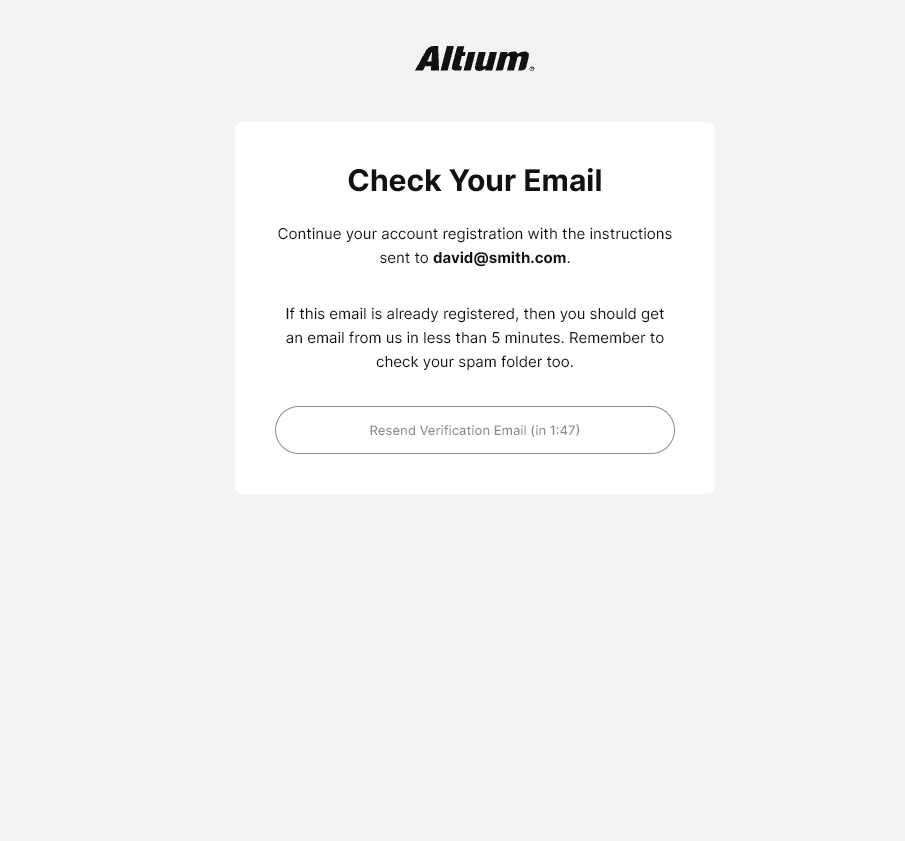
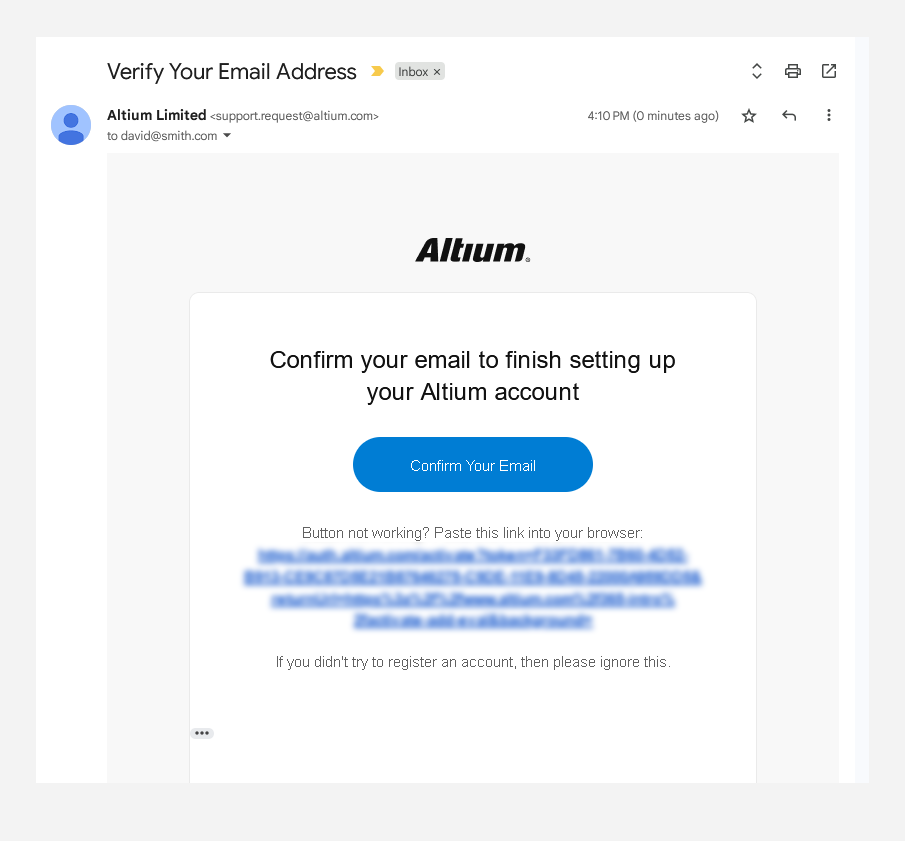
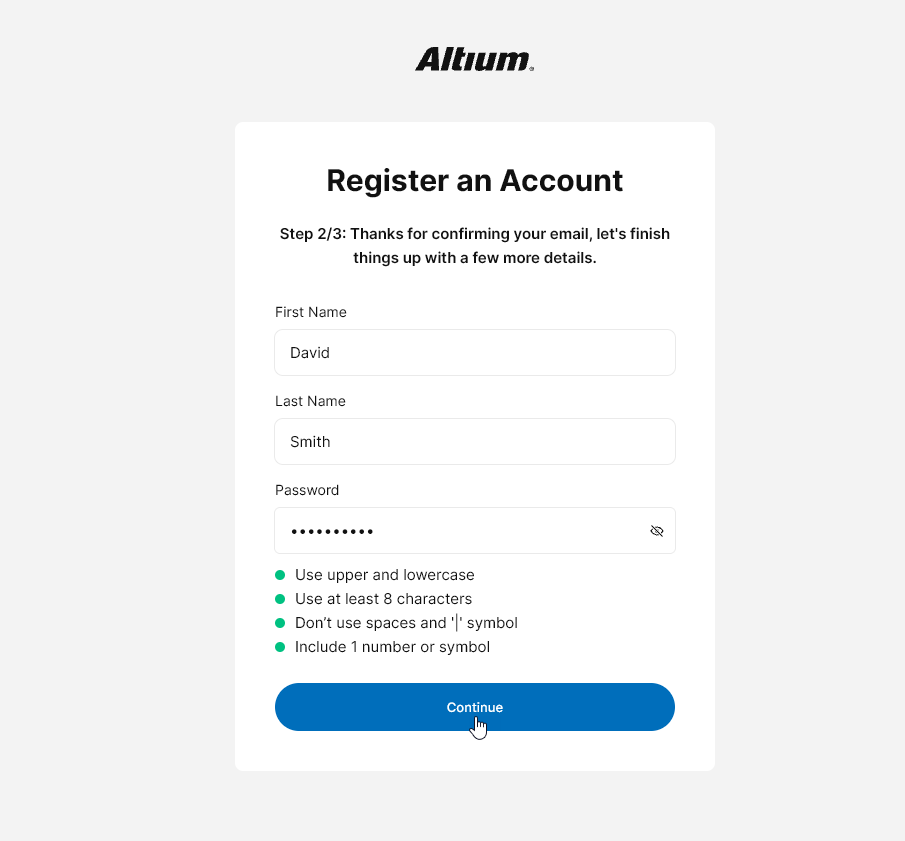
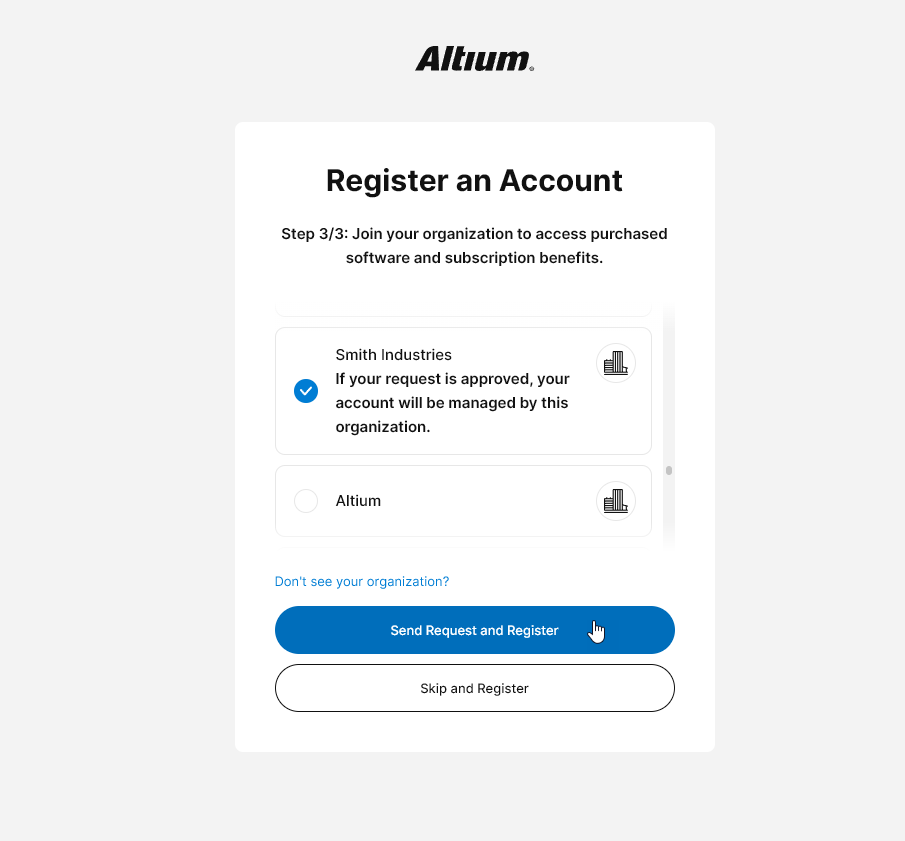
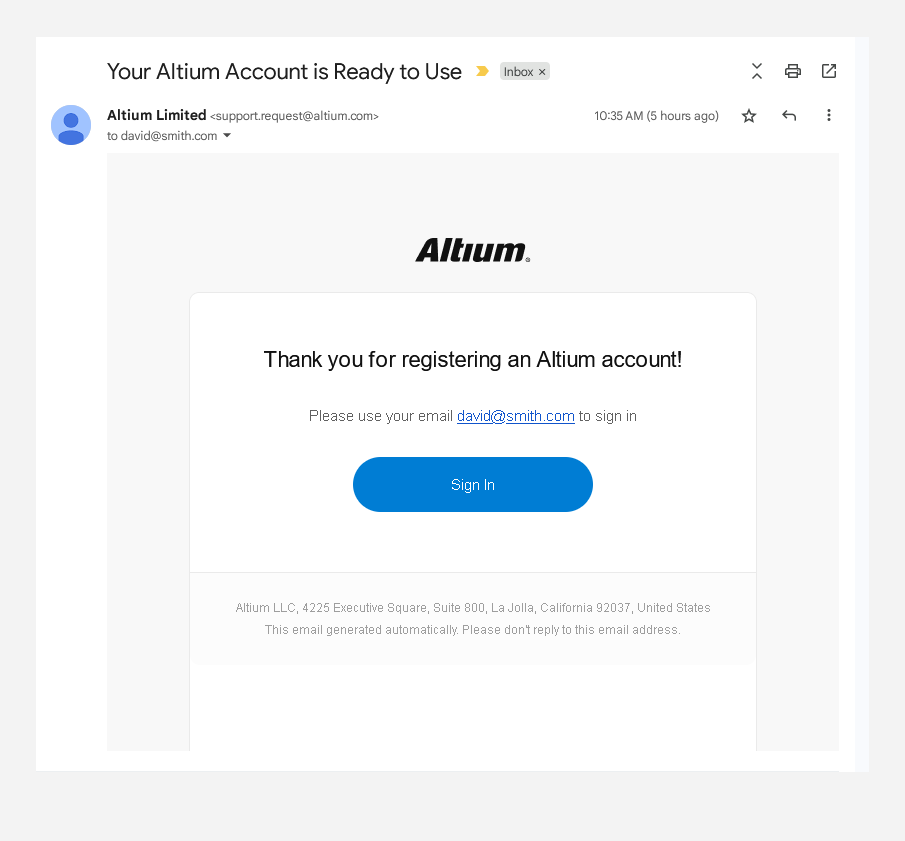
Access to Altium software and services requires that you have an Altium Account associated with your email address. if one has not already been created by your company, you can create one yourself by registering through the altium.com sign-in page. This is accessible from the Sign-in entry at the top-right of the Altium website ( ) or via its direct URL:
 https://auth.altium.com/. A walk-through of the registration process is shown below.
Signing in to the Interface
Access to the Altium 365 Platform Interface can be performed in a number of ways, as described in the following sections.
Through the Altium 365 Sign In Page
This method can be used when:
-
Accessing the Altium Platform Interface through its direct URL: https://365.altium.com.
-
Pasting the link for a Workspace's Server Address (e.g. https://mycompany-436.365.altium.com/) directly into a tab of your browser (and you are not currently signed in to your Altium Account).
-
Following an email invite to a Workspace, or to shared content within it (for example a managed project).
-
You have guest share rights to view some content shared with you on the Altium Platform but do not have a Workspace yourself, or are not a member of another organization's Workspace.
Sign in to the Altium Platform Interface using your Altium Account credentials (email and password). Alternatively, sign in using your Google® or Facebook® account and, in doing so, link/associate that account with your Altium Account. You can also use a device-based authentication method ( ) supported by your device (such as Windows Hello or Face ID). If you don't have an Altium Account, you can click the control to register for one.
If your organization is set up for SAML Single Sign-On (SSO) with an Identity Provider (such as Okta®), then you can sign in to Altium 365 (or more specifically your Altium Account) in this way by clicking the  button.

 ).
). 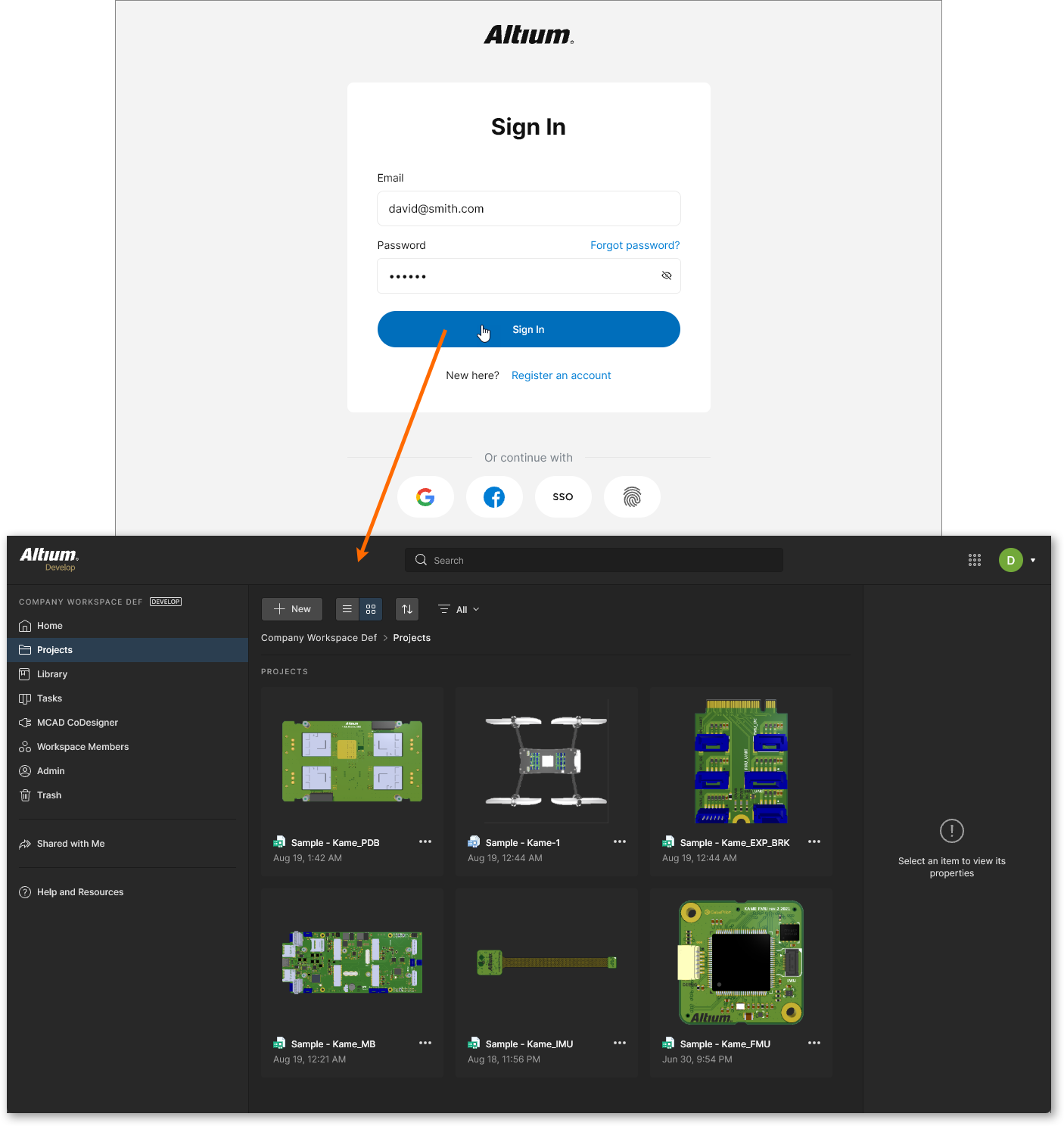 Example access of the Altium Platform Interface directly through the Altium 365 Sign In Page.
From Your Altium User Account Menu
This method can be used when you are already a registered member of a Workspace – your own company's Workspace, and any other Workspace that has been shared with you by adding you as a member. To do so:
-
First, sign in to your Altium Account. The page for doing so can be accessed by clicking on the Sign In control at the far right of the top banner on pages of the altium.com website.
Highlighting the control to quickly access the page with which to sign in to your Altium Account.
-
Once signed in click on your icon/picture to access the Altium Account menu, which presents the Workspace(s) available to you.
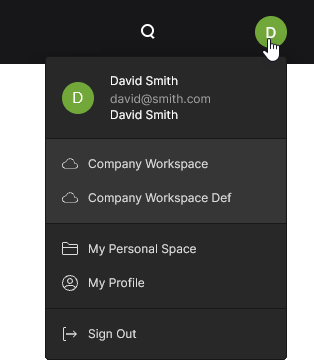 Once signed in, the control changes to your Altium User Account picture and provides access to your Altium Account menu.
-
Click on the Workspace Name entry for the specific Workspace you wish to access. You will be presented with the Altium Platform Interface, with the chosen Workspace loaded.
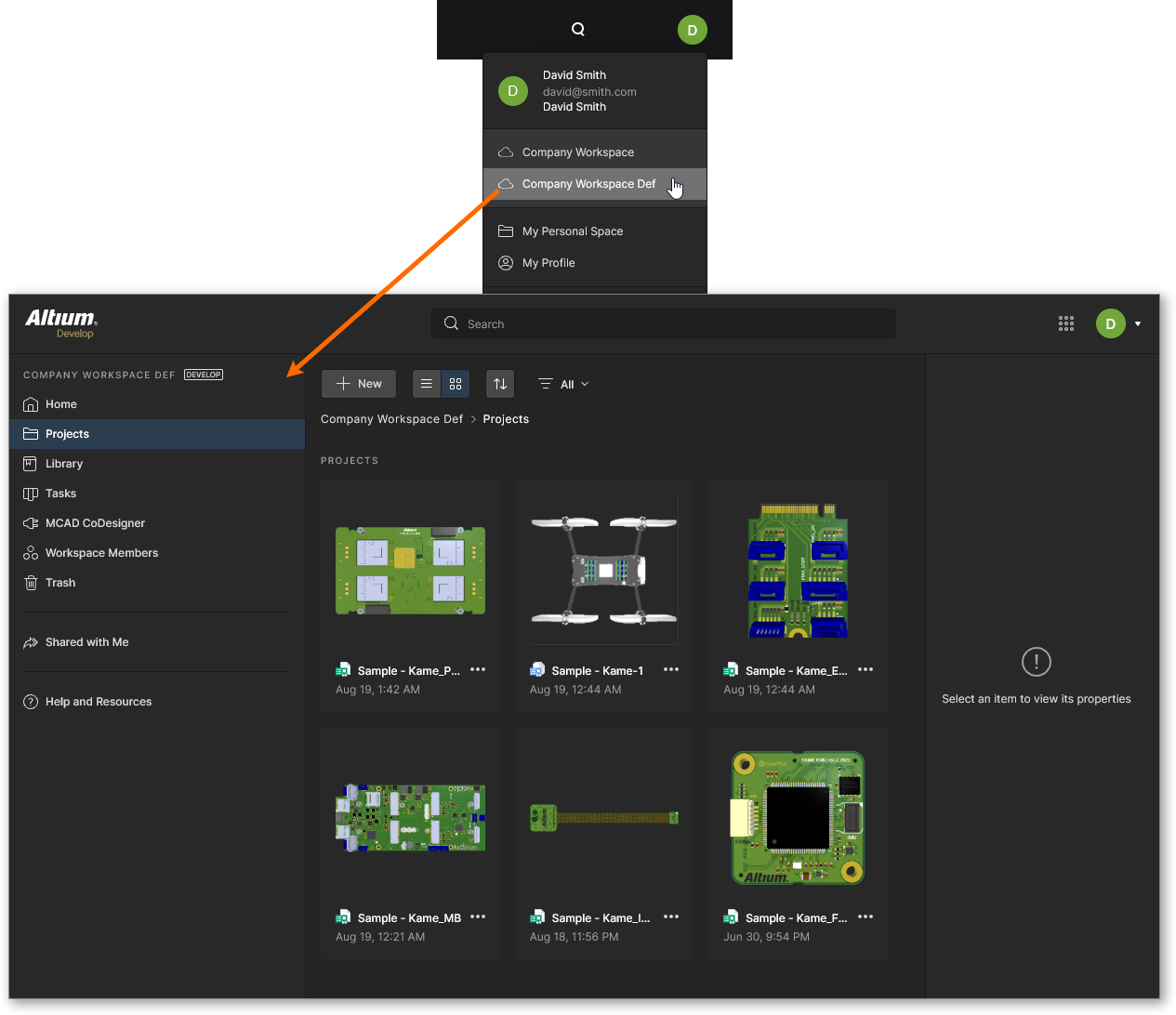 Example access of the Altium Platform Interface, of which the chosen Workspace is a part, indirectly from your Altium Account menu.
From Your Altium Account Profile Page
This method can also be used when you are already a member of a Workspace. To do so:
-
Sign in to your Altium Account (as described above)
-
Access your Altium Account Profile page – either using the entry on your Altium Account menu, or by using the direct access URL;
https://profile.altium.com/.
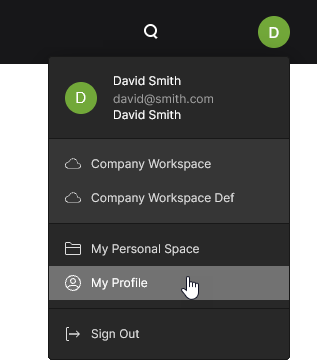 You can access your Altium User Account profile from the Altium Account menu.
-
From your Profile page, select the Workspaces page and then click on the Workspace Name entry for the specific Workspace you wish to access. You will be presented with the Altium Platform Interface, with the chosen Workspace loaded.
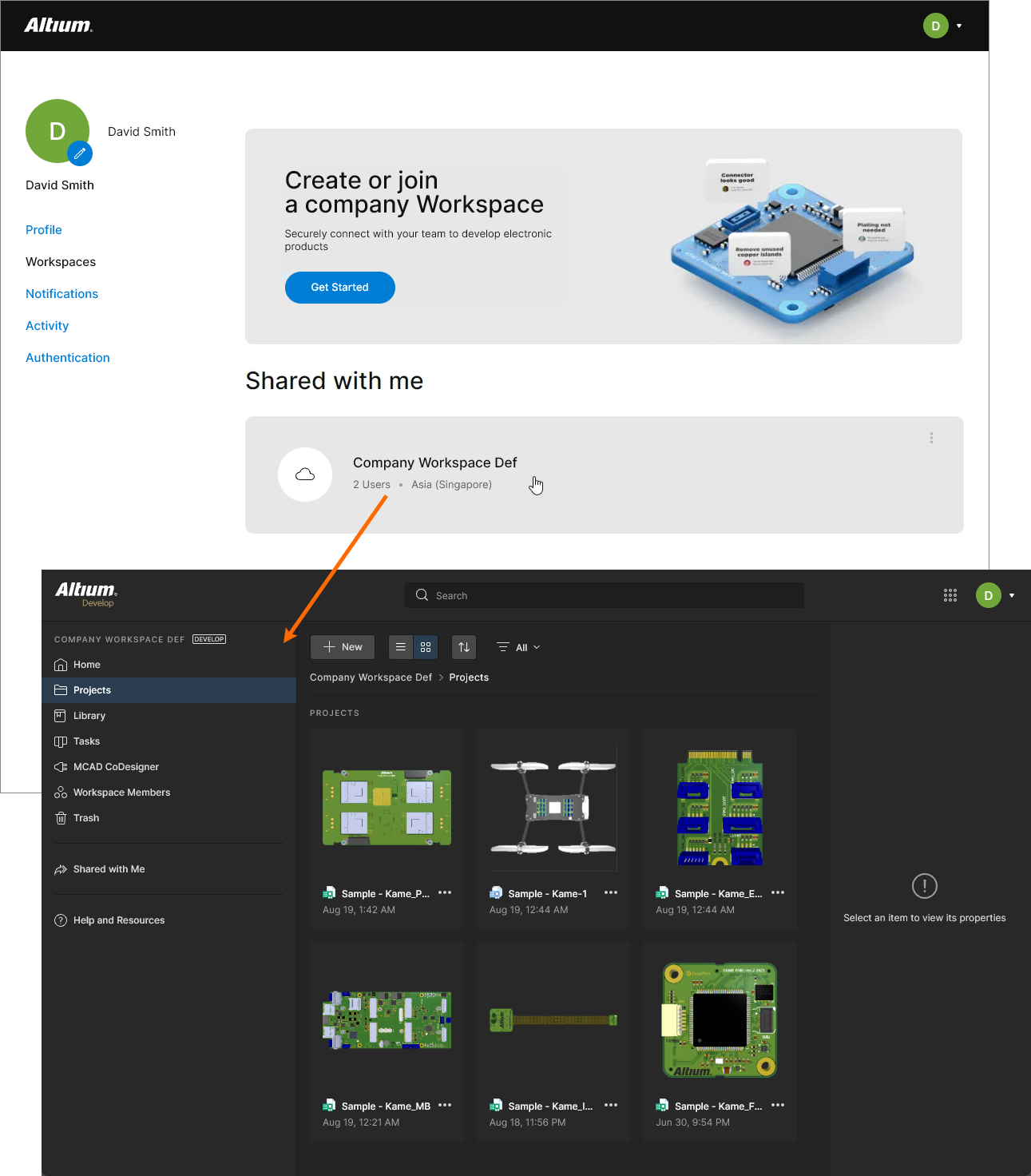 Example access of the Altium Platform Interface, of which the chosen Workspace is a part, indirectly from your Altium Account Profile page.
The Platform Interface
The Altium Platform interface essentially comprises up to five distinct regions, shown in the following image and detailed thereafter.
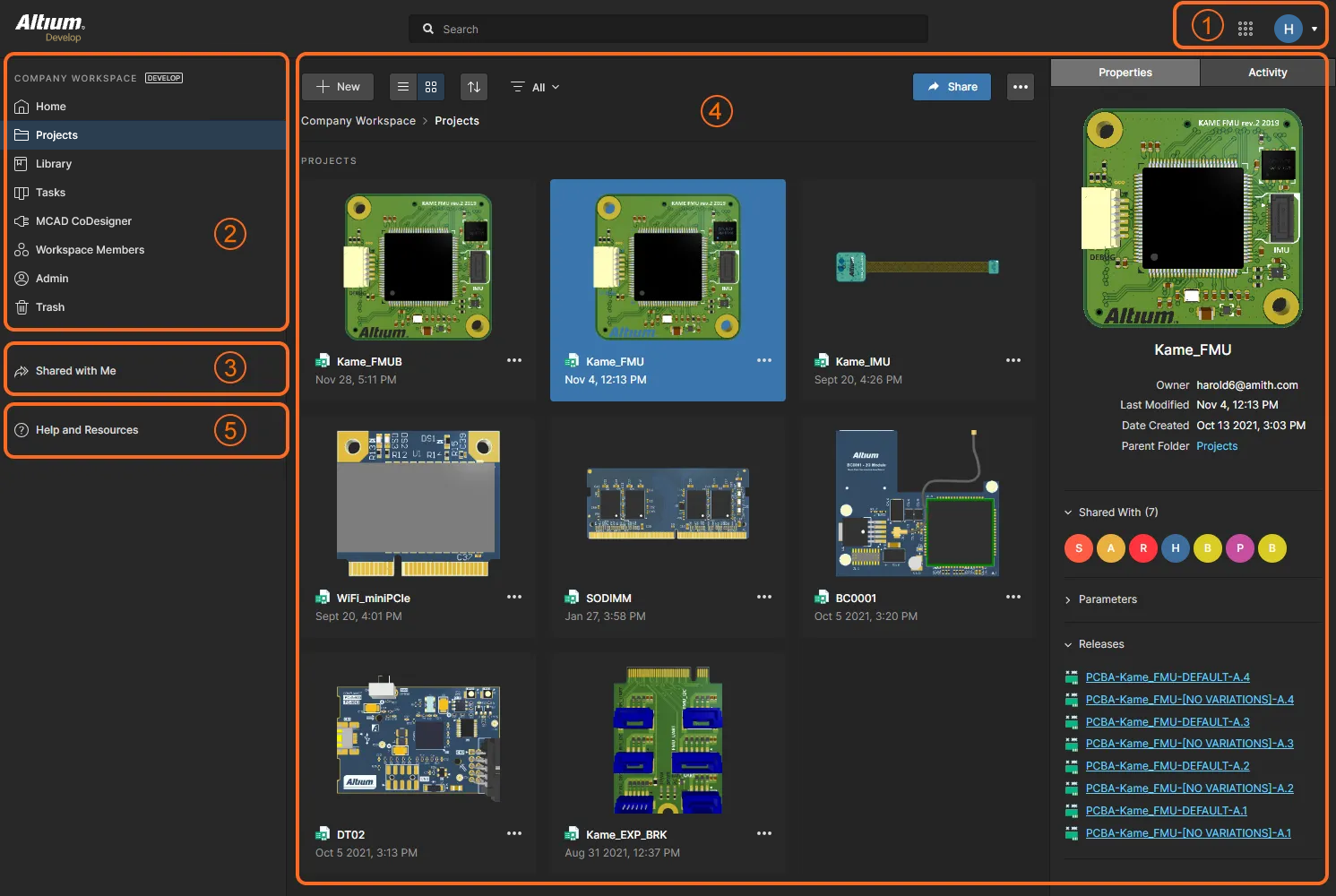 The Altium 365 Platform Interface can be divided into five distinct interface elements.
1 – Current User
The entry in this region shows your icon or picture (if defined) to reflect that you are currently signed into the Altium Platform Interface, along with your icon or picture (if defined), and either the name of the active Workspace (if connected to one) or My Personal Space (if currently accessing your personal space).
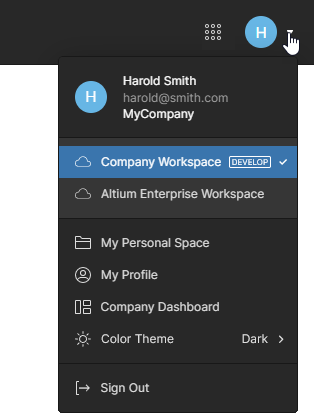
The drop-down menu associated with the entry provides the following:
-
Your information – includes your registered username, email address, and name of your organization.
-
Available Workspaces – a list of all Workspaces that you have access to (through your Altium Account), where the Workspace you are currently connected to is highlighted. Click on another entry to switch the connection to that Workspace. If you do not have access to a Workspace, this list will not be presented.
-
My Personal Space – provides access to your Personal Space on the Altium Platform. If you have no access to a Workspace, this is the default view for the interface. It is a place where you can come to upload snapshots of designs in various supported formats, and manufacturing data (Gerber), which you can then share persistently with others, as you wish.
-
My Profile – takes you to your Altium Account profile page.
-
Company Dashboard – only available if you are a Group Administrator for your company account with Altium. This link accesses the Company Dashboard. This provides you with a number of tools with which to view and manage your account – from the general-level details regarding your organization, through to the creation and management of users (and specific groups of users) associated to your account, the assignment and use of the licenses you have purchased, authentication methods for users accessing Altium solutions, and org-level changes in relation to Altium 365 Workspaces.
-
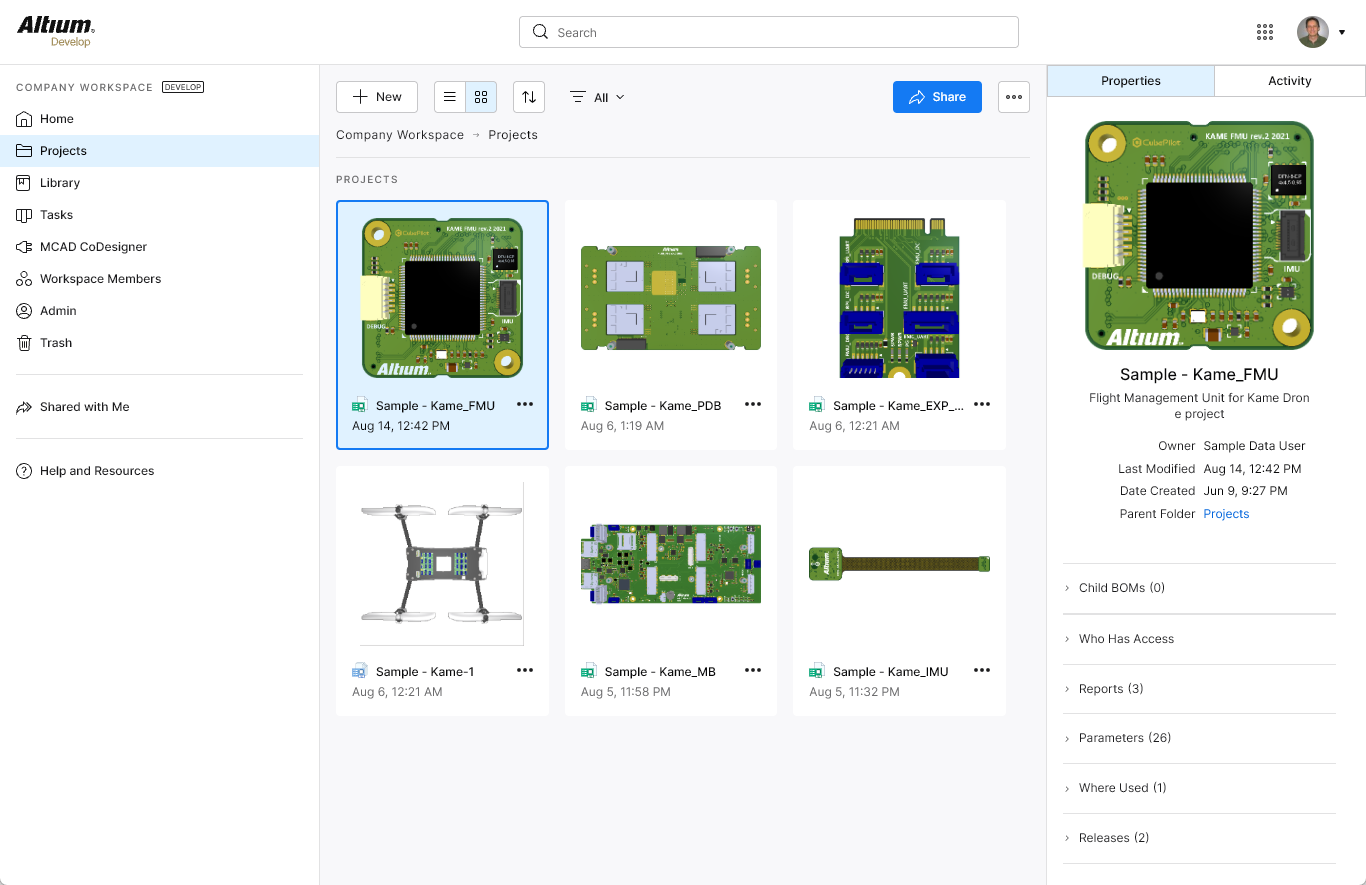
Light Theme – switches the Workspace graphics between the standard dark color scheme and a light color scheme (white background).
-
Sign Out – signs you out of the Altium 365 Platform Interface (and your Altium Account), taking you back to the Sign In page.
2 – Active Workspace / My Personal Space
This navigation tree region can present either the Altium 365 Workspace to which you are actively connected, or your Personal Space.
Workspace
Related page: Exploring the Workspace browser-based Interface
If you have access to at least one Altium 365 Workspace – by being a registered member of your own company's Workspace, or by having been invited to be a member of another company's Workspace – then, on connection to a Workspace, this region will present the browser-based interface to various key technologies and services for that active Workspace.
The Workspace region can be coarsely divided into two groupings, as shown in the below image and following list.
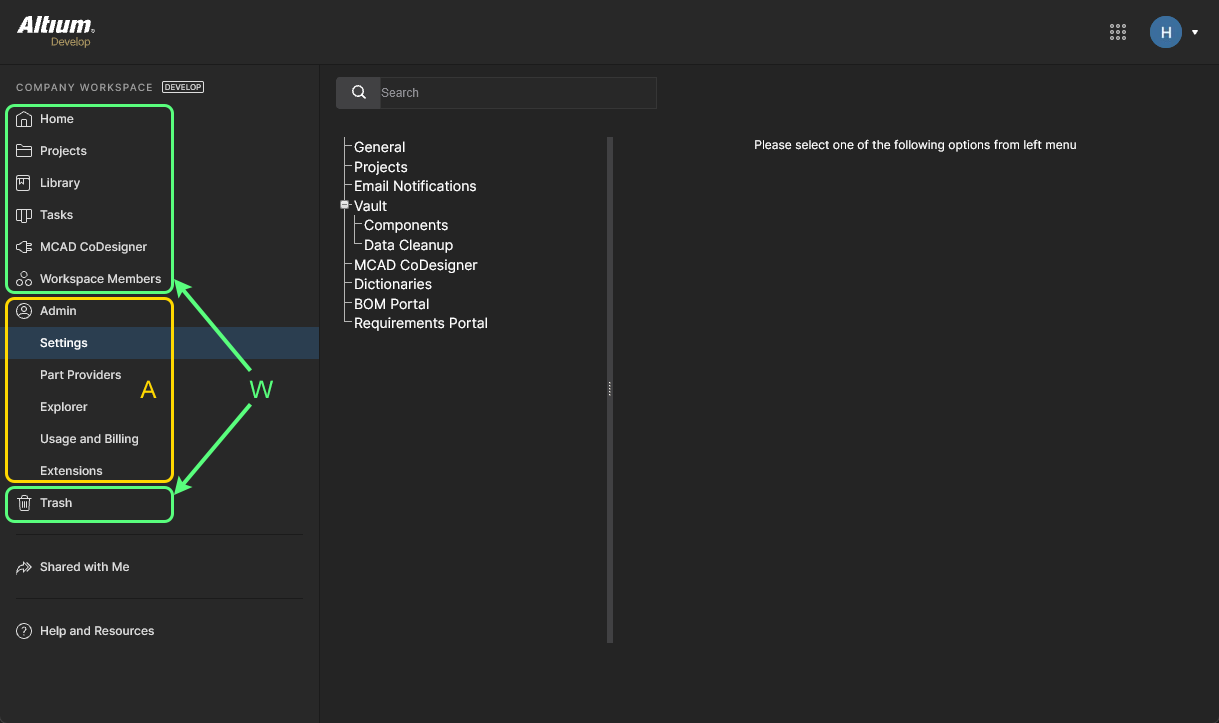 The Altium Platform Interface showing the active Workspace, which can be further divided into two distinct sets of interface elements.
W: Interface elements that can be accessed by any Workspace member. To access a page, click on its name within the left-hand navigation tree.
A: Interface elements that can be accessed only by a Workspace Administrator. A user is bestowed administrative powers by membership to the Administrators group. To access a page, choose the required entry within the Admin section of the left-hand navigation tree.
Personal Space
Main page: Altium 365 Personal Space
As a user with a registered Altium Account you have your own Altium Personal Space, which is accessible only by you. Your Personal Space accommodates persistent storage of various types of uploaded static data, including design 'snapshots' (from various ECAD platforms) and Gerber manufacturing data, with the ability to share with anyone for comments and redlining. Your Personal Space is presented when:
-
You have no access to a Workspace.
-
You have access to a Workspace, but have chosen to access your Personal Space. This is performed by clicking on the current user area at the top-right of the interface, then clicking the My Personal Space entry on the associated menu.
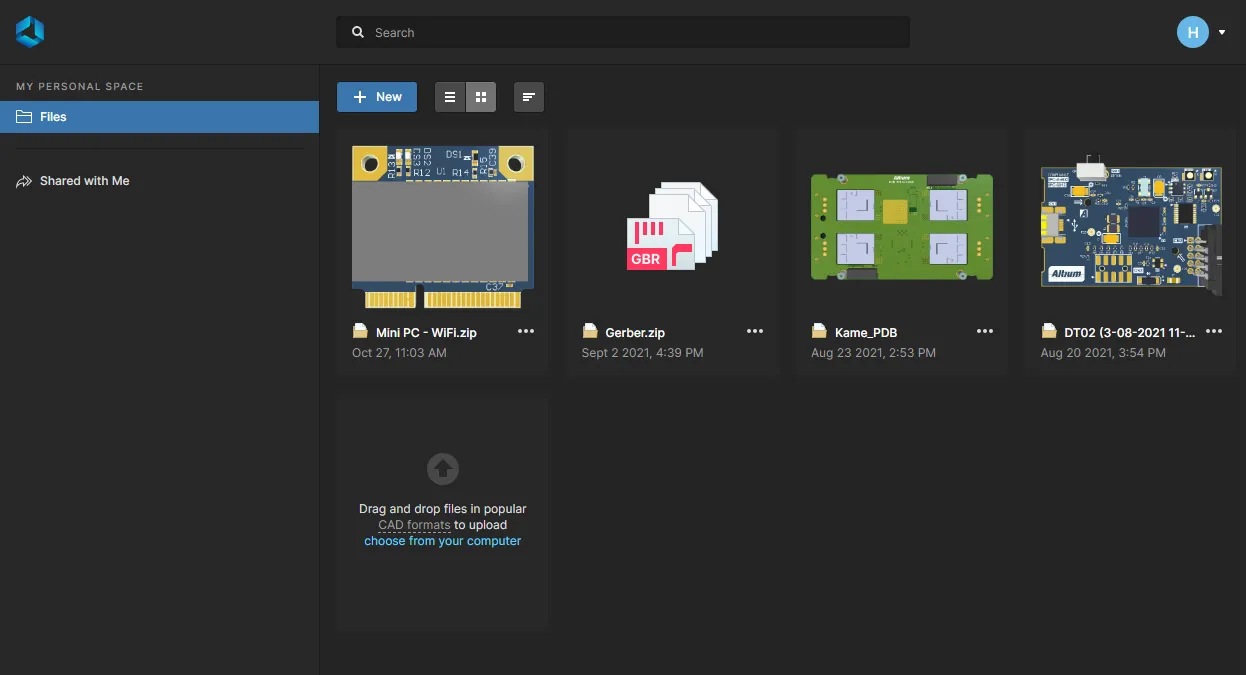 The platform's Personal Space will be seen by a user who does have access to a Workspace, or by a Workspace member has chosen to switch over to their Personal Space.
3 – Shared with Me
Related pages: Altium 365 Personal Space, Manufacturing Package Viewer
This page of the interface is where you'll find all of the entities that have been shared with you by others, for viewing and commenting through an associated Viewer. It is available to all registered users – those with an Altium Account – and is always presented, irrespective of whether you are browsing a Workspace or your own Personal Space.
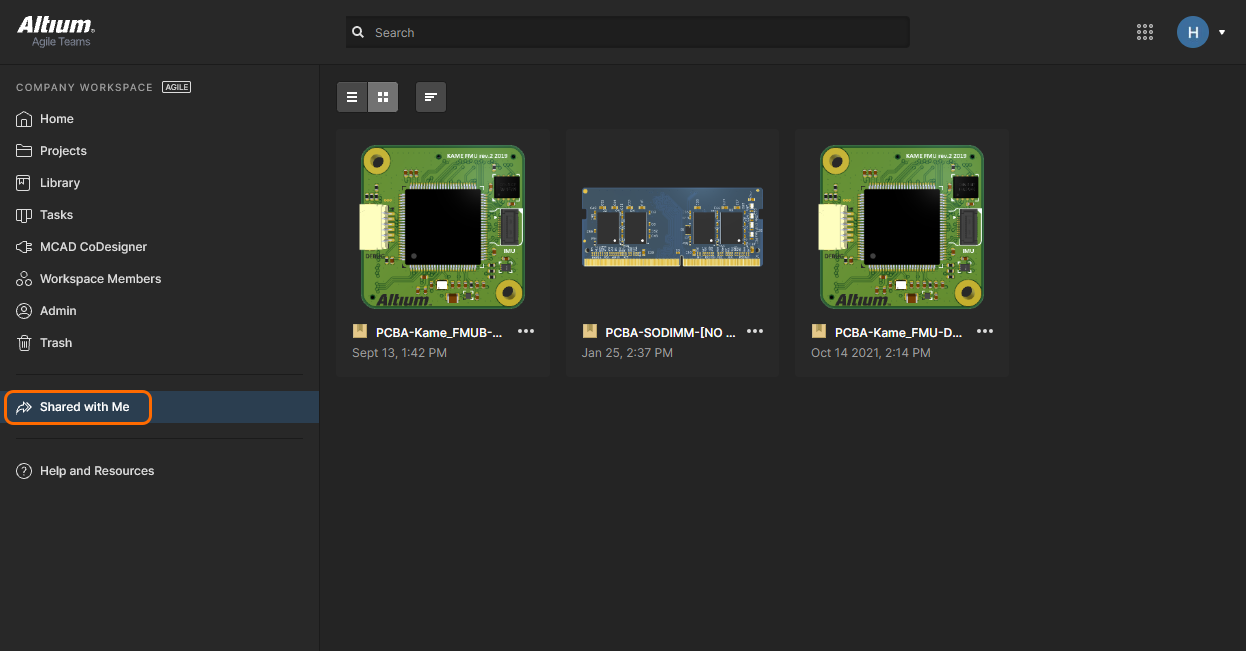
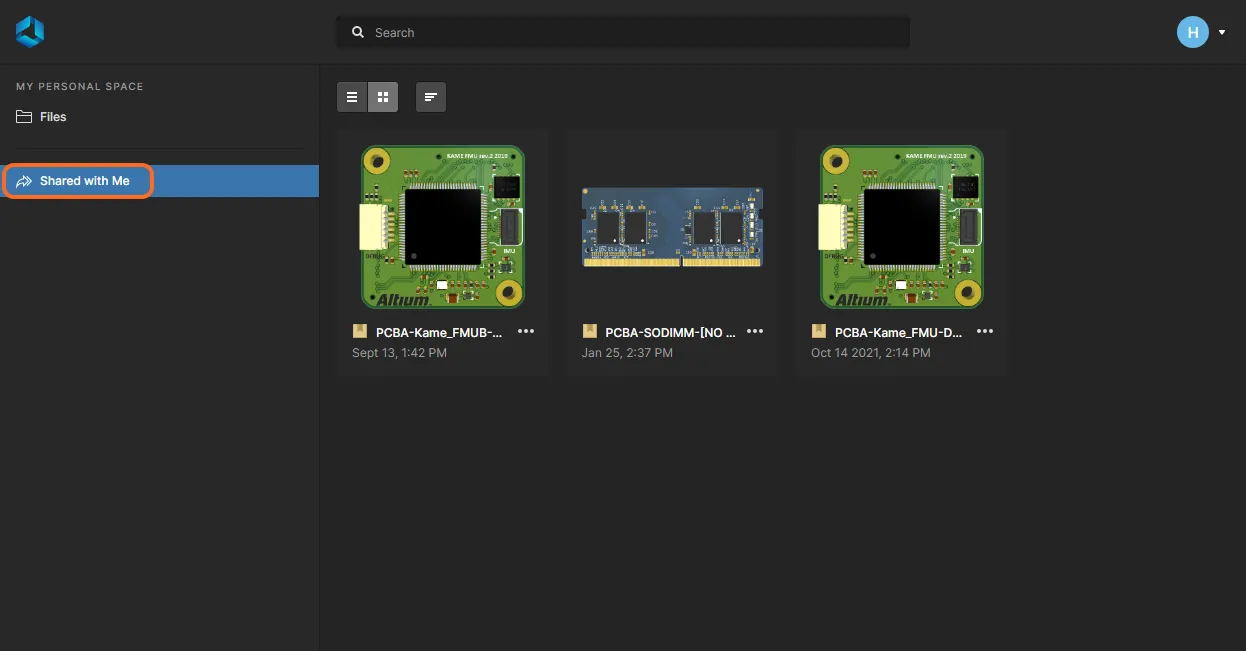
It allows key stakeholders to partake in Altium 365's Global Sharing paradigm and for many, it will be the go-to place for viewing and commenting on a variety of entities shared with them, without requiring access to a Workspace or Altium Designer.


The following entities can appear within the Shared with Me page:
Shared Upload
This can include uploaded snapshots of designs in various supported formats, and CAM manufacturing data (Gerber). Such a shared upload (shared from another person's Personal Space) is denoted by the  icon within its tile. The integrated Viewer used to present the data contained in the upload uses the Web Viewer interface.
For a design snapshot, this interface offers a range of capabilities that allow detailed access to the design's data and layout. You'll be able to search, select, cross-probe, and inspect components and nets throughout the design and across the various sub-views as applicable. And when viewing the board in 2D, you can even take measurements.
For CAM manufacturing data, the interface provides a dedicated Gerber Viewer with the ability to perform a Gerber Comparison.
To open in the integrated Viewer – which opens in a separate browser tab – select the shared upload of interest, click the  button within its tile, then choose the Open command from the associated menu. Alternatively, double-click directly on the tile (or click on the name of the snapshot).
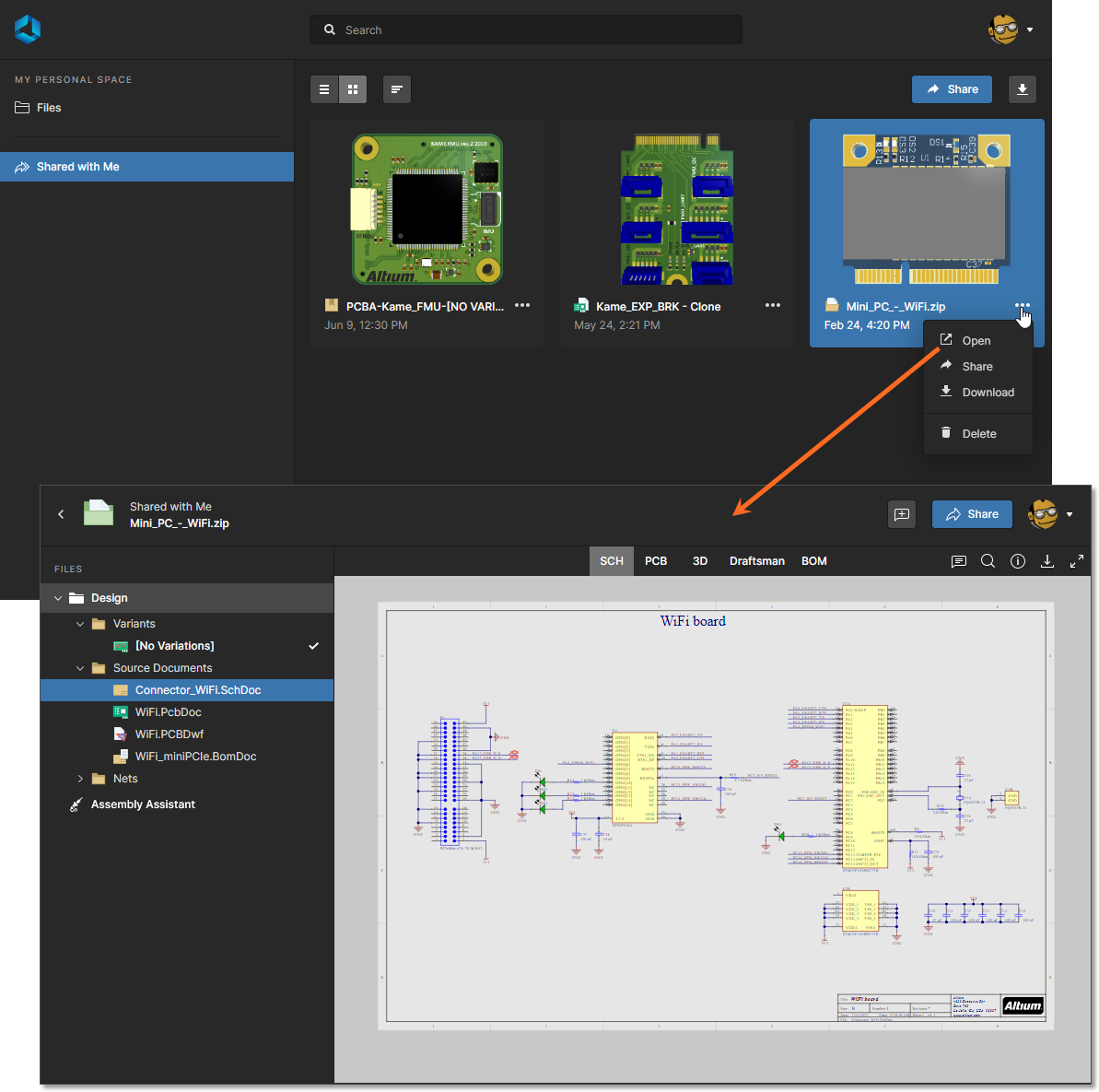 Accessing a design snapshot from the Shared with Me page of the Altium 365 Platform Interface.
 button (at the top-right of the page), to download as a Zip archive. Download is also possible from any document view within the integrated Viewer.
 button at the top of the page or choose the Share option from the
  control, and then choose the Delete command. A warning window will appear alerting you to the fact that the shared upload will be permanently deleted – you will no longer have access to it, but others with whom it has been shared will continue to have access. Click the
  button to effect the deletion. If the shared upload is deleted by the person who uploaded that data to their Personal Space and shared it with you, then the tile for that shared upload will be removed automatically from your Shared with Me page.
Shared Design
This is the live (or WIP) design itself. A live design is denoted by the  icon within its tile. The integrated Viewer used to present the data contained in a shared live design uses the Web Viewer interface. This interface offers a range of capabilities that allow detailed access to the design's data and layout. You'll be able to search, select, cross-probe, and inspect components and nets throughout the design and across the various sub-views as applicable. And when viewing the board in 2D, you can even take measurements. Other features such as the Comments system communicate directly, and in real-time, with Altium Designer. If the design has releases, these will also be included and available through a Releases sub-view.
To open in the integrated Viewer – which opens in a separate browser tab – select the design of interest, click the  button within its tile, then choose the Open command from the associated menu. Alternatively, double-click directly on the tile (or click on the name of the design).
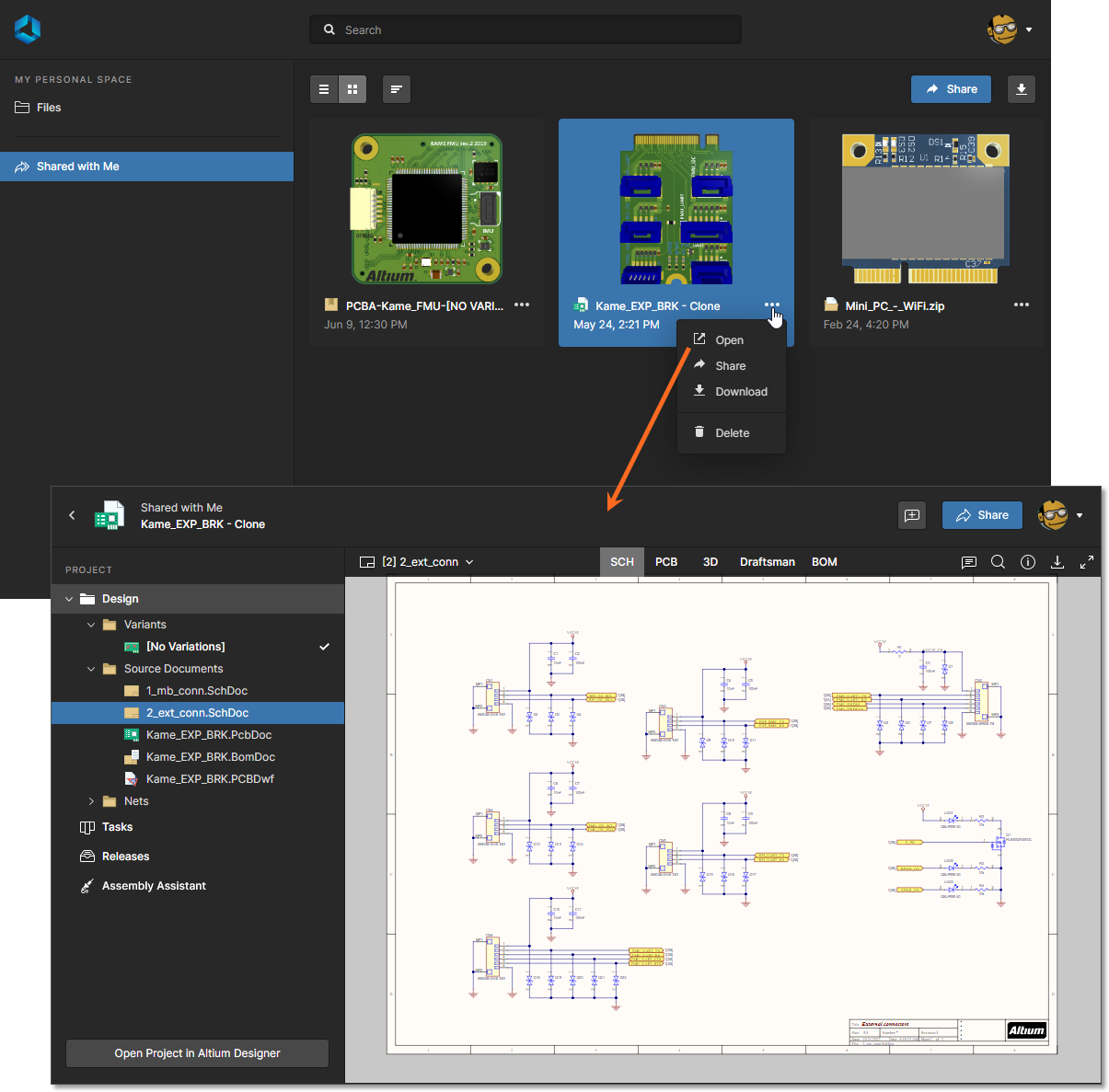 Accessing a live design from the Shared with Me page of the Altium 365 Platform Interface.
When browsing a shared design you are viewing the live, work-in-progress design project. As people with editing rights make changes to the design and commit them, those changes will be reflected back in that shared design.
Shared Manufacturing Package
This is a Build Package, created from a specified release of a managed project. A manufacturing package is denoted by the  icon within its tile. The data contained in a shared manufacturing package is browsed using the dedicated Manufacturing Package Viewer. The Viewer provides a summary overview of the design, with key board data. Fabrication, Assembly and BOM data sub-pages of the viewer are also provided, with the Fabrication and Assembly pages utilizing Altium 365’s Web Viewer interface.
To open in the Manufacturing Package Viewer – which opens in a separate browser tab – select the package of interest, click the control, then choose the Open command from the associated menu. Alternatively, double-click directly on the tile (or click on the name of the package).
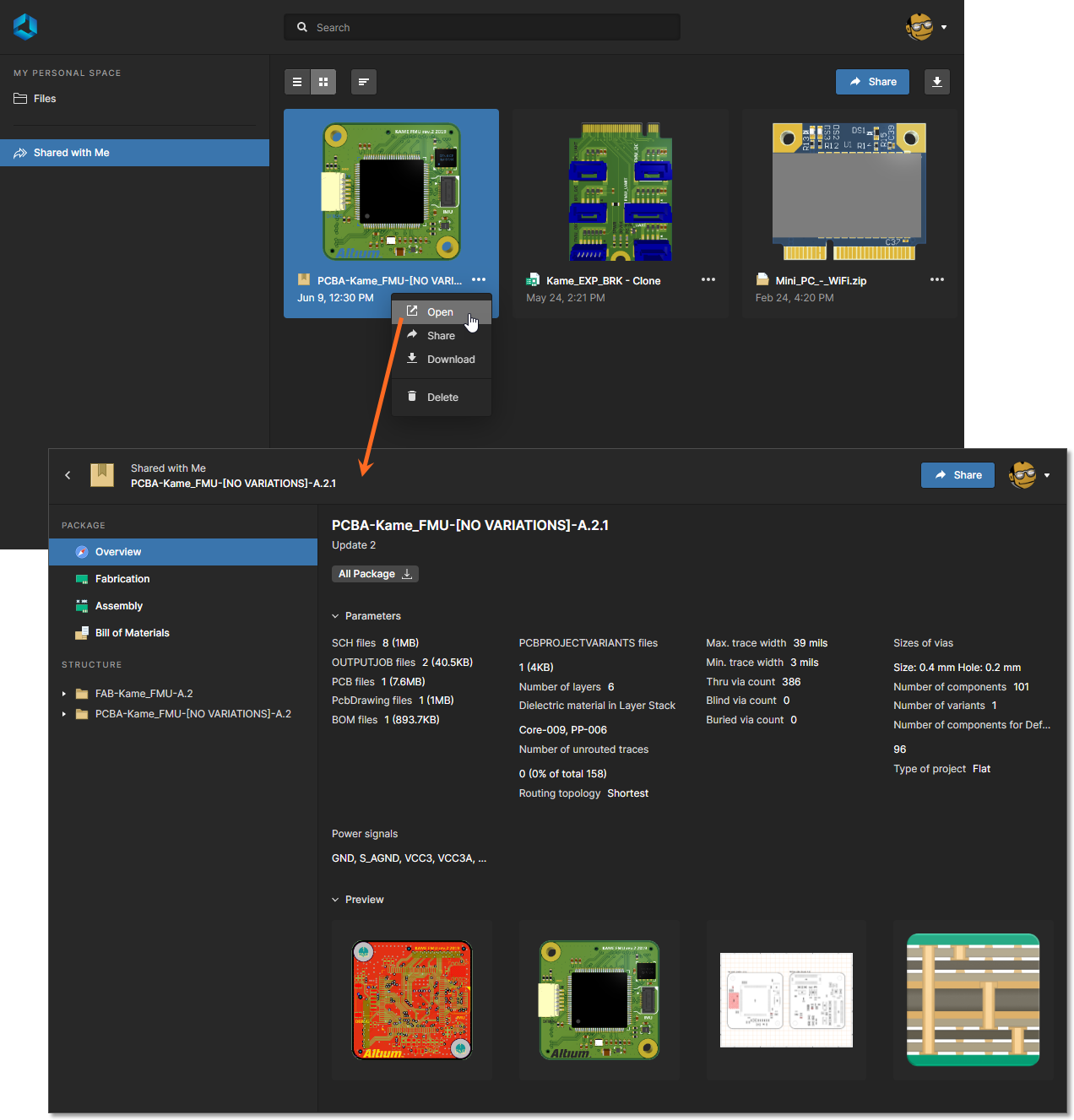 Accessing a manufacturing package from the Shared with Me page of the Altium 365 Platform Interface.
 button (at the top-right of the page), to download the package as a Zip archive. Download is also possible from any of the pages within the Manufacturing Package Viewer.
4 – Main Page View
This region of the interface presents contextual content for the page currently selected within the left-hand navigation pane. It can present:
-
Content for a chosen page within the actively connected Workspace (if you have access to one).
-
Uploaded design files when viewing your Personal Space and clicking the Files entry.
-
Shared content available to you when clicking the Shared with Me entry.
In some cases, a Search field will also be available, above the main page viewing area.
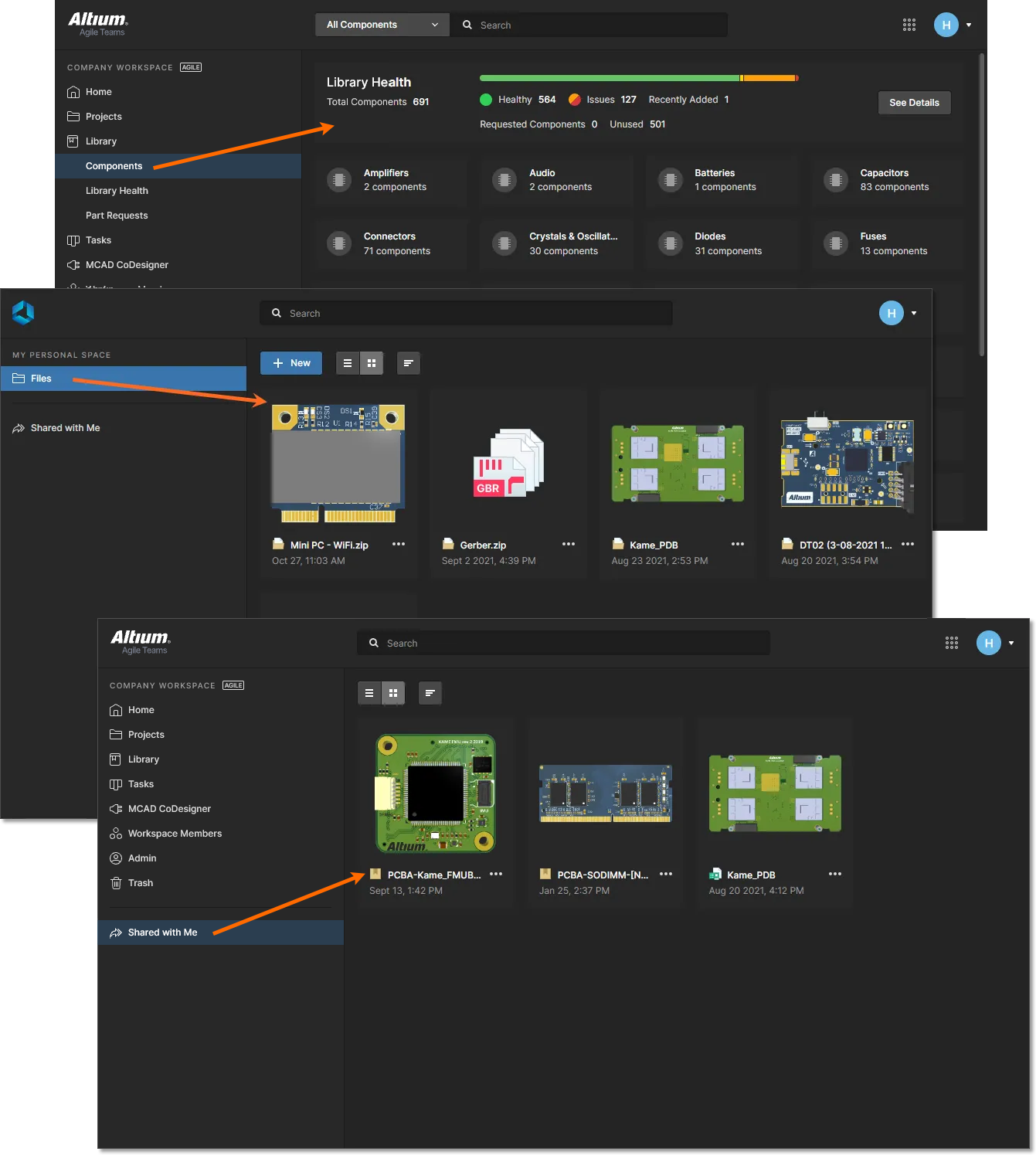 Example content of selected paging, presented within the main viewing area.
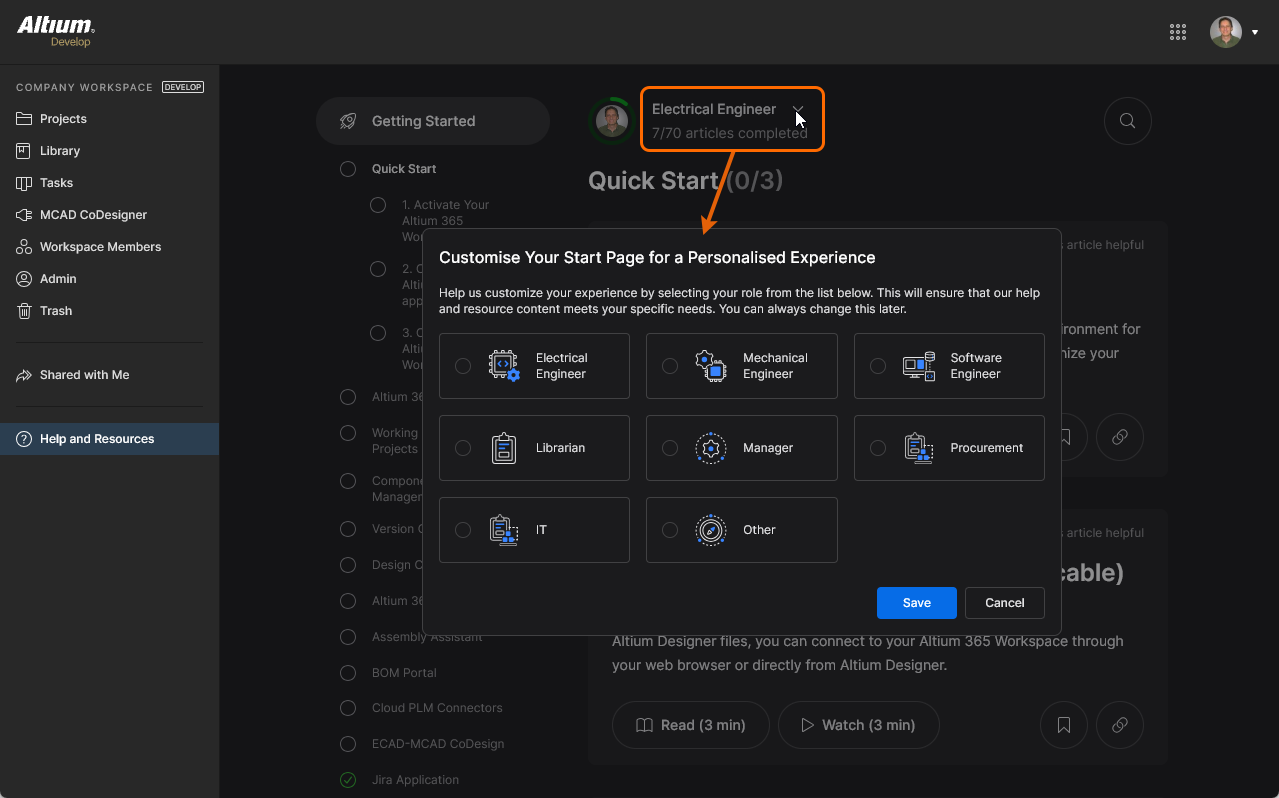
5 – Help and Resources
This region of the interface provides access to a broad range of help and useful resources.
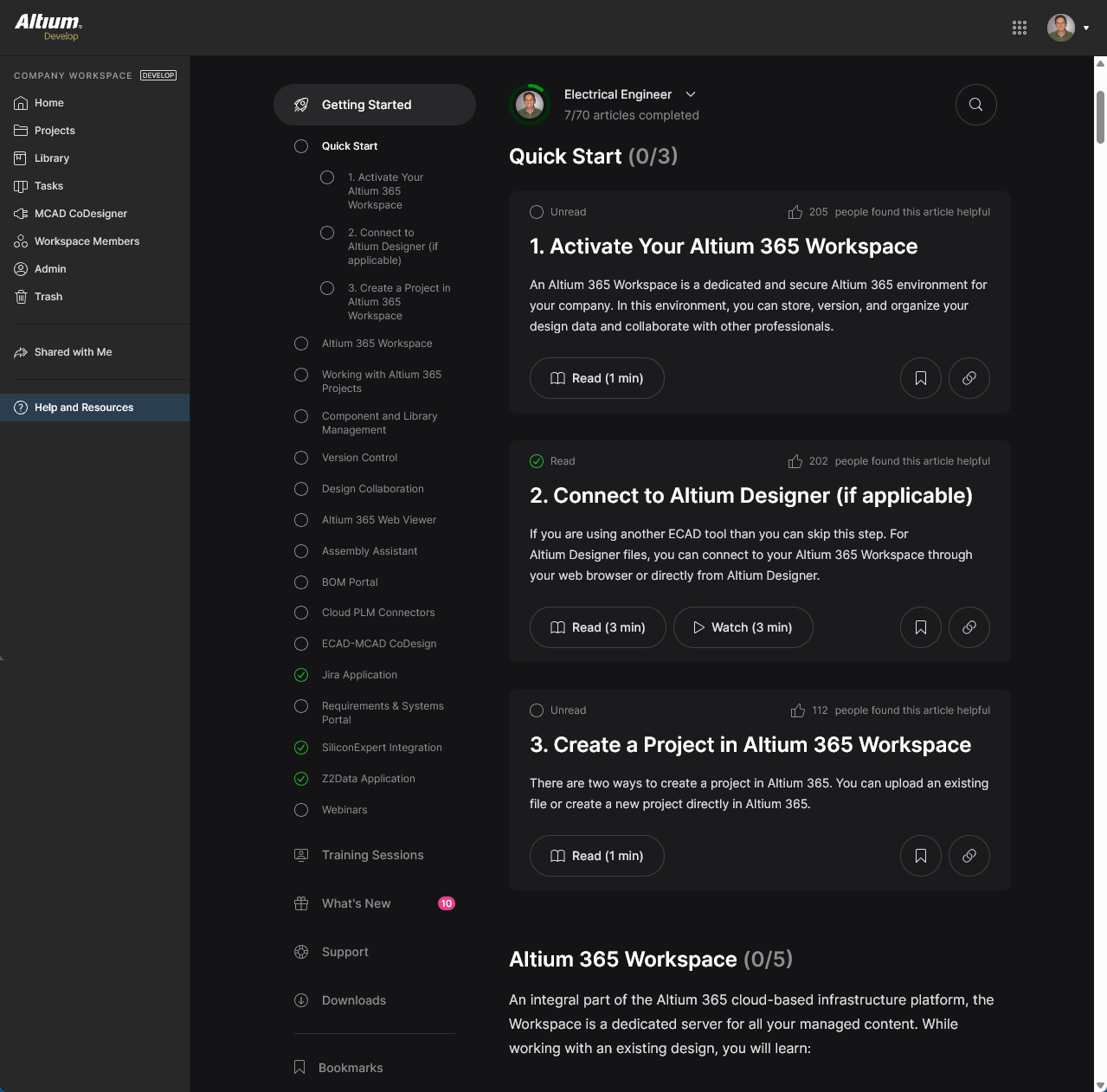
The available resources include:
-
Getting Started: Explore an extensive and growing library of short, focused articles and videos to help you get up and running with Altium 365. If there's an article you'd like to save for later, click Save Item (
 ) and return to it later via the Bookmarks section.
-
Webinars: Sign up and join your peers in an interactive Webinar with an Altium expert, where you can learn about new and updated features in the 365 platform.
-
Training Sessions: Participate in Altium's regional Training and Webinar sessions to learn about Altium 365's current and new features.
-
What's New: Keep across the latest additions to Altium 365, and if you're curious dig through the history of feature additions.
-
Support: Feeling stuck and need some help? Check out the Support section to access Altium Support, dive into the Documentation, discuss challenges and solutions with your peers on the Forum, explore the online learning available in the Altium Academy, dive into the Knowledge Base, or enroll in Professional Training.
-
Downloads: Download the latest installer for Altium Designer, or the latest Altium MCAD CoDesigner installer for your MCAD design software.
-
Bookmarks: The Bookmarks section lists all of the Articles you saved in the Getting Started section.