
Designing the System
In this part of the tutorial, we will explore a typical use case for designing a system within Requirements Portal. This process involves creating a digital model and breakdown of the system, calculating performance parameters, performing trade-off studies, and making design decisions.
Configure the Valitypes
Valitypes ensure that every new block you create already contains valis of a certain type with a default formula and unit (e.g., mass, power consumption, etc.). We need to ensure that correct valitypes exist.
-
Click the
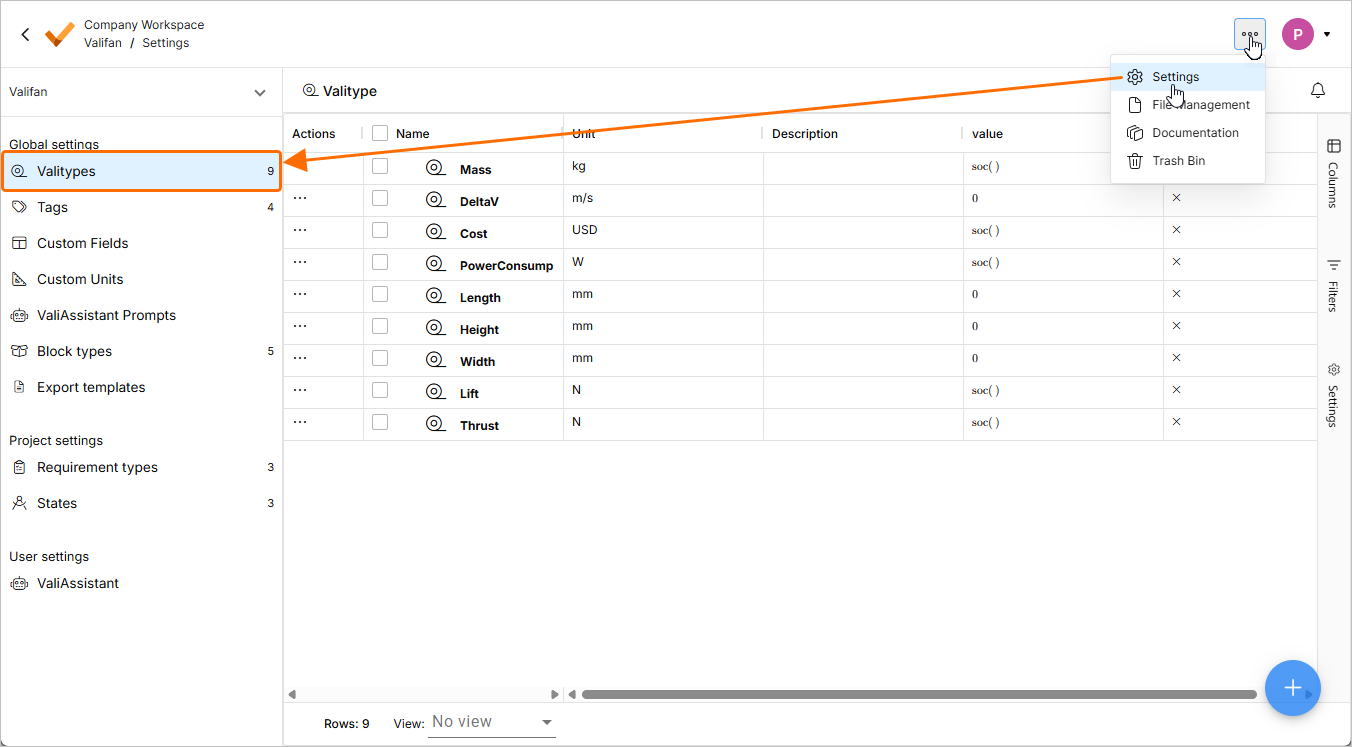
 icon at the top right left and select Settings from the menu that appears. On the page that opens, select the Valitypes entry in the left-hand side pane to see all the existing valitypes.
-
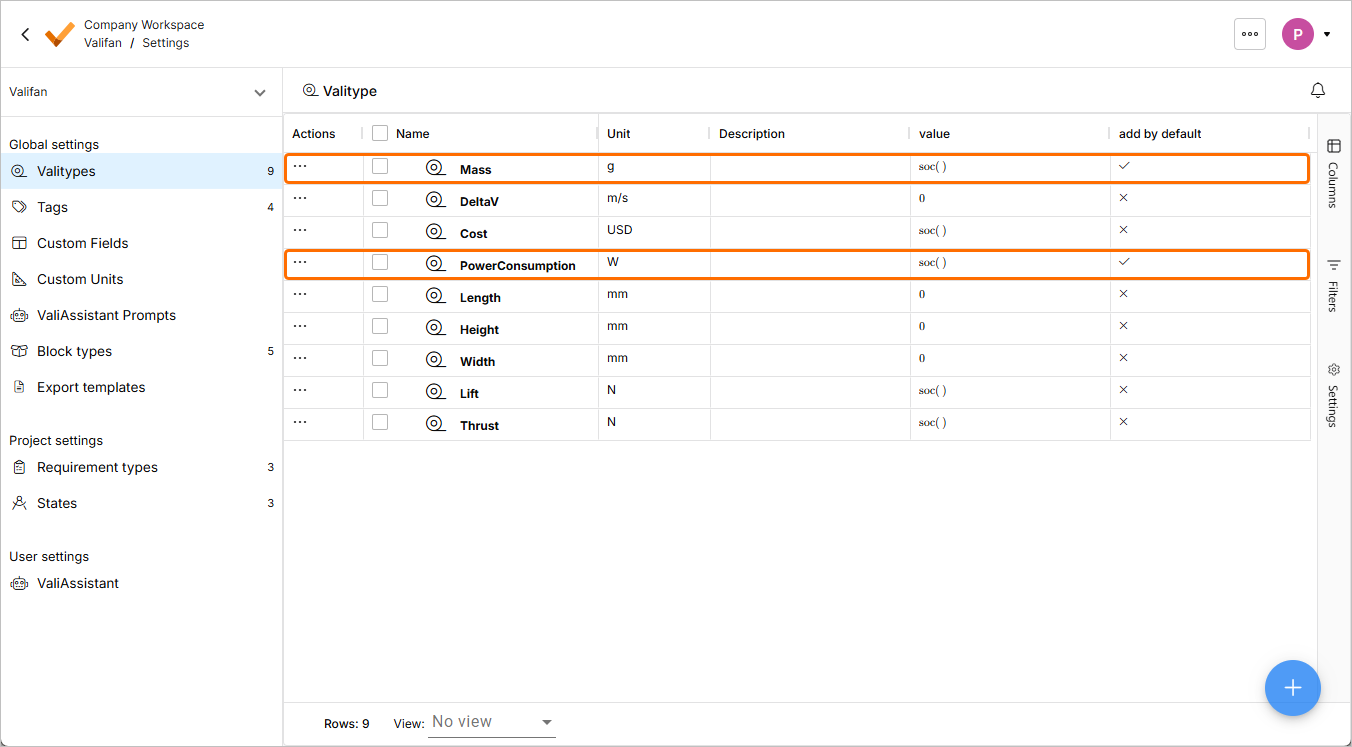
Make sure that valitypes Mass and PowerConsumption exist. If they do not exist, add them by clicking on the
 button at the bottom right of the page and add valitypes with these names.
-
The units for the PowerConsumption valitype might be in kW or W. If the unit is in kW, double-click in the cell and edit the kW to W. Also, in this tutorial, we will use the mass property of the blocks in grams; it is your choice to keep the units in kg or g.
-
Enable the add by default property for valitypes Mass and PowerConsumption. Double-click in the cell for one of these valitypes and select True from the menu that appears, then do the same for the other valitype. These valitypes will be automatically added to every new block you create later in this tutorial.
Adding Systems to the Project
Let's start building your fan! Every product can be broken down into its sub-systems, like a tree. The hierarchical system tree is one of the core features of Requirements Portal.
In the Blocks Module, you can create and access the system tree, which includes all systems and sub-systems, including technical parameters (valis).
-
Click Valifan in the breadcrumbs line at the top left of the page to return to the project and then navigate to the Blocks Module by clicking the Blocks entry in the project tree at the left.
-
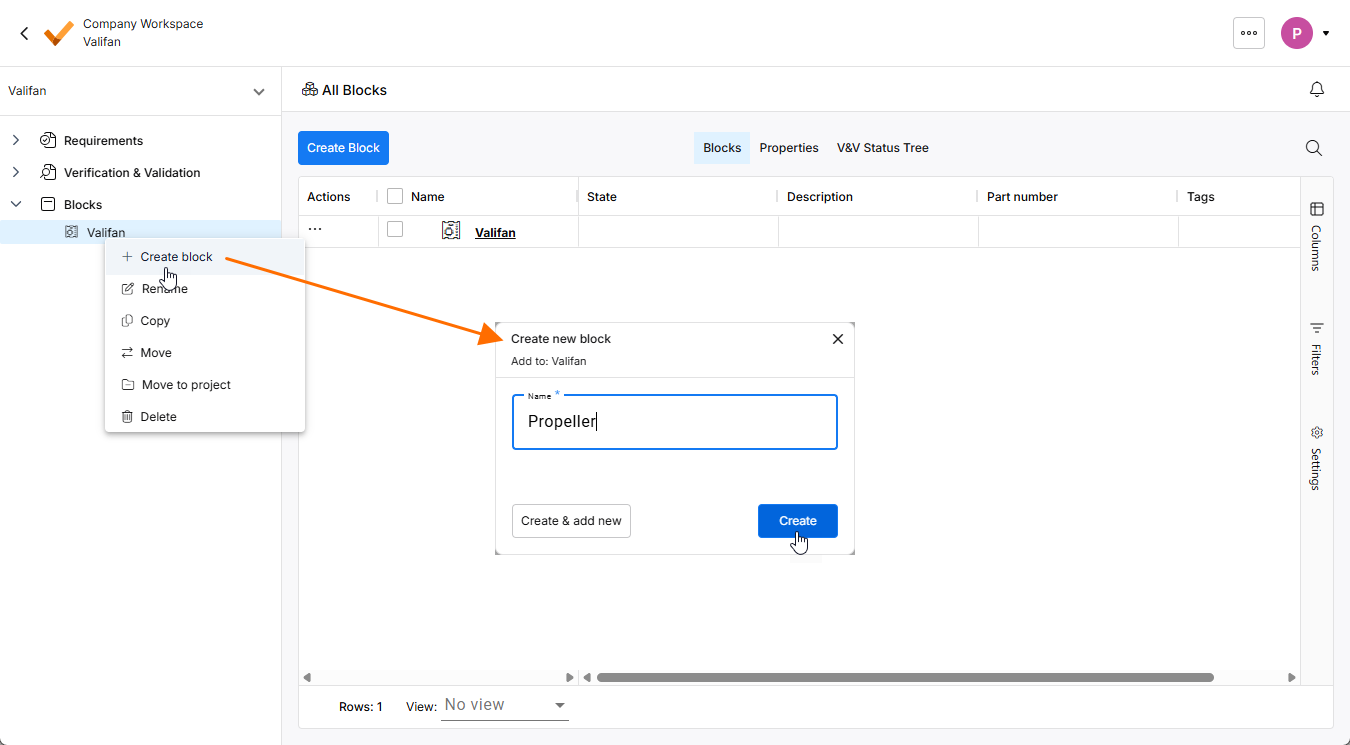
By default, a project includes a block named after the project (in our case, Valifan). Right-click its entry in the project tree and select the Create block command. Enter
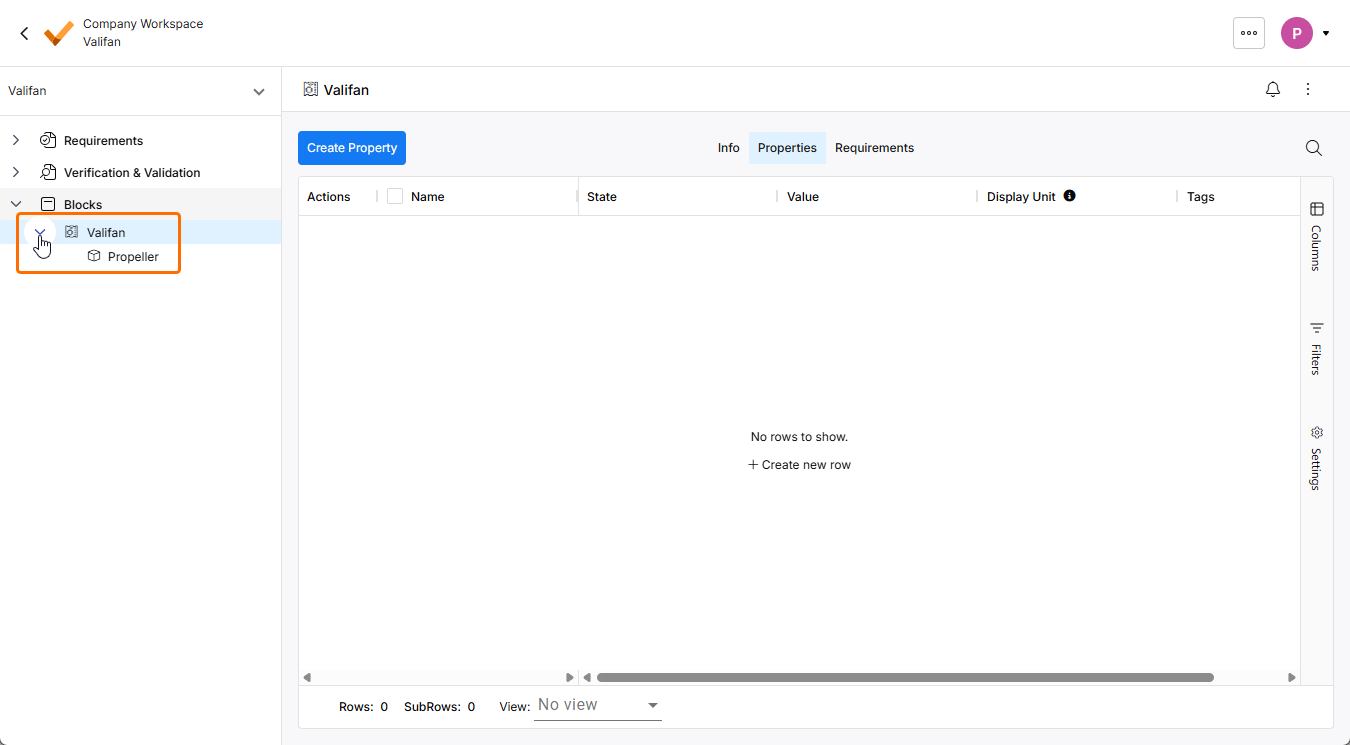
Propellerin the Name field of the Create new block window that appears and click . Expand the Valifan block to see the new sub-block in the navigation tree.
-
Similarly, create the following sub-blocks for the Valifan block:
Motor,Speed_Controller, andStructure.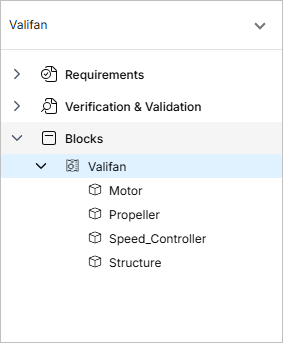
 button option to create multiple blocks without leaving the window.
Changing Technical Parameters (Valis)
In Requirements Portal, Valis are technical parameters that contain your engineering values. Valis have properties such as formulas, values, history, and much more. So, let's go ahead and add values to your valis!
-
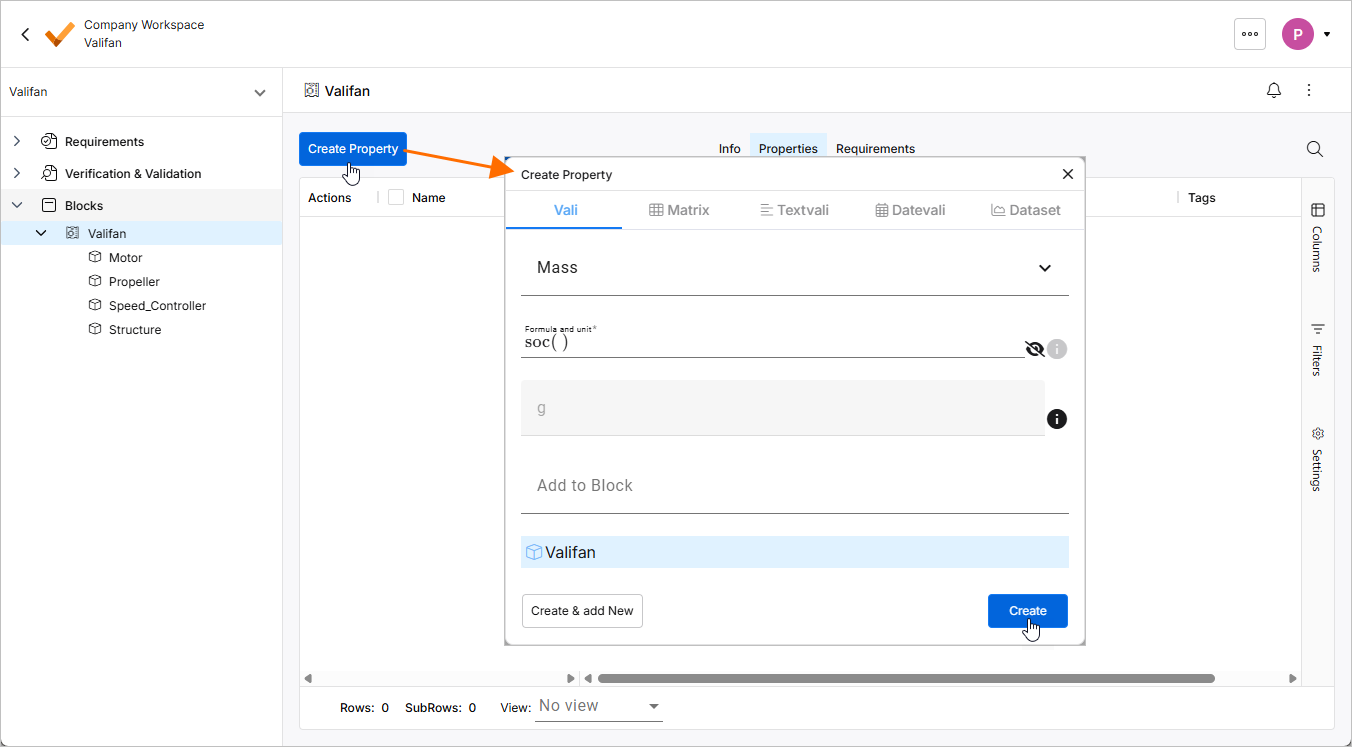
Select the Valifan block in the navigation pane. Click the
 button at the top left to open the Create Property window. In this window, make sure that the Vali tab is opened. Start typing
 Massinto the Name field and select the Mass valitype from the drop-down. Leave default values for other fields and click .
.
-
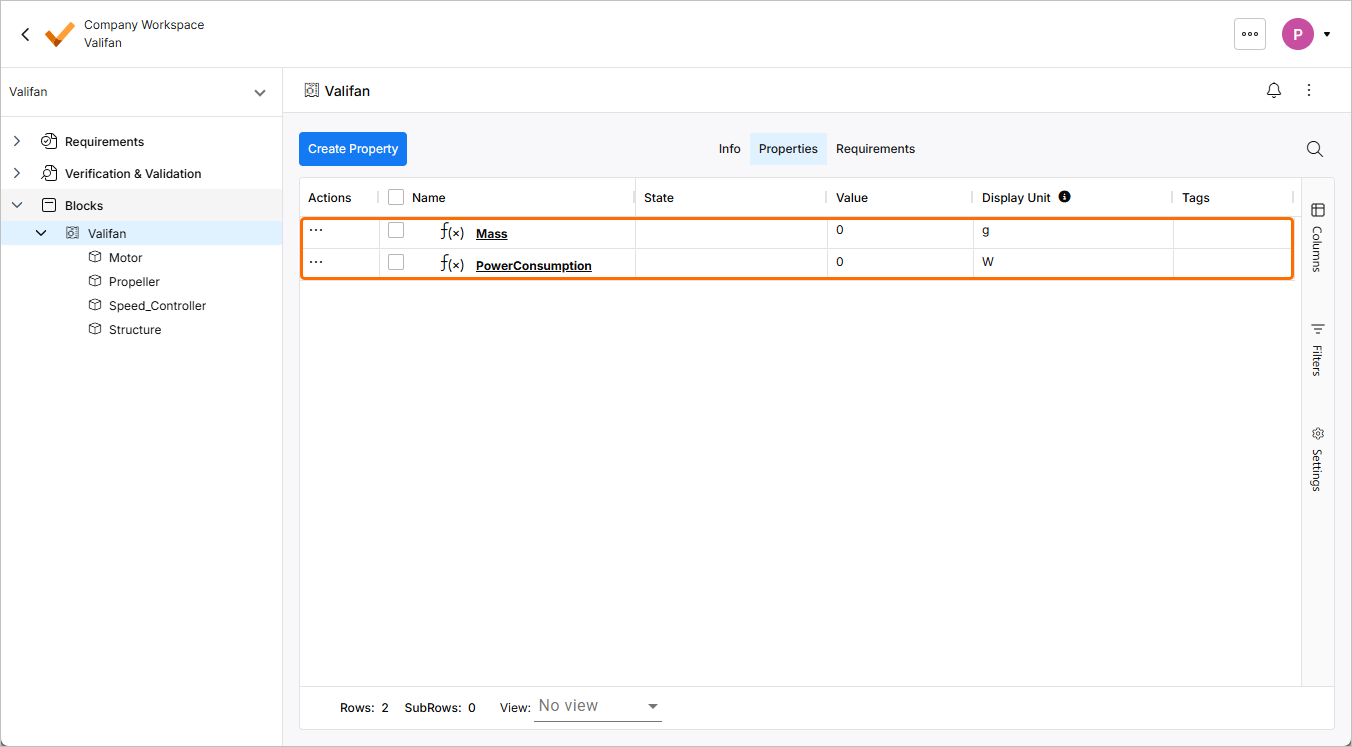
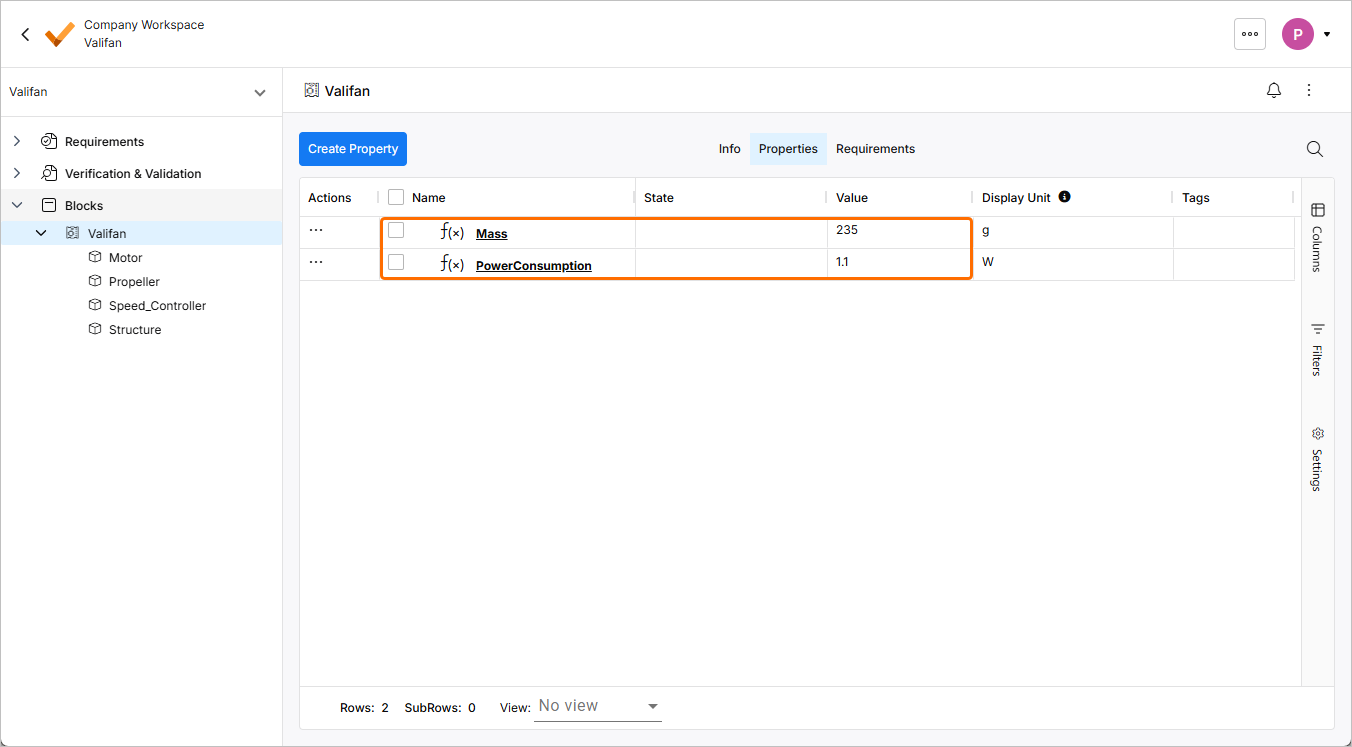
Similarly, add another vali of the PowerConsumption valitype. Created valis will be shown in the Properties view of the Valifan block.
-
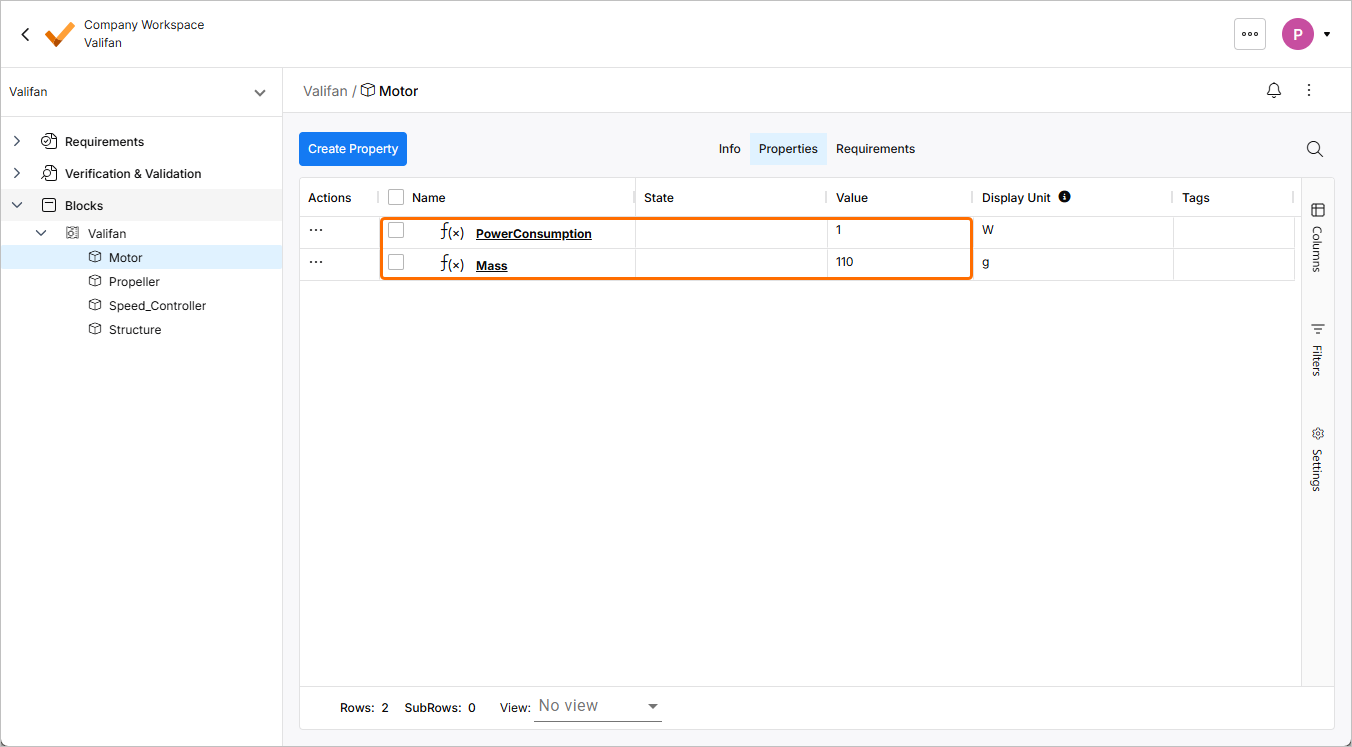
Newly created sub-blocks of the Valifan block already contain valis Mass and PowerConsumption (because these valis has been configured to be added by default in valitype settings). Now, change value of these valis in each sub-block. To do this, select a sub-block, double-click the corresponding cell in the Value column. Enter the following values:
-
Motor: Mass =
110g, PowerConsumption =1W -
Propeller: Mass =
30g, PowerConsumption =0W(make sure to enter0Winstead ofsoc()) -
Speed_Controller: Mass =
15g, PowerConsumption =0.1W -
Structure: Mass =
80g, PowerConsumption =0W(make sure to enter0Winstead ofsoc())
An example of values added to the Motor sub-block is shown below.
-
-
Navigate to the Valifan block and note that its total Mass has been automatically calculated to 235 g (or 0.235 kg) and its total PowerConsumption has been calculated to 1.1 W.
Adding a New Vali
In previous steps, we have shown how to add valitypes. However, valis (properties) are not restricted to mass and power consumption alone. Different properties can be added to the blocks. In Requirements Portal, you can create a new vali that can be a number with or without a unit. It can also be a matrix, textvali (e.g., material), datevali (e.g., purchase date) and datasets (two dimensions). You can access valis in formulas using the $ symbol in any field.
In the following steps, we will add the propeller efficiency and delivered power.
-
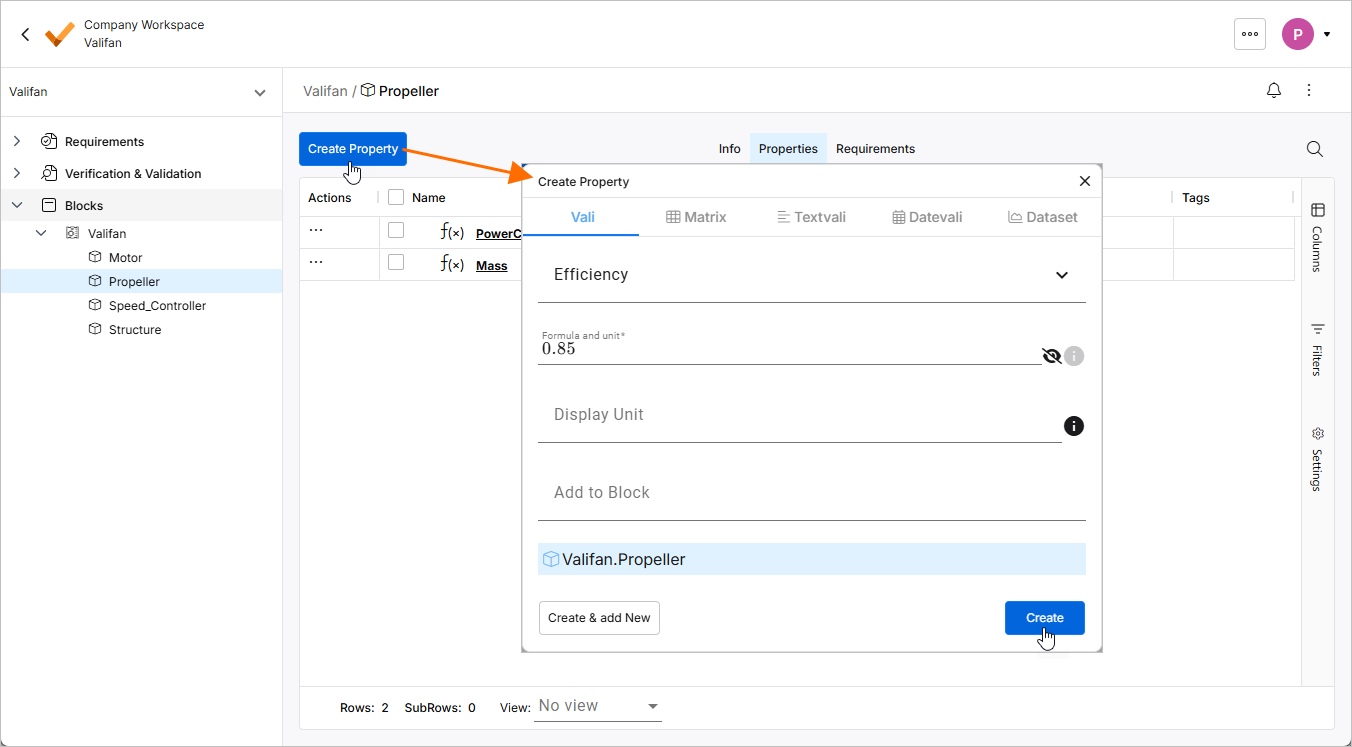
Navigate to the Propeller block and click the
button at the top left to open the Create Property window. In this window, make sure that the Vali tab is opened and enter Efficiencyto the Name field and0.85to the Formula and unit field. Leave the Display Unit field empty and click.
-
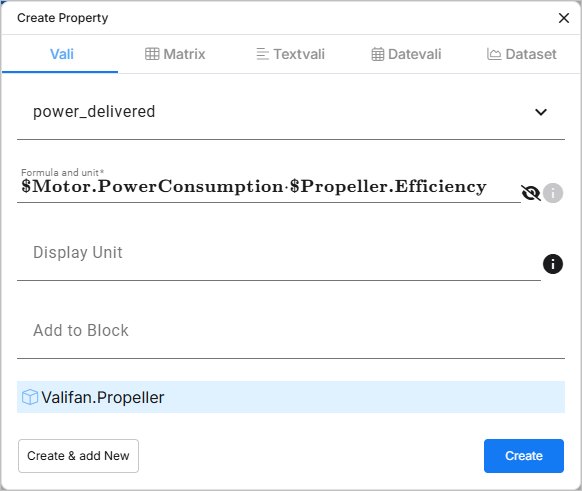
Similarly, add another vali with the name
power_deliveredand add the formula as$Motor.PowerConsumption*$Propeller.Efficiency. As you type the$symbol in the Formula and unit field, a drop-down will appear from which you can choose the required. Leave the Display Unit field empty (the correct units, W, will be assigned automatically based on the calculation) and click.
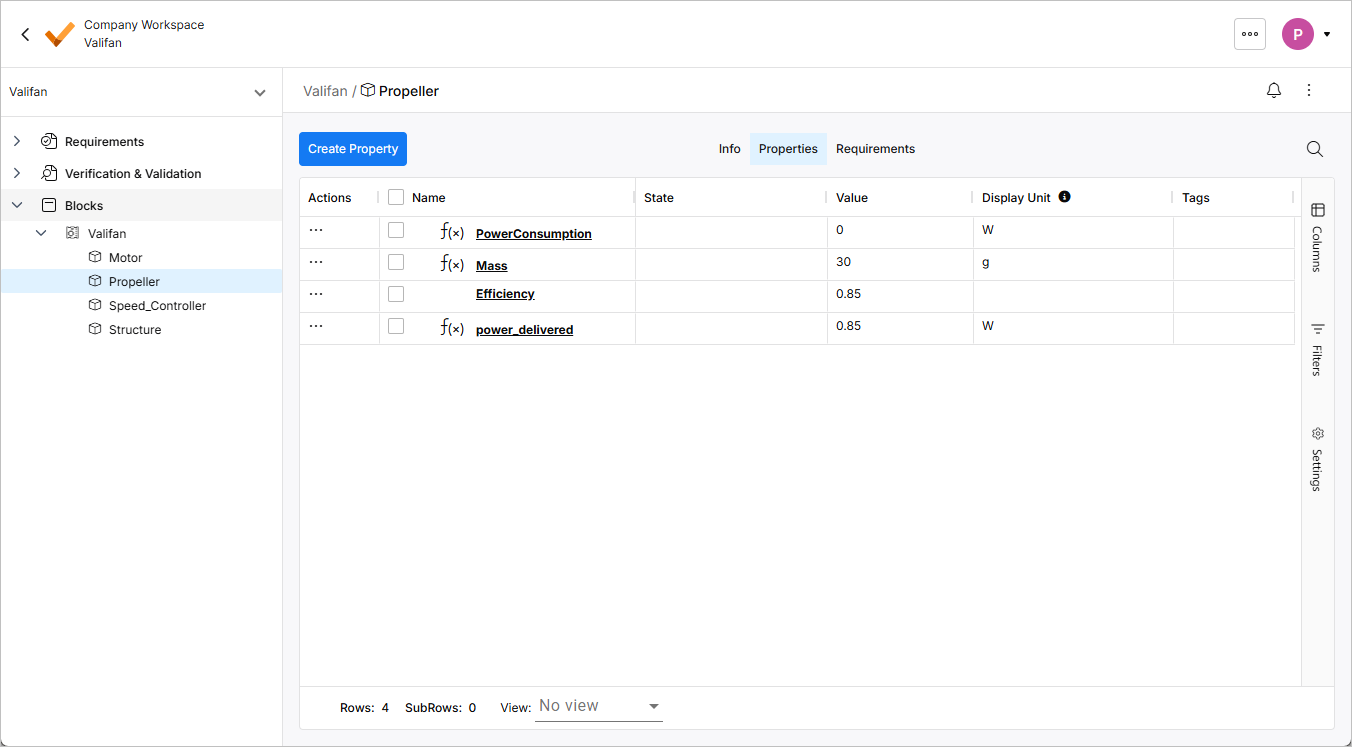
The valis of the Propeller block should now look as shown below.
-
Click the name of the power_delivered vali open a detailed page with additional information and properties. Here, you can see Formula, Properties, Info, Connected Copies, Actions and have access to the vali's History.
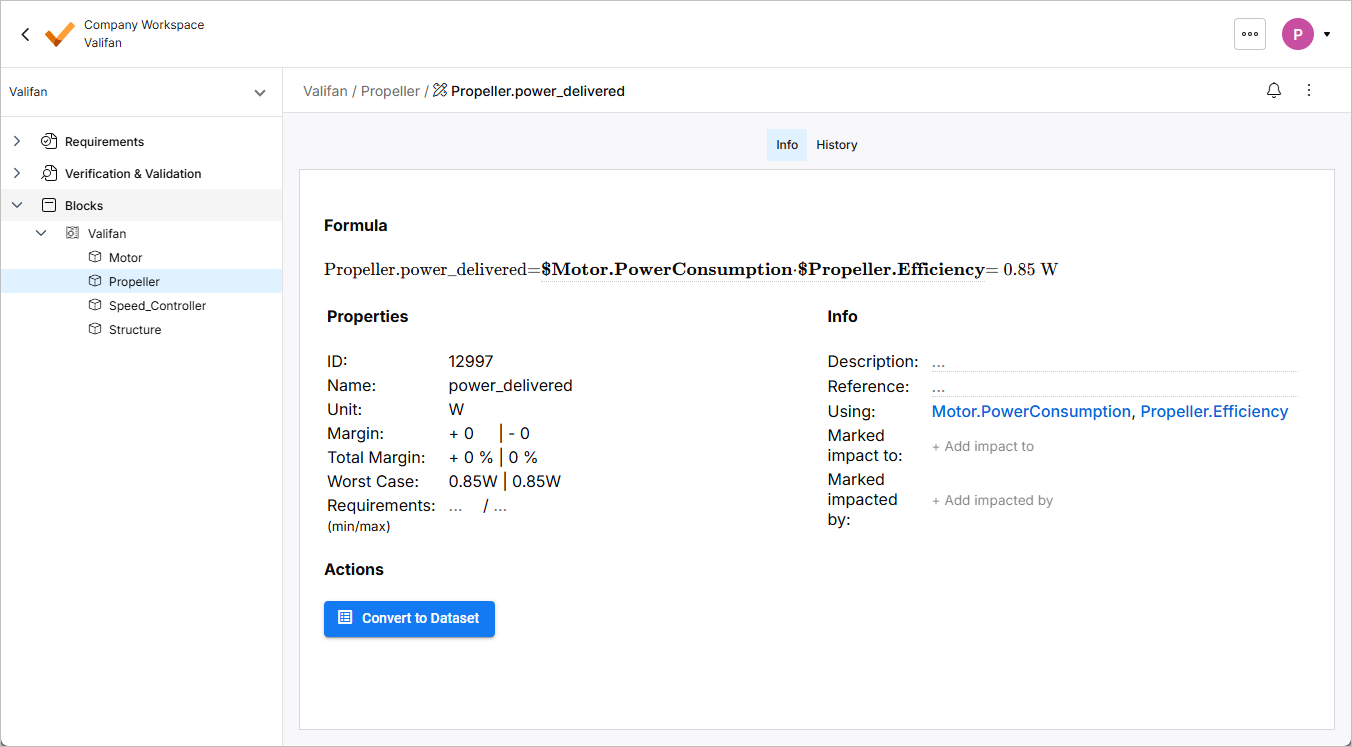
Detailing the Design
All valis with the formula soc() (Sum of Children) have an associated budget table and chart which can be viewed in the vali information.
-
Navigate to the Valifan block and click the Mass vali name to open its details.
-
Click the Budget control at the top to view a breakdown of the fan's total mass. You can show children of a block by clicking the arrow at the left of the block name.
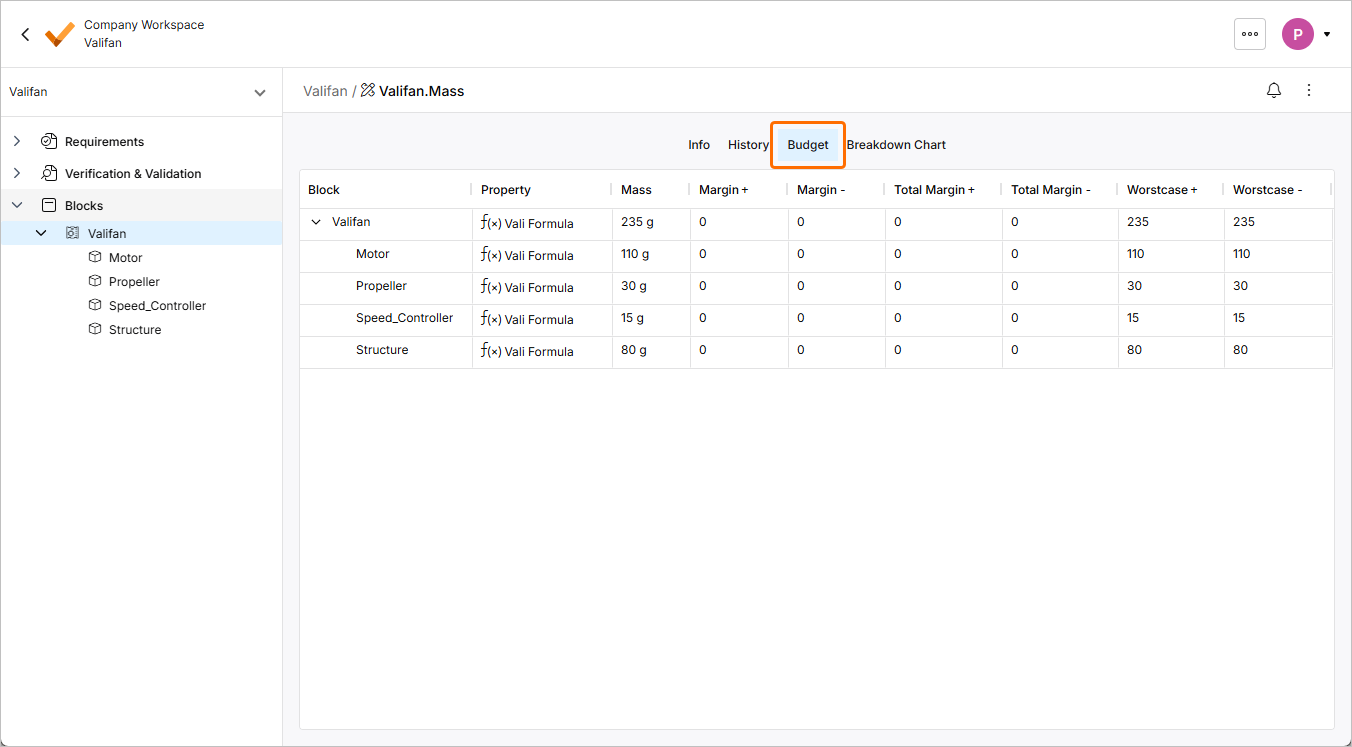
-
Click the Breakdown Chart control to view a breakdown of the total mass of the fan. The pie chart shows the mass breakdown for the immediate lower level of subsystems.
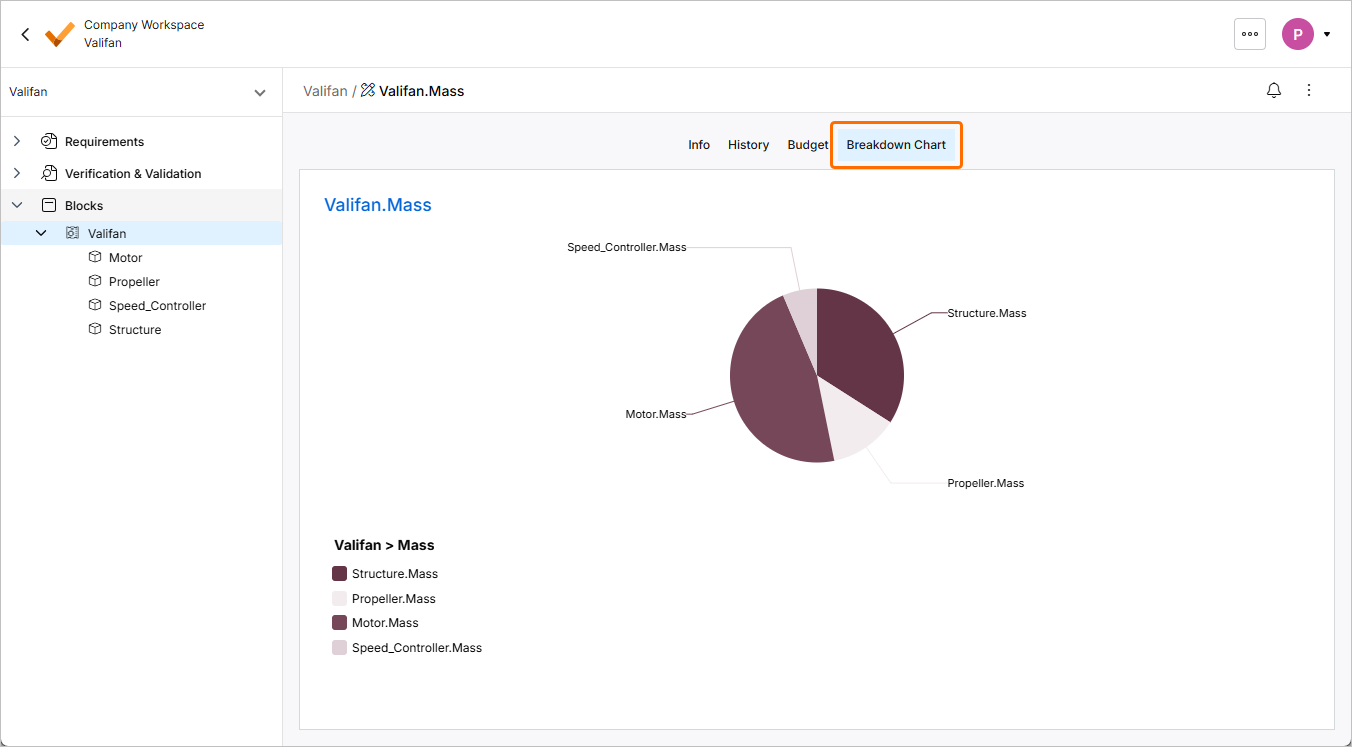
Using Margins
At an early development stage, you are usually not sure about the exact values of any property. This is why adding a margin to the value can be helpful. Requirements Portal propagates this uncertainty throughout all your calculations (linear uncertainty propagation).
For example, you might not know the final value of a mass. In most cases, you end up with a mass higher than expected. For these cases, you can add a security margin to your vali. Using this margin, Requirements Portal automatically calculates a worst-case for your vali. Let's do this with the propeller mass.
-
Navigate to the Propeller block and enable visibility of the Margin + and Margin - columns in the table using the Columns control at the right.
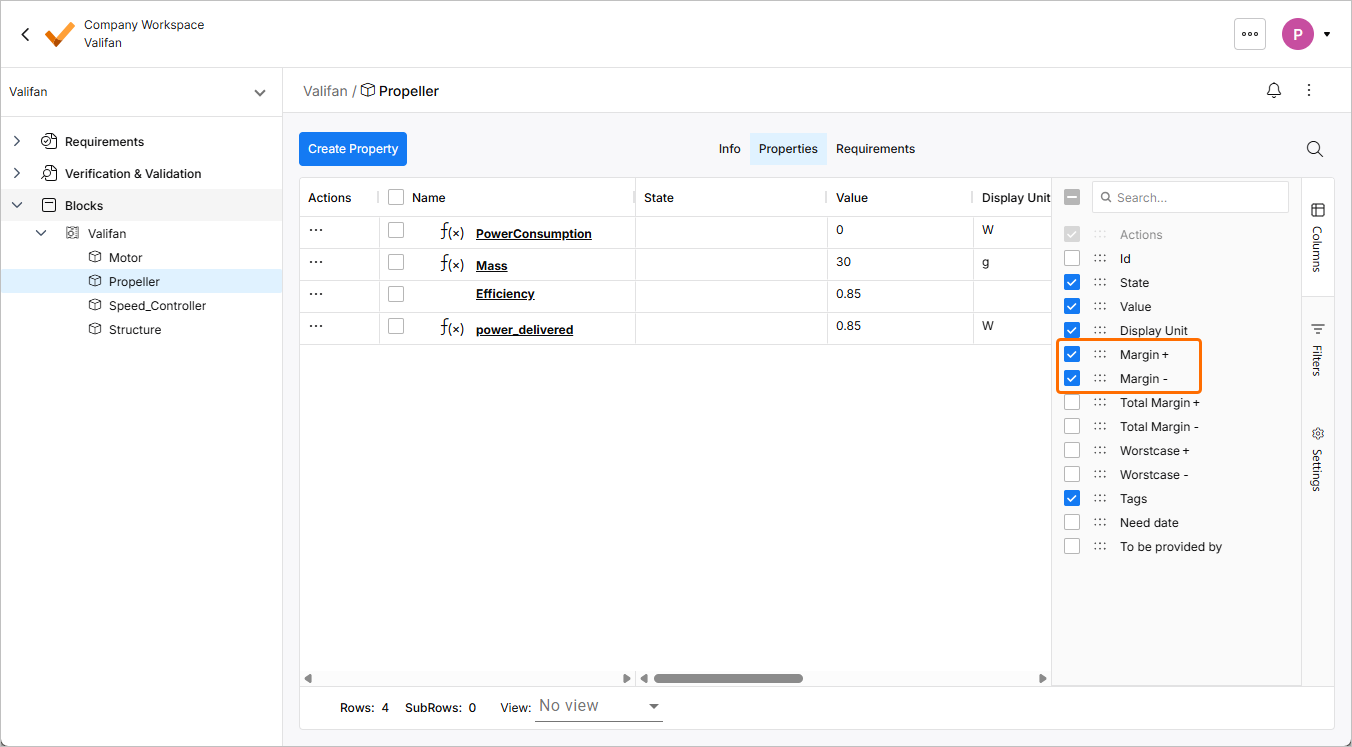
-
In the Margin + column for the Mass vali, enter
10(which means a 10% margin+).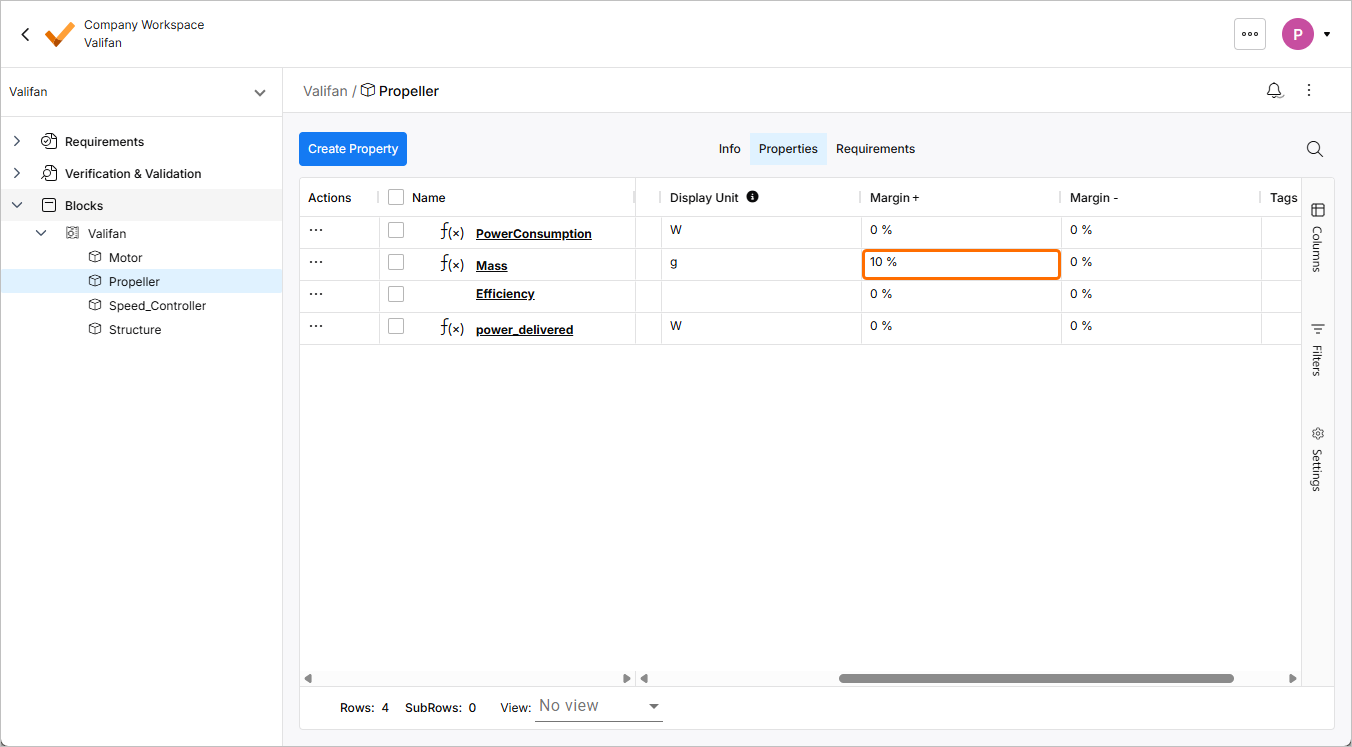
-
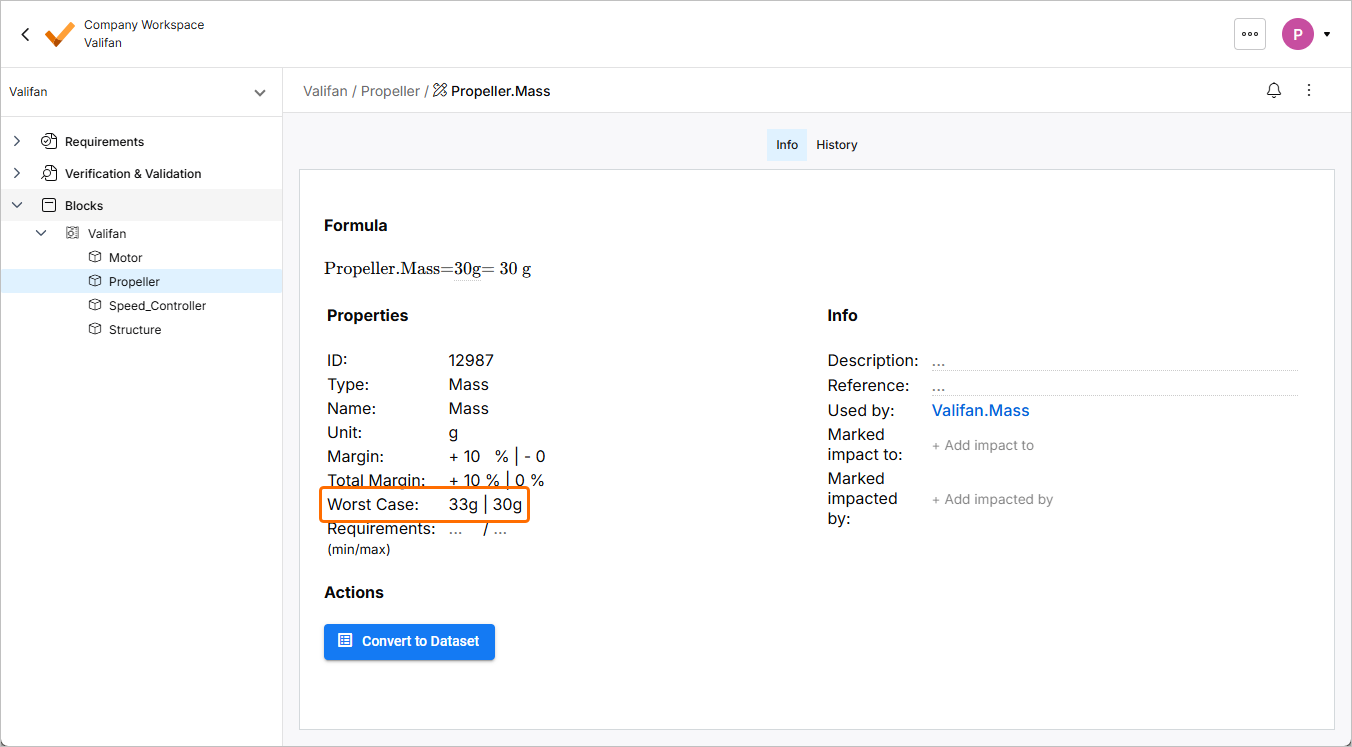
Click the name of the Mass vali to open its detailed view. The Worst Case value will be shown as 33g | 30g due to the 10% margin+.
-
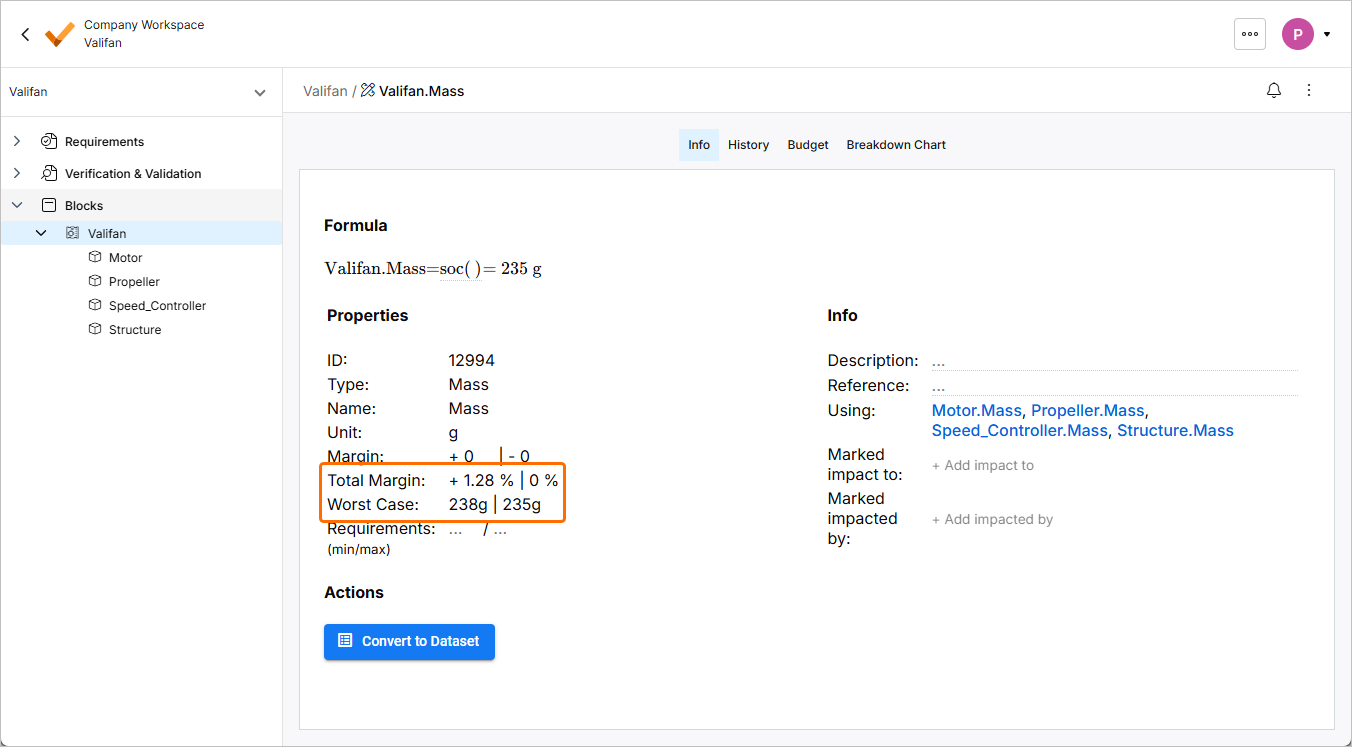
Based on the margin defined on the Propeller block, Requirements Portal automatically updates the margins and worst cases on the higher level. Navigate to the Valifan block and open the detailed view of its Mass vali. As you can see, the fan's mass now has a total margin of +1.28% and a worst-case of 238g | 235g.
Adding Tags for Your Custom Needs
Tags are a multi-purpose tool for your specific team needs. You can use them to mark valis and blocks. Use them to indicate:
-
Reliability of a value (e.g.,
assumption/calculated/measured). -
Actions for team members (e.g.,
review: Tom/approval: Christine). -
Any other marking or grouping.
-
Navigate to the Motor block.
-
Double-click the cell in the Tags column for the Mass vali, type
measurementand pressEnterto add the tag.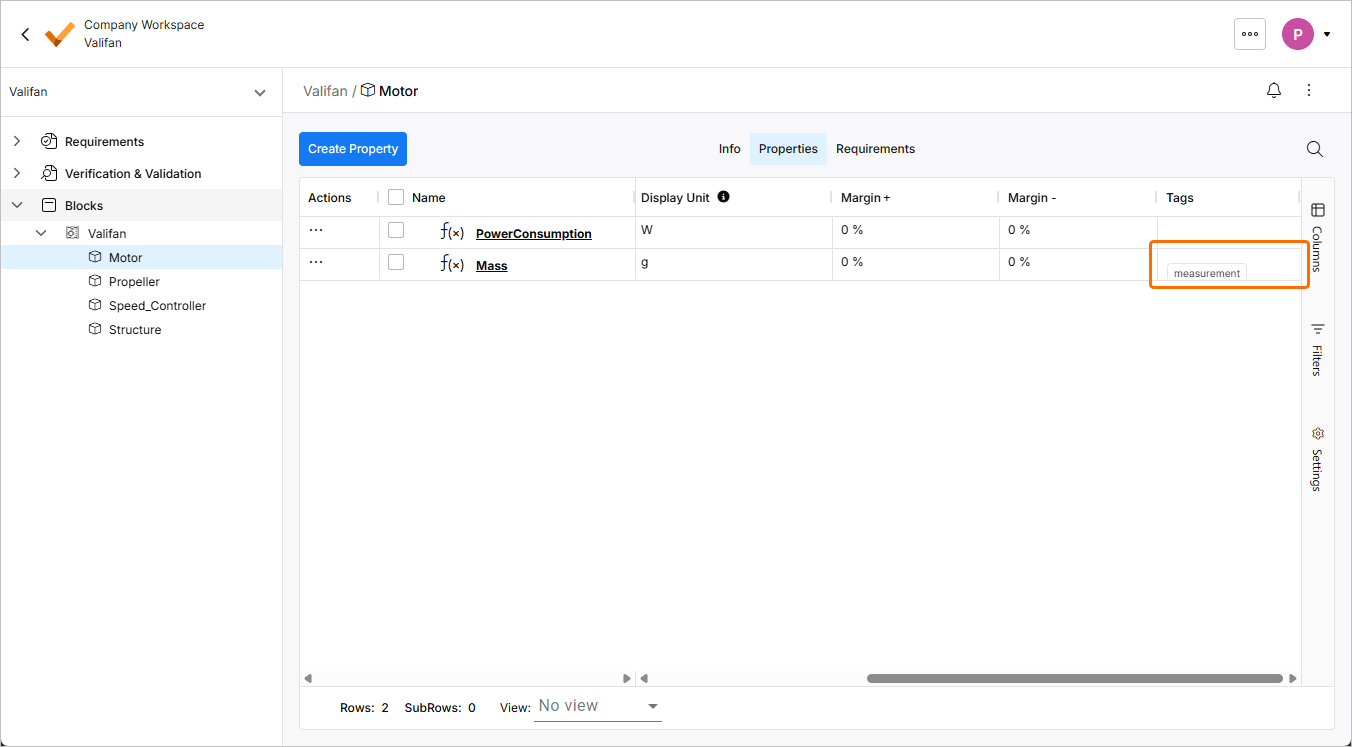
 icon, and then click the
  icon in the popup that appears to access filter options.

Linking Blocks to Requirements
Main page: Applicable Blocks
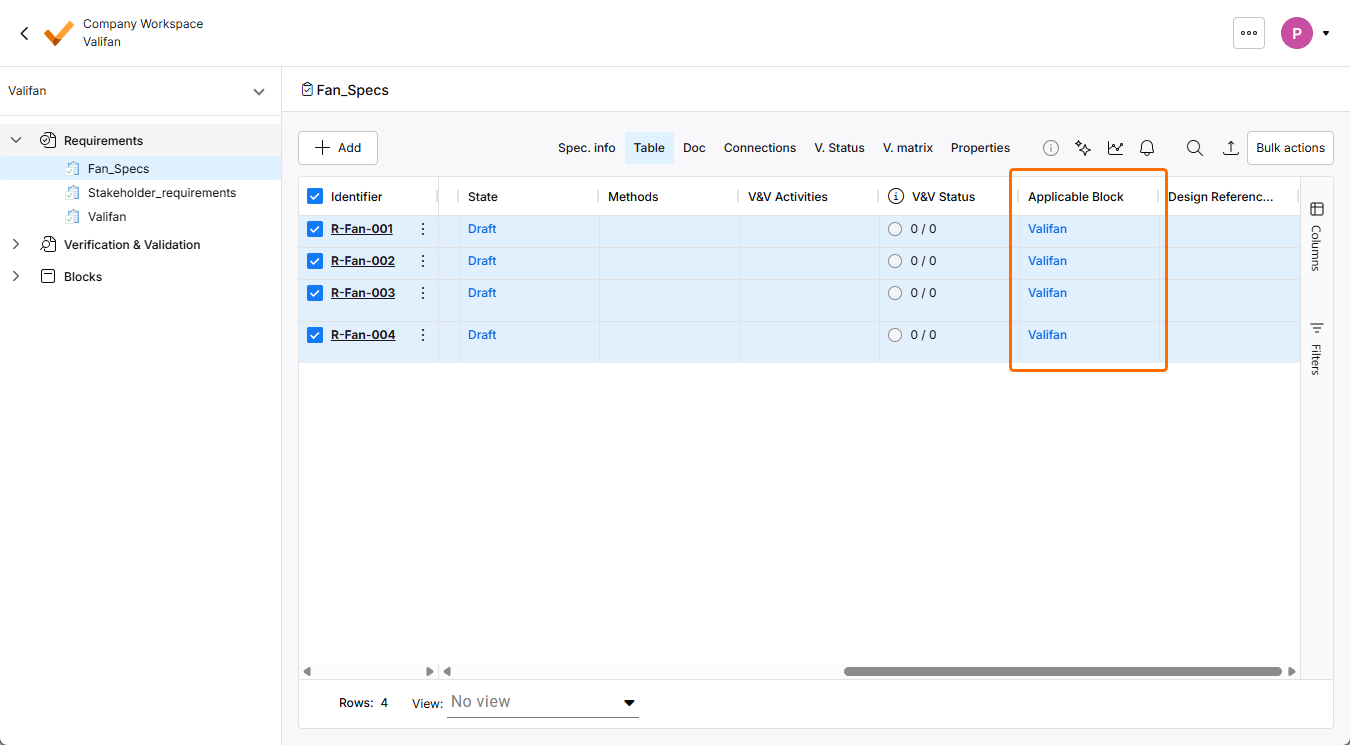
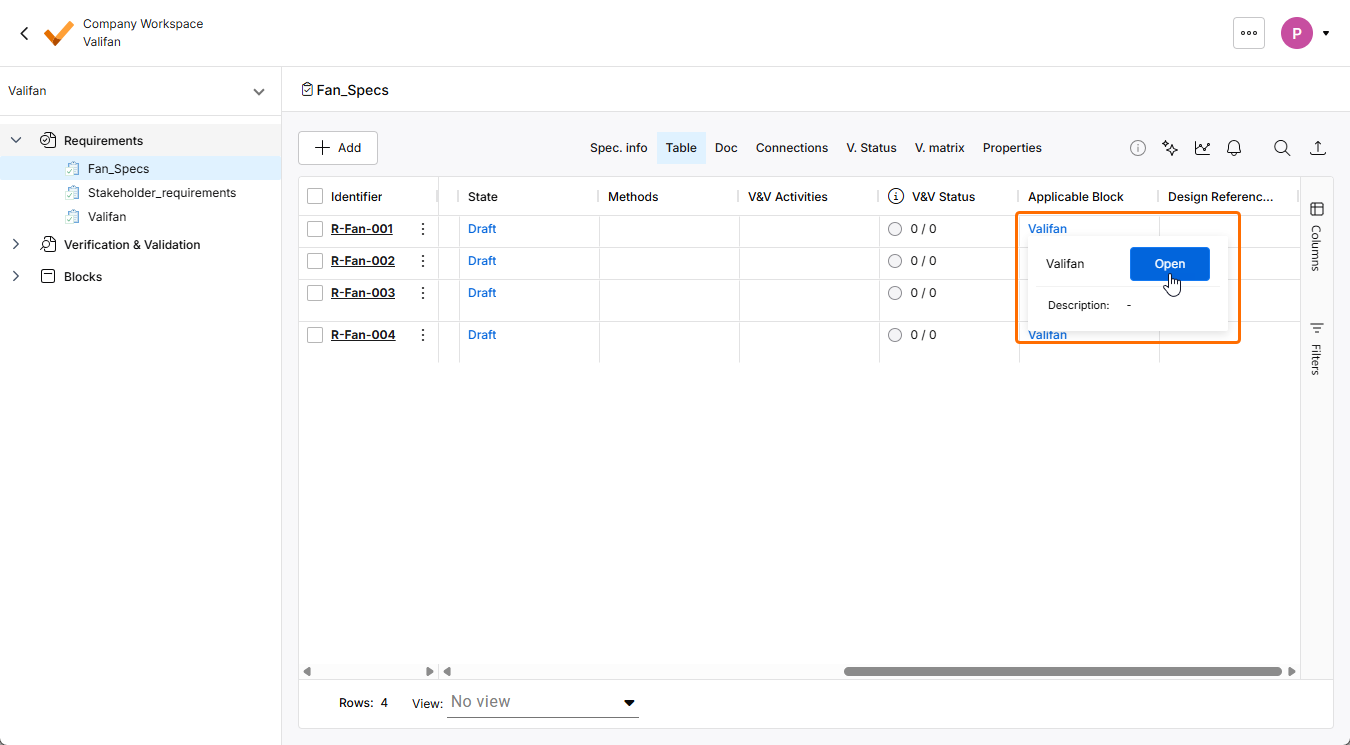
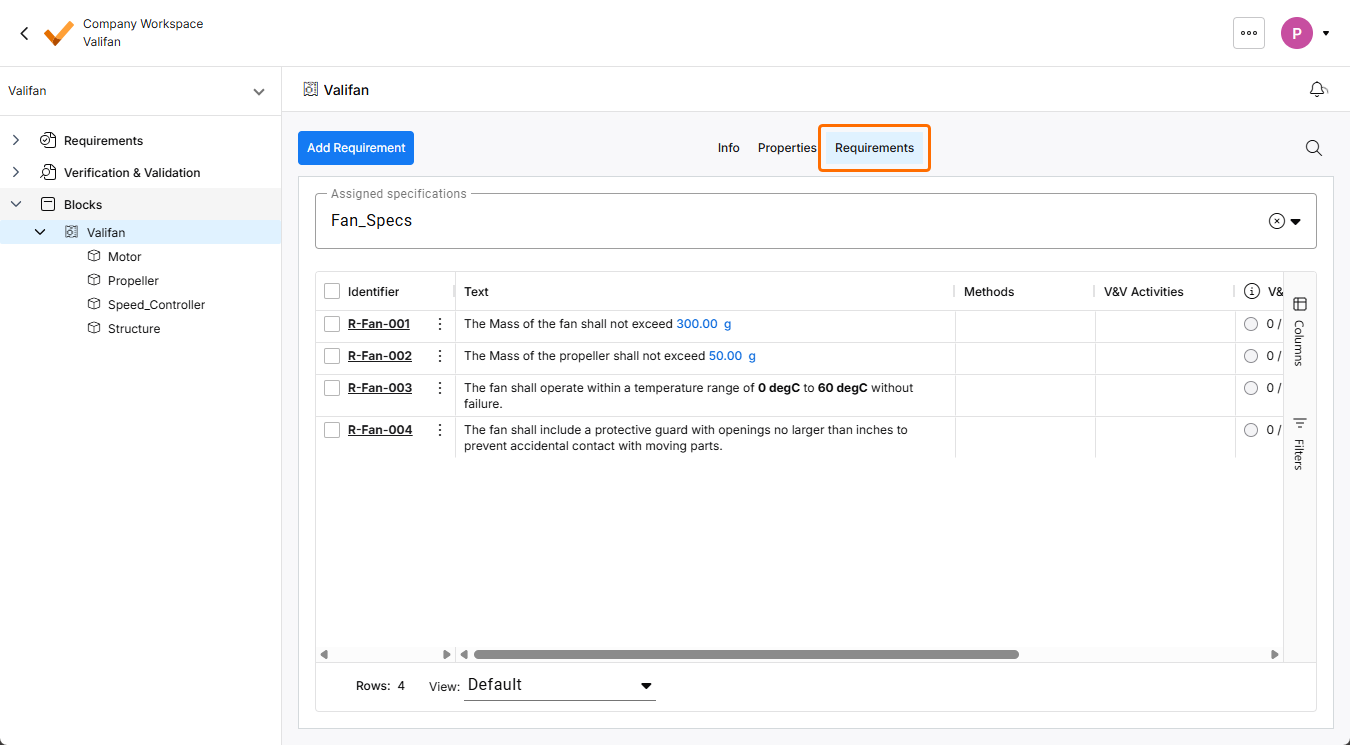
Now that you have your basic system structure, let's establish a connection between the Valifan system and the requirements from our Fan_Specs specification. This creates a direct link between the system design and the requirement.
-
Navigate to the Fan_Specs specification (expand the Requirements entry in the project tree and click the Fan_Specs entry).
-
Check the box at the left of the Identifier column header to select all requirements within the specification.
-
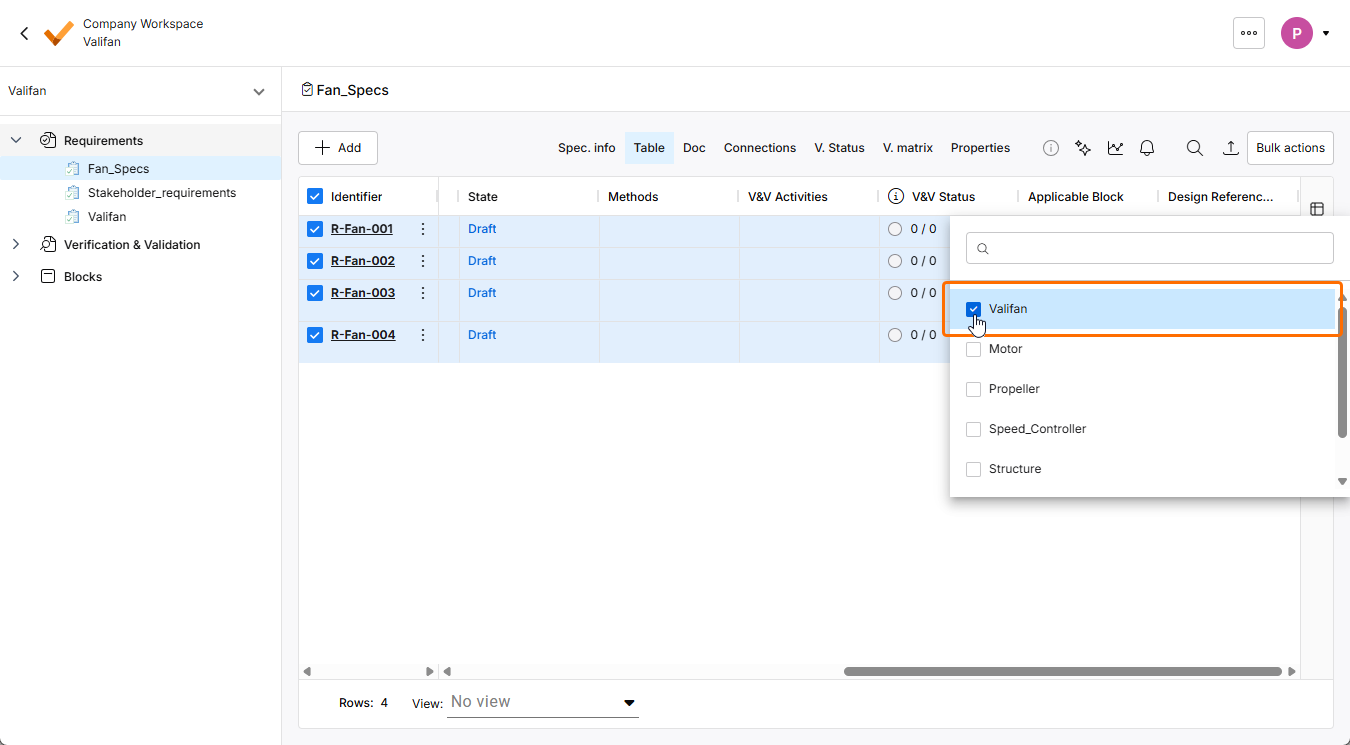
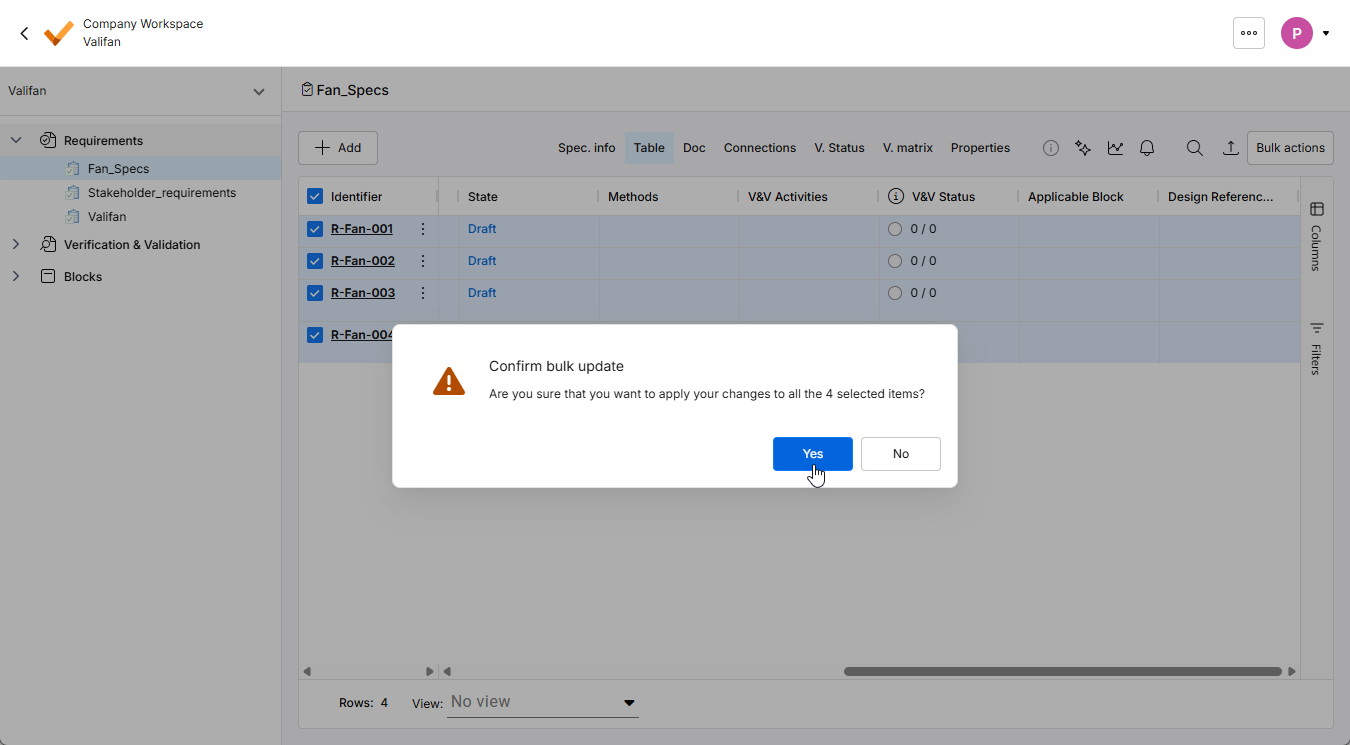
Double-click within a cell of the Applicable Block column, select Valifan from the drop-down, and confirm the bulk update.
 button
  ).
). ).
).