Specifying the Product
In this part of the tutorial, we will go through one of the primary user flows that can get you started using Requirements Portal:
-
Gather and write requirements
-
Breakdown requirements
-
Review and improve requirements
-
Approve and release specifications
Creating a New Project
-
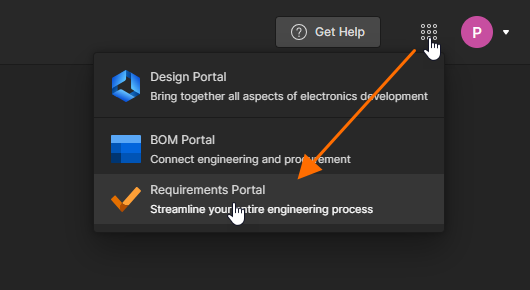
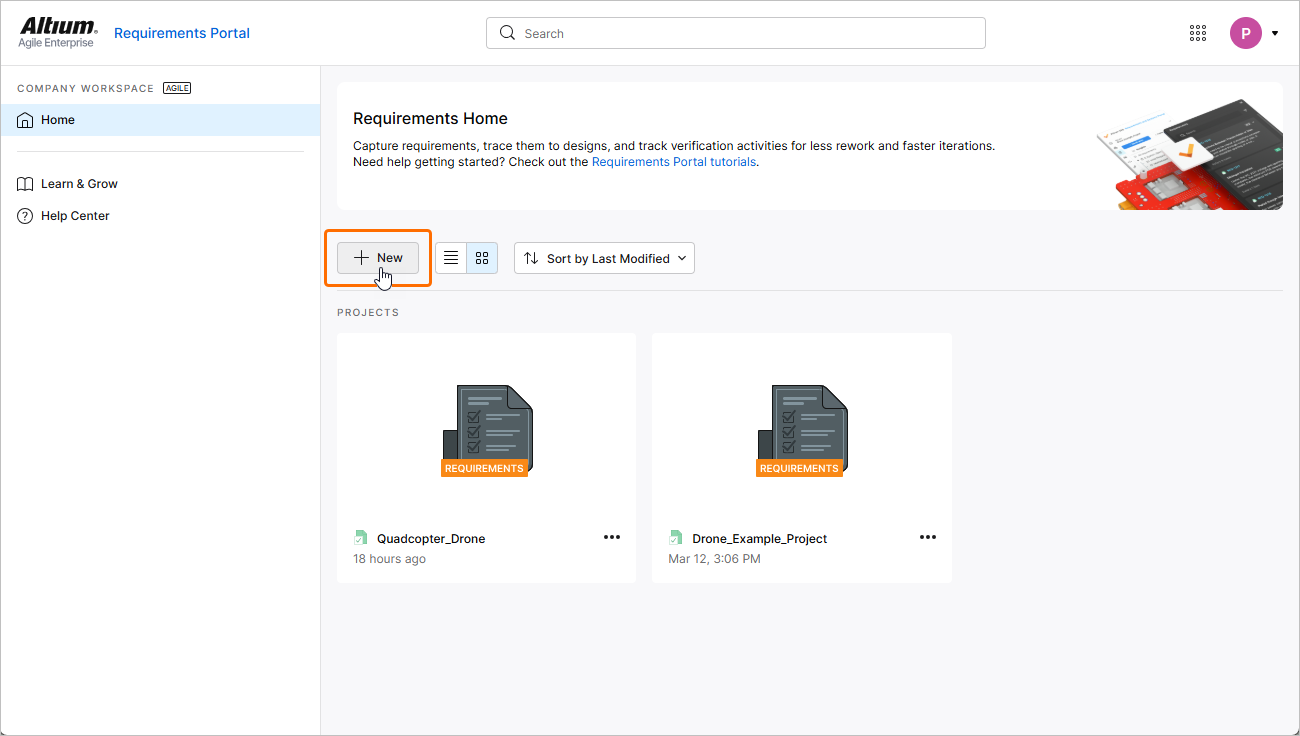
On Requirements Portal's Home page (accessed when you open Requirements Portal from the nine-dot menu at the top right of the Workspace's browser-based interface –
 ), click the
  button above the list of requirements projects.
-
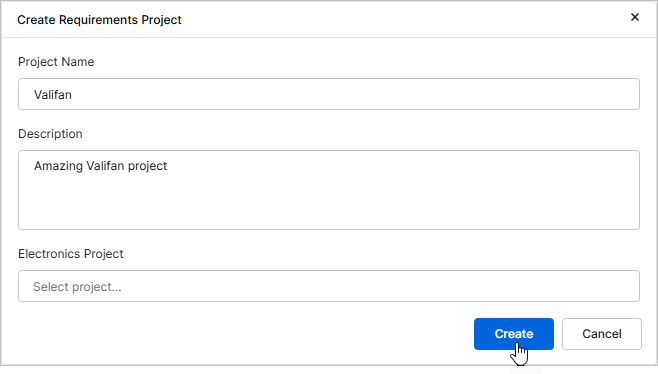
The Create Requirements Project window will open where you can specify detail for the project:
-
Project Name – enter a suitable (and unique) project name (e.g.,
Valifan). -
Description – enter an optional description for the project (e.g.,
Amazing Valifan project). -
Electronics Project – leave this field blank.
Once project details are specified, click the
 button.
-
-
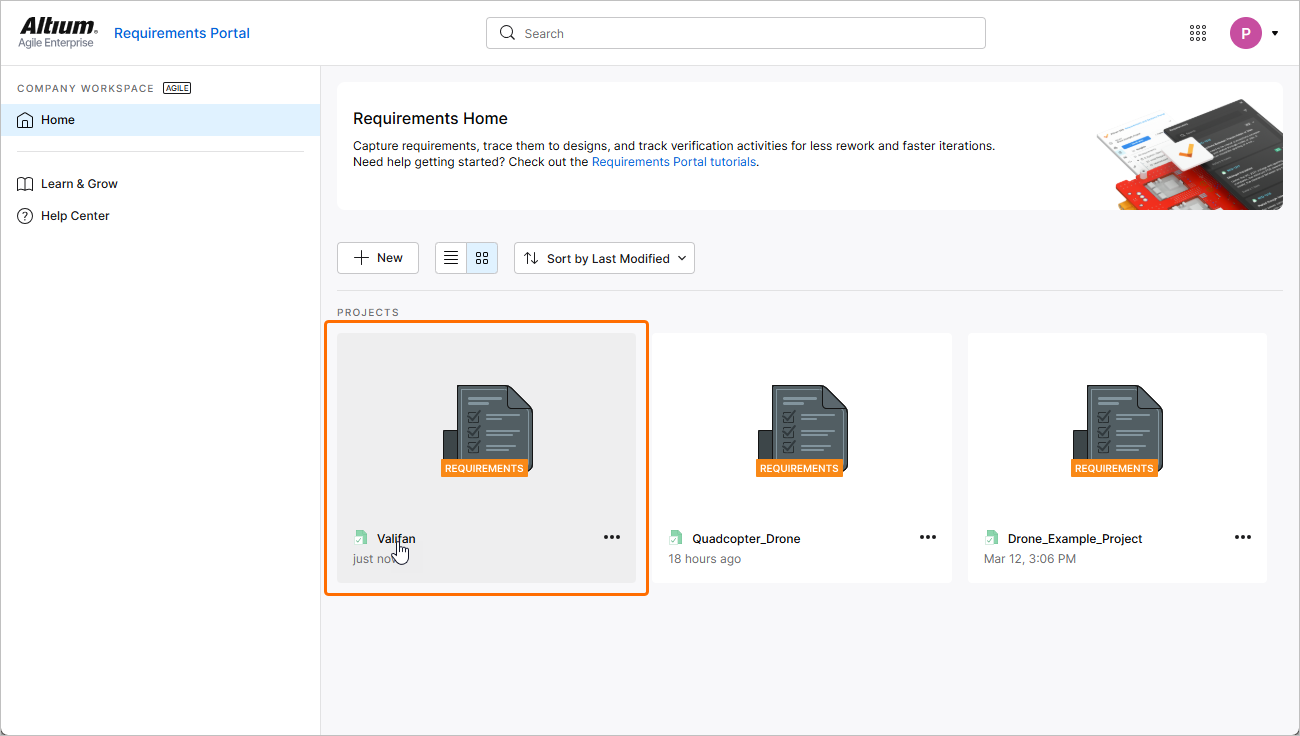
The requirements project will appear in the list on the Home page. Click its name to open it in a new tab of your browser.
Defining Stakeholder Requirements
Most system design and development follow the V cycle. The first process in a V cycle is understanding the business needs and identifying the needs of stakeholders. These stakeholder needs are then converted to stakeholder requirements that can be directly created, imported through CSV/XLSX, or even created through the AI-powered ValiAssistant. For this part of the tutorial, we will focus on the import method.
-
Download the following CSV file that contains stakeholder requirements:
-
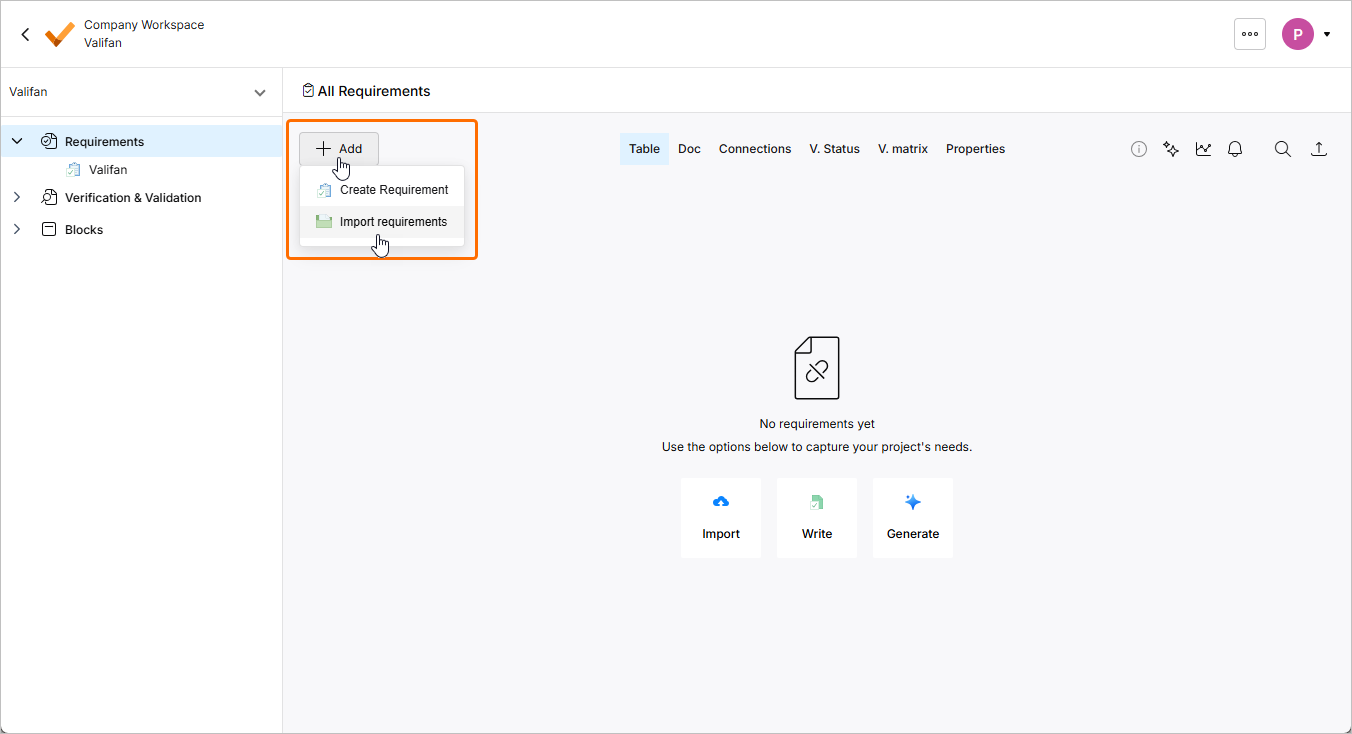
If not already, navigate to the Requirements Module by clicking the Requirements entry in the project tree on the left.
-
Click the
 button on the page that opens and select Import Requirements from the menu that appears.
-
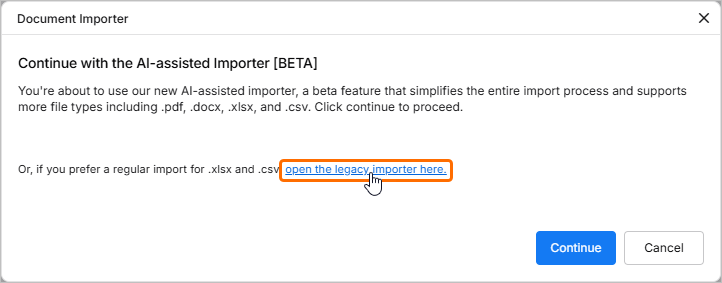
In the Document Importer window that opens, click the open the legacy importer here link.
-
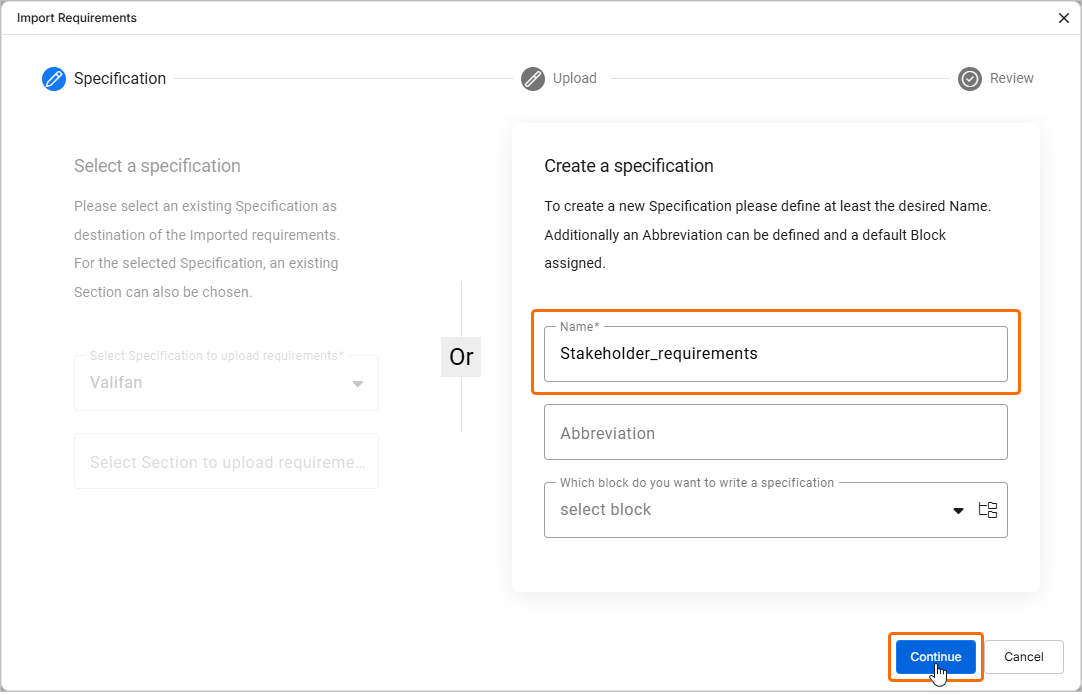
The Import Requirements wizard will open. In the Create a specification region, define the Name of the specification (e.g.,
Stakeholder_requirements) and then click the button.
-
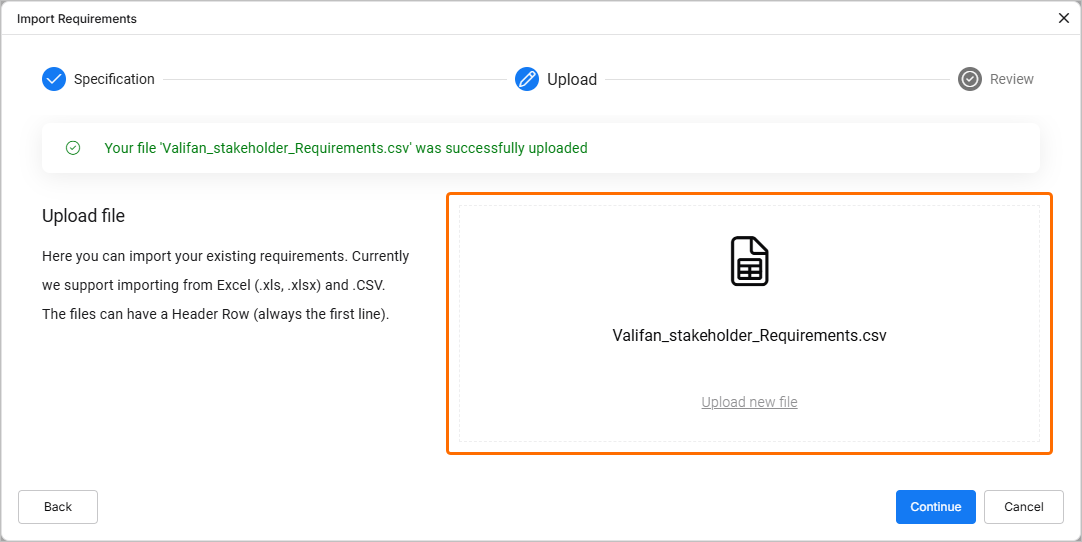
The next step is to upload the CSV so that the import wizard can read and import the file. Drag and drop the downloaded CSV file into the Drop file region of the Import Requirements wizard (or click the region to upload the file using a dialog).
Click
to proceed.
-
On the next step, make sure that data columns from the CSV file are correctly mapped to column in Requirements Portal. If required, use Map To drop-downs at the top of the table.

Click
 to proceed.
-
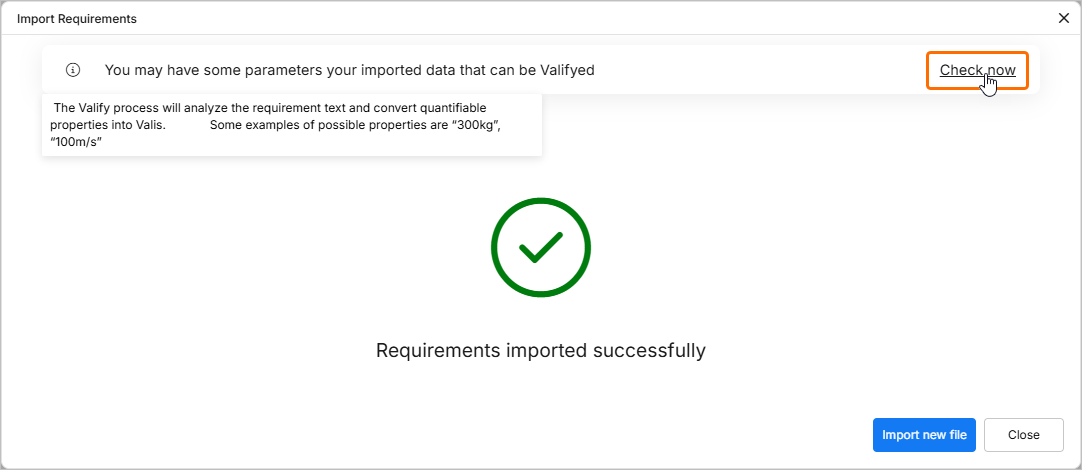
The next page of the wizard will notify you about successful import. Click the Check now control at the top of the window to convert values and units into parameters (valis), following a data driven system engineering approach.
-
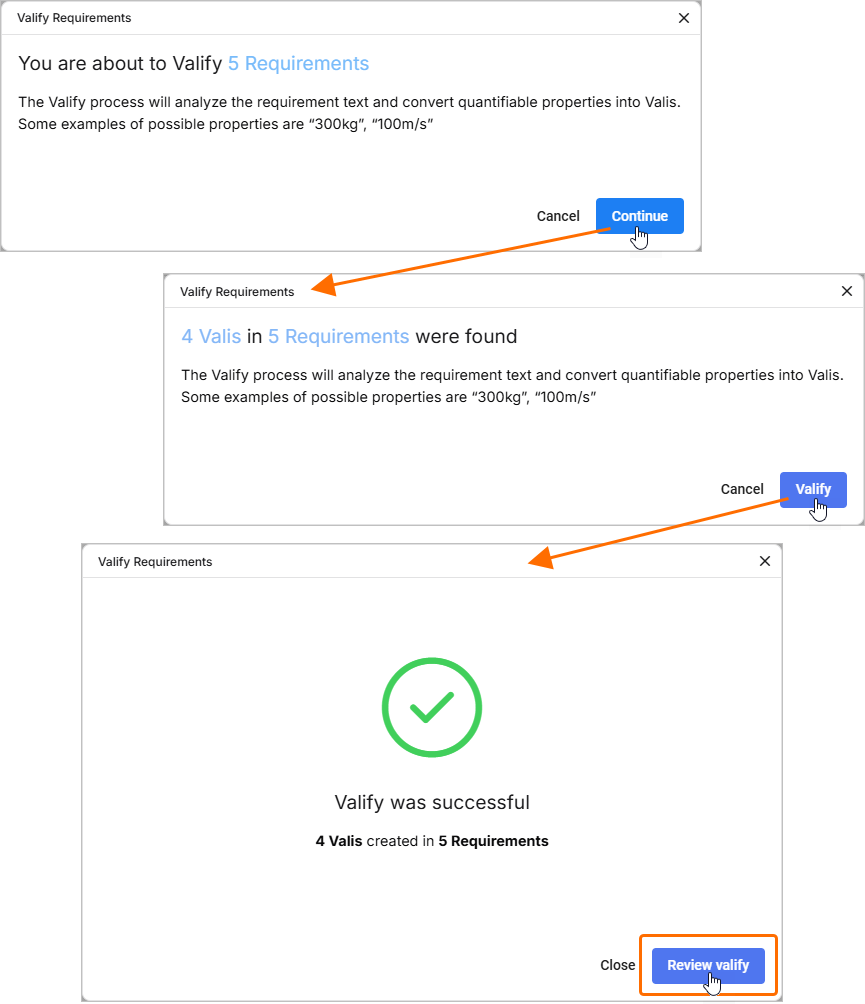
In the Valify Requirements window that opens, you will be notified that the five requirements are going to be valified. Click
 to proceed and get a notification that four valis has been found. Click
  to proceed and then click
  .
.
-
As you can see, 50 dB and 50 W have been transformed from a pure text into valis that we can use later.
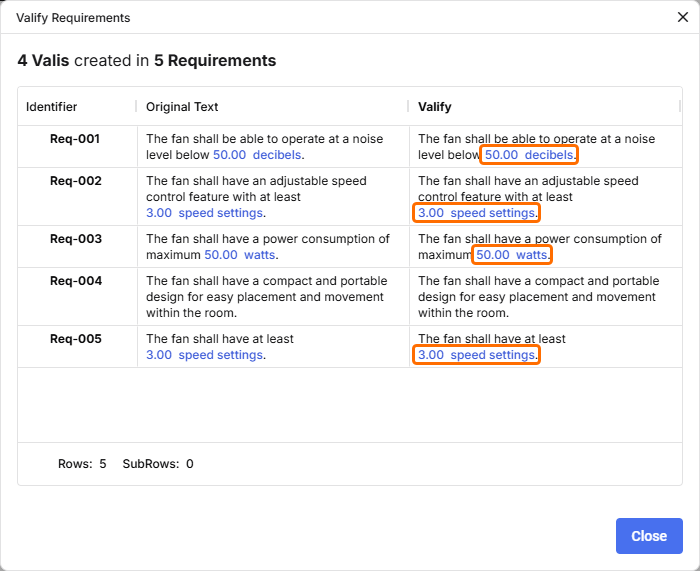
Close the Valify Requirements window to proceed. All requirements have been added, and all detected values have been transformed into valis. Valis are highlighted in the requirements.

Adding System Requirements
In a typical system engineering flow, system requirements are created using stakeholder requirements. Most technical designs must adhere to strict requirements, such as requirements to mass, power usage, and cost. Requirements Portal provides a comprehensive view of how well a design meets all these requirements.
Now, we will create some system requirements manually.
-
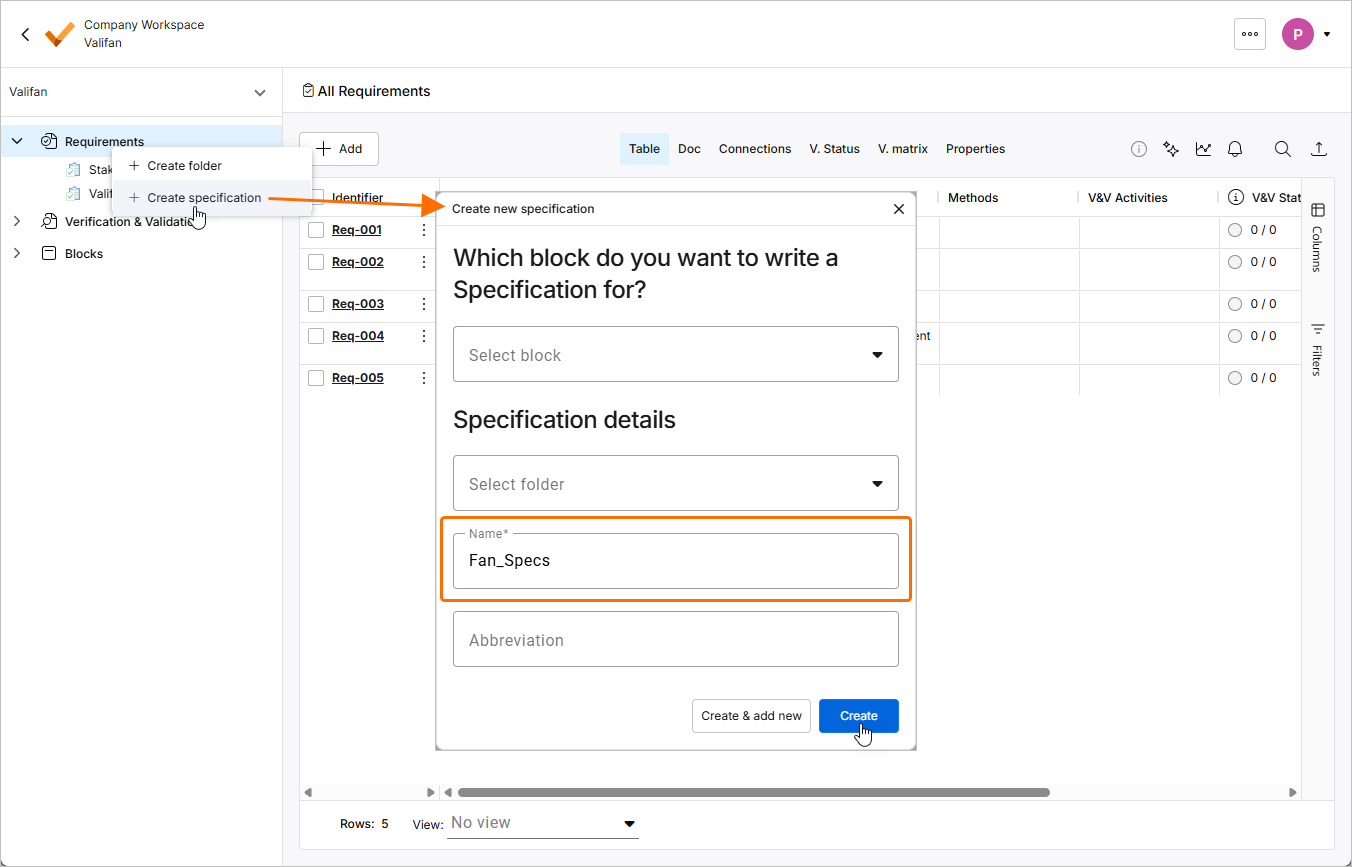
Right-click the Requirements entry in the project tree at the left and select Create Specification from the menu that appears. In the Create new specification window, enter
Fan_Specsin the Name field and click .
.
-
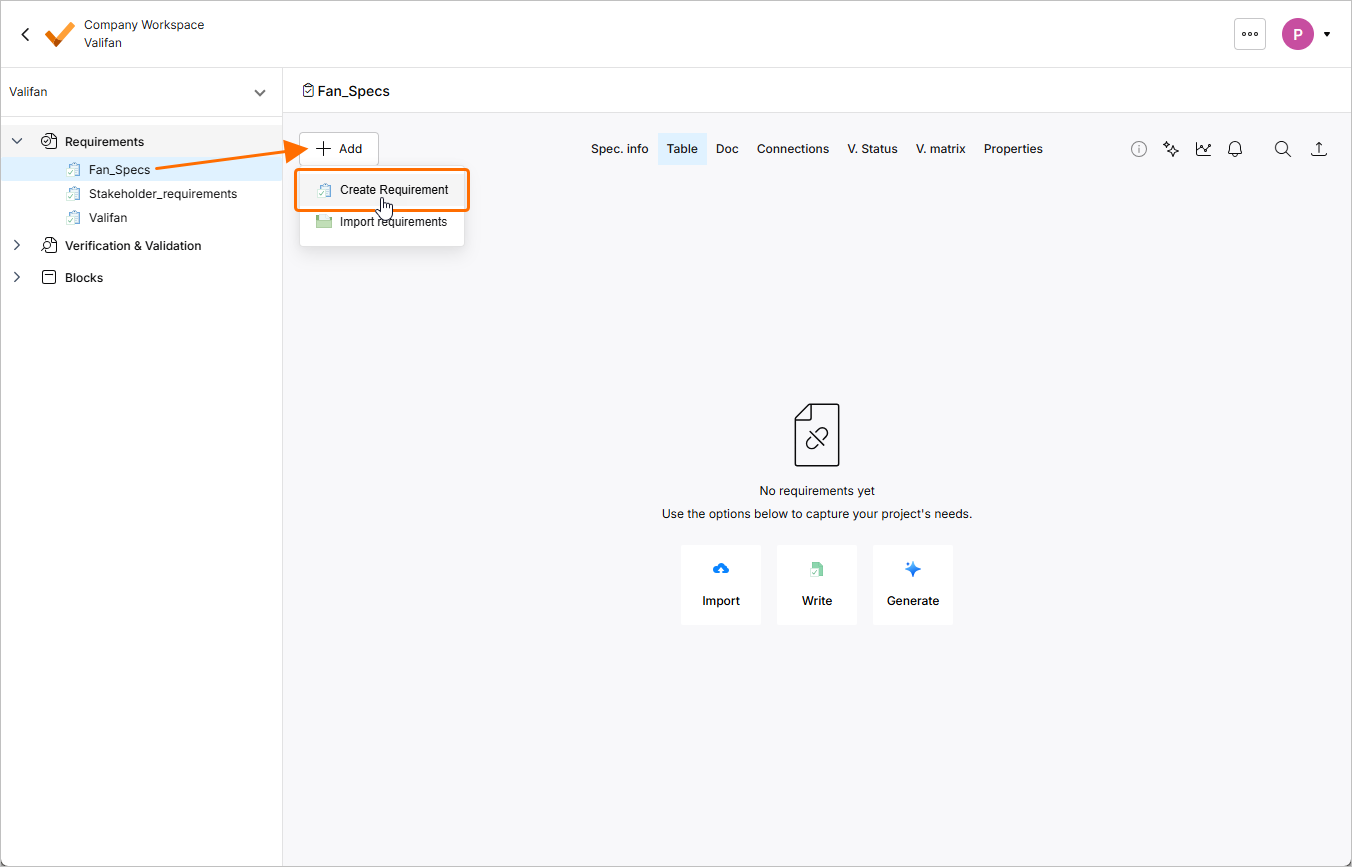
Click the entry of the newly created specification in the project tree. When in this specification, click the
button and select Create Requirement from the menu that appears.
-
The Create Requirement window will open. In this window:
-
In the Identifier field, enter a unique identifier, e.g.,
R-Fan-001. -
In the Text field, enter
The Mass of the fan shall not exceed 300g. -
Click the
 button and make sure that the correct specification is selected (
Fan_Specs) in the Specification field. -
Make sure that the Parametrize values option is enabled.
-
Click the
 button.

-
-
Similarly, add another requirement with an identifier
R-Fan-002and the requirement textThe Mass of the propeller shall not exceed 50g, but this time, disable the Parametrize values option (a vali will be manually created from a value within this requirement later).
-
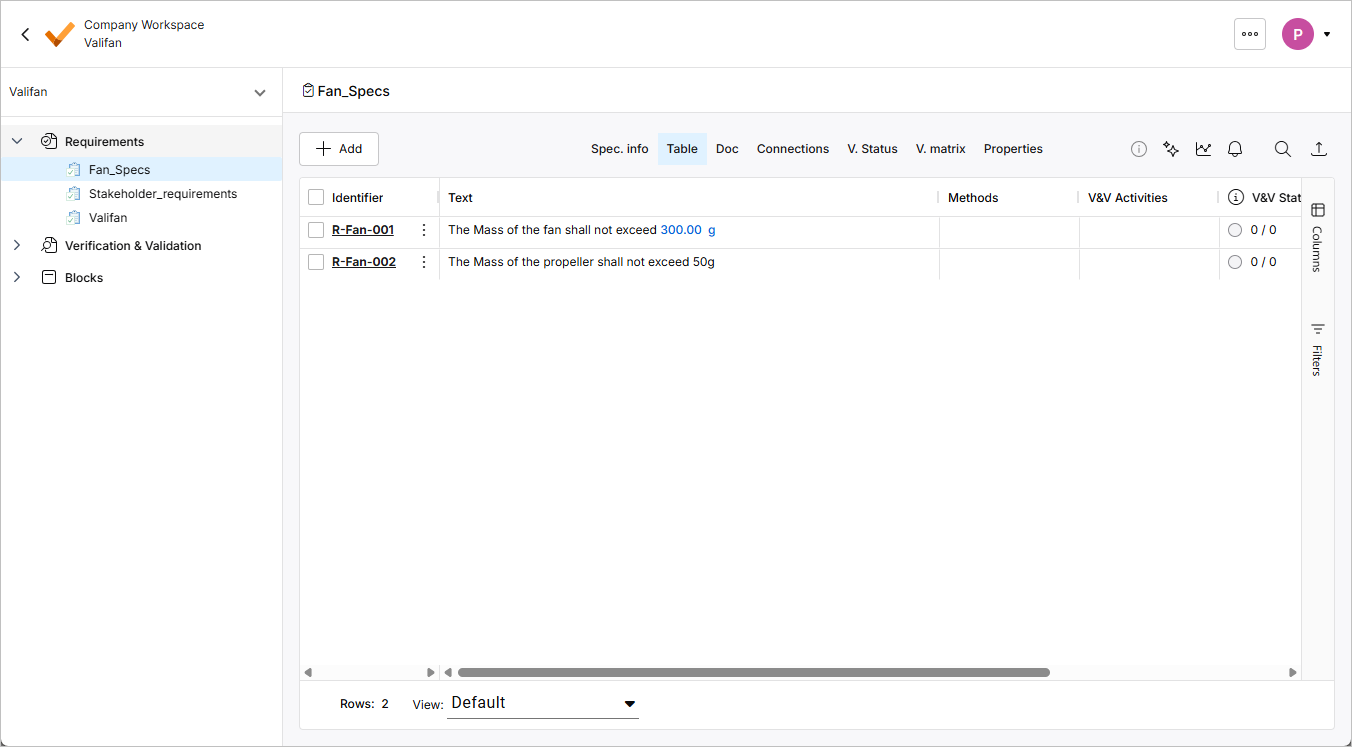
The added requirements will be listed when the Fan_Specs specification is selected. Note that while R-Fan-001 has a vali, R-Fan-002 does not have a vali yet.
Creating Requirement Valis within a Requirement
Now, we will manually create a new vali inside the requirement text field.
-
Double-click the cell in the Text column of the requirement R-Fan-002 and delete the
50gtext.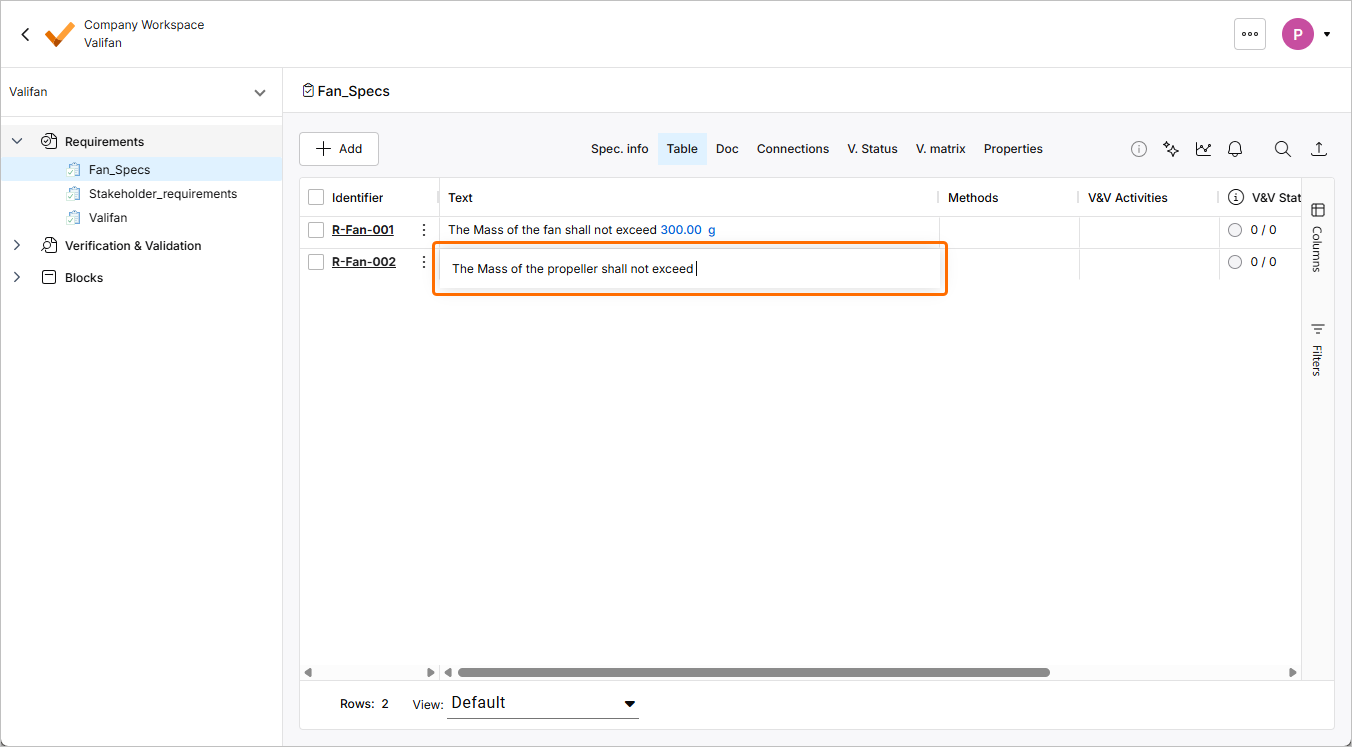
-
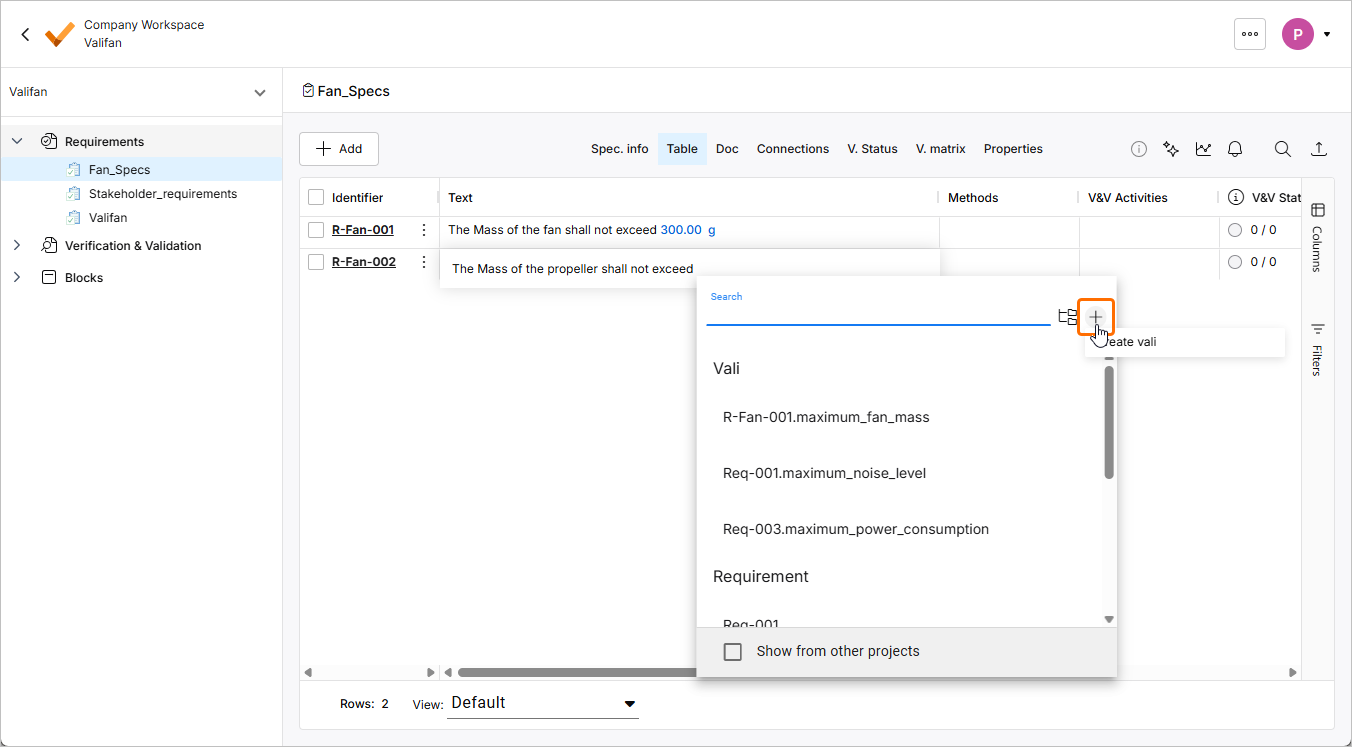
Type
$to show a popup with a list of valis/objects inside the project. On the top right of the popup, click the button to create a vali.
-
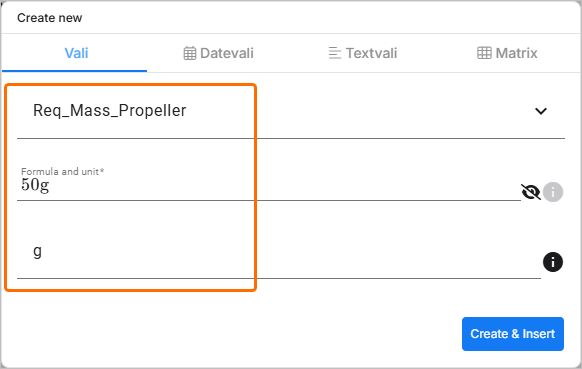
In the Create new window that opens. On the Vali tab of the window, enter the following data for the new vali:
-
Name:
Req_Mass_Propeller -
Formula and unit:
50g -
Display unit:
g
-
-
Click the
 button to create a new vali and insert it into the Text field of the requirement and then press
 Enteror click somewhere in the table outside of the cell to finish editing. -
Now, the
50gtext appears differently from the regular text, which indicates a vali. This vali can now be used in different parts of the project (e.g., reports, Blocks Module, verification etc.).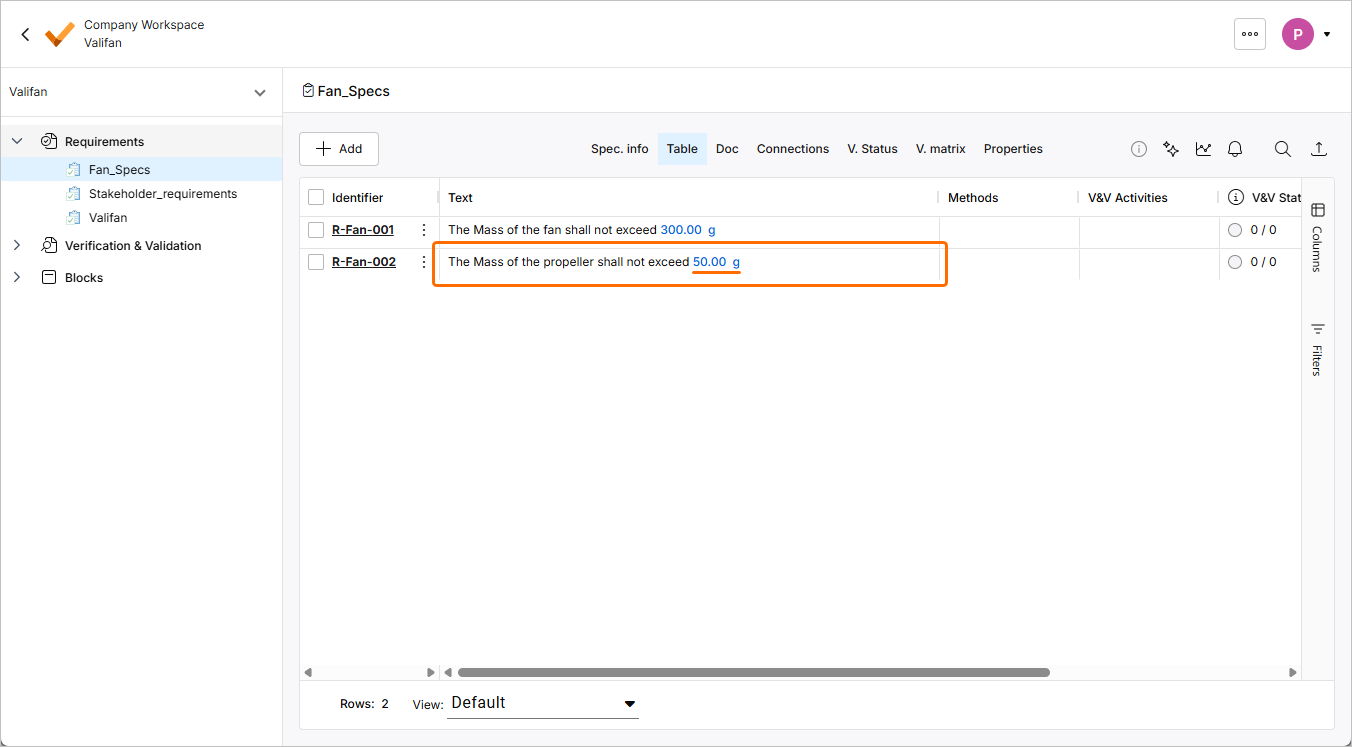
Breaking Down Requirements with Parent and Child Relationships
-
Click the Columns control at the right of the table and make sure that entries for the Parents and Children columns are checked so they are shown in the table.
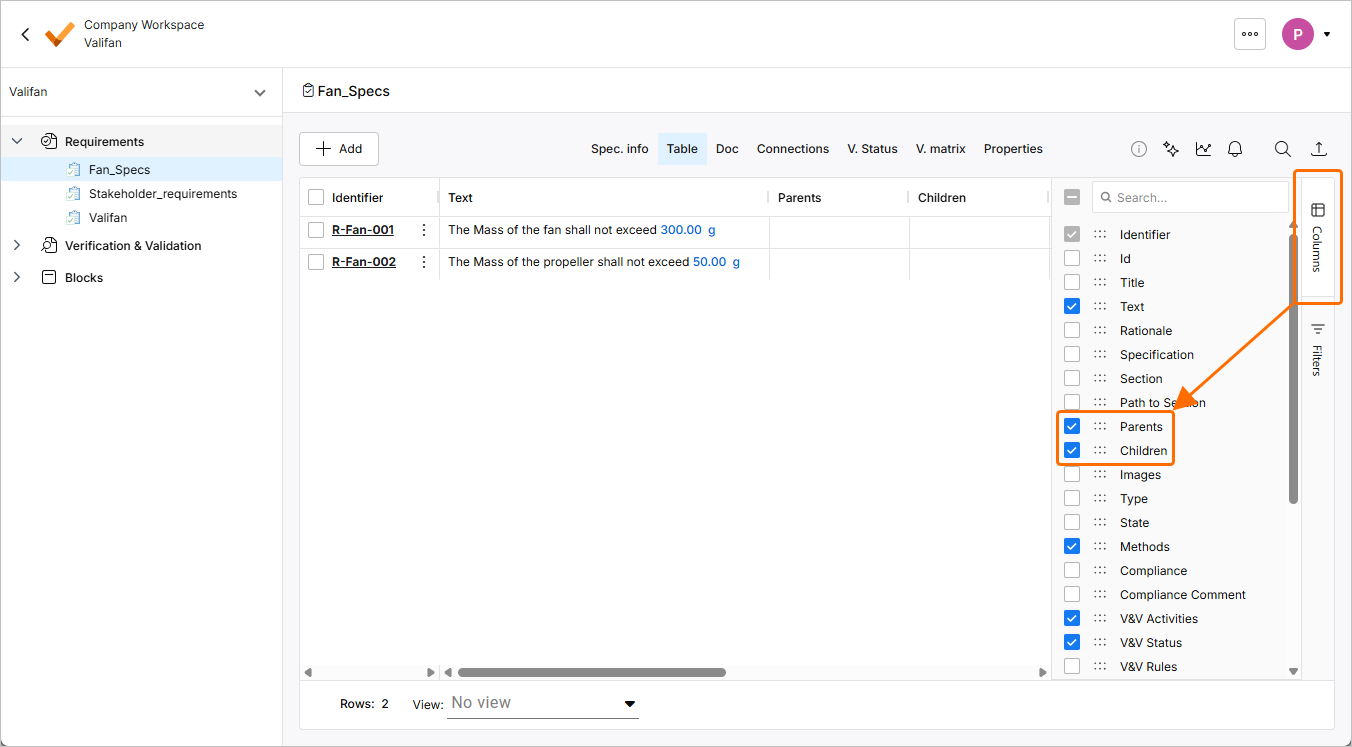
Click the Columns control again to hide the list.
-
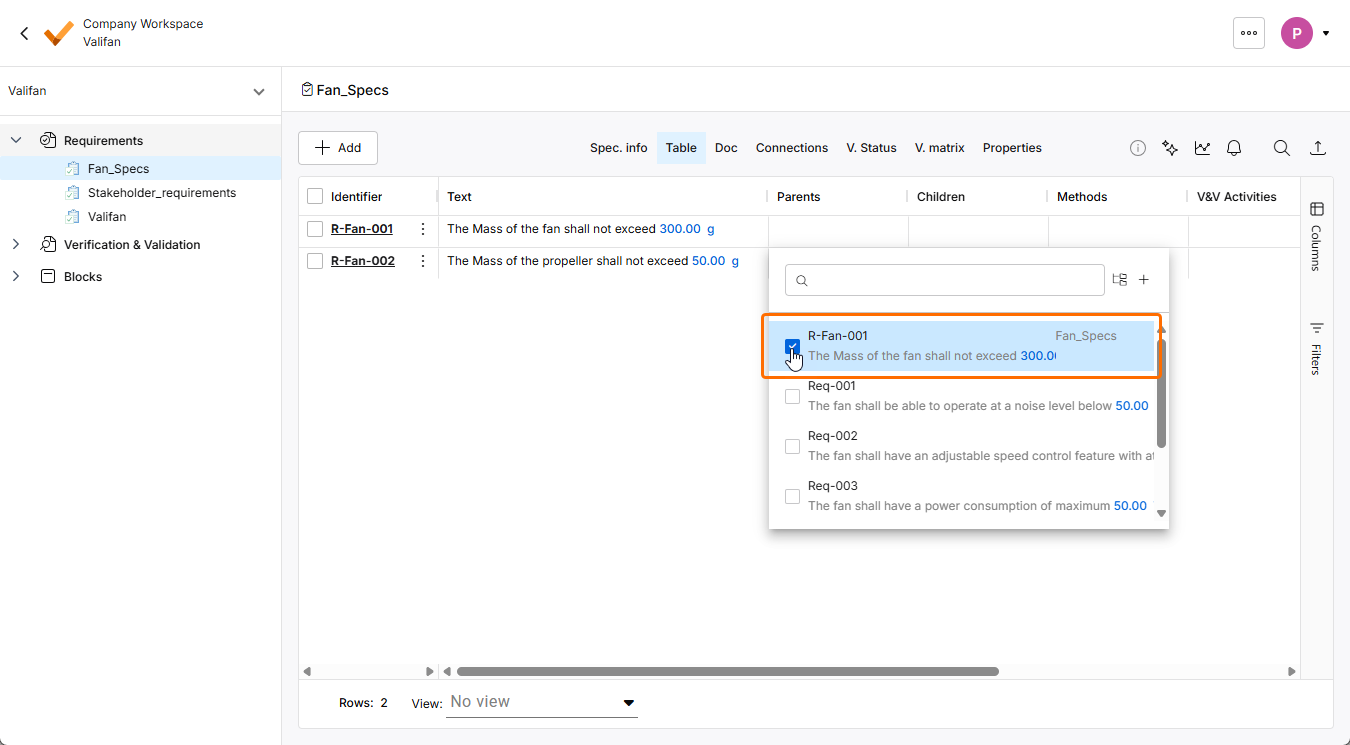
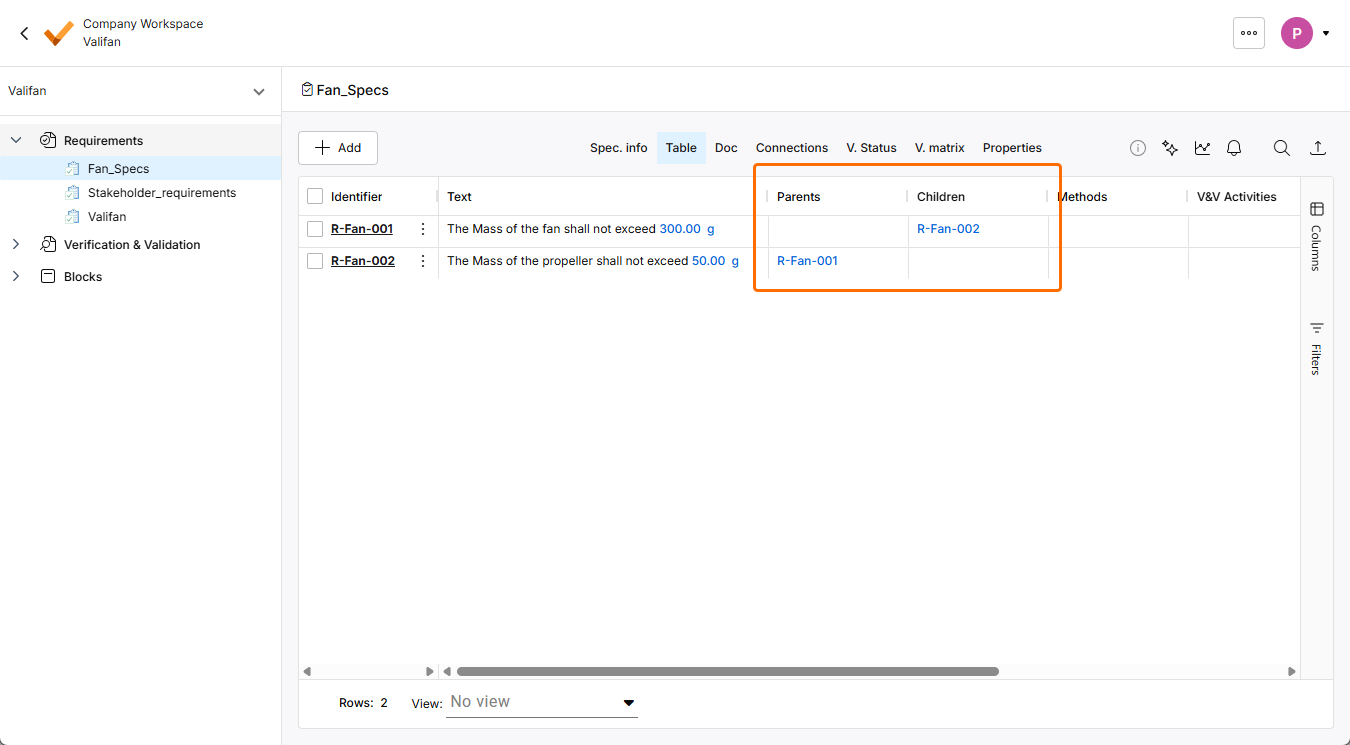
Double-click the cell in the Parent column of the requirement R-Fan-002 and select the requirement R-Fan-001 from the popup to link both requirements. Note that R-Fan-002 will automatically be added to the Children column of R-Fan-001.
-
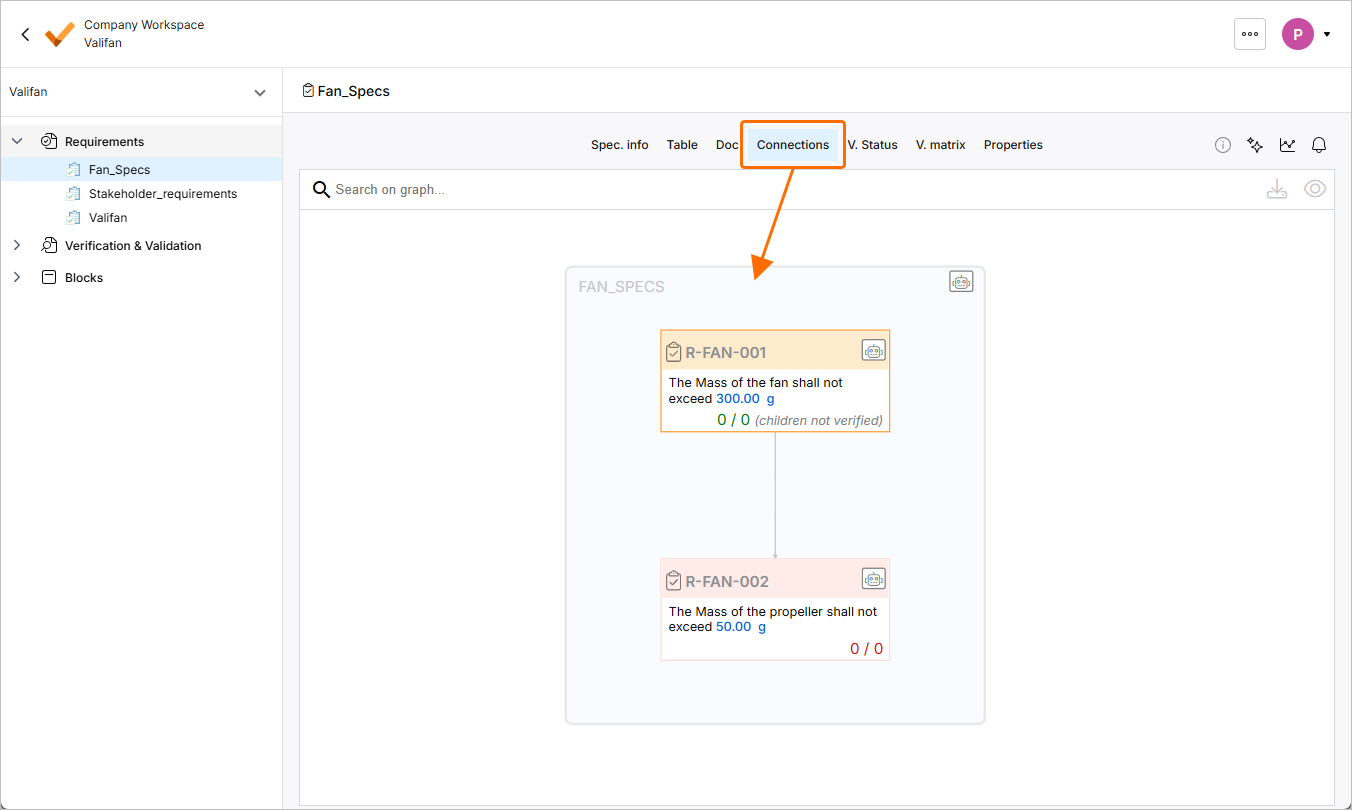
Click the Connections tab at the top of the requirements table to open a connection graph that shows the parent-child relationship of the selected specification.
Generating Requirements Using ValiAssitant
To accelerate your requirement management process, you can generate requirements/breakdown requirements using an AI ValiAssistant feature. We will use it to create two safety requirements for the tutorial project.
-
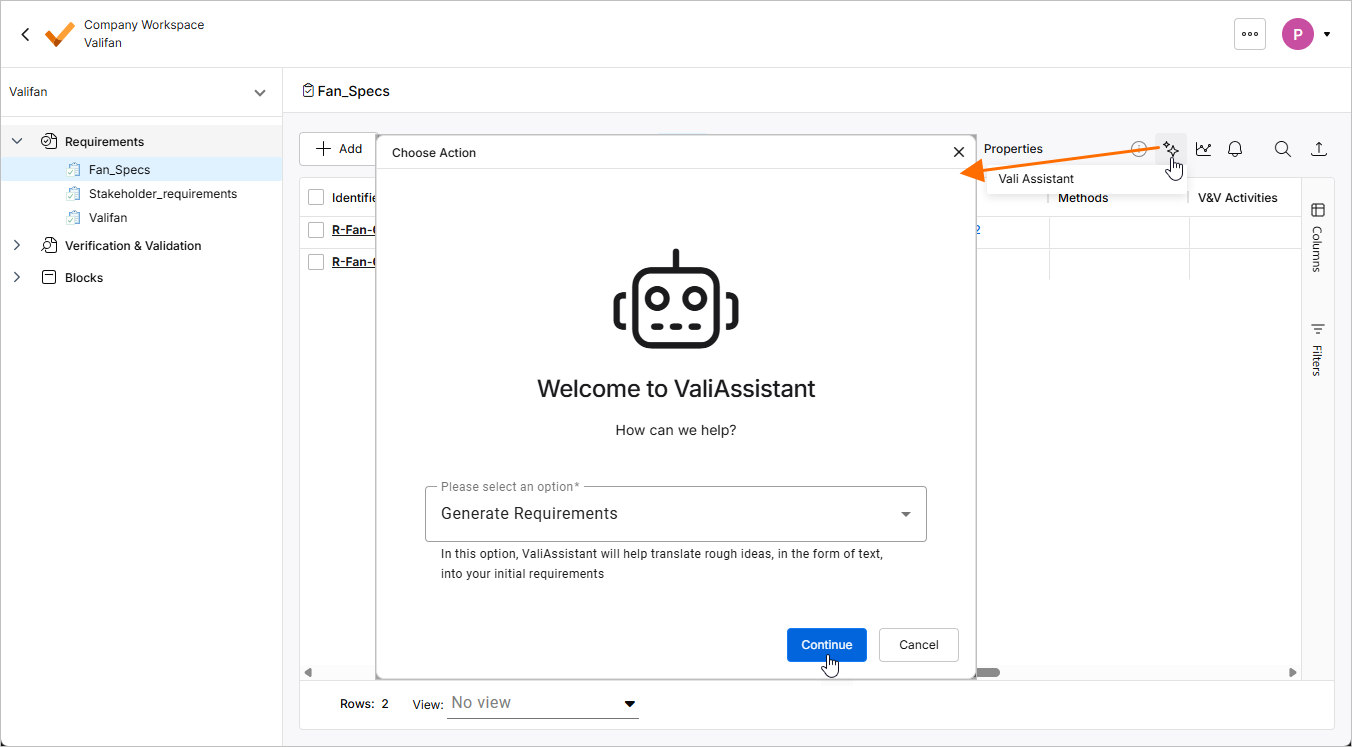
Click the
 button at the top right to open the ValiAssistant - Generate Requirements window. Make sure that the Generate Requirements option is selected in the drop-down and click the
  button.
-
On the next page, you can describe your product, system, subsystem and give as much information as possible so the AI can come up with the best requirements to your description. Since we are interested in safety requirements, ask for two safety requirements for our fan by entering the
Create 2 safety requirements for designing a fantext into the field under the Generate Description heading.In the text field under the Prompt Extension heading, you can customize the prompt further. We are looking for INCOSE written requirements, enter the
Apply the INCOSE guide to writing requirementstext into the field.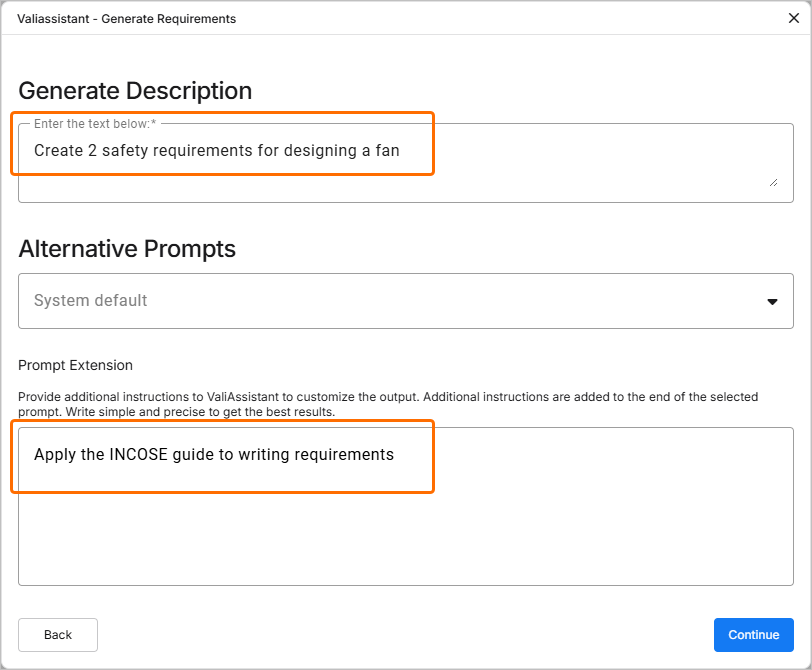
Click
to proceed.
-
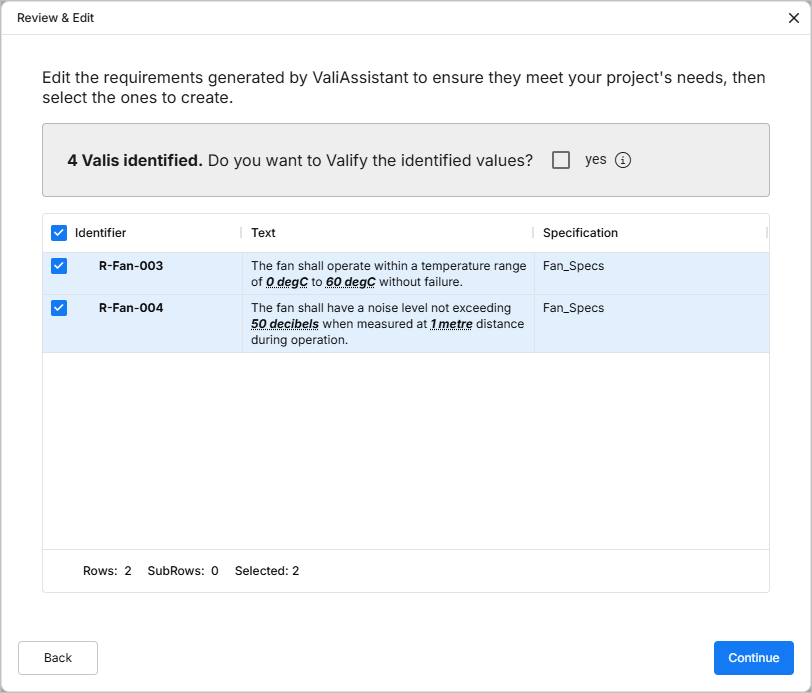
On the next page, the output of the AI will be presented, and you can review, change, and accept or reject any suggestions.
Click
to proceed.
-
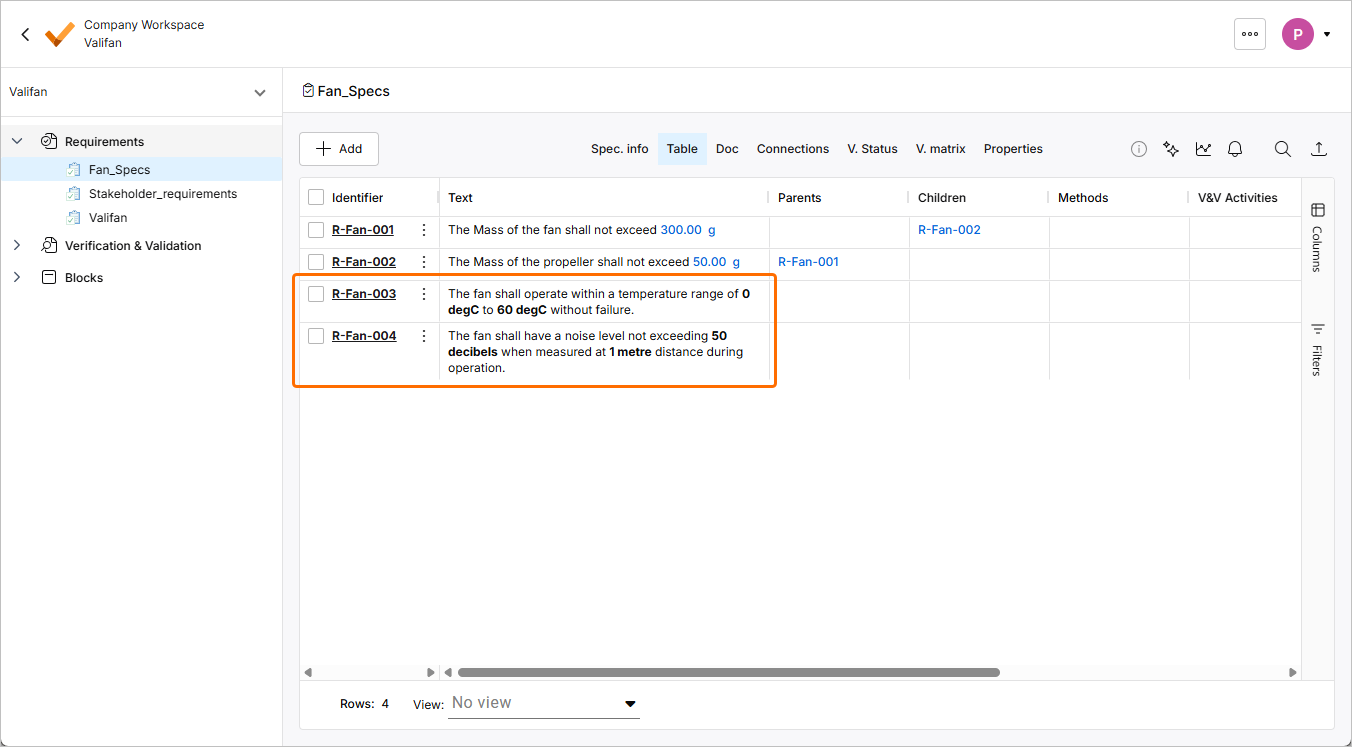
Close the window that informs you about successful generating of requirements. The generated requirements will be shown in the table of the Fan_Spec specification.
Updating, Managing, and Reviewing Requirements
Throughout the development process, it's common for requirements to evolve and be updated based on various factors, such as stakeholder input and design constraints. In Requirements Portal, you can directly update requirements by double-clicking on the column fields or within the details section of the requirement, and all changes are recorded in the history for easy reference.
-
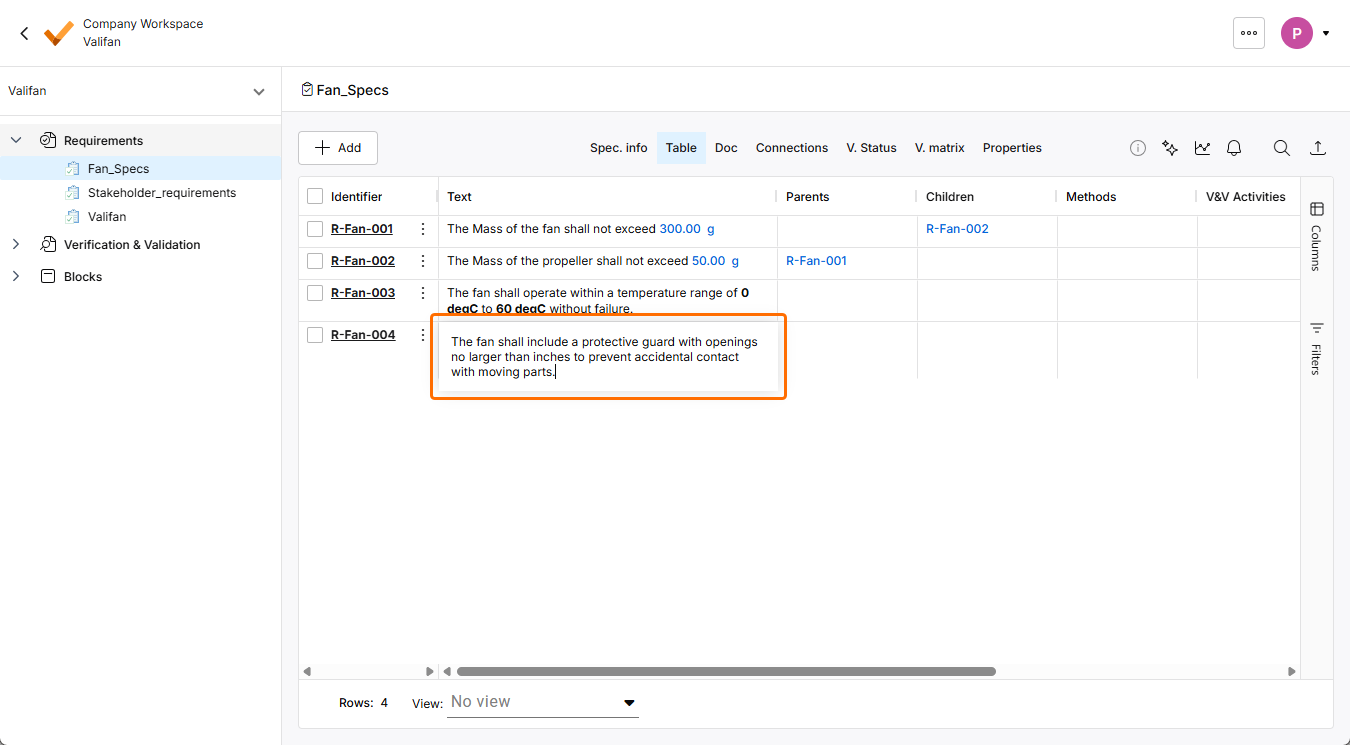
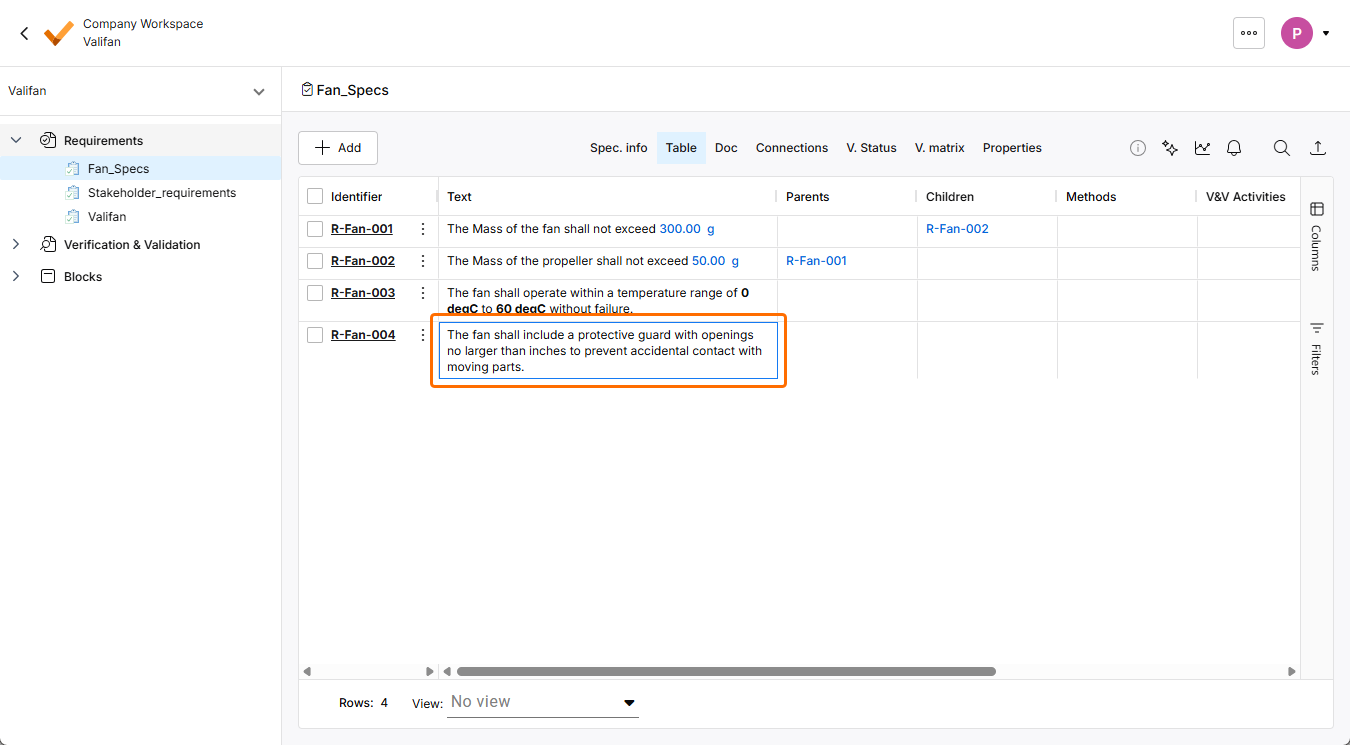
Enter editing mode for the text of the requirement R-Fan-003 or R-Fan-004 by double-clicking its cell in the Text column. Change the text to
The fan shall include a protective guard with openings no larger than inches to prevent accidental contact with moving parts.and pressEnteror click somewhere in the table outside of the cell to finish editing.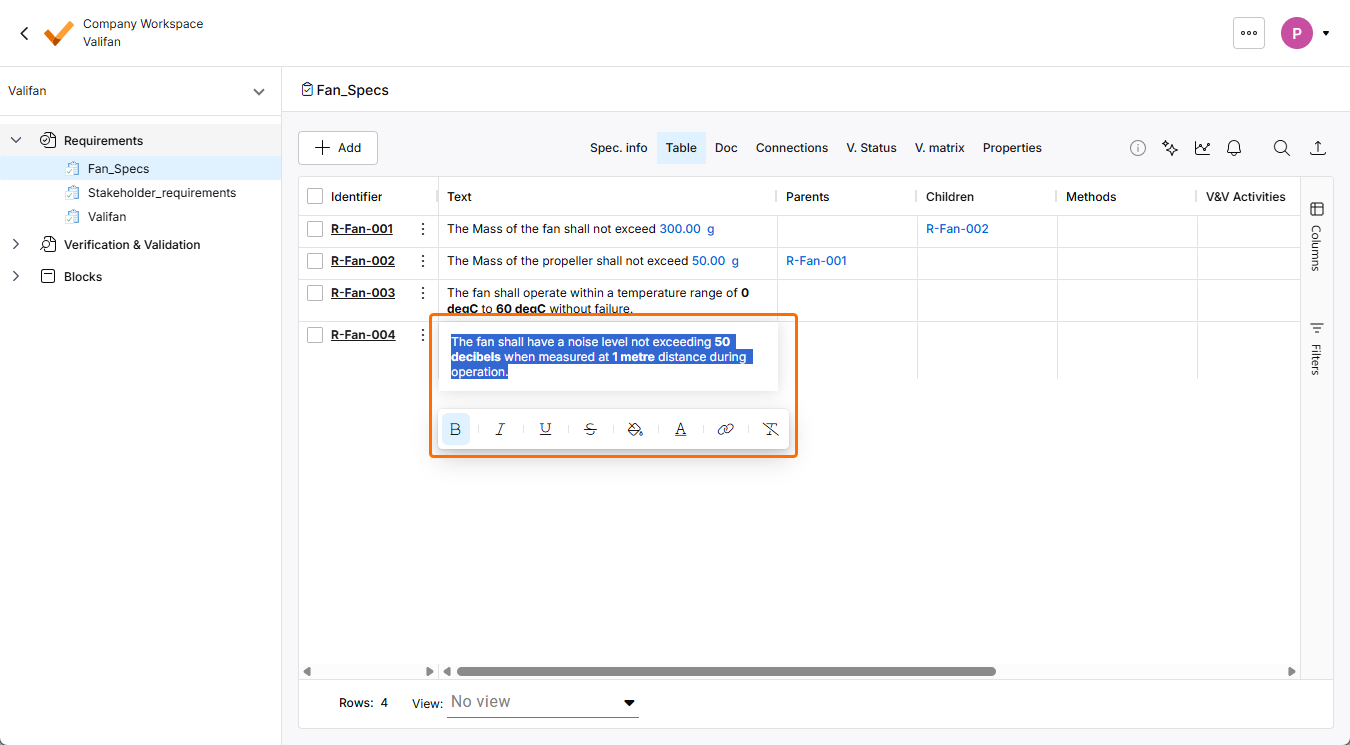
-
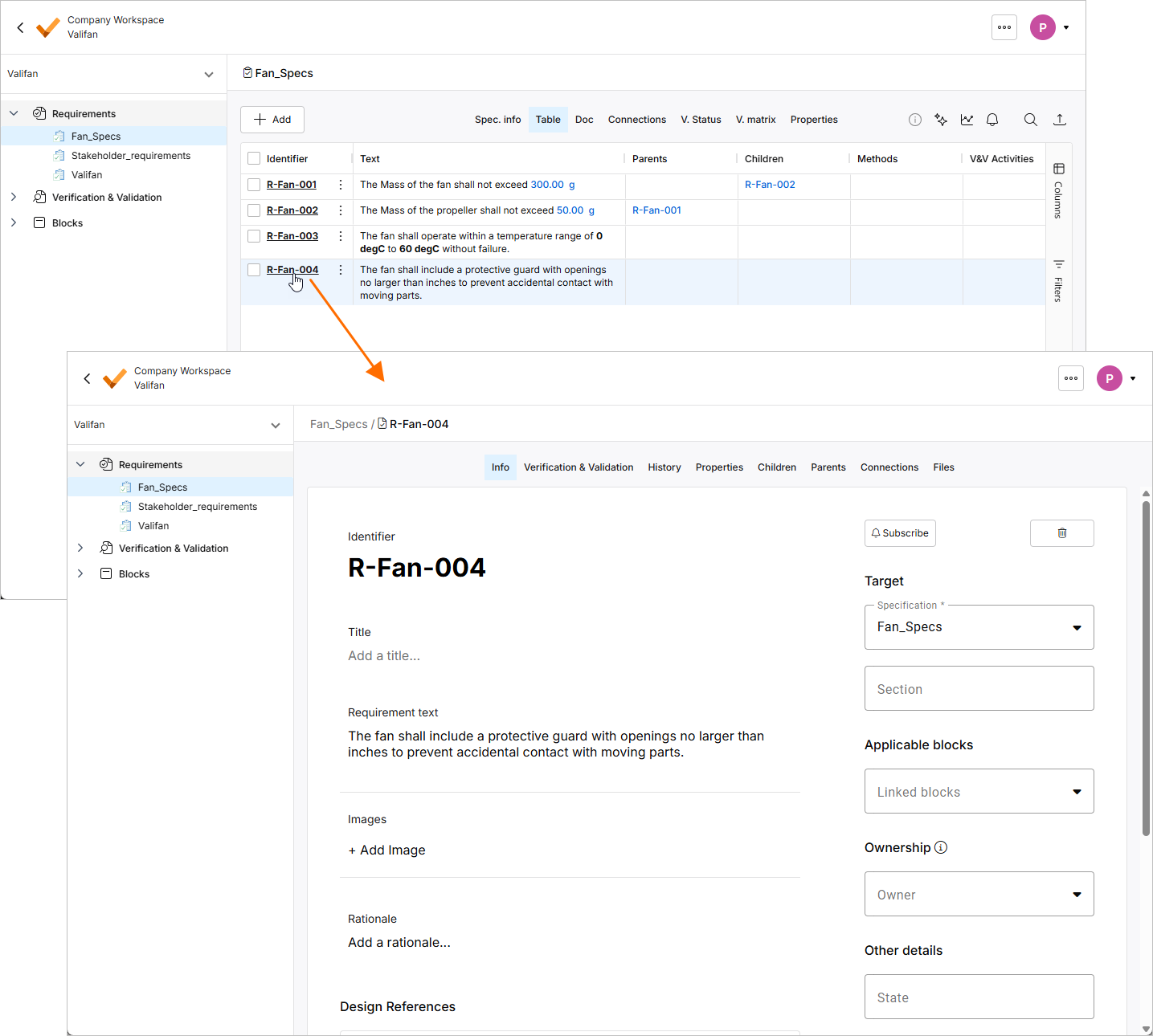
Click the identifier of the changed requirement to open its detailed view from where you can adjust additional fields, subscribe, define owners, add a rationale, create parent/children, etc.
-
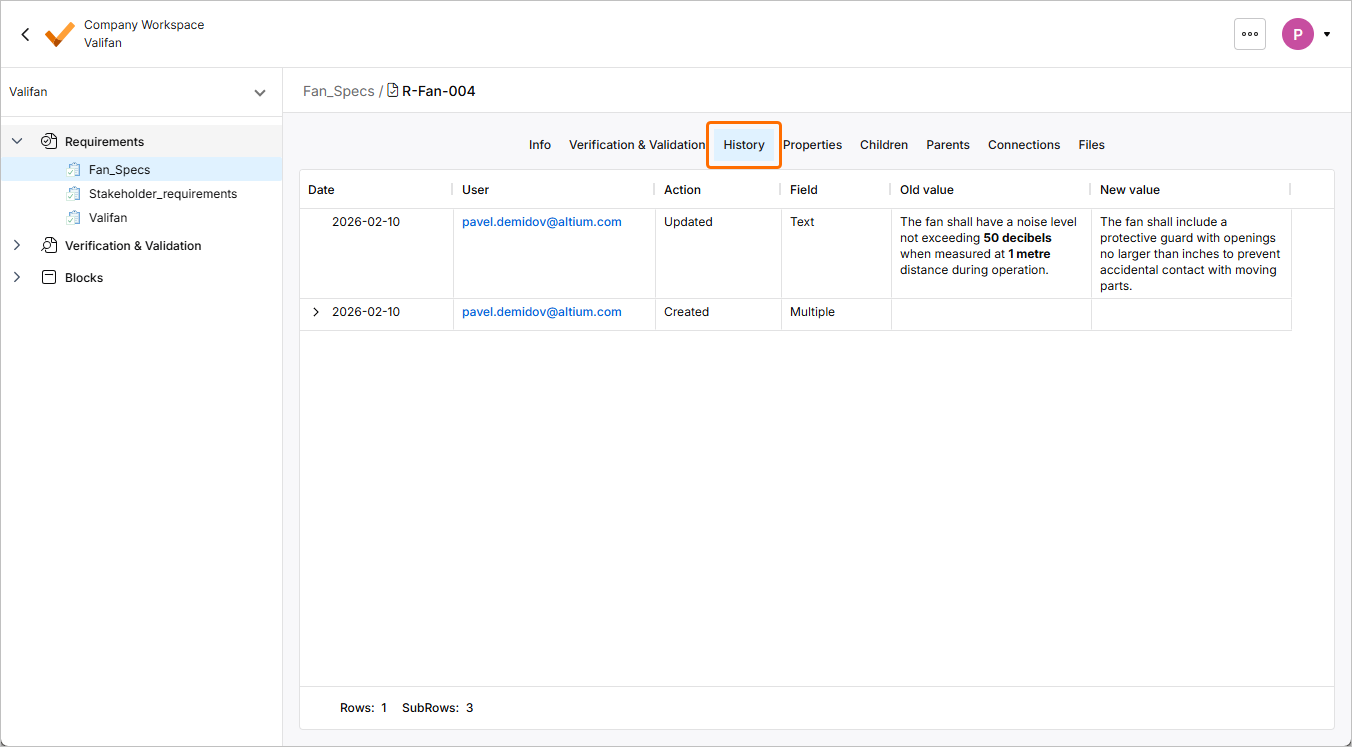
Traceability is a key concept of Requirements Portal, and all changes are tracked in history of requirements and other objects. Click History to open a view that gives you information on versions, who and when made a change, fields and actions.
Validating Requirements
In the early stages of the product lifecycle, it is crucial to validate requirements before moving forward with the design process. Requirements Portal provides a convenient way to manage requirement states using the State column. By default, states like Draft, In Review, and Final are included, but you can add additional states based on their specific needs.
In this part of the tutorial, you will assign the Draft state to newly added requirements, ensuring a structured and organized workflow.
-
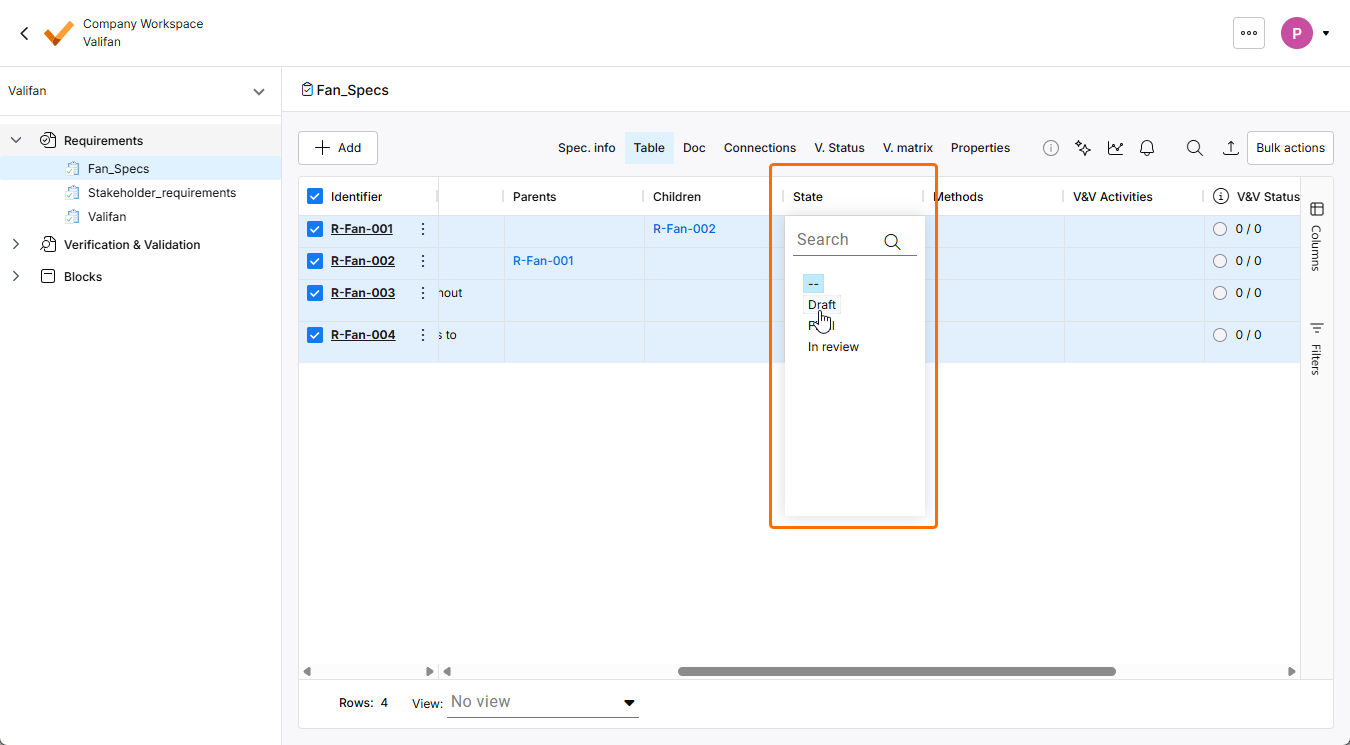
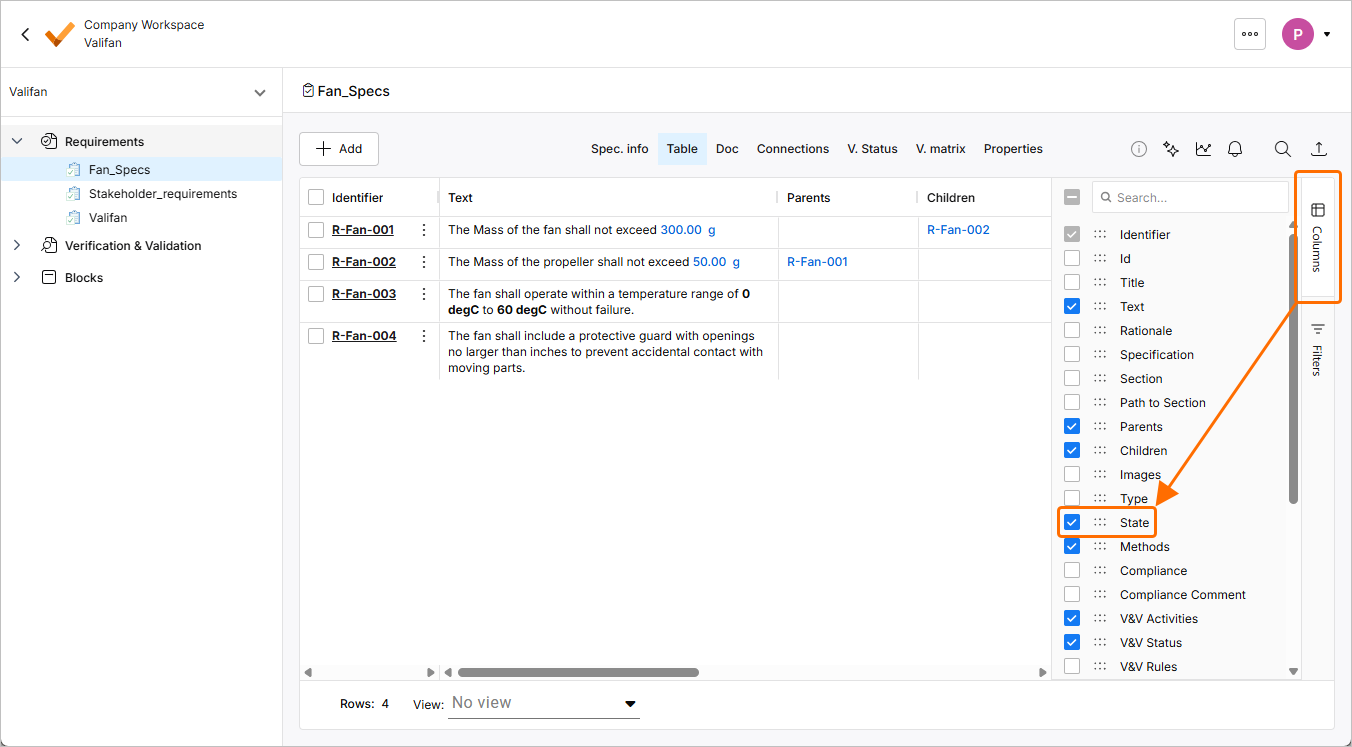
When in the Fan_Spec specification, click the Columns control at the right of the table and make sure that the entry for the State column is checked so it is shown in the table.
-
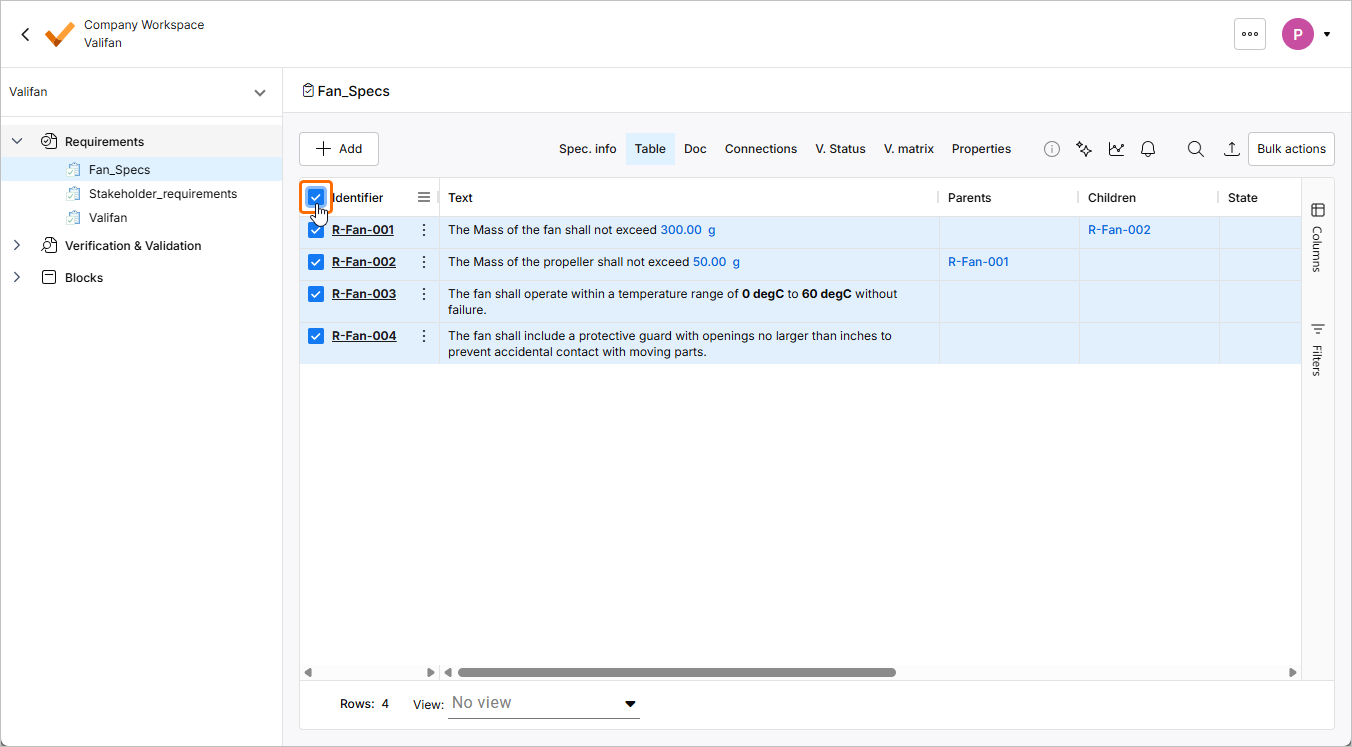
Check the box at the left of the Identifier column header to select all requirements within the specification.
-
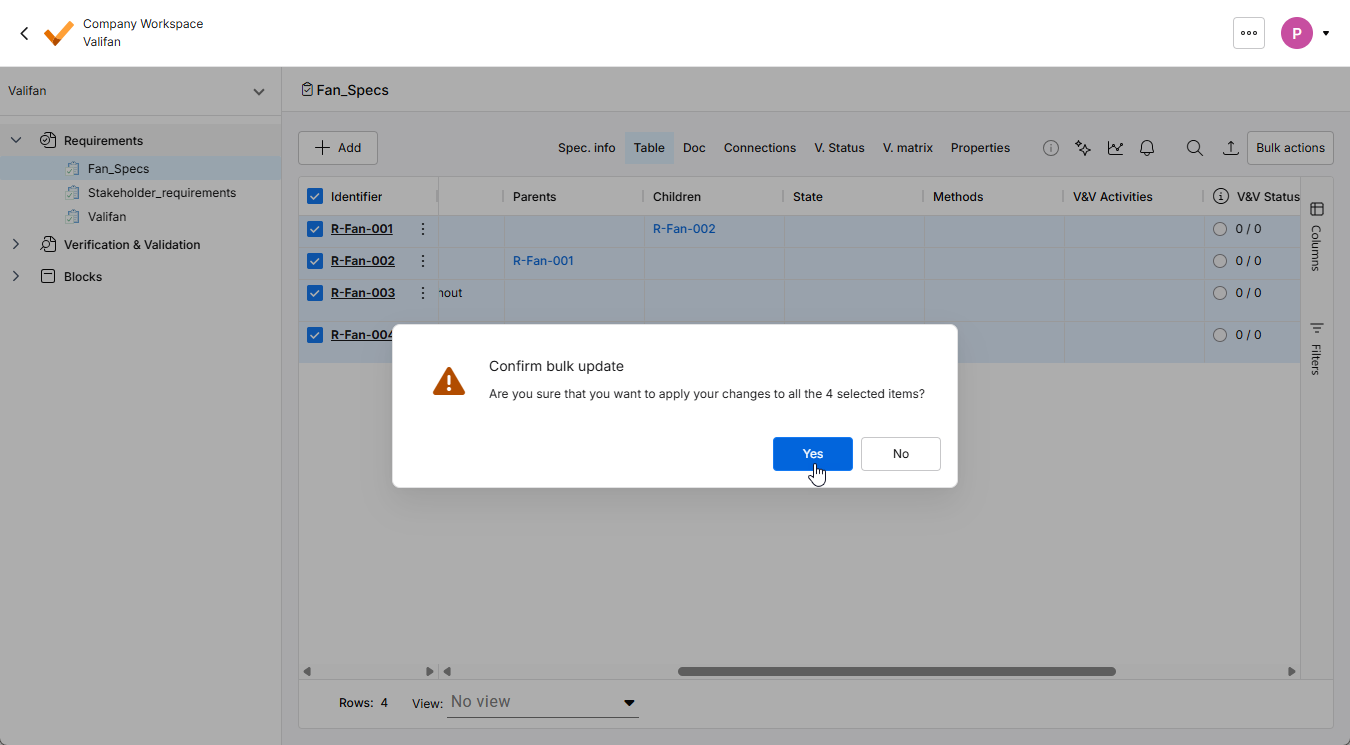
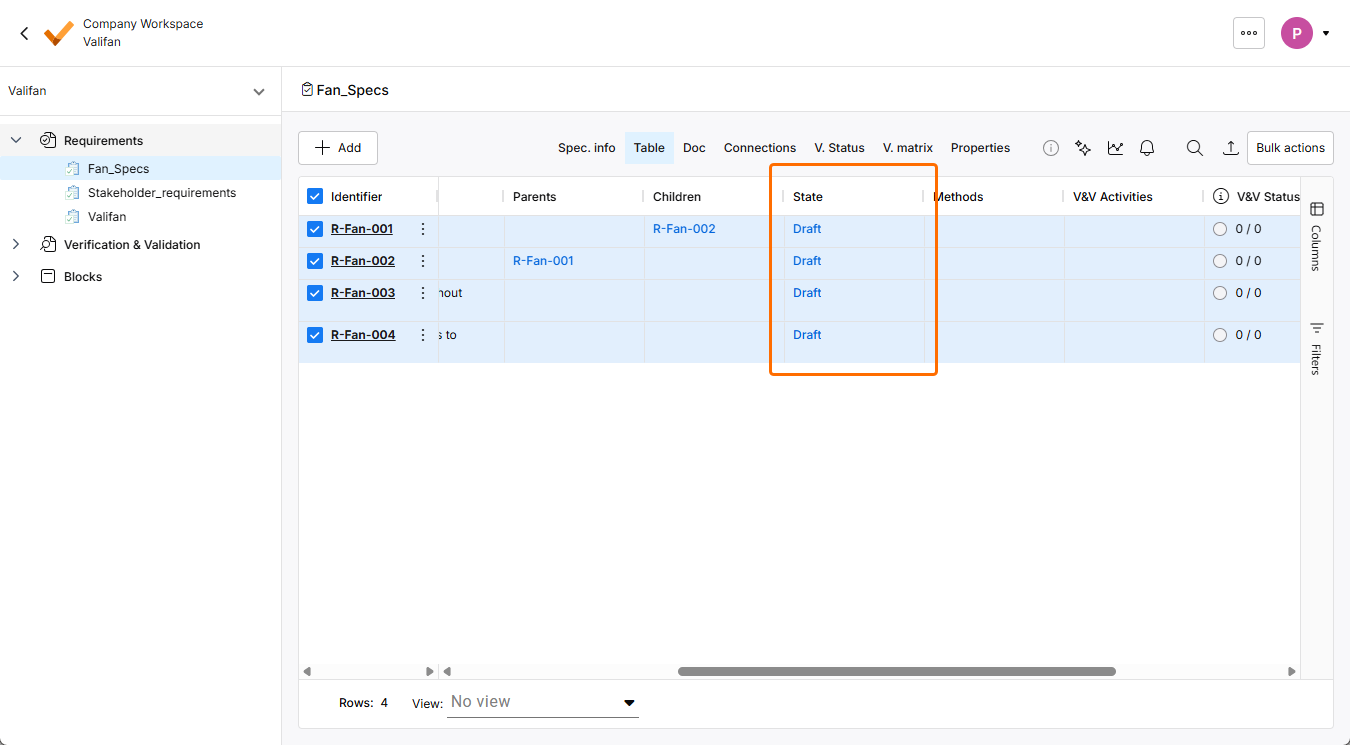
Double-click a cell of any requirement in the State column (if needed, scroll the table to the right to see the column) to open a drop-down with available options for the state. Select Draft in the drop-down and confirm the update. All requirements will have the Draft state.