
Quality Assessment
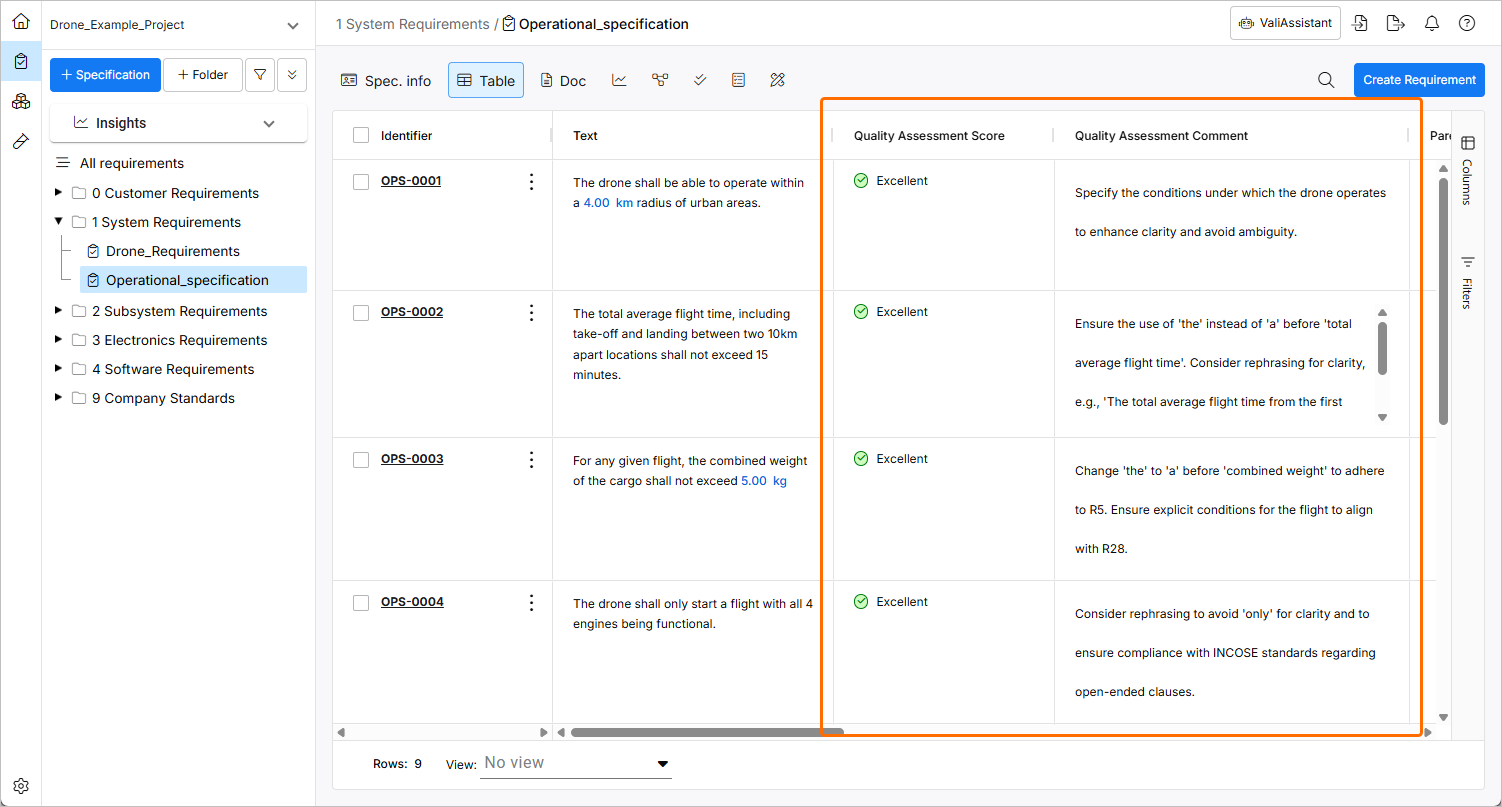
The ValiAssistant's Quality Assessment feature analyzes the selected Requirements' texts based on a set of INCOSE rules and provides the user with a Quality Score and a Quality Comment on how to improve the Requirements if the score is low. This information is written into two specific columns which can be enabled on the Requirements tables called Quality Assessment Comment and Quality Assessment Score. Information on the overall Quality of the Requirements will also be highlighted in the Insights Dashboards in the Requirements Module.
The Quality Assessment feature can be accessed from within the Requirements Module as follows:
-
By clicking the
 button at the top right, selecting the Quality Assessment option from the drop-down in the Choose Action window that opens, and clicking the
  button.
-
By clicking the three-dot icon in the Identifier column of a requirement and selecting the ValiAssistant » Quality Assessment command from the main menus.
Depending on the location from which it is accessed, the context of the object sent for assessment will vary.
For more information about accessing the ValiAssistant, refer to the ValiAssistant page.
The Quality Assessment can also be started from Insights Dashboards on the Specification level by clicking the  icon at the top right of the Quality Assessment region (
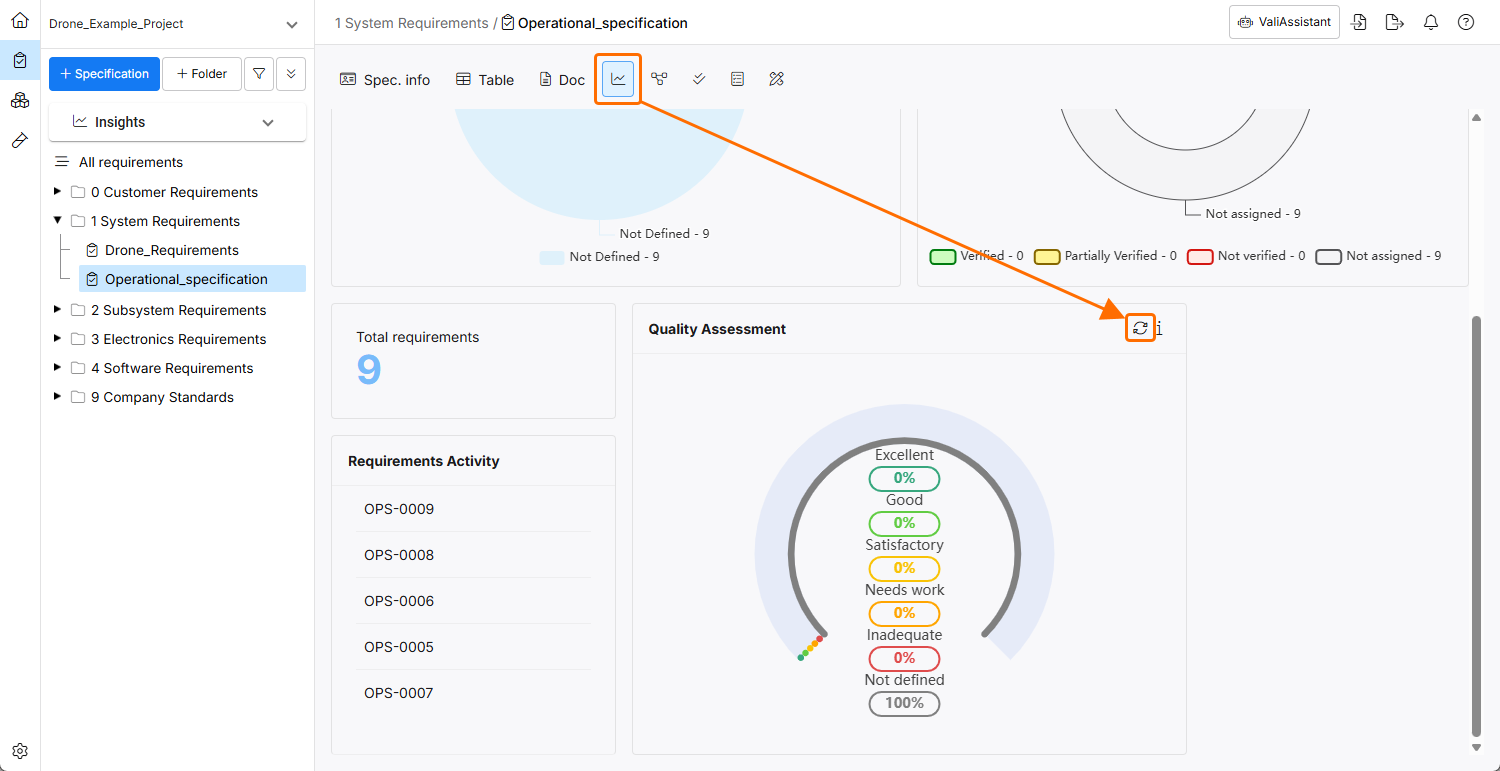 ). When accessing the feature this way, all Requirements in the currently selected Specification will be analyzed.
After accessing the Quality Assessment process, you will be informed of how many Requirements will be analyzed.
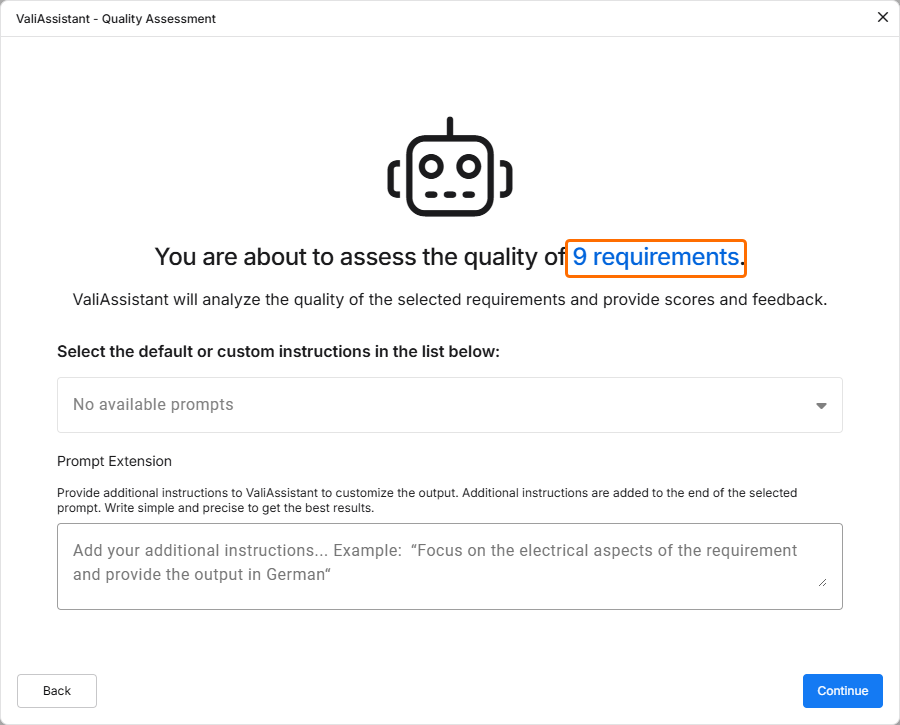
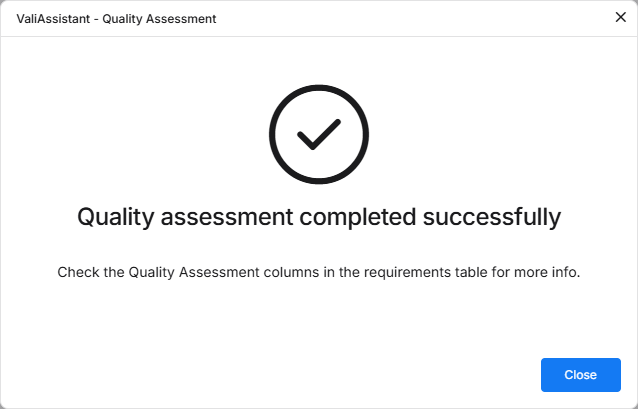
Click  to proceed. Once the process is finished, the next window will inform you that the quality assessment was successful.
The Quality Assessment Score and Quality Assessment Comment columns in the specification's table will provide additional information about the quality of your requirement text.
The results will also be presented on the Quality Assessment chart in the Insight Dashboard.
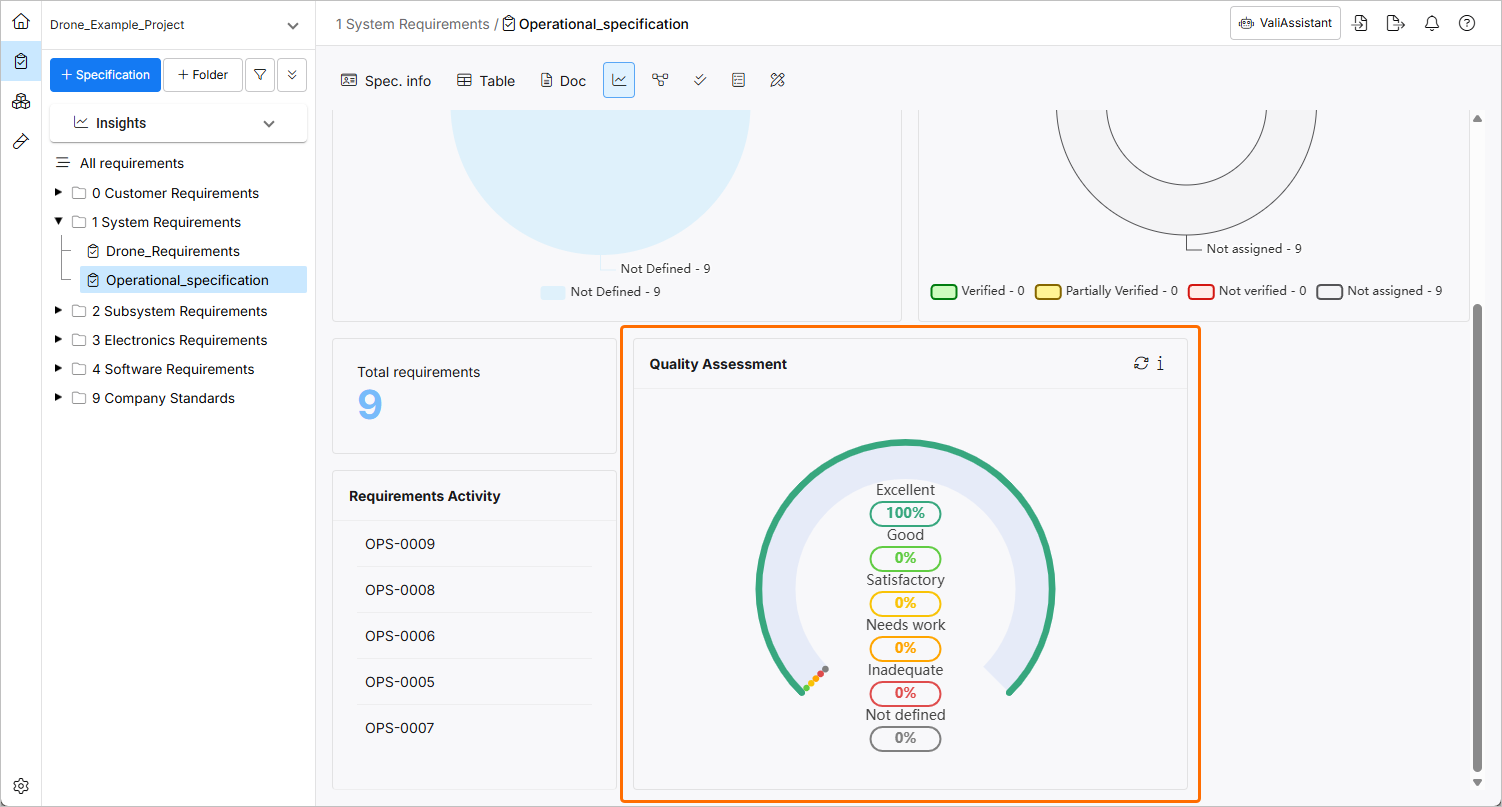
Scoring Criteria
-
Score: 0-20 / 1 (Level 1 - Inadequate)
-
Criteria: The requirement text violates multiple INCOSE standards. It lacks structure, uses passive voice, contains vague terms, and has poor grammar and punctuation. No clear responsible entity or ambiguous or not actionable.
-
-
Score: 21-40 / 2 (Level 2 - Needs Improvement)
-
Criteria: The requirement follows some standards but has significant issues. It may be somewhat structured but still uses the passive voice, contains escape clauses, or lacks specific, measurable targets.
-
-
Score: 41-60 / 3 (Level 3 - Satisfactory)
-
Criteria: The requirement generally follows standards but has some minor issues. It may be primarily structured but includes minor grammatical errors or lacks specific units of measure.
-
-
Score: 61-80 / 4 (Level 4 - Good)
-
Criteria: The requirement adheres to most standards. Well-structured, active voice, and specific measurable targets, but may have one or two minor issues.
-
-
Score: 81-100 / 5 (Level 5 - Excellent)
-
Criteria: The requirement fully adheres to standards. It is clearly structured, active voiced, has specific measurable targets, no grammatical errors, and is unambiguous and actionable.
-
INCOSE Rules was taken into Consideration for Assessment
R1 - Use a structured, complete sentence: subject, verb, object.
R2 - Use the active voice in the main sentence structure of the need or requirement statement with the responsible entity clearly identified as the subject of the sentence.
R3 - Ensure the subject and verb of the need or requirement statement are appropriate to the entity to which the need or requirement refers.
R5 - Use definite article “the” rather than the indefinite article “a”.
R6 - Use appropriate units when stating quantities. All numbers should have units of measure explicitly stated.
R7 - Avoid the use of vague terms such as “some”, “any”, “allowable”, “several”, “many”, “a lot of”, “a few”, “almost always”, “very nearly”, “nearly”, “about”, “close to”, “almost”, and “approximate”.
R8 - Avoid escape clauses such as “so far as is possible”, “as little as possible”, “where possible”, “as much as possible”, “if it should prove necessary”, “if necessary”, “to the extent necessary”, “as appropriate”, “as required”, “to the extent practical”, and “if practicable”.
R9- Avoid open-ended clauses such as “including but not limited to”, “etc.” and “and so on”.
R10 - Avoid superfluous infinitives such as “be designed to”, “be able to”, “be capable of”.
R12, 13, 14 - Use correct grammar, spelling, punctuation.
R15 - Use a defined convention to express logical expressions such as “[X AND Y]”, “[X OR Y]”, [X XOR Y]”, “NOT[X OR Y]”.
R16 - Avoid the use of “not”
R17 - Avoid the use of the oblique ("/") symbol except in units, i.e. km/hr
R18 - Write a single sentence that contains a single thought conditioned and qualified by relevant sub-clauses.
R19 - Avoid combinators that join clauses, such as “and”, “or”, ”then”, ”unless”, ”but”, ”as well as”, ”but also”, ”however”, ”whether”, ”meanwhile”, ”whereas”, ”on the other hand”, or ”otherwise”.
R20 - Avoid phrases that indicate the purpose of the need or requirement.
R21 - Avoid parentheses and brackets containing subordinate text.
R22 - Enumerate sets explicitly instead of using a group noun to name the set.
R24 - Avoid the use of pronouns and indefinite pronouns.
R26 - Avoid using unachievable absolutes such as 100'%' reliability, 100'%' availability, all, every, always, never, etc.
R28 - Express the propositional nature of a condition explicitly for a single action instead of giving lists of actions for a specific condition.
R29 - Classify the needs and requirements according to the aspects of the problem or system it addresses.
R31 - When defining design inputs avoid stating a solution unless there is rationale for constraining the design. Focus on the problem “what” rather than the solution “how”.
R32 - Use “each” instead of “all”, “any" or “both” when universal quantification is intended.
R33 - Define quantities with a range of values appropriate to the entity to which they apply and to which the entity will be verified or validated against.
R34 - Provide specific measurable performance targets appropriate to the entity to which the need or requirement is stated and against which the entity will be verified to meet.
R35 - Define temporal dependencies explicitly instead of using indefinite temporal keywords such as “eventually”, “until”, “before”, “after”, “as”, “once”, “earliest”, “latest”, “instantaneous”, “simultaneous”, “at last”.
R38 - Avoid the use of abbreviations.