
KB: Resolve "400 Bad Request - Request Header or Cookie Too Large" When Accessing Altium 365 Portals
 A365
A365
Solution Details
Portal Access Blocked Before Page Loads
When opening the Requirements, BOM, or other web portals associated with an Altium 365 cloud workspace, the browser displays the following error:
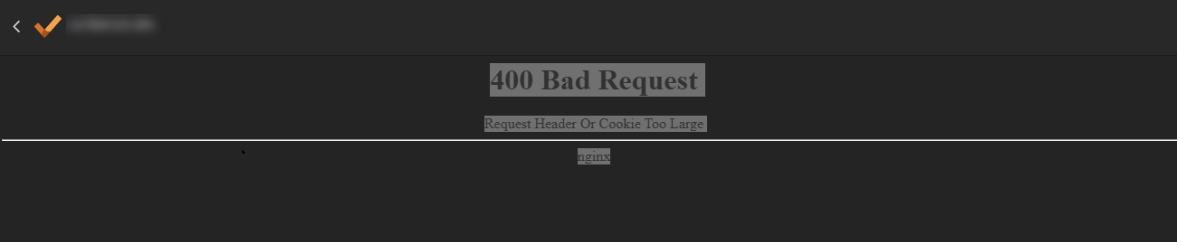
The error occurs before the portal loads and prevents further access until the browser authentication state is reset. Other Altium 365 services may continue to work normally.
Conflicting Browser Authentication Sessions
This behavior is caused by a browser-side session and authentication issue rather than a workspace, data, or service problem. It commonly occurs when multiple accounts are used within the same browser profile, when the workspace activation process is repeated multiple times, or when Altium 365 is accessed through different entry points using different accounts. Over time, conflicting or oversized authentication cookies can accumulate. When the browser attempts to process multiple valid sessions for the same workspace, the total request header size may exceed browser or HTTP limits, resulting in the error.
Available Methods to Restore Access
- Clear cookies and site data for Altium-related domains (recommended).
- Use an Incognito or Private browser window to verify whether the issue is session-related.
- Create a separate browser profile for each account if multiple accounts must be used.
Steps to Reset Browser Authentication State
Option 1: Clear Cookies for Altium Domains (Recommended)
Clear browser cookies and site data for the following domains:
- altium.com
- altium365.com
- altiumusercontent.com
- Open browser Settings.
- Navigate to Privacy and Security.
- Select Cookies and site data.
- Search for altium.
- Remove all related site data.
- Restart the browser and access the portal again.
Option 2: Use an Incognito or Private Window
- Open a new Incognito or Private browser window.
- Sign in to Altium 365.
- Access the affected portal.
If the portal loads successfully, the issue is confirmed to be related to existing cookies in the regular browser session.
Option 3: Use a Separate Browser Profile
- Create a separate browser profile for each Altium account.
- Alternatively, use different browsers for different accounts.
- Access the workspace using only the intended account in each profile.
Additional Notes
- This issue is not caused by workspace corruption, permissions, or data loss.
- This issue is not a service outage.
- Clearing cookies does not affect workspace content or configuration.
- Avoid switching between multiple accounts within the same browser profile.
- Repeated workspace activation using different accounts in the same browser can lead to unstable login states.
- Using a different browser alone may not resolve the issue unless cookies or the browser profile are reset.
- Best practice: Use one account per browser profile to avoid authentication conflicts.