
KB: Troubleshooting Unexpected Project Visibility in Altium 365 Workspaces
Updated: July 21, 2026
 A365
A365
In Altium 365, project visibility is controlled through a combination of default project permissions, folder-level sharing, project-level sharing, user group membership, workspace-wide access settings, and the Inherit Permissions from Parent Folder setting. Users may gain access to projects even when access appears restricted if permissions are inherited from a parent folder, if additional users or roles have been assigned directly to the project, or if default project sharing settings allow broader visibility. Understanding how these permission layers interact and how effective permissions are calculated helps administrators ensure that only intended users and groups can view specific projects and maintain consistent access control across the workspace.
Solution Details
Users Can View Projects Unexpectedly
Projects that are expected to be visible only to explicitly assigned users or groups may still be accessible to other users. This behavior can lead to confusion and concerns regarding unintended project visibility within the workspace.
Potential Causes of Unexpected Project Visibility
Project visibility is determined by a user's effective permissions, which may come from project-level sharing, folder-level sharing, permission inheritance, group membership, or workspace-wide access settings.
- The default permission setting for new projects has not been appropriately configured to meet the organization's project visibility requirements.
- The project was moved to a different folder while Inherit Permissions from Parent Folder was enabled, causing the project to automatically inherit folder-level permissions.
- Permission inheritance is enabled by default for folders and the content stored within them, which can result in broader access than expected.
- The project is stored within a folder but maintains its own unique permissions because Inherit Permissions from Parent Folder is disabled.
- Projects stored within folders can still have additional users or groups assigned directly at the project level.
- Existing project-level permissions should be reviewed after moving a project into a folder because direct project sharing may continue to grant access in addition to inherited permissions.
- Folder-level permissions may be configured to allow broader organizational visibility, resulting in more users being able to view project content than expected.
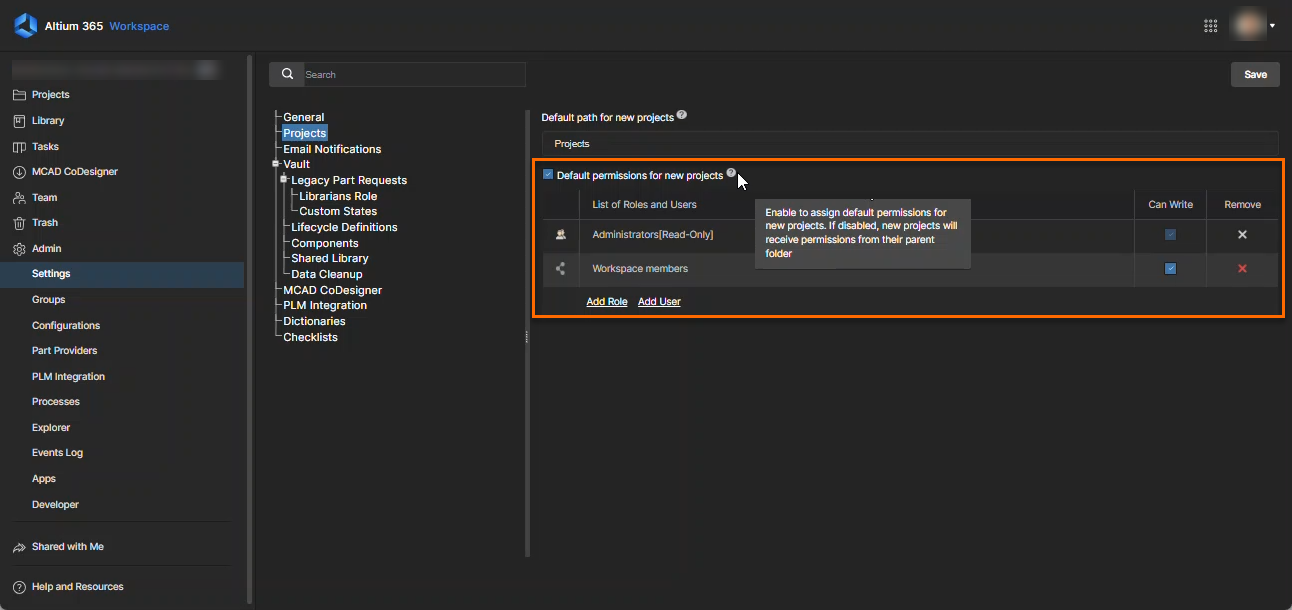
- Newly created projects are shared with the Project Owner and the Administrators role by default.
Review Applicable Permission Settings
- For future projects, verify that default project permission settings are configured appropriately in Admin Settings.
- For existing projects, review both project-level and folder-level permissions to determine which permissions are granting access.
- Confirm whether Inherit Permissions from Parent Folder is enabled or disabled.
- Check for users or roles assigned directly at the project level that may not exist at the folder level.
- Review parent folders for permission settings that provide broader organizational visibility than intended.
- If independent access control is required, disable Inherit Permissions from Parent Folder before modifying project permissions.
Verify and Adjust Project Permissions
For New Projects
- Navigate to Altium 365 Workspace » Admin » Settings » Projects.
- Enable Default permission for new projects.
- Click Save.
For Existing Projects
- From the Projects page in the Altium 365 web interface, click the Ellipsis menu and select Share.
- Review the Sharing settings to identify which users or roles currently have access.
- Click Advanced Settings and verify whether Inherit Permissions from Parent Folder is enabled.
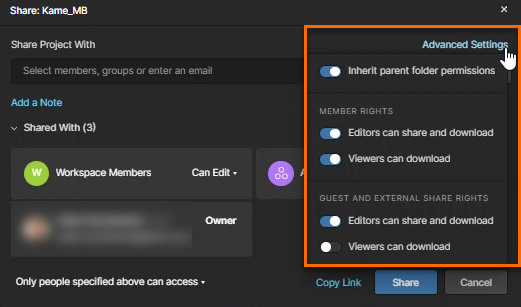
- If the setting is OFF, access is controlled by project-level permissions.
- If the setting is ON, access is inherited from the parent folder.
- Navigate to the project's parent folder and review folder-level sharing permissions.
- Compare folder-level and project-level permissions:
- If the same users or roles exist at both levels, access is effectively granted through folder-level permissions.
- If users or roles have been explicitly assigned at the project level, they may retain access even when they are not included in the parent folder permissions.
- If modification of inherited access is required, disable Inherit Permissions from Parent Folder and then configure project permissions independently.
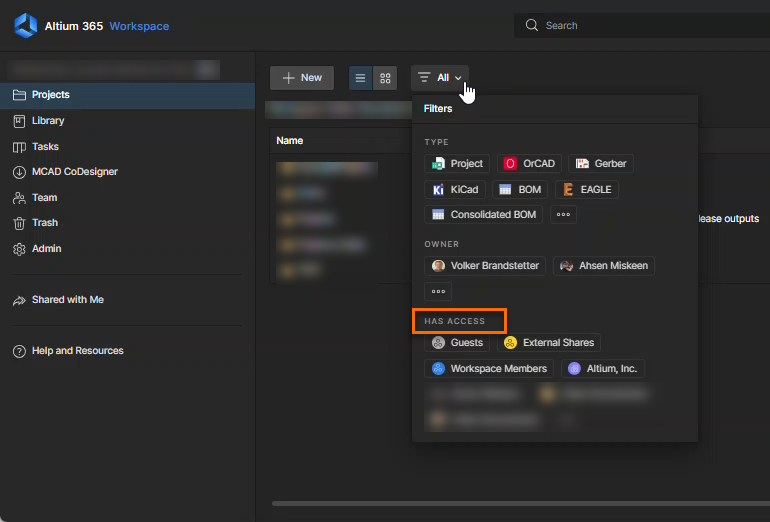
- Use Project Filters to identify visible projects and review sharing settings to determine whether access is granted directly or through inheritance.
Additional Notes
- Adding users or roles at the project level does not modify or override folder-level permissions.
- While inheritance remains enabled, inherited permissions cannot be selectively removed at the project level.
- Use Project Filters on the Projects page to verify which users or groups can view a project.