
Sharing a Design
Since the essence of collaboration is multiple people working together to achieve a common outcome, an essential collaboration factor is the ability to provide and manage access to that common element – in this case, a design project and its associated data. The Workspace delivers this capability with controlled permission-based sharing of a project design – in its current work-in-progress (WIP) state – or as a fixed snapshot of the design at that time.
Note that a newly created project, or one made available in the Workspace, is shared with the following by default:
-
The Owner of the project, which is usually the designer who created it (or made it available in the Workspace): with full (Read/Write) access permissions.
-
The Administrators role: with full (Read/Write) access permissions.
The following levels of sharing are supported from within Altium Designer:
-
Sharing of a live design – the work-in-progress (WIP) design itself, which can be shared:
- With other members of your Workspace team – for editing and/or viewing. An invited team member can view the design through Altium Designer or through the team's Workspace. Editing is performed only through Altium Designer. The invited team member must be registered with AltiumLive and have an active Altium Designer license subscription.
- With people outside of your Workspace team – for viewing or editing, through email invite. This capability is available only when connected to an Altium 365 Workspace. This type of sharing allows invited stakeholders to view/edit (as applicable) a live, work-in-progress design project, without gaining access to your full Workspace or design data. The invited person must be registered with AltiumLive, and can access the shared design from their Altium 365 Personal Space (or their organization's Workspace, if available), or open it in Altium Designer.
If granted viewing access only, the invited stakeholder can view and comment on the design from within Altium Designer, or through their Altium 365 Workspace interface. As people with editing rights make changes to the design and commit them, those changes can be viewed 'live' by those external people. To view the shared design through the browser interface, from anywhere, all that's needed is registration with AltiumLive to gain access.
If the invited stakeholder has been granted editing rights to the design, then they can open and edit it from within Altium Designer – perfect for external contractors.
-
Sharing of a design 'snapshot' – a static snapshot of the design at a particular point in time and shared:
-
By link – available to anyone through a browser. Shared design access at this level requires neither active subscription for your Altium Designer licensing, nor registration with AltiumLive. A recipient of the shared link opens the Standalone Altium 365 Viewer to view (but not comment) on the design. Viewing requires no registration with AltiumLive and the link is available for 48 hours.
-
With specific people – available to specified people through email invite. Shared design access at this level requires registration with AltiumLive, but does not require active subscription for Altium Designer licensing. A recipient accesses the design snapshot through the Altium 365 Platform Workspace interface Web Viewer from their email invitation. Viewing requires registration with AltiumLive, but the snapshot is available permanently. Commenting on the design is also available.
Note that a design Snapshot shared in this way is essentially read-only. It can be downloaded or viewed in an Altium 365 Workspace, but unlike a shared WIP design, it cannot be opened for viewing/editing in Altium Designer.
-
 ).
).Accessing Sharing Controls
Controls for sharing a design from within Altium Designer can be found in the Share dialog – accessed in the following ways:
-
For the active project – by clicking the
 button at the top-right of the main application window, or by choosing the Project » Share command from the main menus.
- For the focused project in the Projects panel – by right-clicking on the entry for the project and then choosing the Share command from the context menu.
- When commenting a design document, by posting a comment with a mentioned user that does not have access to the current project.
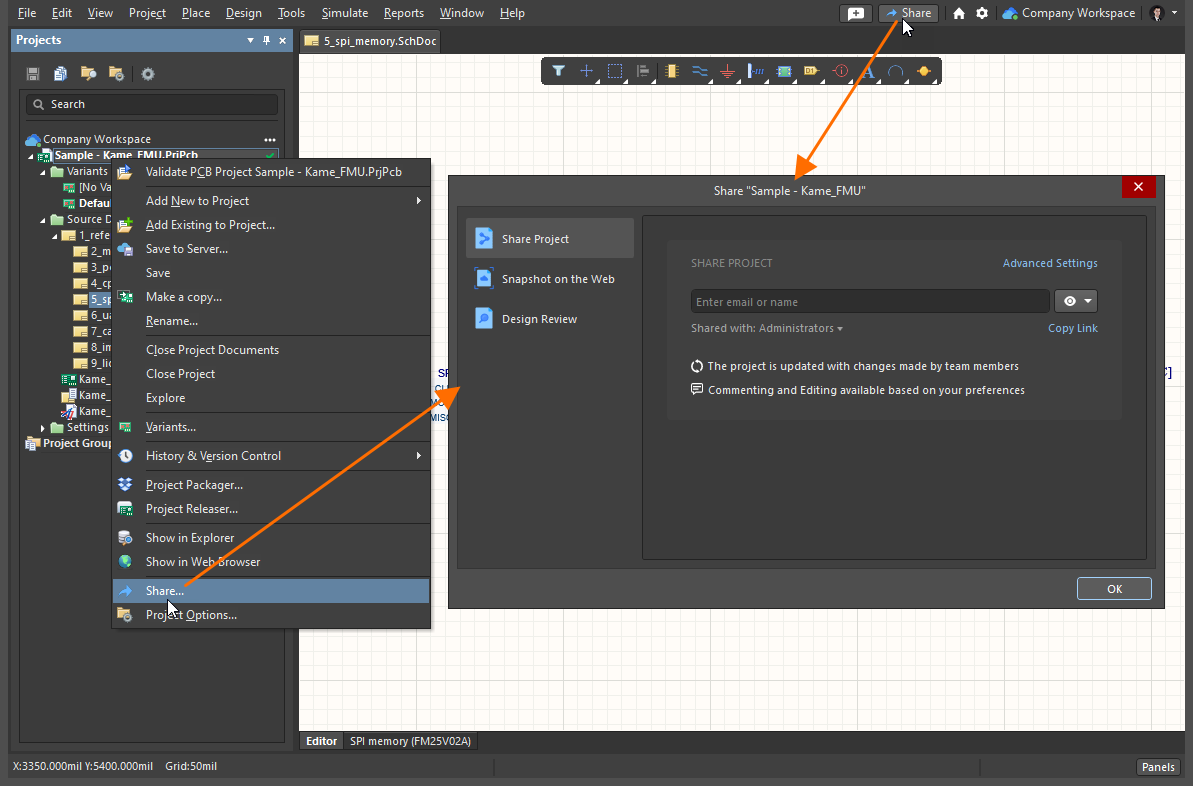
Accessing the Share dialog – command central for sharing a design from within Altium Designer.
Pre-sharing Preparation
In order to be able to share a live WIP design through an Altium 365 Workspace:
- You must be signed in to your Altium account (using your AltiumLive credentials).
- You must have an active (valid) Altium Subscription for your Altium Designer licensing.
- You must be connected to your Altium 365 Workspace.
- The design project must be registered with (made available to) the Workspace.
- You must have permissions to share the project.
In order to be able to share a WIP design through an Enterprise Server Workspace:
- You must have an active (valid) Altium Designer license.
- You must be connected to your Workspace.
- The design project must be registered with (made available to) the Workspace.
In order to be able to share a design Snapshot through a Workspace:
- You must be connected to your Altium Workspace.
- The design project must be registered with (made available to) the Workspace.
- A recipient of a shared Snapshot Link requires a standard browser only.
-
A recipient a Snapshot specifically shared with their name needs to be:
- registered with and signed in to AltiumLive.
- connected to their Altium 365 Personal Space.
The Share dialog will present guidance in order to properly prepare you for sharing your chosen design project. The following are examples of this when sharing with an Altium 365 Workspace (a similar set of relevant advice dialogs are presented when working with an Enterprise Server Workspace):
-
If not signed in to your Altium account, the dialog will present a link to do so (to access the Sign In dialog), or to register with AltiumLive, if you don't yet have credentials. You will typically connect to a Workspace (if you have one) once signed in to your account, and if that Workspace has been set as the default.

-
If you are signed in to your Altium account and are attempting to share an open project that is not registered with a Workspace (i.e. it is a local or VCS project), and you don't have a Workspace available to you, the dialog will present a control to activate the Workspace for your company.

-
If you are signed in to your Altium account and are attempting to share an open project that is registered with a Workspace, and you are not currently connected to that Workspace, the dialog will present a control to connect to that specific Workspace, or switch to it if currently connected to a different Workspace.

-
If you are signed in to your Altium account and are attempting to share an open project that is not registered with a Workspace (i.e. it is a local or VCS project), and you are not currently connected to a Workspace, the dialog will present a list of all Workspaces available to you, prompting you to select which Workspace to register the project with.

-
If you are signed in to your Altium account, are attempting to share an open project, and don't have permission to do this, the dialog will show you the message stating this fact. This could happen if you don't have editing rights for this project or if a Workspace administrator or the project owner restricted the re-sharing ability for editors inside and/or outside the Workspace.

Sharing a Live Design
With a design project registered with (made available to) an Altium 365 Workspace, you have the ability to share that design with other people. This can be to other members of your Workspace team, or to people outside of the team. To share in this manner, click to select the  entry, on the left side of the Share dialog.
 Accessing the controls to share a live/WIP design with others. Note that the image shows the case for a project already available in a connected Workspace.
Use the Copy Link control to copy a direct link to the project that can be used by those who already have access to the project to open the project in the Workspace's Web Viewer.
Sharing with New People
With preparation complete, a project selected, and a target Workspace connected, you can proceed to specify which person (or people) the project is to be shared with. To check who already has access to the project, click on the Shared with control. The region will expand to show with whom the project is shared and whether they have editing rights (Can Edit), or can view and comment on the project only (Can View).

Check with whom the project is currently shared by clicking the Share with field. Hover over the image to see the result.
You can share the project with anyone – other AltiumLive users from within your own organization, AltiumLive users from different organizations, and non-AltiumLive users (who will need to then register for AltiumLive accounts). Note that when connected to an Enterprise Server Workspace, you can share the WIP project with registered users of that Workspace only – for sharing externally, see Sharing a Design Snapshot or the sharing approach available in your Altium 365 Personal Space.
To add an entry, begin typing the desired name/email/role in the field so the matching user/role can be selected from the dynamic list – which will only contain filtered users in your Workspace team or within your organization, and existing roles defined for the Workspace. Multiple users/roles can be chosen. To remove an entered user/role, click the  control associated with the entry.
Set the sharing access permissions for the added people/roles from the associated drop-down menu by selecting Can View ( ) or Can Edit (
 ), where the latter option inherently includes viewing capability. The setting initially applies to all entries (people/roles) included in the field. Use the optional note field to include information that relates to the sharing arrangement for this project.
Only those shared users with Edit permissions applied can re-share a project with others. All shared users with Edit rights can download the project's design files. Additional sharing permissions are available to administrators and the project owner in the Share dialog. Use the Advanced Settings options to specify the re-sharing and download rights for users that the design is to be shared with.
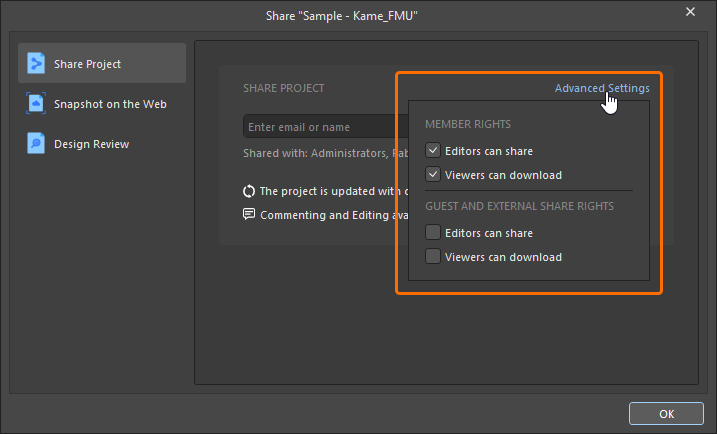
The additional share and download options are gathered as follows:
-
Member Rights – for Workspace members:
-
Editors can share – allow Workspace members that have
Editrights for the shared design to re-share it with others. -
Viewers can download – allow Workspace members that have
Viewrights for the shared design to download design files.
-
-
Guest and External Share Rights – for external guest users with whom projects have been shared:
-
Editors can share – allow non-Workspace members that have
Editrights for the shared design to re-share it with others. -
Viewers can download – allow non-Workspace members that have
Viewrights for the shared project to download design files.
-
Confirmation of changes in advanced settings is made by clicking the  button back in the main Share dialog.
With target recipient(s) defined and access rights specified, click the  button to proceed with sharing the project. The dialog will present a message that the project has been shared successfully. From here, you can click the Who has access control to return to the list of users who have access to the project, click the
  button to copy the direct link to the project, or simply close the dialog by clicking OK.

Sharing with a non-Team Member
If you attempt to share an Altium 365 Workspace project with a person outside of the team, the Confirm dialog will appear that warns you that the user will have access to the source documents of the project being shared, placed comments and release packages. Click OK to proceed with sharing the project.
 You can share a project with anyone outside of the Workspace team, for editing or viewing.
Sharing a Local Project
If you are sharing a local project (not under external VCS), the project will be made available in the currently connected Workspace at the time the project is shared with the nominated people. What actually happens depends on whether you are sharing for viewing or editing:
- When sharing for viewing only (and connected to an Altium 365 Workspace) – the project is made available through Simple Sync. Under this mode, the design project can be edited by a single person only (the owner of that project). The strength of Simple Sync comes when you do not want anyone else editing your design, but where you do want to take advantage of Altium 365's Global Sharing paradigm, and be able to share that design with multiple other people for viewing and commenting. For more information on this functionality, see Mirroring a Project in the Workspace Using Simple Sync.
- When sharing for editing – the project needs to be added to the Workspace's Versioned Storage Git design repository. Under this mode, multiple people can be shared the project for editing, as well as being able to utilize Altium 365's Global Sharing support for shared viewing and commenting. A dialog will be presented alerting you to this and giving you the Use Altium 365 VCS option to do so. Click Learn More to access the Sharing page, which will help guide you through project sharing.
 When sharing a local project (not under VCS) with a person for editing, the project will need to be brought under version control by addition to the Workspace's Versioned Storage Git design repository.
Sharing Result
What happens next depends on the type of user being invited:
- A user that is already part of your Workspace Team will be added to the sharing access list for the project directly, and they will receive an email notifying them that the project has been shared with them. They can open the project in Altium Designer, or access it through the Workspace interface (from the Projects page).
- When an existing Role for the Workspace is added it will appear on the access list for the project, and all members of the role will receive an email notifying them that the project has been shared with them. They can open the project in Altium Designer, or access it through the Workspace interface (from the Projects page).
-
When using an Altium 365 Workspace for sharing with a person outside of your Workspace team, they will be added to the sharing list and will receive an email notifying them that the project has been shared with them. They can open the project in Altium Designer from the Shared with Me option, or access it through their Altium 365 Platform Personal Space Interface (from the Shared with Me page). Their received email provides direct access to the design through Altium 365. Once they click the
 button in the email they will be taken to the Altium 365 Sign In page (unless already signed in to the platform, or their AltiumLive account). Upon signing in, they will be taken to the Web Viewer directly, with the shared design loaded.
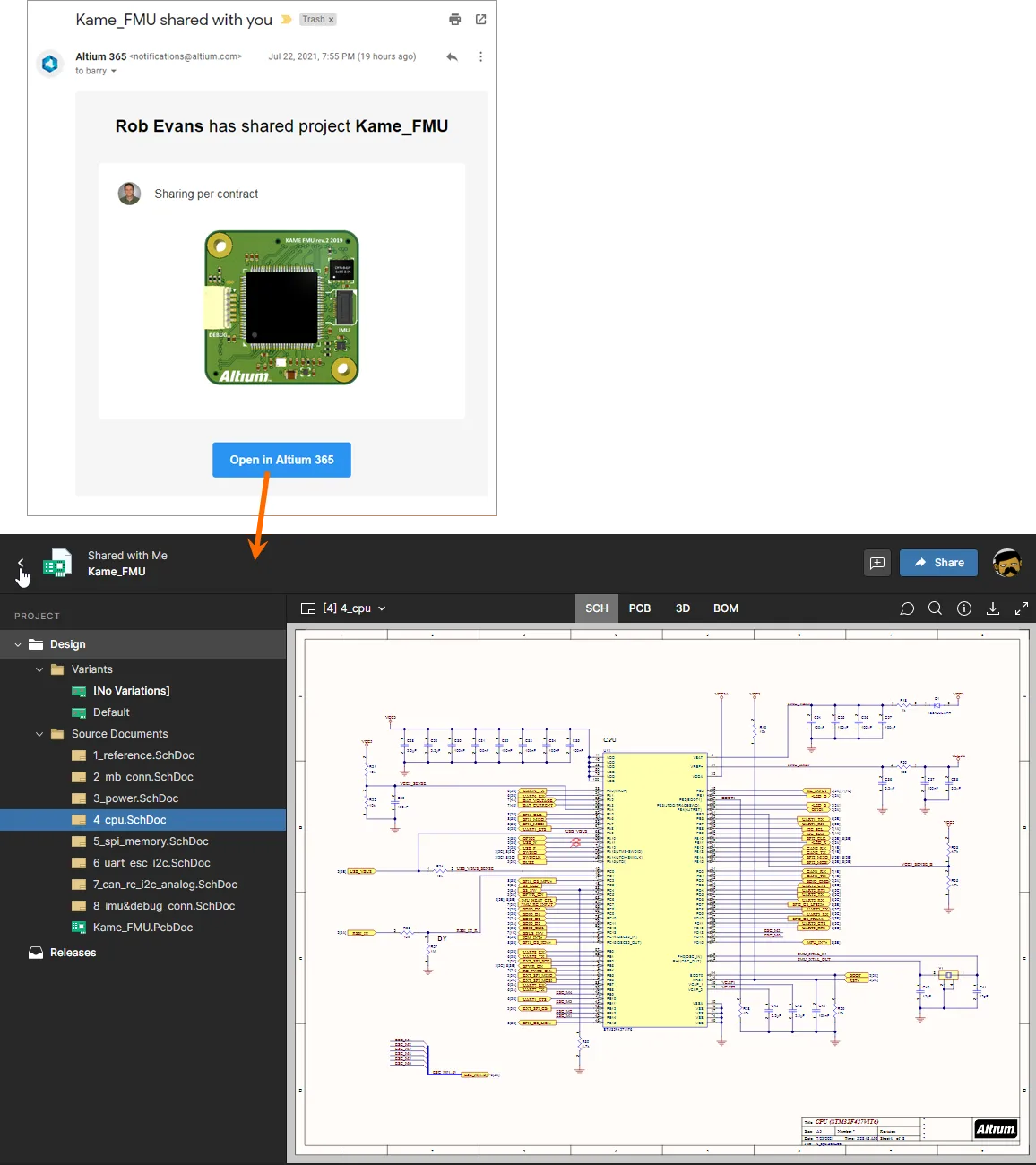
Accessing a shared live design from the email invite received by the user that is not a member of the Workspace Team.
Modifying Access Rights for Existing People
At any time, an Administrator (or Workspace team member with editing rights) can modify the existing access permissions for a project. To access the list of existing shared people and roles for a project click the entry on the left side of the Share dialog, then expand the Shared with field on the right.
 Accessing the list of people and roles who currently have shared access to the project.
Things to be aware of:
-
In terms of permissions, a person/role has full editing access to the project when the Can Edit option () is selected. Otherwise, they have View-only access ().
- The Owner and the Administrators role always have full editing access (Can Edit).
-
With the exception of the Owner and Administrators role, permissions for all included people/roles may be individually set as Can View or Can Edit, or access rights completely removed. Also, project ownership can be transferred to another user (see below). Click on the current permission state to access controls.

- A project may be explicitly shared with specific people and/or roles, or simply shared with all members of the Workspace team. For the latter, set the required access for the Workspace Members entry. To not share the project with the entire team, set this entry to None.
Make changes to access permissions as required. Each changed entity is highlighted in the list with a darker background.
 Example changes to the permissions for two existing people with which a project is currently shared.
To affect changes, click the  button. The changes will be applied, with confirmation reflected through the dialog. To see the updated list of shared access, click the Who has access link.
 After saving permission changes, you can view the updated result directly through the Share dialog.
Transferring Project Ownership
Administrators and Owners are able to transfer ownership to another user using the Owner option from the current permission state drop-down. The option can be used by the current project owner or a Workspace Administrator.
When selecting the Owner option for a user, the Transfer Ownership dialog will open. Click Yes to process.

The changes of permissions for the current owner and the transferee will be reflected in the dialog. Click Save to proceed with the changes.

The user to which ownership is transferred will receive an email notification.

Accessing a Shared Live Design
Access to a project shared with a user depends on whether that user is a member of the Workspace team, or is outside of the Workspace team.
Workspace Team Member
For a member of the Workspace team, they can access the shared project through Altium Designer, or through the Projects page of the Workspace's interface. Note that editing of the project – if they have editing rights – is only possible through Altium Designer.
Within Altium Designer, access the project using the File » Open Project command or the ellipsis button associated with the Workspace entry in the Projects panel. The Open Project dialog will appear, from where you can choose which Workspace project to open from your connected Workspace – when connected to a Workspace, that Workspace will appear in the Locations region of the dialog, distinguished by the  icon, and appearing with the name given to the Workspace. Only those Workspace projects that have been shared with you (and you have permission to access) will be listed.
Once opened, the project will appear under an entry for the Workspace, in the Projects panel.
 Choose which Workspace project to open from your connected Workspace, from within Altium Designer, from those currently shared with you.
 drop-down menu to specify a custom path. The default checkout path is taken from the Document Path field on the
  button, at the top-right of the panel, to open the project in Altium Designer (adding it to the Projects panel). Use the
  button to open the project for viewing the connected Workspaces browser interface.
Invited Stakeholder Outside of the Workspace Team
For a person outside of the Altium 365 Workspace team with whom the project has been shared, they can access that project through Altium Designer or through the Altium 365 Platform Interface (from the Shared with Me page). To open the project, select the design's tile and click on the project name, or choose the Open option from the tile's ellipsis menu. Alternatively, double-click directly on the tile. Note that editing of the project – if they have editing rights – is only possible through Altium Designer.
Within Altium Designer, access the project using the File » Open Project command. The Open Project dialog will appear, from where you can choose which Workspaece project to open from the Shared With Me location.
Once opened, the project will appear under the entry Shared with me, in the Projects panel. What you can do with the project depends on the access rights you have been given to it. If editing rights were assigned to you, you will be able to edit the design normally, which would typically be the case for an external contractor – since the design is shared from a Workspace, design changes are synchronized in both directions. If you are restricted to viewing rights, you still will be able to comment on the WIP design.
 Choose which Workspace project to open, from within Altium Designer, from those currently shared with you as an external stakeholder. Note that access is made to such projects without having access to the Workspace.
Sharing a Design Snapshot
Creating a read-only snapshot of a design allows you to quickly share that design – at that specific point in time of the project's development – for wider collaboration with others through the Web. This can be useful for an on-the-fly design review, sharing a particular design milestone, or even to stimulate contextual discussion. To share in this manner, click to select the  entry, on the left side of the Share dialog.
 Accessing the controls to share a snapshot of a design.
Sharing by Link
By default, the dialog is set to Share By Link, meaning that anyone who is given the link will have access to view the design snapshot through their browser for a time-limited period of 48 hours. Commenting on the design is not possible with this level of sharing.
Click the  button to generate the link to the design snapshot. In the background, the project itself is packaged into a Zip archive using Altium Designer's Project Packager. Once the link is ready, click the
  button to copy it, and then share with the required people as needed.
 Generating the time-limited link that can be shared with anyone, anywhere.
When the recipient of the link opens it in a Browser they will be taken to an instance of the Altium 365 Viewer – on the main altium.com site – with the design processed and loaded.
 Using the shared link, a recipient can browse the design snapshot using Altium 365 Viewer, loaded on the main altium.com site. Shown here is a schematic – hover over the image to see the PCB.
Sharing with Specific People
Clicking the Share with specific people control will switch the sharing mode (for sharing a design snapshot) to allow you to share with one or more specific people – by email invitation. Recipients will have access to view, share or download the design snapshot through the browser-based Altium 365 Platform Interface. Such a design snapshot is available permanently through the platform and commenting on the design is possible with this level of sharing.
 Switch mode to be able to share a design snapshot with specific people on a permanent basis.
Enter the full email of a person with whom you want to share the snapshot and press Enter. Multiple people can be specified in this way, as needed. You can also add an optional note – to let them know anything pertinent about this specific snapshot being shared.
 Example sharing of a design snapshot with a specific person, by email.
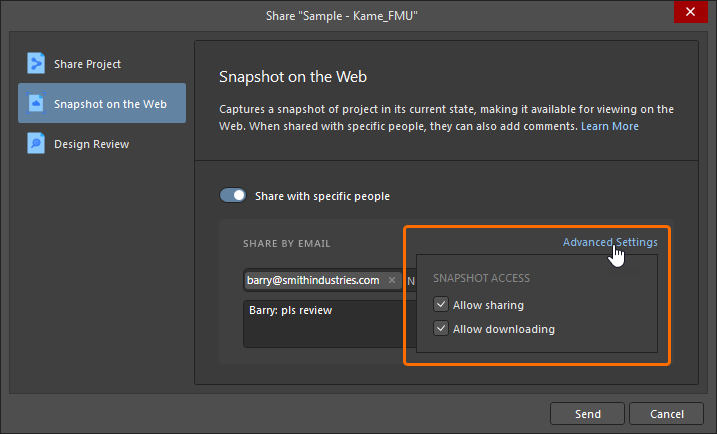 ).
).Once ready, click the  button. The project itself is packaged into a Zip archive using Altium Designer's Project Packager, then uploaded to the Altium 365 platform. Confirmation of upload is provided once the process completes.
 The shared snapshot is packaged and then uploaded to the Altium 365 platform, where it is available on a permanent basis.
The person with whom you shared the uploaded design snapshot will receive an email invite to access that snapshot through Altium 365. Once they click the button in the email they will be taken to the Altium 365 Sign In page (unless already signed in to the platform, or their AltiumLive account). Upon signing in, they will be taken to the Web Viewer, with the shared design snapshot loaded.
 Accessing the design snapshot from the email invite received by the user with whom the snapshot was shared.
Accessing a Shared Design Snapshot
In addition to following the link in their email invite, a person with whom a permanent design snapshot has been shared will be able to access (open, share and view) that snapshot at any time from the Shared with Me page of the Altium 365 Platform Interface. A design snapshot is denoted by the  icon within its tile.
To open in the integrated Viewer, select the design's tile and click on the project name, or choose the Open option from the tile's ellipsis menu. Alternatively, double-click directly on the tile. Note that a shared design snapshot is not able to be edited and is therefore not accessible to Altium Designer through the Shared With Me location in the Open Project dialog – it can, however, be downloaded if it has been shared with that permission enabled.
 Accessing a design snapshot from the Shared with Me page of the Altium 365 Platform Interface. In this example a Comment has been placed in the shared design.
Disabling Sharing
To disable sharing completely, uncheck the Altium Cloud option, on the System – Network Activity page of the Preferences dialog. If you attempt to share a design through the Share dialog – either live, or as a snapshot – a Warning dialog will appear, alerting you to the fact this option has been disabled.
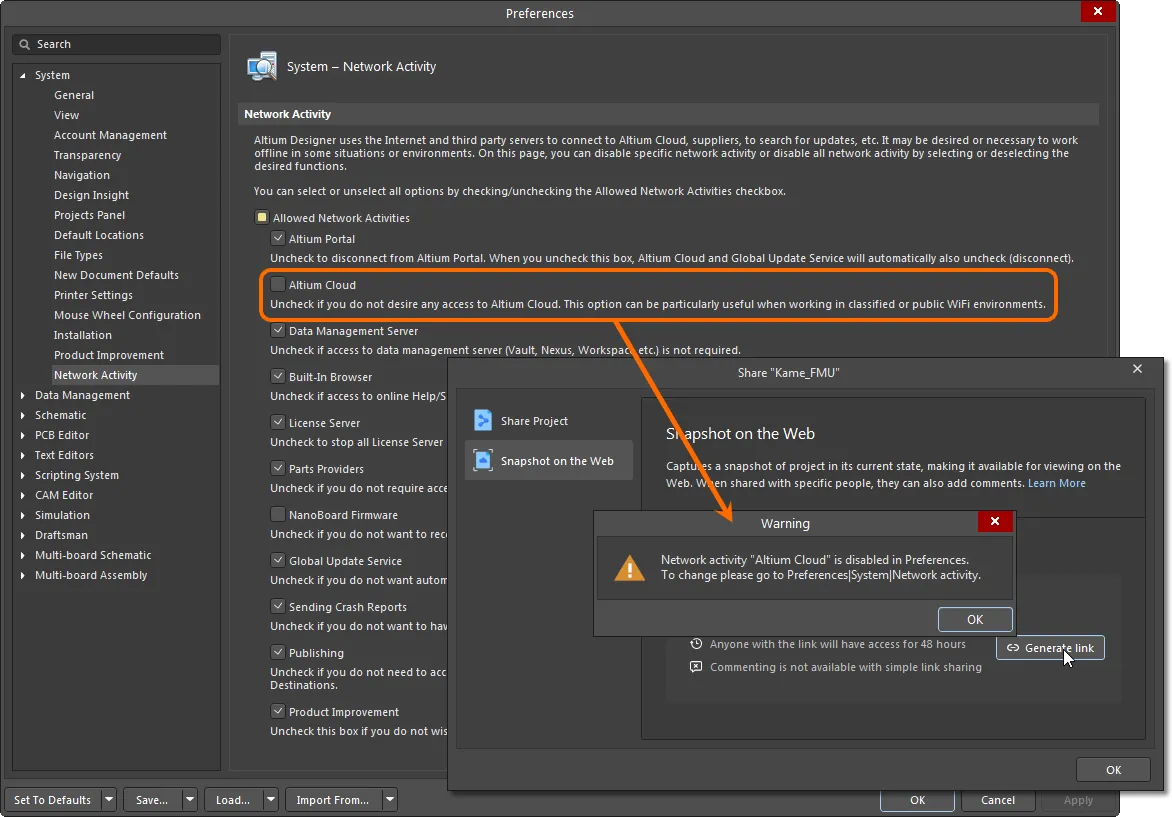
Disabling connectivity to the Altium Cloud will prevent sharing of design projects.
Support for Design Reviews
The Share dialog allows you to review a list of the project's design review instances.
When the  entry is selected on the left-hand side of the Share dialog, the right-hand side of the dialog lists the project's active design reviews (those in the In Progress state) for which you are a defined reviewer. Each design review instance is presented in terms of the following data:
-
Instance name. Click the link to open the instance in the Altium 365 browser interface.
-
Description.
-
Commit/release timestamp for which the design review instance is created.
-
Initiator and the timestamp of instance creation.

If the project does not have instances in the In Progress state, the  button is available at the bottom right of the dialog. Click it to close the dialog and access the Design Reviews page for the project in the Workspace's browser-based interface. The Create Design Review window opens in which you can define reviewers, description and which checklist template is to be used.
