
KB: Drill Tables Overlap When Using All Layer Pairs (Separate Tables)
 Altium Designer
Solution Details
Separate Tables Appear Stacked Together
When All Layer Pairs (Separate Tables) is selected, the drill tables for different layer pairs may be displayed in the same location in the PCB Editor. The tables consequently appear stacked and can be difficult to inspect individually.
Layer-Pair Tables Share One Location
This is expected behavior for the Drill Table object. The All Layer Pairs (Separate Tables) setting creates a separate table for each layer pair, but those tables can initially share the same display location. The tables can be moved or resized to improve readability. The displayed layer pair can also be changed while inspecting drill information during the design process. This display behavior does not prevent the corresponding drill table for each layer pair from being generated correctly in manufacturing outputs.
Choose the Required Display Method
- Select a specific drill layer pair to inspect its drill table using a single Drill Table object.
- Select All Layer Pairs (Composite Table) to display information for all layer pairs in one table.
- Use All Layer Pairs (Separate Tables), and move or resize the separate tables to improve readability.
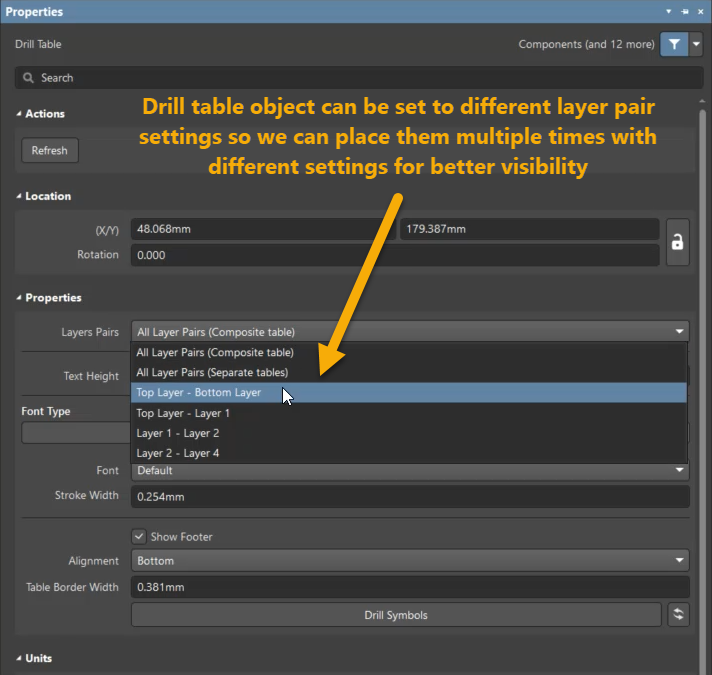
- Place multiple Drill Table objects, configure each object for a specific layer pair, and position them separately when simultaneous visibility is required.
Configure Layer-Pair Visibility and Placement
- To inspect a specific drill table using the existing Drill Table object, select the required layer pair from the menu associated with the icon to the right of the Drill Drawing layer tab at the bottom of the design space.
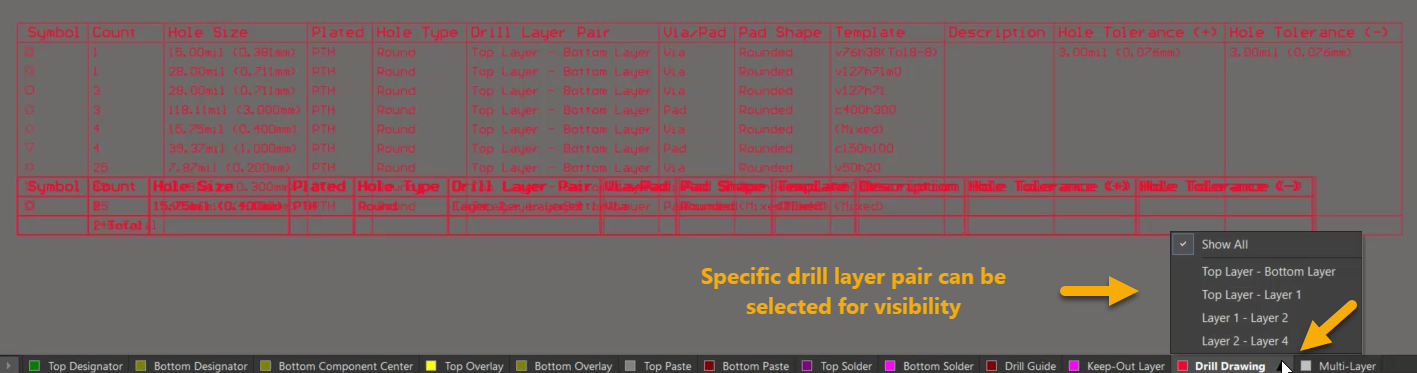
- Switch between the available layer pairs as required. Changing the displayed layer pair provides a way to inspect different drill data without requiring multiple Drill Table objects.
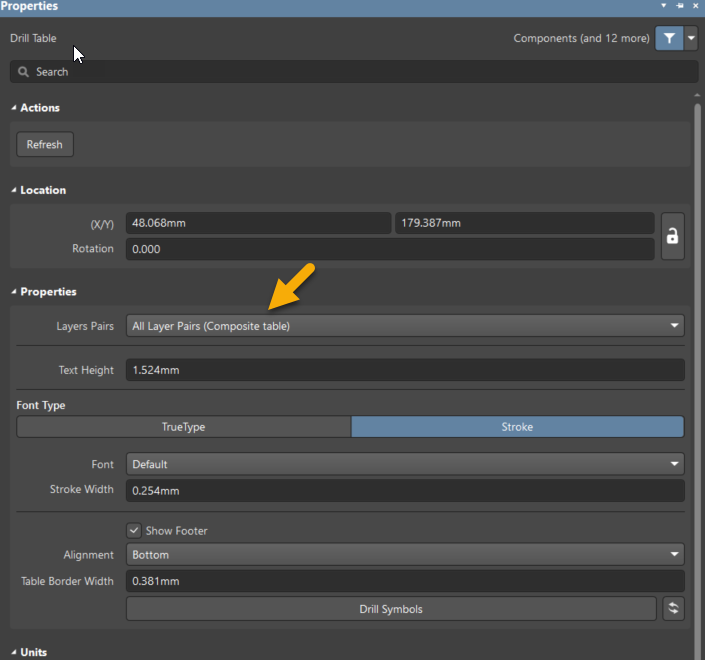
- To combine information from all layer pairs into one table, select the Drill Table object and open the Properties panel.
- Set Drill Layer Pairs to All Layer Pairs (Composite Table).
- To retain separate tables for all layer pairs, set Drill Layer Pairs to All Layer Pairs (Separate Tables), then move or resize the separate tables as required for readability.
- Select Place » Drill Table and place the first Drill Table object.
- Open the Properties panel.
- Set Drill Layer Pairs to Top Layer - Bottom Layer so that only top-to-bottom drills are included.
- Place another Drill Table object away from the first table.
- Open its Properties panel.
- Set Drill Layer Pairs to Top Layer - GND so that only top-to-GND drills are included.
- Repeat the placement and configuration steps for any additional layer pairs that must remain visible.
Additional Notes
A single Drill Table object can be used to inspect different layer pairs by changing the active layer-pair selection. Multiple Drill Table objects are primarily useful when tables for several layer pairs must remain visible at the same time without manually switching the Drill Drawing view.