
Including Design Details
At a Glance
- Learn which PCB documentation details can be added in the PCB editor or PCB Library editor, and how mechanical layers are used to organize them.
- See what Layer Stack Tables and Drill Tables include, where they can be placed, and how they update or reflect the current board design.
- Understand the main placement, movement, resizing, and property options that control how these documentation elements appear in your PCB outputs.
Many of the outputs that you generate will require additional details. For example, the manufacturing drawing will need dimensions, the assembly drawing might need an enlarged view of a specific area of the board, and the fabrication drawing will need a Layer Stack Table and a Drill Table. These types of detail can be added in the PCB editor or in the PCB Library editor.
General Purpose Drawing Layers
In the PCB editor, detail such as dimensions, and fabrication and assembly instructions are added on mechanical layers. The software supports an unlimited amount of general purpose mechanical layers, which are enabled in the View Configuration panel. These layers can be named as required (right-click on the name then select Edit Layer), and included in printouts and layer-based fabrication outputs.
Layer Stack Table

A Layer Stack Table can be placed on a PCB document alongside the design itself. It provides a detailed summary of the board layer stackups and how the layer groups are assigned.
A Layer Stack Table is a tabular graphic object that documents the layers, materials, thicknesses, and dielectric constants implemented in the current PCB design. It is placed and positioned alongside the board design in the design space and also includes a graphical key and option map that shows the layer stack used in each region of the board. A Layer Stack Table reflects the layer configurations defined through the Layer Stack Manager and is an important documentation asset for designs with a complex layer stack structure, such as a rigid-flex design.
The Layer Stack Table is available in the PCB editor when the design space view is set to normal 2D mode (shortcut 2). After launching the Layer Stack Table placement command (Place » Layer Stack Table), the cursor will change to a cross-hair and you will enter Layer Stack Table placement mode. Placement is made by performing the following sequence of actions:
- Click to place the table.
- The editor remains in Layer Stack Table placement mode, ready to place another table if required. If not, right-click or press Esc to exit placement mode.
Additional actions that can be performed during placement while the layer stack table is still floating on the cursor and before the center point of the layer stack table is anchored are:
- Press the Alt key to constrain the direction of movement to the horizontal or vertical axis, depending on the initial direction of movement.
- Press the Spacebar to rotate the layer stack table counterclockwise or Shift+Spacebar for clockwise rotation. Rotation is in increments of 90°.
To move a Layer Stack Table, click, hold and drag the table to the desired location.
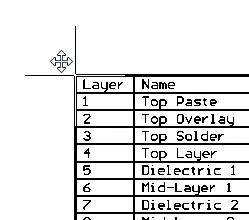
Select and drag to reposition a Layer Stack Table.
Layer Stack Table Properties

The Layer Stack Table mode of the Properties panel.
Location
 icon to the right of this region must be displayed as
  (unlocked) in order to access the below fields. Toggle the lock/unlock icon to change its lock status.
-
(X/Y)
- X (first field) - the current X (horizontal) coordinate of the reference point of the object, relative to the current design space origin. Edit to change the X position of the object. The value can be entered in either metric or imperial, include the units when entering a value whose units are not the current default.
- Y (second field) - The current Y (vertical) coordinate of the reference point of the object, relative to the current origin. Edit to change the Y position of the object. The value can be entered in either metric or imperial, include the units when entering a value whose units are not the current default.
- Rotation - the object's angle of rotation (in degrees), measured counterclockwise from zero (the 3 o'clock horizontal). Edit to change the rotation of the object. Minimum angular resolution is 0.001°.
Properties
- Layer - the layer to which the table is currently assigned. Use the drop-down to select a different layer.
- Alignment - use the drop-down to select the desired alignment.
-
Units - use the drop-down to select either
Metric (mm)orImperial (mil). - Show Board Map - enable to display an outline of the board showing how the various layer stacks are assigned to regions of the board. Use the slider bar to change the scale of the visualized board outline.
- Show Total Board Thickness - enable to display the thickness of the total board under the grid in the layer stack table.
- Line Width - specify the line width of the text within table. Line Width affects the line thickness of the text.
- Text Height - the current height of the text characters. Specify the text height within the table. Text Height also affects the table size. If the text height is set larger, the table will be expanded automatically.
Font Type
-
TrueType - use this field to choose the required TrueType font. The Font drop-down list is populated with TrueType and OpenType (a superset of TrueType) fonts found in the
\Windows\Fontsfolder. Note that the list will include only entries for detected (and uniquely named) root fonts. Use the B (bold) and I (Italic) options to add emphasis to the text. -
Stroke
-
Font - use this field to choose the required Stroke font. Available options are:
-
Default- a simple vector font that supports pen plotting and vector photo-plotting. -
Serif- a more complex font that will slow down vector output generation, such as Gerber. -
Sans Serif- a more complex font that will slow down vector output generation, such as Gerber.
-
-
Font - use this field to choose the required Stroke font. Available options are:
-
Stroke Width - displays the current stroke width.
Columns
Use this region to specify which columns you want displayed in the layer stack table, the alignment of the text in that column, and the overall column width.
- Caption - the title of the column to be displayed.
- Align - click the alignment cell for the caption you want to align. You can continue clicking to cycle through the alignment options (i.e left, center, and right). Each click of the alignment field will change the alignment of the text for that column in the table.
-
Width - click in the field to edit the width of the selected caption. When
Autois specified, the system automatically adjusts the column width according to the entered text in that column. You can enter the required width if desired. - Add - use the drop-down to add a column in the layer stack table from the available options. In the drop-down, click the desired caption you want to appear in the table.
- Up - click to move the selected caption to move it one column to the left in the table. Use the Up button repeatedly to move the selected column additional columns to the left.
- Down - click to move the selected caption to move it one column to the right in the table. Use the Down button repeatedly to move the selected column additional columns to the right.
-
 - click to delete the selected caption from the table. A confirmation appears in the table asking if you want to delete the selected item. Click Yes if you do want to delete it; No if you do not.
Drill Table
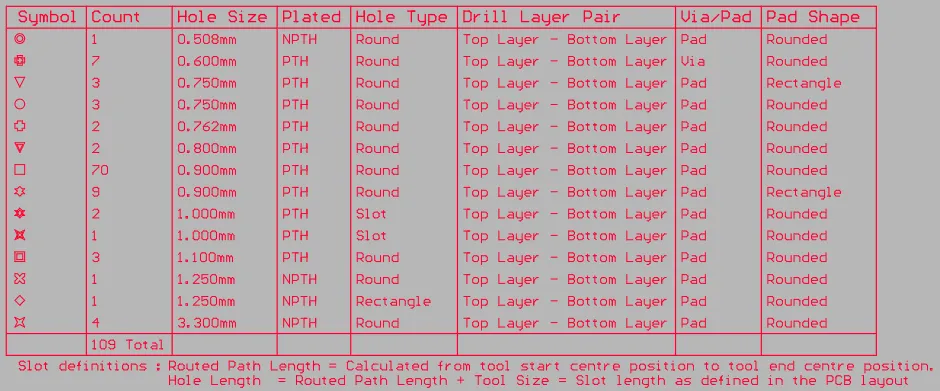
The Drill Table presents a live summary of all drill holes present in the board
A drill table (also known as a drill drawing table or a drill drawing legend) is a standard element required for the manufacture of a Printed Circuit Board. The drill table lists the size and number of holes for each drill used on the board. Each drill size can be represented by a symbol, a letter, or the actual hole size. When a drill drawing is generated for the board, each actual drill site is marked by a symbol. The drill table updates in real time, i.e. as hole-containing objects such as pads and vias are placed or removed from the PCB design, the table updates.
A Drill Table can be placed only in the PCB Editor. After launching the command, a drill table will appear attached to the cursor. Position the table in a suitable location outside the board then click or press Enter to place it.
Additional actions that can be performed during placement while the drill table is still floating on the cursor and before the drill table is anchored are:
-
Press the Tab key to pause the placement and access the Drill Table mode of the Properties panel, from where its properties can be changed on the fly. Click the pause button overlay (
 ) to resume placement.
- Press the Alt key to constrain the direction of movement to the horizontal or vertical axis depending on the initial direction of movement.
Moving a Drill Table
Click and hold anywhere within the drill table then move it to the desired location in the PCB editor design space.
Interactively Resizing a Drill Table
The drill table is automatically sized based on the specified Text Height setting, as well as the number of different hole sizes (rows) and the number of defined columns. To interactively resize the table, click once to select it then click and hold on a corner vertex then move to resize as required. Note that interactively resizing the table will also increase/decrease the font size.
Interactively Switching the Layer Pair to Preview
When the board includes layer-pairs, the displayed layer-pair is controlled by the Layers Pairs option in the Drill Table mode of the Properties panel.
This chosen layer-pair also can be switched using the:
-
PCB Editor right-click menu - right-click on the Drill Table then select the required layer-pair in the Drill Table sub-menu as shown in the image below.
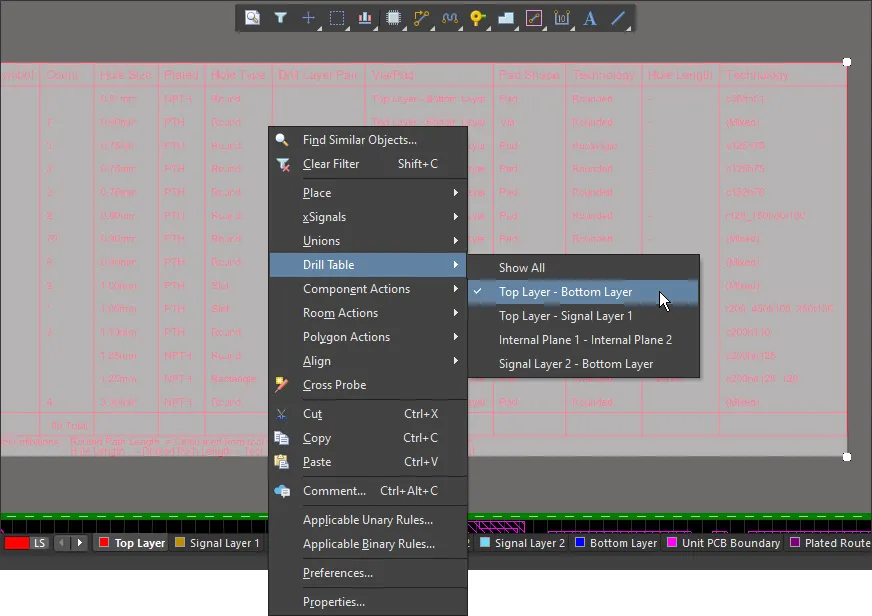
Right-click on the Drill Table to switch it to display another layer-pair -
Layer-pair selection menu accessed via the Layer Tab at the bottom of the design space as shown in the image below.

Drill Table Properties
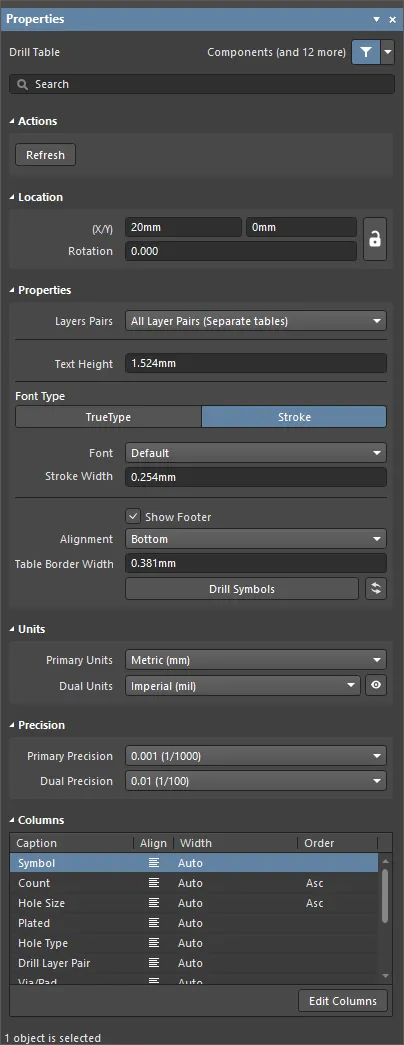
The Drill Table mode of the Properties panel
Actions
Refresh – click the button to update the drill table with the current drill symbol data from the PCB.
Location


-
(X/Y) – the current X and Y locations of the Drill Table reference point. The reference point is the bottom left corner if Alignment =
Bottom, or top left corner if Alignment =Top. - Rotation – angle in degrees that the Drill Table is rotated.
Properties
-
Layer Pairs – the drill table supports multi-layer boards that use layer-pair drilling. Use the drop-down to select a layer pair defined on the Via Types tab of the Layer Stack Manager or one of the following options:
- All Layer Pairs (Composite table) – displays information for all layer pairs.
-
All Layer Pairs (Separate tables) – displays information for each layer pair in a separate table.
- Top - Bottom – only show the thru-holes.
- Counterhole Bottom – only show the counterholes (counterbores/countersinks) on the bottom side of the PCB.
- Counterhole Top – only show the counterholes (counterbores/countersinks) on the top side of the PCB.
- Text Height – displays the text height.
 icon at the right of the Drill Drawing layer tab at the bottom of the design space.

Font Type
-
TrueType – select to use fonts available on your PC (in the \Windows\Fonts folder). TrueType fonts offer full Unicode support. By default, the software links to a used TrueType font (they are not stored in the PCB file), which means the same font must be present on each PC that the design is moved to. Alternatively, embed used TrueType fonts in the PCB file using the options in the PCB Editor – True Type Fonts page of the Preferences dialog, where you can also select a Substitution Font to be used if a non-embedded Font is not available.
- Font – use the drop-down to select the desired TrueType font. Use the B to bold or I to italicize text.
-
Stroke
-
Font – use the drop-down to select the desired Stroke font. Choices are:
-
Default– a simple vector font designed for pen plotting and vector photo plotting. -
Sans Serif -
Serif
-
- Stroke Width – displays the width of the stroke.
-
Font – use the drop-down to select the desired Stroke font. Choices are:
- Show Footer – toggle to enable/disable displaying the footer of the table.
- Alignment – the table can be built from the bottom-up (Bottom), or from the top-down (Top). Use this setting to allow for table size changes without impacting surrounding objects in the design space.
- Table Border Width – width of the lines used to create the table border.
-
Drill Symbols – click to open the Drill Symbols dialog in which you can assign symbols/letters to hole sizes.

Options and Controls of the Drill Symbols Dialog
Grid Area
The grid area displays detailed information about the mapping of a symbol to a hole size. It can be customized by clicking on and dragging a column header to change the order of columns and right-clicking on a column header and enabling/disabling the checkbox to show/hide the column.
Grouping
Click the Grouping button to set which properties are to be used to control the assignment of symbol-to-drill events (holes). Holes are clustered initially by hole size and then assigned separate symbols whenever a grouping option that uniquely identifies them is enabled. For example, the design could include a round pad with a 1mm hole and another square pad with a 1mm hole. If Pad Shape is not enabled in Grouping, they will be assigned the same symbol. But if Pad Shape is enabled in Grouping, they will be assigned separate symbols.
Graphic Symbol
Each hole site can be represented by a symbol, a letter or a string showing the actual hole size. These options control the symbol style and size:
-
Symbol - select to use a symbol at each hole site. The software includes 15 pre-defined symbol styles as shown in the image below. If there are more than 15 hole sizes, alpha characters are automatically assigned.

- Character - select to use an Alpha character at each hole site.
- Symbol Size - the height of the symbol/letter displayed on the Drill Drawing layer. Note that this setting applies to all of the symbols/letters used on the drill drawing.
Draw Symbols
These options control the style of drill symbol and when they should be shown:
- Show Symbols - show a symbol at each hole site.
- Show Hole Size - show the actual drill size at each hole site as a numerical value.
- Show Drill Symbols - the default behavior is to not show drill symbols on the Drill Drawing layer. Enable this option to display the drill symbols.
-
-
 – click to refresh the table whenever there are design changes that affect the drill table. Note that the table is automatically updated during output generation.
Units
-
Primary Units – use the drop-down to set the primary units to either
Metric (mm)orImperial (mil). -
Dual Units – use the drop-down to set the dual units to either
Metric (mm)orImperial (mil). Use or
or  to determine whether these units are displayed or hidden (respectively) in the design space.
Precision
- Primary Precision – use the drop-down to set the required precision (number of digits after the decimal point).
- Dual Precision – use the drop-down to set the dual precision (number of digits after the decimal point).
Columns
- Grid – displays all column headings (Caption) in the drill table, the Align setting, which repositions contents within the grid, the Width, and the Order in which the information in each column is displayed. To change from ascending to descending order and vice versa, click in the Order column to access a drop-down menu then select the desired order: Asc – ascending or Dsc – descending.
-
Edit Columns – click to open the Columns dialog, with which to add new columns to the drill table or edit existing columns.

The dialog presents all existing columns, along with associated (read-only) data. Use the following buttons beneath the grid to curate the data to be presented in the table:
- Add Column - use to add a new colum to the drill table. Click to open a menu of available columns. Columns that are already used or not available are grayed-out in the menu. This command also is available on the right-click menu.
- Remove Column - click to remove the selected column(s). Note that there is no confirmation dialog; when the button is clicked, the column is deleted. This command also is available on the right-click menu.
- Change Header - click to open the Change column header dialog in which you can change the title of the selected column. This command (titled Change column header) also is available on the right-click menu.
The following additional commands are available from the right-click context menu:
-
Text Alignment - use to align the text in the selected column. Choices include:
Left,Center, andRight. -
Set column width - use to set the width of the selected column. Choices include:
Autosize(default), andManual. ClickingManualopens the Set Column Width dialog in which you can enter the desired width.
 Change column header dialog
 Set Column Width dialog
Design View

Place a Design View to show a specific area of the board. This example has been scaled to 200%.
The PCB Design View object is a graphic snapshot of any rectangular-shaped region of the current board or another board. It can be placed anywhere in the design space and scaled to any size.
A Design View can be placed only in the PCB Editor. After launching the Design View placement command (Place » Design View), a design view will appear attached to the cursor. Position the design view in a suitable location then click or press Enter to place it.
Additional actions that can be performed during placement while the design view is still floating on the cursor and before the design view is anchored are:
- Press the Alt key to constrain the direction of movement to the horizontal or vertical axis, depending on the initial direction of movement.
After placement of the design view, you can define the display of desired layers by performing the following steps:
- With the Design View selected in the design space, open the Properties panel by double-clicking or right-clicking then choosing Properties from the context menu.
- Use the Define button in the Properties panel to interactively define the area of interest.
-
In the Layers section of the Properties panel, click (toggle) the
 icon to enable the display of the desired layers. When enabled in the Properties panel, the desired layer(s) will display the
  icon.
icon.
Design Views are included in printed and PDF output. The Design View retains its own layer visibility settings in the output allowing it to present as required in the printed/PDF output. Note that the primitives on layers used in the Design View continue to obey the display settings defined for that layer in the Print dialog. For example, if the Top Overlay is displayed in the Design View and the Top Overlay is configured to display tracks in Draft mode for that output in the Output Job, then the Top Overlay tracks in the Design View will also present in Draft mode.
Once a Design View has been placed in the design space, you can interactively adjust the position, scale, size and focus of the View.
- Change the position – Click+Drag the Design View object to a new location on the PCB design space.
- Adjusting the Scale – click once to select the Design View then Click+Drag on a corner handle to scale the Design View up (drag out) or down (drag in).
- Adjusting the View Size – click once to select the Design View then Ctrl+Click+Drag on a corner handle to resize the Design View.
- Changing the Focus – Ctrl+Click+Drag anywhere within the Design View to slide the currently viewed area around within the Design View window.

Ctrl+Click+Drag to slide and adjust the area currently being viewed in the Design View.
Design View Properties

The Design View mode of the Properties panel.
Location
- (X/Y) - the current X and Y locations of the Design View reference point.
Properties
- This document - select to specify the properties for the currently active document.
-
Specify document - select to specify the properties for a different document. When selected, click
 in the Document field then browse for the desired document.
-
Document - click to search for and select the desired document when Specify document is selected.
- Mirrored - click to enable a flipped (mirrored) image of the board area in the Design View.
- Scale - click to define the object size as a multiplying factor.
- Title - enter the title of the Design View.
- Text Height - enter the Design View's title text height.
- Font - use the drop-down to select the desired font for the title. Use the color box to open a color chooser for the title text. Note that the color must contrast the design space background color for visibility.
- Define - click to return to the design space with a cross-hair cursor then use click-drag to define the rectangular region of the view.
Layers
This region provides a list of all board layers that can be configured to show specific layers in the Design View.
-
Name - the name of the layer. Use the or icon to show or hide (respectively) the listed layer in the Design View.
- Type - the layer type.
OLE Object
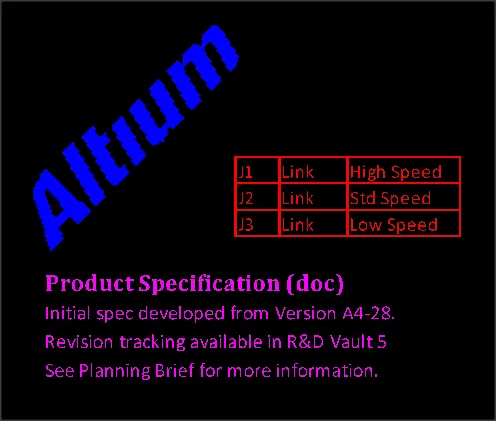
A placed sequence of OLE objects – an image, spreadsheet cells and word document text (top to bottom)
Object Linking and Embedding (OLE) technology in the PCB editor allows data supplied by Windows OLE applications to be embedded in a PCB design while actively linking back to the source application. In many cases, this allows the embedded PCB data to be edited from within the application that created it.
Typical OLE objects that might be placed in a PCB document include common Excel documents, Word documents, or graphics objects from a suitable OLE image application. The supported file types include universal formats such as CSV and XLS format spreadsheets, DOC and RTF word documents, and BMP image files.
OLE objects are available for placement/embedding in the PCB Editor. After launching the Place » Object From File command, choose the desired file from the Choose File dialog then click to place the object in the design space.
Altium’s Smart Paste capability also allows a selection in an OLE application to be copied and pasted (Edit » Paste) into the PCB document as an OLE object. The text paste option (Edit » Paste Text) can be used to strip the text elements from an OLE object if required. These will be placed as PCB text objects.
Once placed, embedded objects can be proportionally scaled by clicking, holding and dragging their selection handles. With text-based objects such as Word and Excel documents, the embedded text is automatically scaled in size and thickness to suit the new dimensions.
- An OLE Object also can be converted to a collection of free primitive objects using the Tools » Convert » Explode OLE Object to Free Primitives command. This will break the object into appropriate Regions and/or Text objects.
- A convert to free primitives option is also offered if the matching OLE application cannot be found when attempting to edit an OLE Object.
OLE Object Properties
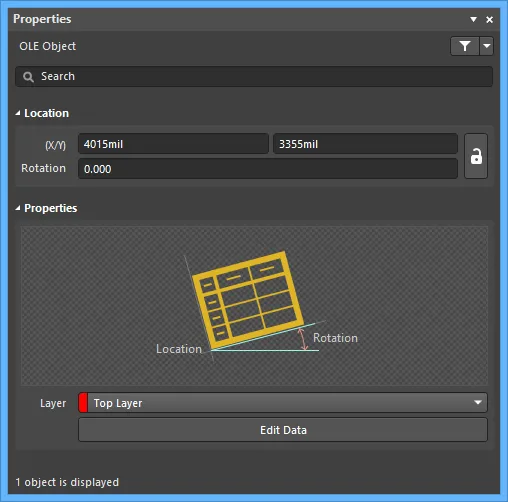
The OLE Object mode of the Properties panel.
Location
- (X/Y) - the current X (horizontal) coordinate and current Y (vertical) coordinate of the reference point of the object relative to the current design space origin. Edit to change the position of the object.
- Rotation - the object's angle of rotation (in degrees), measured counterclockwise from zero (the 3 o'clock horizontal). Edit to change the rotation of the object. Minimum angular resolution is 0.001°.
Properties
- Layer - the layer to which the object is currently assigned. Use the drop-down to select a different layer.
- Edit Data - click to open the object (in the associated application) and make any required edits. After making the edits and closing the associated application, in the Properties panel, click Save to save the edits or Cancel.
Dimensions
The PCB and PCB Library editors include a range of dimensioning tools to cater to different design requirements.

| Dimension Object | Description |
|---|---|
| Angular Dimension | Allows for the dimensioning of angular distances. |
| Baseline Dimension | Allows for the dimensioning of a linear distance of a collection of references, relative to a single base reference. The first point chosen is the 'base'. All subsequent points are relative to this first point. The dimension value in each case is therefore the distance between each reference point and the 'base', measured in the default units. The references may be tracks, arcs, pads, vias, text, fills, polygons, or components. |
| Center Dimension | Allows for the center of an arc or circle to be marked. |
| Leader Dimension | Allows for the labeling of an object, point or area. There are three types of leader available: Automatic, Round and Square, which reflect the label text either being encapsulated in a circle or square or not at all. The pointer can be an arrow or a dot. |
| Linear Dimension | Allows for the dimensioning of a linear distance. The dimension value is the distance between the start and end markers (reference points selected by the user) measured in the default units. The references may be objects (tracks, arcs, pads, vias, text, fills, polygons, or components) or points in free space. |
| Linear Diameter Dimension | Allows for the dimensioning of an arc or circle with respect to the diameter, rather than the radius. The dimension can be placed either internally or externally. |
| Ordinate Dimension | Allows for the dimensioning of a linear distance of a collection of objects relative to a single reference object. The first object chosen is the 'base'. All subsequent objects are relative to this first object. The dimension value in each case is, therefore, the distance between each reference object and the 'base' measured in the default units. The references may be tracks, arcs, pads, vias, text, fills, polygons, or components. |
| Radial Dimension | Allows for the dimensioning of a radius with respect to an arc or circle. The dimension can be placed either internally or externally. |
| Radial Diameter Dimension | Allows for the dimensioning of an arc or circle with respect to the diameter, rather than the radius. The dimension can be placed either internally or externally, in relation to the circumference of the arc/circle. |
| Standard Dimension | Places dimensioning information on the current PCB layer. The dimension value is the distance between the start and end markers measured in the default units. |
Dimension objects are available in the Place » Dimension sub-menu of the main menus. When dimensioning an object, anchor points become available to you that highlight where the dimension can be attached. The Status bar displays information about the actions needed for each step throughout the process. The point nearest the cursor will be the one used and where the dimension will attach if you proceed to click or press Enter.
Examples of placing some dimensions are shown in the video below.
Additional actions that can be performed during placement are:
- Press the + and - keys (on the numeric keypad) to cycle forward and backward through all visible layers in the design respectively – to change placement layer quickly.
- When placing a Baseline, Center, Linear Diameter, Linear or Ordinate Dimension, press Spacebar to rotate the dimension counterclockwise or Shift+Spacebar for clockwise rotation. Rotation is in accordance with the value for the Rotation Step defined on the PCB Editor – General page of the Preferences dialog.
- When placing a Standard Dimension, press the L key to flip the dimension to the other side of the board – note that this is only possible prior to anchoring the dimension's start point.
A dimension's value (where applicable) automatically updates as its start or end points are moved. Likewise, if the position of an object that a reference point of the dimension is anchored to is changed, the dimension will update and expand/contract to reflect this. For a radius/diameter-based dimension, the value automatically updates as the diameter of the reference arc or circle changes.
When the reference or references to which a dimension object is attached are deleted, a dialog will open asking whether the dimension should also be deleted. If the dimension is not deleted, it remains in the design space, but non-referenced.
A dimension object can be moved in the following ways:
- Selecting both the dimension object and the dimensioned object(s). The whole can be dragged to a new location as required.
- Selecting a dimensioned object only. The dimension text will follow the object in its alignment plane only. The dimension extensions (or, for a Radial Diameter or Radial Dimension, its pointer and tail) will expand/contract to keep the relationship between dimension and object being dimensioned. For a Center or Leader Dimension, it will move with the object. The segment of the Leader Dimension (between the arrow/dot and the first defined elbow) will expand/contract to keep the relationship between the dimension and the object being dimensioned.
- Selecting the dimension object only. It is important to note that the dimension cannot be moved on its own if it is referenced by a design object. To move the dimension only, it must first be detached from the object(s) it is dimensioning.
When a dimension object is selected, editing handles are available with which you can edit the placed dimension object directly in the design space by changing properties such as the position of its text and its reference points graphically. Examples of editing handles for some dimensions are shown below.
|
When a linear dimension object is selected, the following editing handles are available:
When an angular dimension object is selected, the following editing handles are available:
When a radial dimension object is selected, the following editing handles are available:
When an ordinate dimension object is selected, the following editing handles are available.
|


Handles on (or nearest to) the object(s) being dimensioned (for example, C and D for a Linear Dimension or C & E and D & F for an Angular Dimension, as shown above) allow for redefinable references – once the dimension is detached from a reference object, it becomes non-referenced and can be moved for attachment to a different reference point or object. As you drag any of the editing handles of a non-referenced Linear, Ordinate or Baseline Dimension, it may be rotated.
Properties of Dimension Objects
Dimensions have a range of configuration options, offering a high-level of customization of the arrows and text. Open the Properties panel for one or more selected dimension objects to edit their properties.
| Property | Applies To Objects | Description |
|---|---|---|
Style |
||
| Width | All, except for Center and Ordinate Dimensions | The current dimension line width. |
| Width (in the Extension Line region) | Angular Dimension Baseline Dimension Linear Dimension Linear Diameter Dimension Ordinate Dimension |
The current width for the dimension extension lines. |
| Gap | Angular Dimension Baseline Dimension Leader Dimension Linear Dimension Linear Diameter Dimension Ordinate Dimension |
|
| Offset | Angular Dimension Baseline Dimension Linear Dimension Linear Diameter Dimension |
The current arrow line offset with respect to the dimension extension line. |
| Text Gap | All, except for Center and Standard Dimensions |
|
| Leader Shape | Leader Dimension | Use the drop-down to determine which shape is used to encapsulate the dimension text. Available options are Automatic, Round, and Square. If Round or Square are selected, enter the desired Size. |
| Arrow Style | Leader Dimension | Use the drop-down to select the desired leader style. Choices are Arrow or Dot. Enter the desired Size. |
| Height | Standard Dimension | The current extension line height. |
| Arrow Size | Angular Dimension Baseline Dimension Linear Dimension Linear Diameter Dimension Radial Dimension Radial Diameter Dimension |
The current arrowhead size. The size is measured as the distance between the arrow tip and the end of the arrow 'legs'. |
| Arrow Length | Angular Dimension Baseline Dimension Linear Dimension Linear Diameter Dimension Radial Dimension Radial Diameter Dimension |
The current arrow length. Note that the value entered into this field is applied only when the Arrow Position (in the Properties region) is set to Outside. |
Properties |
||
| Text | Leader Dimension | Enter the desired text. |
| Layer | All | The layer to which the dimension is currently assigned. Use the drop-down to select the desired layer. Dimensions can be assigned to any available layer. |
| Text Position | All, except for Center and Standard Dimensions | The current position of the dimension text. Use the associated drop-down list to choose one of the following options (the set of available options depends on the dimension object type):
|
| Arrow Position | Angular Dimension Baseline Dimension Linear Dimension Linear Diameter Dimension Radial Dimension Radial Diameter Dimension |
The current position of the dimension arrows. The available options are:
|
| Angular Step | Radial Diameter Dimension | The current angular step setting for the dimension. This is the rotation step used when placing the arrow portion of the dimension. Moving the arrow around the circle or arc during placement of the dimension, the number and position of possible places to anchor the dimension are determined by this angular step value. |
| Text Height | All, except for Center Dimension | The current height of the dimension text characters. The character width used to display or print the text is automatically proportioned to this height. A minimum height of 36mil (0.9mm) will allow the text to be legibly photo-plotted. |
| Rotation | Center Dimension Linear Dimension Linear Diameter Dimension Ordinate Dimension |
The angle of alignment of the dimension, measured counterclockwise in degrees from the horizontal. |
| Size | Center Dimension | The current length of the dimension's crosshair lines (or the diameter of the encompassing circle). |
| Font Type | All, except for Center Dimension |
|
Units |
||
| Primary Units | Angular Dimension Baseline Dimension Linear Dimension Linear Diameter Dimension Ordinate Dimension Radial Dimension Radial Diameter Dimension |
The current unit that is selected for the calculation and display of the dimension value.
|
| Value Precision | Angular Dimension Baseline Dimension Linear Dimension Linear Diameter Dimension Ordinate Dimension Radial Dimension Radial Diameter Dimension |
The current setting for the number of decimal places to the right of the decimal point for which the dimension will be displayed. |
Value |
||
| Format | All, except for Center and Leader Dimensions |
The current setting for the format of the dimension text. Use the associated drop-down to change the format as required. The options listed will depend on the chosen Unit and present based on the actual value for the current dimension. In generic terms, the available options are (the set of available options depends on the dimension object type):
|
| Prefix | Angular Dimension Baseline Dimension Linear Dimension Linear Diameter Dimension Ordinate Dimension Radial Dimension Radial Diameter Dimension |
The prefix to the dimension value. For a Linear Diameter or Radial Diameter Dimension, this field is fixed with the character ø. |
| Suffix | Angular Dimension Baseline Dimension Linear Dimension Linear Diameter Dimension Ordinate Dimension Radial Dimension Radial Diameter Dimension |
The suffix to the dimension value. |
| Sample | All, except for Center and Leader Dimensions |
This field presents a sample of how the dimension text will appear in accordance with the specified Format and any defined Prefix and/or Suffix. |
| Start point (X/Y) | Standard Dimension | The start point of the dimension for X (first value) and Y (second value). |
| End point (X/Y) | Standard Dimension | The end point of the dimension for X (first value) and Y (second value). |
Converting Dimensions to Primitives
Dimensions are group design objects, i.e. they are comprised of one or more string and track segments. A dimension can be converted to its constituent primitive objects using the Tools » Convert » Explode Dimension to Free Primitives command.