
KB: Extension Installation Loops or Fails with EULA Download Error
 Altium Designer
Solution Details
Extension installation loops and EULA error symptoms
When attempting to install an extension, the installation may become stuck in a loop and fail with the error: EULA download has failed, setup cannot proceed. Error: Error from appregistry.api.altium.com: Sever SSL certificate is invalid. The installer repeatedly retries the download and does not complete the installation.
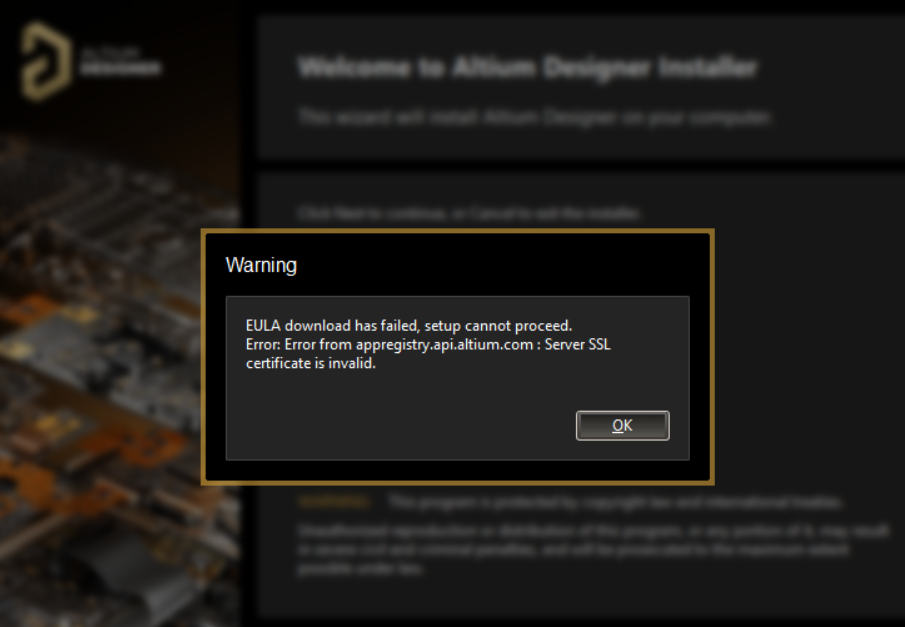
Network interception causing SSL validation failures
Extension installers rely on background HTTPS connections to download required components, including license and EULA files. When endpoint security software, proxies, or SSL inspection tools intercept this traffic, they may replace the original SSL certificate with their own. This results in certificate validation failures, as the certificate is no longer issued by a trusted authority. These failures prevent secure communication with Altium services, causing downloads to fail silently and leading to repeated installation attempts.
Allow required endpoints or use alternative install path
- Whitelist required Altium domains and ports in firewalls, proxies, and endpoint protection tools.
- Verify endpoint accessibility in a browser and confirm certificate validity.
- Temporarily disable endpoint security or SSL inspection (if permitted) to validate behavior.
- Use offline installation if network restrictions cannot be removed quickly.
- Collect logs and engage Altium Support if the issue persists.
Steps to validate connectivity and resolve installation issues
- Work with the IT or security team to whitelist the required Altium domains and ports in firewalls, proxies, and endpoint protection tools.
- Open the affected URL (e.g.
https://appregistry.api.altium.com) in a browser:- Confirm the page loads or provides a valid response.
- Click the lock icon in the address bar and verify the certificate is valid and issued by a trusted authority.
- If permitted, temporarily disable SSL inspection or endpoint protection to confirm that installation succeeds without interference.
- Re-run the extension installation after applying network or security changes.
- If the issue persists, collect installation logs from:
%PROGRAMDATA%\Altium\Altium Installation Service\Logs%APPDATA%\Altium\Altium Designer <version>\Logs
- Open a support ticket and attach the collected log files for further analysis.
- If whitelisting is not possible or delayed, proceed with an offline installation.
Additional Notes
- This behavior is a common pattern when SSL inspection or endpoint protection interferes with Altium background installers.
- Administrator mode or Global Installation Service alone will not resolve the issue if network inspection remains active.
- Offline installation is especially useful in highly secured enterprise environments.