
KB: How to Remove Duplicate PrjPcb Files from Altium 365 Workspace Repository
 Altium Designer
Solution Details
Issue Details
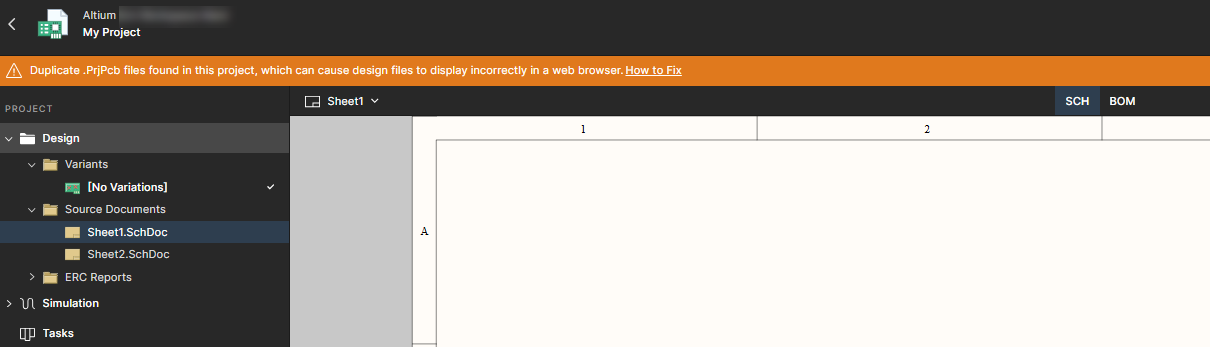
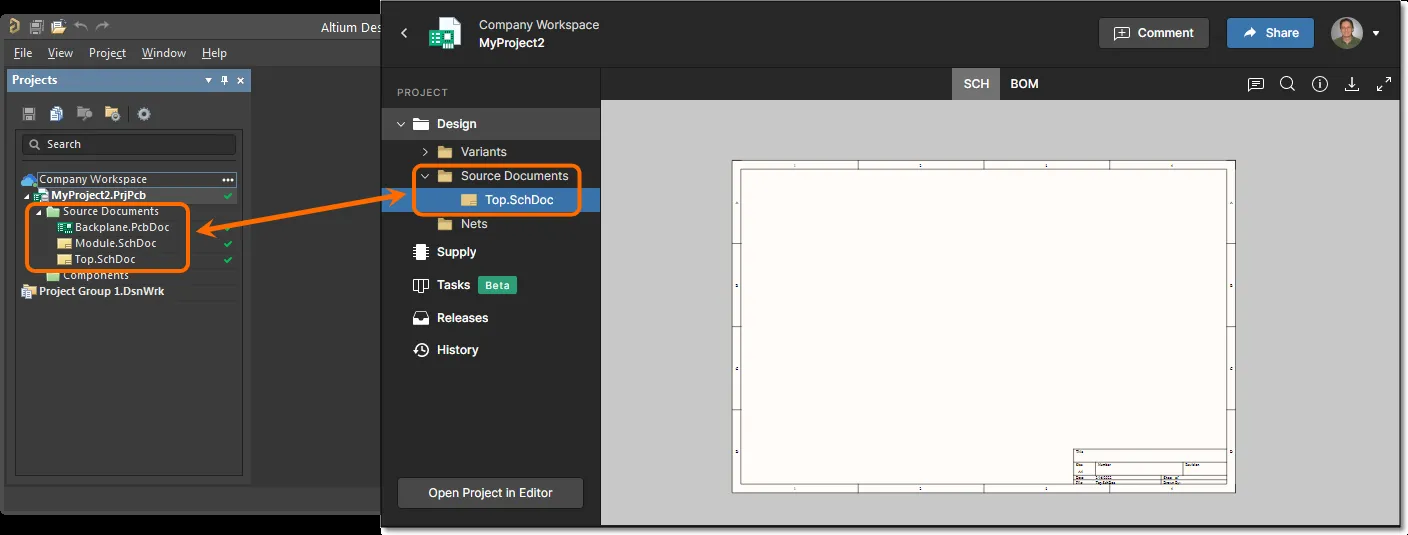
Altium Designer and the Altium 365 Workspace may display different design files when a project contains multiple project files within the same Workspace repository. This often happens if the project was saved under a new name in the same local folder and both versions were committed to the server. In such cases, the Workspace Web Viewer automatically opens the first project file in alphabetical order—along with the design files linked to it—which may not match the files Altium Designer opens locally.
Sample screenshot in the web viewer for duplicate .PrjPCB files
Root Cause
Duplicate project files remain in version control because the Workspace does not automatically detect deleted files in certain scenarios, especially when files are added to sub-folders or renamed locally before committing.
Solution Overview
- Check out the project to a custom folder or back up the existing local copy to avoid conflicts.
- Locate duplicate *.PrjPcb files under the root or sub-folders of the project directory.
- If duplicates are under the root folder:
- Add the unwanted file to the correct project.
- Remove it from version control and delete it locally.
- If duplicates are under sub-folders:
- Use Storage Manager to remove files from revision control.
- Commit changes and manually clean up the local folder.
- Verify in Workspace Web Viewer that only the correct project file and associated design files remain.
- Prevent future issues by avoiding external file commits, using proper rename options in Altium Designer, and informing team members to refresh their local copies.
- Inform colleagues to delete their local copy and check out a fresh one from the Workspace to prevent reintroducing duplicates.
Step-by-Step Resolution (with Checkpoints)
Step 1: Checkout the Project to a Custom Path
Go to File » Open Project » Select Project » Click dropdown near “Open” » Choose “Checkout to Custom Path”. Select a folder other than the default checkout folder. Alternatively, back up your existing local copy and ensure it does not exist in the default checkout folder.
✅ Checkpoint: Confirm the project is checked out to the new folder.
Step 2: Identify Duplicate *.PrjPcb Files
After checkout, look for duplicate *.PrjPcb files under the project root or sub-folders.
✅ Checkpoint: Note the location of duplicates (root or sub-folder).
Scenario 1: Duplicate File Found Under Root Folder
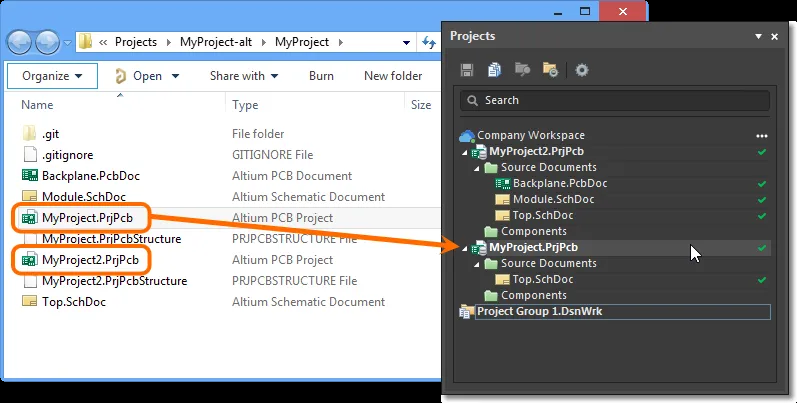
- Add the Unwanted Project File to the Correct Project: Open the correct *.PrjPcb file in Altium Designer. In the Projects panel, right-click the correct project and select Add Existing to Project. Use the All files (*.*) filter to locate the unwanted file.
✅ Checkpoint: Confirm the unwanted file appears under the correct project. - Remove from Version Control: Right-click the unwanted file » History & Version Control » Remove from Version Control » Commit changes (Save to Server).
✅ Checkpoint: Verify in Storage Manager that the unwanted file is marked as removed. - Remove from Project and Local Folder: Right-click the unwanted file » Remove from Project » Delete permanently or move elsewhere » Commit changes.
✅ Checkpoint: Ensure the unwanted file no longer appears in the Projects panel and is deleted locally. - Verify in Workspace Web Viewer: Reopen the project in the Workspace Web Viewer.
✅ Checkpoint: Confirm only the correct project file and associated design files are displayed.
Scenario 2: Duplicate Files Found Under Sub-Folders
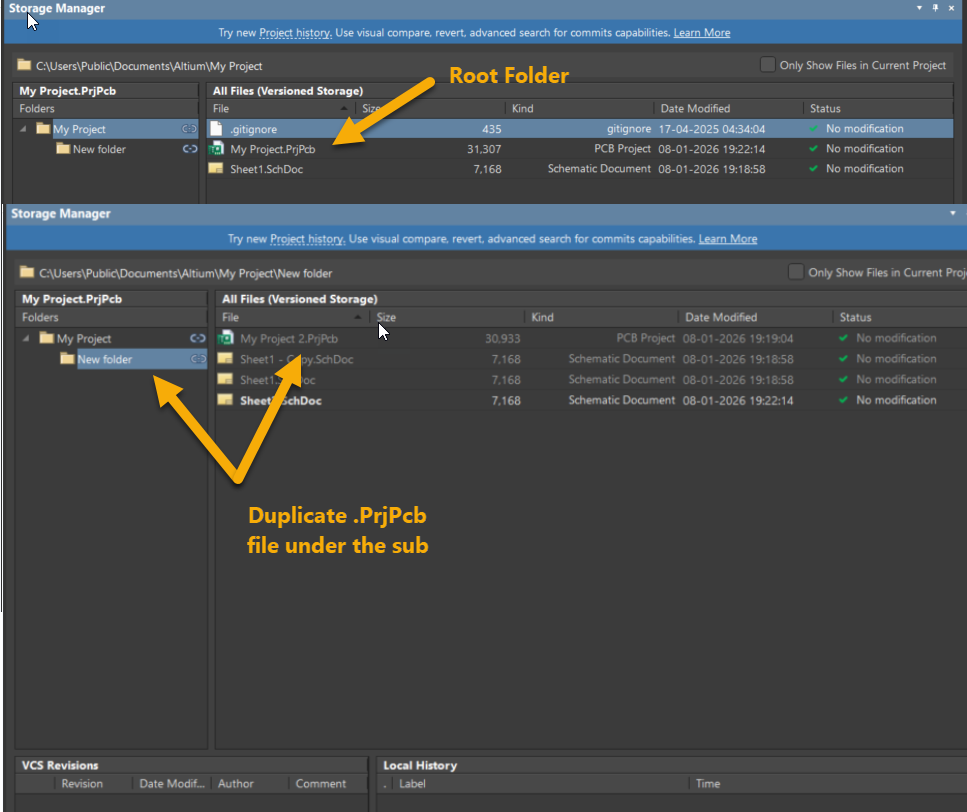
- Open the Project and Review in Storage Manager: Open the correct *.PrjPcb file in Altium Designer. Go to Panels » Storage Manager to review the folder structure and files.
✅ Checkpoint: Confirm Storage Manager lists all files. - Ensure Proper Settings: Keep one project file open so Storage Manager lists all files. Disable Only show files in project in Storage Manager to view duplicates.
✅ Checkpoint: Confirm duplicates are visible in Storage Manager. - Remove Unwanted Files from Version Control: Navigate through sub-folders in Storage Manager. Right-click unwanted files and select Remove From Revision Control.
✅ Checkpoint: Verify files are marked for removal. - Commit Changes: Modify a project file to trigger Save to Server. Complete the process to finalize removal.
✅ Checkpoint: Confirm removed files no longer appear in version control. - Clean Up Local Folder: Manually delete leftover files from the local folder to avoid accidental re-adding.
✅ Checkpoint: Ensure the local folder contains only the correct project files.
Note : Inform colleagues to delete their local copy and check out a fresh one from the Workspace to prevent reintroducing duplicates.
Best Practices & Additional Notes
- Ensure one project file remains open so files are listed in Storage Manager.
- If required design files were linked to the removed project, add them to the correct project using Project » Add Existing to Project.
- Be cautious while renaming project files outside Altium Designer; use the Rename option from the right-click menu in the Projects panel.
- Avoid committing external files and sub-folders to the Workspace. If committing sub-folders, expand them in the commit dialog and ensure there is no duplicate *.PrjPcb file.
- Folders added to the root or sub-folders won't be recognized if they are empty.
- Inform colleagues to delete their local copy and check out a fresh one from the Workspace to prevent reintroducing duplicates.