KB: Print Variant Information in Schematic PDF
 Altium Designer
Solution Details
Variant information is missing in schematic prints generated through output jobs or direct PDF printing. Users expect variant-specific details (such as component changes) to appear in the schematic output but find them absent.
Root Cause
When generating schematic prints in Altium Designer, variant information may not appear in the output PDF if incorrect settings or methods are used. This typically happens when printing directly via File → Print, which does not apply variants. Direct printing uses the logical schematic view (raw editor view) and does not apply variants. If the data source in the output job is set to All SCH Documents, it prints uncompiled schematics without variant details. Variants only apply to compiled views (physical documents).
Solution Overview
Use Output Jobs or Smart PDF for generating schematic PDFs and ensure:
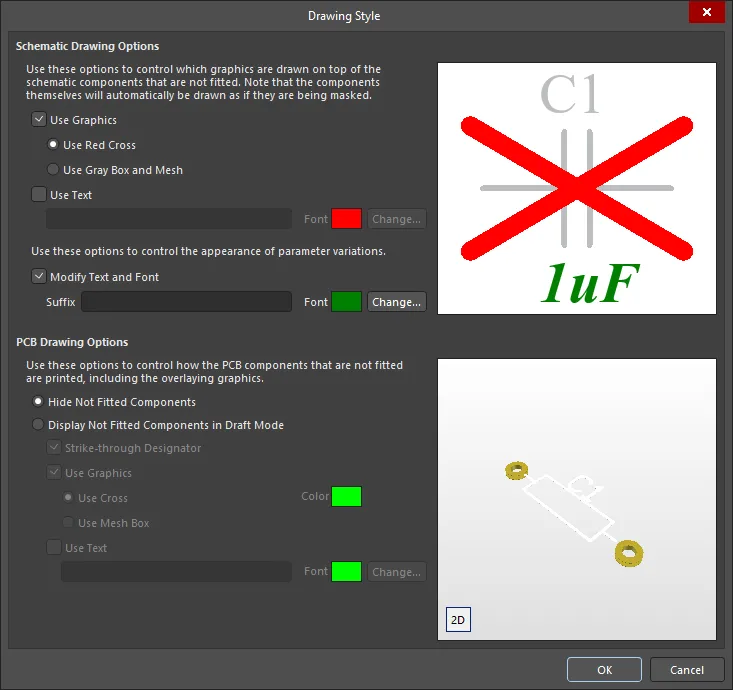
- Variant drawing style is configured.
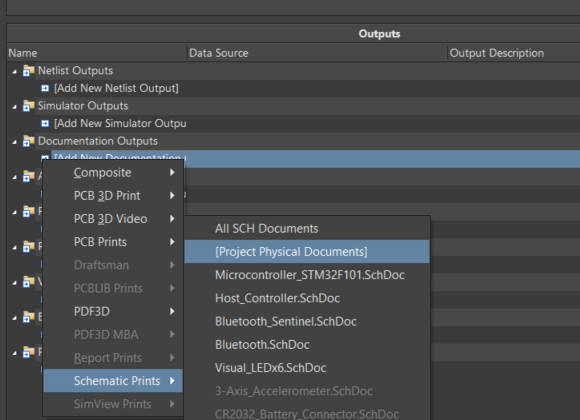
- Data source is set to Project Physical Documents.
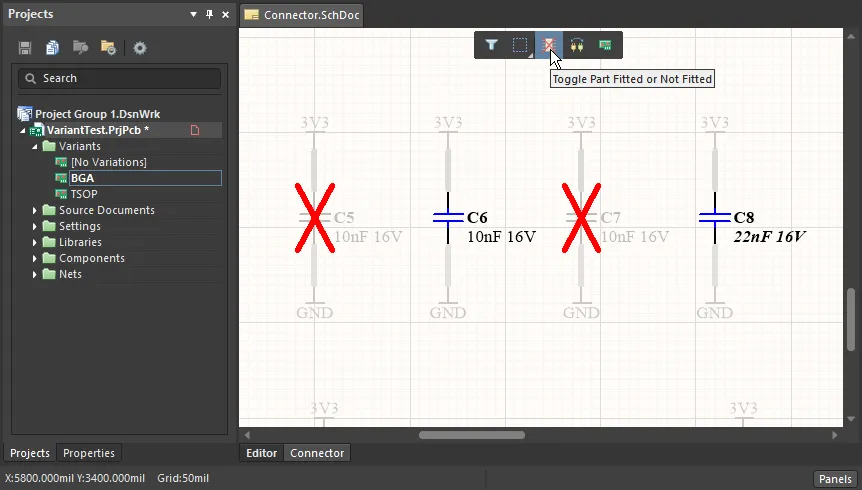
- Variants are visible in the Variant Editor.
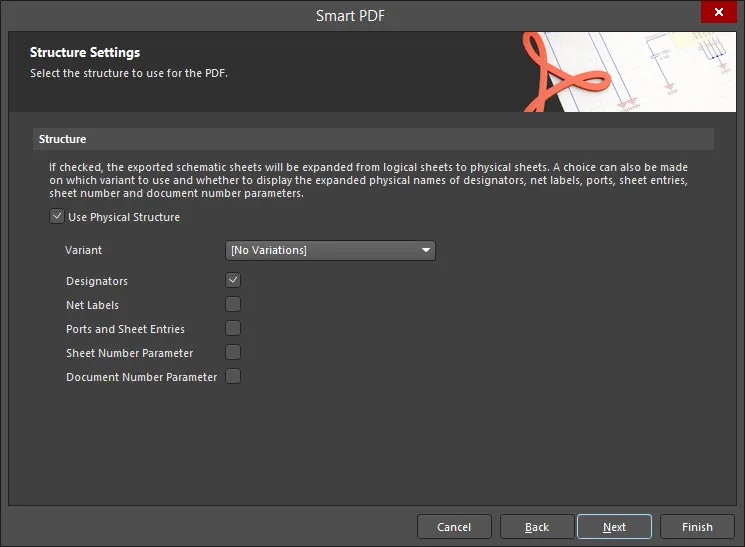
- Smart PDF settings include Project Physical Structure and assigned variant.
Checklist
✅ Variant indicators (e.g., red crosses) are visible in the schematic editor.
✅ Data source in Output Job is set to Project Physical Documents.
✅ Correct variant is active in the Variant Editor.
✅ Smart PDF wizard has Project Physical Structure enabled and the correct variant assigned.
Steps to Resolve
When generating schematic prints in Altium Designer, variant information may not appear in the output PDF if incorrect settings or methods are used. This typically happens when printing directly via File → Print, which does not apply variants. To ensure variants are included, follow these steps:
Verify Variant Drawing Style
- Open Variant Manager in Altium Designer.
- Check if the variant shows the correct indicators (e.g., red cross marks) in the schematic editor.
- Configure the Drawing Style for the variant as needed.
Checkpoint: Confirm that variant indicators are visible in the schematic editor.
Set Data Source in Output Job
- Open the Output Job configuration.
- For Schematic Prints, set Data Source to Project Physical Documents (compiled view).
- Select the desired variant in the output job settings.
Checkpoint: Ensure the data source is not set to All SCH Documents.
Confirm Variants in Variant Editor
- Switch to the Variant Editor and verify that the correct variant is active.
- Ensure components reflect the intended changes for the selected variant.
Checkpoint: Validate that the active variant matches the one you want to print.
Smart PDF Settings
- If using File » Smart PDF, enable Project Physical Structure in the Smart PDF wizard.
- Assign the correct variant before generating the PDF.
Checkpoint: Confirm that the Smart PDF wizard shows the correct variant and physical structure option enabled.