
Working with Variants in the Design
Configuring Display of Varied Components in Design Documents
The way in which varied components are presented in schematic design documents (and PCB outputs) is configured in the Drawing Style dialog. Those settings subsequently affect how the component variations are presented in printed or PDF outputs, and in PCB printouts such as assembly drawings. To access the Drawing Style dialog, click the Drawing Style button at the bottom left of the Variant Manager or at the bottom of the Variant Management dialog, after selecting a cell in the relevant variant column.
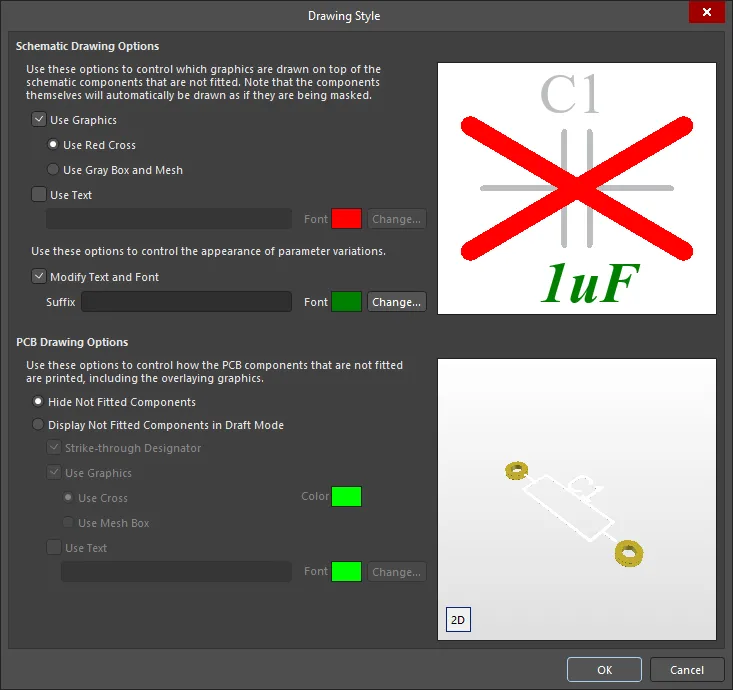
Use the Drawing Style dialog to configure how variants are presented on the schematic and in PCB printouts.
Options and Controls of the Variant Options Dialog
Schematic Drawing Options
These options are used to control which graphics are drawn on top of the schematic components that are not fitted. The components themselves will automatically be drawn as if they are being masked.
-
Use Graphics - enable to have graphics displayed over schematic components that are not fitted while the documents are being displayed or printed. Choose from the following options:
- Use Red Cross - select to overlay non-fitted components with a red cross.
- Use Gray Box and Mesh – select to overlay non-fitted components with a gray mesh box.
-
Use Text - enable to display a string of characters over the not-fitted logical component. If this option is checked, the following options are available:
- Text Box – enter the text that will be overlayed on non-fitted components.
- Font - click the color swatch to access the Choose Color dialog to change the color of the overlay text. Click the Change button to access a dialog to change the appearance of the overlay text.
These options are used to control the appearance of varied parameters.
-
Modify Text and Font- enable this option to modify the appearance of varied parameters, both in the compiled document view of the schematic and in schematic prints. If this option is checked, the following options are available:
- Suffix - enter a suffix that will be added to all varied parameters.
- Font - click the color swatch to access the Choose Color dialog to change the color of the text displayed in relation to varied parameters. Click the Change button to access a dialog to change the appearance of the text.
-
Preview region – this region of the dialog displays of preview according to your settings.
PCB Drawing Options
- Hide Not Fitted Components – enable to have not-fitted components excluded on generated assembly drawings.
-
Display Not Fitted Components in Draft Mode - use to enable the display of non-fitted components in assembly drawings in draft mode. Any combination of the following options can be enabled and configured when this option is enabled:
- Strike-through Designator – enable to display the designator text for a non-fitted component with a strike-through.
-
Use Graphics – enable this option to apply a graphical overlay for non-fitted components in assembly drawings. Choose one of the following options:
- Use Cross – select to overlay non-fitted components with a cross.
- Color – click the color swatch to access the Choose Color dialog to change the color of the overlay cross/mesh box.
- Use Mesh Box - select to overlay non-fitted components with a mesh box.
-
Use Text – enable this option to apply a textual overlay for non-fitted components in assembly drawings.
- Text Box – enter the text that will be overlayed on non-fitted components.
- Font – click the color swatch to access the Choose Color dialog to change the color of the overlay text. Click the Change button to access a dialog to change the appearance of the text.
- Preview region - this region displays of preview according to your settings. Click 2D/3D to toggle between 2D and 3D images.
Working with Variants in the Schematic Editor
Altium Designer's schematic editor includes a range of features that provide full visibility of component variations during the schematic capture process, as described below.
Examine Varied Components
The actions to examine variant details on the schematic are:
-
Select the required variant in the Variants section in the Projects panel by double-clicking on its entry or by right-clicking its entry and selecting the Set as current command. The current variant is displayed in bold, white text.
-
Select the named compiled tab located at the bottom of the schematic sheet.
The Schematic editor will use the symbol graphics for the alternate component. The style configured in the Drawing Style dialog will be used (see the Configuring Display of Varied Components in Design Documents section above). If the component is pin-compatible and graphically similar, there may be little noticeable change. To help make it easy to visually identify varied components, the color and font of varied parameters (such as the component comment string) can also be varied. Note the green italic font used for the alternate component in the animation below.
 Graphically identifying the varied component; in this example, both variants use the same component symbol, but the BGA variant uses a different size SRAM.
The compiled tab displays a different Active Bar at the top of the design space, which includes variant-specific buttons. These buttons are only available when a variant is selected in the Projects panel.
When viewing variants on a compiled tab of a schematic document, alternate part properties are displayed in the Properties panel (in a read-only state).


Selecting Variant Components from the Schematic
As opposed to scrolling through and selecting components from the list in the Variant Management dialog, it can be more convenient to make specific selections directly on the schematic. To do so, right-click over a placed component (not selected) and select Part Actions » Variants from the context menu or select the component(s) on the sheet, then right-click and select Part Actions » Variants. When in a Compiled View tab, you can also click the  button in the Active Bar and then choose a component in the design space.
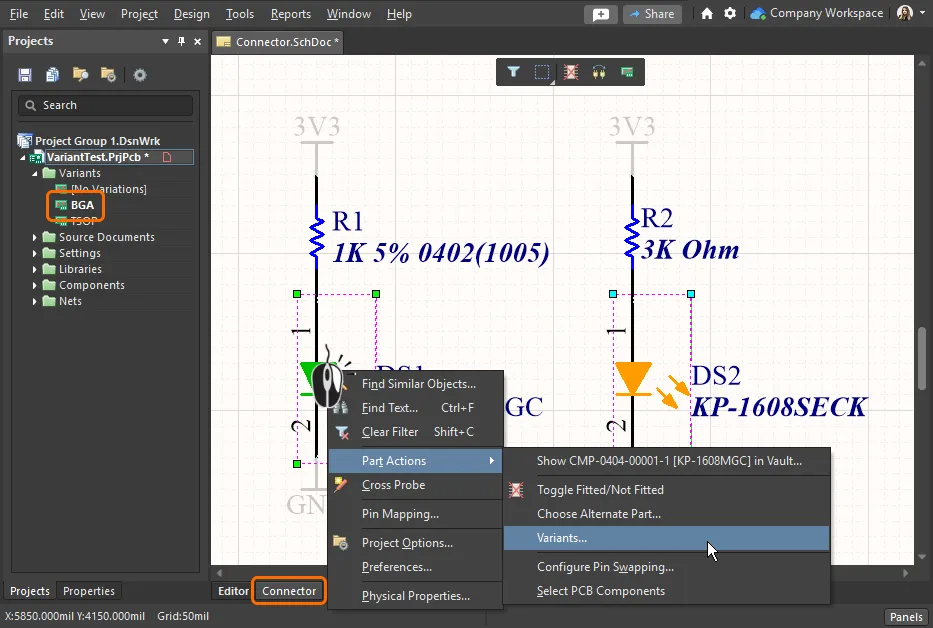
Here, two components (LEDs) have been selected on the compiled tab of the schematic for the BGA variant – the right-click Variant command will open just those components in the Variant Management dialog.
The Variants command on the right-click menu (above) will open the Variant Management dialog, where only the selected components will be listed, or the Variant Manager, where the selected component will be highlighted. The required variations can then be performed as usual and OK clicked to apply those variations to the design.
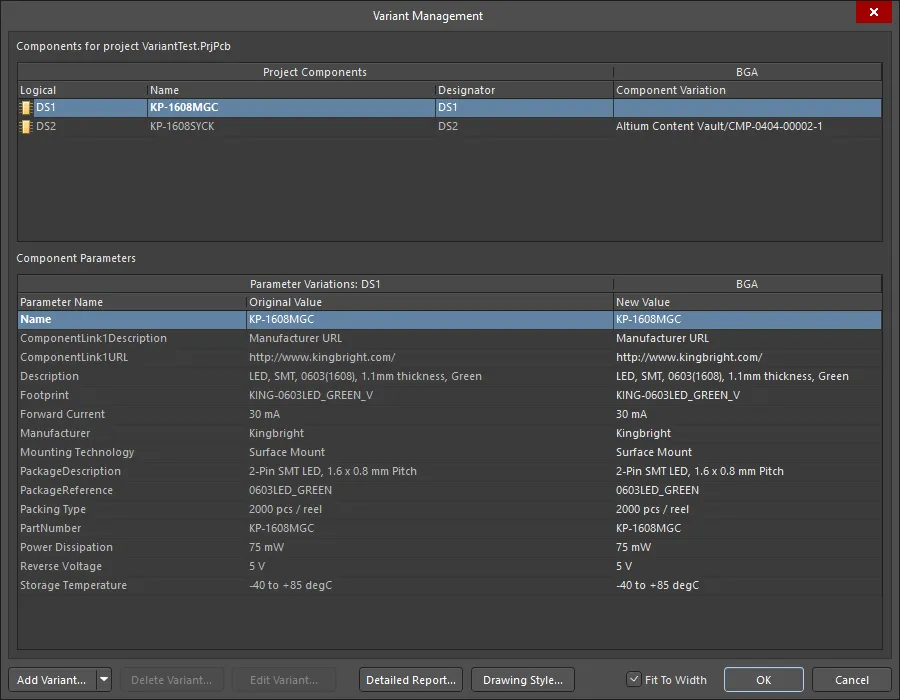
Here, the Variant Management dialog has been opened from two selected components on the schematic sheet and therefore includes just those two (LED) components.
Graphically Editing Component Variations
Component Variants can also be created and edited by working directly in the schematic at a symbol level. Note that the Schematic Editor must be in compiled variant view (as selected by the lower tab), and the required variant selected in the Projects panel.
A command is provided to quickly toggle the Fitted or Not Fitted state of a component for the variant design. Launch this command using the  button on the Variant Active Bar (available when a variant is selected in the Projects panel).
-
When no component is selected in the design space, this will change the cursor to a cross-hair, where clicking on a component will cause it to toggle between the
FittedandNot Fittedstates. -
When there are components selected in the design space, clicking the button will toggle the
Fitted/Not Fittedstate of the selected components.
To quickly toggle the fitted/not fitted state of the component under the cursor, you can also right-click over the required placed component and choose the Part Actions » Toggle Fitted/Not Fitted command from the context menu.
The component’s fitted state will be graphically indicated as defined in the Variant Options dialog.
 Toggle a specific component's fitted state directly on the schematic.
To choose an alternate part for a component in the chosen variant of the design, you can use the Choose Alternate Part command available from the Part Actions menu of the component's right-click menu or by clicking the  button on the Active Bar. After launching the command, the Edit Component Variation dialog will open. Use the dialog to browse and locate the required alternate part component.
You can check the chosen alternate component in the design space. The Schematic Editor will use the symbol graphics for the chosen alternate component. If the component is pin-compatible and graphically similar, you should see very little change. The tell-tale sign for the use of a different component is the different comment for the alternate part.
 ).
).Graphical Parameter Editing
Changes can be made directly to a displayed component variant parameter by selecting the parameter text then clicking the text a second time to enable editing mode. Any changes made will be adopted by that component’s entry in the Variant Management dialog.
 icon associated with the parameter Value to toggle its visibility.
 Select a parameter, then click a second time to enable direct editing.
A variant parameter may also be directly edited in the Parameter Variation dialog, which is opened by double-clicking on the parameter text. As usual, this function is only available when in the compiled schematic view, and any changes made will also register in the Variant Management dialog.
 When in the compiled view, double click on a variant parameter access editing in the Parameter Variation dialog.
Options and Controls of the Parameter Variation Dialog
-
Name – this is a non-editable field that is populated by the logical, as opposed to physical, component parameter information (the name of the parameter).
- Visible – when this option is enabled, the parameter is displayed (non-editable; set in the base design).
- Lock – when this option is enabled, the parameter cannot be reassigned (non-editable; set in the base design).
-
Value – this is a non-editable field that is populated with the logical component parameter data (the value of the parameter).
- Visible – when this option is enabled, the value is displayed (non-editable; set in the base design).
- Lock – when this option is enabled, the value cannot be reassigned (non-editable; set in the base design).
-
Variation (will be saved in <ProjectName>)
- Varied Value – uncheck this option to disable the parameter variation. When checked, the varied value is active and can be edited in the associated textbox.
Graphical Designator Editing
To change a component's physical designator, directly within the compiled document view of a source schematic, simply click once on the designator to focus it, then click again to begin editing. Note that in-place designator editing is only possible when the Enable In-Place Editing option is enabled in the Schematic – General page of the Preferences dialog.
 Select the designator, then click a second time to enable direct editing.
In-place editing of designators is essentially a graphical shortcut to defining a Locked Physical Designator, which can also be defined in the Physical Component Properties dialog by double-clicking on the component.
 Both the associated component and designator dialogs provide access to designator editing and annotation options.
Options and Controls of the Physical Component Properties Dialog
Annotation
- Logical Designator – this uneditable field displays the logical designator for the component.
-
Visible – this checkbox indicates the current display state of the component's Designator – whether it is visible in the workspace or not. The checkbox is not editable.
-
Annotate – enable this option to access the following controls to define the desired annotation. These controls are available only when Annotate is checked:
- Lock Physical Designator – select to enter a custom physical designator in the text box. The text box is available only when Lock Physical Designator is selected.
- Apply Naming Scheme – select to generate a designator using a current naming scheme (use the Annotate Options button to change the scheme).
- Annotate Options – use to access the Board Level Annotation Options dialog in which you can either choose a predefined naming scheme or specify your own custom scheme.
- Component– this uneditable field is populated based on the logical designator information for the component. The field and information shown will depend on the chosen naming scheme.
- Room Name – this uneditable field is populated based on the logical designator information for the component. The field and information shown will depend on the chosen naming scheme.
- Physical Designator – this uneditable field presents the calculated physical designator based on the logical designator information and the specified naming scheme that will be assigned when you click OK.
Enable the Annotate option to specify either:
- A custom designator, using the Lock Physical Designator option and entering the new designator. This is the option that is set when graphically editing a designator, as outlined above.
-
A designator generated using a specified Naming Scheme. In this case, enable the Apply Naming Scheme option and use the Annotate Options button to access the Board Level Annotation Options dialog. From here, you can either choose a predefined naming scheme or specify your own, custom scheme. The Physical designator will be generated based on the logical designator information and the specified naming scheme.
► Refer to Annotating the Components for detailed information on Annotation and Naming Schemes.
Working with Variants in the PCB Editor
In Altium Designer's PCB editor all of the component footprints, for all variants, are always shown. This is necessary because all footprints, for all assembly variations, must be fabricated as part of the bare board. It is the loading of components during the assembly process that then determines which variant is being built.
Because all footprints are always visible on the PCB, it can be difficult to know which components belong to which variant. However, the only visible clue to tell if a particular component is fitted or not fitted in that variant is if the component includes a 3D Body model. The body will appear/disappear to indicate whether the component is fitted or not fitted. This visual behavior is more easily seen when the PCB is in 3D Layout Mode as demonstrated in the animated image below.
Alternate Part PCB design
There is only one type of variation that affects component placement in the PCB design process – when an Alternate Part is specified, and that Alternate Part uses a different footprint from the base design. In this situation, two footprints must be placed on the board.
There are different ways that these two footprints might be positioned, such as:
- The footprints are placed next to one another.
- The smaller footprint is placed inside the larger footprint, as shown in the animation below, where an SRAM component is available in either a TSOP package or a BGA package.
- The footprints are exactly stacked (placed one on top of the other). For example, when the footprints are identical but have different 3D models, and therefore must have different footprint names. This is also shown in the image below, where two LED footprints are stacked for both DS1 and DS2.
 A simple animation showing how Alternate Parts that use different footprints can be positioned on the board.
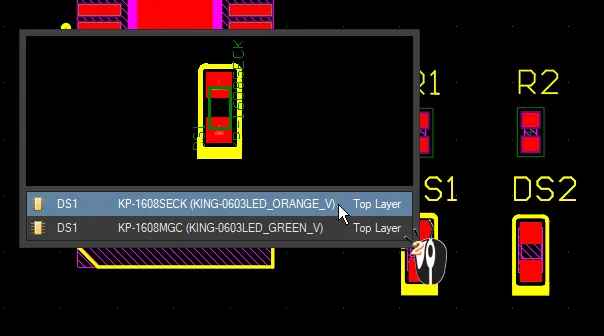
The two instances of LED DS1 use exactly the same footprint pattern (but have different 3D models in each variant) and can therefore be stacked.
Working with Variants in ActiveBOM
Main article: BOM Management with ActiveBOM
Although a BOM can be generated directly from the schematic or from an OutputJob file, the recommended approach is to use ActiveBOM. Beyond the components fitted to the board, ActiveBOM allows additional components and BOM-specific data to be added directly in ActiveBOM, for example; yet-to-be-detailed parts, fasteners, the blank board, or the mounting glue. Custom columns can also be added, including a specific Line number column, which supports both auto and manual numbering, with full copy/paste support.
For design components that include manufacturer information, ActiveBOM can use the Altium Cloud Services to access detailed and up-to-date supply chain information. This support extends beyond components placed from a managed content server, also supporting Supplier-linked parts, as well as parts that already have suitable manufacturer details in their parameters.
ActiveBOM supports variants in the following ways:
- Display the BOM for a specific variant in Base view mode or Flat view mode
- Option to include the Not Fitted items in the BOM Items list
- Display a consolidated list of all parts used in all variants, in Consolidated view mode
- Define manual solutions for both base components and varied components
 ActiveBOM includes a consolidated view mode, allowing a single BOM to detail the parts in all variants.
► Learn more about working with variants in ActiveBOM
Variant Output Generation
Assembly variants affect all output documentation that includes detail about the purchase or loading of components. This includes:
- Bill Of Materials (using ActiveBOM or directly via the Report Manager)
- Schematic Prints
- PCB 3D Prints
- PCB 3D Videos
- Assembly Drawings
- Pick and Place files
- Test Point Report
Fabrication variants also affect the following outputs:
- Gerber overlay layers
- ODB++ overlay layers
Selecting the Variant for Output
If you are running a command from the schematic editor or PCB editor, such as a schematic printout or Gerber files generated directly from the PCB editor, the output will be generated based on the variant currently selected in the Projects panel.
 Output generated directly from the schematic or PCB editor menus is based on the variant selected in the Projects panel.
If the output is generated via another interface, for example, the Report Manager or an OutputJob, it will include a Variant selector.
 Right-click in the Report Manager to switch from one variant to another.
Working with Variants in the OutputJob Editor
Main page: Preparing Manufacturing Data with Output Jobs
There are two approaches to configuring an OutputJob file to support variants:
- Choose a single variant for the whole OutputJob file – use this when you prefer to use a separate OutputJob for each variant, or
- Choose a different variant for each output – use this when you have a single OutputJob configured to generate outputs for multiple variants.
The option is selected in the Variant Choice region of the OutputJob editor. When the second option is enabled the required variant must be selected for each output that supports Variant-type output, as shown in the image below.
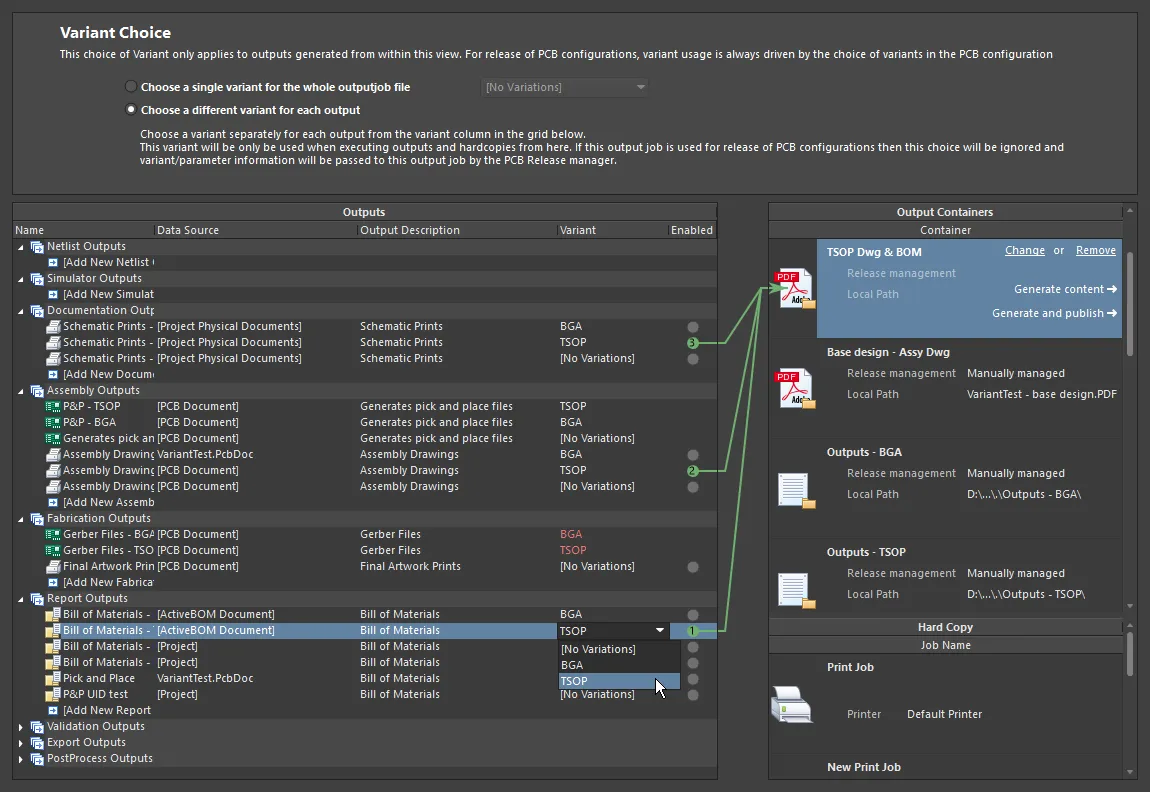
An OutputJob where the Choose a different variant option is selected and outputs for both variants have been set up for each Job in the OutputJob file.
If the first 'blanket' approach is used, then every output file that is variant-specific will automatically be configured for that variant. The advantage of this option is that the variant does not need to be specifically selected, whereas the disadvantage is that an OutputJob file is required for each variant in the design.
► See Preparing Manufacturing Data with Output Jobs for more information on Variants in Output Jobs
Viewing Variants in the Web Viewer
Design variants are also supported when viewing the project in a Workspace's Web Viewer.
To learn more, refer to the Variant Support section of the Web Viewer page (Altium 365 Workspace, Enterprise Server Workspace).