
KB: Switch from Constraint Manager Back to Design Rules
 Altium Designer
Solution Details
Determine Which Rules System Is Active
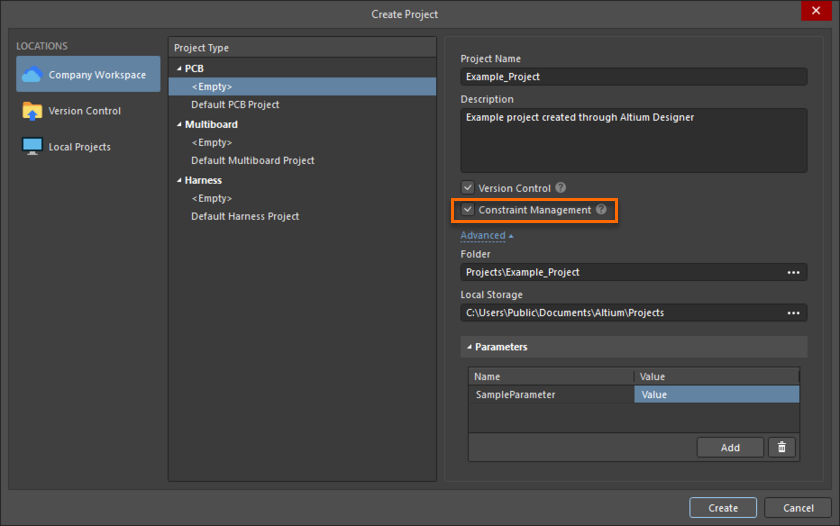
The rules-management method is determined by the PCB project configuration. If Constraint Management was enabled when the project was created, the project uses Constraint Manager and the traditional PCB Rule and Constraints Editor is not available. If it was disabled, the project uses the traditional Design Rules system.
To identify the method used by the current project, open a schematic or PCB document and check the Design menu. If Design » Constraint Manager is available, the project uses Constraint Manager. If Design » Rules is available in the PCB editor, the project uses the traditional Design Rules system.
Understand How Rule Management Is Selected
Constraint Manager and the traditional Design Rules system are project-level approaches for defining and managing PCB design requirements. The Constraint Management option in the Create Project dialog determines which approach a newly created PCB project uses.
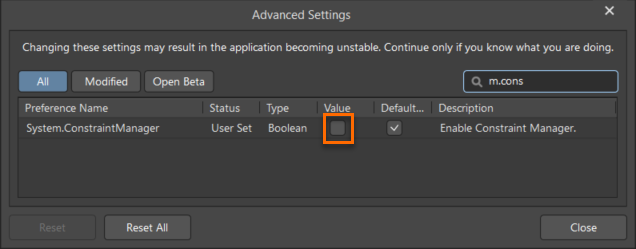
The System.ConstraintManager advanced setting determines whether Constraint Management is enabled by default for new projects. Changing this setting does not convert an existing project.
Choose How to Return to Design Rules
- Create a new PCB project: This is the preferred approach. Create a project with Constraint Management disabled and add the existing design documents using Add Existing to Project. This creates a new project structure that uses the traditional Design Rules system instead of modifying the original project in place.
- Use Altium Designer 23.10.1 or earlier: For legacy projects, open and save a backup or copy of the Constraint Manager project in Altium Designer 23.10.1 or earlier. The constraints are converted to Design Rules when the project is saved. Carefully review the resulting rules after conversion.
Configure or Convert the PCB Project
Disable Constraint Manager by default for new projects
- Open Preferences » System » General.
- Click Advanced.
- Search for
System.ConstraintManager. - Clear the Value checkbox.
- Create a new PCB project and verify that Constraint Management is disabled.
Move an existing design to a new project
- Create a new PCB project with Constraint Management disabled.
- Copy the required existing design documents to the new project folder if necessary.
- In the Projects panel, right-click the new project and select Add Existing to Project. Alternatively, use Project » Add Existing to Project.
- Select and add the required schematic, PCB, and other project documents.
- Open the PCB document and verify that Design » Rules is available.
- Review the Design Rules before continuing development.
Convert a legacy project using Altium Designer 23.10.1 or earlier
- Create a backup or separate copy of the project before conversion.
- Install Altium Designer 23.10.1 or an earlier version as a separate installation.
- Use separate installation folders and skip importing preferences if prompted.
- Open the copied Constraint Manager project in Altium Designer 23.10.1 or earlier.
- Save the project. Altium Designer warns that the project will be saved with rules converted from the constraints.
- Close and reopen the converted project.
- Carefully review the resulting Design Rules to ensure that the required design constraints were preserved correctly.
Handle Constraints.xml if required
Constraint Manager creates the schematic constraints document Constraints.xml when Constraint Manager data is first saved from the schematic side. The file is shown in the Projects panel under Settings » Constraints.
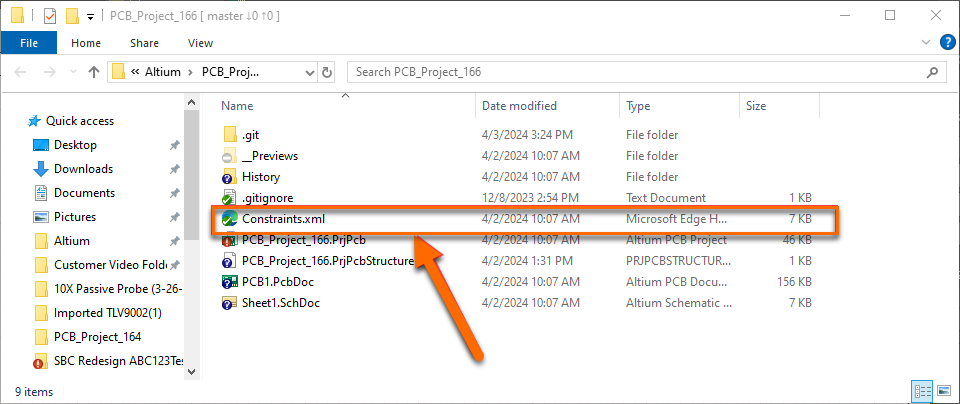
When using the older-version conversion method, it may sometimes be necessary to remove Constraints.xml after saving the project in the older version. Deleting this file by itself should not be treated as a general method for converting a project to Design Rules.
Remove Constraints.xml from version control if required
- Open the Storage Manager panel.
- Right-click
Constraints.xmland select Remove from version control. - Refresh the version-control status and verify that the file is scheduled for deletion.
- Save the project to the server.
- Delete
Constraints.xmlusing the context menu in the Storage Manager panel. - Close and reopen the project and verify that the traditional Design Rules system is active.
Additional Notes
Constraint Manager was initially released as an Open Beta feature with Altium Designer 23.11 and officially released with Altium Designer 24.
A project using the traditional Design Rules system can subsequently be migrated to Constraint Manager using the supported migration process. See Migrating from Design Rules to the Constraint Manager for more information. This is a separate migration and should not be considered round-trip synchronization between the two rules-management systems.
When using Altium Designer 23.10.1 or earlier to convert a project, always work from a backup or copy and carefully review the converted Design Rules before continuing design work.