
KB: Altium Enterprise Server Fails to Start When Elasticsearch Cannot Initialize
 Altium On-Prem Enterprise Server
Solution Details
Elasticsearch Startup Failure Prevents Server Access
When attempting to start the Elasticsearch service from the Windows Services console, the following error may be displayed:
Windows could not start the Elasticsearch service.
When Elasticsearch fails to initialize, the Altium On-Prem Enterprise Server cannot complete startup and search-related functionality is unavailable.
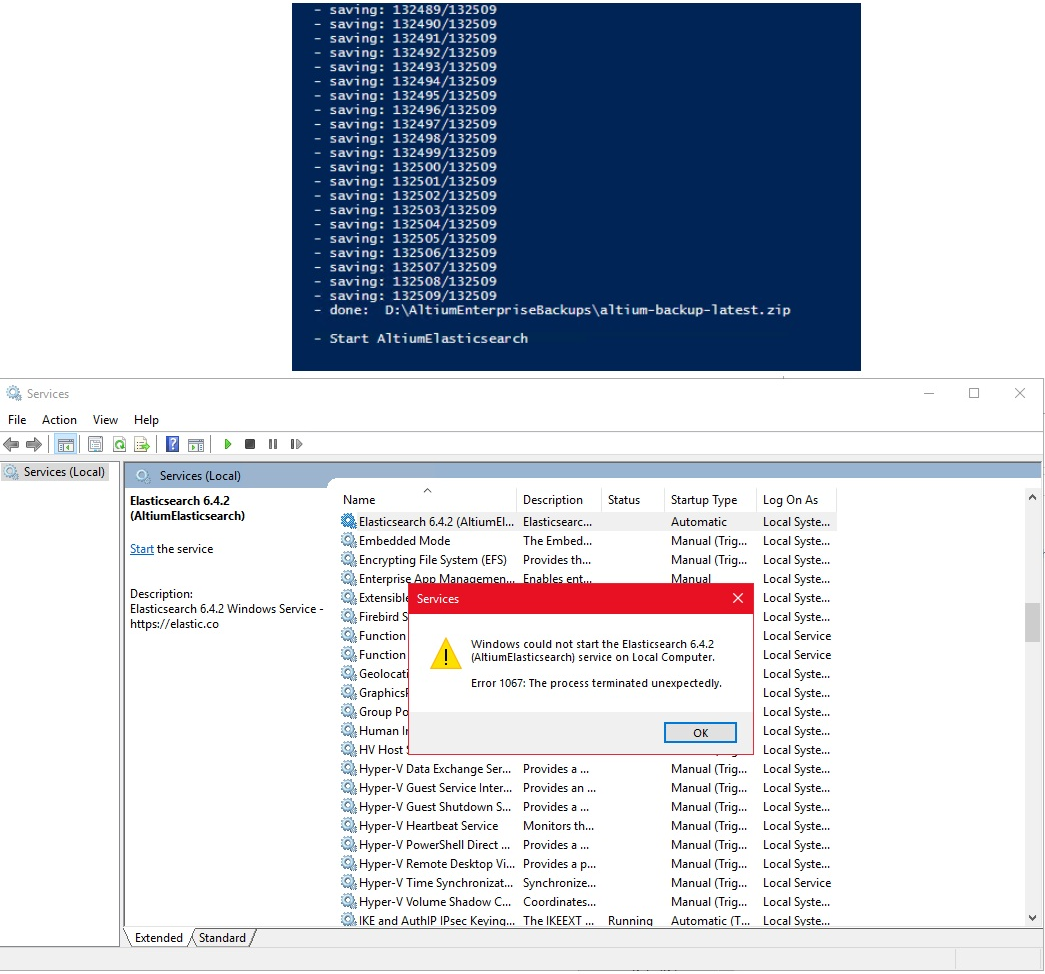
Missing Temporary Folder Can Cause Startup Failure
The service startup error does not indicate a specific root cause. Possible causes include low disk space, search-index issues, permission problems, or an inaccessible temporary directory.
In older AES versions, support cases have shown that the Elasticsearch temporary folder was missing after a cleanup, maintenance activity, or third-party backup process. As a result, the service could not initialize successfully during startup.
The temporary directory depends on the account used to run the service. A common example is:
C:\Users\username\AppData\Local\Temp
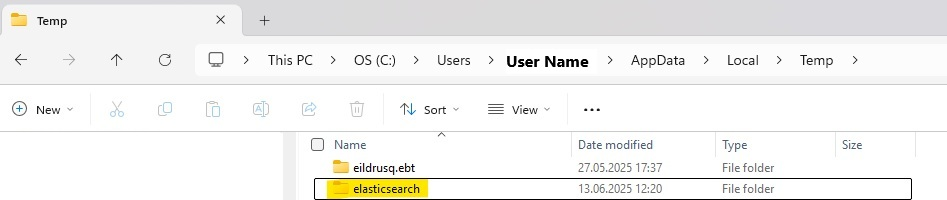
Verify the Environment Before Making Changes
- Review the Elasticsearch logs located at:
C:\ProgramData\Altium\Altium365Data\logs\ElasticSearch - Identify the account configured to run the Elasticsearch service.
- Verify the effective temporary directory used by that account.
- Check whether an Elasticsearch folder exists in the temporary directory.
- Confirm that the service account has appropriate access to the folder.
- Verify that sufficient disk space is available.
- Check the Enterprise Server Health Monitor for Elasticsearch or search-index warnings.
- If log evidence indicates the temporary folder is missing or inaccessible, recreate the folder and restart the service.
- Consider upgrading to a current supported AES version if running an older release.
Steps to Recreate the Temporary Folder and Restart the Service
- Open the Windows Services console and identify the account configured to run the Elasticsearch service.
- Navigate to the temporary directory associated with that account. For example:
C:\Users\username\AppData\Local\Temp - Verify whether a folder named Elasticsearch exists.
- If the folder does not exist, create a new empty folder named Elasticsearch. No files need to be restored or copied into the folder.
- Verify that the Elasticsearch service account has sufficient permissions to access the recreated folder.
- In the Windows Services console, locate the Elasticsearch service.
- Select Restart. If the service is stopped, select Start.
- Confirm that the service status changes to Running.
- If the service does not start, review the Elasticsearch logs in:
C:\ProgramData\Altium\Altium365Data\logs\ElasticSearch
and verify that the temporary directory structure and permissions are intact. - Start the AES.
- Verify the following:
- The Elasticsearch service status is Running.
- The AES starts successfully.
- Search and indexing functionality operate normally.