
KB: Fixing Sheet Number Issues in Altium Designer Schematic PDF Release
Solution Details
When releasing the schematic PDF document through Output Job or Project Releaser, the generated PDF may miss its sheet number, sheet total, or document number. Sometimes this issue can also occur for managed sheets. This article explains the steps to configure the schematic and Output Job for a proper release with sheet number information.
Root Cause
The issue occurs because the schematic template lacks the required special strings, sheets are not annotated, compiled name expansion settings are disabled, or Output Job is not configured correctly. Additionally, read-only device sheets cannot have sheet or document numbers configured.
Solution Overview
To fix this issue, configure the schematic template with the correct special strings, annotate all sheets (including managed sheets), enable compiled name expansion in preferences, and ensure the Output Job uses the correct data source and name expansion settings.
Step-by-Step Resolution
1. Ensure Special Strings Exist in the Template
- Open your schematic sheet or template.
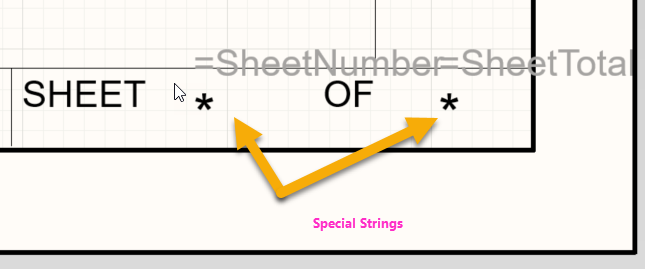
- Check the title block for the following special strings:
=SheetNumber– Displays the current sheet number.=DocumentNumber– Displays the document number.=SheetTotal– Displays the total number of sheets.
- If these strings are missing, edit the template and add them in the appropriate fields.
2. Annotate Sheets
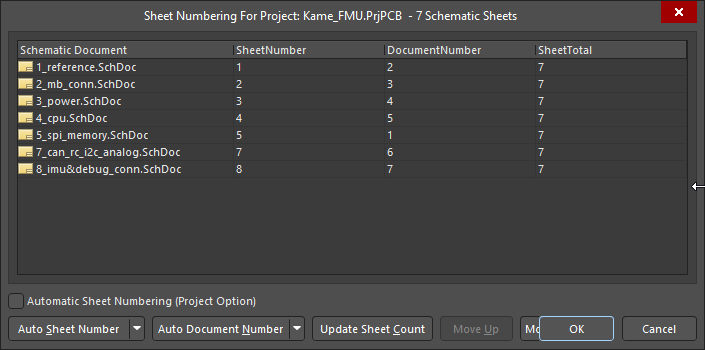
- Go to Tools » Annotation » Number Schematic Sheets.
- This assigns sheet numbers to all schematic sheets in the project.
- Verify that each sheet now has a unique number and the total count is correct.
3. Annotate Managed Sheets
- For projects using managed sheets:
- Open the schematic document.
- Navigate to Tools » Annotation » Annotate Compiled Sheets.
- Switch to the Compiled Editor:
- Click the sheet name near the editor option at the bottom-left of the schematic window.
- Confirm that sheet number and sheet total values are resolved for each managed sheet.
4. Enable Compiled Name Expansion
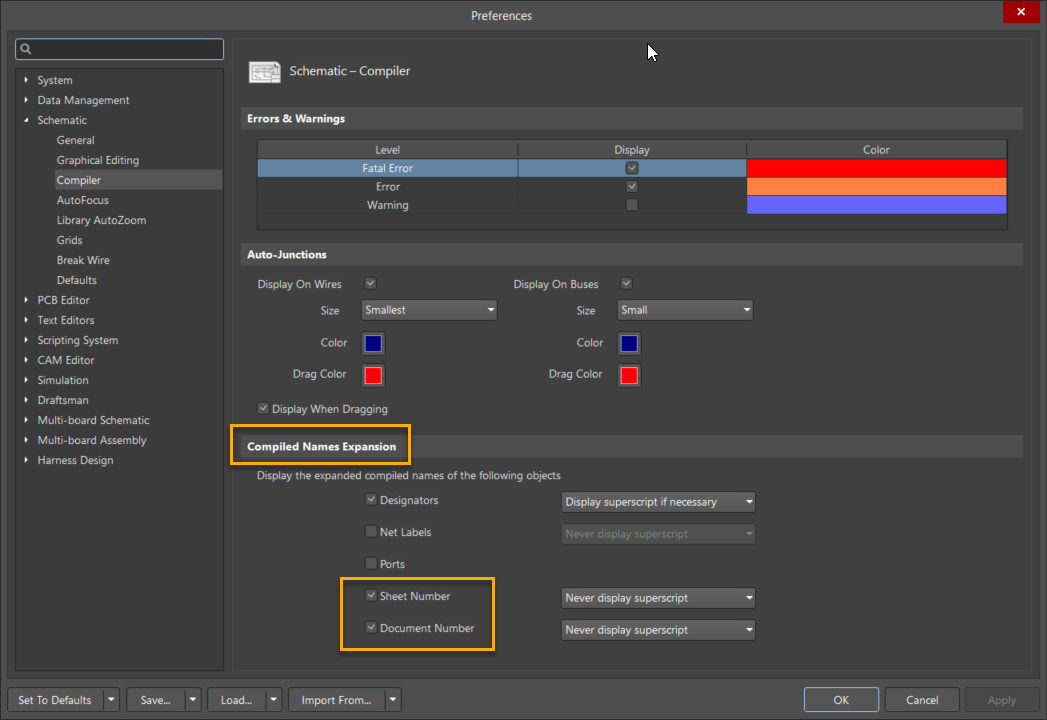
- Go to Tools » Preferences » Schematic Editor » Compiler » Compiled Name Expansion.
- Enable the following options:
- Sheet Number
- Document Number
- This ensures that special strings are expanded correctly during compilation.
5. Set Data Source in Output Job
- Open your Output Job file.
- For the schematic PDF output:
- Ensure Data Source = [Project Physical Documents].
- This setting ensures the output uses the compiled project data rather than logical or incomplete sources.
6. Configure Schematic PDF for Name Expansion
- In the Output Job:
- Select the schematic PDF output.
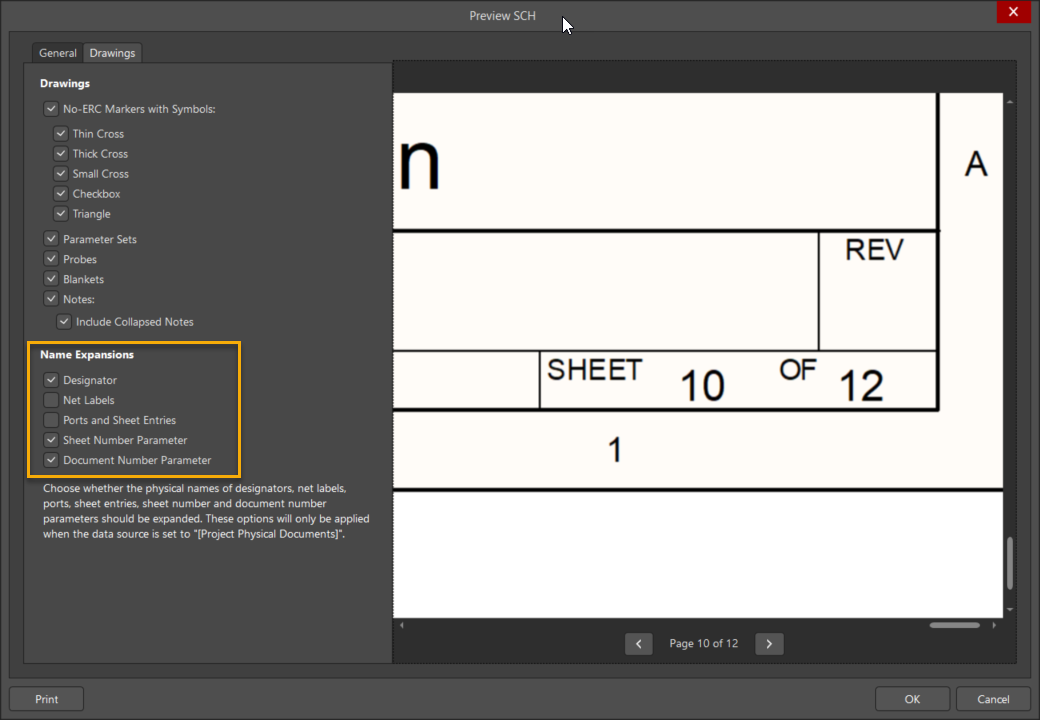
- Right-click and choose Configure.
- In the preview window:
- If sheet numbers appear as
*, go to Drawings » Name Expansions. - Enable the Sheet Number parameter.
- If sheet numbers appear as
- Click OK, refresh the view, and regenerate the output.
Additional Notes
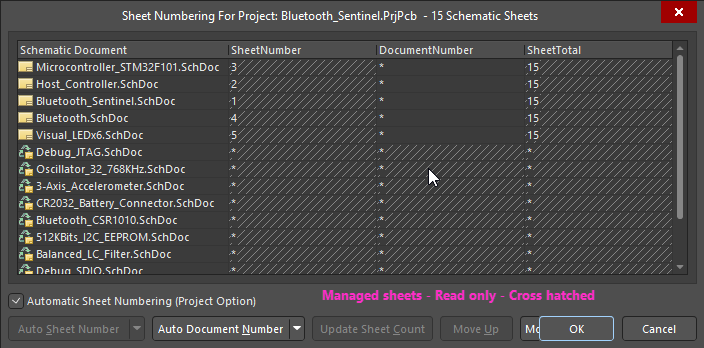
Important: Sheet or Document Numbers cannot be configured for Device Sheets when they are read-only (default state). Refer the documentation link
Schematic Sheet Numbering and Device Sheets
Reference Documentation: