
Módulo de proyecto
El módulo Project en Requirements Portal proporciona detalles y capacidades de gestión de proyectos. La interfaz de usuario del módulo Project es la página Home, que se abre cuando se accede a Requirements Portal desde el menú de nueve puntos en la parte superior derecha de la interfaz basada en navegador del Workspace ( ). La página proporciona acceso a los proyectos de requisitos existentes, orientados a la gestión de requisitos, y también permite crear un nuevo proyecto de requisitos.
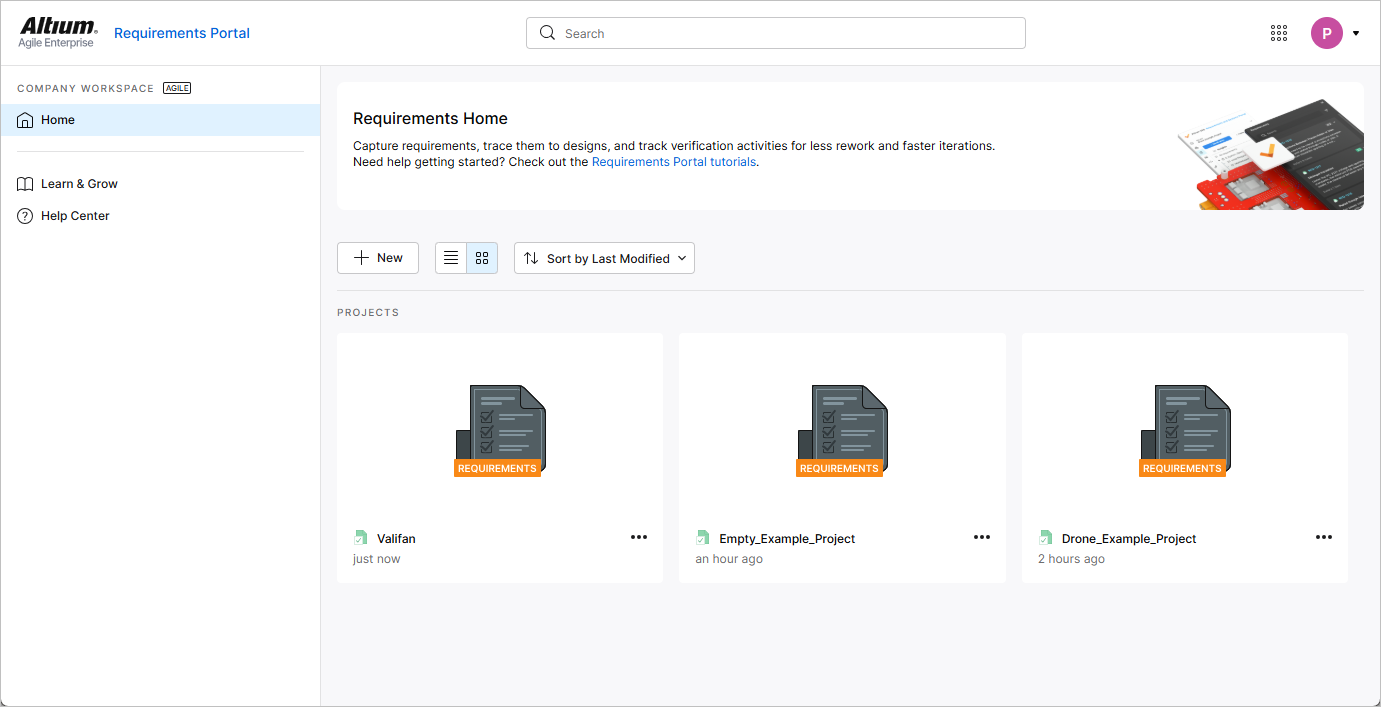
Creación de un nuevo proyecto de requisitos
Para crear un nuevo proyecto de requisitos, haga clic en el botón  situado encima de la lista de proyectos. Se abrirá la ventana Create Requirements Project.
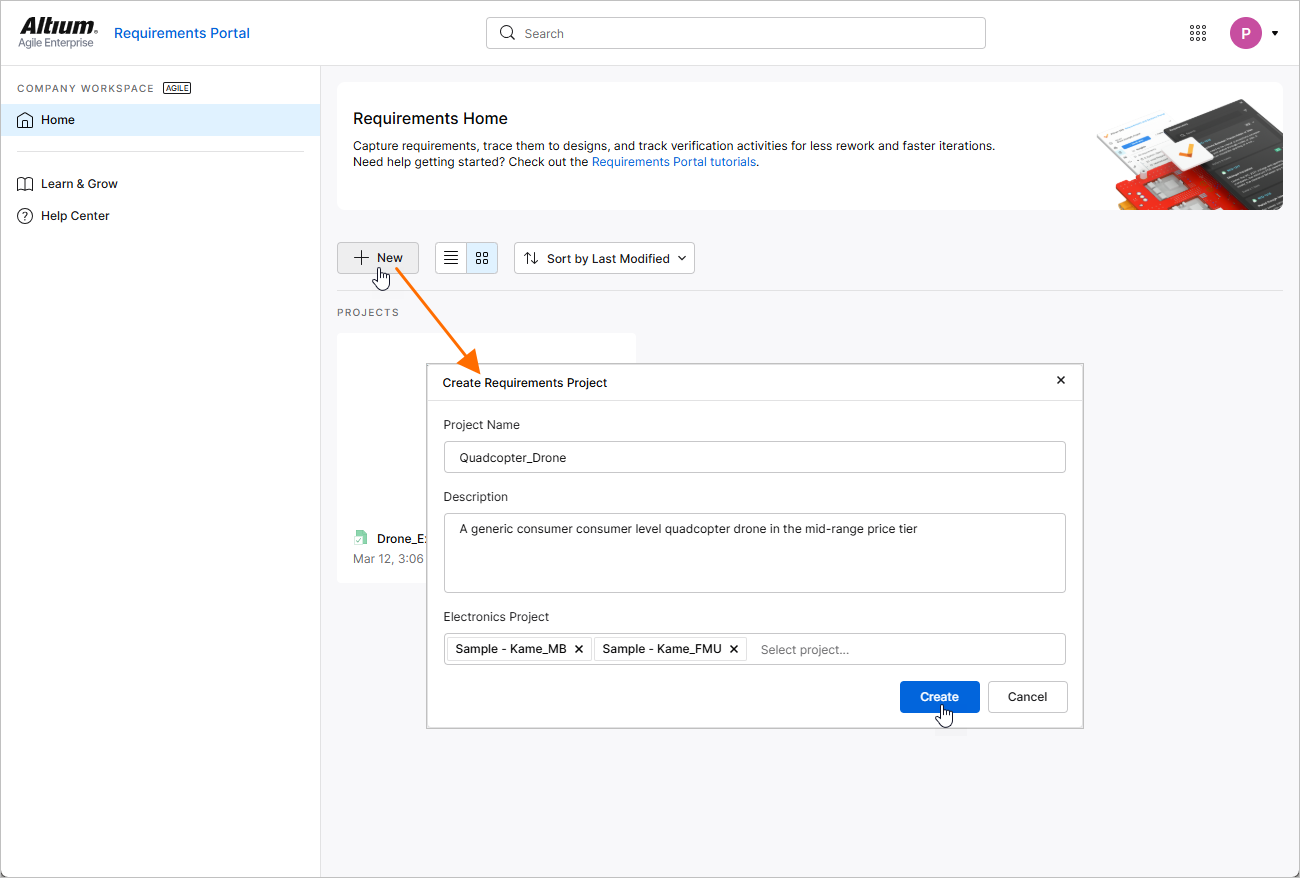
La ventana Create Requirements Project presentará los siguientes campos:
-
Project Name – introduzca el nombre requerido para el proyecto.
-
Description – introduzca una descripción opcional para el proyecto.
-
Electronics Project – de forma opcional, especifique uno o varios proyectos PCB que existan en su Workspace (obtenga más información sobre Workspace Projects). Por cada proyecto PCB añadido al campo, se creará en el proyecto de requisitos un block del tipo Electronics con el mismo nombre que el proyecto, y este bloque quedará vinculado a ese proyecto PCB. Además, se creará en el proyecto de requisitos una specification con el mismo nombre que el proyecto PCB, y el bloque correspondiente se añadirá a la lista Default blocks de la especificación.
Después de definir el nuevo proyecto de requisitos según sea necesario, haga clic en  . Volverá a la lista de proyectos de nivel resumido, donde ahora verá una entrada correspondiente al proyecto de requisitos recién creado.
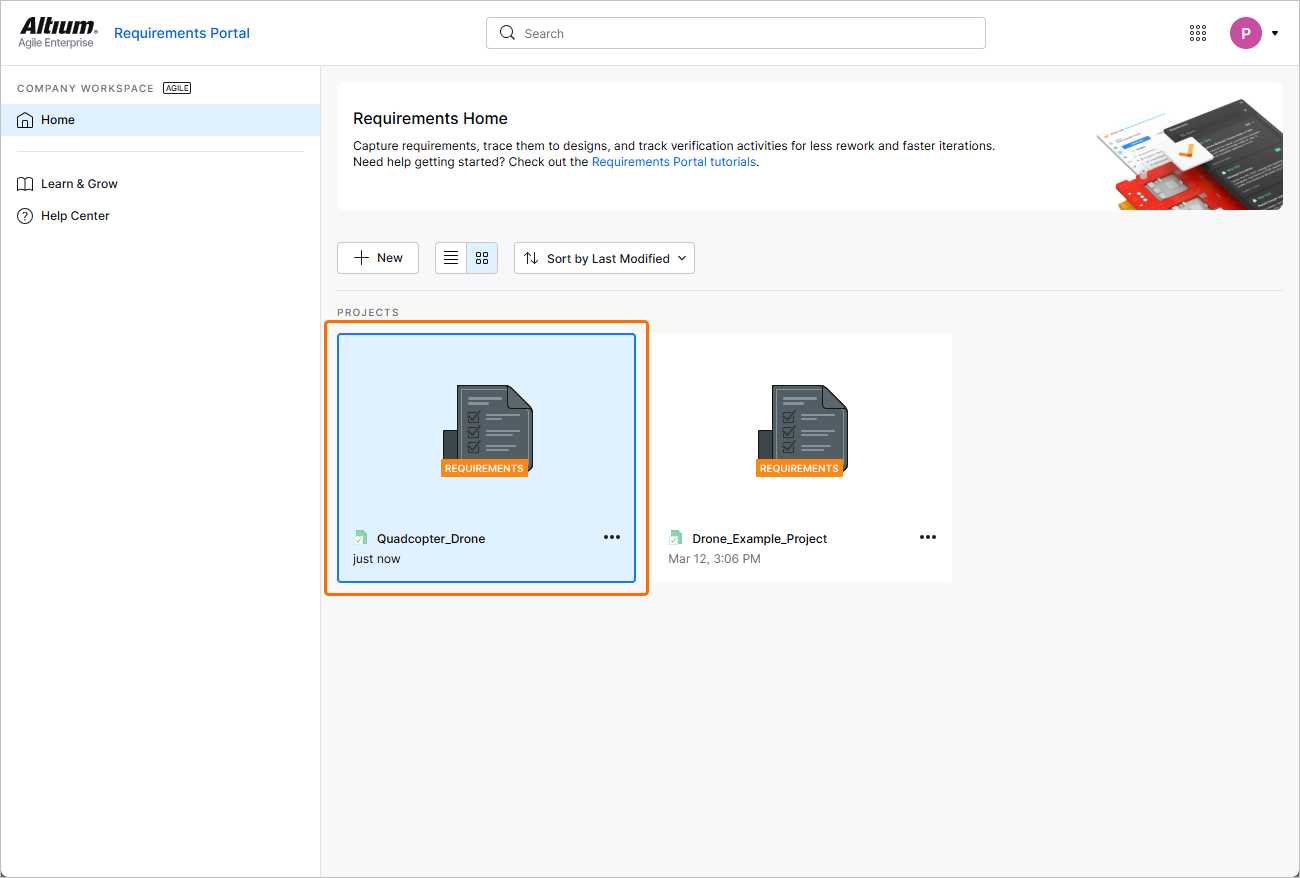
Exploración de proyectos de requisitos
La lista de proyectos en la página Home de Requirements Portal incluye todos los proyectos de requisitos que existen en el Portal. Use el botón  para cambiar la página a su vista de lista y el botón
  para cambiar la página a su vista gráfica.
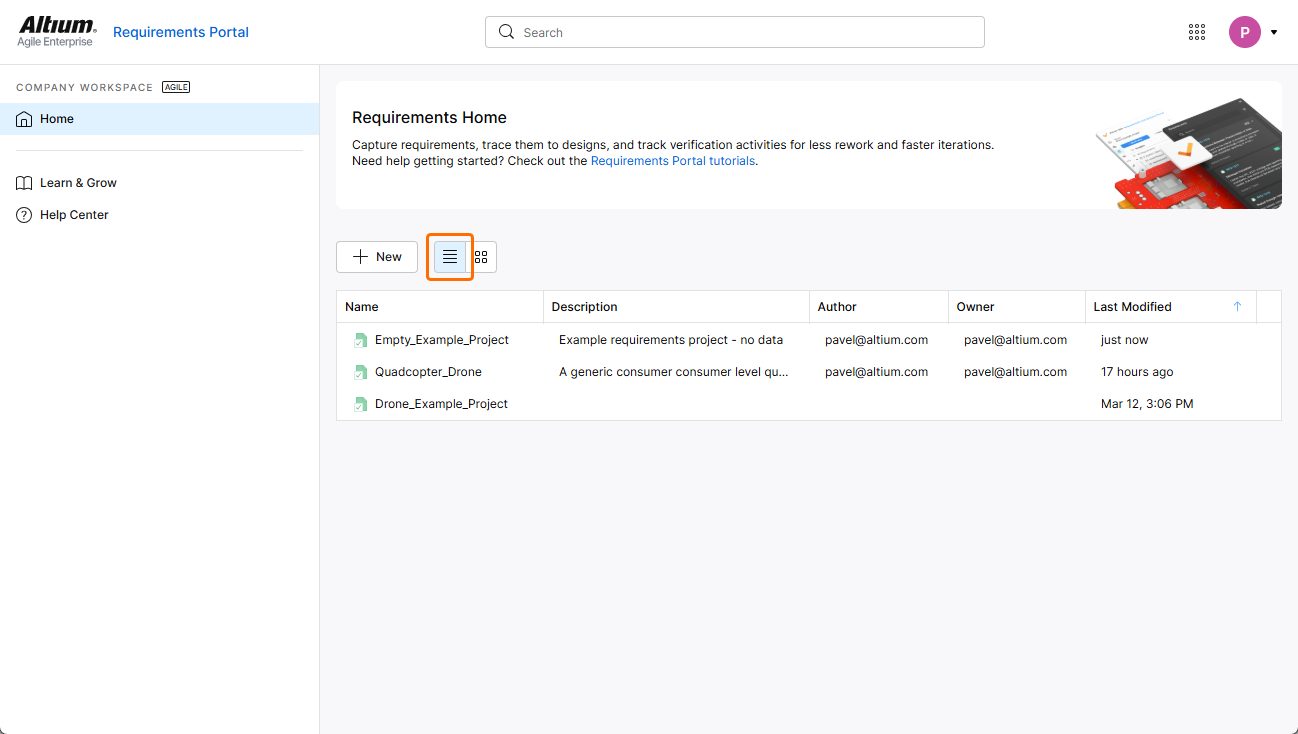
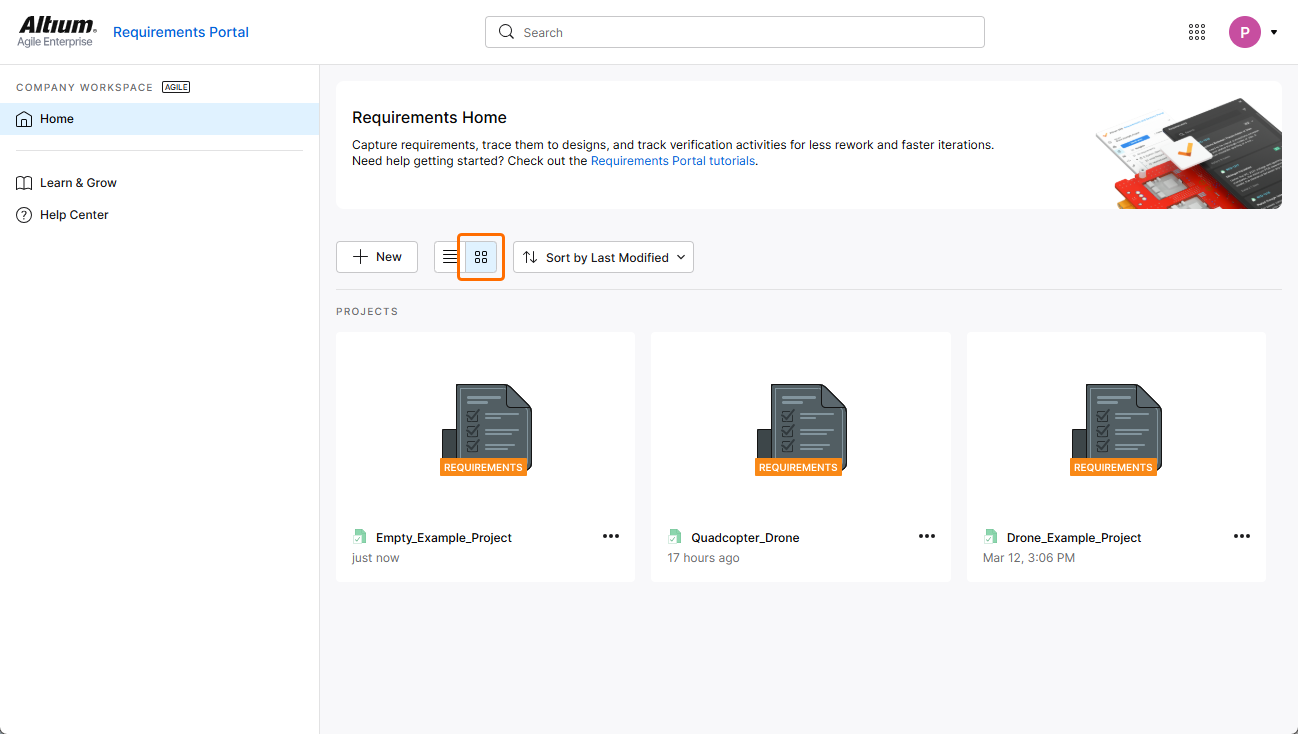
La lista de proyectos de requisitos se ordena automáticamente por fecha de última modificación, de modo que el proyecto modificado más recientemente aparece en la parte superior izquierda de la lista (en la vista gráfica) o en la parte superior de la lista (en la vista de lista). En la vista gráfica, el botón  puede usarse para ordenar rápidamente los documentos del proyecto por nombre, descripción, autor, propietario o fecha de última modificación (
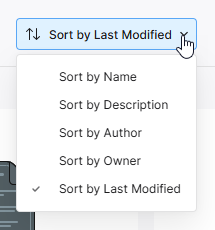 ).
).
En la vista de lista, la lista de proyectos puede ordenarse por Name, Description, Author, Owner o Last Modified, usando el encabezado de columna en cada caso. Haga clic una vez para ordenar en orden ascendente y haga clic de nuevo para ordenar en orden descendente. Las flechas a la derecha del nombre de la columna indicarán la dirección de ordenación actualmente activa. El método de ordenación elegido en una vista se aplica a ambas vistas.
También se incluye una función de Search proyecto que le permite buscar proyectos de requisitos por sus nombres. Escriba una cadena de búsqueda en el campo situado en la parte superior de la interfaz del navegador. La lista se actualizará para incluir solo aquellas entradas de proyecto cuyos nombres incluyan la cadena de búsqueda. Para borrar el filtrado de búsqueda, haga clic en la entrada principal de la página Home en el panel de navegación izquierdo o borre el campo de búsqueda (x).
Acceso a un proyecto de requisitos
Se puede acceder a un proyecto de requisitos desde la vista de lista o la vista gráfica de la página Home de Requirements Portal.
-
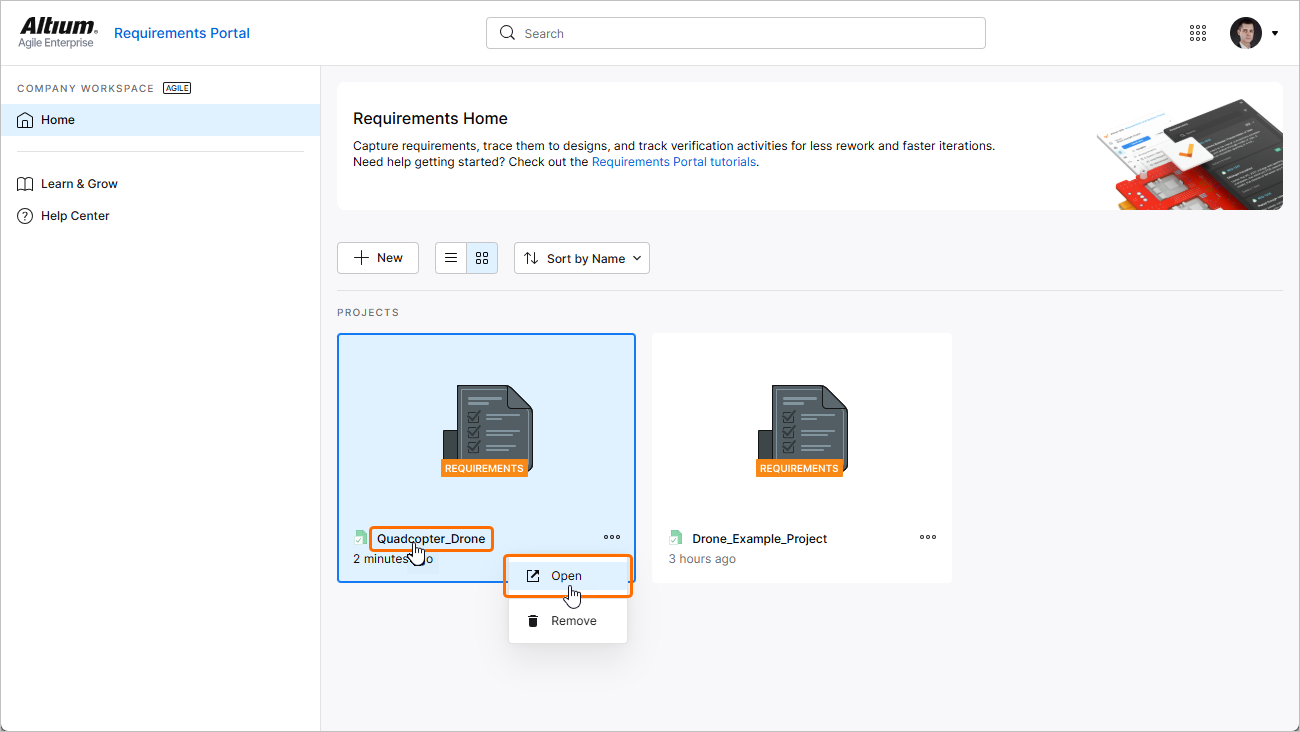
En la vista gráfica de la página Home, haga clic en el control
 del mosaico del proyecto de requisitos deseado y elija el comando Open en el menú asociado. Como alternativa, haga clic en el nombre del proyecto dentro del mosaico o haga doble clic en el mosaico.
-
En la vista de lista de la página Home, sitúe el cursor sobre la entrada del proyecto de requisitos deseado, haga clic en el control
situado en el extremo derecho de la entrada y elija el comando Open en el menú asociado. Como alternativa, haga clic en el nombre del proyecto dentro de la entrada o haga doble clic en la entrada.
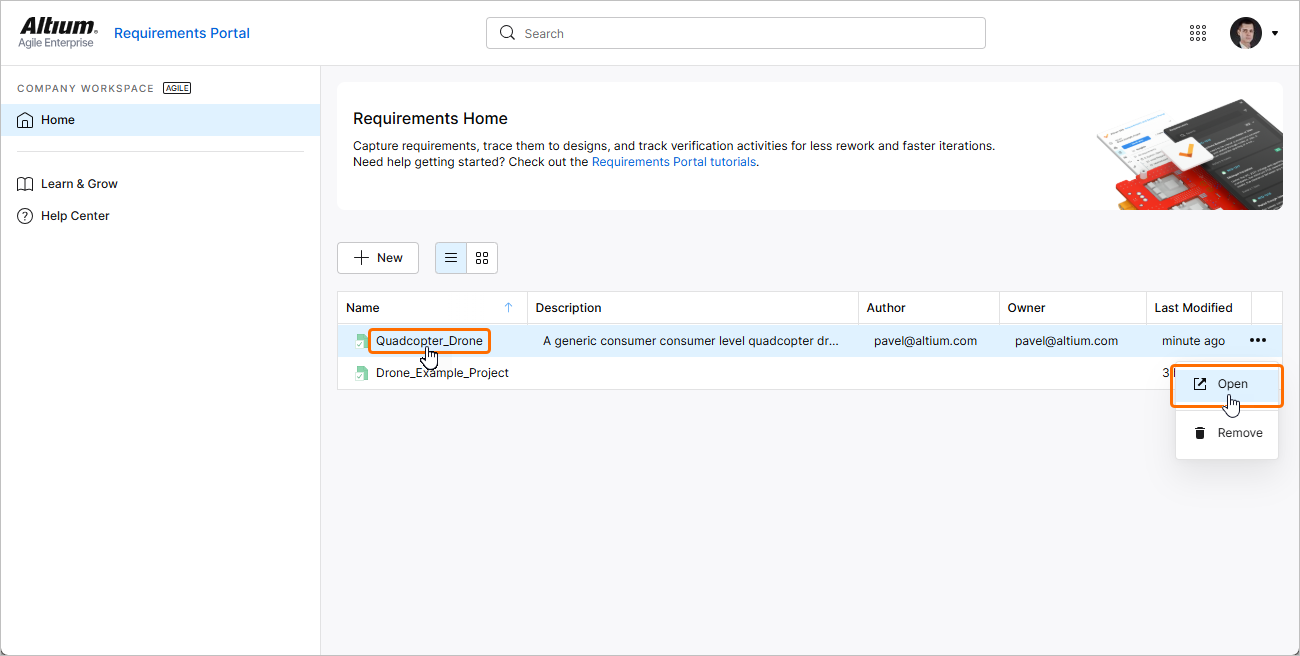
El proyecto de requisitos se abrirá en una nueva pestaña del navegador.
Eliminación de un proyecto de requisitos
Un proyecto de requisitos existente puede eliminarse del Workspace desde la vista de lista o la vista gráfica de la página Home de Requirements Portal.
-
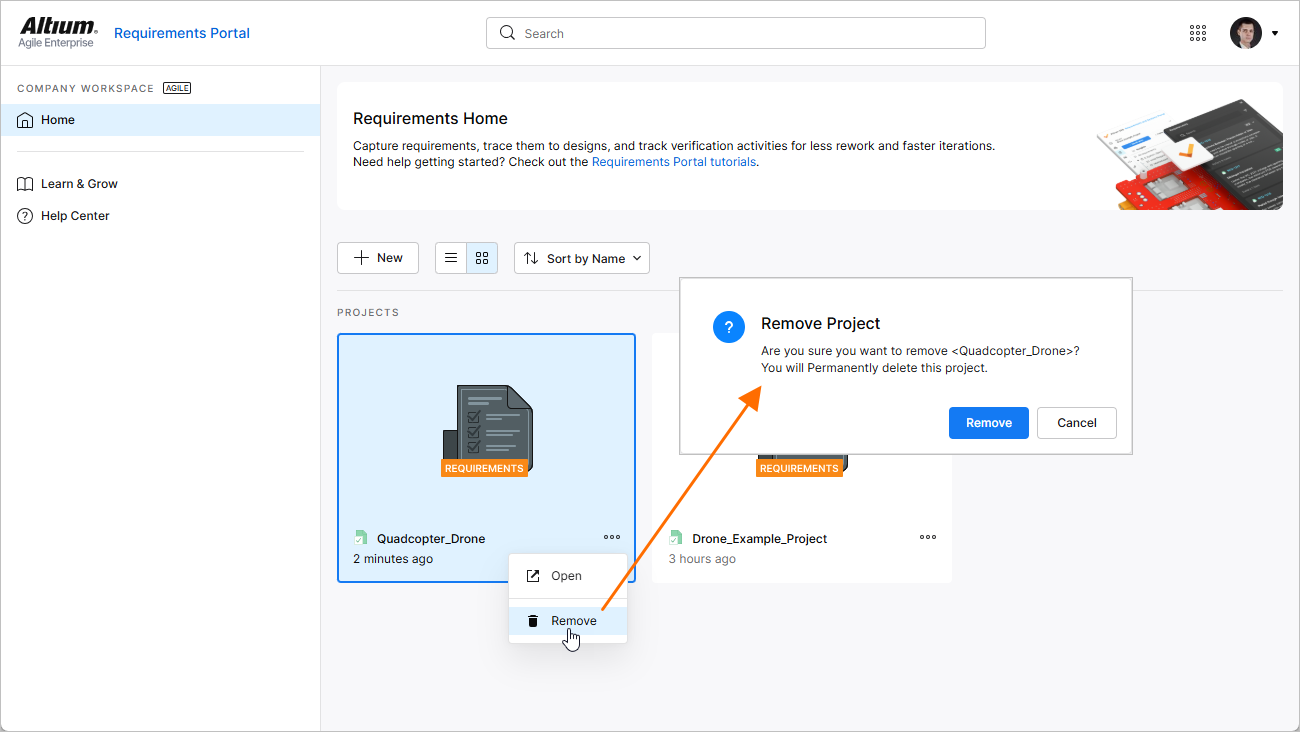
En la vista gráfica de la página Home, haga clic en el control
del mosaico del proyecto de requisitos deseado y elija el comando Remove en el menú asociado.
-
En la vista de lista de la página Home, sitúe el cursor sobre la entrada del proyecto de requisitos deseado, haga clic en el control
situado en el extremo derecho de la entrada y elija el comando Remove en el menú asociado.
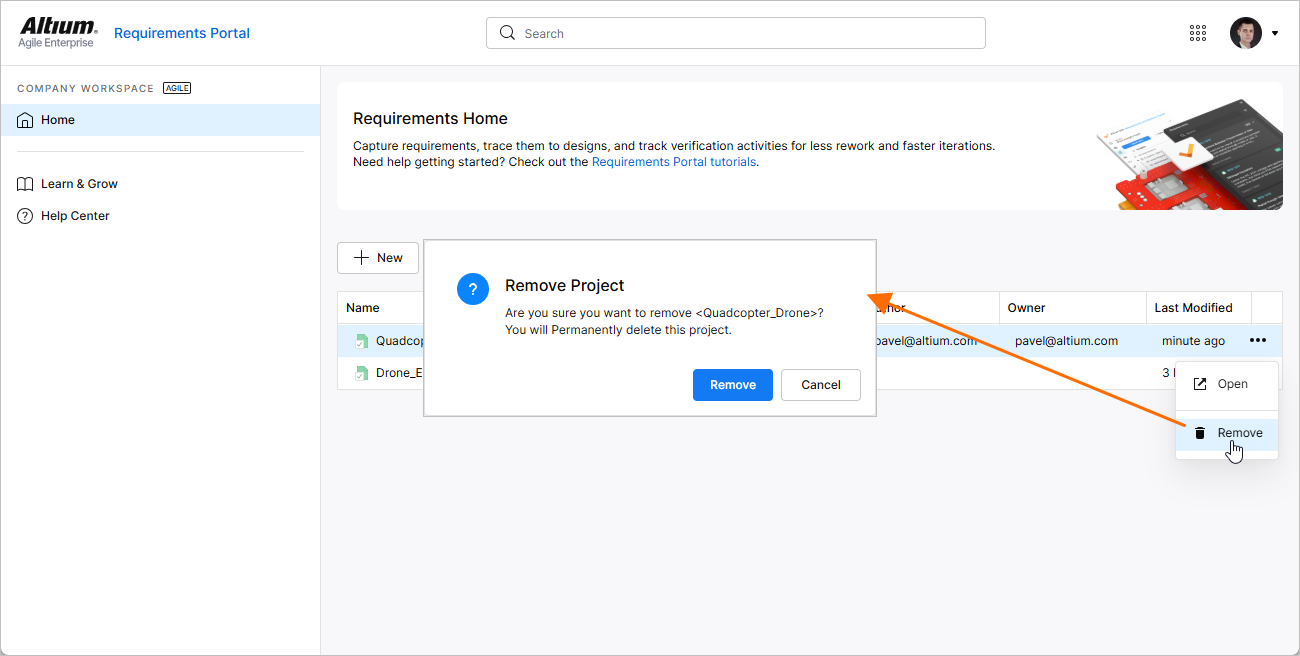
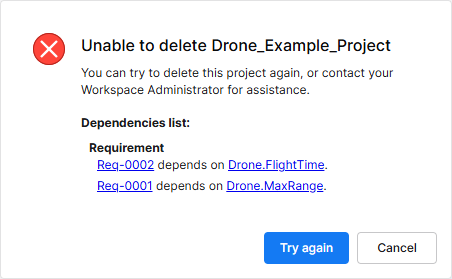
Antes de que se complete la eliminación, se le pedirá confirmación.
 ).
). Localizado por IA