
Commentaires
Requirements Portal prend en charge les commentaires au sein de vos projets d’exigences. Un commentaire est une note ajoutée par un utilisateur, associée à une exigence spécifique, à laquelle d’autres utilisateurs peuvent répondre. Les commentaires favorisent la collaboration entre utilisateurs sans modifier les données partagées elles-mêmes, car ils sont stockés par le Workspace indépendamment de ces données. Vous pouvez mentionner une ou plusieurs personnes ou groupes dans le commentaire. Un commentaire peut également être attribué à un membre du Workspace.
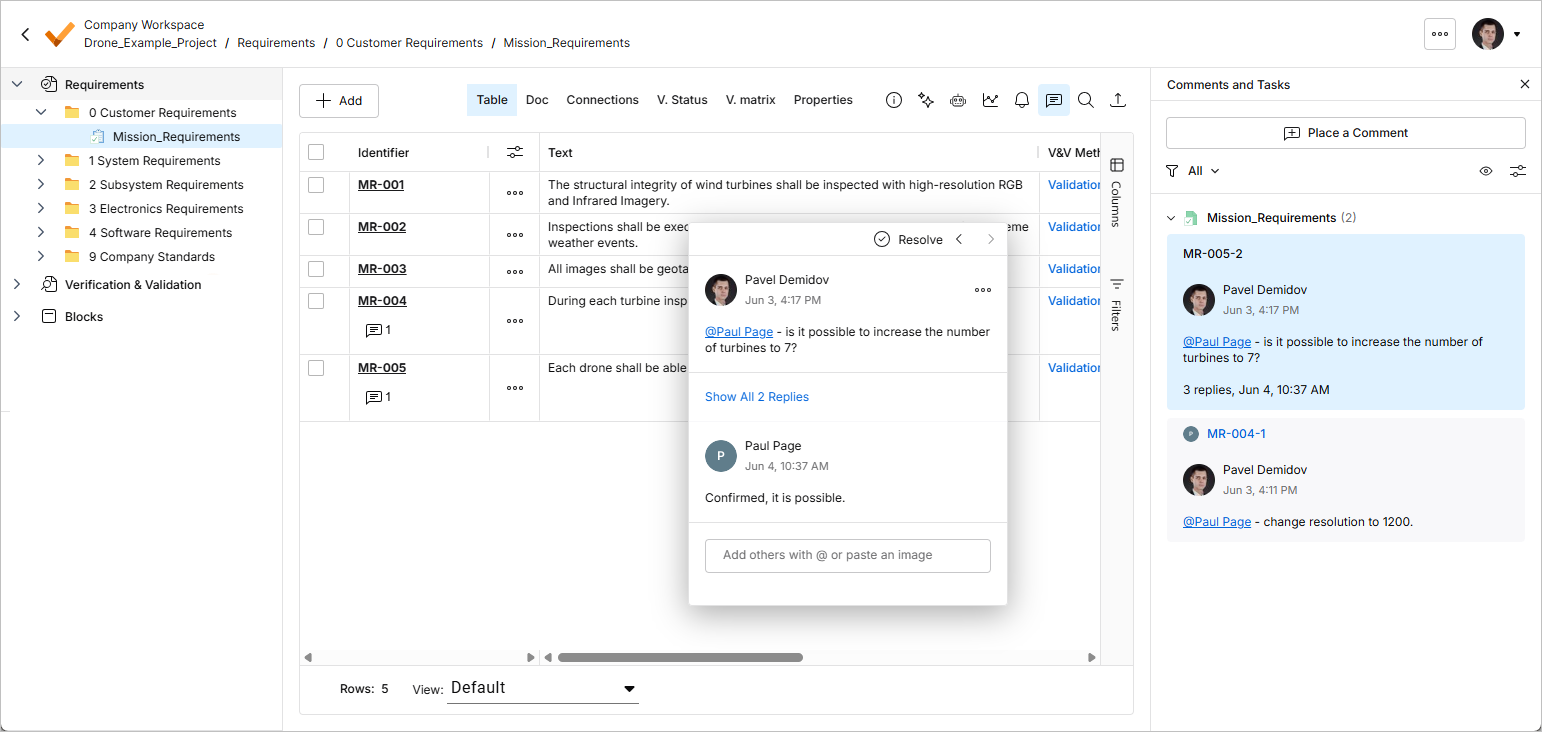
Les commentaires sont publiés, reçoivent des réponses et sont gérés directement dans le tableau des exigences à l’aide d’une fenêtre de commentaire contextuelle. Les commentaires sont également présentés dans le volet Comments and Tasks, affiché sur le côté droit et servant davantage de vue d’ensemble/d’outil de navigation que d’interface opérationnelle. Utilisez la commande  en haut à droite pour afficher ou masquer le volet Comments and Tasks.
Ajouter un commentaire
Le mode d’ajout de commentaire peut être activé de l’une des façons suivantes :
-
Cliquez sur le bouton
 en haut du volet Comments and Tasks, puis utilisez le curseur de placement obtenu (
 ) pour sélectionner une ligne d’exigence à commenter.
-
Cliquez sur le bouton
 sur la ligne de l’exigence et sélectionnez la commande Comment dans le menu qui apparaît.
Dans chaque cas, une fenêtre de commentaire s’affiche pour définir le commentaire dans le contexte de l’exigence choisie. Saisissez votre commentaire dans le champ prévu à cet effet. Vous pouvez mentionner une ou plusieurs personnes ou groupes dans le commentaire. Saisissez le caractère @ dans le champ de commentaire pour accéder rapidement à la liste des membres du Workspace. Un commentaire peut également être attribué à un membre. Pour plus d’informations sur ces fonctions supplémentaires, voir la section Utilisation de la fenêtre de commentaire contextuelle.
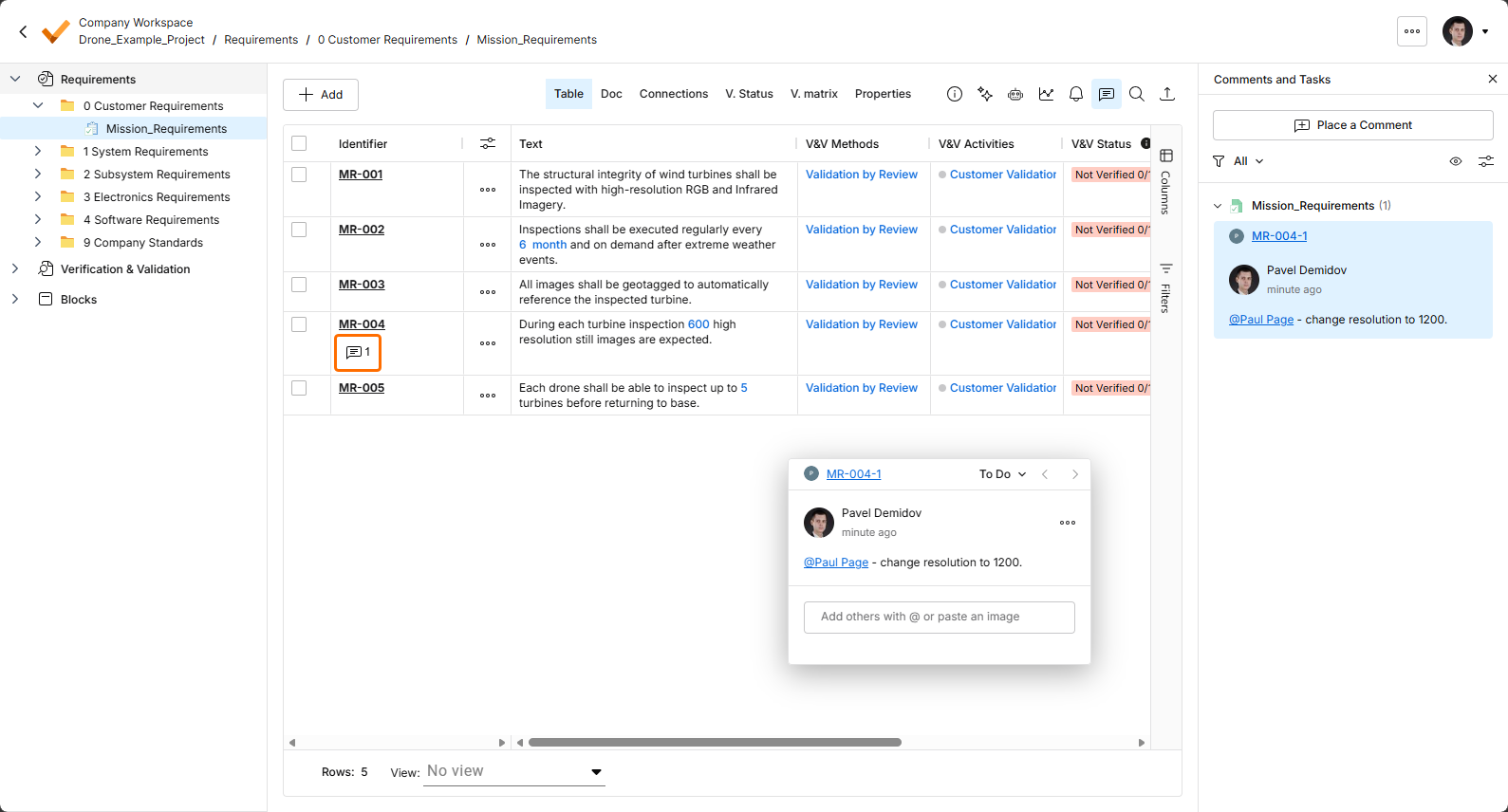
Une fois le commentaire saisi, les mentions ajoutées et l’attribution effectuée si nécessaire, cliquez sur le bouton  ci-dessous. Le commentaire sera enregistré et apparaîtra à la fois dans la fenêtre de commentaire contextuelle et dans le volet Comments and Tasks. Un marqueur de commentaire (
 ) sera affiché dans la colonne Identifier pour une exigence comportant un commentaire.
La séquence d’images suivante montre l’ajout d’un commentaire d’exemple à une exigence, ainsi que l’ajout d’une mention d’un membre de l’équipe et l’attribution d’une tâche à celui-ci (voir ci-dessous pour plus de détails).
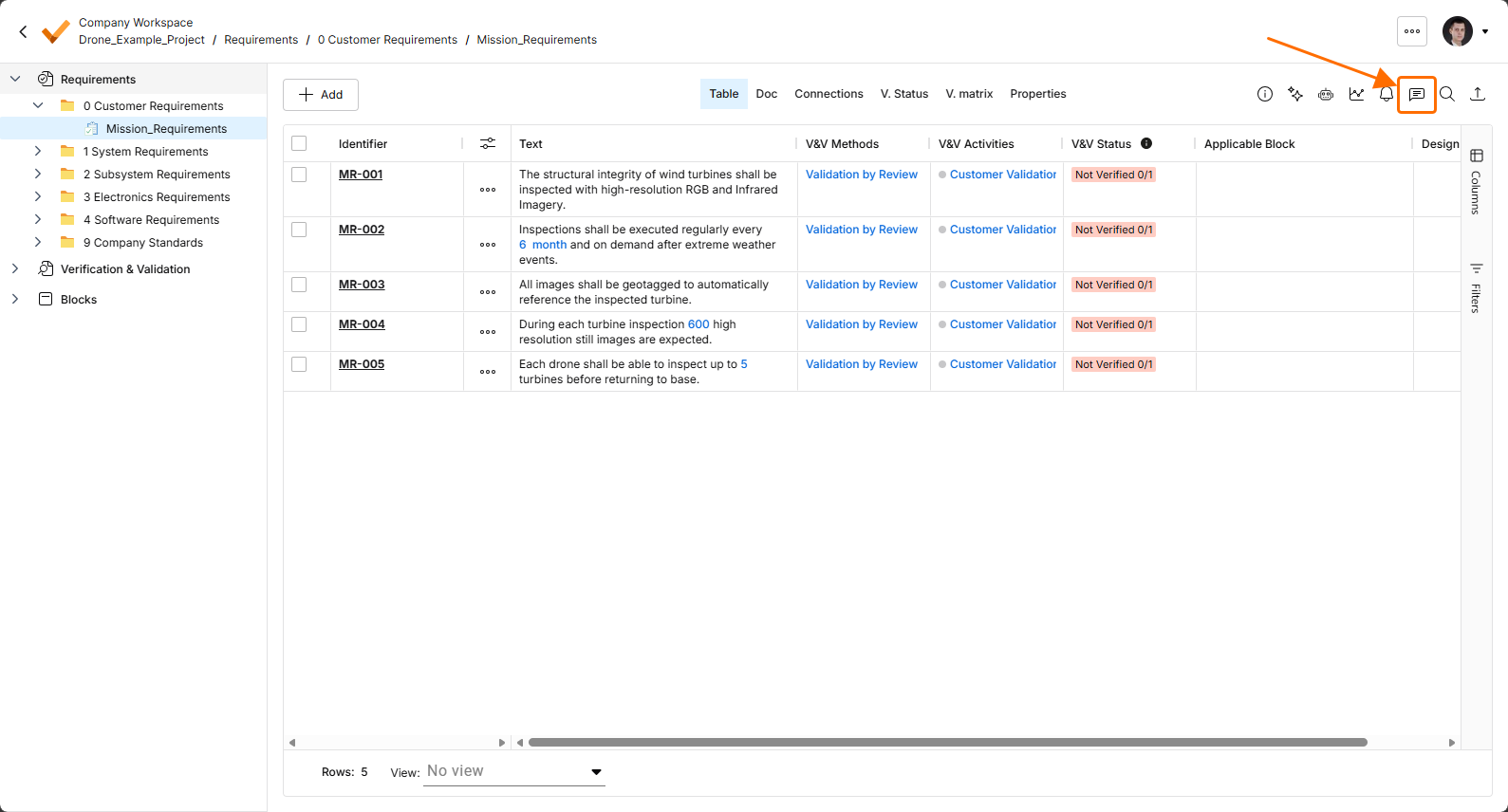
Ouvrez ou fermez le volet Comments and Tasks à l’aide de l’icône .
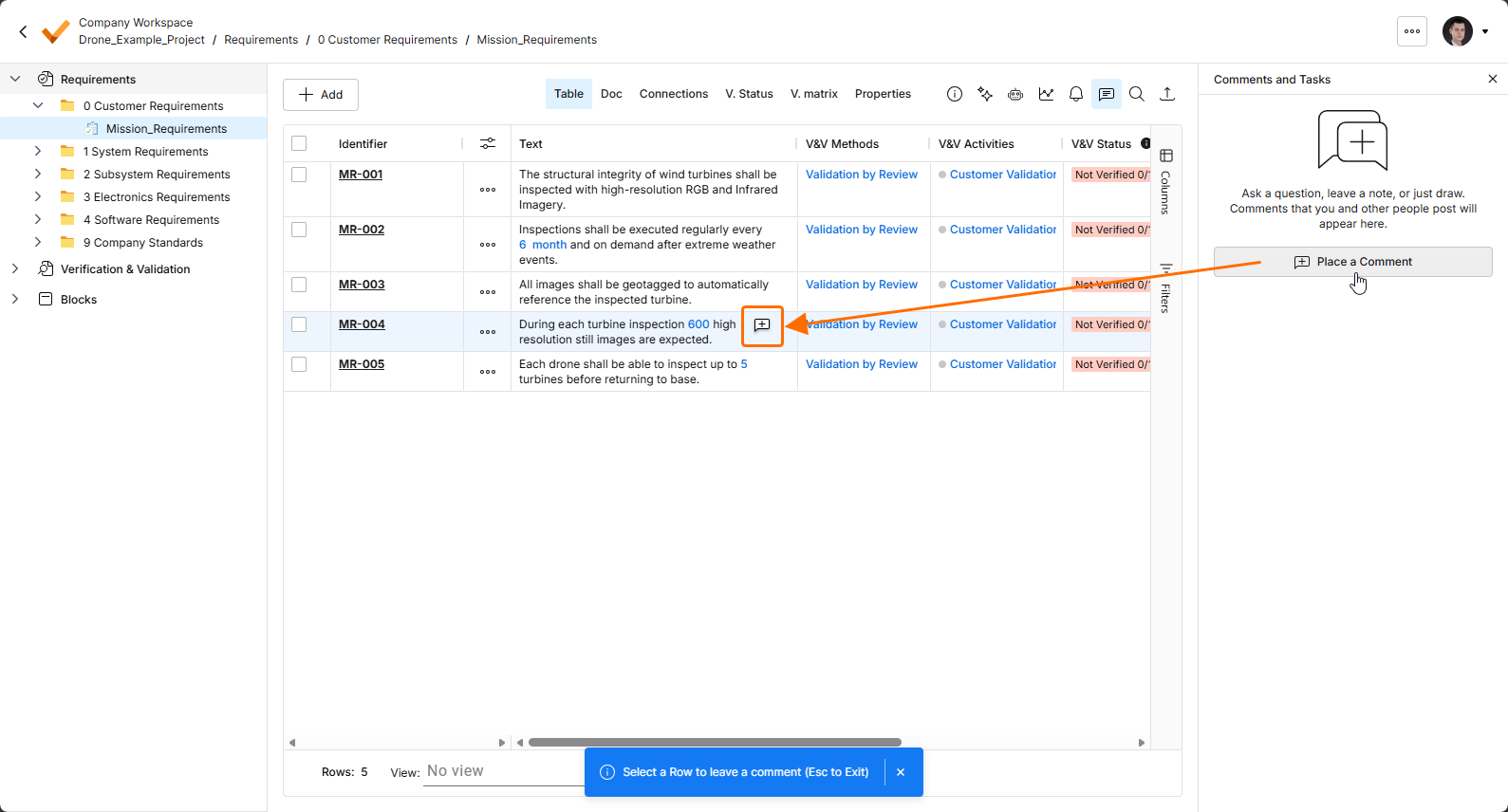
Sélectionnez le bouton pour ajouter un commentaire à une exigence, puis utilisez le curseur de placement obtenu () pour sélectionner une ligne d’exigence à commenter.
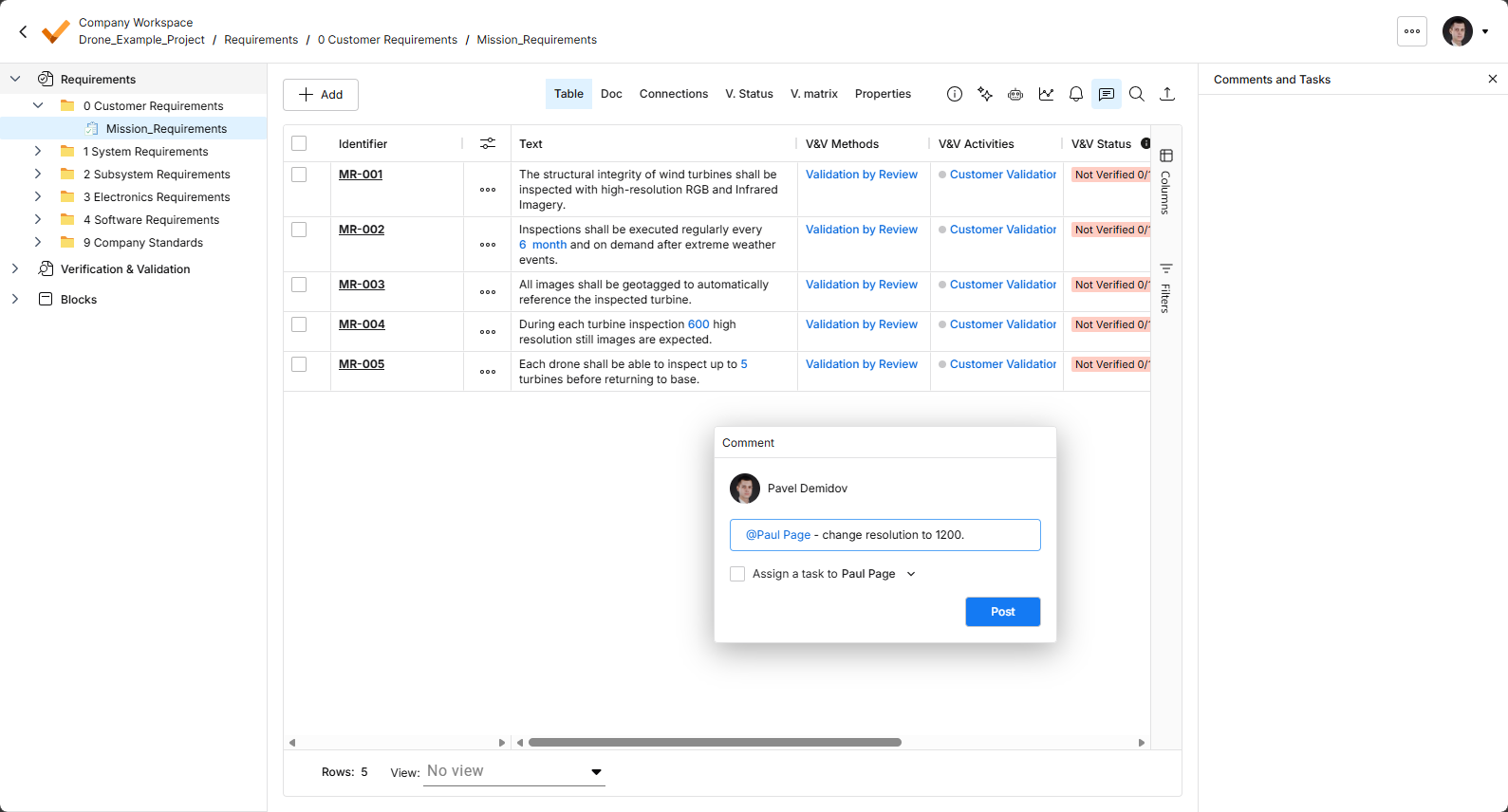
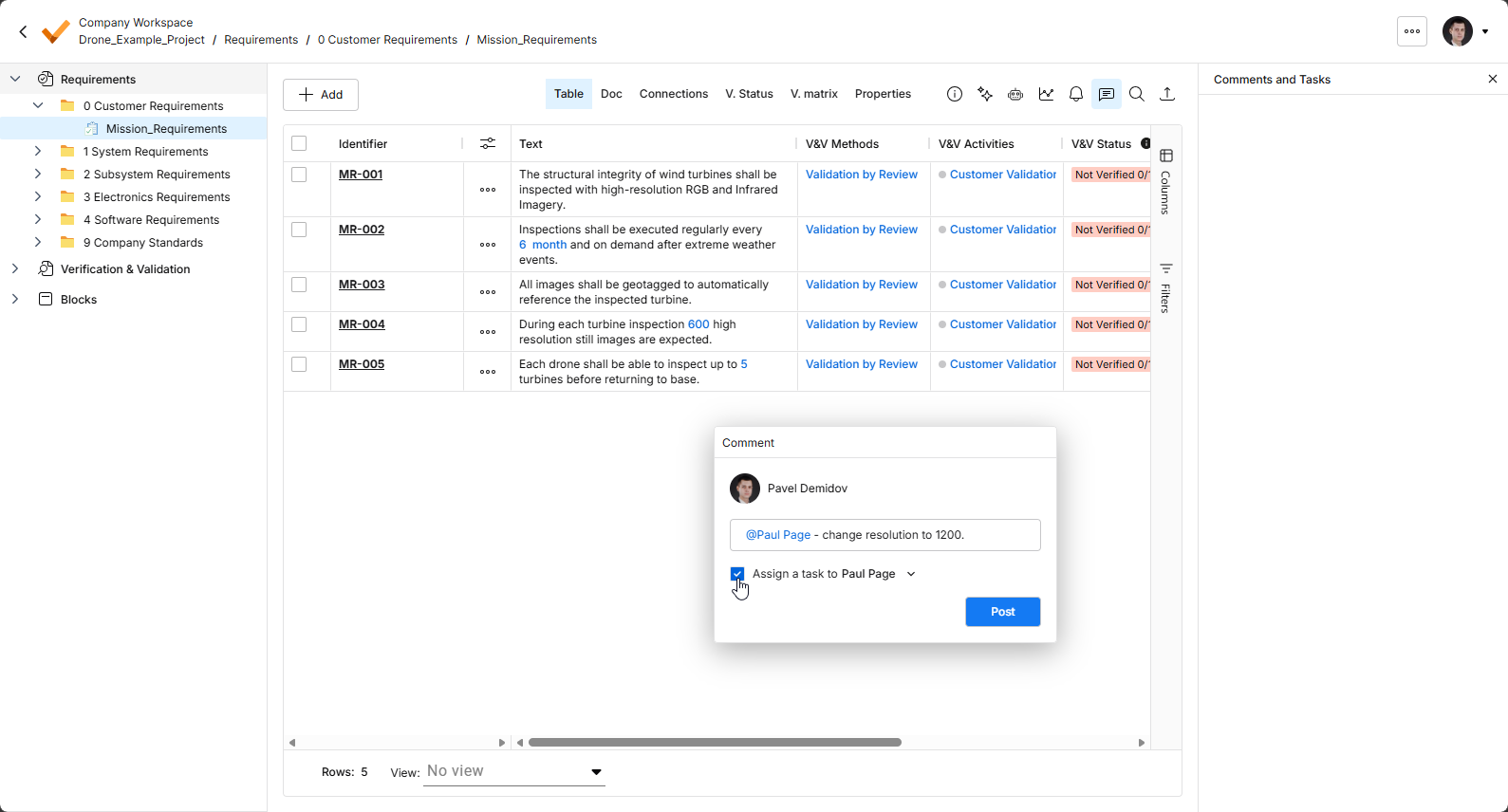
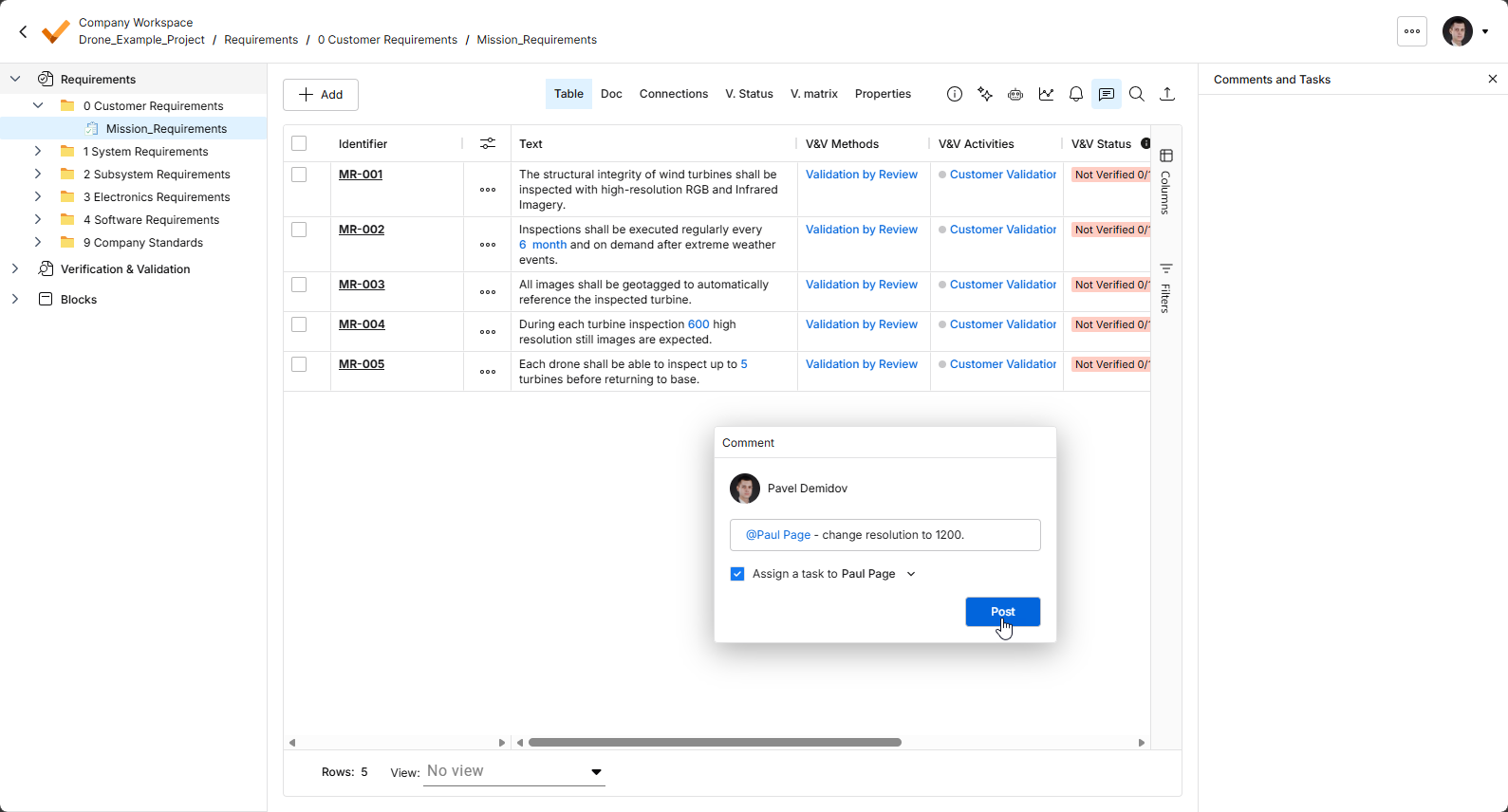
Cliquez sur le bouton pour confirmer l’ajout du commentaire et, s’il est attribué, la création d’une tâche associée.
Utilisation de la fenêtre de commentaire contextuelle
Les points suivants concernent l’utilisation des commentaires et de la fenêtre de commentaire contextuelle de l’interface :
-
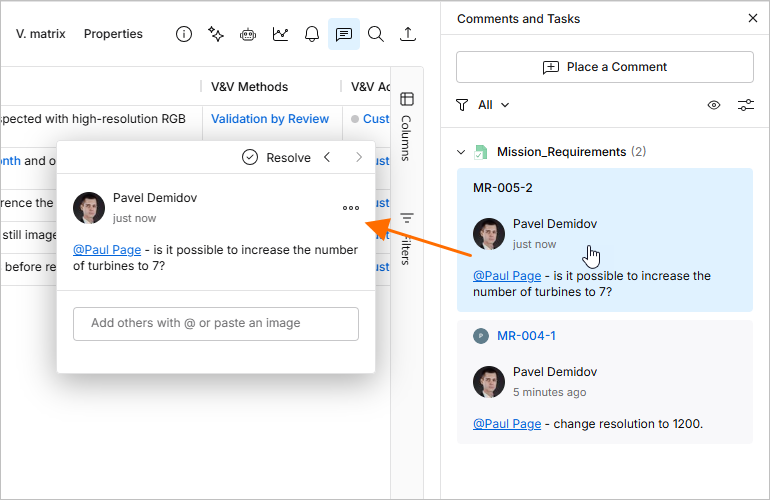
La fenêtre de commentaire est accessible en cliquant sur l’entrée de commentaire dans le volet Comments and Tasks.
-
La fenêtre peut être déplacée librement en cliquant sur sa barre supérieure et en la faisant glisser.
-
Utilisez les boutons
 en haut à gauche de la fenêtre de commentaire pour passer respectivement au commentaire précédent et au commentaire suivant.
-
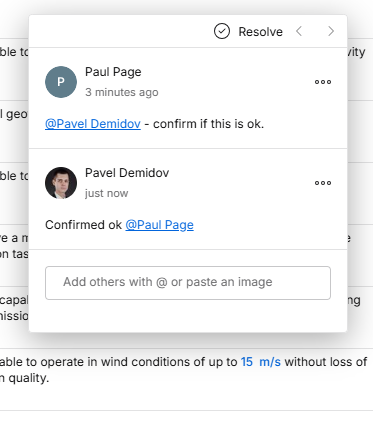
Une fois un commentaire initial ajouté, la fenêtre de commentaire, lorsqu’elle est ouverte, est prête pour la saisie d’une réponse. Saisissez votre texte dans le champ prévu à cet effet, puis cliquez sur le bouton
 pour valider. Pour quitter sans répondre, appuyez sur
 Esc. -
Vous pouvez mentionner une personne ou un groupe dans un commentaire. Saisissez le caractère
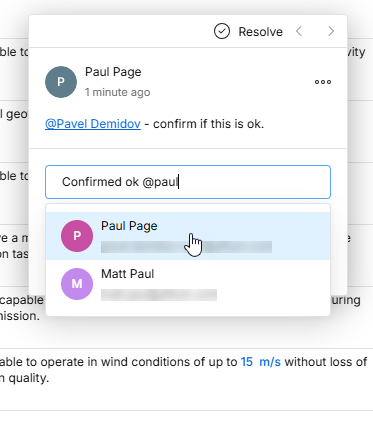
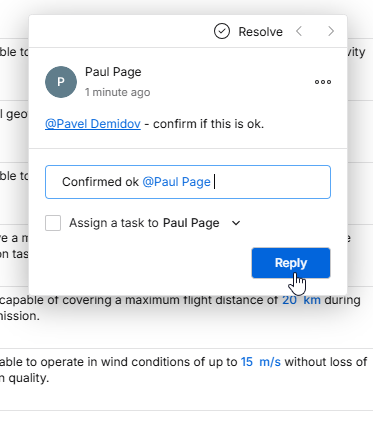
@pour afficher une fenêtre contextuelle répertoriant tous les membres de l’équipe du Workspace. Vous pouvez également rechercher le groupe ou la personne (cette dernière par son nom ou son e-mail) en saisissant@suivi d’un ou plusieurs caractères – une liste des groupes correspondants, des membres de l’équipe et des personnes extérieures à l’équipe (mais au sein de votre organisation) sera affichée pour vous permettre de choisir. Vous pouvez soit cliquer sur une entrée pour l’ajouter, soit utiliser les touchesUp Arrow/Down Arrowpuis appuyer surEnterpour l’ajouter.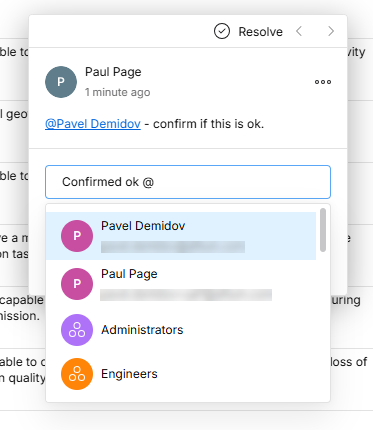
-
Vous pouvez attribuer une tâche à une personne qui a été mentionnée. Activez l’option Assign a Task to en conséquence – par défaut, elle s’applique à la première personne mentionnée ou, si aucune mention n’est incluse, à vous-même (
Me). Vous pouvez également utiliser le menu déroulant pour choisir un autre membre du Workspace auquel attribuer la tâche. La personne attribuée est affichée dans l’entrée du volet Comments and Tasks sous forme d’image/lettre de profil utilisateur, avec une référence de tâche associée. L’attribution de la tâche peut être modifiée ou supprimée lors de la modification du commentaire.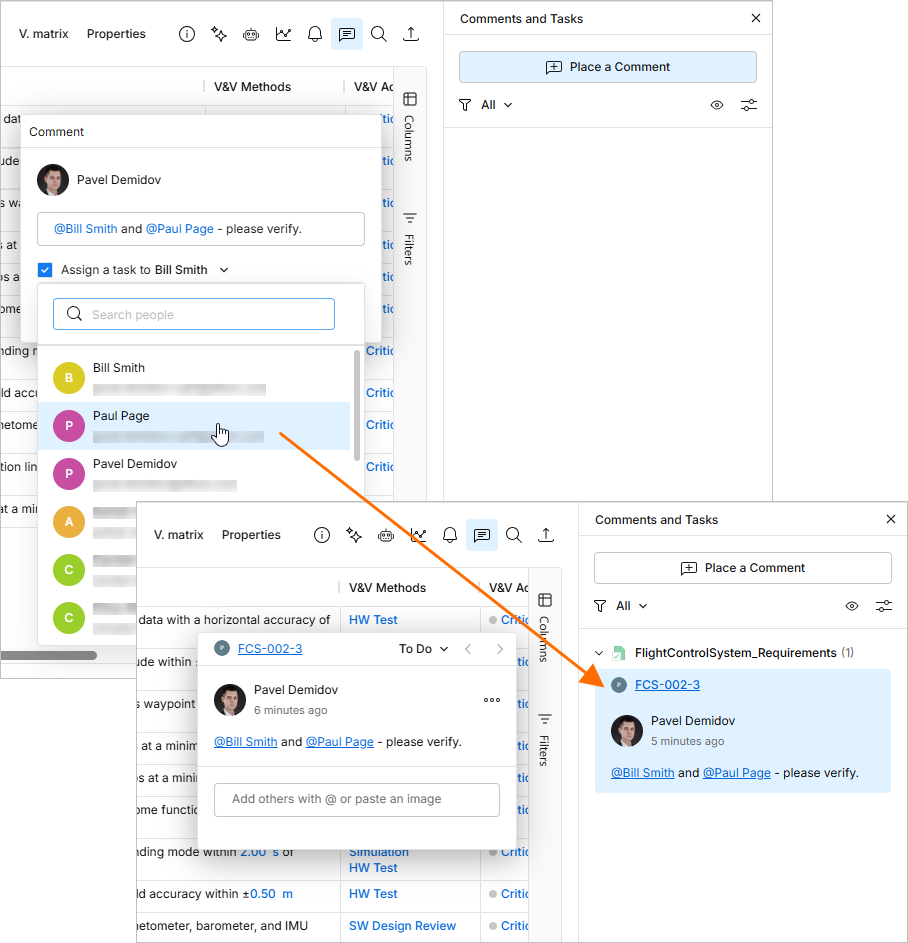
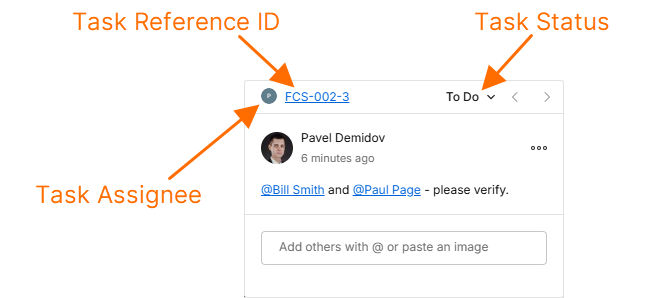
Lorsqu’une tâche est associée à un commentaire, la bordure supérieure de sa fenêtre comprend :
-
une icône (image/lettre) indiquant le membre auquel la tâche du commentaire a été attribuée. Sélectionnez l’icône pour réattribuer la tâche à un autre membre du Workspace à partir de la liste déroulante.
-
la référence alphanumérique de la tâche, composée de l’identifiant de l’exigence avec un suffixe de numéro de tâche. Cliquez sur cette référence pour effectuer une recherche croisée vers l’entrée de cette tâche dans la page Tasks page du Workspace.
-
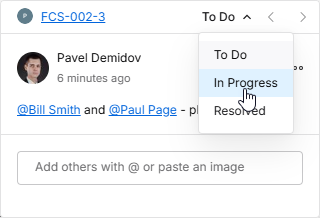
l’état d’activité actuel de la tâche (To Do, In Progress, Resolved), qui peut être modifié à partir du menu déroulant associé (
 ).
).
-
-
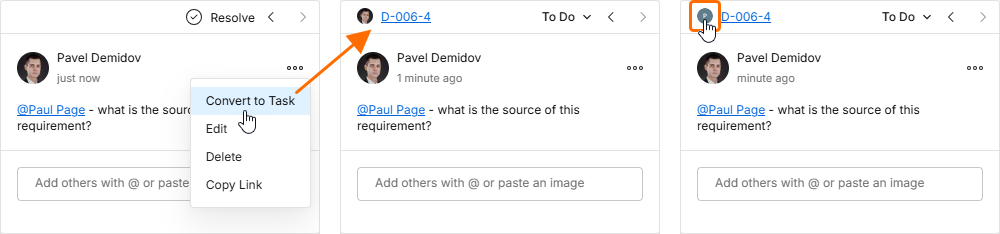
Une tâche peut être ajoutée à un commentaire existant à l’aide de l’option Convert to Task disponible dans le menu
 de la fenêtre. La nouvelle tâche vous est initialement attribuée et peut être réattribuée à un autre membre du Workspace en sélectionnant son entrée dans la liste déroulante ouverte depuis l’avatar du destinataire (en haut à gauche).
-
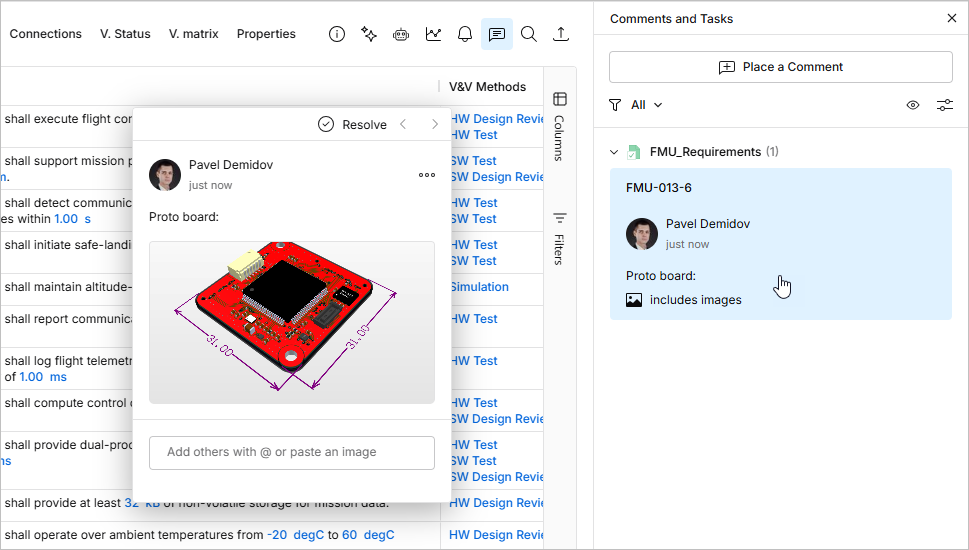
La fenêtre de commentaire accepte également un fichier image ou une capture d’écran collée depuis le presse-papiers de Windows. Vous pouvez coller la capture d’écran (ou le fichier image copié) dans le champ de commentaire avant ou après toute note textuelle et mention d’utilisateur. Les images s’affichent dans le corps de la fenêtre de commentaire – cliquez sur l’image pour l’ouvrir et l’afficher en taille réelle. L’entrée du commentaire placé dans le volet Comment and Tasks comportera une note includes images associée.
-
Un commentaire peut être modifié ou supprimé, uniquement via la fenêtre de commentaire, à l’aide des commandes Edit et Delete respectivement. Celles-ci sont disponibles dans le menu associé à la commande
. Notez que ces commandes ne sont disponibles que pour un commentaire que vous avez vous-même créé – vous ne pouvez pas modifier ni supprimer un commentaire créé par un autre utilisateur. Si vous modifiez un commentaire existant, apportez vos modifications, puis cliquez sur le bouton  pour valider. Pour quitter sans appliquer de modifications, appuyez sur
 Esc.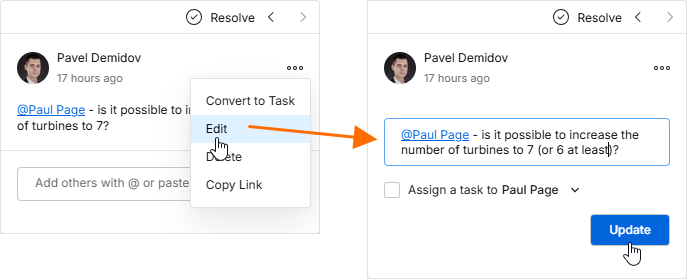
-
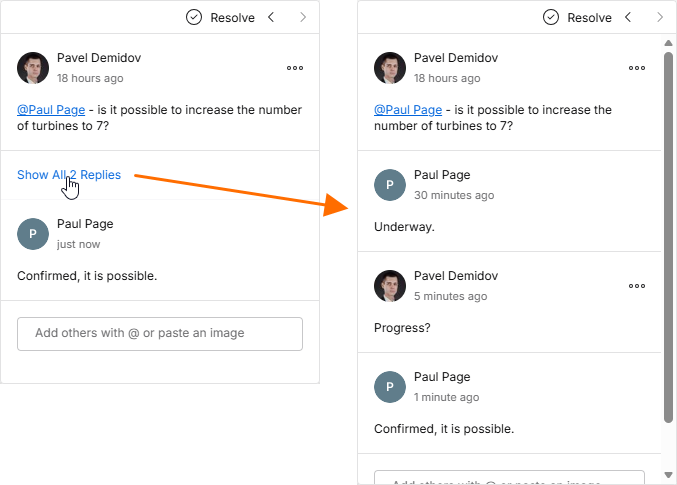
Lorsque la fenêtre de commentaire est ouverte, seuls les commentaires initial et le plus récent du fil sont affichés. Pour voir tous les commentaires du fil, cliquez sur la commande disponible entre ces entrées. Utilisez la barre de défilement pour parcourir tous les commentaires.
-
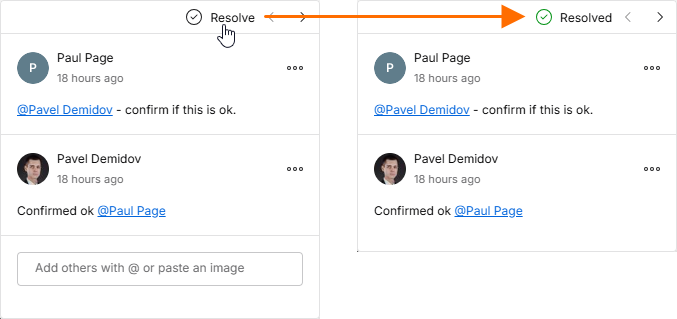
Un commentaire peut être résolu (ou réactivé) en basculant la commande
 en haut de la fenêtre de commentaires. Lorsqu’un commentaire comporte une tâche assignée, son état actuel peut être modifié en Resolved (ou vers un autre niveau) depuis le menu déroulant d’état. Par défaut, les commentaires résolus ne sont pas affichés dans le volet Comments and Tasks, mais ils peuvent être affichés via son option d’affichage/masquage des repères — voir la section suivante pour plus d’informations.
Utilisation du volet Comments
Les points suivants concernent l’utilisation des commentaires et du volet Comments and Tasks de l’interface :
-
Le volet Comments and Tasks fournit un outil de vue d’ensemble/navigation pour les commentaires à travers le projet, plutôt que l’interface opérationnelle permettant de publier, modifier et répondre. Cette fonctionnalité est laissée exclusivement à la fenêtre contextuelle de commentaires.
-
Le volet Comments and Tasks peut également être ouvert en cliquant sur un marqueur de commentaire dans la zone d’affichage principale. Cela ouvrira également la fenêtre contextuelle de commentaires.
-
Utilisez la commande en haut à droite du volet pour afficher les marqueurs de commentaire dans le tableau des exigences (
 ) ou pour les masquer (
 ).
).
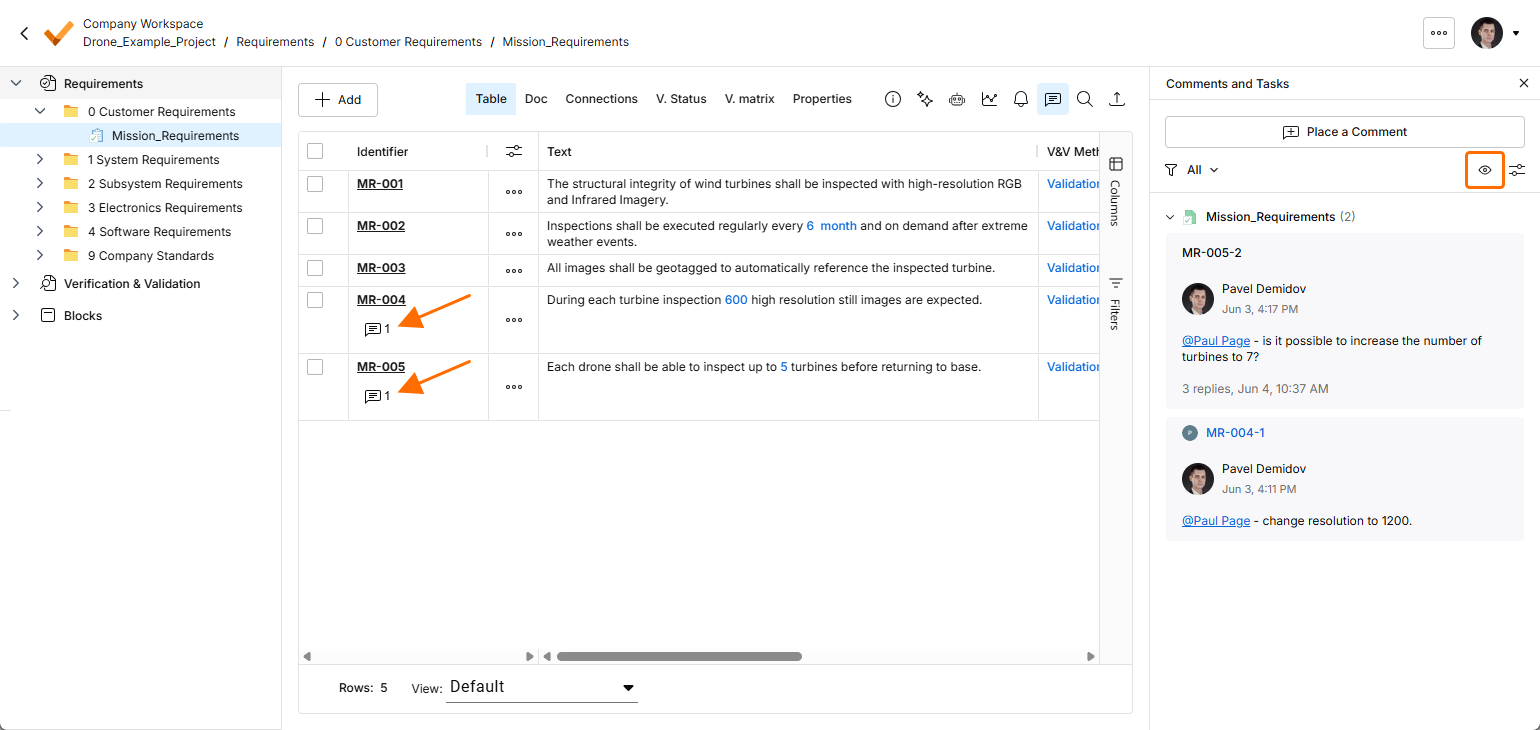
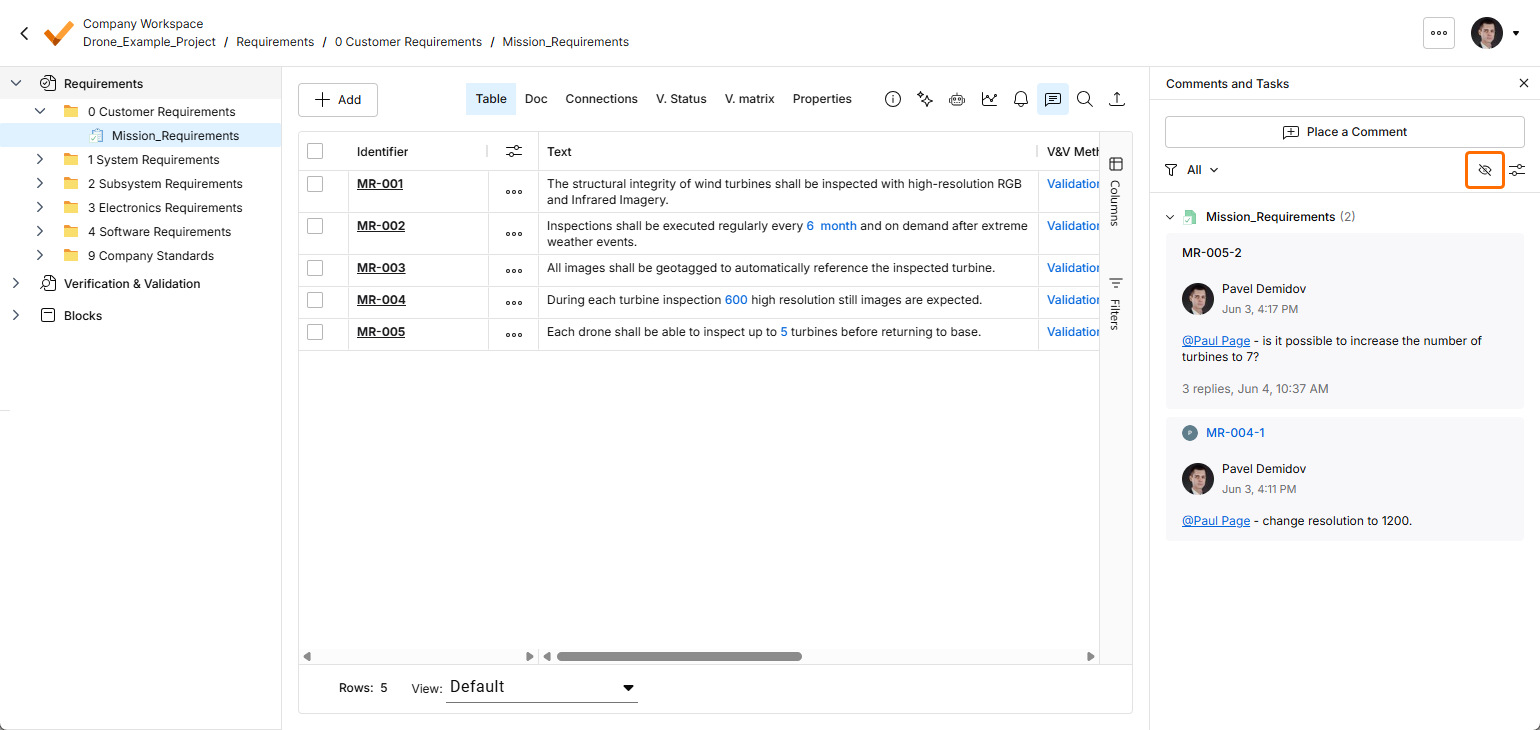
-
En haut du volet Comments and Tasks se trouvent des commandes donnant accès aux contrôles de filtrage des fils de discussion, afin que vous puissiez déterminer ce qui est présenté dans le volet. Deux niveaux de filtrage peuvent essentiellement être définis. Le premier, ou niveau principal, vous permet de contrôler quels commentaires utilisateur sont affichés.
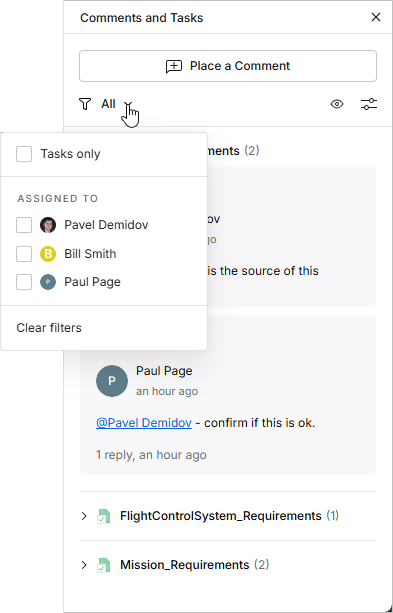
Les options de filtrage du volet limitent les entrées de commentaire à :
-
Tasks only – uniquement les commentaires qui ont été attribués en tant que tâches utilisateur, lesquelles sont à leur tour disponibles dans le flux de la page Tasks.
-
Assigned to – uniquement les commentaires attribués aux utilisateurs sélectionnés dans la liste ci-dessous. Lorsqu’une case utilisateur est cochée, le volet (et le document affiché) n’inclura que les commentaires dont les tâches sont attribuées à cet utilisateur. Notez que l’utilisateur actuellement connecté est inclus en haut de la liste, indépendamment de toute attribution de tâche de commentaire.
Le niveau secondaire de filtrage, appliqué conjointement à la méthode de filtrage principale, offre deux options qui vous permettent de masquer tous les commentaires ou toutes les tâches résolus (Unresolved only activé) et/ou d’afficher uniquement les commentaires du contexte actuellement sélectionné (c’est-à-dire le dossier, la spécification ou la section), plutôt que ceux de l’ensemble du projet (Current context only activé).
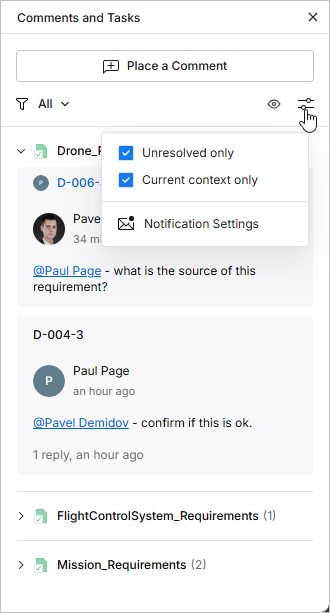
-
-
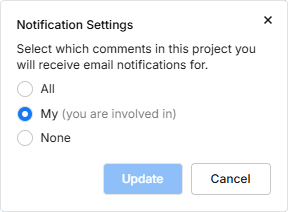
Cliquez sur l’entrée Notification Settings (au bas de la fenêtre d’options ci-dessus) pour accéder à une fenêtre permettant de configurer les commentaires du projet pour lesquels vous recevrez des notifications par e-mail. Choisissez de recevoir des notifications pour tous les fils de commentaires, pour aucun fil de commentaires, ou uniquement pour ceux dans lesquels vous êtes impliqué(e) (que vous avez lancés, auxquels vous avez répondu, ou dans lesquels vous avez été mentionné[e]).
-
En ce qui concerne l’ordre des fils de commentaires dans le volet, là encore, il existe deux niveaux. Tout d’abord, les commentaires sont ordonnés selon la spécification dans laquelle ils se trouvent, et cela suit le même ordre que la structure Requirements dans l’arborescence du projet à gauche. Ensuite, pour chaque exigence, les commentaires sont triés selon leur date de création, par ordre décroissant.
-
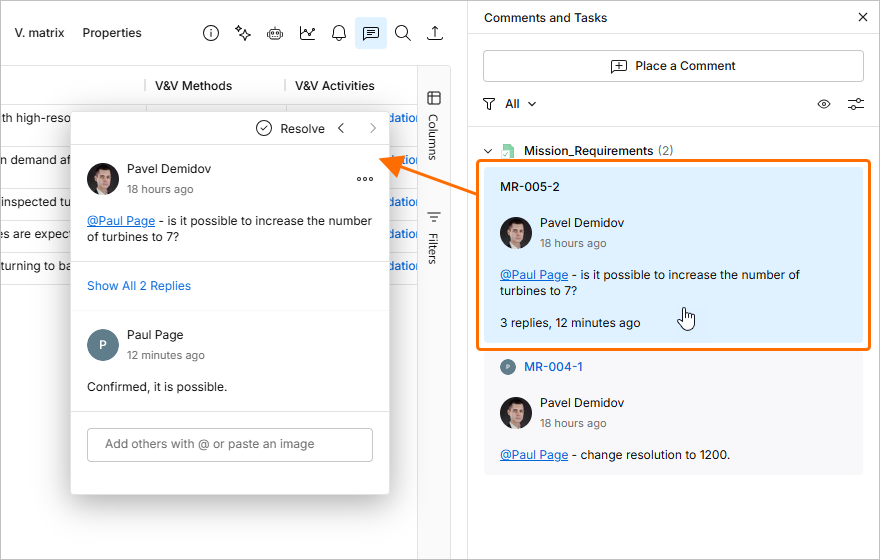
Lorsque vous cliquez sur une entrée de fil de commentaire dans le volet, ce commentaire s’ouvre dans la fenêtre contextuelle de commentaires. L’entrée correspondante dans le volet Comments and Tasks est également mise en surbrillance en bleu. Si vous cliquez sur un commentaire qui ne se trouve pas dans la spécification actuellement affichée, vous serez dirigé(e) vers la spécification dans laquelle il se trouve.
-
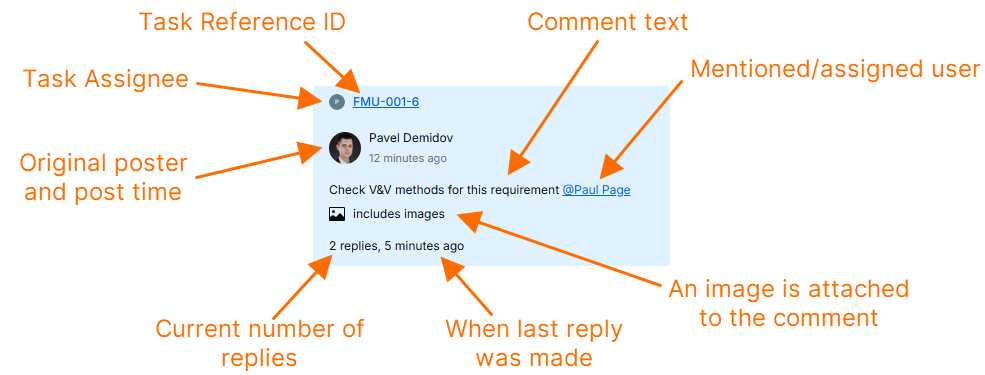
Chaque entrée de commentaire dans le volet fournit un résumé des informations clés relatives à ce commentaire, comme illustré dans l’exemple ci-dessous.
 Localisé par IA