
コメント機能
Requirements Portal では、要件プロジェクト内でコメント機能を利用できます。コメントとは、特定の要件に紐付けられるユーザー追加のメモで、他のユーザーが返信することもできます。コメントは、共有データそのものを変更することなくユーザー間のコラボレーションを促進します。これは、コメントがそのデータとは独立して Workspace に保存されるためです。コメント内では、1 人以上のユーザーまたはグループにメンションできます。コメントは Workspace メンバーに割り当てることもできます。
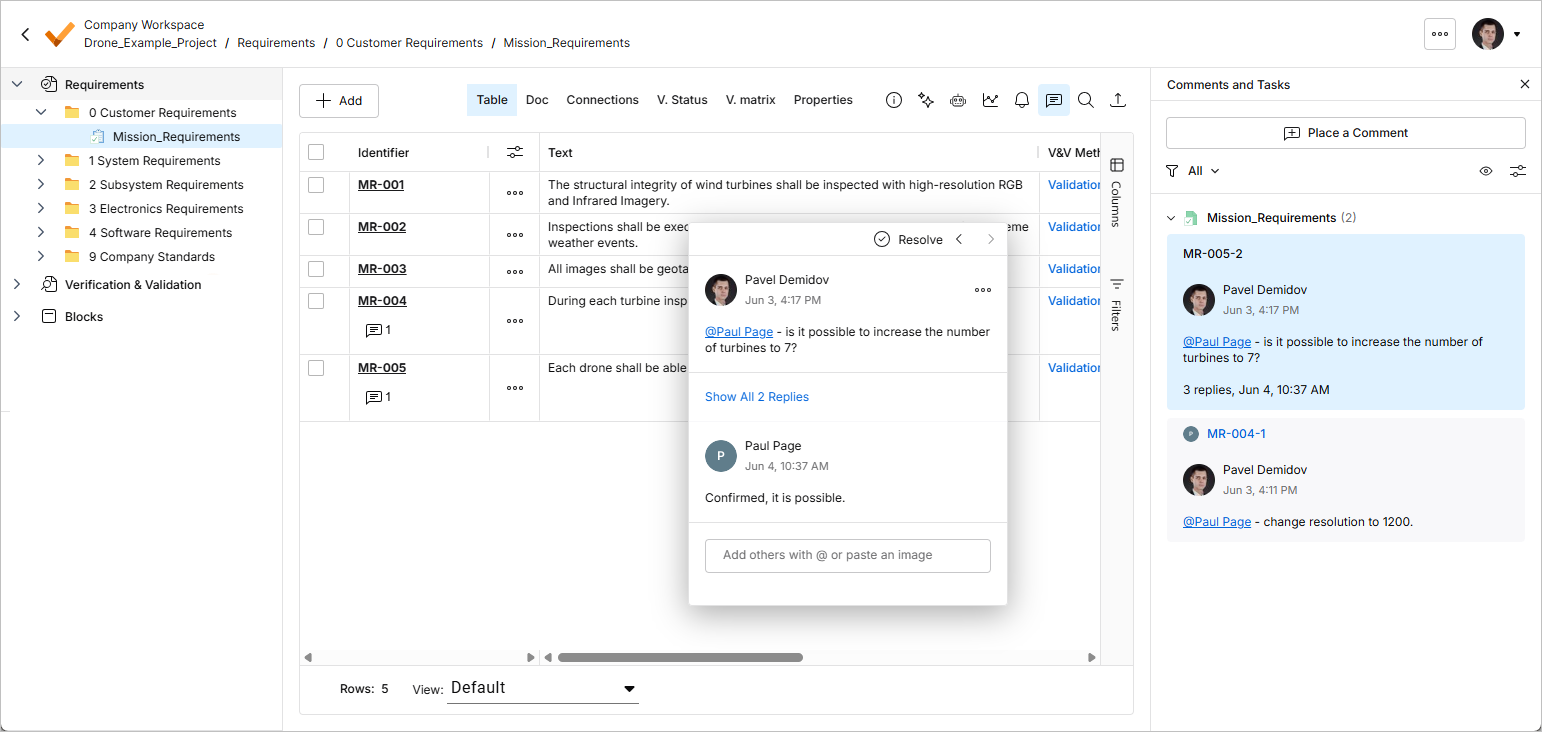
コメントの投稿、返信、管理は、コンテキスト対応のコメントウィンドウを使用して要件テーブル内で直接行います。コメントは Comments and Tasks ペインにも表示されます。このペインは右側に表示され、操作用インターフェースというより、概要表示やナビゲーションのための機能を提供します。 右上のコントロールを使用して、Comments and Tasks ペインの表示を切り替えます。
コメントの配置
コメント配置モードには、次のいずれかの方法で入ることができます。
-
 Comments and Tasks ペイン上部のボタンをクリックし、表示される配置カーソル (
 ) を使ってコメント対象の要件行を選択します。
-
要件の行にある
 ボタンをクリックし、表示されるメニューから Comment コマンドを選択します。
いずれの場合も、選択した要件に対応するコメントを定義するためのコメントウィンドウが表示されます。用意されたフィールドにコメントを入力してください。コメント内では、1 人以上のユーザーまたはグループにメンションできます。コメントフィールドに @ 文字を入力すると、Workspace 内のメンバー一覧にすばやくアクセスできます。コメントはメンバーに割り当てることもできます。これらの追加機能の詳細については、Working with the Contextual Commenting Window セクションを参照してください。
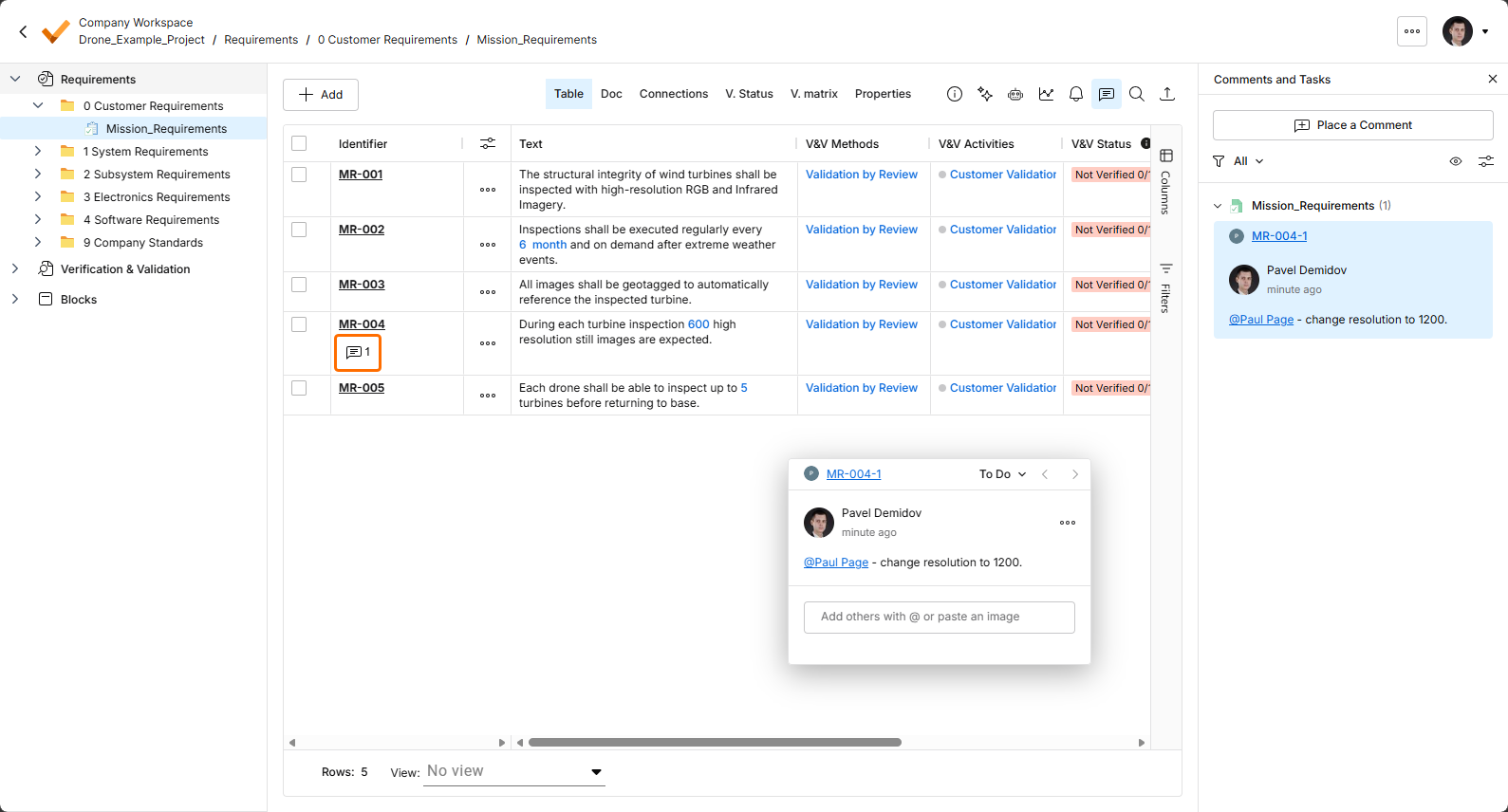
コメントを入力し、必要に応じてメンションを追加し、割り当てを行ったら、下の  ボタンをクリックします。コメントが確定され、コンテキスト対応コメントウィンドウと Comments and Tasks ペインの両方に表示されます。コメントのある要件には、Identifier 列にコメントマーカー (
 ) が表示されます。
以下の連続画像は、要件にサンプルコメントを追加し、さらにチームメンバーへのメンションと、そのメンバーへのタスク割り当てを行う例を示しています(詳細は後述)。
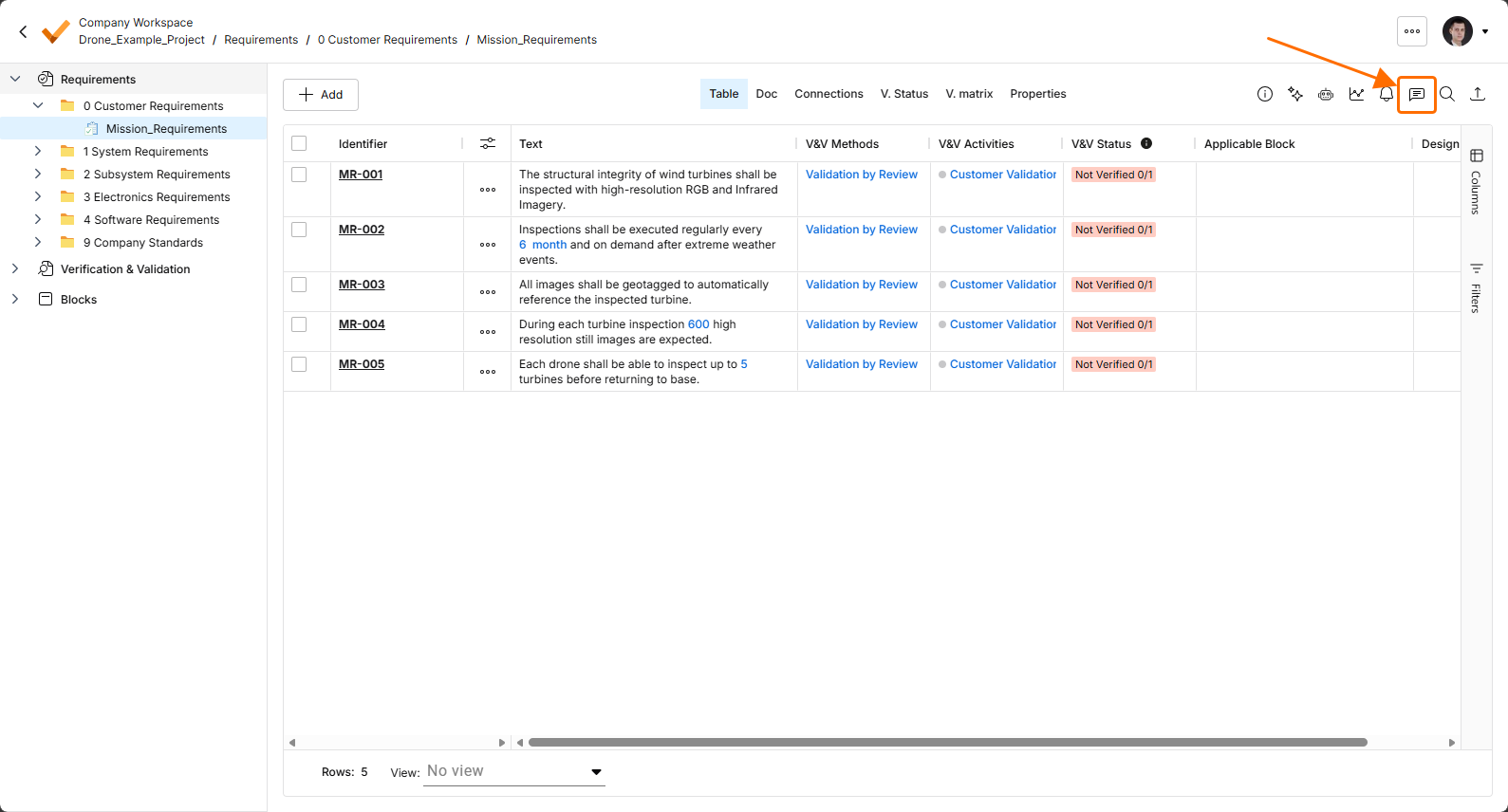
Comments and Tasks ペインは アイコンを使用して開閉します。
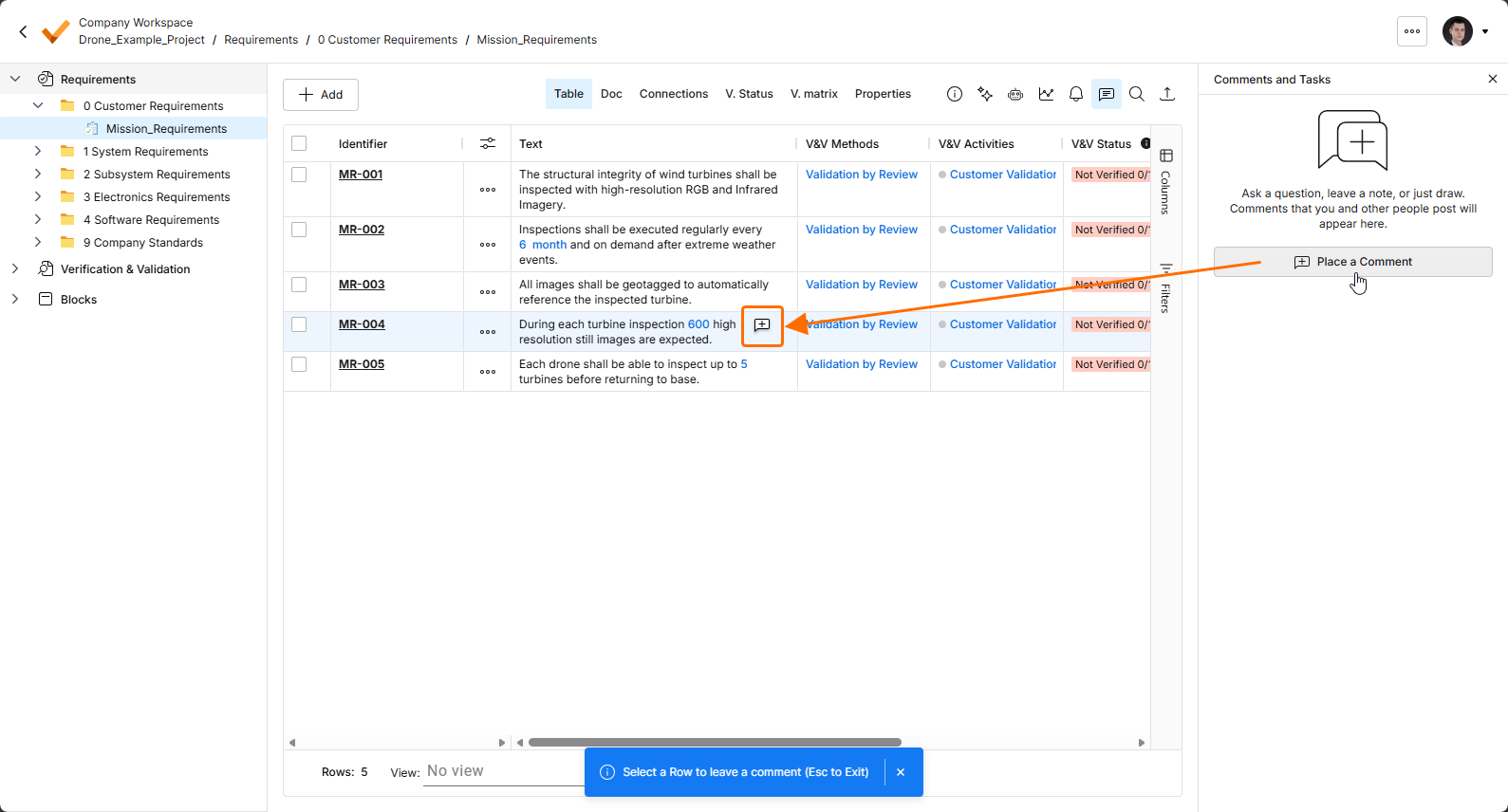
ボタンを選択して要件にコメントを追加し、表示される配置カーソル () を使ってコメント対象の要件行を選択します。
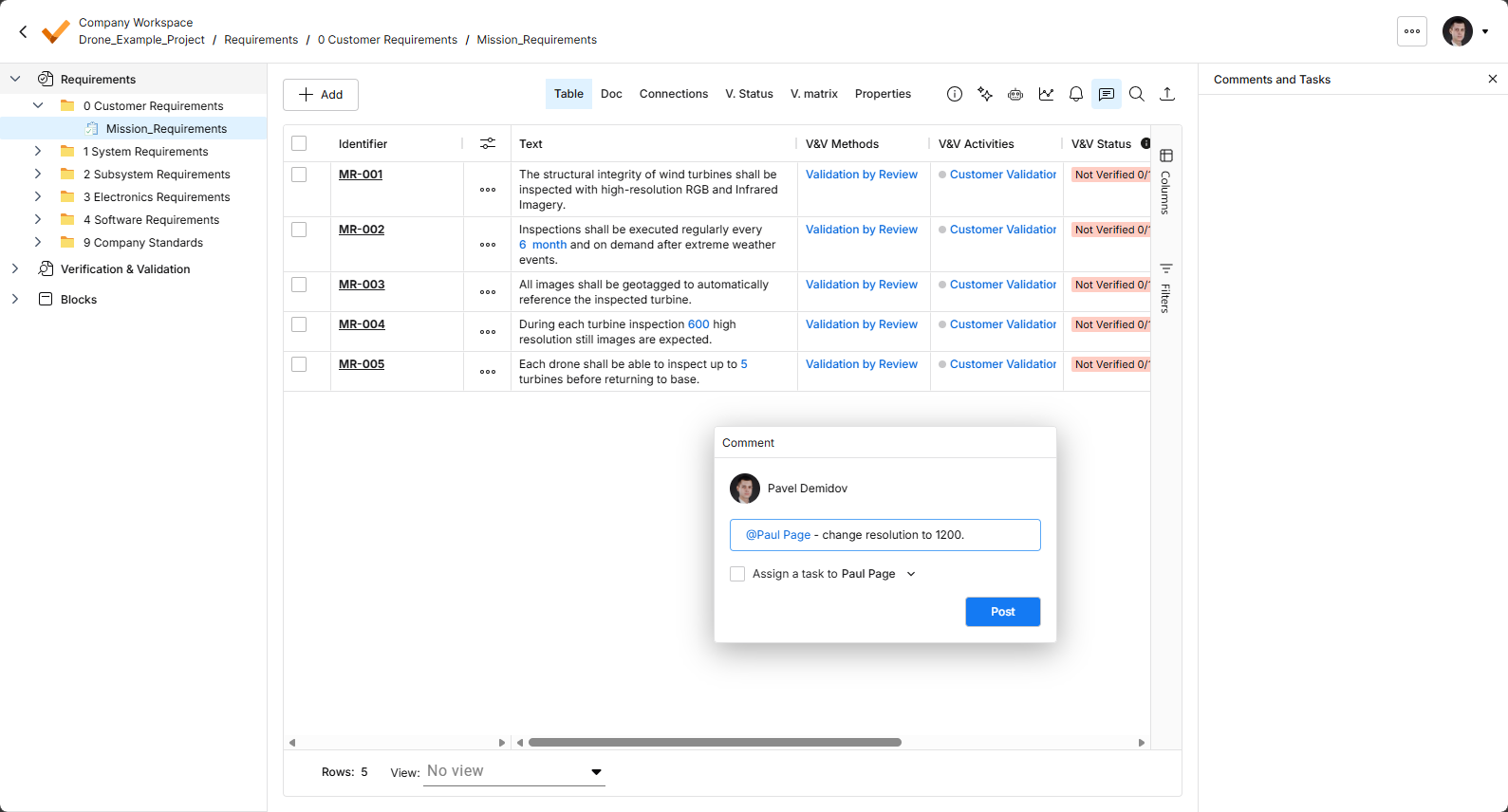
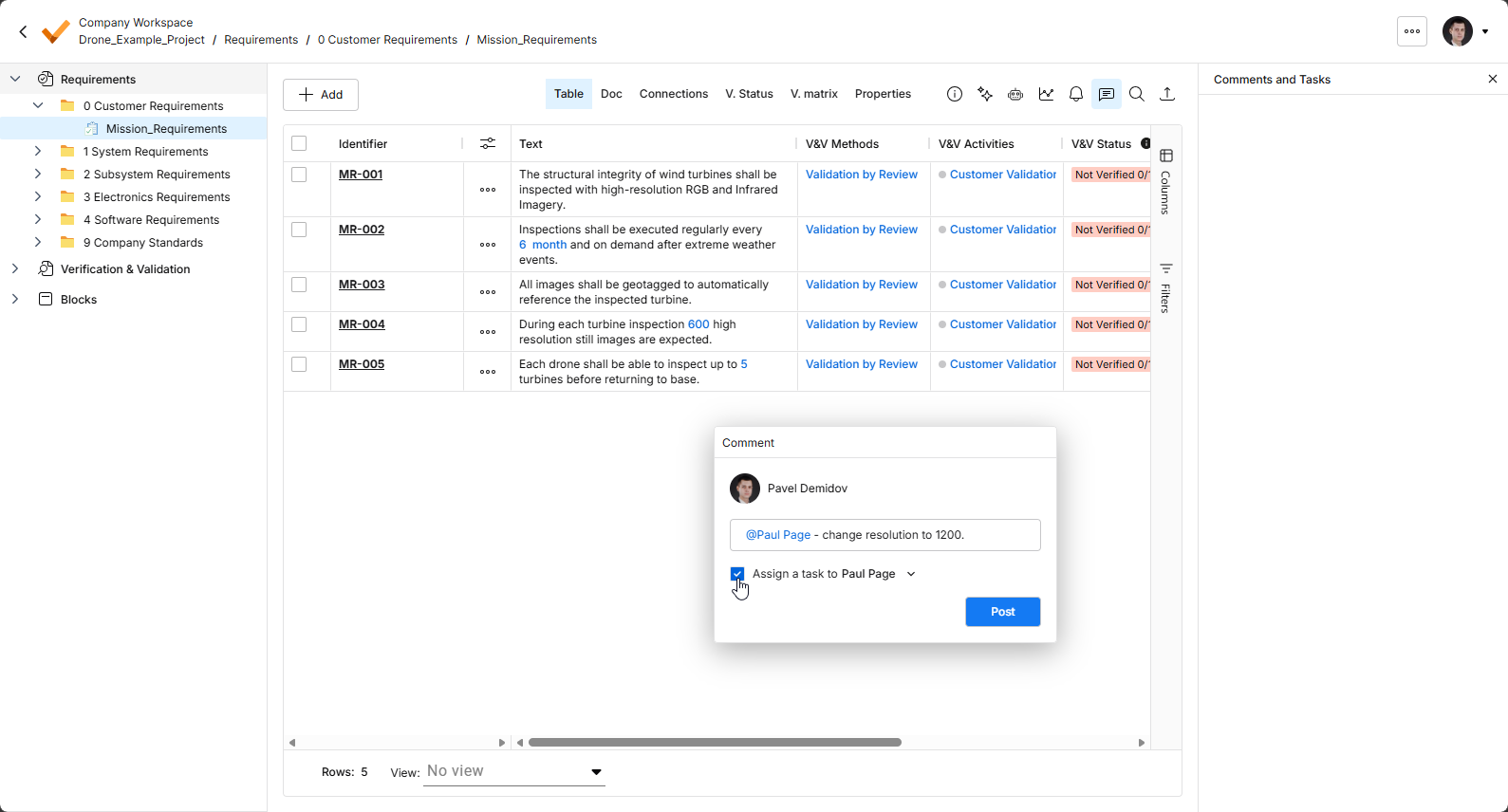
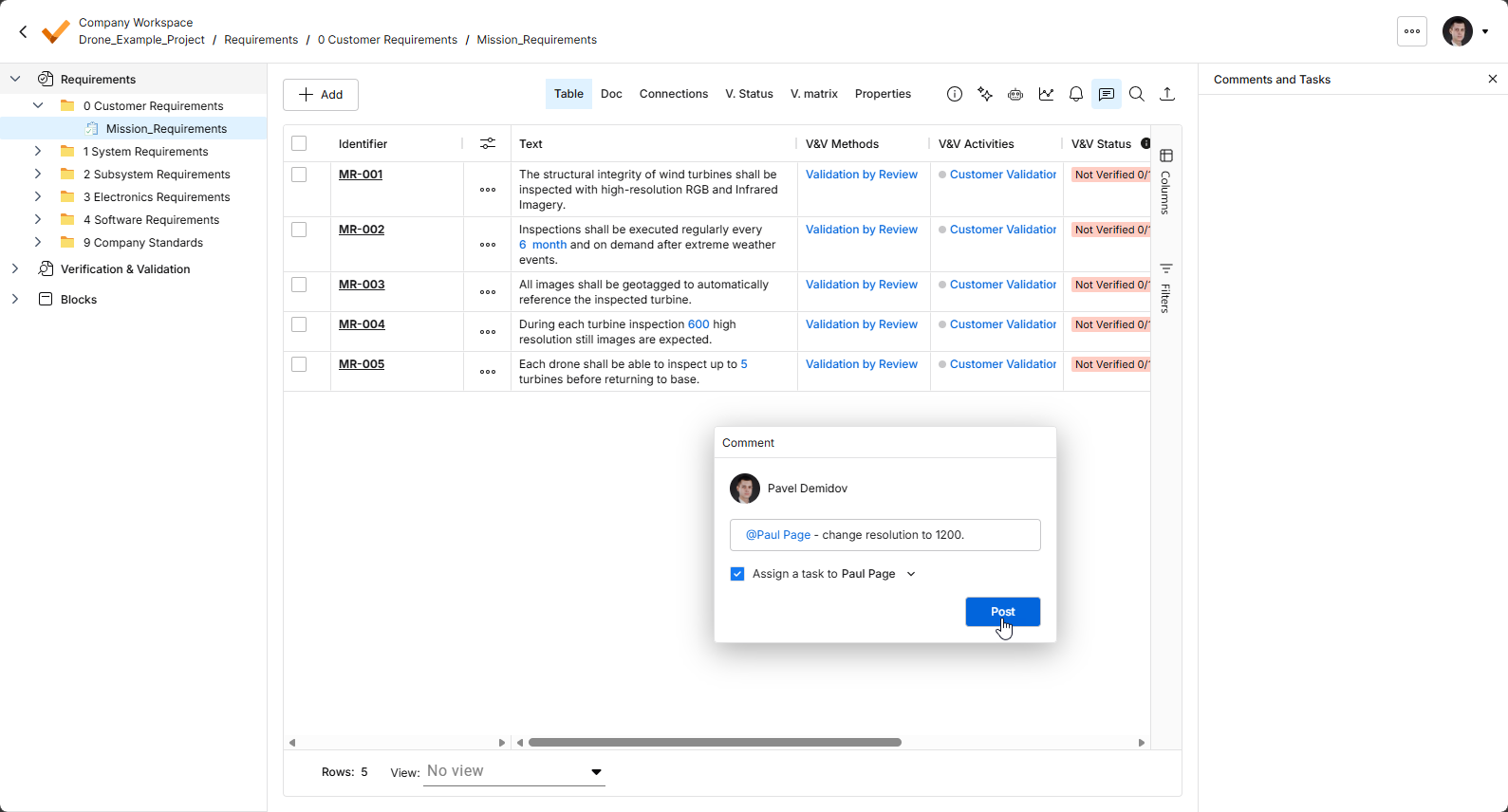
ボタンをクリックしてコメント配置を確定します。割り当てがある場合は、関連タスクの作成も確定されます。
コンテキスト対応コメントウィンドウの操作
以下は、コメントおよびインターフェースのコンテキスト対応コメントウィンドウに関するポイントです。
-
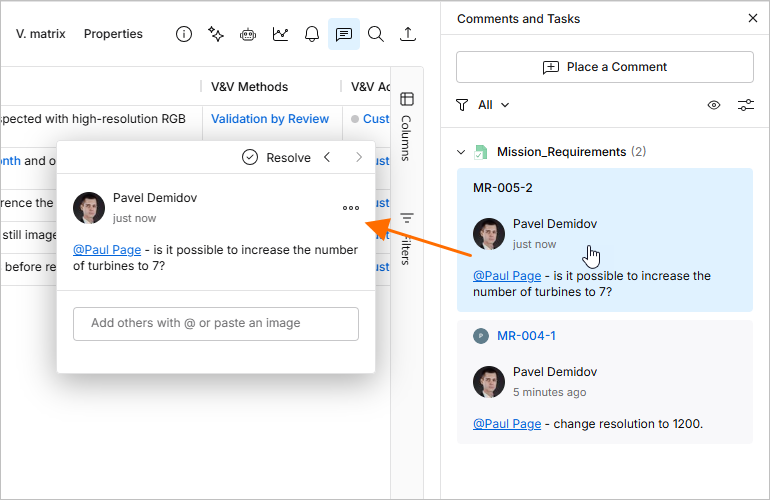
コメントウィンドウは、Comments and Tasks ペイン内のコメントエントリをクリックして開くことができます。
-
ウィンドウは、上部バーをクリックしてドラッグすることで自由に移動できます。
-
コメントウィンドウ左上の
 ボタンを使用すると、前後のコメントを順番に切り替えることができます。
-
最初のコメントが作成されると、その後コメントウィンドウを開いた際には返信入力の状態になります。用意されたフィールドにテキストを入力し、
 ボタンをクリックして確定します。返信せずに終了するには、
Escを押します。 -
コメント内では、ユーザーまたはグループにメンションできます。
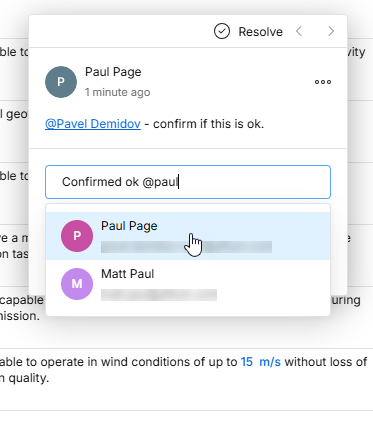
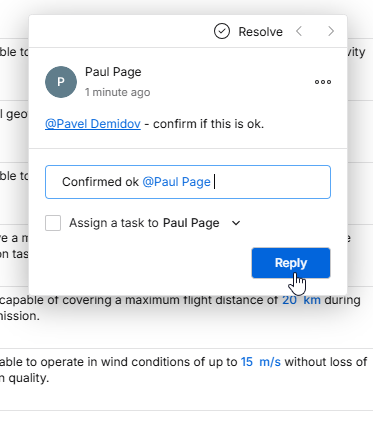
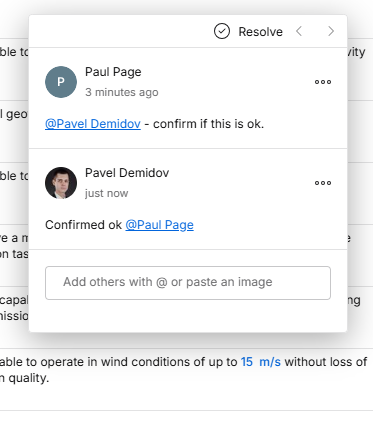
@文字を入力すると、Workspace チームの全メンバーを一覧表示するポップアップが表示されます。あるいは、@に続けて 1 文字以上を入力することで、グループまたはユーザー(ユーザーの場合は名前またはメールアドレス)を検索できます。一致するグループ、チームメンバー、およびチーム外だが組織内のユーザーの一覧が表示され、その中から選択できます。エントリをクリックして追加することも、Up Arrow/Down Arrowキーで選択してEnterを押して追加することもできます。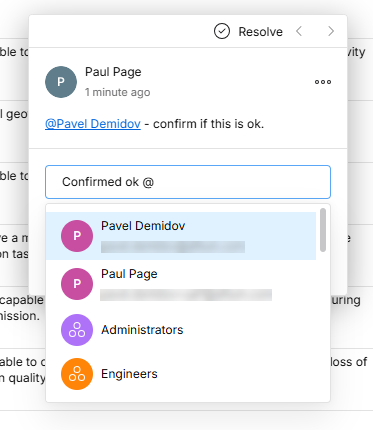
-
メンションしたユーザーには タスク を割り当てることができます。必要に応じて Assign a Task to オプションを有効にします。既定では、最初にメンションされたユーザー、またはメンションがない場合は自分自身 (
Me) が選択されます。あるいは、ドロップダウンメニューを使って別の Workspace メンバーを割り当て先として選択できます。割り当てられたユーザーは、Comments and Tasks ペインのエントリ内にユーザープロフィール画像/文字と関連タスク参照として表示されます。タスク割り当ては、コメント編集時に変更または削除できます。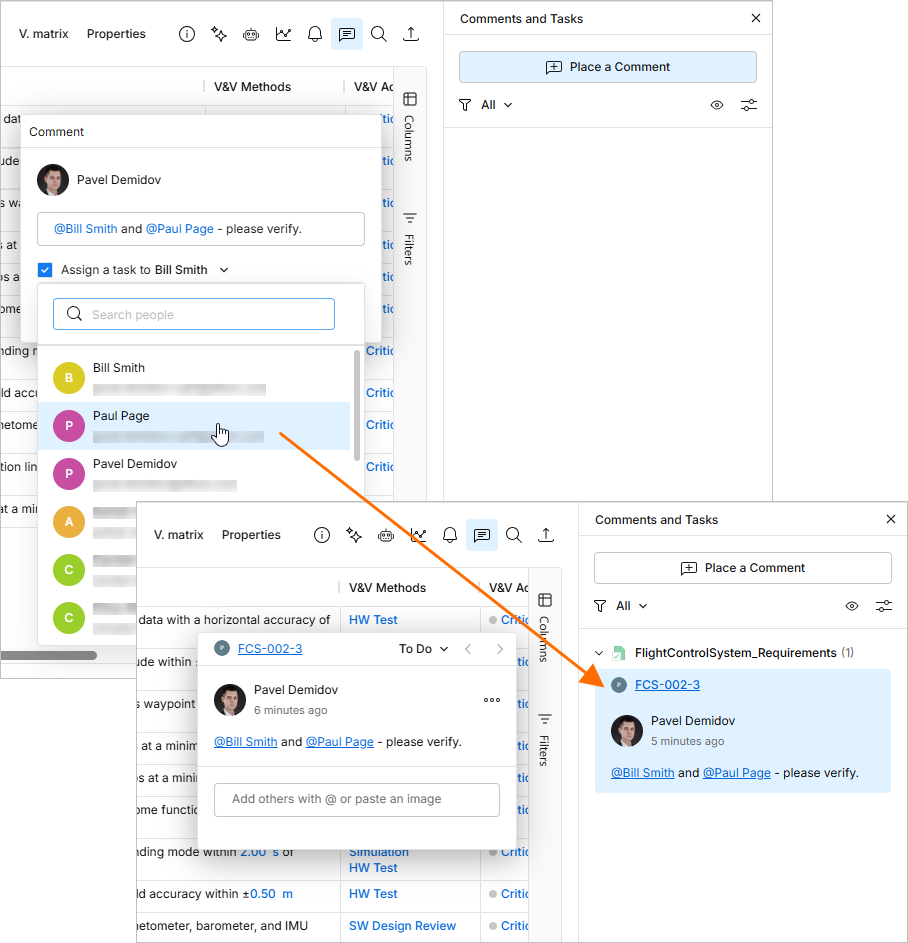
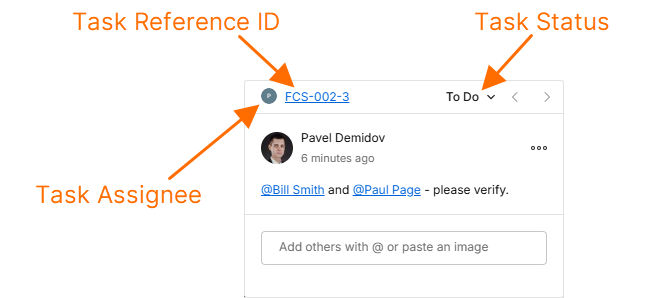
コメントにタスクが関連付けられている場合、そのウィンドウの上枠には次の情報が含まれます。
-
コメントのタスクが割り当てられているメンバーを示すアイコン(画像/文字)。このアイコンを選択すると、ドロップダウンリストから別の Workspace メンバーへタスクを再割り当てできます。
-
要件識別子にタスク番号のサフィックスを付加して構成される、タスクの英数字参照。参照をクリックすると、Workspace の Tasks page にあるそのタスクエントリへクロスプローブできます。
-
タスクの現在のアクティビティステータス(To Do、In Progress、Resolved)。これは関連ドロップダウンメニュー(
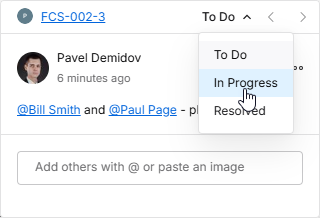 )から変更できます。
-
-
既存のコメントには、ウィンドウの
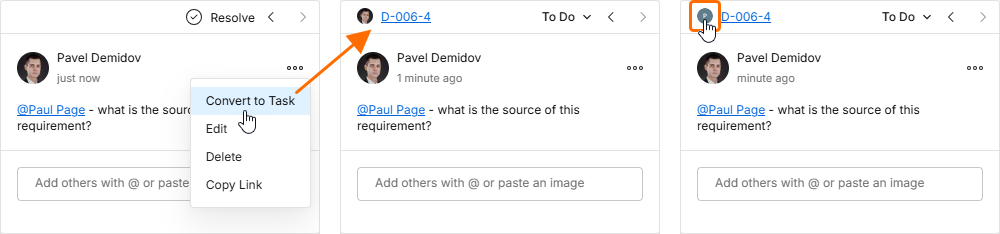
 メニューから利用できる Convert to Task オプションを使ってタスクを追加できます。新しいタスクは初期状態では自分に割り当てられますが、担当者アバター(左上)から開くドロップダウンリストで別の Workspace メンバーに変更できます。
-
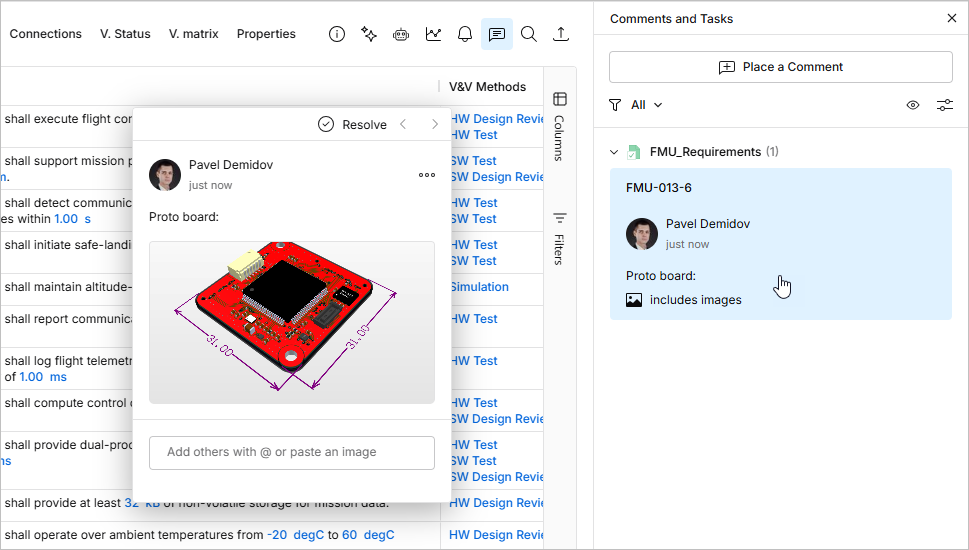
コメントウィンドウでは、Windows クリップボードから貼り付けた画像ファイルまたはキャプチャしたスクリーンショットも受け付けます。スクリーンショット(またはコピーした画像ファイル)は、テキストメモやユーザーメンションの前後どちらでもコメントフィールドに貼り付けられます。画像はコメントウィンドウ本体内に表示され、画像をクリックするとフルサイズ表示で開けます。配置されたコメントの Comment and Tasks ペイン内エントリには、関連する includes images 注記が含まれます。
-
コメントの編集または削除は、コメントウィンドウからのみ可能で、それぞれ Edit コマンドおよび Delete コマンドを使用します。これらは
コントロールに関連付けられたメニューから利用できます。なお、これらのコマンドは自分自身が作成したコメントに対してのみ使用可能です。他のユーザーが作成したコメントは編集も削除もできません。既存のコメントを編集する場合は、変更を加えた後、 ボタンをクリックして確定します。変更を適用せずに終了するには、
Escを押します。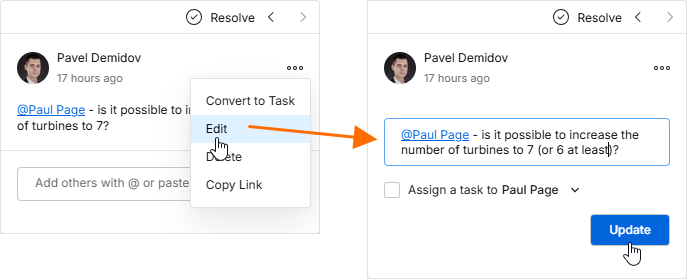
-
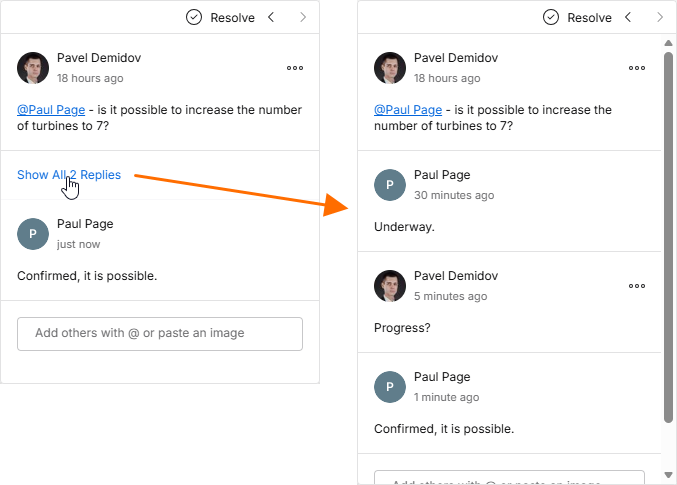
コメントウィンドウを開いたときには、スレッド内の最初と最新のコメントのみが表示されます。スレッド内のすべてのコメントを表示するには、それらのエントリの間にある利用可能なコントロールをクリックします。スクロールバーを使用してすべてのコメントを参照してください。
-
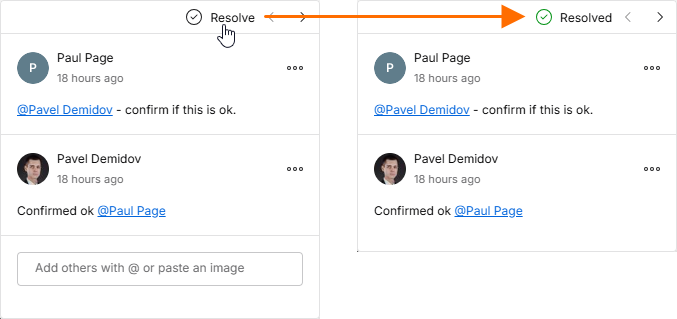
コメントは、コメントウィンドウ上部にある
 コントロールを切り替えることで、解決済みにする(または再びアクティブにする)ことができます。コメントに assigned task がある場合は、ステータスのドロップダウンメニューから現在の状態を Resolved(または別のレベル)に変更できます。解決済みコメントは、デフォルトでは Comments and Tasks ペインに表示されませんが、show/hide pins オプションを使用して表示できます。詳細は次のセクションを参照してください。
Comments ペインの操作
以下のポイントは、コメントおよびインターフェースの Comments and Tasks ペインの操作に関するものです。
-
Comments and Tasks ペインは、コメントの投稿、編集、返信を行う操作用インターフェースというより、プロジェクト全体のコメントを俯瞰し、ナビゲーションするためのツールです。これらの機能は、コンテキストコメントウィンドウでのみ利用できます。
-
メイン表示領域でコメントマーカーをクリックしても、Comments and Tasks ペインを開くことができます。この操作により、コンテキストコメントウィンドウも開きます。
-
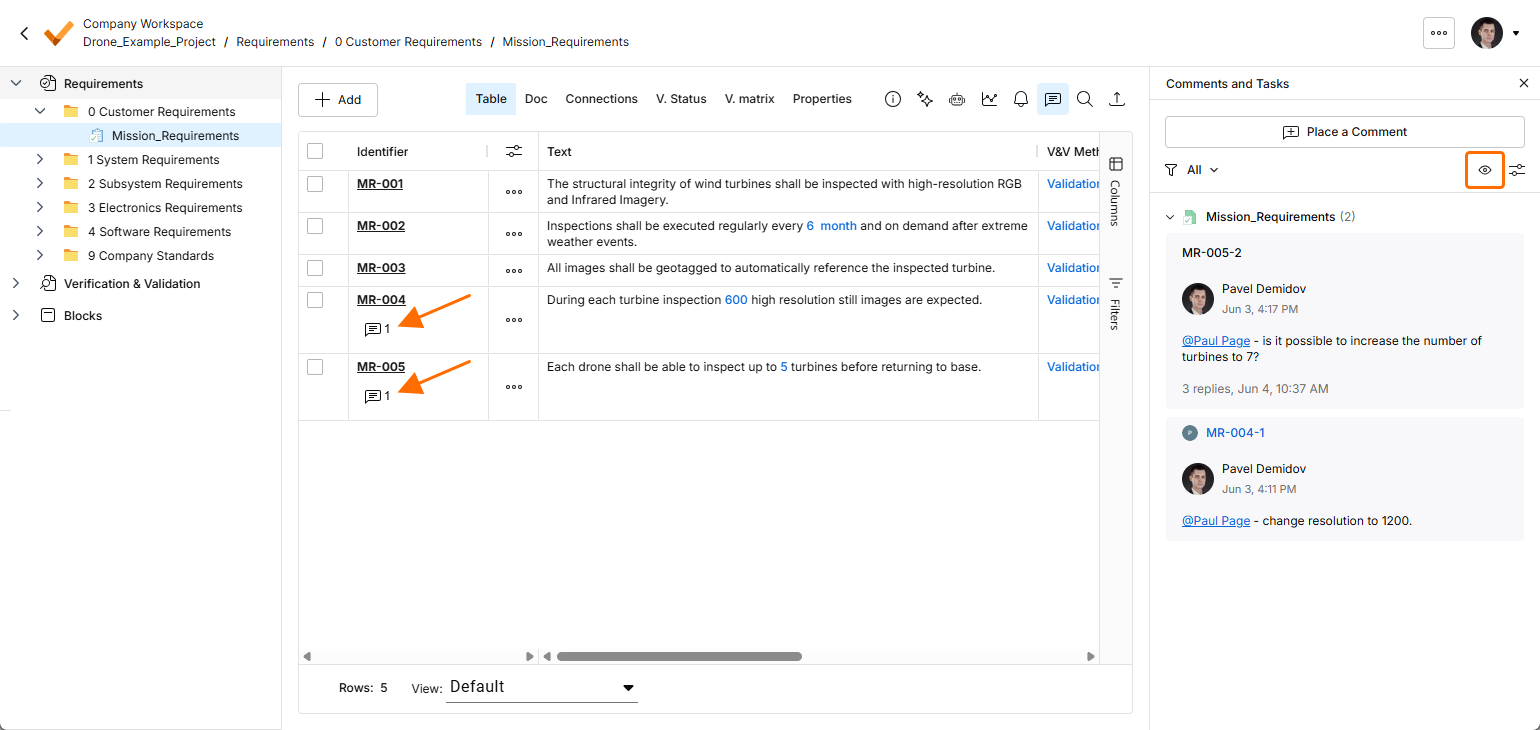
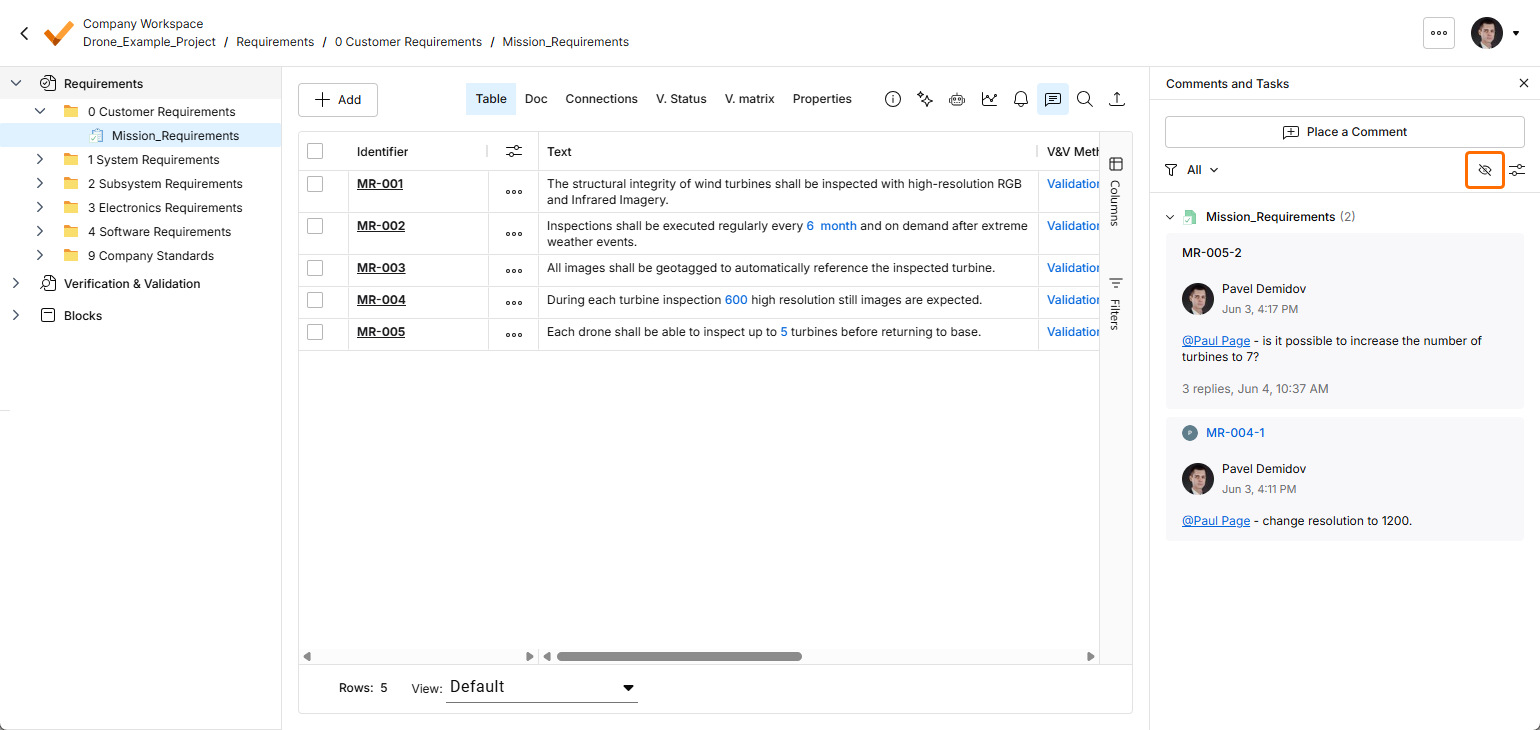
ペイン右上のコントロールを使用すると、要件テーブル内のコメントマーカーを表示したり(
 )、非表示にしたり(
 )できます。
-
Comments and Tasks ペインの上部には、スレッドのフィルタリングコントロールにアクセスするためのコントロールがあります。これにより、ペインに何を表示するかを指定できます。フィルタリングは基本的に 2 段階で定義できます。第 1 段階、つまり主フィルタでは、どのユーザーコメントを表示するかを制御できます。
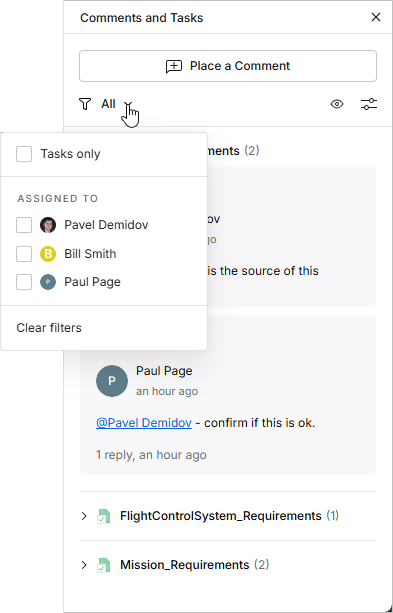
ペインのフィルタオプションでは、コメントエントリを次のように絞り込めます。
-
Tasks only – user Tasks として割り当てられているコメントのみ。これらは Tasks page フローでも利用できます。
-
Assigned to – 下記に一覧表示されるユーザー選択項目に割り当てられているコメントのみ。ユーザーのチェックボックスを選択すると、ペイン(および表示中のドキュメント)には、そのユーザーにタスクが割り当てられているコメントのみが表示されます。なお、現在サインインしているユーザーは、コメントタスクの割り当て有無にかかわらず、常にリストの先頭に表示されます。
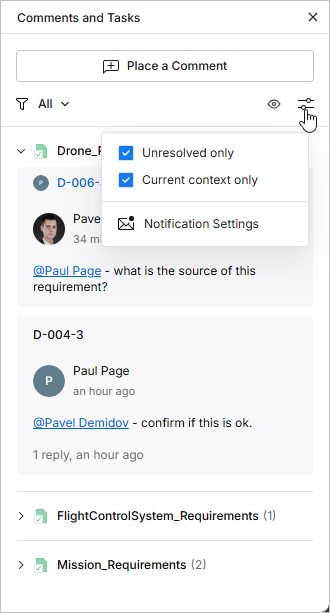
第 2 段階のフィルタリングは、主フィルタリング方法と組み合わせて適用されるもので、2 つのオプションがあります。これにより、解決済みのコメントまたはタスクをすべて非表示にする(Unresolved only を有効化)こと、および/またはプロジェクト全体ではなく現在選択されているコンテキスト(つまり、フォルダー、仕様、またはセクション)のコメントのみを表示する(Current context only を有効化)ことができます。
-
-
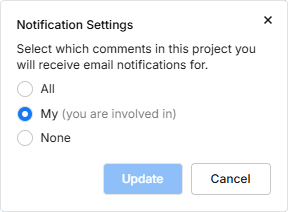
Notification Settings エントリ(上記オプションウィンドウの下部)をクリックすると、プロジェクト内のどのコメントについてメール通知を受け取るかを設定するためのウィンドウが開きます。すべてのコメントスレッド、どのコメントスレッドも受け取らない、または自分が関与しているもののみ(自分が開始した、返信した、またはメンションされたもの)から選択できます。
-
ペイン内でのコメントスレッドの並び順には、ここでも 2 つのレベルがあります。まず、コメントはそれが属する仕様ごとに並べられ、この順序は左側のプロジェクトツリー内の Requirements 構造と同じです。次に、各要件内では、コメントは作成日の新しい順に並べられます。
-
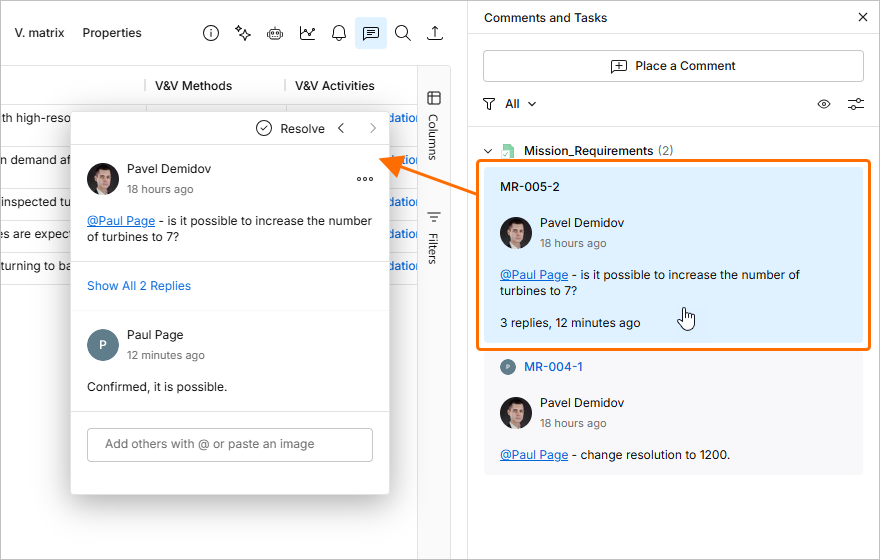
ペイン内のコメントスレッドエントリをクリックすると、そのコメントがコンテキストコメントウィンドウで開きます。また、Comments and Tasks ペイン内の該当コメントのエントリは青色でハイライト表示されます。現在表示している仕様に存在しないコメントをクリックした場合は、そのコメントが存在する仕様へ移動します。
-
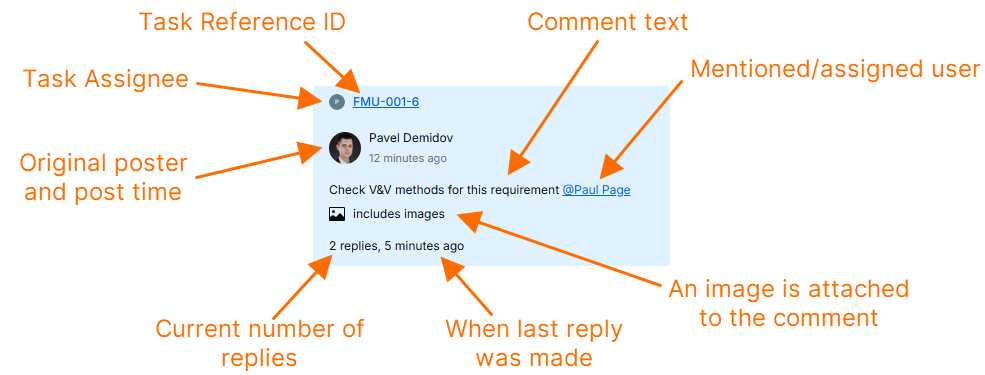
ペイン内の各コメントエントリには、以下の例に示すように、そのコメントに関する主要な情報の概要が表示されます。
 AI で翻訳