
Time Machine
개요
- Learn how to access Time Machine and set a comparison range using date and time selectors or preset shortcuts.
- Understand the color coding for modified, added, and deleted requirements.
- Discover which fields support historical comparisons and how to exit the read-only view.
The Time Machine functionality in Requirements Portal provides a way to view the history of requirement specifications based on a timestamp and compare one historical timestamp with another.
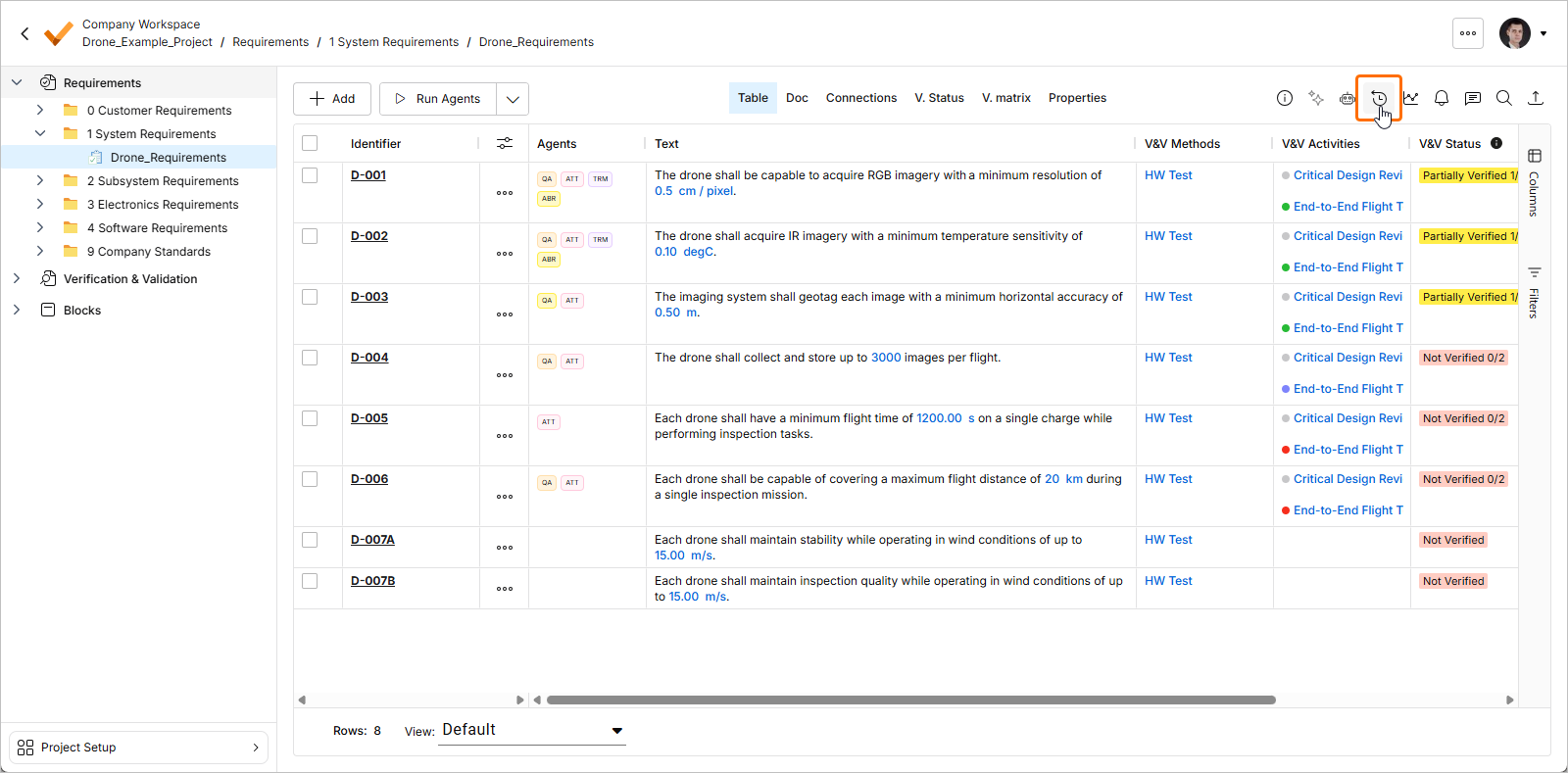
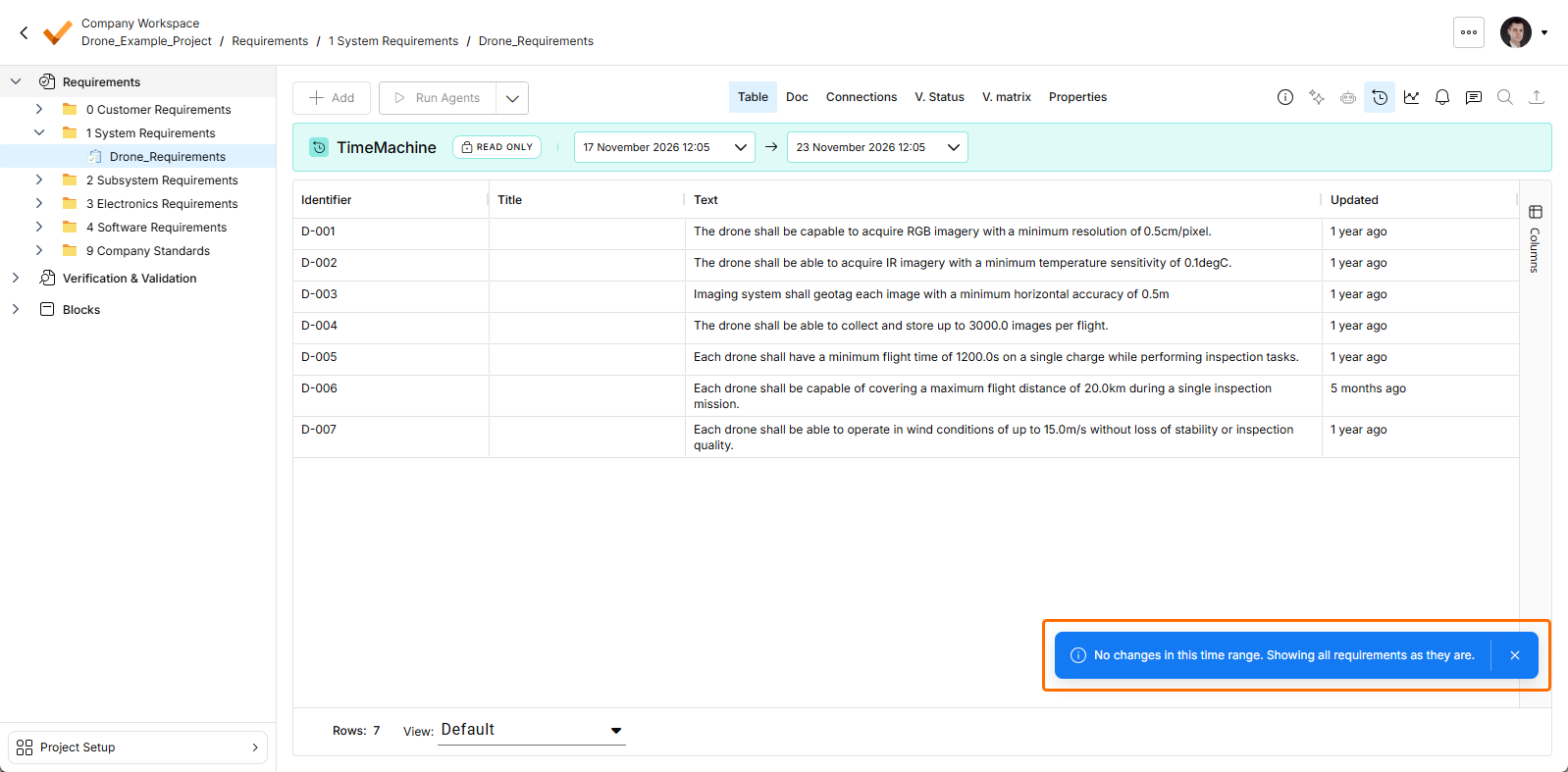
When in the Requirements Module (the Requirements entry or a specific folder, specification, or section is selected in the project tree on the left), click the  icon at the top right of the page to access the Time Machine functionality.
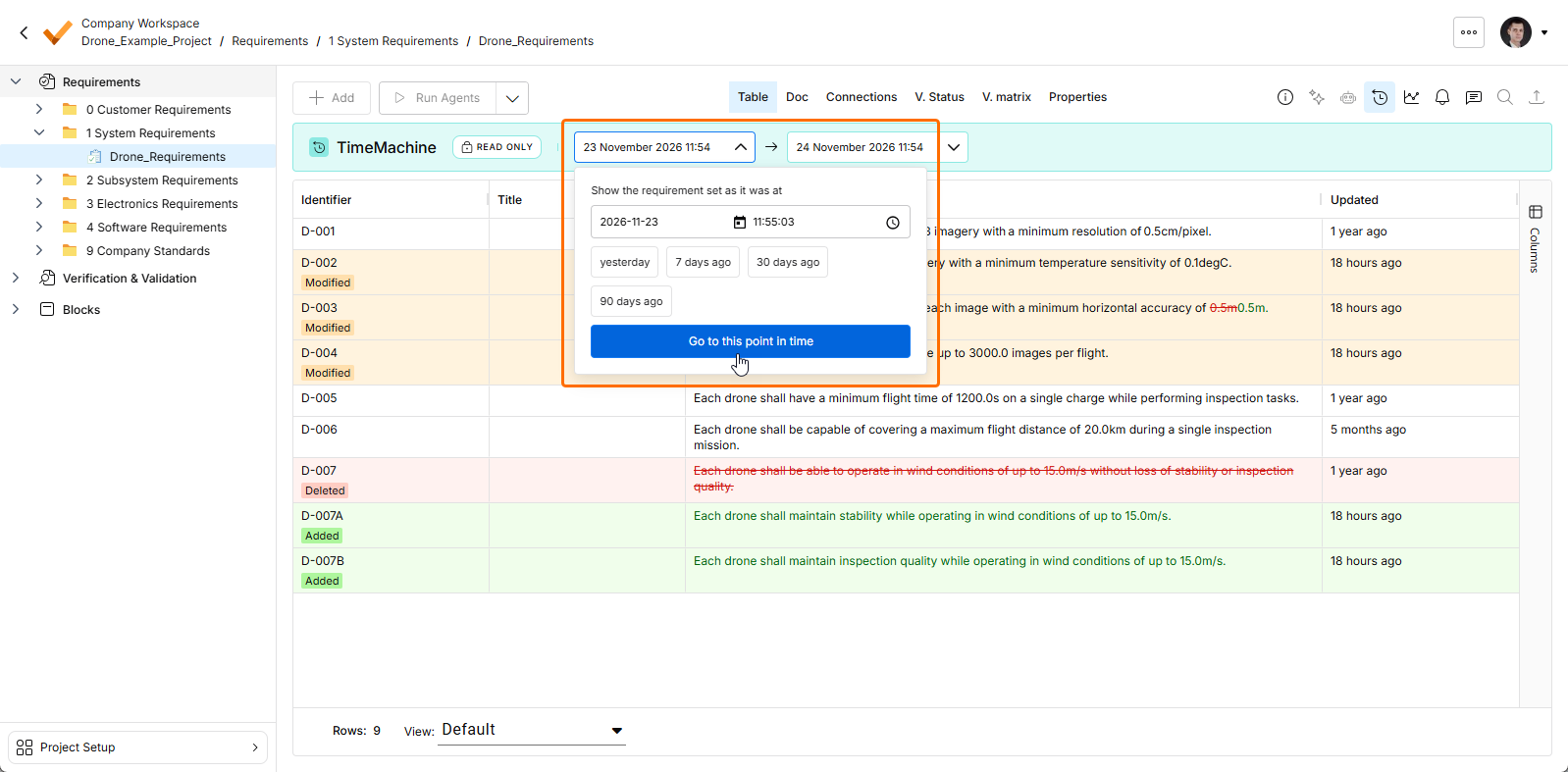
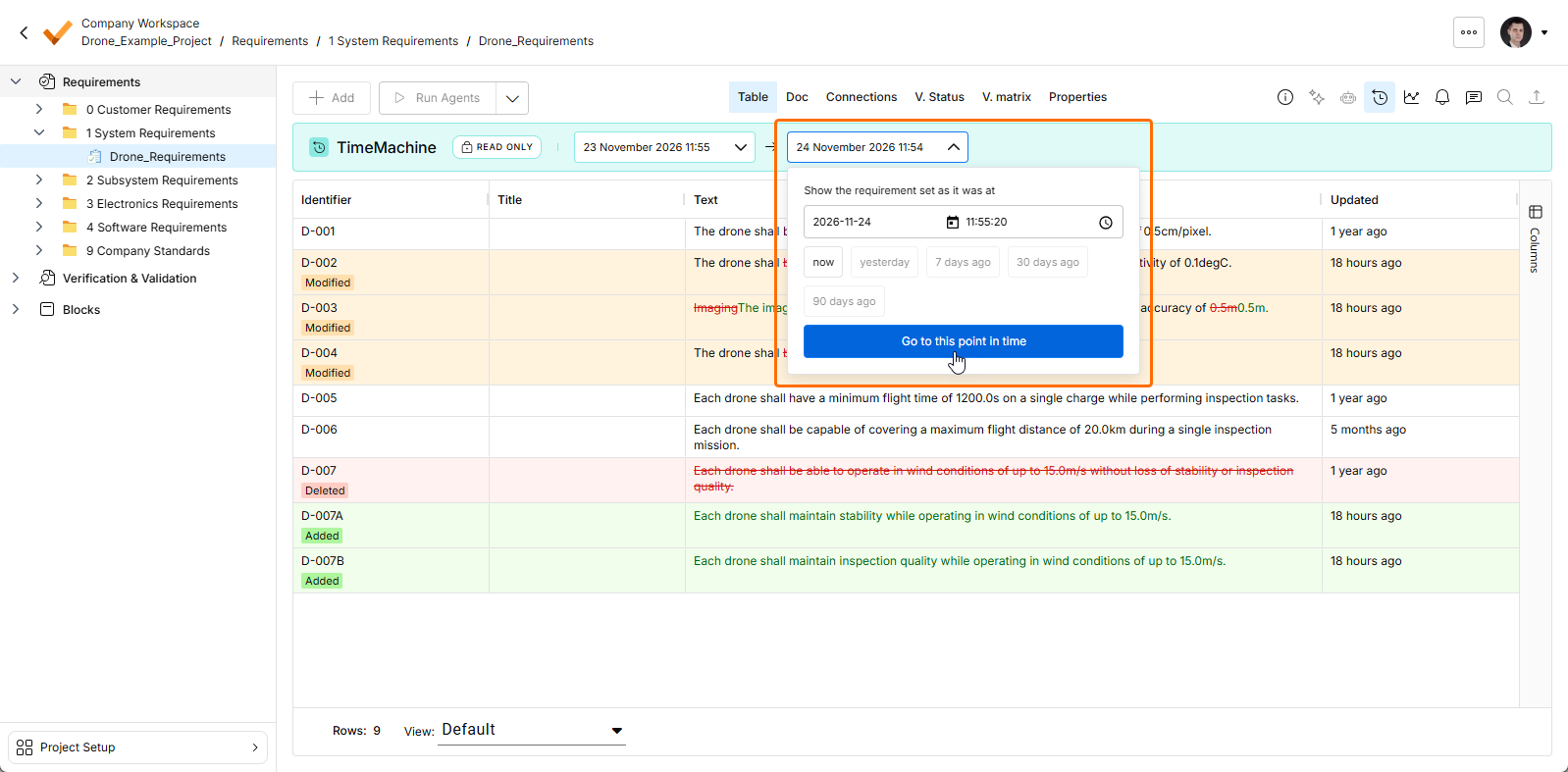
Initially, you will see changes made in the last 30 days. In the TimeMachine bar that opens, you can select start and end dates that you would like to compare. Click each drop-down to specify the required date and time (you can also use buttons at the bottom to quickly set the date to a day, a week, a month, or three months ago) and click the  button to set the date/time.
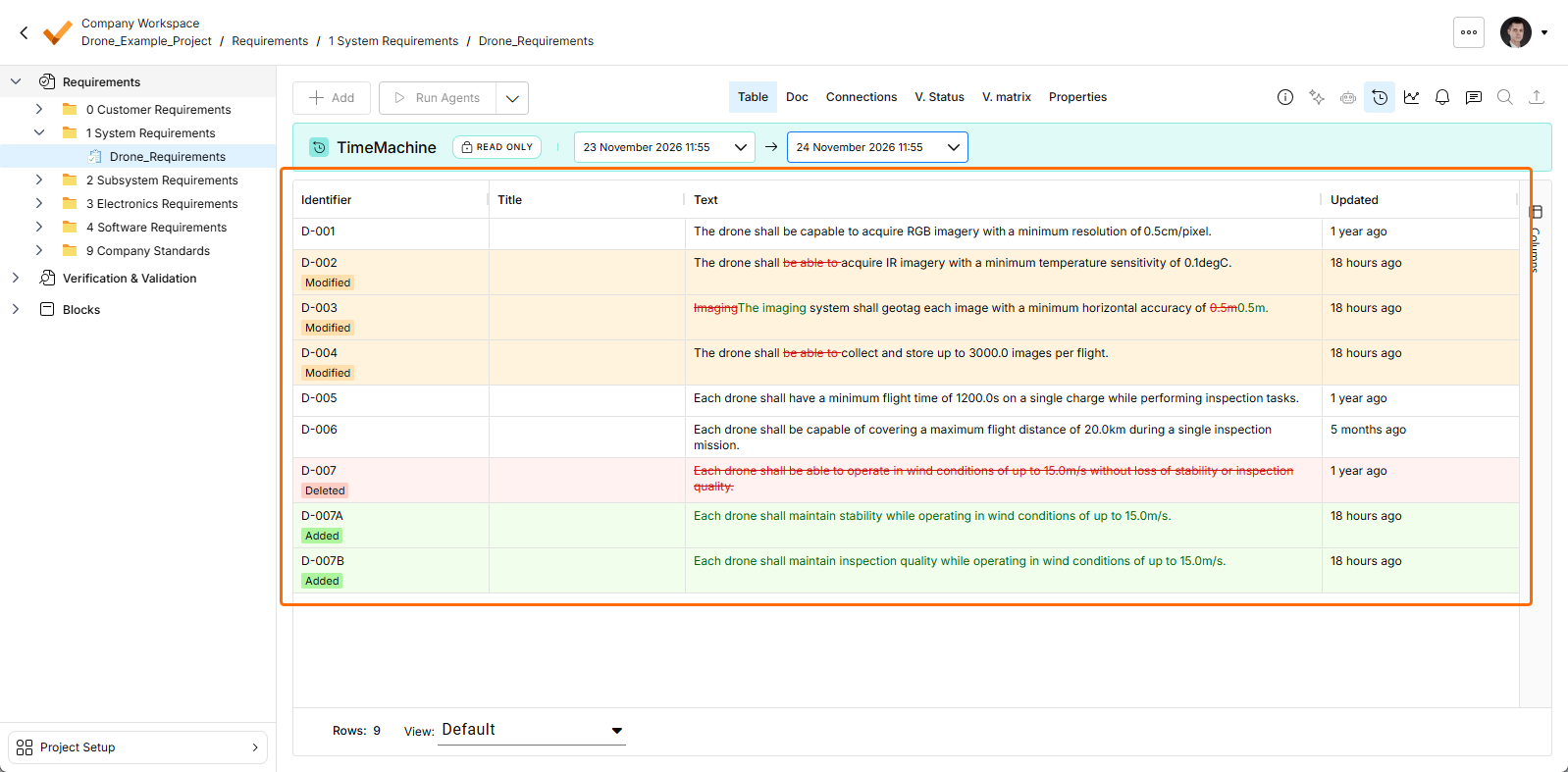
Once the start and end dates are selected, the functionality will retrieve the old values from the database. Changes will be highlighted in the table:
-
Modified requirements will be highlighted in yellow, with the
 label in the Identifier column and the changes shown in the corresponding field columns.
-
Added requirements will be highlighted in green, with the
 label in the Identifier column.
-
Deleted requirements will be highlighted in red, with the
 label in the Identifier column.
 ).