
KB: Enabling a Specific Authentication Method for a Particular User
Updated: November 18, 2025
 Altium Designer
This article provides a step-by-step guide to enabling a specific authentication method for an individual user on the Altium Dashboard.
Solution Details
User-Specific Authentication Requirement
A user requires access to specific authentication methods that are not currently enabled at the company account level.
Why Authentication Methods May Be Unavailable
This issue typically arises when:
- The desired authentication methods are not enabled at the company level.
- The user profile has an override setting that prevents company-level configurations from applying.
Steps to Resolve the Issue
To ensure the user has access to the correct authentication methods:
- Enable the desired methods at the company level.
- Remove the override setting from the user’s profile.
- Refresh and re-save the profile to apply changes.
Step-by-Step Instructions
- Go to https://account.altium.com/authentication.
- Enable all authentication methods you wish to provide to the user.
- Navigate to https://account.altium.com/users-and-groups and access the user’s profile.
- Click Edit under Authentication methods.
- Uncheck the Override authentication methods box and click Save.
- Press F5 to refresh the page. All methods will appear enabled—this is expected and can be ignored.
- Click Edit under Authentication Method again and click Save.
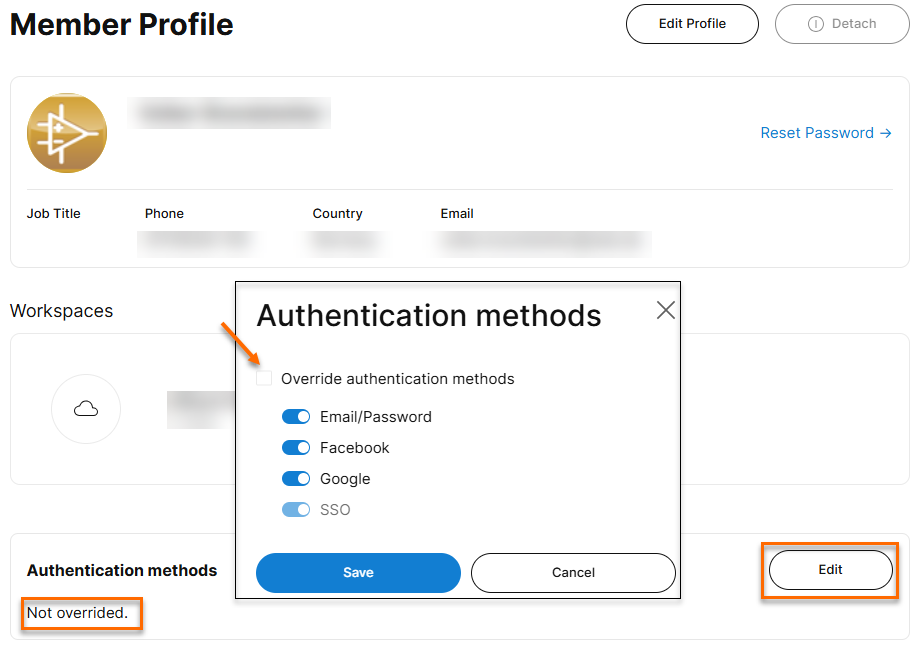
The user’s authentication settings will now reflect the company-level configuration. You may disable any method at the company level to prevent it from applying to other users.
Additional Notes
- Refreshing the page after removing the override may temporarily show all methods as enabled. This is a visual artifact and does not affect actual settings.
- Changes made at the company level will apply to all users unless overridden individually.