
KB: Resolving External Files Found For This Project Warning During Altium 365 Migration
 Altium Designer
Solution Details
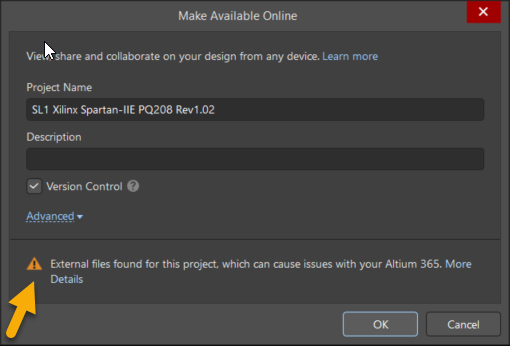
During the project migration, I see a warning like “External files found for this project which can cause issues with your Altium 365 workspace.” It's not clear why the warning appears or what issues it may cause.
Root Cause
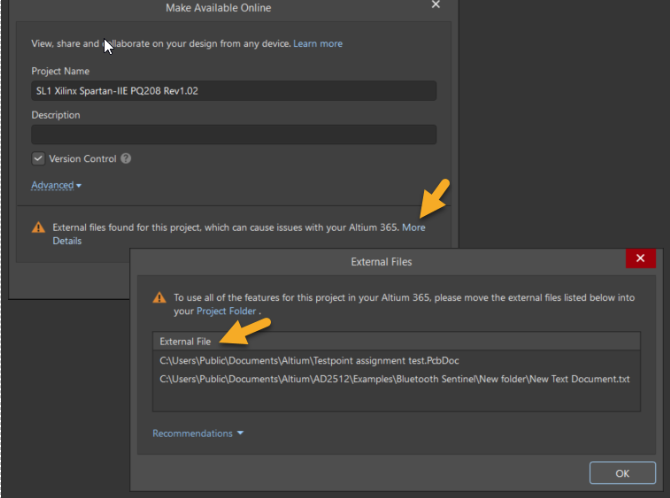
This warning occurs because some project files are located outside the main project folder or repository. Such files are referenced using absolute paths and appear with a shortcut arrow icon in the Projects panel. During migration, Altium 365 detects these files and warns that commits involving external files may not be recognized, resulting in missing history or incomplete project data.
Resolution Overview
Move all external files into the project folder structure and re-add them so they use relative referencing. This ensures proper linking, complete version control tracking, and a smooth migration to Altium 365.
Step-by-Step Resolution
1. Identify External Files
-
- Open the project in Altium Designer.
- Look for files with a small arrow icon in the Projects panel.

- If migrating, click More Details in the warning popup to see a list of external files and their file paths.
2. Move External Files Into the Project Directory
-
- Open File Explorer/Finder and locate each external file using the displayed path.
- Move each file into the project’s main folder or a suitable subfolder (e.g., Schematics, Source).
- Verify that the file is now within the project directory structure.
3. Re-link Files in Altium Designer
-
- Remove the outdated external reference in Altium Designer if needed.
- Right-click the project » Add Existing to Project » select the file from the new on-disk location.
- Save and commit the project.
4. Verify and Retry Migration
-
- Attempt the migration again.
- Confirm that the external files warning no longer appears.
- After migration, confirm all documents are visible and version-controlled normally.
Additional Notes & Best Practices
- Commits involving external files may not be shown in Altium 365, because the migration process only recognizes changes inside the project folder.
- Keeping all files within the project directory ensures long-term consistency, especially in collaborative environments.
- Before migration, review the project for absolute references, especially in older or legacy projects.
- Avoid storing linked design files on Desktop, Downloads, network drives, or other external locations.
- Maintain a clean and organized folder structure for all design documents prior to version control operations.