
KB: How to Disable HTTP Access for Altium Enterprise Server
 Altium On-Prem Enterprise Server
Solution Details
Customers report that some AES users can access the server only via HTTP while others connect over HTTPS, resulting in inconsistent and sometimes unsecured access behavior.
Why External HTTP Access Causes the Issue
AES exposes services over both HTTP and HTTPS. When external HTTP (port 9780) remains open through IIS bindings or firewall permissions, client machines may route traffic over HTTP instead of HTTPS. AES requires the localhost:9780 HTTP binding for internal communication, so this binding must remain. Inconsistent client behavior may result from browser routing preferences, cached configurations, or network rules when external HTTP remains available.
Recommended Actions
- Disable all external HTTP bindings except localhost:9780.
- Block external access to port 9780 in the server firewall.
- Optionally configure IIS URL Rewrite to redirect incoming HTTP requests to HTTPS.
- Restart AES-related services after applying configuration changes.
How to Perform the Required Changes
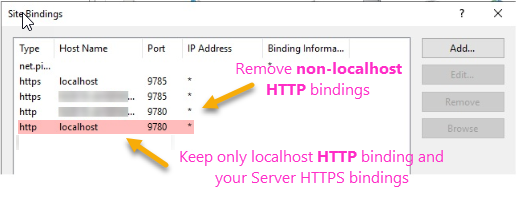
1. Disable Non‑Localhost HTTP IIS Bindings
- Open IIS Manager on the AES host server.
- Select the AES site and open Bindings.
- Remove all HTTP (port 9780) bindings except localhost:9780.
- Keep the localhost binding intact, as AES internal operations depend on it.
2. Disable HTTP (9780) Access for Client Machines
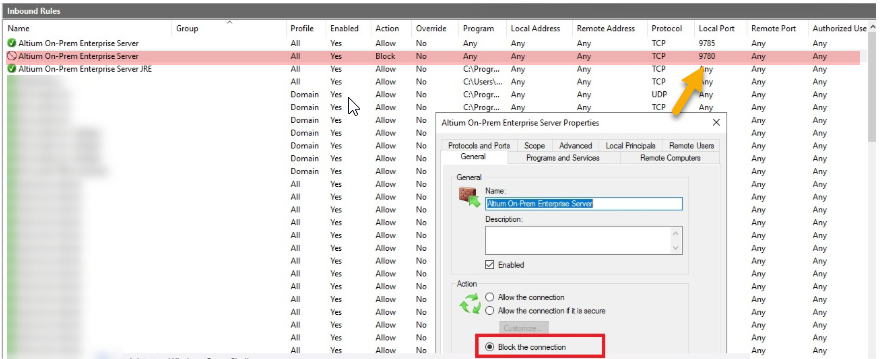
- Open Windows Defender Firewall on the AES server.
- Ensure the firewall service is running.
- Go to Inbound Rules.
- Locate the rule named Altium On‑Prem Enterprise Server (Local Port 9780).
- Edit the rule to block external client connections.
3. Redirect HTTP to HTTPS Using IIS URL Rewrite (Optional)
- Open IIS Manager.
- Select the AES site and open URL Rewrite.
- Configure a rule to redirect HTTP traffic to HTTPS.
- Apply the rule.
Refer this article for detailed steps : IIS URL Rewrite configuration
4. Verify HTTP (Port 9780) Access from a Client Machine
Use the following simplified commands to check whether port 9780 is still accessible from a client PC after applying the configuration changes:
powershell -command "Test-NetConnection <ServerNameOrIP> -Port 9780"You may also use:
Test-NetConnection <ServerNameOrIP> -Port 9780(PowerShell)telnet <ServerNameOrIP> 9780(if Telnet is installed)curl http://<ServerNameOrIP>:9780(Command Prompt)
Expected Result: If HTTP is successfully blocked, all connection tests should fail from the client machine.
Post‑Configuration Requirement
- Restart Altium DXP App Server Pinger (windows services)
- Restart Altium Elastic Search (windows services)
- Perform an IIS reset
Additional Notes
- Ensure a valid SSL certificate is installed for the HTTPS binding.
- Restarting AES components typically resolves access issues after modifying IIS or firewall settings.
- Localhost HTTP traffic is required for AES internal communication; disabling it may prevent the system from functioning correctly.
- If complete removal of localhost HTTP is required, feel free to submit an enhancement request directly through BugCrunch: New Ideas.