
KB: Resetting 2-Step Verification (2FA) Lockout When Authenticator Setup Is Incomplete
 A365
A365
Solution Details
Verification prompt blocks account sign-in completion
The user cannot complete sign-in and is stopped at a 6-digit verification code prompt after entering their email address and password. This occurs when accessing https://www.altium.com and being redirected to https://auth.altium.com/2fa, where a verification code is required but no QR code or setup option is displayed. This issue applies only to authenticator app-based 2-Step Verification and does not include Email OTP scenarios.
Incomplete or inaccessible authenticator setup state
2-Step Verification (Two-Factor Authentication) is enabled on the account, but the authenticator app configuration was either not completed or the user no longer has access to the original authenticator app. Despite the incomplete setup, the system continues to enforce 2-Step Verification, requiring a code that cannot be generated.
Administrator action required to restore access
- A Group Administrator must reset the affected user’s 2-Step Verification using the appropriate Company Account in the Company Dashboard. Ensure the correct account is selected if multiple accounts are managed.
- If no Group Administrator is available, escalate the issue to Altium Support. This applies when no active admin exists within the customer organization or access to admin accounts is unavailable.
- Resetting removes the existing 2-Step Verification (authenticator app) configuration for the user.
After the reset is completed, the user can sign in using their email and password and will immediately be prompted to configure 2-Step Verification again, including scanning a new QR code. This procedure applies only to authenticator app–based 2-Step Verification and does not affect SSO or other authentication methods configured at the company level. Users should follow the official documentation to correctly complete setup.
Steps to reset 2-Step Verification via dashboard
- Sign in to Altium at https://www.altium.com using a Group Administrator account.
- Open the Company Dashboard from the top-right user menu.
- Navigate to https://account.altium.com/users-and-groups.
- Locate and select the affected user.
- Open the Member Profile.
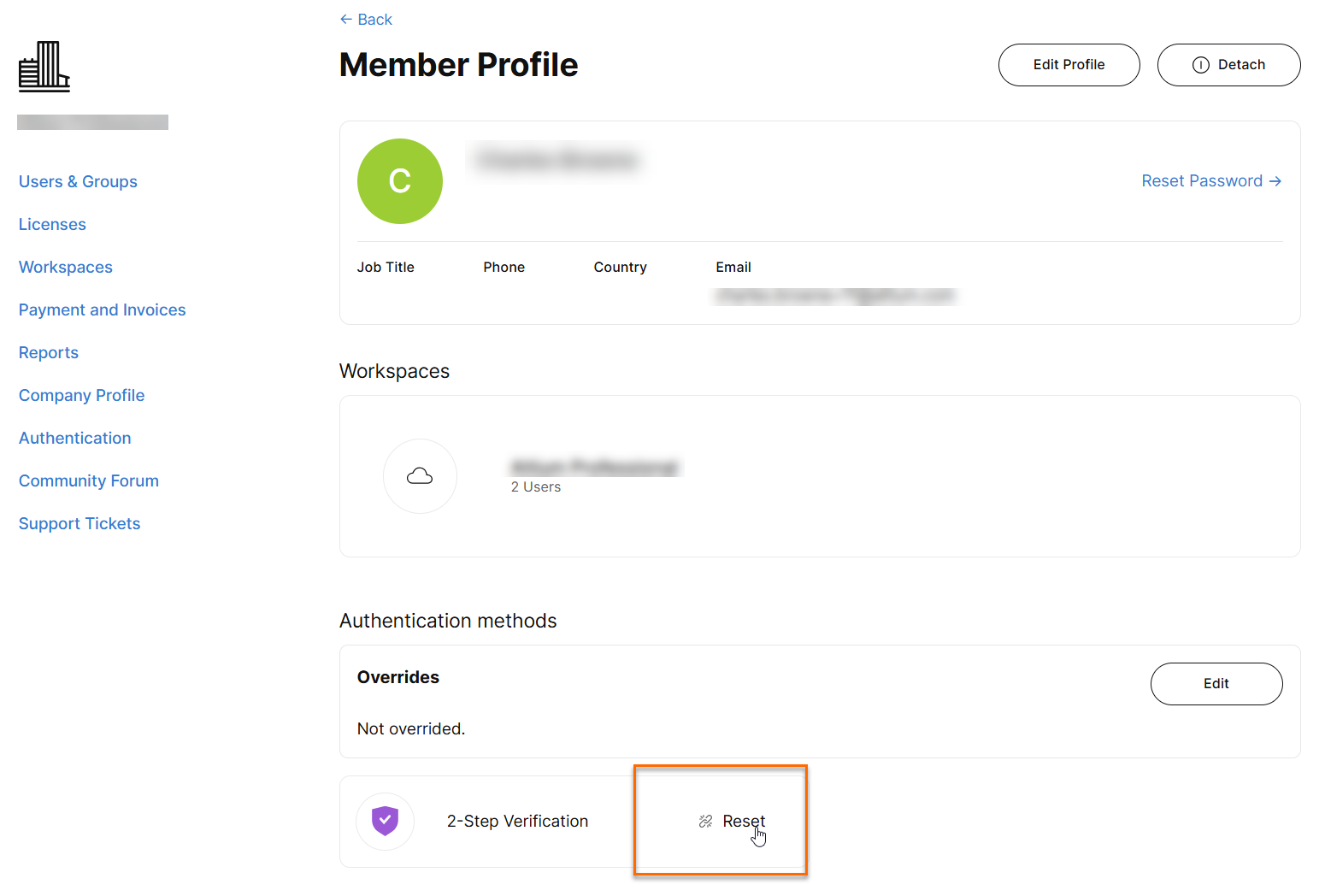
- Scroll to the Authentication Methods section.
- Click Reset next to 2-Step Verification.
Additional Notes
The affected user cannot reset their own 2-Step Verification settings. This action must be performed by another Group Administrator. After the reset, the existing 2-Step Verification configuration is removed, and the user will be prompted to complete setup again upon next sign-in.